


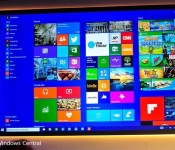
Raspberry Pi 2 supports Windows 10 because customers demanded it

Eben Upton, the CEO of the Raspberry Pi Foundation, said today that the decision to add support for Windows 10 in their newly revealed $35 Raspberry Pi 2 was due in part to customer demand. He stated, “We’ve had people queuing up and saying they want Windows. I think there’s a sense that ‘you’re a real PC’ if you run Windows.”

At the Core: Anybody who can’t make money off iPads or TUAW should get out of the money-making business

Like many in our industry, I’m deeply saddened to see yet another fantastic Mac blog crumple as a result of big business decisions, putting several wonderful Mac writers out of work. This also, unfortunately, seems to have resurrected the always-fun topic: “There’s no market for niche blogs anymore!”
Now, I may be biased, writing for a niche blog and all, but I don’t think our industry is dying. Quite the opposite: There are more excited Mac and iOS users out there than ever before, all internet-connected and ready to complain, learn, and chat about their problems and successes. But they’re not your average blog reader, and that seems to throw big media businesses for a loop.
They just can’t seem to wrap their heads around this concept — that different products are going to have different markets, and there’s no one-size-fits-all approach to selling them.
Of course, while company after company stumbles, Apple has been applying these rules to its own product lines for years.
The stores sell the product, the bar sells loyalty
If Apple expected every product it released to have the same growth as its top-selling product and treated development and spending accordingly, we’d have missed out on a bunch of great products. And we definitely wouldn’t have Apple Stores or their in-store programs.
When the Apple Stores first launched in 2001, they weren’t created with the intention that they’d be the $4.5 billion profit juggernaut they are today. Revenue was a measly $19 million back in 2001, and Apple didn’t even report profit for the stores until 2004 ($39 million). The company spent three years running extremely expensive stores in the red — but as a result, they got their devices into the hands of millions of people who wouldn’t otherwise have ever touched an Apple product. 2013 saw 395 million people walk through the doors of an Apple Store. To put that in perspective: Disneyland saw just 16 million visitors in 2013. All the Disney World parks put together only saw 50.5 million visitors.
The stores worked because they served a purpose other than flat money-making: They were advertisements: not just for the products, but the Apple ecosystem, software, and lifestyle. And as a bonus, when they sold users that experience, they just happened to also sell actual product.
Apple’s Genius Bar is probably the better example of the company investing money in services it never expected to be directly profitable. The Genius Bar has been free to visit since its inception in 2001, and it has undoubtedly helped millions of people understand and fix their devices. Free customer support — even if that doesn’t always result in a free repair — is a huge draw, and a large part of Apple’s community-building. You get to buy an Apple product knowing that you have the peace of mind to come in and ask about a problem if you’re confused or if your device breaks. The Genius Bar may not sell anything directly to the consumer, but it gets people to purchase Apple products all the same.
And the iPad sells the experience
What I find especially ironic about this whole matter is that Apple — after the most successful quarter in the history of worldwide business — is currently being hammered over the iPad’s lack of sales. The company just made more money and sold enough of its flagship product to overtake Samsung, but let’s ignore that for a moment and call it a “problem child”.
“Nobody knows what an iPad is good for anymore,” says Wired. I’ve got an alternate theory: maybe the iPad is still rolling. Who cares if it’s not as profitable as the iPhone? There are very few things on earth as profitable as the iPhone — it’d be a hell of a hat trick if Apple made two of them. And the company has repeatedly said that it’s happy with iPad sales, and that the devices still boast tremendous growth opportunities when it comes to first-time buyers. Here’s Apple CEO Tim Cook’s own words on the matter, from Apple’s most recent financial call:
When I look at the customer sat[isfaction] on iPad, it’s literally off the charts — in some cases 100 percent, which is unheard of in surveys to get these kinds of customer sat ratings.
When I look at the usage, the usage is six times our nearest competitor. The usage as defined, as measured in Web browsing is like 71 percent of total tablets, as I think Luca covered earlier. Also the commerce taking place across the iPad is enormous. Essentially, over 80 percent of the commerce on tablets are taking place on iPad.
And so when I back up and look at all of these, and I believe that over the long arc of time, that the iPad is a great business. I also have visibility obviously to what’s in the pipeline and feel very, very good about that. That said, I’m not projecting — to be clear with everyone — I’m not projecting something very different next quarter or the next. I’m thinking over the long run.
The iPad may never look like the iPhone, but that doesn’t mean it’s a failure. Heck, the Mac’s never going to look like the iPhone, but you don’t see Apple abandoning their desktop and laptop base and consolidating that R&D into iOS. Just because the product serves a smaller market doesn’t mean it’s any less important or vital to the company’s business.
What does the blog sell?
And thus, we wrap back around to AOL and TUAW. Unlike Apple, AOL isn’t exactly a money-making titan: In Q3 of 2014, the company walked away with just $28.5 million dollars in net profit, and it’s been rumored that TUAW is being shuttered along with a host of other enthusiast blogs to consolidate and conserve costs. I can’t claim to know AOL’s inner workings, but I certainly wouldn’t be surprised if these cuts were the result of overspending elsewhere — root issues which wilted and finally destroyed its saplings — and hacking a small site’s budget in half after 40 percent year-over-year page growth sadly seems to hint at such things.
I don’t doubt that AOL could have found a way to make its smaller blogs help its other properties, but not by trying to treat thousands of different readers identically. Shoving TUAW and Joystiq’s beats into Engadget isn’t going to instantly make those readers Engadget followers, because they didn’t go to those blogs to simply check the news — they went for the opinions and banter of the community. Those communities are dead; they may rebuild in parts and pieces elsewhere, but they no longer exist.
But just because AOL can’t make money off a niche blog, that doesn’t mean the niche blog is dead: It just needs to evolve. We might be looking at a future where niche blogs stay far away from multi-million dollar corporations, and find different forms of money-making apart from blanket advertising. Ben Thompson wrote a fantastic piece this morning on blogging’s bright future that follows those lines:
No, it’s not scale that is the problem, but rather reach.
I am, of course, acutely aware that there is a tradeoff when it comes to the subscription business model: by making something scarce, and worth paying for, you are by definition limiting your number of readers. Stratechery, though, serves a niche, and niches are best served by making more from customers who really care than from milking pennies from everyone.
And he’s absolutely right: Whether you’re a big business that owns a small property or a single writer operating a piece of Internet space, you can’t expect to woo a smaller audience with blanket big blog tactics. To build a good niche blog, you need to know your audience and work for them, not a void of unnamed blank-faced consumers. Look at something like Tidbits: The average Buzzfeeder may never have heard of the blog and book service, but it’s been successful and profitable for more than 20 years by appealing to the very niche it wants to serve: Mac and iOS enthusiasts.
A loyal audience will follow you, trust your recommendations, and help you build something special. But they can only treat you well if you do the same in turn. Autoplay videos that grab meaningless eyeballs in an attempt to gain video marketshare isn’t respecting your blog or your audience. And shuttering a fantastic blog and trying to shove it into a bigger property will likely lose your company that loyal following, not transfer it.
It all comes down to knowing your audience, and working with them accordingly. Apple knows its audience. I don’t think AOL does, anymore. And that’s a pity for them — but it’s not the end of niche blogging as we know it.

Case-Mate Naked Tough Case for the Samsung Galaxy Note 4

Case-Mate brings us a sturdy yet unobtrusive case for the Note 4
As a general rule, the more protection a case offers, the bulkier it tends to become, and the more it tends to obscure the original design of your phone. Case-Mate’s latest Naked Tough Case for the Samsung Galaxy Note 4 strikes a decent balance between the two, however, with a clear shell that promises to protect your device without making it unnecessarily cumbersome.

Nexus 9 Tips and Tricks!
Google changed its ideology a bit with the Nexus line last year, with both the latest Nexus smartphone and tablet featuring price tags that weren’t nearly as competitive as previous generations. With the premium price point came a premium device though. The HTC-manufactured Nexus 9 brought with it HTC’s prowess in the design and build quality department, their signature front-facing BoomSound speakers, a beautiful display, and even a decent camera experience, for those looking for one with a tablet.
While not without its flaws, everything the Nexus 9 offers for its price, along with the allure of a stock Android software experience and the promise of timely updates, makes the latest Google tablet a great buy. If you have just picked up a Nexus 9, we’re here to help you get the most out of your device. Today, we’ll be taking a quick look at some of our top tips and tricks for the Nexus 9!
Note: A common theme with these tips and tricks is that they may not be specific just to the Nexus 9, with a lot of the new features related to Android 5.0 Lollipop, and will depend on the hardware capabilities of your device.
Tip #1 – Double Tap to Wake

The Nexus 9, and a few other devices, come with a double tap to wake feature, which is pretty self explanatory. All you have to do is double tap on the screen at any time when the display is off to wake the tablet. Depending on how often you need to wake your device, always having to reach for the power button can get very annoying very quickly.
The power button on the Nexus 9 is difficult to get to if you’re not holding up the device, with its placement to the side, and its relatively small size. Not having to do so is very helpful, and this is easily one of the best features of the Nexus 9, or any device that has it.
Tip #2 – “OK Google”

You have the ability to trigger a voice search from the homescreen, just by saying “OK Google.” If you go to the Voice sub menu in the Google Now settings page, you’ll see that the voice search activation from the Google app or any homescreen of the Google Now launcher is on by default, but you also have the option to turn on “Always On,” allowing the device to respond to your command even when the screen is off.
Tip #3 – Guest Mode

Guest Mode is very useful if you want to keep what is on your device private from anyone else using it. Especially with a tablet that is often used by multiple users, you can also set up various user accounts, instead of just Guest Mode.
To activate Guest Mode, pull down the quick settings menu by swiping down twice from the top, tap on the user profile image at the top right corner, where you will have the option the enable guest mode, or add a new user. This is also accessible from the Settings menu, where you can go the Users sub menu, and select different accounts there.
Tip #4 – Screen Pinning

Screen pinning is a feature introduced with Android 5.0 Lollipop, and is useful if you’re giving your tablet to someone who wants to one specific thing. For example, you can lock the tablet to a specific app or game, with the device requiring your unlock pin or pattern to access anything else on it.
To activate screen pinning, first open the application you want, then tap on the Overview key, scroll to the bottom of the window and tap on the pin icon. You won’t be able to pin an application that you aren’t currently using, so you will have to open the app first. To activate the screen pinning feature itself, go to Settings – Security and scroll till you see Screen Pinning, where you can turn it on. To get out of screen pinning, simply press and hold the overview button, and enter your pin, password, or pattern.
Tip #5 – Smart Lock

Smart Lock is another new feature introduced with Android 5.0 Lollipop. Having a pin or pattern set up to unlock your device is a must, but needing to enter this pin or pattern every time can also be a pain. What Smart Lock lets you do is select between Trusted Device, Trusted Places, and Trusted Face, that will let you unlock the tablet without needing to enter the pin.
The first lets you select a companion device that will be connected to your tablet via Bluetooth or NFC, the second lets you set a location, and the third functions as an automatic face unlock, setting any of which means you won’t need to enter a pin or pattern to unlock your phone.
Tip #6 – Hidden Game

Something that Google does with every major Android release is have some kind of fun easter egg present. In the case of Lollipop, what you have to do is go to Settings – About Phone and tap on the Android version section rapidly a few times. When you see a large lollipop image pop up, tap on the circle five times, with it changing colors, and finally, press and hold on the circle to start the game. The game is basically a Flappy Birds clone, with the Android robot now bouncing in between lollipops. It does require a few steps to get to, but the game can prove to be as addictive as Flappy Birds was.
Tip #7 – Extending Battery Life

Battery life is always a concern, and with the Nexus 9, it isn’t exactly the best, especially with regards to the standby time. The tablet does come with a battery saver mode though, that will help you get just a little bit more juice out of the battery. You can go into the battery settings by tapping on the battery icon in the quick settings drop down, tap on the menu button at the top right corner, and open battery saver. You can turn it on from there, and also set it to automatically activate when the battery is down to either 5% or 15%. It does limit functionality though, so it’s not always the best option.
Tip #8 – Editing Notifications

Another feature is the ability to edit the behavior of notifications directly in the notification drop down. If you get a lot of notifications from a particular app and you want to turn that off, simply long press on that notification, tap on the information button on the right to open the settings, and there you can block any more notifications, set it as a priority, or set it as a sensitive notification. With the last option, you can block the notification from showing any information on your lockscreen.
Tip #9 – Priority Mode

You have the ability to completely silence the tablet or set up priority mode, that will only allow for notifications that are set as a priority from coming through. To set these priority notifications, go to Settings – Sound and Notifications – App Notifications, that will open up a list of applications that send notifications, and individually select each one that you want.
Tip #10 – Quick Settings menu

The quick settings menu can be opened by swiping down from the top of the display twice, that will give you a list of toggles to easily turn features on or off by tapping on the icon. In the case of Wi-Fi and Bluetooth though, you can also go into their respective settings pages by tapping on the name below the icon.

In the quick settings drop down is where you will also see a flashlight toggle, which is there courtesy of the fact that the Nexus 9 is one of the few tablets that comes with an LED flash for the camera.
Tip #11 – Using the Google Search bar

If you use the Google Now launcher on any device, which is the default launcher on the Nexus 9, you will have noticed the Google Search bar at the top of every homescreen. What a lot of users may not know is that other than functioning as a quick way to quickly search for something on the web using Google, you can also use it to easily search for any application on the phone. If you have a lot of apps installed, you won’t have to worry about wading through the app drawer to find what you’re looking for anymore. You can also use the search bar for any other information on your device, such as contacts.
See Also:
- Nexus 9 Review
- Nexus 9 vs Samsung Galaxy Tab S 8.4
- Common problems with the Nexus 9 and how to fix them
- Nexus 9 Magic Cover and Keyboard Folio case review
So, there you have it, some useful tips and tricks to help you get the best experience on your Nexus 9! If there is anything you feel we’ve missed out on, don’t forget to drop us a note in the comments section below.
If you’d like to win yourself this device, don’t forget to participate in our ongoing Nexus 9 International Giveaway!

Android 5.0 Lollipop update now rolling out for the Verizon Samsung Galaxy S5

Owners of the Verizon Wireless version of the Samsung Galaxy S5 now have an update to Android 5.0 Lollipop available for their downloading pleasure. Well, technically it’s two updates, the first paving the way for the main Lollipop update. Verizon’s Galaxy S5 is actually the first S5 in the US to get Lollipop, following releases in Europe last month.

Freaking Sign, a math puzzle game for Windows Phone that can drive you nuts

If you hate math puzzles, do not try Freaking Sign. It is a Windows Phone game where you are challenged to solve basic math problems and determine the relationship between the two solutions.
Sounds easy but you only have three seconds to decide if the relationship between the two values are greater than, equal or less than. Don’t let the minimalistic layout or simple equations fool you. As the Windows Phone Store description states, “Freaking Sign can make you freaking mad!”.
Freaking Sign is available for low-memory Windows Phones.
Lenovo Yoga Tablet 2 (8-inch) review
- A unique design that stands out (literally) from the crowd
- High quality front-facing speakers
- Solid graphics performance
- Oddly placed rear cam with less-than-great image quality
- The lack of an application drawer will be a turn-off for some users
. The Tablet 2 8-inch doesn’t offer the best specifications, build quality or software experience on the market, but for the price, this tablet offers a unique design, a great screen, and a decent gaming experience.
(function($)
$(document).ready(function()
$(“#aa_bottom_line .aa_bl_pros_cons”).each(function()
var aa_bl_pc=$(this).find(“.aa_bl_pc”);
var aa_bl_pros=$(this).find(“.aa_bl_pros”).height();
var aa_bl_cons=$(this).find(“.aa_bl_cons”).height();
if(window.innerWidth > 480 && aa_bl_pros != aa_bl_cons)
if(aa_bl_pros > aa_bl_cons)
aa_bl_pc.height(aa_bl_pros);
else
aa_bl_pc.height(aa_bl_cons);
)
);
)(jQuery);
While Lenovo hasn’t been the the most prominent hardware manufacturer in the United States, the company has been making great strides to change that. From joining forces with Ashton Kutcher to to creating a growing line of Android and Windows tablets, Lenovo is showing the rest of the world that they have something to offer. Just in the later half of 2014, we’ve seen the company launch high-end yet affordable tablets like the Yoga 10 HD+, the TAB S8, the Yoga Tablet 2 Plus, as well as 8 and 10-inch variants of the Yoga Tablet 2.
We’ve recently reviewed the Yoga Tablet 2 10.1-inch, and now we’re taking a look at its little brother, the Yoga Tablet 2 8-inch. How does this tablet compare to the company’s other high-end offerings? We find that out, and more, in our comprehensive review of the Yoga Tablet 2 8-inch review.
Design

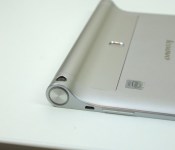
Much like its larger counterpart, the Yoga Tablet 2 8-inch is extremely sleek and smooth. It strays away from the slab-of-glass devices we’re used to seeing in the tablet space, but that’s not necessarily a bad thing. The tablet is smooth and thin around the top, left and right sides, then bulks out at the bottom thanks to the built-in kickstand.
A nice silver trim surrounds the tablet, which fades into relatively large bezels. It may not give the tablet the same futuristic look as the new Dell Venue 8 7000, but the large bezels make this tablet extremely comfortable to hold. The camera is featured on the left side of the device if you’re holding it in landscape, which is sort of an odd placement for the camera module. Covering the bottom bezel are the front-facing large-chamber studio speakers we’ve heard so much about.

Around back, the first thing you’ll notice is the built-in kickstand towards the bottom of the device, which sports four different “Modes”: Stand, Hold, Tilt, and Hang. Moving to the right side, we see the 8MP rear-facing camera module. The right bezel features the volume rocker, MicroUSB port and power button. The top of the device is completely blank, and the left side holds the microphone and 3.5mm headphone jack. All of the buttons feature the brushed-aluminum feel, which helps the buttons stand out from the edges of the device. They’re also very clicky and tactile, which we always like to see.

Overall, the design of the device is sleek, but odd. The design isn’t for everybody, but sometimes it’s good to stand out from the crowd.
Display

The Yoga Tablet 2 features an 8-inch IPS LCD display with 1920 x 1080 resolution and a pixel density of 283ppi. This is a great resolution for this screen size. Images and text pop, and color reproduction and saturation both look great. The Yoga Tablet’s screen does a nice job at providing punchy highlights, extremely dark blacks and an overall great viewing experience.
Much like the 10.1-inch variant, outdoor visibility is good, but not great. To help with this problem, the screen can be switched to a matte color profile, though it tends to alter colors a bit when switched to this mode.
Hardware

Straying away from the very common Snapdragon processors that tend to make their way into most Android tablets, Lenovo partnered with Intel this time around. The Yoga Tablet 2 has a quad-core 1.33GHz Intel Atom Z3745 backed by 2GB of RAM, which actually performs quite nicely. It also has 16GB of internal storage, with MicroSD expansion up to 64GB. Just like in all devices, we would have liked to see the tablet come with a base of 32GB, but the option for external memory expansion definitely helps out in that regard.
Around the front of the device, the two front-facing Dolby Audio speakers pack quite the punch. While they’re no HTC Boomsound speakers, they still offer clear, prominent bass and clear high tones. And much like the 10.1-inch model, we’re really happy with the speaker quality.
The majority of the chassis is made of plastic, though it doesn’t really look like it. Thanks to the plastic materials that make up the device, it tends to bend a little more than we’d like it to. This tablet is pretty thin, measuring only 210 x 149 x 7 mm. It’s definitely not the most structurally-sound tablet we’ve held, but it could be much worse. If Lenovo went with an aluminum chassis or something a little stronger, perhaps the tablet wouldn’t bend as much as it does now. Now, we’re not telling you to go out and bend your tablet on purpose, but just be careful if you decide to pick one up for yourself.
Performance
In our review of the 10.1-inch model, we told you that thanks to the device’s premium specifications, the majority of the lag we experienced on the tablet was largely due to the software. These two tablets have almost the exact same specifications when it comes to processing power, so we assumed that these tablets would perform similarly to one another. However, that’s not the case.
Almost all of the lag we saw in the 10.1-inch is gone. The 8-inch Tablet 2 gave us no trouble when opening applications, flipping between screens, performing multi-tasking functions, and using multi-window applications. It’s not as smooth as the Nexus 7 (2013), but it’s still better than average. The software does bog down the fluidity of the device a bit, but nothing that should change your mind about the device.
As for gaming, this tablet is no slack, either. We’ve tested games like Dead Trigger, Riptide GP2 and Crossy Road, and none of them stuttered at all. The tablet continued to offer high framerates and quick responsiveness throughout all of our gaming experiences. If you’re interested, you can find benchmark scores for the Yoga Tablet 2 below.
#gallery-1
margin: auto;
#gallery-1 .gallery-item
float: left;
margin-top: 10px;
text-align: center;
width: 25%;
#gallery-1 img
border: 2px solid #cfcfcf;
#gallery-1 .gallery-caption
margin-left: 0;
/* see gallery_shortcode() in wp-includes/media.php */


Camera

The Yoga Tablet 2 comes with an 8MP rear-facing camera and a 1.6MP front-facing camera, which are both just OK at best. Before we get into camera talk, we should clarify one thing. Holding the device in portrait is just awkward, thanks to the built-in kickstand. So, holding the device in landscape just makes more sense. However, if we’re using this mindset, the placement of the rear-facing shooter doesn’t make much sense to us. It’s found around back towards the bottom-left side of the device. Opening up the camera app instantly makes us adjust our hand placement, which is quite an annoyance.
As for the rear camera, it isn’t anything special. Much like the majority of tablets out there, images lack color, grain is evident even in decent lighting, and the shutter is pretty slow. The only way we were able to get a decent shot with the rear shooter was to take photos indoors under studio lighting. We know this isn’t ideal for most people out there, so if you pick up this tablet, just know that its good enough to snap a quick photo of a document or anything you need to remember, and that’s about it.
The front-facing camera isn’t anything special, either. It’s good enough to take the occasional selfie, but just make sure you’re indoors to get proper lighting.
Lenovo has always done a great job at providing an abundance of intuitive manual controls with their cameras, and this tablet is no exception. You can control white balance, brightness, contrast, and more. Because of the poor quality of the camera, these controls will need to become your best friend.
The rear camera has the ability to shoot in full HD, but you’ll likely be better off pulling out your smartphone if you need to take a quick video. Expect shaky, low contrast and grainy video, no matter what lighting condition you have. Even though we had trouble capturing a decent video, the microphone actually worked quite well. While playing back videos, the microphone picked up our voices really well.
Software

The Yoga Tablet 2 is running a heavily-skinned version of Android 4.4.2 KitKat out of the box. This is the same software experience you’ll get with the 10.1-inch variant, so the UI is still very colorful and flat. Lenovo’s UI definitely borrows some design elements from iOS. There’s no app drawer on this device, so you’ll need to rely on folders to organize your home screens.
Quick Settings can be found towards the bottom of the device in a menu that Lenovo calls Bottom Switch. Bottom Switch features most of the same toggles we’re used to seeing: WiFi, Auto-Rotate, Airplane Mode, GPS, a brightness slider, Lenovo Smart Switch and a few others. Lenovo packages a good amount of applications on the device. To be honest, most of the apps have a better counterpart that can be found in the Google Play Store.
While most software features included on this tablet aren’t the most convenient to use, we did find one that stood out among the rest. It’s similar to Samsung’s Multi-Window feature, but Lenovo’s offering allows users to run four different applications at the same time. You can resize and remove applications as much as you’d like, which is extremely convenient. However, the multiwindow feature is only compatible with six stock Lenovo applications, so you won’t be able to check Facebook or Twitter while watching YouTube. We hope Lenovo will add other apps to this list in the future, but at this time, functionality is still extremely limited.
In all, Lenovo’s software isn’t bad. While not the most unique, the experience has the potential to be a great Android skin in the future. If Lenovo can get more creative and original with their software overlay, this could potentially be a big competitor to other major OEMs.
Battery

The Yoga Tablet comes with a 6400mAh Lithium-ion battery, which we actually found to be quite good. The tablet lasted around five days with light usage or three days with heavy usage. To see how quickly we could kill the battery, we ran a movie on loop with maximum brightness, and that gave us about 8 hours of use. In terms of other tablets on the market, this is definitely one of the better tablets to buy if you’re looking for something to last days on end.

Gallery


Pricing and final thoughts
You can pick up your own Lenovo Yoga Tablet 2 8-inch directly from Lenovo’s site for $229.99.
With the tablet market being entirely over-congested, building a tablet that stands out among the competition is extremely important. The Tablet 2 8-inch doesn’t offer the best specifications, build quality or software experience on the market, but for the price, this tablet offers a unique design, a great screen, and a gaming experience that can rival some of the best tablets on the market. If you can get past all of the negatives this tablet has, you may want to consider picking one up. Looking for a bigger screen size? The Yoga Tablet 2 10.1-inch can be purchased for only $20 more.

The verykool Spark II does 5MP selfies for $179.89

The San Diego-based smartphone maker verykool wants to ride the “seflie” trend with the newly announced S5015 Spark II. The Android 4.4 KitKat device has a 5MP front-facing camera, which apparently is the minimal amount of megapixels needed to give it a “selfie” smartphone label. The phone has a price of $179.89.

14 best local multiplayer games for Android

Playing video games online is the best way to play multiplayer. You get to play with people all around the world at pretty much any time of day. However, not everyone has a solid web connection all the time and sometimes you want to play with the people sitting next to you instead of people in another country. If that sounds like something you’re looking for, here are the best local multiplayer games for Android.
You may also want to check out the best Android board games, most of which contain local multiplayer modes as well.
 6 Takes
[Price: $1.99]
6 Takes is a unique card game inspired by legendary board game engineer Wolfgang Kramer. The premise is simple. You are dealt cards with bullheads on them and the goal is to get as few bullheads as possible by the time the game ends. It supports local multiplayer for up to four players and is good for children and adult of most ages. It’s $1.99 which isn’t that much but do test it inside of the one hour refund time to make sure you like it!

 Action for 2-4 Players
[Price: Free with in app purchases]
Action for 2-4 Players is a little on the nose for an application name but it still does what the name says it does. It’s actually a series of three games that can all be played by two to four local players. There is tablet soccer where you engage in a soccer game, tank fight which is a overhead shooter, and car race which is exactly what it sounds like. None of them are overly amazing but together they create some options in a very starved offline multiplayer world. It’s also free to download with in app purchases so you can try it before spending money.

 BADLAND
[Price: Free with in app purchases]
BADLAND is an atmospheric platformer that took the world by storm when it was first released. Its muted colors and simple style helped BADLAND become a hit with reviewers. As it turns out, it also has offline multiplayer mode. You can play co-op in the same kind of way you could play Super Mario Bros multiplayer where players take turns on levels. You can also do battle by playing a level and seeing if the other person can get as far or further. It’s been updated several times since release with new levels and you can try it for free before buying the full version.
 Battle Slimes
[Price: Free]
Battle Slimes is a free offline multiplayer game where you play as little slimes as you compete against others. You can play against CPU or with up to four players locally. It plays kind of like a simplistic Super Smash Bros where you just need to wail on your opponents. It features one-touch controls which allow you to jump while your character moves and shoots on their own. It’s free to play with no in app purchases, it’s good for kids, and not terrible.
 Chess Free
[Price: Free]
Sometimes it’s okay to go with the classics and if you’re down for a good old fashioned game of chess, Chess Free is where the app you want to have. The graphics are simple but the game is solid. You can play offline multiplayer along with a range of single player chess games. It’s free with no in app purchases and comes with eight chess board, seven sets of chess pieces, and a bunch of features to make the experience interesting.

 Edge of the World
[Price: Free with in app purchases]
Edge of the World is a game that mimics curling. The goal is to launch your ship and get it as close to the edge of the world as you possibly can. Or you can launch your ships at other ships and knock them off to improve your own chances. It features pass-and-play offline multiplayer and you can play as one of five captains, each with their own set of abilities. It’s good for passing the game with a friend and it’s good for kids and adults.
 Gentlemen!
[Price: $4.67]
Gentlemen! is a head-to-head arcade battle game where you and another person must compete to give the other one a thrashing. You play as one of two characters, each with their own abilities, as you rush around the screen trying to defeat the other person. It allows for play of two people on a single screen simultaneously and this is really recommended for people with tablets although it is playable on larger phones as well. It’s fast and ferocious.
 Glow Hockey 2
[Price: Free]
Glow Hockey 2 is a virtual air hockey table that features colorful neon graphics. If you’ve ever played a game of air hockey in your lifetime then you know how Glow Hockey 2 works. You control a neon circle and use it to knock the white ball into the other person’s goal before they can block it. It features simultaneous multiplayer so this is best played on tablets or, at least, large phones. It’s simple but captures the fun of a good old air hockey competition.
 Minecraft Pocket Edition
[Price: $6.99]
Minecraft is an intensely popular game and it’s one that you can play at home with your friends. Now it is technically local multiplayer but it isn’t offline multiplayer. Your friends will have to connect to your local WiFi router (no web required, just the router connection) so they can all come into your game. Then you can build things, mine things, play around, and otherwise enjoy yourselves. It’s a bit of a stretch but it is Minecraft and it’s definitely worth the trouble.
 NBA Jam
[Price: $4.99]
There are many of us who spent countless afternoons sitting in front of the TV with friends playing NBA Jam in the 1990’s and now we can do it again. NBA Jam was among the first games to officially support Android TV and you can play local multiplayer over local WiFi (like Minecraft) or over Bluetooth if you don’t have a router available. It’s a fun game that plays fast and loose with the NBA rules and best of all, no in app purchases!

 Pool Break Pro
[Price: $0.99]
Playing digital billiards has always been a delightful experience and it can be done again on Android with Pool Break Pro. This game offers many classic billiards variants as well as other stick-and-ball games like Carrom, Crokinole, and Snooker. Overall, there are about two dozen different games to play. It supports pass-and-play multiplayer so you take a turn then someone else takes the device and plays their turn. There is also online multiplayer so you can challenge them again later when they’re not around. It’s a solid game with a very cheap price tag.

 Sea Battle
[Price: Free]
Sea Battle is a variant of the classic board game Battleship. As you can imagine, that means it’s very simple to learn and great for kids and adults. The graphics are hand-drawn which is a nice touch and there are some variants and new tools to make the game more interesting and different from the original Battleship. You can use a pass-and-play style of multiplayer if you only have one device or connect via Bluetooth and play that way. It’s also free.
 Spaceteam
[Price: Free with in app purchases]
Spaceteam is a party game that is similar to Simon Says. When it’s your turn, you must say something ridiculous and science-y to describe the action people need to take. There are dials and switches on the device and it may have you using things like the gyroscope as well. Every person playing has to have their own Android and Apple devices and be connected to the same WiFi network (no web is required, but the router access is). You lose the game when your ship inevitably blows up.
 Worms 2: Armageddon
[Price: $1.00]
Worms is a classic game where you do battle against a foe to kill all of their worms before they have a chance to kill yours. There are a bunch of ridiculous weapons, strategies, and more that take place in colorful levels. It’s a fun game with a cheap price tag and, of course, it’s local multiplayer using the pass-and-play method. On top of multiplayer, there is a whole bunch more to do so your $1.00 won’t be going to waste with this one.
Wrap up
If we missed any great local multiplayer games for Android, let us know in the comments!
To see our complete list of Android apps and games lists, click here!

“Taken” star Liam Neeson features in latest Clash of Clans ad
The Superbowl experience is about more than just the game itself, the ads playing during that timeframe have become just as big of deal for many out there. This year there were quite a few good ones, including a Clash of Clans advert starring Liam Neeson — the star best known for the Taken series (as well as Star Wars Episode I and many others). If you didn’t catch the ad, you can see it for yourself above.
The ad shows Neeson being defeated by “BigBuffetBoy85”, and from there Neeson breaks into a rage that seems straight out of the Taken series, promising swift revenge against BuffetBoy. The whole scene takes place in a coffee shop with a barista that apparently can’t pronounce Liam’s name right. Not a bad ad at all, though a very pricey one for developer SuperCell, considering 30 seconds of airtime during the championship game runs about $4.5 million, and the ad was a minute long.
Anyhow, enough words — go watch it. If you haven’t tried Clash of Clans for whatever reason, you can grab it through Google Play.


