


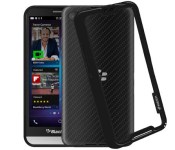
This protective BlackBerry Z30 bumper case is only $4.95 today—that’s 50% off!

Made from a glossy and matte double molded polycarbonate, this durable frame conforms perfectly around the BlackBerry Z30 to provide casual protection against minor drops. The bumper even slightly elevates the phone from flat surfaces, keeping it safe from unwanted scratches and scuffs.

From the Editor’s Desk: Taking a break from the doldrums of winter

Once a week, myself or Richard Devine try to do an editor’s desk post. It’s an opportunity for us to talk about larger things than just today’s news or reviews, including community business, or things that irk us.
Today’s post will be rather short one as I am out of the country missing the warm weather.

Grab this rugged skin for your iPhone 6 Plus today for only $13.95

This iPhone 6 Plus case is tough. Not just in a protection standpoint, either. We’re talking looks, too. It has reinforced corners with a custom shock dissipation system that absorbs those nasty impacts. It also has an embedded anti-microbial agent that prevents the growth of odor and stain-causing bacteria.

How to use the Finger Scanner on the Galaxy Note 4

Increase security and also speed up the login process in a few key apps
Though the Finger Scanner wasn’t as big of a deal at the launch of the Galaxy Note 4 as it was when it debuted on the Galaxy S5, Samsung kept it around hiding within the home button ready to boost your phone’s security. The swipe-style scanner may not be as convenient as what’s available on some phones, but the way its integrated into the phone to work for your lockscreen, Samsung Account, PayPal and other apps makes it valuable to set up.
The setup process takes some time, as does getting the right feel for how to swipe on it for the best results, but in the end it’s a net positive. Read along and let us show you how to get the Finger Scanner up and running.

How to export all your iCloud contacts with iCloud.com

iCloud can keep all your contacts in sync across all your devices and on the web. Not only that, iCloud gives you the option to export your contacts right from iCloud.com. That’s convenient for anyone who is adding new email services, switching services, or simply wants a local backup for extra peace-of-mind.
Once downloaded, you’ll be able to import or upload the standard .vcf file type to any app or service that supports it.
How to save all your iCloud contacts to your computer from iCloud.com
- Go to http://www.icloud.com in any web browser and log in to your iCloud account.
- Click on Contacts.
- Click on any contact in the All Contacts section and hit Command + A to select all (Control + A on Windows).
- Click on the gear icon in the lower left hand corner.
- Click on Export vCard…
- On your Mac, you should be asked to import your contacts right into the Contacts app. On a Windows computer, you should have the option to save the archive wherever you’d like.


If you want to backup your data from the Mac’s Contacts app instead of iCloud, you can do that too:

With $179 billion in the bank, Apple wants to borrow $5 billion for stock repurchases and dividends

Thanks to the ever-complicated nature of the US tax code, Apple — the most profitable company in history this past quarter — is planning to issue $5 billion in bonds to pay for their ongoing stock repurchasing program and dividends. Yes, Apple, the company that made an eye-watering $18.04 billion in profit last quarter, is looking to borrow money.
Here’s exactly what Apple told the SEC they’ll do with the money:
We intend to use the net proceeds from sales of the notes, which we estimate will be approximately $__billion, after deducting underwriting discounts and our offering expenses, for general corporate purposes, including repurchases of our common stock and payment of dividends under our program to return capital to shareholders, funding for working capital, capital expenditures and acquisitions and repayment of debt. We may temporarily invest funds that are not immediately needed for these purposes in short-term investments, including marketable securities.
(yep, blank billion dollars)
The bonds would mature in 5-to-30 years. A 10-year bond would be expected to have a yield about 0.95 percentage points higher than one issued by the United States Treasury today.
But why would Apple, with $179 billion in cash on hand, want to borrow a measly $5 billion? It all boils down to taxes — much of Apple’s cash is stored with overseas subsidiaries in places like Ireland (Apple is in no way unique among international corporations in this regard), and bringing it back to the United States to spend on things like stock repurchases and dividends would see that cash hit with a a 35% tax. Which, understandably, Apple would like to avoid.
Many in industry and government have pushed for an overseas tax holiday as a way to bring that money back to the US at a reduced tax rate, but such ideas have generally floundered at becoming actual law. Most recently, President Barack Obama proposed levying a one-time tax on these overseas holdings anyway, an idea that’s drawn substantial criticism from both sides of the aisle and questions about how exactly the US government would tax earnings that are technically outside its jurisdiction. In the meantime, Apple’s borrowing money here because it costs them less in interest than trying to use the money they have over there.
Source: Apple; Via: Wall Street Journal

Microsoft’s new Picturesque lock screen brings Bing homepage photos to Android

Microsoft has released yet another Android-exclusive app, Pictureseque, as part of its Microsoft Garage program that it first launched in October. The app, now available on the Google Play Store, is a lock screen that offers users access to the many terrific images that the company has posted on its Bing.com homepage.

Select Canada Inc. apps up to 60% off for a limited time – 50 free copies of each up for grabs!

Between now and February 6th, Canada Inc. have placed many of their apps on sale up to 60% off. In addition, there are also running a promotion code to celebrate and as such are giving away 50 free copies of each app to any user. Now there is one caveat regarding the promo code that is shown below.

How to add tags to your dock in OS X Yosemite

Tags are a powerful yet often underutilized features of OS X Yosemite. With them, you can easily group even disparate files to keep them organized and make them easier to find later. There’s even a great way to make your tags easily accessible — put them in the Dock.
Tags are metadata you apply to your existing files to make it easier to find them later. You can create whatever tags you need, and use them where it makes sense. Working on a work file? Tag it with the “work” tag. Working on a specific project? Add the name of the project. Have to keep track of letters you write to the school about your kids? Embed their names in the tags — it’ll all make it easier to find later.
You can add tags when you save a file by adding them right underneath the name of the file. But if you forget, or if you don’t think of it just then, you can add tags in the Finder too, by selecting the files or files you’d like to tag and control-clicking on them. The contextual menu that appears enables you to add tags to single files or multiple files you’ve selected.
Assuming you already have a lot of tags already embedded in your files, you can find them easily enough by clicking the tag name in any Finder window sidebar. Files matching that tag will appear.
That’s fine, but it’s still an extra step if you need to find files: You have to go to the Finder, open up a new window, then search for the tag you’re looking for. You can find the tags in the Finder sidebar beneath your list of favorites.

To more quickly find tagged files, you can simply drag that tag from the Finder sidebar to the Dock, wherever you’d like to place it. The Dock will then create a stack containing all of the files that contain that tag.

To get a quick window showing you all the tagged files, just click on the tag in the Dock then click the topmost icon — the one that has a file count with the words “More in Finder.”

That’s all there is to it. You can drag as many tags as you want into the Dock. Let me know if you have any questions.

Poll: Are you planning to buy a Raspberry Pi 2?

The weekly news cycle kicked off with a bang with the huge announcement that the newest incarnation of the Raspberry Pi will be capable of running Windows 10. The Raspberry Pi 2 ups the ante on the hardware front from its predecessor with a quad-core CPU, 1GB of RAM and an upgrade to ARM v7 which allows it to run an OS such as Windows.
It’s not going to be the full fat Windows 10 we’ll be running on an Ultrabook or something like the Surface Pro 3, instead a customized version delivered as part of Microsoft’s IoT developer program. But at just $35 for the basic hardware and a free copy of Windows 10 there’s bound to be a lot of interest. So, are you planning to get one?

