


Universal Pictures to Release Steve Jobs Movie on October 9 [Mac Blog]
Universal Pictures will release the long-anticipated Steve Jobs movie on October 9, according to CNBC. The upcoming biopic, based on Walter Isaacson’s official biography of the late Apple co-founder, is directed by Danny Boyle and stars Michael Fassbender as Steve Jobs and Seth Rogen as Steve Wozniak. Universal took over the film in November.

The filming of the movie began last month in the garage of Steve Jobs’ childhood home, and will reportedly also take place at two auditoriums and a restaurant in the area. The movie will be focused upon three main scenes, including the unveiling of the NeXT computer, the debut of the original iMac, and the introduction of the iPod.
JUST IN: Universal Pictures says the Steve Jobs movie will be released on Friday, October 9, 2015. • $CMCSA
— CNBC Now (@CNBCnow) February 4, 2015


You can see Michael Fassbender as Steve Jobs in theaters on Oct. 9

Universal Pictures will release the long-awaited biopic on Apple co-founder Steve Jobs in theaters on October 9. Filming for the movie, which stars Michael Fassbender as Jobs, began earlier this year.
The movie will apparently have the very simple title of Steve Jobs. It’s based on Walter Isaacson’s acclaimed 2011 biography,with a script written by Aaron Sorkin. The film is being directed by Danny Boyle. Seth Rogen will play Apple co-founder Steve Wozniak, Kate Winslet will portray former Macintosh marketing chief Joanna Hoffman and Jeff Daniels will play former Apple CEO John Sculley.
The fall time frame is usually when major studios launch films that they think will be nominated for Academy Awards, so it’s look like Universal thinks Steve Jobs has a shot at some Oscars. It will have to compete with a number of other films that are already scheduled for release that same day, including the upcoming reboot of the Vacation comedy series.
Source: Deadline

New Xiaomi flagship with an edge-to-edge display spotted in a leak

Xiaomi only recently unveiled the Mi Note and the Mi Note Pro smartphones at a dedicated event in China. New leaks are now suggesting that the company might have another flagship in the making, probably acting as a successor to the Mi4 handset which was unveiled in September 2014.
We can see the front portion of the handset in its entirety here, in what seems to be an edge-to-edge display with barely any side bezels. It also has a set of capacitive action keys on the bottom bezel, which we’ve seen on almost every Xiaomi handset so far.

The leak doesn’t shed light on other hardware aspects of the smartphone, so it seems like we’ll have to wait a bit to find out. Given that the MWC event is scheduled for next month, we can expect the company to unveil this handset then. What do you think?

Source: The Android Soul
Via: Phone Arena
Come comment on this article: New Xiaomi flagship with an edge-to-edge display spotted in a leak

Apple’s Beats-based music streaming service will reportedly launch on Android

Less than a year after Apple bought Beats, the company has supposedly began revamping the popular Beats Music streaming service. That’s no huge surprise, given the existing Beats Music app was developed independently before the big acquisition. But in a new report from 9to5Mac from earlier today, Apple has plans to bring the newly-designed music service to Android.
The Apple-designed music service is set to compete with other popular music streaming services like Spotify and Rdio, and will be based heavily on cloud streaming. At least on Apple products, the new service will allow you to search for anything within the iTunes/Beats catalog, and users will be able to stream music from their personal catalogs and add songs to their personal libraries. Apple has been rumored to launch the service for less than most other streaming competitors, which will likely be $5 per month.
The Beats Music app has been available in the Google Play Store for quite some time now, but that application was developed before the big acquisition. Diverging from former CEO Steve Jobs’ stance, Tim Cook doesn’t have a problem with developing for Android, as long as it makes sense for the company to do so. Given Android’s worldwide marketshare compared to Apple’s, if the company wants to create a truly competitive music service, Android support should be a no-brainer.
There’s no clear timeframe as to when the service will launch on either iOS or Android. Rumors surfaced that the service was slated for a March 2015 release, though 9to5Mac‘s connections seem to think that the service will be unveiled at the Worldwide Developers Conference this June.
As for now, we need to remember that these are just rumors. We’ll let you know if we hear anything in the future regarding the music streaming service. From what we know so far, what do you think? Would you be on board with an Apple-designed Beats music service? Let us know your thoughts in the comments.

Five tips for beating bad lighting in your iPhone photos

The sun may give us light and life and all good things, but it’s around precious few hours when you want to spend time taking good photographs. Indoor and artificial lighting can aid you from shooting in the dark, but, well… not all indoor lighting is created equally. Traditional tungsten bulbs can cause horrible yellow tints; fluorescents can make your photo too blue; and LEDs can make everything look washed out and pale. If you’ve ever found yourself in a tricky lighting spot as a photographer and want a few aces up your sleeve for dealing with it, read on.
1. Adjust your angle (or your subject)
Whether outdoors or indoors, the image your camera sees isn’t necessarily always the image you want to end up with. Your subject could be standing in front of the sun or a lamp, backlit; you could be accidentally including the light source in the frame and getting terrible lens flares; or you could have just tapped-to-expose on the wrong aspect of your image.

Whatever the case, you can solve a lot of these lighting conundrums by movement. You can ask your subject to move, so that they’re no longer backlit, or you can adjust the angle of your image to shoot them from a different side. You can reframe the photo to exclude the light source from the image. Or you can refocus the image on the darker area of the photograph by tapping and holding on the viewfinder while in the default camera app.
2. Use HDR
If you insist on shooting a backlit picture — maybe there’s an exquisite sunset you want to capture — you can use Apple’s HDR feature to try and balance out the exposures between your subject and your background. Just open the Camera app and tap the HDR button, then select On.

HDR not quite giving you the result you want? You can also do this the old-fashioned way by taking multiple images and splicing them together using an image editor. To do this properly, however, I’d suggest using a tripod or other camera stabilization device for your iPhone; otherwise it can be much harder to match the two images.

To do this, take one photo while focused and exposed on the background, then take a second photo while focused and exposed on your subject. In a photo editor, bring both photos into a single document with the subject layer on top of the focus later; erase the background on the subject layer, and you’ll have your photo.
3. Use a manual camera app
Sometimes the default Camera app just isn’t cutting it for low-light pictures — and that’s okay. You can always mess around with the app’s Exposure slider and lock focus, but if those tools aren’t doing what you want them to, it might be time to pick up a third-party manual camera app. Elsewhere on iMore, Ally recommended a whole mess of great apps for this purpose, but I’m partial to Manual; the app lets you set both ISO and shutter speed, which can help boost light levels in your photographs.

In the photos above, the image on the right was taken with Manual using 1/640 shutter speed and ISO 240.
4. Bring your own lighting
If the sun isn’t cooperating and existing artificial lighting just isn’t up to snuff, it’s time to think about packing an external flash or lighting source. You can make do with DIY versions of this — white paper and tinfoil will bounce some light onto your subject’s face, and you can juryrig a flashlight to brighten up your picture — but the best tools are the ones built for your iPhone.

I’ve heard great things about (though haven’t personally used) the Nova Off-Camera Wireless Flash, a $59 Bluetooth-based LED remote Flash that provides ambient off-camera lighting for your images. Photojojo also offers a $15 Pocket Reflector to bounce ambient light and a $30 Pocket Spotlight which connects to your headphone jack and provides constant LED lighting on your subject.
5. Kill it with filters!
There are going to be times when, no matter what you try, you won’t be able to get good lighting for your shot. But it’s not the end of the world: That’s what post-production is for, especially if you’re planning to only use the image for social media sharing rather than for printing and hanging.
To boost colors and lighting, you can use iOS’s built-in editor or a third-party extension. Our ultimate guide to the Photos app offers a lot of great tips on adjusting color, exposure, and light within Apple’s default app; on the third-party side, I’m particularly fond of Afterlight, though there are many photo-editing extensions available for download.

My usual trick involves boosting the image with brightness, exposure, and highlights; lowering contrast and shadows; then applying a filter and re-adjusting contrast accordingly. (I usually drop contrast, apply a filter, then raise contrast again to make the blacks in an image pop.)
Your tips?
Do you have any great suggestions for getting good lighting from bad? Sound off in the comments.

Get an iPhone, iPad and service for both from Sprint starting at just $100 a month

Sprint is launching a new bundle promotion that will allow buyers to get both an iPhone and iPad for one monthly contract price. The starting price for the limited time offer is $100 a month for the 16GB iPhone 6 and the 16GB iPad Mini 3.
CNET reports on the specifics this new promotional offer, which ends on April 9:
Breaking down the monthly cost of the bundle promotion, customers will pay $20 for the iPhone for Life program and $50 for a Simply Unlimited talk, text and data plan for the phone. A separate 2 gigabyte data plan for $30 will be needed for the tablet, though the $17 monthly fee for the iPad Mini 3 is cut out as part of the promotion.
Wireless Week adds that Sprint customers can also bundle the iPhone 6 Plus with the iPad Air 2 with a similar promotional offer, but the monthly fee will be higher. At the moment the deal doesn’t appear to be live but we will update this post when it is available.
Source: CNET, Wireless Week
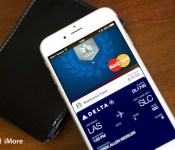
14 more banks jump on the Apple Pay bandwagon

Apple Pay has signed up another 14 banks to support the contactless transactions system build into the iPhone 6 and iPhone 6 Plus. The addition of new banks, which include Ohio-based Fifth Third Bank with more than six million customers and two million at INOVA Federal Credit Union, bring the total number of banks offering Apple Pay support to 54.
Here’s the full list of banks that picked up Apple Pay support today:
- Alliant Credit Union
- Altra Federal Credit Union
- Andrews Federal Credit Union
- BBVA Compass
- BECU (Boeing Employees’ Credit Union)
- Ent Federal Credit Union
- Fifth Third Bank
- First Niagara Bank
- First Tech Federal Credit Union
- Golden 1 Credit Union
- INOVA Federal Credit Union
- Savings Bank of Danbury
- Star One Credit Union
- Uwharrie Bank

Microsoft’s #TileArt app helps you make your background awesome

Microsoft has just launched a new app for Windows Phone called #TileArt, which offers a quick way to customize the tiles on the Start screen, along with creating a custom lock screen. The app was made by Microsoft team member Ricc Webb.
Here’s what you can do with it:

How to use Google Hangouts with the Messages app on your Mac

The Messages app for Mac lets you easily send iMessages and even regular text messages without ever having to pick up your iPhone. Aside from cellular messages, the Messages app can also integrate into other messaging services, including Google Hangouts. Once linked, you can easily send and receive Hangouts messages right on your Mac, no annoying browser plugins necessary!
How to receive Google Hangouts messages with the Messages app for Mac
Note: If you have two-step verification enabled for your Google account, keep in mind you’ll need to generate a password specifically for your Mac if you haven’t already. If you don’t, you’ll receive errors that your login information is not correct.
- Click on the menu in the upper left hand corner of your Mac.
- Select System Preferences.
- Once in System Preferences, click on Internet Accounts.

- Add your Google account if it isn’t already added.
- Once added, turn On the option for Messages.

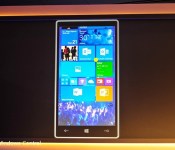
About those ‘rumors’ of a February 4 release of Windows 10 preview for phones

The Windows Central tip box has been pinging constantly regarding the so called ‘rumor’ of the Windows 10 preview for phones launching on February 4. Microsoft’s Gabe Aul puts the situation into words better than any of us here ever could.
“@doctuitt LOL, you might be overdoing it a bit. Just sayin’. We’re working on it, but the rumors of the 4th are just rumors.”
So, there’s that.

