


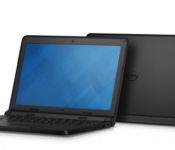
Dell announces new Chromebook 11 aimed at the classroom
 One of the Chromebook’s most successful markets is the classroom, so it makes sense that manufacturers are trying to get a foothold in that sector. The newest device to throw its hat in the ring comes from Dell in the form of a revamped Chromebook 11 designed specifically for use in the classroom.
The original Chromebook 11 was a solid device, but this time around the laptop has been tweaked to cater to students and teachers. The body is completely made out of durable plastic and the trackpad and keyboard are all sealed against spills and damage. The entire laptop has been tested, so it should withstand all kinds of pressures, temperatures, drops, and vibrations, which is absolutely what belongs in a classroom.
The hardware is typical for a Chromebook, including just over a 720p screen, AC WiFi connectivity, and a 10 hour battery life. One standout point with the Chromebook 11 is the 180 degree hinge that attaches the keyboard and screen, so if students want to completely flatten the laptop, they can. There is also a glowing light on the back of the computer that can be lit up to different colors, which is supposedly a tool for teachers to use when a student has something to add to a discussion, wants to ask a question, or something similar. Plus you’ll have Google’s Apps for Education on board with that, too.
The laptop can be outfitted with a few different options, including a matte screen and a touch screen, so if you’re interested in using it for something outside of the classroom, you can. It might not be as appealing as some of the other Chromebook options, but if you need something durable, this might be your best option.
source: Dell


Come comment on this article: Dell announces new Chromebook 11 aimed at the classroom

Apple Increases Maximum App Size from 2GB to 4GB
 Apple today announced that it is increasing the maximum app size from 2GB to 4GB, letting developers release apps that are up to 4GB in size. The extended limits will likely be useful for high-quality game titles that need the extra space to introduce improved graphical effects or longer playtimes.
The size limit of an app package submitted through iTunes Connect has increased from 2 GB to 4 GB, so you can include more media in your submission and provide a more complete, rich user experience upon installation. Please keep in mind that this change does not affect the cellular network delivery size limit of 100 MB.
Apple’s 2GB size limit has been in place since the App Store first launched, so today’s new 4GB limit marks the first-ever size increase. The 2GB size limitation has prevented some games from being available on the App Store, such as Final Fantasy VII. In 2013, Square Enix producer Takashi Tokita said that a version of Final Fantasy VII was “years away” due to the 2GB iOS app size limit.
Over the last several years, as iPhone and iPad displays have improved in quality, developers have needed to increase the size of app assets to create content suitable for Retina screens. The new 4GB limit will give developers more freedom when it comes to content creation and it also paves the way for higher-resolution displays that may require even larger apps.
Though the maximum app size has increased to 4GB, Apple is still enforcing the 100MB over-the-air download limit introduced in 2013.
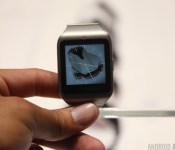
Sony SmartWatch 3 with stainless steel strap to launch worldwide this week

Sony has just announced that the SmartWatch 3 with stainless steel band is set to launch globally sometime this week. We took a first-hand look at the Sony SmartWatch 3 with stainless steel band back at CES 2015, and we really enjoyed the new watch strap. No exact day was announced for the global availability, and no pricing information has been revealed either.
 One problem many users have with the SmartWatch 3 is that users are forced to use proprietary straps with the watch, since the device comes with no latches or pins. The company aims to fix that problem with their new SmartWatch 3 “holder” kit. This will allow users to install any 24mm watch strap they’d like. The holder will also be available with either black or brown leather strap options, and should launch sometime in the coming weeks. Sony says they’ll make both the leather and stainless steel straps available sometime in the early Spring.
To make the deal even sweeter, all new SmartWatch 3 stainless steel and “holder” kits will include free vouchers for six months of access to Todoist Premium. With that said, if you’re a Android Wear-loving Todoist user and could use the upgrade to a Premium account, Sony has you covered.

Not so fast! There’s another deal out there that you may want to check out. If you’re looking to snag a SmartWatch 3 with a silicone band, Verizon is currently offering one for only $199.99 ($50 off). A 20% discount on one of the better Android Wear devices out there is a pretty great deal, so you may want to take advantage of it before the promotion ends. Head to the link below if you’re interested. Oh, and be sure to check out our hands-on with the Sony SmartWatch 3 stainless steel at CES!
Buy the Sony SmartWatch 3 from Verizon for $50 off

Daily Roundup: New buyer’s guide picks, betting with Cortana and more!

What’s happening in the tech world today? Check out our updated Engadget buyer’s guide to find the latest recommendations on laptops and tablets, then read about placing sports bets with Cortana and learn about Dell’s latest portables. All that and more can be found below.
Engadget’s new buyer’s guide picks: the Dell XPS 13, HP Stream 11 and more!

The Engadget buyer’s guide has been updated! What’s the best laptop that you can buy today? Which tablet do we recommend? Head over and check it out.
Cortana made me a better gambler, but I’m never listening to her again

A recent update to Microsoft’s Cortana allowed the virtual assistant to begin predicting outcomes of various sporting events. What would happen if you were to place bets on the outcomes of these sporting events using nothing but its recommendations?
Dell has a new Chromebook and a tablet that runs your choice of OS

Dell announced a bevy of new products geared toward the classroom and they include a new Chromebook, a Windows laptop and a tablet that runs either Android or Win 8.
Facebook lets you choose what happens to your profile after you die

Have you ever wondered what would happen to your Facebook profile after your pass away? According to The Wall Street Journal, a new group of options will let you pick a digital executor to run your page as a memorial, or elect to have your profile deleted once it’s proven that you’ve passed away.
Fitbit says users can avoid rashes by giving their skin a break

A new, err, rash of problems has cropped up with Fitbit’s latest wristbands. An ABC7 News San Francisco report says the publication discovered over 200 cases on social media of people complaining about getting rashes from wearing the company’s bands.
US carriers make it (somewhat) easier to unlock your phone

At long last, our national nightmare is over. Seven US networks (AT&T, Bluegrass Cellular, Cellcom, Sprint, T-Mobile, US Cellular and Verizon) are now honoring a voluntary code of conduct that, among other things, lets you get your phone unlocked after you’ve paid off your device or service contract.
Heads-up: Apple will pull Aperture once Photos arrives

Apple is warning customers that Aperture, its neglected professional photo-editing app, will be pulled from the Mac App Store this spring in order to make way for Photos. If you’ve already purchased it, you should still have the option of restoring your Aperture copy if you lose it.
Filed under: Misc
Motorola extends the $100 off sale for 3 more days
For Valentine’s Day Motorola offered up a discount for would be buyers to save a little green on the things they want and love. The major deal came in the form of a coupon and offered up $140 off your purchase of $499.99 or more and $50 off if you spent $249.99 or more. That […]
The post Motorola extends the $100 off sale for 3 more days appeared first on AndroidSPIN.



OnePlus introduces OxygenOS team, gives a few tidbits on OxygenOS

If you’re a follower of OnePlus news, you know that CyanogenMod is out and OxygenOS will be the new ROM experience on OnePlus devices.
OxygenOS is a ROM created in-house by OnePlus, promising to bring Lollipop goodness to the upstart company’s line of smartphones.
The new crew is comprised of one former Microsoft development engineer and quite a few developers from another popular third-party Android ROM: Paranoid Android! You can check out some background on each of the employees by visiting the source link below, directing you to OnePlus’ blog post on the announcement.
As far as OxygenROM info, the blog post didn’t give any teaser photos or anything else visual, but OnePlus did have the following to say:
As we’ve promised before, OxygenOS will not ship with any bloatware. We’re keeping it clean and streamlined for performance. We value things like battery life and system efficiency, so we’ve remained true to our ROM’s namesake and created a seamless experience that is lightweight and essential.
OnePlus further wanted to express their motives behind developing the OxygenOS:
By doing so, we can offer better localization and faster updates. We can directly implement user feedback and make it easy for the OnePlus community to shape our ROM and create the OS that they want to use. Integration between hardware, software, and the cloud will become more seamless and unified for everyone using a OnePlus device. By creating our own software, we’re better able to work directly with our users to improve our OS. It’s something we’ve become quite fond of saying: when we work together, amazing things happen.
So February 12 has arrived, but should you start expecting an OxygenOS over-the-air update today? Not just yet. OnePlus says the ROM is still in the testing phase and is not ready for a stable release to consumers.
There are various certifications that must be completed before releasing a Lollipop-based ROM, and this takes some time. We’ve decided to move forward with a fully-stable build, which is currently in the testing phase. Because this is our first major software release, we have to ensure that everything is solid and stable before making it available for download. We wouldn’t ask you to settle for anything less, and we appreciate your patience.
Source: OnePlus
Come comment on this article: OnePlus introduces OxygenOS team, gives a few tidbits on OxygenOS

Apple Introduces TestFlight Groups for Organizing Beta Testers [iOS Blog]
 Apple on Thursday announced TestFlight Groups, a new feature that gives developers more control over organizing external beta testers into groups. TestFlight Groups enables developers to distribute specific builds of pre-release apps, deliver separate instructions for focus areas and apply an action to multiple testers at once
Now it’s easier than ever to manage external testers in TestFlight. Organize your testers into groups to quickly send specific builds, provide separate instructions on where to focus, and apply an action to several testers at once in TestFlight.
TestFlight is a beta testing service provided through iTunes Connect, allowing for registered developers to iron out any significant bugs or issues in their apps before making them available on the App Store. Following the integration of TestFlight into iTunes Connect last September, Apple recently confirmed that it will be shutting down the standalone TestFlight website on February 26.
Facebook now let’s you bequeath your account
It finally happened. Facebook now let’s you decide who can manage your account for you when you leave this mortal coil. That’s right….The internet’s self-subscribed big-brothering service announced a new dimension to their social networking platform called “Legacy Contact”. Basically, it is a feature that allows you to name a specific person whom you can bequeath the ability to manage your Facebook account. No longer will you need to worry about “those pictures”, posted of you at a fraternity jungle party in college circa 2003, showing up at your funeral. The big FB has you covered there.
All joking aside, the guys over on Page Mill Road really do have their user’s best interest in mind with this new feature. According to the newsroom at fb.com, once FB knows that a person has passed away the account becomes memorialized and the account’s legacy contact will be able to:
- Write a post to display at the top of the memorialized Timeline (for example, to announce a memorial service or share a special message)
- Respond to new friend requests from family members and friends who were not yet connected on Facebook
- Update the profile picture and cover photo
If you’re not up for the whole let-the-internet-know-I’m-dead approach to social media, FB respects that be allowing users to have their account deleted after they have passed away. This is different than FB’s previous feature that was more of a basic memorialization of a user’s account.
(function() var script = document.createElement(‘script’);script.src = ‘https://stacksocial.com/widget.js?publisher=androidguys&type=editorial_post_widget_preferences’;script.async = true;var entry = document.getElementsByTagName(‘script’)[0];entry.parentNode.insertBefore(script, entry);)();
http://www.androidguys.com/pubgalaxy/728×90.html
The post Facebook now let’s you bequeath your account appeared first on AndroidGuys.
Android customization – remote camera trigger with Android

Last week on our Android customization series, we took a look at using voice commands to fire off the camera on your Android device. We then stepped it up a notch by using your Android Wear smartwatch to fire off that camera, using an app called Tasker Now.
This week, we would like to work with those that do not have an Android Wear powered smartwatch, instead, we’ll use another Android device, or a PC, to remotely fire that camera.
Before we get started
 To follow along today, you will need to have Tasker installed on your device. More than this, you will have to have followed last week’s tutorial on building a Tasker Task to take a photo. Tasker is $2.99 in the Google Play Store.
You will also require Pushbullet today. Pushbullet is free in the Google Play Store and can be used for so much more than just the project we have in mind today. For example, you could subscribe to our Pushbullet channel for this Android customization series, you will be notified of all future posts in this series.
http://www.jonathanfeistdevelopments.com/AndroidCustomizationPushbulletChannel.html
You will require two Android devices for this project to work, or an Android device and another phone, tablet or PC that can run Pushbullet or send SMS. Lastly, our approach today requires a data connection or otherwise connection to the internet or a cellular service to proceed.
A quick side note, we were corrected by reader MarcoS on the abilities of Tasker Now. We said that it only works as a Tasker Plugin, but it also operates as a Google Now extension (hence the name, Tasker Now.) Thanks MarcoS.
Remotely trigger your Android camera with another Android device
First things first, you will need to head back to last week’s Android customization post to create a Tasker Task that fires the camera on your Android device. Just build the “QualityPhoto” Task.
With the Camera Task in place, we will now build a Tasker Profile to fire off said camera action. Before we dive into Tasker again, you will need to make sure that Pushbullet is installed and granted permissions on your device. It’s a good think we recently looked at how to do that as well, check it out and head on back here to continue.
Create a new Tasker Profile, name it something appropriate, I’ll call mine “PushCamReceiver“.

Select Event.
Select Plugin.
Select Pushbullet.
Tap the pencil icon to configure.
In the If I receive field, choose Note.
Enter your preferred text to trigger the action in the containing the text field. I’ll put “take the picture“. Please note, this is case sensitive, you will need to match it later.
Select From myself, unless you want to open this up to friends.
Then, I recommend choosing to dismiss the push.
Tap the Done button in the top right to save and exit the Pushbullet Plugin setup.
Tap the system Back button to save and exit the Profile.
Choose your camera Task, if you recall, I had named mine “QualityPhoto“.

That was a lot of steps, but I hope you are pleasantly surprised that the hard part is over. You may exit Tasker and even turn off this Android device, we are done here, for now.
Now, we need to head to your other Android device, or other phone, tablet or PC on which Pushbullet is up and running. A PC is easy, there are extensions to browsers, but you can just use the web interface if you wish.

In Pushbullet on the other devices, simply send yourself a message. Remember, you want to send a Note with the text you established in the Tasker Profile configuration. Hit that send button, sit back and enjoy the magic.
Create a button to fire off the Pushbullet Note
The above was pretty slick, but a little inconvenient to do each time, especially if you are trying to use your Android device to take a group photo. Perhaps a single click button on your secondary Android device would speed things up?
On a secondary Android device, create a new Tasker Task, name it appropriately, how about “CameraPush“.

Tap the “+” button to add an action.
Choose Plugin.
Choose Pushbullet.
Tap the pencil icon to configure.
Choose the Pushbullet device that is houses your camera, that’s the one that you setup the “PushCamReceiver” Profile above.
Enter a title, whatever you want.
Now, enter the text that you assigned to trigger your camera. Once again, I had used the phrase “take the picture“. It is still case sensitive.
Tap the check mark in the top right to save, then tap the system Back button to save again and exit back to the Task screen.
Head to the bottom right corner and assign an icon to the Task.
Hit that system Back button again and again to save and exit right out of Tasker.
Now, how to trigger this new Tasker Task? Why, a widget, of course.
Create a Tasker Task widget
Find an empty space on your Homescreen and follow your device’s procedure to add a widget. That is likely going to be a long press on the location you want the widget, but you may need to head into your application drawer on your device.

Once you are able to choose your widget, select the Tasker Task 1×1 widget.
Now, choose your Pushbullet Task as set above. I had named mine “CameraPush” (but I changed it to “N9camPush” as you see in the screenshot, I have more than one device I use this with.)
If you ignored me above and skipped placing an icon, you will need to do that now.
Tap the system Back button to save and exit.
Great news, you did it! You now have a button on your Homescreen, and with one tap, your other device will take a photo.
Go ahead and give it a try.
You will find that it even works with the receiving device’s display turned off. No better way to save battery on a long photo shoot.

Did you want that display to turn on for you while it shoots? Head way back to our Android customization posts on using the Secure Settings Plugin to Tasker and the display timeout settings with Tasker. Between the two, you should be able to turn on the display, then force it to turn back off when the picture has been taken.
I don’t like Pushbullet, what else is there?
I want to just briefly touch on a few other approaches, as they are functional, but not very effective, especially if you do not have unlimited SMS on your cell plan.
The idea is straightforward, in place of Pushbullet, create a Tasker Profile that accepts incoming SMS messages, again looking for the keywords to trigger the camera. We basically did this same project as a security cam back in January, check it out for instruction on this one too. The steps are the same, just choose your new “QualityPhoto” Task in place of your old Security Cam Task.

If you are thinking that SMS works, but isn’t the solution for you, you could try approaching this a few different ways. But the truth is, there is really nothing else that is easy to work with. For example, you could use Tasker with the FolderSync Plugin or a compatible to-do list app, creating a Task on one Android device that creates a to-do entry or small text file, waiting for either service to sync across devices to have the receiver device identify the list item or file and trigger the camera. If that sounds complicated and convoluted, that’s because it is.
What if I don’t have a data connection? I was afraid you might ask this, well, I certainly will not touch this today, but you could, theoretically, establish a trusted Bluetooth relationship between your devices. Upon receipt of a file transfer, for example, over Bluetooth, you could then have Tasker fire the camera. Once again, this is not ideal, and would require a folder watch in Tasker, but it would work. Head on down to the comments below if you have other suggestions, especially one that allows you to control Tasker over Bluetooth.
What’s next
Let’s see, you’ve now got Pushbullet on one device sending a Note over to the second device. The second device fires off the camera to take a photo. I hope you set the device up so that you didn’t just take a closeup photo of the surface that device is sitting on.

What about my WiFi equipped DLSR camera?
If you are one of the few that have such a device, there is a good chance that you already know of the accompanying Android apps available in the Google Play Store for most brands of DSLR cameras. For example, Canon has an app that will let you control most aspects of a few of their cameras. EOS Remote is free in the Google Play Store. As is Nikon’s WirelessMobileUtility, Panasonic’s LUMIX remote and more. Perform a quick search in the Play Store for your camera brand to see if something pops up.
Next week
After taking a single photo, remotely triggered by another Android device, in this week’s Android customization post, let’s dial things back a little, but still play with the camera. I want to use Tasker to take a succession of photos that can be turned into a timelapse animation. We won’t actually create an animation next week, our purpose is to learn the For Loop tools in Tasker, coding 101 stuff.
What do you say, will you try using your Android phone to remotely fire the camera on your Android tablet?
 AIVAnet