Skip to content

Archive for

10
Feb

Study says that Sprint is not the worst network anymore


RootMetricsStudy2nd2014 RootMetrics

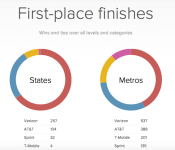
According to RootMetrics, Sprint is not the worst wireless network in the United States. That title now belongs to T-Mobile. RootMetrics collects mobile network performance information.

As ReCode points out, it isn’t all bad news for T-Mobile as they continued to do well in many major cities.

“We believe the metro stuff is the most important,” T-Mobile CTO Neville Ray said in a phone interview. Ray said that looking at the top 30 metro areas, T-Mobile is second to Verizon in a number of categories and first at pure LTE speed. – ReCode

RootMetricsStudy2nd2014b RootMetrics

In fact, RootMetrics CEO noted that every carrier saw its overall performance increase or stay the same from six months ago. As expected, Verizon and AT&T finished 1-2 in the rankings at the state and national levels.


10
Feb

No brainer: Google’s giving you 2GB of free storage to secure your account


google security checkup

Today is Safer Internet Day, so Google is giving everyone 2 GB of extra Drive storage to do something that everyone should be doing anyway: secure their Google accounts.

As Target, Sony Pictures, and a bunch of Hollywood A-listers can attest, online security is not something you want to take lightly. Last year, we’ve seen hacking incidents on an epic scale, and 2015 will probably be no different. And, while it’s corporate hacks that usually make the headlines, regular users need to be just as careful about how they secure their digital lives.

Google has a bevy of security measures in place, including two-factor authentication, app authorization, and various ways to regain access to your account. But not all users know about these features or care enough to set them up. So Google is bribing users with 2 GB of free storage space for Drive.

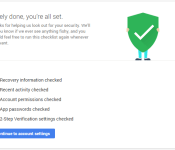
All you need to do to get the free storage is go through this simple Security Checkup to see if the following security features are properly set up:

  • Recovery information
  • Recent activity
  • Account permissions
  • App passwords
  • 2-step verification

Once you go through everything and you see the green checkmarks, you automatically qualify for the 2GB of free storage. Google will allocate the extra space around February 28 and let you know through an email.

Again, there’s no reason not to set up these simple security measures. Two-step verification in particular will shield you from any unwanted access to your Google account. Go through the Security Checkup here.

12

6
6
10
Feb

AT&T now rolling out Lollipop update for the LG G3


LG_G3_Fromt_On_Screen_Buttons_LG_Logo_TA

AT&T is now rolling out the much-anticipated Lollipop update to all its carrier-branded variants of LG’s flagship smartphone, the G3, located in the United States. This upgrade brings the latest version of the Android operating system, together with a multitude of new features, bug fixes and stability improvements.

Hit the break for the full changelog.

  • Bold and colorful interface.
  • New notification options.
  • Longer battery life.
  • Increased security against malware.
  • Automatic device encrytption.
  • Settings for multiple device users.
  • A new quick settings drop-down menu.
  • Improved internet and Bluetooth connectivity.
  • Voice activation when screen is off.

To download the update, make sure you’re connected to a Wi-Fi network. Then, from the home screen, press the Menu key, followed by Settings. Scroll to the bottom and tap ‘About Device’, followed by ‘Software Update and ‘Update Now’.

Come comment on this article: AT&T now rolling out Lollipop update for the LG G3

10
Feb

New DisplayPort 1.4a Standard Points to 8K Notebook and All-in-One Desktop Displays in 2016


The Video Electronics Standard Association (VESA) yesterday announced a new Embedded DisplayPort Standard, version 1.4a, that the association claims “enables a higher video data transfer rate for increased panel resolution, greater color depth and higher refresh rates.”

Along with other upgrades, the new standard will be able to take advantage of more advanced GPU video performance and display technologies, meaning a wider range of computing devices – laptops and all-in-one PCs like the iMac in particular – will be able to produce 8K content sometime next year.

engadgetretinaimac
The new standard is for “embedded” panels with the ability to produce up to 8K quality display images, meaning eDP 1.4a won’t work with external displays. The current DisplayPort standard is 1.2a, with VESA having announced the next-generation 1.3 standard with 5K support last September.

Full support of DisplayPort 1.3 will, however, need to wait until Intel releases its next-generation Skylake chips late this year or early next year. Apple’s current 5K Retina iMac uses a custom solution to manage its 5120 x 2880 display, and 8K displays supported under the future 1.4a standard would come in at 7680 x 4320 pixels.

These higher-resolution displays at 8K should result a more power-hungry machine, but VESA claims its new Multi-SST Operation will support a Segmented Panel Display feature, bringing lighter, lower-cost display architecture to the new eDP standard. According to Vice President Bong-Hyun You of Samsung Display Co., Ltd., this new strategy can “reduce panel thickness, reduce power draw, and reduce cost.”

According to Craig Wiley, senior director of marketing at Parade Technologies, VESA board member, and editor for eDP 1.4a, “The adoption of eDP for embedded displays is now positioned for growth as eDP 1.4a has become highly optimized, especially at resolutions above quad HD. Compared to other embedded interfaces, it has the richest feature set along with the lowest power, wire count and EMI radiation, particularly when used with high-resolution panels. It will continue to evolve, along with DisplayPort, but with its own unique features specifically optimized for embedded applications such as all-in-one PCs, notebooks, tablets and smart phones.”

Currently, only select high-end television support 8K video playback, and the highest quality display Apple device is last year’s 27-inch iMac with Retina 5K Display. Though not much content even exists to truly take advantage of an 8K display at this time, VESA’s estimate of laptops, all-in-one PC’s, and other devices gaining the new standard in 2016 may give enough time for the new technology to grow.


10
Feb

PowerCube: Inexpensive power management from a sleek USB box, $17.95


We’ve all seen those hunky power strips with the flickering orange indicator lights curled up in the corner like some sort of unsightly electrical snake. Nothing sucks the life out of your room’s aesthetics like gobs of mismanaged cable. It’s a good thing, for anyone suffering from the overfilled outlet blues, that the PowerCube Original USB is available, and at a price that everyone can behind.

PowerCube is designed for maximum efficiency so that plugs never block each other. Logical and practical, this cube also sports dual USB ports for your mobile devices. It also features a resettable fuse so that you can keep all of your AC/USB electronics safe and sound. Ditch the strip and tap into the cube! At just $17.95, this is sure to alleviate headaches for many readers and is the perfect purchase for almost any home.

See more at deals.androidguys.com

Do Not Miss These Other Deals!


(function() var script = document.createElement(‘script’);script.src = ‘https://stacksocial.com/widget.js?publisher=androidguys&type=editorial_post_widget_preferences’;script.async = true;var entry = document.getElementsByTagName(‘script’)[0];entry.parentNode.insertBefore(script, entry);)();


http://www.androidguys.com/pubgalaxy/728×90.html


The post PowerCube: Inexpensive power management from a sleek USB box, $17.95 appeared first on AndroidGuys.

10
Feb

Samsung’s NX1 camera looks like a DSLR, but does it perform like one?


Samsung's NX1 camera looks like a DSLR, but does it perform like one?

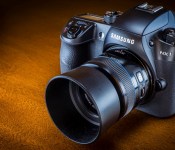
While companies like Sony and Fujifilm continue to stuff serious camera guts into smaller and smaller mirrorless bodies, Samsung’s aiming to ape both the function and the form of modern “prosumer” DSLR’s with its $1,500 NX1. With a rapid-fire 15 fps burst mode and 4K video support, the company’s flagship interchangeable lens camera certainly boasts some high-end specs. I spent a month with Samsung’s latest to see if it can match or even exceed the DSLRs it appears to emulate.

In terms of appearance and build quality, the NX1 most closely mimics the advanced consumer, or prosumer, models offered by Canon and Nikon — the 70Ds and D7100s of the world. Its magnesium body, robust grip and distinct viewfinder hump definitely suggest a traditional DSLR at first glance. Put the NX1’s viewfinder up to your eye, however, and you’ll spot a rather capable, 2,360-dot electronic viewfinder rather than the optical variety. Under most circumstances, the EVF’s frame rate is rock solid, though I did notice it stutter a bit while trying to lock focus in poor lighting conditions. Elsewhere on the body, you’ll find a fair number of controls, including a handy locking mode dial. The overall layout feels comfortable, though the movie record button seemed out of place to the right of the shutter/power toggle. And the ring of buttons atop the drive mode dial are a bit too tiny to easily find without looking.

The NX1 also boasts a 3-inch touchscreen on the back that responds well to swipes and gestures like two-finger zooming. It’s a flip-out deal, so low- and high-angle shooting should be a breeze, but it doesn’t flip to the side or forward for selfies like, say, Canon’s 70D. Colors are well-saturated on the Super AMOLED screen, though they don’t always reflect reality. On a cloudy, overcast day inside the Seattle Seahawks training facility, the artificial grass of the team’s practice field came across as vividly green on the display, but it was much more muted in person. Hopefully, though, if you’re investing this much in a camera system, you’re also examining your pics on a more accurate (possibly calibrated) external screen as much as possible.

IRL Samsung NX1

Still-image quality is generally quite high and noise levels weren’t much of an issue up to about ISO 6400. When you get much higher, though, the noise tends to creep in a bit too much for my liking. I wouldn’t use the standard top-end ISO of 25,600 unless I had no other options; checking a box in the menu unlocks ISO 51,200, but it’s grainy (no surprise there). At more sane levels, there’s not much to complain about from a speed or quality standpoint. The fast burst mode and solid AF performance mean you won’t miss many shots because of your gear. Its hybrid autofocus system includes 205 phase-detection points and its max shutter speed of 1/8000 is plenty quick. The NX1’s auto white balance also performed well, though it tended to have a tougher time than, say, my Fujifilm X-E2 when it came to yellowish street lighting.

Samsung’s also touting the NX1’s video chops, which include up to 4K (4,096 x 2,160 or 3,840 x 2,160) recording at 30/25/24 fps. If all you need is ho-hum 1080p, you can choose up to 60 frames per second. The camera supports the newer, more efficient H.265 video codec and an included app will quickly convert that video to the older H.264 standard if your editing suite of choice doesn’t yet handle the new format. Overall, video quality is quite good, with sharp details in the feathers of a hungry hummingbird, though I did spot a vague hint of compression artifacts in particularly dark sections of the frame. I could see rolling-shutter effects if I panned around like a crazy person, but under normal filming circumstances, I don’t think it poses much of a problem.

The NX1 also features a deep set of wireless capabilities, including WiFi, NFC and Bluetooth. I was able to easily pair my iPad to the camera using the Samsung Camera Manager app. With the link established, I could remotely snap pics of hummingbirds in our backyard thanks to the app’s live viewfinder and onscreen controls.

IRL Samsung NX1Samsung’s Camera Manager app for WiFi remote control.

My time with the NX1 was spent using Samsung’s 45mm f/1.8 lens. It’s a pretty standard optic, save for a trick 3D mode that activates an internal shutter, presenting the image sensor with two slightly offset perspectives in a single shot. The effect works in both stills and movie modes. I took a quick sample video in 3D mode and asked our own Jose Andrade to check out the results on his Panasonic 3D TV. The first clip (recorded at the highest setting) showed great picture quality, but playback was quite choppy on his set. A second clip, captured at a lower bit rate, played flawlessly, however. If you’re taking still images in 3D mode, the NX1 saves both a standard JPEG and MPO (Multi-Picture Object) formats for viewing.

Overall, Samsung’s made a pretty potent mirrorless shooter in the NX1. There’s not too much to complain about in either stills or movie mode, though editing video will require a middleman conversion until H.265 becomes more widely supported. The biggest question is whether Samsung’s lens offerings meet your needs — a solid camera body is nothing without good glass. If the performance and solid build have you curious, take a look at the lens lineup and see if the ranges and specs you need are there. At $1,500 for the body only, this is an investment, after all.

To view some full-resolution shots from the Samsung NX1, click here.

Filed under: Cameras, Samsung

Comments

10
Feb

Is there a doctor in the house? Google Search now highlights relevant medical information


google_health-info-animated

Admit it! We have all felt certain symptoms and went straight to Google to find out what it could be. You’re not alone because one in 20 Google searches are for health related information.

Now Google is making it easier to find that info you’re looking for by showing you typical symptoms and treatments in the Knowledge Graph. You will also get details about how common the condition is and even if it’s critical or contagious. You might even get an illustration.

So how does Google know the information is relevant? They worked with a team of medial doctors, which was led by their own Dr. Kapil Parakh, M.D., MPH, Ph.D. They have curated and reviewed all the results to ensure you receive the right information.

Of course no search result can replace a doctor, but Google might just help you figure out if you need to see one.

source: Google

Come comment on this article: Is there a doctor in the house? Google Search now highlights relevant medical information

10
Feb

Top 5 Gallery replacement apps for Android [February 2015]


Photo_Gallery_App_Samsung_TA

One of the reasons people prefer using Android is the number of customization options it brings to the table. Say you don’t want to use the email client that came with the smartphone, you immediately head over to the Play Store and look for alternatives.

The same applies to the Gallery application. With the Android 5.0 update, most users (of stock Android devices) might have noticed that the Gallery app is replaced by Photos. This can be slightly confusing at first, and a bit of a trouble to use for first timers.

But thanks to a myriad of apps over at the Play Store, you can pick a handful of alternatives which might be better suited to replace your stock Gallery/Photos app.

Back in October 2013, we made a list of the best apps available at that time, but a lot has changed since then. So it’s only fair that we compiled a new list with a bunch of new Gallery apps that you might not have heard of. Read on for more.

myroll

1. MyRoll: This is my personal favorite as it comes with a myriad of features in addition to the obvious.

You can find all your photos and videos on My Roll and it also brings support for Android Wear smartwatches.

This essentially means that any photo you take can be accessible on your watch. You can turn off this feature in the settings if privacy is a concern for you, but I find it to be a useful feature.

The UI of the app is very user friendly as well as all the images/videos are arranged in folders. Think of this as the Gallery app from stock Android (pre Lollipop) but with some extra muscle.

Users can hook up their Facebook or Google accounts to post images on social networks directly from the app.

qr code

Play Store Download Link

piktures

2. Piktures: This is one of the best third party Gallery alternatives we can suggest in addition to My Roll. One of the complaints users have with Gallery apps are that they are usually littered with ads.

Piktures is a very fortunate exception to that list as it has absolutely no ads and is free to download for all.

Similar to other Gallery apps, photos and videos are arranged in folders. Users can also filter images based on locations (using geo tagging) and dates they were taken on.

This is a nifty feature to have if you’re looking to pull out a specific image from that camping trip last year.

If you want to send some images from Piktures to your contacts, you get to reduce the file size as well. This can save you a lot of data if you’re looking to send multiple images/videos.

qr code

Play Store Download Link

tidy

3. Tidy: We rate this app pretty highly among the list of Gallery apps that are available in the Play Store today.

As the name aptly suggests, Tidy keeps your photos in order and lets you synchronize content in a fashion that keeps it more arranged and easier to find.

Images and videos are tagged based on location, time etc, so you can filter specific images based on that. It’s a free download, so if you’re looking to get your hands on a Gallery replacement application, you surely can’t go wrong with Tidy.

qr code

Play Store Download Link

gallerylollipop

4. Gallery Lollipop: The name is pretty self explanatory here as the app does exactly what it’s supposed to. Designed as a replacement to the Photos app for Android 5.0 users, Gallery Lollipop replicates the look of the Android 4.4 Gallery and does a pretty good job of it.

qr code

Play Store Download Link

quickpic

5. QuickPic: This app featured in our last post too and still makes it way to the list for the amount of features it brings.

With support for online services like Picasa, Google Drive, Dropbox, Flickr, OneDrive, Box, Yandex and 500px, users can access a wide range of images directly from one app.

Naturally, users can also upload pictures to these cloud storage services, which makes it all the more easier to access across a wide range of devices.

Images are arranged in the same way as other apps, so you will find yourself at home if you’ve used either of the aforementioned apps or the default Gallery application on your Android smartphone. The app is also capable of playing GIF files, which is a major plus over the stock Gallery application.

The developers make it very clear that the app doesn’t require any unnecessary device permissions, so you can use it without worry.

qr code

Play Store Download Link

So that’s our list of the best gallery apps available for download in the Play Store today. Naturally, there are quite a lot of other Gallery apps available, and you might have a favorite we failed to mention. Please let us know in the comments below.

Come comment on this article: Top 5 Gallery replacement apps for Android [February 2015]

10
Feb

Huawei Honor 6 Plus review


PROS
  • Great design, simplistically elegant
  • Dual SIM setup co-ops the microSD card slot
  • Display is vivid and enjoyable to use
  • HiSilicon 925 proves itself once again as a high end processor
  • Emotion UI one of the best Asian operating systems out there
CONS
  • Few extra features outside the obvious (no NFC)
  • Lack of Google Play Services cripples Google-centric users
  • Battery life tends to hit the one day mark despite larger size
  • Camera is a good performer, just not standout in quality
  • Dual optics setup provides defocusing, but no low light enhancement that real aperture settings bring
8.3

Despite its elegance in design and in software, the Honor 6 Plus doesn’t deliver enough in its dual camera setup to separate itself from similarly performing competitors.

(function($)
$(document).ready(function()
$(“#aa_bottom_line .aa_bl_pros_cons”).each(function()
var aa_bl_pc=$(this).find(“.aa_bl_pc”);
var aa_bl_pros=$(this).find(“.aa_bl_pros”).height();
var aa_bl_cons=$(this).find(“.aa_bl_cons”).height();
if(window.innerWidth > 480 && aa_bl_pros != aa_bl_cons)
if(aa_bl_pros > aa_bl_cons)
aa_bl_pc.height(aa_bl_pros);
else
aa_bl_pc.height(aa_bl_cons);

)
);
)(jQuery);

We’ve seen the competition heating up recently with Chinese smartphone manufacturers like Huawei, Xiaomi, Meizu and Lenovo all doing their best to deliver the gold. Huawei, in particular, has been making great strides thanks to their high-end offerings at low-budget price points. The company has been on a roll recently with their highly-regarded Ascend Mate 7, which is currently one of the best selling smartphones in the East. But that’s not all the company has up their sleeve.

Read more: Huawei Honor 6 Plus hands-on and first impressions

Huawei’s Honor brand is geared towards younger consumers, offering high-end hardware while still being sold at an affordable price point. One of the more recent smartphones in this line is the Honor 6 Plus, the follow up to the company’s Honor 6 handset. We took a look at the handset at CES 2015, and went hands-on with the 6 Plus not too long ago. How does the 6 Plus stand up against other flagship devices on the market? Does the handset truly offer a great user experience and high-end hardware for a cheap price? We find that out, and more, in our in-depth review of the Huawei Honor 6 Plus!

Related Videos

.rvs_wrapper
width: 335px;

.rvs_wrapper.align_left
float: left;

.rvs_wrapper.align_right
float: right;

.rvs_wrapper.align_center,
.rvs_wrapper.align_none
width: 100%;

.rvs_wrapper.align_center
text-align: center;

.rvs_wrapper.align_center.cbc-latest-videos ul li
float: none;
display: inline-block;
vertical-align: top;

.rvs_wrapper.cbc-latest-videos:not(.align_none) ul li:nth-child(2n+1)
clear: both;

.rvs_title
font-weight: 600 !important;
margin: 0 !important;

.rvs_wrapper.align_right .rvs_title
padding-left: 20px;

.rvs_title a
font-family: ‘Roboto Condensed’;
color: #3a3a3a;

.rvs_wrapper.cbc-latest-videos ul
padding-top: 10px;

.rvs_wrapper.align_left.cbc-latest-videos ul li,
.rvs_wrapper.align_none.cbc-latest-videos ul li
padding: 0 15px 0 0;

.rvs_wrapper.align_right.cbc-latest-videos ul li
padding: 0 0 0 15px;
float: right;

.rvs_wrapper.align_center.cbc-latest-videos ul li
padding: 0 7px;

.rvs_wrapper.cbc-latest-videos ul li > a
font-weight: 400;

.rvs_wrapper.cbc-latest-videos ul li > a .yt-thumbnail
margin-bottom: 0;

@media only screen and (max-width : 480px)
.rvs_wrapper
width: 100%;
text-align: center;

#page .rvs_wrapper.cbc-latest-videos ul li
padding: 0 7px;
display: inline-block;
float: none;
vertical-align: top;

Design

huawei honor 6 plus review aa (2 of 29)

In a stark departure from the metal construction of the company’s Ascend Mate 7, the Honor 6 Plus offers a mostly glass build, taking inspiration from multiple different handsets to provide a simplistic yet attractive design. The metal frame surrounding the device is largely reminiscent of the iPhone or the Samsung Galaxy Note 4, offering flat sides everywhere but the bottom. The bottom of the device is plastic, which is similar to what we’ve seen on Sony’s Xperia line. Xperia design choices seem to have influenced the 6 Plus in more areas, as the Honor also brings dual glass front and back panels.

huawei honor 6 plus review aa (13 of 29)

Huawei didn’t change around the button layout on this device, and that’s a good thing. The bottom edge houses the Micro USB port, the top features the 3.5mm headphone jack, and you can find the SIM and MicroSD card slots on the right side below the volume rocker and power/standby key.

Side note: The MicroSD card goes in the SIM 2 slot (Nano SIM slot), which could be a little confusing.

huawei honor 6 plus review aa (5 of 29)

Around back, the simplistic Honor logo can be found under the dual camera setup in the corner. While some users would prefer to have no branding on the device whatsoever, having the word Honor on the back really isn’t a big deal and arguably adds to the phone’s style. The back also holds the single rear-facing speaker on the bottom-left corner.

A 5.5-inch display might be too big for some users, but we didn’t really run into any trouble handling the device. The bezels and flat sides help with the handling, and the thin profile makes it easy to hold as well. The Honor 6 Plus isn’t the most original handset, but it does take design influences from some of the most well-designed phones on the market.

Display

huawei honor 6 plus review aa (26 of 29)

The 5.5 inch display provides 1080p resolution with 401 pixels per inch, but what makes this screen stand out is its screen to body ratio, which comes in at around 73%. A handset that has a 5.5-inch screen or greater almost has to have a high screen to body ratio, otherwise handling and one-handed use can easily suffer. The IPS display offers a super high level of brightness to the device, even outdoors. The viewing angles are great and outdoor color visibility barely suffers at all.

Huawei prides itself on the company’s colorful Emotion UI, which really pops with the high-quality display. The saturation levels may be a little high on the 6 Plus, but text is sharp and contrast is spot-on. Even with difficulties reaching to the top of the display with one hand, the Honor 6 Plus manages a very enjoyable display experience for work and for play.

Performance

huawei honor 6 plus review aa (21 of 29)

As has become customary for Huawei smartphones, the Honor 6 Plus does not use a conventional chipset you would find in many of its competitors – instead, Huawei constructs their own processing packages and since the Mate 7 we’ve been pretty impressed with what they put out. The HiSilicon 925 makes a return here offering high-end performance, mainly providing a very smooth and speedy experience in the Emotion UI. Scrolling through all of the various elements yielded no problems and the 3GB of RAM allowed for a great multitasking experience.

Overall, we barely experienced any hiccups or stutters with the Honor, and that performance quality translated to gaming as well. The recently released WWE Immortals moved along smoothly and without incident, giving the Mali-T628 MP4 a few points in Huawei’s architecture. During our recent tour of Huawei’s offices, we learned that the company is focused on creating a great-performing processor for all of their devices across the board. And if the Mate 7 and now the Honor 6 Plus are any indication, HiSilicon is fulfilling that goal.

Read more: Huawei – Past, Present and Future

Hardware

huawei honor 6 plus review aa (25 of 29)

The Honor 6 Plus is one of the more simply-designed phones we’ve seen, so you won’t see many more features than the essentials. Remember, the Honor line is meant to appeal to a younger crowd with lower-budgets, and phones that carry the Huawei name (like the Ascent Mate 7) are more geared towards the high-end market.

We didn’t experience any call quality problems with the Honor 6, though the volume was a bit low for our taste. When it comes to connection, we weren’t surprised to see that the Chinese phone wouldn’t connect to any US LTE networks. With that said, AT&T’s HSPA+ network connection didn’t give us any problems, and was actually very reliable from day-to-day.

huawei honor 6 plus review aa (3 of 29)

Moving around to the rear-facing speaker, you already know what we’re going to say. We would have liked to see the speaker on the front of the device. Also, the speaker is very narrow, so the sound wasn’t as loud as we would have liked it to be. Nowadays, NFC comes standard on almost every Android handset. Unfortunately, the Honor 6 Plus doesn’t have NFC capabilities. It’s a feature we’ve gotten used to over the years, so to see a smartphone without NFC is a little unfortunate.

The 6 Plus has a non-removable 3600mAh battery which gave us around a full day of use. With sporadic usage, the device may even be able to last up to a day and a half.

Camera

huawei honor 6 plus review aa (6 of 29)[/aa_full_width][/aa_full_width]

The Honor 6 Plus’ main claim to fame is the dual camera setup, made in a similar fashion to the Duo Camera from the HTC One M8. Just like HTC’s handset, the optics are supposed to retrieve depth information in a scene and provide the ability to set a focal point. Both rear cameras on this handset are 8MP shooters. When they work together, it results in a number of different exposures for each scene, making it a very fast HDR performer.

huawei honor 6 plus review aa (18 of 29)

Much like other camera apps on Huawei devices, choosing different modes is possible by swiping on the viewfinder, while other modes can be found via a button on the side of the app. All of the standard modes are present, including HDR, Panorama, and even a Super Night mode that really helps out with dark shots. Despite the graininess and loss in quality that you’d expect, this mode works wonders during nighttime shots. However, since Super Night mode is basically just a slow shutter mode, you’ll have to hold the device very still or even use a tripod. HDR did a good job enhancing a scene as well, owing to the benefit to different exposures being captured simultaneously from the second camera.

huawei honor 6 plus review aa (19 of 29)

This device doesn’t have optical image stabilization (OIS), so video recording is a little shaky. However, if you have steady hands, you can produce really high quality full HD shots.

In general, picture quality is quite good. Saturation levels and a good amount of detail were captured by using the main auto mode. The camera is quick to take pictures, so this is a great device for an everyday camera companion. 

While these effects mimic the same procedures on DSLRs, one big reason for choosing low aperture lenses isn’t found here: low light performance

The main problem we found, however, has to do with the dual camera setup. When in the ‘wide aperture’ mode, you can tap on a focal point and adjust the aperture, which is the term that they are using for what is otherwise a defocusing mode. Depth of field is done on the software side, which gives you the ability to refocus photos from the gallery. When used on a certain point, you can blur out the rest of the image other than the particular selected area. While these effects mimic the same procedures on DSLRs, one big reason for choosing low aperture lenses isn’t found here: low light performance.

As you can see from a few of these pictures, the focus point is very finely chosen but the picture retains the same lackluster low-light quality. The issue is with the usage of the term ‘aperture’ – sure, it is a catch-all term for what the company is trying to do, and the resulting stylized photos will please those who want the effect – but it’s only about half of the truth behind its usage in the Honor 6 Plus.

Software

huawei honor 6 plus review aa (7 of 29)

Emotion UI is the OS of choice for Huawei, and as far as Asian operating systems go, it’s a sleek and good looking one in comparison. Its highly colorful and clean aesthetic make homescreens easy to navigate through, though folders and some organization will be needed due to the lack of an app drawer. Additionally, the softkeys on the bottom of the 6 Plus are customizable and can be swiped away if you want to open up some real estate. Huawei makes it easy to customize the software thanks to the built-in theme engine. Not only can you customize the UI experience, but lock screen gestures can be assigned in order to access certain parts of the phone with ease. The notification dropdown shows your notifications in a reverse chronological timeline, and nice transitions in and out of applications are present thanks to the HiSilicon processor.

huawei honor 6 plus review aa (10 of 29)

Since we’re using the Chinese variant of this device, the main gripe we have is the lack of Google services. It’s easy enough to search Baidu for applications and install the Google Play Store, but without Services syncing contacts to the device, that meant extracting them from another phone via Bluetooth. Also, we couldn’t sync our Google Play Music library with the device, which is an important feature we’ve grown to love on most other Android handsets. The combination of smooth performance and a lovely screen help elevate what is already a nice interface in the Emotion UI. But without Google Play Services, it’s tough for a Westerner to fully convert to the OS without making sacrifices.

Gallery

Pricing and final thoughts

huawei honor 6 plus review aa (29 of 29)

The Honor 6 Plus is available in China and parts of Europe for a price that converts to around $400. That’s a pretty great price for a high end device, though plenty of other Chinese-based manufacturers have been able to meet or even surpass this price point. There are also some competitors that offer extra features like the rotating camera of the Oppo N3 or the fast charging capabilities found on plenty of its other rivals.

huawei honor 6 plus review aa (24 of 29)

Fixating on the word ‘honor’ seems to imply simplicity. And if nothing else, the Honor 6 Plus succeeds at bringing the essentials in a simplistically elegant design. On its aesthetic and performance, you can mostly justify the price point. But claims about the camera were the focus – no pun intended – and the dual camera setup proves to be more of a gimmick than a game changer. A dual camera setup is nothing new at this point, and while the so-called ‘wide aperture’ mode is functional and arguably useful, the camera does nothing else to differentiate itself from the competition. The Honor 6 Plus lays in the cut, providing the Huawei flavor of what we may otherwise already expect from high end devices. If there were more compelling features like the fingerprint scanner and battery life of the Ascend Mate 7, the sum of its parts might make this a standout winner. But instead, what we have is another admittedly great entry point into the high end market, where there happens to be quite a few filling that space already.


10
Feb

Alfred Remote gives you a remote launchbar for your Mac


Since my early Mac-using days, I’ve been an avid shortcuts user — keyboard commands, QuickKeys, launchbars, you name it. I probably use my keyboard more than my trackpad for navigating through programs and windows, though I’ve grown to love the multitouch gestures for swiping screens on my 11-inch Air.

Given that I’m also multitasking with my iPhone almost all the time, it makes a crazy amount of sense that a launcher utility like Alfred would take advantage of that second screen to create a remote control. Enter Alfred Remote: The app uses local sharing with the Alfred app to turn your iPhone into a launchbar for your Mac.

I’ll admit: It’s taken me awhile to integrate Alfred Remote into my daily workflow, and I find it easier to use it with my iMac than my laptop. But that’s me — I love shortcuts, but I have to intentionally force them into my routine for a few weeks before they actually stick.

And the good news is that Alfred Remote has a wide selection of the kinds of shortcuts you might want for your Mac. My favorite section to use with my iMac is Alfred’s iTunes controls: My iMac runs most of the music in my household, and often I would drag my wireless keyboard into the kitchen to control songs while doing dishes, cooking, and the like; now, I need only have my iPhone with me.

I also love being able to zap my computer to sleep or launch a website from across the room using Alfred’s system commands and URL bookmarks.

The app’s real strength is as an auxiliary input to Alfred itself, however (and you will need Alfred’s Mac app to use the Remote): You can launch applications, files, folders, URLs, preference panes, system commands, AppleScripts, and even one of Alfred’s Workflows if you’ve built any.

I use these features less often largely because I have key commands set for my most-used triggers, but I’ve been finding folder-launching to be really useful. I have folder shortcuts set for Screenshots, Downloads, and my Dropbox’s Public folder, all of which allow me to quickly and easily get to files without having to click or mouse my way through Dock items and menus.

I do wish you could set up and rearrange Alfred Remote’s various items on your iPhone or iPad, but sadly any organization and workflow-adding is limited to Alfred on your Mac. Rearranging the grids is a bit of a pain, too, as you must have an open space to drag icons around, and they won’t swap with each other — a la the iPhone home screen — if you move one icon atop another.

I also want a way to sync Remotes between computers; right now I have Remotes for both MacBook and iMac, and each is set up completely differently. That could be a boon to some, but personally, I’d like my settings the same for each computer.

These are minor 1.0 quibbles, though; overall, the app is well built and a nice addition for people who use Alfred’s launchbar utility on their Macs already. It just may take a bit of adjustment to use it in your workflow.