


Buy this game: Robot Roller Derby Disco Dodgeball

If you’re looking for a fun Mac, Windows or Linux game to play this weekend, check out Robot Roller-Derby Disco Dodgeball from 82 Apps.
Robot Roller-Derby Disco Dodgeball is a futuristic first person shooter that’s what would happen to Dodgeball in the Tron world. What’s more, it’s on sale right now for $11.99.
Unicycle-style robots populate chambers equipped with ramps, walls and obstacles, lobbing explosive dodgeballs. Catch them when they’re thrown at you and eliminate your opponent; pick up a ball and hit your opponent and score.
The game sports a variety of different play modes, including Capture the Flag, Elimination, Hoops and Grand Prix, along with power-ups that give you new abilities like jet packs, pogo jumps, laser balls and more. There’s cross-platform multiplayer support too.
Robot Roller-Derby Disco Dodgeball reminds me a lot of the fun I’ve had playing Quake 3 Arena and Unreal Tournament. It’s a tremendous amount of fun. Mac laptop and Magic Trackpad gamers, you’re going to need a multi-button mouse unless you’re a much more skilled trackpad gamer than me.
Robot Roller-Derby Disco Dodgeball was released in early 2014 as Steam Early Access release, but now it’s available as a general download. And with Mac system requirements going back to Snow Leopard, chances are your Mac can run it.
- $11.99 – Download now

Buy this game: Robot Roller Derby Disco Dodgeball
If you’re looking for a fun Mac, Windows or Linux game to play this weekend, check out Robot Roller-Derby Disco Dodgeball from 82 Apps.
Robot Roller-Derby Disco Dodgeball is a futuristic first person shooter that’s what would happen to Dodgeball in the Tron world. What’s more, it’s on sale right now for $11.99.
Unicycle-style robots populate chambers equipped with ramps, walls and obstacles, lobbing explosive dodgeballs. Catch them when they’re thrown at you and eliminate your opponent; pick up a ball and hit your opponent and score.
The game sports a variety of different play modes, including Capture the Flag, Elimination, Hoops and Grand Prix, along with power-ups that give you new abilities like jet packs, pogo jumps, laser balls and more. There’s cross-platform multiplayer support too.
Robot Roller-Derby Disco Dodgeball reminds me a lot of the fun I’ve had playing Quake 3 Arena and Unreal Tournament. It’s a tremendous amount of fun. Mac laptop and Magic Trackpad gamers, you’re going to need a multi-button mouse unless you’re a much more skilled trackpad gamer than me.
Robot Roller-Derby Disco Dodgeball was released in early 2014 as Steam Early Access release, but now it’s available as a general download. And with Mac system requirements going back to Snow Leopard, chances are your Mac can run it.
- $11.99 – Download now
Amazon Echo review


Everything has to be smarter these days. Connected to something. Connected to everything. And these days we have to talk to those things.
Google brought us, well, Google Now. But excellent as it is, you’re taking to a machine. Apple personified things with Siri. And now Amazon has Alexa in its Amazon Echo Bluetooth speaker. Why? Oh, why not. On one hand you’ve got a decent speaker that ties into Amazon music. And lets you make shopping lists for later. On Amazon, of course.
But really that’s just the tip of the iceberg with Alex. And it’s a bit of an odd product, not available for general purchase. You register your interest with Amazon, finally are given the opportunity to buy, and then wait a few weeks until it ships. Maybe available will expand, maybe it won’t. It took about a month for ours to arrive, a few minutes to get it set up, and not much longer to see that this thing has some serious potential. The question is whether that potential leads to anything on down the road.
And if it does, the likes of Google and Apple are going to find themselves with even more of a competitor in Amazon.

How to use iCloud Drive: The ultimate guide

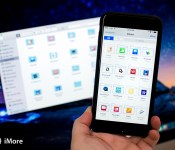
iCloud Drive is Apple’s online storage service — a place to keep all your files and access them from all your Apple devices, including your iPhone, iPad, and Mac.
If you’re new to iCloud Drive and not sure how to get started, you’ve come to the right place. Follow along and we’ll walk you through how to enable iCloud Drive, pick an appropriate storage plan, and how to better manage your files across your iPhone, iPad, and Mac!
- How to set up and use iCloud Drive
- What iCloud Drive storage plan should you get?
- How to access iCloud Drive files in OS X Yosemite
- How to view iCloud Drive files on iPhone and iPad
- How to control what apps have access to iCloud Drive
- How to manage iCloud Drive syncing over cellular
- How to manually create folders in iCloud Drive on your Mac
- How to migrate files from Dropbox to iCloud Drive, and why you may want to wait
- Clearing up the iCloud Drive confusion: No there’s no iCloud Drive app on iOS
How to set up and use iCloud Drive on iPhone and iPad

You can choose to set up iCloud Drive at the same time you set up your iPhone or iPad. Otherwise, you can set up iCloud Drive at any time from the Settings App. If you previously used iCloud Documents and Data, iCloud Drive will replace it. Here’s what you need to know!
- How to enable iCloud Drive manually on iPhone and iPad
- How to pick an iCloud Drive storage plan
- How to start using iCloud Drive on iPhone and iPad
What iCloud Drive storage plan should you get?

iCloud Drive stores files in your iCloud account. Apple gives everyone 5GB of space for free, but if you want or need more, you’ll have to pay for it. Since other services, including iCloud Mail and iCloud Photo Library also use your iCloud account storage, you may want to upgrade to make sure you don’t run out. Plans start at $0.99 a month, and you can also downgrade at any time. How much storage should you get? Here are some tips to help you choose the perfect plan!
How to access iCloud Drive files in OS X Yosemite

OS X Yosemite comes with iCloud Drive support built right into Finder. Any file you save on your Mac, iPhone, or iPad is instantly synced between all your devices. Since iCloud Drive is baked right into the Finder, you can open, edit, and save any of these files on your Mac with any app that supports the appropriate file type.
How to view iCloud Drive files on iPhone and iPad

Unlike the Mac, where iCloud Drive is baked into the Finder, there’s no unified iCloud Drive app for iOS. Instead, Apple provides a DocumentPicker (similar to the PhotoPicker), that lets any app open iCloud Drive. Some enterprising App Store apps have used that capability to offer fairly unfettered access to iCloud Drive.
How to control what apps have access to iCloud Drive

Lots of App Store apps offer support for iCloud Drive. That doesn’t mean you want all of them to have access to your file. If, for whatever reason, you decide you don’t want a particular app to be able to save files to iCloud Drive, you easily shut it off.
How to manage iCloud Drive sync over cellular

By default, iCloud Drive will sync your files not only over Wi-Fi, but over the cellular network as well. Depending on your data plan and the size of the files you’re working with, you might want to keep an eye on that. Text files won’t use much data, but presentation files can be huge. Luckily, you can easily restrict iCloud Drive to only sync files over Wi-Fi in just a few taps.
How to manually create folders in iCloud Drive on your Mac

iCloud Drive will automatically create folder directories for any app that save data to it, but you can also choose to create your own folders. You can then drop files into them and they’ll immediately be synced across all your devices. This is a great option for folks who have multiple documents on their Mac that they’d like to have access to on their iPhone or iPad.
How to migrate files from Dropbox to iCloud Drive, and why you may want to wait

If you’ve previously been using Dropbox but want to switch over the iCloud Drive, you’ll have to move your files over first. We can show you how to do that, but we’ll also caution you about waiting to make the switch, at least for a little while.
How iCloud Drive works on iPhone and iPad

Based on the information above, it’s easy to see that iCloud Drive works differently on the Mac than it does on iPhone and iPad. That’s because the Mac has a visible file system and iCloud Drive is integrated into the Finder, while iOS hides its file system and iCloud Drive is integrated into apps.
If you’re not sure what that means or what you need to keep in mind when using iCloud Drive on both OS X and iOS, here are some additional resources.
Need more help with iCloud Drive?
Since iCloud Drive is a relatively new service, we know there’s a lot of you out there that still have a lot of questions. Our iMore forums are a great place to ask for and give help to others. The best part is you don’t even have to register to ask a question — unless of course you want to. So if you still have some iCloud Drive questions on your mind, we encourage you to ask in our forums:
How to use iCloud Drive: The ultimate guide
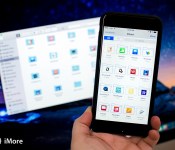
iCloud Drive is Apple’s online storage service — a place to keep all your files and access them from all your Apple devices, including your iPhone, iPad, and Mac.
If you’re new to iCloud Drive and not sure how to get started, you’ve come to the right place. Follow along and we’ll walk you through how to enable iCloud Drive, pick an appropriate storage plan, and how to better manage your files across your iPhone, iPad, and Mac!
- How to set up and use iCloud Drive
- What iCloud Drive storage plan should you get?
- How to access iCloud Drive files in OS X Yosemite
- How to view iCloud Drive files on iPhone and iPad
- How to control what apps have access to iCloud Drive
- How to manage iCloud Drive syncing over cellular
- How to manually create folders in iCloud Drive on your Mac
- How to migrate files from Dropbox to iCloud Drive, and why you may want to wait
- Clearing up the iCloud Drive confusion: No there’s no iCloud Drive app on iOS
How to set up and use iCloud Drive on iPhone and iPad
You can choose to set up iCloud Drive at the same time you set up your iPhone or iPad. Otherwise, you can set up iCloud Drive at any time from the Settings App. If you previously used iCloud Documents and Data, iCloud Drive will replace it. Here’s what you need to know!
- How to enable iCloud Drive manually on iPhone and iPad
- How to pick an iCloud Drive storage plan
- How to start using iCloud Drive on iPhone and iPad
What iCloud Drive storage plan should you get?
iCloud Drive stores files in your iCloud account. Apple gives everyone 5GB of space for free, but if you want or need more, you’ll have to pay for it. Since other services, including iCloud Mail and iCloud Photo Library also use your iCloud account storage, you may want to upgrade to make sure you don’t run out. Plans start at $0.99 a month, and you can also downgrade at any time. How much storage should you get? Here are some tips to help you choose the perfect plan!
How to access iCloud Drive files in OS X Yosemite
OS X Yosemite comes with iCloud Drive support built right into Finder. Any file you save on your Mac, iPhone, or iPad is instantly synced between all your devices. Since iCloud Drive is baked right into the Finder, you can open, edit, and save any of these files on your Mac with any app that supports the appropriate file type.
How to view iCloud Drive files on iPhone and iPad
Unlike the Mac, where iCloud Drive is baked into the Finder, there’s no unified iCloud Drive app for iOS. Instead, Apple provides a DocumentPicker (similar to the PhotoPicker), that lets any app open iCloud Drive. Some enterprising App Store apps have used that capability to offer fairly unfettered access to iCloud Drive.
How to control what apps have access to iCloud Drive
Lots of App Store apps offer support for iCloud Drive. That doesn’t mean you want all of them to have access to your file. If, for whatever reason, you decide you don’t want a particular app to be able to save files to iCloud Drive, you easily shut it off.
How to manage iCloud Drive sync over cellular
By default, iCloud Drive will sync your files not only over Wi-Fi, but over the cellular network as well. Depending on your data plan and the size of the files you’re working with, you might want to keep an eye on that. Text files won’t use much data, but presentation files can be huge. Luckily, you can easily restrict iCloud Drive to only sync files over Wi-Fi in just a few taps.
How to manually create folders in iCloud Drive on your Mac
iCloud Drive will automatically create folder directories for any app that save data to it, but you can also choose to create your own folders. You can then drop files into them and they’ll immediately be synced across all your devices. This is a great option for folks who have multiple documents on their Mac that they’d like to have access to on their iPhone or iPad.
How to migrate files from Dropbox to iCloud Drive, and why you may want to wait
If you’ve previously been using Dropbox but want to switch over the iCloud Drive, you’ll have to move your files over first. We can show you how to do that, but we’ll also caution you about waiting to make the switch, at least for a little while.
How iCloud Drive works on iPhone and iPad
Based on the information above, it’s easy to see that iCloud Drive works differently on the Mac than it does on iPhone and iPad. That’s because the Mac has a visible file system and iCloud Drive is integrated into the Finder, while iOS hides its file system and iCloud Drive is integrated into apps.
If you’re not sure what that means or what you need to keep in mind when using iCloud Drive on both OS X and iOS, here are some additional resources.
Need more help with iCloud Drive?
Since iCloud Drive is a relatively new service, we know there’s a lot of you out there that still have a lot of questions. Our iMore forums are a great place to ask for and give help to others. The best part is you don’t even have to register to ask a question — unless of course you want to. So if you still have some iCloud Drive questions on your mind, we encourage you to ask in our forums:
How to use iCloud Drive: The ultimate guide
iCloud Drive is Apple’s online storage service — a place to keep all your files and access them from all your Apple devices, including your iPhone, iPad, and Mac.
If you’re new to iCloud Drive and not sure how to get started, you’ve come to the right place. Follow along and we’ll walk you through how to enable iCloud Drive, pick an appropriate storage plan, and how to better manage your files across your iPhone, iPad, and Mac!
- How to set up and use iCloud Drive
- What iCloud Drive storage plan should you get?
- How to access iCloud Drive files in OS X Yosemite
- How to view iCloud Drive files on iPhone and iPad
- How to control what apps have access to iCloud Drive
- How to manage iCloud Drive syncing over cellular
- How to manually create folders in iCloud Drive on your Mac
- How to migrate files from Dropbox to iCloud Drive, and why you may want to wait
- Clearing up the iCloud Drive confusion: No there’s no iCloud Drive app on iOS
How to set up and use iCloud Drive on iPhone and iPad
You can choose to set up iCloud Drive at the same time you set up your iPhone or iPad. Otherwise, you can set up iCloud Drive at any time from the Settings App. If you previously used iCloud Documents and Data, iCloud Drive will replace it. Here’s what you need to know!
- How to enable iCloud Drive manually on iPhone and iPad
- How to pick an iCloud Drive storage plan
- How to start using iCloud Drive on iPhone and iPad
What iCloud Drive storage plan should you get?
iCloud Drive stores files in your iCloud account. Apple gives everyone 5GB of space for free, but if you want or need more, you’ll have to pay for it. Since other services, including iCloud Mail and iCloud Photo Library also use your iCloud account storage, you may want to upgrade to make sure you don’t run out. Plans start at $0.99 a month, and you can also downgrade at any time. How much storage should you get? Here are some tips to help you choose the perfect plan!
How to access iCloud Drive files in OS X Yosemite
OS X Yosemite comes with iCloud Drive support built right into Finder. Any file you save on your Mac, iPhone, or iPad is instantly synced between all your devices. Since iCloud Drive is baked right into the Finder, you can open, edit, and save any of these files on your Mac with any app that supports the appropriate file type.
How to view iCloud Drive files on iPhone and iPad
Unlike the Mac, where iCloud Drive is baked into the Finder, there’s no unified iCloud Drive app for iOS. Instead, Apple provides a DocumentPicker (similar to the PhotoPicker), that lets any app open iCloud Drive. Some enterprising App Store apps have used that capability to offer fairly unfettered access to iCloud Drive.
How to control what apps have access to iCloud Drive
Lots of App Store apps offer support for iCloud Drive. That doesn’t mean you want all of them to have access to your file. If, for whatever reason, you decide you don’t want a particular app to be able to save files to iCloud Drive, you easily shut it off.
How to manage iCloud Drive sync over cellular
By default, iCloud Drive will sync your files not only over Wi-Fi, but over the cellular network as well. Depending on your data plan and the size of the files you’re working with, you might want to keep an eye on that. Text files won’t use much data, but presentation files can be huge. Luckily, you can easily restrict iCloud Drive to only sync files over Wi-Fi in just a few taps.
How to manually create folders in iCloud Drive on your Mac
iCloud Drive will automatically create folder directories for any app that save data to it, but you can also choose to create your own folders. You can then drop files into them and they’ll immediately be synced across all your devices. This is a great option for folks who have multiple documents on their Mac that they’d like to have access to on their iPhone or iPad.
How to migrate files from Dropbox to iCloud Drive, and why you may want to wait
If you’ve previously been using Dropbox but want to switch over the iCloud Drive, you’ll have to move your files over first. We can show you how to do that, but we’ll also caution you about waiting to make the switch, at least for a little while.
How iCloud Drive works on iPhone and iPad
Based on the information above, it’s easy to see that iCloud Drive works differently on the Mac than it does on iPhone and iPad. That’s because the Mac has a visible file system and iCloud Drive is integrated into the Finder, while iOS hides its file system and iCloud Drive is integrated into apps.
If you’re not sure what that means or what you need to keep in mind when using iCloud Drive on both OS X and iOS, here are some additional resources.
Need more help with iCloud Drive?
Since iCloud Drive is a relatively new service, we know there’s a lot of you out there that still have a lot of questions. Our iMore forums are a great place to ask for and give help to others. The best part is you don’t even have to register to ask a question — unless of course you want to. So if you still have some iCloud Drive questions on your mind, we encourage you to ask in our forums:

Save 47% today on this Galaxy Note 3 hard case with kickstand
 Made from a smooth and durable polycarbonate, this Galaxy Note 3 Snap On Case provides excellent drop protection thanks to the thick edging and impact resistant shell. The back features a patterned texture that gives you an enhanced grip. Get yours in black or white for only $7.95
How to use iCloud Drive: The ultimate guide

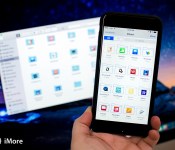
iCloud Drive is Apple’s online storage service — a place to keep all your files and access them from all your Apple devices, including your iPhone, iPad, and Mac.
If you’re new to iCloud Drive and not sure how to get started, you’ve come to the right place. Follow along and we’ll walk you through how to enable iCloud Drive, pick an appropriate storage plan, and how to better manage your files across your iPhone, iPad, and Mac!
- How to set up and use iCloud Drive
- What iCloud Drive storage plan should you get?
- How to access iCloud Drive files in OS X Yosemite
- How to view iCloud Drive files on iPhone and iPad
- How to control what apps have access to iCloud Drive
- How to manage iCloud Drive syncing over cellular
- How to manually create folders in iCloud Drive on your Mac
- How to migrate files from Dropbox to iCloud Drive, and why you may want to wait
- Clearing up the iCloud Drive confusion: No there’s no iCloud Drive app on iOS
How to set up and use iCloud Drive on iPhone and iPad

You can choose to set up iCloud Drive at the same time you set up your iPhone or iPad. Otherwise, you can set up iCloud Drive at any time from the Settings App. If you previously used iCloud Documents and Data, iCloud Drive will replace it. Here’s what you need to know!
- How to enable iCloud Drive manually on iPhone and iPad
- How to pick an iCloud Drive storage plan
- How to start using iCloud Drive on iPhone and iPad
What iCloud Drive storage plan should you get?

iCloud Drive stores files in your iCloud account. Apple gives everyone 5GB of space for free, but if you want or need more, you’ll have to pay for it. Since other services, including iCloud Mail and iCloud Photo Library also use your iCloud account storage, you may want to upgrade to make sure you don’t run out. Plans start at $0.99 a month, and you can also downgrade at any time. How much storage should you get? Here are some tips to help you choose the perfect plan!
How to access iCloud Drive files in OS X Yosemite

OS X Yosemite comes with iCloud Drive support built right into Finder. Any file you save on your Mac, iPhone, or iPad is instantly synced between all your devices. Since iCloud Drive is baked right into the Finder, you can open, edit, and save any of these files on your Mac with any app that supports the appropriate file type.
How to view iCloud Drive files on iPhone and iPad

Unlike the Mac, where iCloud Drive is baked into the Finder, there’s no unified iCloud Drive app for iOS. Instead, Apple provides a DocumentPicker (similar to the PhotoPicker), that lets any app open iCloud Drive. Some enterprising App Store apps have used that capability to offer fairly unfettered access to iCloud Drive.
How to control what apps have access to iCloud Drive

Lots of App Store apps offer support for iCloud Drive. That doesn’t mean you want all of them to have access to your file. If, for whatever reason, you decide you don’t want a particular app to be able to save files to iCloud Drive, you easily shut it off.
How to manage iCloud Drive sync over cellular

By default, iCloud Drive will sync your files not only over Wi-Fi, but over the cellular network as well. Depending on your data plan and the size of the files you’re working with, you might want to keep an eye on that. Text files won’t use much data, but presentation files can be huge. Luckily, you can easily restrict iCloud Drive to only sync files over Wi-Fi in just a few taps.
How to manually create folders in iCloud Drive on your Mac

iCloud Drive will automatically create folder directories for any app that save data to it, but you can also choose to create your own folders. You can then drop files into them and they’ll immediately be synced across all your devices. This is a great option for folks who have multiple documents on their Mac that they’d like to have access to on their iPhone or iPad.
How to migrate files from Dropbox to iCloud Drive, and why you may want to wait

If you’ve previously been using Dropbox but want to switch over the iCloud Drive, you’ll have to move your files over first. We can show you how to do that, but we’ll also caution you about waiting to make the switch, at least for a little while.
How iCloud Drive works on iPhone and iPad

Based on the information above, it’s easy to see that iCloud Drive works differently on the Mac than it does on iPhone and iPad. That’s because the Mac has a visible file system and iCloud Drive is integrated into the Finder, while iOS hides its file system and iCloud Drive is integrated into apps.
If you’re not sure what that means or what you need to keep in mind when using iCloud Drive on both OS X and iOS, here are some additional resources.
Need more help with iCloud Drive?
Since iCloud Drive is a relatively new service, we know there’s a lot of you out there that still have a lot of questions. Our iMore forums are a great place to ask for and give help to others. The best part is you don’t even have to register to ask a question — unless of course you want to. So if you still have some iCloud Drive questions on your mind, we encourage you to ask in our forums:

Follow Mail 2.0 arrives with integrated adaptive theme plus more

Follow Mail from Emberify has been updated this week and as usual with their BlackBerry 10 apps, the updates are normally feature rich. Things are no different this time around you’ll be pleased to hear and although there are several improvements and bug fixes it’s the adaptive theme that got me excited.
To simplify, the app essentially changes from light to dark theme depending on the lighting conditions you are in – clever stuff. I’m pretty sure I’ve not used a BlackBerry 10 app before that has this feature and hopefully it’s a sign of things to come.
Give it a try and let us know your thoughts in the comments?
Press Release
Emberify updates ‘Follow Mail’ to version 2.0 with a new adaptive theme. Follow Mail offers follow ups, custom notifications and fast read for email. It works complimentary to the hub.
The new adaptive theme automatically changes the theme according to the environment lighting. Follow Mail can detect you are indoor in a dark room and automatically switch to a dark user interface. Next morning, you are heading to office, Follow Mail will switch to a bright one.
New in version 2.0:
-
Adaptive theme (Also manual light & dark theme is available)
-
Contact integration for email composer
-
Pop up notifications
-
Enhanced battery efficiency
-
Bug fixes
Enjoy a 50% savings today on this hard case and holster for BlackBerry Z10!

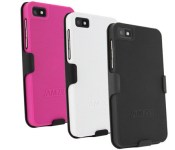
Made of a durable polycarbonate, these textured hard cases shield your BlackBerry Z10 from normal wear and tear without adding any excessive bulk. The included holster fits nicely on a belt or pocket, too! Rotate it in any direction and enjoy a slim, comfortable fit. Available in black or white today for only $9.95
 AIVAnet