
BlackBerry Classic appears set to arrive on Verizon February 26th

While a lot of the new device focus has been placed on AT&T since they have both the BlackBerry Classic and their own exclusive version of the BlackBerry Passport arriving at some point in time, a lot of folks out there are still waiting for Verizon to get the BlackBerry Classic as it was announced at the same time.

App Store now highlighting “Pay once & play” games with no in-app purchases

The iPad and iPhone App Store now has a section featuring games that you pay for upfront and then play without ever paying again. It’s called “Play once & play,” and it’s a freemium hater’s dream: dozens of excellent games from big studios and independent developers, all free of in-app purchases. You pay anywhere from $0.99 for Almightree: The Last Dreamer or Epic Eric to to $19.99 for Dragon Quest VIII, and and everything in between including Minecraft and the truly-bizarre Goat Simulator.
It’s a welcome addition to the App Store for many groups. Sure, there are those that simply despise nickel-and-dime gaming — the next edition of Need for Speed is stooping so far as to demand you pay up not just to upgrade your car faster or unlock exclusive rides earlier, but will even urge you to fork over cash to “refill” your gas tank so you can race again sooner.
But there’s another group that would even more love to be able to buy an app once and never have to worry about future charges: parents. It seems like at least once a month another story comes across the wires about a parent facing a bill in the thousands of dollars because their unknowing kid racked up in-app purchase after in-app purchase. Sure, Apple gave parents a lot more in the way of options and remote management of in-app purchases with their kids’ apps, but there’s something to be said for a buy-once-and-forget game.
To check out the worthy games that Apple’s highlighting, fire up the App Store and look for it in the top header section.

Windows 10 for phone lets you expand notifications in the Action Center

One of the more useful tricks in Windows 10 for phones is the ability to expand notifications in the Action Center.
When you get a list of emails or alerts, only a snippet is previewed, often cutting off much-needed information. Indeed, on Windows Phone 8.1, you often cannot see the whole Toast notification in the Action Center, making it a bit cumbersome.

Google Maps gets lane guidance in 15 more European countries

Google Maps for Android has picked up support for lane guidance, a feature that tells you which lane you should be in before your next turn, in a whole slew of new European countries today, including Denmark, Portugal, Austria, Greece, and many more.

How to enable two-step verification for your Apple ID

Most people use their Apple ID account not only for iCloud data, but to purchase content from iTunes and the App Store. That means that anyone who gets ahold of your account or manages to change your password could have access to your personal information and credit card information. If you want to increase the security of your Apple ID, you can use two-step verification to add a second layer of protection. That, it requires something you know (your password) and something you have (the security token sent to you) to access your account information and make changes.
What does two-step verification protect?
Currently two-step verification is required for the following activities:
- Sign in to My Apple ID to manage your account
- Make an iTunes, App Store, or iBooks Store purchase from a new device
- Get Apple ID related support from Apple
- FaceTime
- iMessage
Apple has tested two-step verification on other parts of the iCloud service, and hopefully they’ll roll it out across all services quickly and completely in the near future.
What if I have multiple Apple ID’s?
If you have multiple Apple IDs, for example, if you have a separate iCloud login from your iTunes login, you can still set up two-step verification for both. You can do this by verifying an SMS-only device on the second ID. As always, you can use your recovery key if it is every unavailable or simply fails.
How to secure your iCloud account with two-step verification
In order to enable two-step verification, you must have a current password that meets Apple’s minimum standards of 8 characters complete with at least 1 number and 1 capital letter. If you have to change your current password in order to meet this standard, you’ll have a short waiting period before you can enable two-step verification.
- Go to appleid.apple.com from the browser on your Mac or PC.
- Sign in to the Apple ID you’d like to enable two-step verification for.
- Click on Password & Security in the left hand navigation.
- Answer the secret questions you’ve previously set up and click on Continue — if you don’t remember them, you can reset them if you have a backup email on file.
- Click on Get Started… under the Two-Step Verification section.
- As long as you have a device linked to your iCloud account on hand, click Continue on the next screen.
- Read the next two screens about two-step verification.
- Once you understand what they’re describing, click Get Started on the second screen.
- Add your current phone number to start the verification process.
- Check your phone for a text message and then enter the 4-digit verification code.
- After your phone number is verified, a list of connected devices you can verify should appear.
- Click on Verify next to the devices you’d like to trust in case you need to use them for two-step verification in the future.
- Once you’re done verifying all your devices, click Continue.
- The next page gives you your Recovery Key which you’ll need to either print out or write down. Do that now.
- Once you’ve gotten the code written down or printed, click Continue and then verify it by typing it out on the next screen. You won’t be able to continue until you confirm you know the code.
- Click Confirm in order to continue.
- Click the checkbox to confirm you understand what you’ll need in order to complete two-step verification should you forget your password.
- Click Enable two-step Verification.
- You’ll receive a confirmation that two-step verification has been enabled. Click Done.


That’s it! Two-step verification will now replace security questions. Remember that in order to regain access to your iCloud account, you’ll need any TWO of the following:
- Your Apple ID password
- A trusted device
- Your recovery key
If you don’t have two of the listed above, you’d need to create a new Apple ID.
Note: Originally published, March 2013. Updated, February 2015.
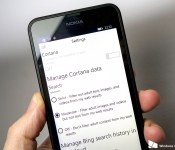
Cortana didn’t make the global trip in the Windows 10 for phones preview

Now that we’re finally starting to dig into the Windows 10 Technical Preview for phones, we’re unearthing some more details on what you can and can’t do with this first build. Take Cortana, for example. As with the desktop preview of Windows 10, Cortana seemingly hasn’t make the trip around the world.

Several MSN apps for Windows Phone score updates; mostly bug fixes

Microsoft has pushed out a number of updates to its MSN suite of apps today. There’s nothing super notable in the updates, but they do contain a number of bug fixes and performance improvements for Money, Weather, Sports, News, Health and Fitness, and Travel.

Xiaomi introduced itself to the U.S. but knows it isn’t ready for the West just yet

Xiaomi has a lot of work to do before a U.S. launch, and it isn’t in any rush
Xiaomi sold more than 50 million phones in 2014, has dozens of engineers and design staff and is followed by a gigantic diehard fan base. But unless you live in China or India, you probably don’t know that much about it. Of course the more hardcore Android fans among us may have heard of that hard-to-pronounce smartphone maker, but many still haven’t had a chance to see or use one of its phones.
With an invite-only press event Thursday in San Francisco, Xiaomi set out to introduce itself to the U.S. in hopes that it can create some Western interest in the company. After a two hour presentation bringing us up to speed with how Xiaomi operates and its lofty ambitions, the big takeaway for me was that it just isn’t ready to break into this market … yet.

See how Romance in New York was filmed on an iPhone 6

Romance in New York, by filmmaker Tristan Pope, takes the point of view of a boyfriend waking up to spend the day with the love of his life. Pope wanted to show the intimacy that comes from everyday moments, and the subtleties and nuances that exist in every expression and every action, even the ones that might seem small. What’s more — he shot the entire 15-minute film on the iPhone 6.
MoviePro, running on the iPhone 6, let Pope exercise fine-grain control over everything from exposure to color temperature to uncompressed audio to Bluetooth microphones. That meant he could get not only the video and sound he needed, but the video and sound he wanted.
- $4.99 – MoviePro – Download now

Glidecam enhanced the iPhone’s built in video stabilization so Pope could get natural camera motion for the moving shots, and the Joby Gorrilapod and the Redicam mount let him set up his shots anywhere and everywhere. All on a limited budget, but all with practically limitless imagination.
- $149 – Glidecam iGlide – Order now
- $29.95 – Joby GripTight GorillapPod – Order now
- $29.95 – RetiCAM iPhone tripod mount – Order now
Pope’s previous work, Dancers of New York was shot on a iPhone 6 using 240 FPS slow motion video in four days.
Romance in New York will be showcased at film festivals around the word. Check out the trailer, above, and the behind-the-scenes video below. Maybe, like me, it’ll inspire you to stretch the limits of your own iPhone videos.