


Do I need Mac anti-virus software?
Malware is a real and present danger on the Mac. Is it time to install anti-virus software?
It’s a question we’re getting asked with increasing frequency. As the Mac‘s popularity continues to grow and security stories makes headlines, both real and imagined, it’s something more and more Mac owners start thinking about. That’s the focus of this week’s Mac Help column.
S.B. writes:
Is BitDefender any good?
The Mac isn’t subject to the same sort of malware and virus problems as Windows, but that doesn’t mean we’re off the hook. As I’ve said before, Macs can get malware and adware just like Windows PCs can. Part of the problem comes when people indiscriminately download software from the Internet.
BitDefender is one of a number of commercial anti-virus software packages that works on the Mac which detects and eliminates malware when it finds it. Other commercial packages include Intego Mac Internet Security and Kaspersky Internet Security for Mac.
You can get protection for your Mac even without spending money. The free app ClamXav (which encourages you to donate if you find it useful) can also eliminate malware and adware on your Mac. For adware specifically, I’ve had very good luck with AdwareMedic. Like ClamXav, it’s free, though the developer encourages you to donate if you find it useful.
You can certainly take precautions to keep your Mac from getting problems with adware and malware, like making sure to use trusted sources to download software for your Mac like the Mac App Store.
You can also make sure to keep your Mac’s Gatekeeper security settings configured to only trust software from signed Apple developers. That will minimize the likelihood that you’ll launch an application that can cause security problems on your Mac.
Do you need anti-malware software on your Mac?
That depends entirely on how you use it. For many of us who rely on the Mac App Store and Gatekeeper security, an extra security app isn’t especially necessary. But if you download software off the Internet without knowing where it’s coming from, or if you start seeing your web browser or other software working in ways you don’t anticipate, like opening up strange web sites, Mac security software can give you peace of mind you won’t have otherwise.
What’s more, the free and donationware stuff I’ve mentioned (ClamXav and AdwareMedic) doesn’t mess up the regular operation of your Mac — just run it when you want to check things out.
Forewarned is forearmed, as the saying goes. The more precautions you take and the better security practices you engage in, the fewer problems you’re likely to have.

Microsoft is removing Google Chat and Facebook Chat support from Outlook.com

Microsoft is informing users of its Outlook.com web email service that it plans to remove support for both Google Chat and Facebook Chat. That means that those users will only have support for Skype for chat, audio and video calling.
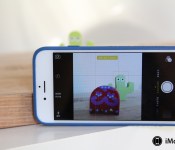
Here’s how to take fantastic macro shots on your iPhone

Macro photography allows you to see the world from a different perspective.
Whether you’re shooting giant cereal pieces a la “Honey I Shrunk the Kids” or the petals of a flower, you can create fantastic scenes from otherwise ordinary objects. iPhone macro photography is especially exciting: Because your phone is so small, you can get close to objects you might otherwise have a harder time shooting with a DSLR. Here are some of my favorite tips for shooting macro photography on the iPhone 6!
Find your light
As the old theater saying goes: “Find your light!” Without decent lighting, your macro subject will come out too dark and blurry; with too much direct lighting, the subject will end up blown out you’ll lose all that great detail.

Instead, shoot for the perfect balance of light and dark: indirect sunlight. The picture above (an Apollo 11 medal given to TRW employees who worked on the launch) is taken next to a sun-drenched window, but out of the way of direct sunbeams.
Don’t get too close
Your iPhone has a fixed lens focal length of 29mm, which means that you can only get so close to an object before it blurs. Ever held your finger up to your eye but couldn’t focus on it because it was too close to your face? Same principle. You don’t want to push your phone so close to the object that it starts to blur.

If it’s your first time shooting macro photography, it might take a bit of trial and error to find the perfect distance for a close-but-not-blurry photograph; I’ve had the best success with keeping my iPhone 6 around 2 inches or more away from the subject.
Avoid messy backgrounds
When you shoot macro, you’re intentionally focusing on a foreground object close to you, which means objects in the background are going to be somewhat to heavily blurred. As such, busy backgrounds with multiple colors may still pull the focus away from the object you’re taking a photo of, even though they’re blurred.

In the photo above, while I liked the general look of the blurred snow scene to the right, the tool shed and multiple trees were pulling focus from my actual goal: shooting individual snowflakes. The second picture I took, on the left, keeps the snow as the main focus and allowed me to highlight their crystalline structure.
Use AE/AF lock for a clear shot
When you get close to that 2-inch mark — especially if you have other items in the background — the iPhone 6 will occasionally try to snap its focus back from your macro image to whatever else is in frame.

To prevent that, tap and hold on your focus point until you see “AE/AF Lock” appear; until you tap the screen again, your iPhone will stay locked to your macro subject’s focus point.
Invest in an Olloclip
On its own, the iPhone takes some pretty nice macro photos, but you can amplify those images by adding an Olloclip or similar lens system. The $70 system lets you shoot at 7x, 14x, and 21x, and even includes a focus hood to make sure your images are framed at the right distance and come out perfectly clear.

The images above, taken last year with an Olloclip 3-in-1 macro lens, show a container of sea salt at 7x, 14x, and 21x respectively. The lens kit is a fantastic little system if you plan to do macro photography often on your iPhone, quickly snapping on or off an iPhone 6 or 6 Plus.
Any macro tips?
Shot any great macro photos lately? Have other tips that make your iPhone macro photography shine? Share them below.

Ting launches open beta for its GSM network

Ting‘s GSM network, which it announced late last year, has officially entered into an open beta. Previously, customers could test the network out on an invite-only basis.

Early backer Kickstarter pricing for Pebble Time increased to 30,000 watches

Due to the insane interest and backing that Pebble‘s latest endeavor, the Pebble Time, has received, the company has issued an update announcing that it has decided to increase the number of units it will ship in May from the $179 tier to 30,000. In addition, the Pebble team says that it will open up a new reward tier with a June ship date after the current tier is full.
The Pebble Time was announced earlier today, and features a color screen, weeklong battery life, and a stainless steel bezel. In addition, the new watch also features a quick release for bands, and an accessory port that allows the watch to interact with accessories created by third-party developers.
If you want to pledge and get in on the May ship date, you can do so at the source link below. However, you may want to move quickly, as there are only around 12,000 units left.
Source: Pebble (Kickstarter)

Review – JOTO Screen Protector Film Guard for Microsoft Surface Pro 3

These days most electronic devices, especially high-end ones like the Surface Pro 3, have durable, scratch-resistant glass screens. That makes screen protectors much more of a personal preference than a must-have accessory.
They can also serve other functions, such as glare filtering. Since I often work in a very well lit environment most of the day, I find having a glare filter can be beneficial, so I decided to try a few. Today I will be looking at the JOTO Screen Protector Film Guard for the Surface Pro 3.

Cortana can now tell you about new movies, plus you can ‘Pick the Winners’

If you are using Cortana on your Windows Phone or Windows 10 preview device, you may want to dive into Settings > Interests to check off some new categories. It looks like the Cortana team has finally delivered on some new items for Cortana to follow, and we are excited to see how they work.
Sometime in the last few days ‘Showtimes + Trailers’ (found under Movies) and ‘Pick the Winners’ (found under Entertainment) were added to Cortana’s information repository. Users can then enable the categories and the personal assistant will keep you up to date when there are changes.
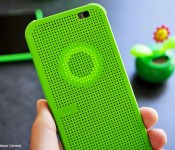
Cortana also gets ‘Fitness Tracker’ support for workout recommendations

Besides movies and ‘pick the winners’, some users are reporting to us that Cortana also has a new Lifestyle interest. Heading deeper into the category reveals a Fitness Tracker section, which we presume ties into the Microsoft Band.
Currently, none of us at Windows Central has the interest in our Cortana Notebook, so we can only guess as to how it works.
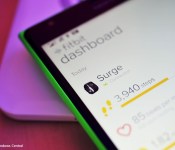
Fitbit for Windows Phone snags bug fixes in latest update

The Fitbit app for Windows Phone has scored an update today. There’s nothing major or super notable here, but the update does bring a couple of bug fixes.

WhatsApp scores an update, no changelog in sight

WhatsApp for Windows Phone has been updated today, bringing it up to version number 2.11.670.0. However, it looks to be a simple bug fix update, as the changelog is from a previous version.
 AIVAnet