


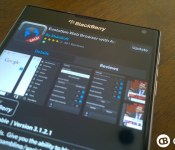
Evolution Browser gets updated with parental controls plus more

While most BlackBerry 10 users are happy with the native browser there are a few decent alternatives out there are one that has been constantly updated and improved since its launch in mid 2014 is Evolution Browser from ShaoSoft. If you missed our previous coverage and hands-on video you may well be interested to hear that Evo Browser very cleverly removes all those annoying adverts from websites. If ads get on your nerves you’ll want to check this one out. There’s plenty of other great features too which you can find using the link at the base of this article.

Enpass rolls out version 4.5 – Keep your passwords safe and secure

Enpass is without doubt one of my ‘must have apps’ on BlackBerry 10. If you’ve not seen us feature it before it is essentially a password manager, however it offers some amazing features and I certainly wouldn’t want to be without it.

Explore travel destinations and things to do there with the HappyTrips app

HappyTrips.com is an upcoming travel portal by Times Internet, the Internet subsidiary of The Times of India Group, India’s leading media house. The portal features over 15,000 articles, guides, and photo-galleries, covering over 300 destinations in India and worldwide.
Earlier this month, the official HappyTrips Travel Guide app arrived in the Windows Phone Store. The app intends to position itself as a go-to app for all your travel planning needs, inspiring you to travel by browsing through picture galleries or reading about trending destinations across the globe.

How to upgrade your MacBook Air with more storage

One of the best ways to get more life out of an aging Mac is to upgrade the storage. In some cases you’ll want to go faster. In other cases, you’ll want to go bigger.
I carried a MacBook Air for two years but gave up on it in favor of a Retina MacBook Pro with beefier SSD storage, and haven’t regretted it. The MacBook Air is still with us, in the hands of my college-aged son. It’s time for a storage upgrade to get him a couple more years with it. Here’s how.
Apple changed the architecture of the MacBook Air’s flash storage interface with the mid-2013 models. If you have a MacBook Air older than that, like mine, you’ll find storage upgrade kits readily available from both Other World Computing and Transcend. The capacity and performance of your flash storage upgrade will vary depending on your MacBook Air and which upgrade you choose.
For my son’s MacBook Air, doubling the available storage capacity is going to give him plenty more space to help get through the next couple of years. We’re replacing the 120 GB of available storage with a 240 GB drive instead. Transcend lent us a JetDrive 500 kit to show you how it’s done.
The kit includes a 240 GB replacement SSD for the MacBook Air, two screwdrivers with different tips to disassemble the MacBook Air and remove the existing SSD, and an external USB 3.0 enclosure which fits the original SSD I’m removing from the MacBook Air.
The only thing the kit doesn’t include that I’d consider mandatory is an anti static strap, which will cost you $6.99 from Amazon.com. An anti-static strap reduces the likelihood you’d damage the sensitive electronics you’ll be handling. What’s more, you can save it and reuse it the next time you need to take your Mac or other device apart.
Back up!
Before you do anything else, back up your Mac. Use Time Machine or another backup method to make sure that your Mac is completely backed up. You don’t want to screw something up only to find that your data is gone for good.
This MacBook Air is no longer eligible for AppleCare coverage. If it were, I’d think twice about doing this upgrade. Apple’s warranty covers original parts only; a third-party SSD upgrade isn’t something that would be covered if something goes wrong.
Build a USB drive

- Install the replacement SSD in the external enclosure using the supplied screwdrivers.
- Connect that drive to an open USB port on your Mac.
Clone your Mac
The Transcend kit included all the physical tools I needed to install a new SSD in the MacBook Air and a handy USB 3.0 enclosure to stick my old drive in, so I can recycle it as a 120 GB external drive. A carrying pouch for the drive is also included.
Before that, though, put the bigger SSD into the enclosure included with the kit and use the Mac’s Recovery System (command-R on boot) to run Disk Utility to format the new drive and copy the contents of the Mac’s internal drive to it. Instructions to do so are included with the kit.
I prefer to use cloning software whenever possible. I find cloning the Mac’s SSD is the fastest and most direct way of duplicating its contents onto the bigger new one I’m installing. It’s also a good habit to get into to create a bootable backup drive.

I used Bombich Software’s Carbon Copy Cloner ($40, free 30-day trial download available). Shirt Pocket’s SuperDuper is another excellent disk cloning option (free, $27.95 unlocks additional features).
Install the drive
Installing the new drive is actually quite simple: Just remove the screws from the bottom of the MacBook Air’s case, then remove the screw holding the SSD in place. Slide the new one into place, then reverse the procedure. I’d recommend storing the screws from the bottom of the MacBook Air in a small cup or plastic storage container so they don’t roll away.

From start to finish, it should take you about half an hour to physically install the drive. The amount of time it’ll take you to cloning or copying the hard drive depends on the amount of data you’re moving.
Transcend makes JetDrive kits for older MacBook Airs and older MacBook, MacBook Pro and Retina MacBook Pro models, MacBook and Mac mini models too. Instructions vary depending on model, so visit their web site for more details.
- $169.99 – Buy now from Amazon.com

The Lumia 635 with 1GB of RAM appears to be real

Recent talk has suggested that the popular Lumia 635 Windows Phone was in line for a popular hardware upgrade. One of the biggest limitations to the Lumia 635 (despite being one of the first Windows 10 preview phones) is the 512MB of RAM, meaning some apps just won’t install. Various sightings of a 1GB version have started appearing across the web, but now it appears that the phone is somewhat official having been listed on Microsoft’s own website.

Spinballs for Windows Phone – nice concept but the execution falls a wee short

Spinballs is a Windows Phone game that hit the Store shelves earlier this month. The puzzle game has you shooting a ball across a wooden puzzle where it should eventually land in a basket. We were tipped on this game, it looked interesting and we took the plunge to see what it was all about.
The puzzles have trap doors, re-directs and other twists to add some degree of challenge to the game. The concept is decent but glitches with the graphics and a few other factors noticeably holds this Windows Phone game back. It is available for low-memory devices.

How to use travel times with Calendar for iPhone and iPad

Have a lot of appointments and meetings to juggle? Would it make your life a little easier to be able to easily see how long it will take you to get from one place to another? Apple’s Calendar can use location information to figure out just that, and best of all, it’s easy!
How to get travel times with Calendar for iPhone and iPad
- Launch the Calendar app on your iPhone or iPad.
- Tap on the event you’d like to calculate a travel time for or create a new one.
- Tap on Edit at the top right.
- Tap on Travel Time.
- Turn On travel time.
- Tap on Starting Location and tell Calendar your starting location either by entering an address or the name of a place or business.
- Tap on Based on location for either driving or walking directions.
- Tap on Edit Event at the top.
- Tap Done.
- Look for travel time under the date area.



Next-generation Pebble smartwatch with color screen found on company’s servers

This might just be what the next-generation Pebble smartwatch will look like. The render of the smartwatch was found on the company’s servers, hidden away with its wider design and color screen. Pebble is expected to officially announce the device Tuesday, February 24, at 10 am Eastern time, which is when the current countdown on their website reaches “zero”.
The render would appear to confirm earlier rumors that the next generation Pebble will have a color display but maintain the same four-button control scheme of the current devices. The image also shows what looks like a bigger bezel than the current Pebble design. We expect that we’ll be learning a lot more about the new Pebble tomorrow.
Source: Pebble; Via: 9to5Google

Apple to bolster iTunes editorial content with latest job opening

A job positing has been spotted for a position at Apple, to work at the company’s London offices. What makes this post rather interesting is the successful applicant would be tasked with editorial content on Apple’s music service. Think back to Apple’s acquisition of Beats Music. An editorial producer with experience across pop culture and music journalism is desired. According to the job posting on Apple’s website:
“This full-time position is split between editorial and producing duties. The editorial duties focus on writing, editing, managing a sea of freelancers, and working collaboratively with business and content heads to shape and define editorially driven merchandising promotions.”
It’s strange to see Apple seeking such talent, simply because we’re most likely talking about music curation. Apple has also managed to snap up DJ Zane Lowe from BBC Radio 1 in the UK, who will head to the US to work with the iTunes team. We’ll have to see what Apple plans for its service relaunch, but with current positions filling up (and being advertised), the company is going big.

Our most popular BlackBerry Passport hard case is only $19.95 today!

The SURFACE Case by Seidio is the ultimate low-profile BlackBerry Passport hard case; combining a super-slim design with a protective outer shell. The exterior features a custom soft coating that provides additional grip, too. Get yours in black, blue, red or gold today and save 33%
 AIVAnet
