


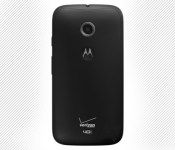
Image of Motorola Moto E (2015) for Verizon leaks

The mystery announcement from Motorola on February 25 could be the Moto E (2015). Today, an alleged image of the Moto E (2015) for Verizon leaked. The device, which initially surfaced in January, looks awfully similar to last year’s model. And here we just have that same device with Big Red’s logo stamped at the bottom of the rear.
The following are the specs listed by Best Buy earlier this month:
- 4.5-inch display (960×540)
- Quad-core processor clocked at 1.2GHz with 1GB of RAM (from Qualcomm)
- 5MP rear camera / VGA front camera
- 8GB internal storage with microSD card slot for an additional 32GB
- Android 5.0 Lollipop
Source: Android Police
Come comment on this article: Image of Motorola Moto E (2015) for Verizon leaks

Daily Roundup: Microsoft predicts (most) Oscar winners, Google Wallet and more!

From Oscar winners to gadget leaks and a robot that feeds you tomatoes while you run, we’ve got plenty of stories to get you talking in today’s Daily Roundup. Won’t you join us past the break?
Microsoft came remarkably close to predicting all 24 Oscar winners

It turns out Cortana isn’t the only fortune teller Microsoft has on hand. Economist David Rothschild works at the company’s New York lab and correctly predicted 20 out of 24 Oscar winners for last night’s Academy Awards.
HTC One M9 store images hint at an evolutionary phone design

MobileGeeks has spotted German store listings that suggest most rumors about the new HTC One M9 are true, with a few bonus features to boot. It looks like the phone will be getting a software upgrade, as well as boost its size to store bigger and better hardware.
The top 11 tablets you can buy today

Want to buy a tablet without breaking your budget? We rounded up 11 of our favorites with wide price ranges for you to browse.
Piggybacking robot feeds you tomatoes while you run

The odd contraption you see above is an actual, functioning robot that feeds you tomatoes, which are apparently chock full of antioxidants, while you run. However, don’t expect to see it on the streets anytime soon — it was created as a promotion for last weekend’s Tokyo Marathon.
Microsoft Band update lets you type replies and track your cycling

Microsoft’s Band just got a lot more useful. With the latest update, you can type replies on the activity tracker using a predictive keyboard, as well as track your bike workouts in the new cycling mode.
Pebble inadvertently teases its first color smartwatch

As Pebble prepares for a big announcement tomorrow, fans of the device think they’ve already discovered a new feature — a color watch face. As to what’s on the inside, 9to5Mac suggests the wearable is getting a new processor, better motion detection and a revamped interface.
Google Wallet to come pre-installed on phones for major carriers

Google is stepping up its mobile payment game — thanks to a new partnership with AT&T, Verizon and T-Mobile, Google Wallet will come pre-installed on their Android phones running KitKat or higher starting later this year.
Deal: original G Flex for just $244.99, in new condition

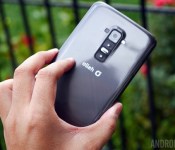
Towards the end of last month we saw the original LG G Flex go on sale through Ebay for just $229.99, a heck of a deal for LG’s first curved smartphone — even if the device isn’t nearly as impressive as the latest iteration of G Flex series. Missed out on the opportunity to snag the phone for cheap while you could? You’ll want to listen up.
Daily Red Tags is now offering up the LG G Flex in black for $244.99, only $15 more expensive than the last deal and at least a hundred dollars cheaper than any other G Flex offer out there. It’s also worth noting that this model is marked as “new”, whereas the previous offer was for a refurbished model. For those that need the refresher on the hardware, the phone is powered by a 2.26GHz quad-core Qualcomm Snapdragon 800 processor and paired with 2GB RAM. Other specs include a 6-inch curved P-OLED display with 720 x 1280 resolution, 32GB storage, a 13MP rear-facing camera and a 2.1MP front-facing camera.
While the G Flex might not have the most impressive display resolution or even the most powerful processing package these days, it is still absolutely worth the sub-$250 asking price, which isn’t too much more than what you’d spend on budget-level phones like the Moto G.
Thanks for the tip, Petree!
Brazil snags Denim update for select carrier versions of Lumia 925 and 1020

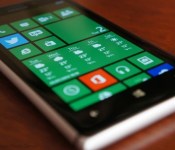
If you live in Brazil, you may be picking up some Lumia Denim action today. As confirmed by Microsoft’s update tracker, the update has rolled out to two more devices devices: the Lumia 925 on Oi and Vivo, and the Lumia 1020 only on Vivo.
Seventh and eighth wallpapers for HTC One (M9) surface online

New wallpapers for the upcoming HTC One (M9) surfaced online as they have since early last week. On Twitter, LlabTooFeR provided the seventh and eighth wallpapers to be featured on the handset. Many of the wallpapers release prior to today have been blurred landscapes with defined horizons. These wallpapers stay true to that visual.
Hit the break to see the two wallpapers.


Here are the previous wallpapers:
Come comment on this article: Seventh and eighth wallpapers for HTC One (M9) surface online

Gmail’s autocomplete is broken (update)

Before you send out something through Gmail, make sure to check if you have the right person in the recipient field — trust us on this one. Google’s email service has been having autocomplete issues, which people started noticing over the past few days. It seems to keep suggesting contacts you don’t email that often instead of those you send digital missives to regularly. So, instead of suggesting Joe Coworker when you type “J” in the “To” field, you get Joe Shmoe, John Doe and some random J you drunkenly met at a party once in college. Obviously, you wouldn’t want to send any of them the super secret work document you’ve been working on. Gmail announced on Twitter that it’s investigating the issue, but until then, all you can do is to keep a close eye on who you’re sending emails to.
Update: The Gmail team announced in a followup tweet that it has identified the problem and is working on a fix.
We’re aware of an issue with Gmail and auto-complete and are currently investigating. Apologies for any inconvenience.
– Gmail (@gmail) February 23, 2015
Thanks again for your patience everyone re: Gmail and auto-complete. We’ve identified the issue and are working on a fix. Stay tuned.
– Gmail (@gmail) February 24, 2015
Via: TechCrunch
Source: Gmail (Twitter)

Google Launches ‘YouTube Kids’ for iPhone and iPad [iOS Blog]
Google announced on Monday that it has released YouTube Kids [Direct Link] on the App Store for iPhone and iPad. The new app provides children and families with a kid-friendly portal to discover and explore videos about anything they can possibly imagine. The family-focused content is appropriate for children and broken down into four categories: Shows, Music, Learning and Explore.

YouTube Kids allows children to discover new facts about dinosaurs from National Geographic Kids, learn about technology from Reading Rainbow, watch Thomas the Tank Engine leave the world of Sodor and more. Families and children can also watch video series on YouTube channels such as DreamWorks TV, Jim Henson TV, Mother Goose Club and Talking Tom and Friends.
Google offers a number of parental controls to ensure that families can fine-tune their viewing experience:
Timer: Let the app be the bad guy with a built-in timer that lets you limit kids’ screen time. The app alerts your child when the session is over, so you don’t have to. Sound settings: Sometimes you need a little peace and quiet! You have an option to turn off background music and sound effects, so your kids can keep watching while you catch a breather. Search settings: If you’d rather limit your children to just the pre-selected videos available on the home screen, you can turn off search. Product feedback: Our goal is to improve YouTube Kids all the time, so we’ve included a space for you to give us your feedback.
YouTube Kids is free for iPhone and iPad on the App Store, and is also available for Android. The app is Google’s first step towards offering an improved YouTube experience for children and families, providing parents with the comfort of knowing they can hand off their iPad to their children and know that only appropriate content can be viewed.

Looking forward: Intel to move away from silicon chips at 7nm

Intel plans to address the state of their 14nm, 10nm and future 7nm chips at the International Solid-State Circuits Conference (ISSCC) this year. While the majority of their presentation will be focused around their current 14nm chips, the company plans to discuss how it will continue the journey 10nm and even to 7nm in the years to come.
Intel’s 14nm technology is what we have access to currently, and the first chips based on the 10nm process won’t be available to the public until early 2017. Moving from 14nm to the 10nm manufacturing node is a difficult process, though Intel supposedly has a way to further their technology into smaller, lighter chips. But what’s more interesting than the future 10nm tech is the move to 7nm. To make chips that small, Intel says they’ll need to recruit the help from new materials, which means that 10nm chips will likely be as far as silicon takes us. Some reports state that the replacement material for silicon will be a III-V semiconductor like indium gallium arsenide (InGaAs), though Intel hasn’t commented on silicon’s replacement yet. The shift to III-V semiconductors, or whatever material the company plans to use, will allow the chips to consume less power while integrating more features into a single die.
Moreover, the company plans to continue Moore’s Law as they journey to 7nm chips. Moore’s Law is an ideal thought up by Gordon Moore, the company’s co-founder, that states that the number of transistors incorporated in a chip will approximately double every 24 months.
Intel was forced to delay their 14nm Broadwell chips by several months due to manufacturing issues. But Intel executive Mark Bohr plans to address this issue at ISSCC 2015. When asked about the delays, Bohr stated:
I think we may have underestimated the learning rate—when you have a technology that adds many more masks, as 14[nm] did…it takes longer to execute experiments in the fab and get information turned, as we describe it. That slowed us down more than we expected and thus it took longer to fix the yields. But we’re into high yields now, and in production on more than one product, with many more to come later this year.
Intel remains confident that the new 10nm chips won’t be delayed upon launch, and that the pilot 10nm manufacturing line is running around 50% faster than that of the 14nm chips. As for how the eventual move to 7nm relates to mobile? While the affects of a move away from silicon will first be seen by desktop and laptop devices, it’s only a matter of time before mobile chips follow suit.
New images of cover reveal more of the Huawei Ascend P8

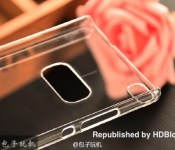
Over the weekend we saw some images that were supposedly of the Huawei Ascend P8 surface on the Internet. The device that was shown in those images was obscured by a case making it difficult to determine much detail or even verify that the device is the Ascend P8. A new set of leaked images has surfaced, this time for a case that is meant for the Ascend P8, and these images may provide us with a few more clues about what Huawei has planned for their forthcoming smartphone.
The images of the cover suggest the Ascend P8 will be very thin, consistent with previous information suggesting the device will only be 6 mm thick. On the right edge of the cover there are small holes consistent with volume and power buttons. More interesting is the back cover that includes a small hole in one corner and then a much larger opening centrally located in the back of the device. Sources suggest the dual openings could indicate Huawei is implementing a dual camera setup. Another alternative is that Huawei plans to include a fingerprint sensor located on the back of the device requiring an opening in any cases. The problem with that second option is that none of the previously leaked images of the device include anything like a biometric sensor on the back of the unit. Another alternative could be that Huawei just wants to leave an opening available for their branding to be shown to the world even when a case is on the smartphone.
Huawei appears to be planning to officially reveal the Ascend P8 on April 15th at an event in London.


source: HDBlog.it
via: GSM Arena
Come comment on this article: New images of cover reveal more of the Huawei Ascend P8
Monday Makeover: An extensive look at Action Launcher 3
There is a plethora of apps out there that allow you to customize just about every single thing on your android smartphone without even rooting. That is why we have started the weekly series “Monday Makeover.” Each week we will take one of these customization apps and talk about setting it up, discuss the features of it, and show you how you can make your android device truly one of a kind. Last week we talked about the popular homescreen theming app Themer. This week we are taking a look at Action Launcher 3.
Getting Action Launcher 3 up and running on your phone is fairly simple. Once downloaded, you can tap your home button and select “Action 3” from the menu. If you are not presented with this menu after tapping the home button, you can open your settings menu and go to the “Home” tab. Here you will see your options for your homescreen and you can select “Action 3”. After this, you can return to your homescreen to see the default Action Launcher setup.
You are greeted by the welcome screen that gives you two options for setting up your homescreen. You can choose Import which will import the icons and folders that were on your old homescreen and place them on the Action Launcher homescreen. The other option is Start Fresh which will take you directly to the default Action Launcher setup. I am going with Start Fresh because it will give us a clean slate to look at and we can see all of the features of Action Launcher 3. Two of the most useful features in this launcher are covers and shutters so we are going to look at them first.
Covers

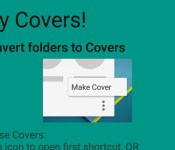
Covers are basically folders with added functionality and a different look. On the default homescreen, you will find examples of both folders and covers. There are two folders named “Google” and “Create.” These look and act like the folders we all know and tapping on them will open them up. There is also a cover which is the App Drawer icon in the bottom middle. You will notice that it does not look like the two folders because it only displays one icon. Also, tapping on it opens the app  drawer instead of a folder. The way that you can identity this icon as a cover is the small box on the bottom right corner of the icon. All covers will have this symbol on them. In order to open the cover, you have to swipe up from the icon. Now, you can see the contents of the cover. This is what makes covers so useful. Tapping on them will launch the app that’s icon is visible and swiping up from the icon opens up the cover. You can change any folder into a cover in just a few steps. We can try this out with the Google folder on the homescreen. Tap on the folder to open it, and then tap on the three dots in the bottom right. You will see the option to “Make Cover.” Tap this option and the Google folder turns into a cover which will look different and have the small square in the bottom right. Tapping the icon now will launch the Google Search app and swiping up will open the folder. You can change the app that launches when the cover is tapped by opening the cover and moving the desired app to the first position in the cover. Whichever app is placed first in the cover will be the app that is launched and will also change the icon displayed for the cover. Covers can be extremely useful and timesaving if you take time to set them up. One cover that I recommend is one for all of your photography tools. I have mine set up so that my camera app is first and launches when the cover is tapped, and I have placed other apps such a photo editing apps and my gallery into the cover. This way everything is in one folder, but the camera app can still be launched quickly.
Shutters

Shutters are widgets that are accessed the same way covers are. On the homescreen, the Google Chrome app has a shutter on it. You can tell this by looking for two vertical lines in the bottom right corner of each icon, similar to the squares found for covers. Swiping up from the Chrome app will display the bookmarks widget  so that you can easily access your favorite websites. Tapping on the Chrome app will launch it like normal. You can apply a shutter to any app by holding down on the icon and selecting “Create Shutter.” From here, a list of available widgets will pop up and you can select which one you want to open. Shutters can be useful if you are like me and love the convenience of widgets but do not want a bunch of them cluttering up your homescreen. You can have the widgets you want as shutters so that you can view them when you want to and hide them when you do not. Although they may not be as glanceable as widgets placed directly on the homescreen, shutters are still much faster than having to dive into an app, and you do not have to leave the homescreen.
App Drawer
By now, you may have stumbled upon the fact that there are two ways to access your apps with Action Launcher 3. You can access them the conventional way by tapping on the app drawer icon which will open up the familiar app drawer, or you can swipe in from the left on your homescreen to display Quickdrawer, a scrollable list of your apps. In my opinion, this is the easier (and cooler) way to do it, plus there are some features to Quickdrawer that are not present in the conventional app drawer. On the right side of Quickdrawer is an alphabetical list which you can scroll along to easily access apps that begin which each letter. This can save a lot of time, especially if you have many apps on your phone. Also, you do not have to leave your homescreen to open an app. You can choose either way you want, or you can use both. If you choose to ditch the old app drawer, you can simply delete the icon by dragging it to the top of the screen. You cannot disable Quickdrawer.

We are going to dive into the settings list, which can be accessed by either swiping up on the homescreen or tapping and holding on the homescreen and selecting Settings. There are not many categories to address, and the first one on the list is Quicktheme.
Quicktheme

This menu lets you choose how you want your homescreen to look. You can click on “Theme” and select a premade one from the list, or you can customize it yourself. If you want your phone to look like it is running Lollipop, Material Light and Material Dark create a nice look that replicates several design features in Lollipop. You can choose what color you want the status bar to be, or you can leave it transparent. You can also customize the color of the search box, apps background, Quickdrawer background, and folder background.
Layout

This menu lets you customize the layout of your homescreen and enable or disable some features. “Top control” lets you choose what you want displayed at the top of your homescreen. “Home screens grid” changes the height and width of the grid on your homescreen which can allow you to fit more apps and widgets on each screen. You can enable or disable home screen indicators, as well. “Dock” changes how many icons can be placed on the dock. You can choose from 3 to 12, or you can select to turn the dock off. Quickpage is a separate screen that is accessible by swiping in from the right on your homescreen. You can put apps and widgets on it just like you would a normal homescreen page. We will look more at Quickpage further in the article. You can choose to turn it on or off and its grid size is determined by the grid size of your homescreens. Once you have set up your homescreen just like you want it, you can lock the desktop to prevent apps and widgets from moving around.
Display

From this menu, you can customize the look of icons and other features. “Icon pack” lets you apply the icon pack of you choice to your phone. This is one way to completely change the look of your phone. If you want some suggestions, you can check out some of our favorite icon packs. “Icon scale” changes the size of the icons on your homescreen and app drawer. “Text labels” lets you decide when you want the name of icons to be displayed. “Cover/Shutter indicators” lets you decide the look of the small squares and bars which are placed on icons when they have covers or shutters applied. You can even turn them off if you want to. If you do not want to use shutters at all, you can choose to disable them completely. “Hidden apps” lets you hide apps from your app list without having to uninstall them. “Open app animation” changes the animation seen when opening up apps. “Screen orientation” lets you choose if you want you homescreen to be locked in portrait, landscape, or change as you rotate your device. You can turn wallpaper scrolling on and off, as well as the shadow displayed at the top and bottom of the homescreen.
Shortcuts

This menu lets you change how different features are accessed. You can choose to have Google Now launch when you swipe right on your leftmost homescreen. I choose to turn this off because it can interfere with opening the Quickdrawer. You can also choose to enable or disable opening the Quickdrawer by swiping in from the left. “Toggle Quickdrawer” lets you choose if tapping the Home button opens the Quickdrawer. “Notifications” allows you to swipe down from anywhere on your homescreen to expand the notification shade. “Settings” lets you choose if you can access setting by swiping up on the homescreen. “Lock device” gives you the ability to lock your device by double or triple tapping your screen. In order to enable this, you have to set Action Launcher 3 as a device administrator, but it will walk you through those steps. “Open Cover/Shutter” changes how you open covers and shutters from a vertical swipe to double tap or both. “Double tap time” changes the max time between taps to determine if it was a double tap or not.
Backup & Import

This menu allows you to save you homescreen setup so that you can return to it whenever you want. “Backup” lets you name and save your current setup for later use. “Restore” lets you reapply a backup that you have saved. “Backup location” shows you where your backups are stored in your phones internal memory, but it cannot be changed. “Import” lets you import your setup from a previous launcher which we also saw at the welcome screen. “Restore default layout” will change your entire setup to the default layout we saw when we first installed Action Launcher 3.
Quickpage

Quickpage is the separate screen that can be enabled in the settings. Once enabled, you can swipe in from the right on your homescreen to have it appear. It looks very similar to the Quickdrawer on the left side of the screen. This feature can be useful to those who do not want a lot of apps and widgets cluttering their homescreen but still need quick access to them. Apps and widgets can be added to Quickpage just like another homescreen. After you select a widget or app, hold down on it and drag it over to the right side of the screen. You will see a tab with a blocky letter “C” in it. Hold the app over this tab and Quickpage will open. Then you can position the app or widget wherever you want it. Covers and shutters work on Quickpage just like on the homescreen.
We have reached the end of another Monday Makeover. We took a look at every feature that Action Launcher 3 has to offer its users. It is a wonderful, speedy, fluid homescreen replacement and has several neat features to save time for you and space on your screen. I would definitely recommend giving Action Launcher 3 a look if you want to take these features for a spin. You can download it for free in the Play Store, but several features are only available in the Plus version which will cost you $4.99. If you are trying Action Launcher 3 out or have used it in the past, go ahead and leave a comment on what you thought about it. While you’re down there, give us some suggestions on apps you would like to see in future Monday Makeovers. Have a great week!
The post Monday Makeover: An extensive look at Action Launcher 3 appeared first on AndroidGuys.
 AIVAnet