


How to use iCloud Drive: The ultimate guide

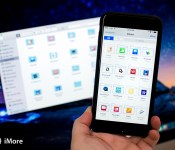
iCloud Drive is Apple’s online storage service — a place to keep all your files and access them from all your Apple devices, including your iPhone, iPad, and Mac.
If you’re new to iCloud Drive and not sure how to get started, you’ve come to the right place. Follow along and we’ll walk you through how to enable iCloud Drive, pick an appropriate storage plan, and how to better manage your files across your iPhone, iPad, and Mac!
- How to set up and use iCloud Drive
- What iCloud Drive storage plan should you get?
- How to access iCloud Drive files in OS X Yosemite
- How to view iCloud Drive files on iPhone and iPad
- How to control what apps have access to iCloud Drive
- How to manage iCloud Drive syncing over cellular
- How to manually create folders in iCloud Drive on your Mac
- How to migrate files from Dropbox to iCloud Drive, and why you may want to wait
- Clearing up the iCloud Drive confusion: No there’s no iCloud Drive app on iOS
How to set up and use iCloud Drive on iPhone and iPad

You can choose to set up iCloud Drive at the same time you set up your iPhone or iPad. Otherwise, you can set up iCloud Drive at any time from the Settings App. If you previously used iCloud Documents and Data, iCloud Drive will replace it. Here’s what you need to know!
- How to enable iCloud Drive manually on iPhone and iPad
- How to pick an iCloud Drive storage plan
- How to start using iCloud Drive on iPhone and iPad
What iCloud Drive storage plan should you get?

iCloud Drive stores files in your iCloud account. Apple gives everyone 5GB of space for free, but if you want or need more, you’ll have to pay for it. Since other services, including iCloud Mail and iCloud Photo Library also use your iCloud account storage, you may want to upgrade to make sure you don’t run out. Plans start at $0.99 a month, and you can also downgrade at any time. How much storage should you get? Here are some tips to help you choose the perfect plan!
How to access iCloud Drive files in OS X Yosemite

OS X Yosemite comes with iCloud Drive support built right into Finder. Any file you save on your Mac, iPhone, or iPad is instantly synced between all your devices. Since iCloud Drive is baked right into the Finder, you can open, edit, and save any of these files on your Mac with any app that supports the appropriate file type.
How to view iCloud Drive files on iPhone and iPad

Unlike the Mac, where iCloud Drive is baked into the Finder, there’s no unified iCloud Drive app for iOS. Instead, Apple provides a DocumentPicker (similar to the PhotoPicker), that lets any app open iCloud Drive. Some enterprising App Store apps have used that capability to offer fairly unfettered access to iCloud Drive.
How to control what apps have access to iCloud Drive

Lots of App Store apps offer support for iCloud Drive. That doesn’t mean you want all of them to have access to your file. If, for whatever reason, you decide you don’t want a particular app to be able to save files to iCloud Drive, you easily shut it off.
How to manage iCloud Drive sync over cellular

By default, iCloud Drive will sync your files not only over Wi-Fi, but over the cellular network as well. Depending on your data plan and the size of the files you’re working with, you might want to keep an eye on that. Text files won’t use much data, but presentation files can be huge. Luckily, you can easily restrict iCloud Drive to only sync files over Wi-Fi in just a few taps.
How to manually create folders in iCloud Drive on your Mac

iCloud Drive will automatically create folder directories for any app that save data to it, but you can also choose to create your own folders. You can then drop files into them and they’ll immediately be synced across all your devices. This is a great option for folks who have multiple documents on their Mac that they’d like to have access to on their iPhone or iPad.
How to migrate files from Dropbox to iCloud Drive, and why you may want to wait

If you’ve previously been using Dropbox but want to switch over the iCloud Drive, you’ll have to move your files over first. We can show you how to do that, but we’ll also caution you about waiting to make the switch, at least for a little while.
How iCloud Drive works on iPhone and iPad

Based on the information above, it’s easy to see that iCloud Drive works differently on the Mac than it does on iPhone and iPad. That’s because the Mac has a visible file system and iCloud Drive is integrated into the Finder, while iOS hides its file system and iCloud Drive is integrated into apps.
If you’re not sure what that means or what you need to keep in mind when using iCloud Drive on both OS X and iOS, here are some additional resources.
Need more help with iCloud Drive?
Since iCloud Drive is a relatively new service, we know there’s a lot of you out there that still have a lot of questions. Our iMore forums are a great place to ask for and give help to others. The best part is you don’t even have to register to ask a question — unless of course you want to. So if you still have some iCloud Drive questions on your mind, we encourage you to ask in our forums:
How to use iCloud Drive: The ultimate guide
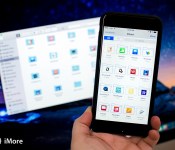
iCloud Drive is Apple’s online storage service — a place to keep all your files and access them from all your Apple devices, including your iPhone, iPad, and Mac.
If you’re new to iCloud Drive and not sure how to get started, you’ve come to the right place. Follow along and we’ll walk you through how to enable iCloud Drive, pick an appropriate storage plan, and how to better manage your files across your iPhone, iPad, and Mac!
- How to set up and use iCloud Drive
- What iCloud Drive storage plan should you get?
- How to access iCloud Drive files in OS X Yosemite
- How to view iCloud Drive files on iPhone and iPad
- How to control what apps have access to iCloud Drive
- How to manage iCloud Drive syncing over cellular
- How to manually create folders in iCloud Drive on your Mac
- How to migrate files from Dropbox to iCloud Drive, and why you may want to wait
- Clearing up the iCloud Drive confusion: No there’s no iCloud Drive app on iOS
How to set up and use iCloud Drive on iPhone and iPad
You can choose to set up iCloud Drive at the same time you set up your iPhone or iPad. Otherwise, you can set up iCloud Drive at any time from the Settings App. If you previously used iCloud Documents and Data, iCloud Drive will replace it. Here’s what you need to know!
- How to enable iCloud Drive manually on iPhone and iPad
- How to pick an iCloud Drive storage plan
- How to start using iCloud Drive on iPhone and iPad
What iCloud Drive storage plan should you get?
iCloud Drive stores files in your iCloud account. Apple gives everyone 5GB of space for free, but if you want or need more, you’ll have to pay for it. Since other services, including iCloud Mail and iCloud Photo Library also use your iCloud account storage, you may want to upgrade to make sure you don’t run out. Plans start at $0.99 a month, and you can also downgrade at any time. How much storage should you get? Here are some tips to help you choose the perfect plan!
How to access iCloud Drive files in OS X Yosemite
OS X Yosemite comes with iCloud Drive support built right into Finder. Any file you save on your Mac, iPhone, or iPad is instantly synced between all your devices. Since iCloud Drive is baked right into the Finder, you can open, edit, and save any of these files on your Mac with any app that supports the appropriate file type.
How to view iCloud Drive files on iPhone and iPad
Unlike the Mac, where iCloud Drive is baked into the Finder, there’s no unified iCloud Drive app for iOS. Instead, Apple provides a DocumentPicker (similar to the PhotoPicker), that lets any app open iCloud Drive. Some enterprising App Store apps have used that capability to offer fairly unfettered access to iCloud Drive.
How to control what apps have access to iCloud Drive
Lots of App Store apps offer support for iCloud Drive. That doesn’t mean you want all of them to have access to your file. If, for whatever reason, you decide you don’t want a particular app to be able to save files to iCloud Drive, you easily shut it off.
How to manage iCloud Drive sync over cellular
By default, iCloud Drive will sync your files not only over Wi-Fi, but over the cellular network as well. Depending on your data plan and the size of the files you’re working with, you might want to keep an eye on that. Text files won’t use much data, but presentation files can be huge. Luckily, you can easily restrict iCloud Drive to only sync files over Wi-Fi in just a few taps.
How to manually create folders in iCloud Drive on your Mac
iCloud Drive will automatically create folder directories for any app that save data to it, but you can also choose to create your own folders. You can then drop files into them and they’ll immediately be synced across all your devices. This is a great option for folks who have multiple documents on their Mac that they’d like to have access to on their iPhone or iPad.
How to migrate files from Dropbox to iCloud Drive, and why you may want to wait
If you’ve previously been using Dropbox but want to switch over the iCloud Drive, you’ll have to move your files over first. We can show you how to do that, but we’ll also caution you about waiting to make the switch, at least for a little while.
How iCloud Drive works on iPhone and iPad
Based on the information above, it’s easy to see that iCloud Drive works differently on the Mac than it does on iPhone and iPad. That’s because the Mac has a visible file system and iCloud Drive is integrated into the Finder, while iOS hides its file system and iCloud Drive is integrated into apps.
If you’re not sure what that means or what you need to keep in mind when using iCloud Drive on both OS X and iOS, here are some additional resources.
Need more help with iCloud Drive?
Since iCloud Drive is a relatively new service, we know there’s a lot of you out there that still have a lot of questions. Our iMore forums are a great place to ask for and give help to others. The best part is you don’t even have to register to ask a question — unless of course you want to. So if you still have some iCloud Drive questions on your mind, we encourage you to ask in our forums:
How to use iCloud Drive: The ultimate guide
iCloud Drive is Apple’s online storage service — a place to keep all your files and access them from all your Apple devices, including your iPhone, iPad, and Mac.
If you’re new to iCloud Drive and not sure how to get started, you’ve come to the right place. Follow along and we’ll walk you through how to enable iCloud Drive, pick an appropriate storage plan, and how to better manage your files across your iPhone, iPad, and Mac!
- How to set up and use iCloud Drive
- What iCloud Drive storage plan should you get?
- How to access iCloud Drive files in OS X Yosemite
- How to view iCloud Drive files on iPhone and iPad
- How to control what apps have access to iCloud Drive
- How to manage iCloud Drive syncing over cellular
- How to manually create folders in iCloud Drive on your Mac
- How to migrate files from Dropbox to iCloud Drive, and why you may want to wait
- Clearing up the iCloud Drive confusion: No there’s no iCloud Drive app on iOS
How to set up and use iCloud Drive on iPhone and iPad
You can choose to set up iCloud Drive at the same time you set up your iPhone or iPad. Otherwise, you can set up iCloud Drive at any time from the Settings App. If you previously used iCloud Documents and Data, iCloud Drive will replace it. Here’s what you need to know!
- How to enable iCloud Drive manually on iPhone and iPad
- How to pick an iCloud Drive storage plan
- How to start using iCloud Drive on iPhone and iPad
What iCloud Drive storage plan should you get?
iCloud Drive stores files in your iCloud account. Apple gives everyone 5GB of space for free, but if you want or need more, you’ll have to pay for it. Since other services, including iCloud Mail and iCloud Photo Library also use your iCloud account storage, you may want to upgrade to make sure you don’t run out. Plans start at $0.99 a month, and you can also downgrade at any time. How much storage should you get? Here are some tips to help you choose the perfect plan!
How to access iCloud Drive files in OS X Yosemite
OS X Yosemite comes with iCloud Drive support built right into Finder. Any file you save on your Mac, iPhone, or iPad is instantly synced between all your devices. Since iCloud Drive is baked right into the Finder, you can open, edit, and save any of these files on your Mac with any app that supports the appropriate file type.
How to view iCloud Drive files on iPhone and iPad
Unlike the Mac, where iCloud Drive is baked into the Finder, there’s no unified iCloud Drive app for iOS. Instead, Apple provides a DocumentPicker (similar to the PhotoPicker), that lets any app open iCloud Drive. Some enterprising App Store apps have used that capability to offer fairly unfettered access to iCloud Drive.
How to control what apps have access to iCloud Drive
Lots of App Store apps offer support for iCloud Drive. That doesn’t mean you want all of them to have access to your file. If, for whatever reason, you decide you don’t want a particular app to be able to save files to iCloud Drive, you easily shut it off.
How to manage iCloud Drive sync over cellular
By default, iCloud Drive will sync your files not only over Wi-Fi, but over the cellular network as well. Depending on your data plan and the size of the files you’re working with, you might want to keep an eye on that. Text files won’t use much data, but presentation files can be huge. Luckily, you can easily restrict iCloud Drive to only sync files over Wi-Fi in just a few taps.
How to manually create folders in iCloud Drive on your Mac
iCloud Drive will automatically create folder directories for any app that save data to it, but you can also choose to create your own folders. You can then drop files into them and they’ll immediately be synced across all your devices. This is a great option for folks who have multiple documents on their Mac that they’d like to have access to on their iPhone or iPad.
How to migrate files from Dropbox to iCloud Drive, and why you may want to wait
If you’ve previously been using Dropbox but want to switch over the iCloud Drive, you’ll have to move your files over first. We can show you how to do that, but we’ll also caution you about waiting to make the switch, at least for a little while.
How iCloud Drive works on iPhone and iPad
Based on the information above, it’s easy to see that iCloud Drive works differently on the Mac than it does on iPhone and iPad. That’s because the Mac has a visible file system and iCloud Drive is integrated into the Finder, while iOS hides its file system and iCloud Drive is integrated into apps.
If you’re not sure what that means or what you need to keep in mind when using iCloud Drive on both OS X and iOS, here are some additional resources.
Need more help with iCloud Drive?
Since iCloud Drive is a relatively new service, we know there’s a lot of you out there that still have a lot of questions. Our iMore forums are a great place to ask for and give help to others. The best part is you don’t even have to register to ask a question — unless of course you want to. So if you still have some iCloud Drive questions on your mind, we encourage you to ask in our forums:

Save 47% today on this Galaxy Note 3 hard case with kickstand
 Made from a smooth and durable polycarbonate, this Galaxy Note 3 Snap On Case provides excellent drop protection thanks to the thick edging and impact resistant shell. The back features a patterned texture that gives you an enhanced grip. Get yours in black or white for only $7.95
How to use iCloud Drive: The ultimate guide

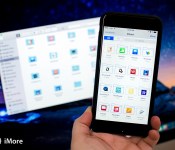
iCloud Drive is Apple’s online storage service — a place to keep all your files and access them from all your Apple devices, including your iPhone, iPad, and Mac.
If you’re new to iCloud Drive and not sure how to get started, you’ve come to the right place. Follow along and we’ll walk you through how to enable iCloud Drive, pick an appropriate storage plan, and how to better manage your files across your iPhone, iPad, and Mac!
- How to set up and use iCloud Drive
- What iCloud Drive storage plan should you get?
- How to access iCloud Drive files in OS X Yosemite
- How to view iCloud Drive files on iPhone and iPad
- How to control what apps have access to iCloud Drive
- How to manage iCloud Drive syncing over cellular
- How to manually create folders in iCloud Drive on your Mac
- How to migrate files from Dropbox to iCloud Drive, and why you may want to wait
- Clearing up the iCloud Drive confusion: No there’s no iCloud Drive app on iOS
How to set up and use iCloud Drive on iPhone and iPad

You can choose to set up iCloud Drive at the same time you set up your iPhone or iPad. Otherwise, you can set up iCloud Drive at any time from the Settings App. If you previously used iCloud Documents and Data, iCloud Drive will replace it. Here’s what you need to know!
- How to enable iCloud Drive manually on iPhone and iPad
- How to pick an iCloud Drive storage plan
- How to start using iCloud Drive on iPhone and iPad
What iCloud Drive storage plan should you get?

iCloud Drive stores files in your iCloud account. Apple gives everyone 5GB of space for free, but if you want or need more, you’ll have to pay for it. Since other services, including iCloud Mail and iCloud Photo Library also use your iCloud account storage, you may want to upgrade to make sure you don’t run out. Plans start at $0.99 a month, and you can also downgrade at any time. How much storage should you get? Here are some tips to help you choose the perfect plan!
How to access iCloud Drive files in OS X Yosemite

OS X Yosemite comes with iCloud Drive support built right into Finder. Any file you save on your Mac, iPhone, or iPad is instantly synced between all your devices. Since iCloud Drive is baked right into the Finder, you can open, edit, and save any of these files on your Mac with any app that supports the appropriate file type.
How to view iCloud Drive files on iPhone and iPad

Unlike the Mac, where iCloud Drive is baked into the Finder, there’s no unified iCloud Drive app for iOS. Instead, Apple provides a DocumentPicker (similar to the PhotoPicker), that lets any app open iCloud Drive. Some enterprising App Store apps have used that capability to offer fairly unfettered access to iCloud Drive.
How to control what apps have access to iCloud Drive

Lots of App Store apps offer support for iCloud Drive. That doesn’t mean you want all of them to have access to your file. If, for whatever reason, you decide you don’t want a particular app to be able to save files to iCloud Drive, you easily shut it off.
How to manage iCloud Drive sync over cellular

By default, iCloud Drive will sync your files not only over Wi-Fi, but over the cellular network as well. Depending on your data plan and the size of the files you’re working with, you might want to keep an eye on that. Text files won’t use much data, but presentation files can be huge. Luckily, you can easily restrict iCloud Drive to only sync files over Wi-Fi in just a few taps.
How to manually create folders in iCloud Drive on your Mac

iCloud Drive will automatically create folder directories for any app that save data to it, but you can also choose to create your own folders. You can then drop files into them and they’ll immediately be synced across all your devices. This is a great option for folks who have multiple documents on their Mac that they’d like to have access to on their iPhone or iPad.
How to migrate files from Dropbox to iCloud Drive, and why you may want to wait

If you’ve previously been using Dropbox but want to switch over the iCloud Drive, you’ll have to move your files over first. We can show you how to do that, but we’ll also caution you about waiting to make the switch, at least for a little while.
How iCloud Drive works on iPhone and iPad

Based on the information above, it’s easy to see that iCloud Drive works differently on the Mac than it does on iPhone and iPad. That’s because the Mac has a visible file system and iCloud Drive is integrated into the Finder, while iOS hides its file system and iCloud Drive is integrated into apps.
If you’re not sure what that means or what you need to keep in mind when using iCloud Drive on both OS X and iOS, here are some additional resources.
Need more help with iCloud Drive?
Since iCloud Drive is a relatively new service, we know there’s a lot of you out there that still have a lot of questions. Our iMore forums are a great place to ask for and give help to others. The best part is you don’t even have to register to ask a question — unless of course you want to. So if you still have some iCloud Drive questions on your mind, we encourage you to ask in our forums:

Follow Mail 2.0 arrives with integrated adaptive theme plus more

Follow Mail from Emberify has been updated this week and as usual with their BlackBerry 10 apps, the updates are normally feature rich. Things are no different this time around you’ll be pleased to hear and although there are several improvements and bug fixes it’s the adaptive theme that got me excited.
To simplify, the app essentially changes from light to dark theme depending on the lighting conditions you are in – clever stuff. I’m pretty sure I’ve not used a BlackBerry 10 app before that has this feature and hopefully it’s a sign of things to come.
Give it a try and let us know your thoughts in the comments?
Press Release
Emberify updates ‘Follow Mail’ to version 2.0 with a new adaptive theme. Follow Mail offers follow ups, custom notifications and fast read for email. It works complimentary to the hub.
The new adaptive theme automatically changes the theme according to the environment lighting. Follow Mail can detect you are indoor in a dark room and automatically switch to a dark user interface. Next morning, you are heading to office, Follow Mail will switch to a bright one.
New in version 2.0:
-
Adaptive theme (Also manual light & dark theme is available)
-
Contact integration for email composer
-
Pop up notifications
-
Enhanced battery efficiency
-
Bug fixes
Enjoy a 50% savings today on this hard case and holster for BlackBerry Z10!

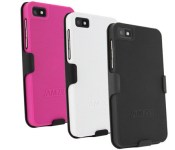
Made of a durable polycarbonate, these textured hard cases shield your BlackBerry Z10 from normal wear and tear without adding any excessive bulk. The included holster fits nicely on a belt or pocket, too! Rotate it in any direction and enjoy a slim, comfortable fit. Available in black or white today for only $9.95

Inhabitat’s Week in Green: Solar-powered yachts, windmills and Apple car rumors
Each week our friends at Inhabitat recap the week’s most interesting green developments and clean tech news for us — it’s the Week in Green.

Tesla has owned the electric car space in recent years, but another major Silicon Valley company could be nipping at its heels — rumor has it that Apple is developing an electric “minivan-like vehicle” of its own. It’s not clear if the rumors are true, but this week electric vehicle battery manufacturer A123 Systems sued Apple for poaching its employees. Porsche is also taking aim at Tesla with plans to launch an all-electric rival to the Model S by 2019. In other green transportation news, Volkswagen has announced plan to build 100 fast electric car-charging stations in the US, and it will invest $10 million to support electric vehicle infrastructure by 2016.
Italian designers Marco Ferrari and Alberto Franchi developed a solar-powered yacht for the Young Designer of the Year 2015 contest. The yacht would feature sails that are actually made from flexible solar panels that generate energy for the boat’s luxury amenities. Biking in the rain isn’t much fun, because there’s no way to avoid getting wet — until now. A London-based team recently launched a Kickstarter campaign for the world’s first umbrella for your bike. The design is basically like a narrow windshield that protects your face and body from the elements. Although much of the country is still in the depths of winter, it isn’t too early to start thinking about summer adventures. One look at this geodesic dome-inspired portable camper will have you dreaming about hitting the open road. Ever wonder what it would be like to live in a bus? In a short essay about her adventures, Inhabitat writer Michelle Kennedy Hogan explains what it’s been like living in a converted school bus with five kids for the past six months.
Tesla is developing a new type of battery that could power not only your car, but also your house. In an investor call this week, Tesla CEO Elon Musk announced plans for a battery that could take your home off the grid, and production could begin within the next six months. In other clean energy news, the UK just signed off on what will soon be the world’s largest offshore wind farm. The wind farm, which will be located about 80 miles off the Yorkshire coast, will consist of about 400 wind turbines. Meanwhile, Portland is generating renewable energy by taping an unusual resource: its plumbing pipelines. Turbines installed within the city’s pipes generate energy every time a tap is turned on or a toilet is flushed. China is one of the world’s biggest energy users, but it is quickly moving toward renewables. In 2014, China increased its wind power output by 23 percent and now wind provides 2.8 percent of the country’s total energy. The Dutch invented the windmill, so it makes sense that latest windmill innovation would take place in the Netherlands. The Dutch Windwheel is a concept for a sustainable landmark that would house 72 apartments within a circular steel and glass frame that contains a silent, motionless wind turbine. And in Israel, an energy company has solved the problem of how to generate solar energy when the sun sets. Brenmiller Energy is planning to develop a new solar facility that uses biomass as a backup during the four hours when the plant is not generating electricity.
On the green architecture front, British megafirm Foster + Partners recently opened a new Apple store in Hangzhou, China to usher in the Chinese New Year. The modernist store features glowing ceilings, a cantilevered floor and glass staircases. The new headquarters for Intecs Spa recently earned Casaclima Class A certification for energy efficiency, making it the first non-residential building in Rome to earn the distinction. And in Poland, a team of architects provided new space for apartment dwellers by building a swirling green pathway that extends from a balcony out into the sky. Star Wars fans rejoice: Lego has announced plans to release 32 new Lego Star Wars sets depicting scenes from the previous six movies. If you love Lego and hate making pancakes the old-fashioned way, this is for you: Designer Miguel Valenzuela has created a Lego robot that makes perfectly round silver dollar pancakes. And on the wearable tech side of things, Epson launched its new SureColor F7170 digital fabric printer at New York Fashion Week. The new printing technology will enable fashion designers to create virtually any kind of color or pattern they can dream up.
Filed under: Misc, Household, Transportation, Science

From the Editor’s Desk: MWC in T-minus 7 days …
The clock is ticking. We’re now a week away from one of the busiest days of the, both as fans of newfangled smartphones as well as of the extremely lucky press corps that gets to cover them.

And if you’ll allow me but a brief second of complaint — it’ll be a miracle if we survive March 1. That’s a good thing, of course. (And chances are I say it every year.) But I wish I could share what our calendar looks this time next week. And that’s still a day before Mobile World Congress even opens in Barcelona.
MEElectronics Air-Fi Rumble Bluetooth Headphones Review: Are you ready to Rumble?
Our overview of MEElectronics’ CES 2015 line-up last month definitely gave the impression that MEElectronics is aiming at starting 2015 on the right foot, but before we move onto their latest products, we have to cover one of their headphones that launched late last year. The MEElectronics Air-Fi Rumble Bluetooth Headphones are the latest thing in […]
The post MEElectronics Air-Fi Rumble Bluetooth Headphones Review: Are you ready to Rumble? appeared first on AndroidSPIN.
 AIVAnet