


Incoming Google Play Store update brings a handful of design changes

An update to the Google Play Store should be making its way to a device near you sometime soon, and will bring along a few design changes. Google’s own Kirill Grouchnikov teased today on Google+ that an update to the Play Store should be in our hands shortly. In fact, the hashtag Grouchnikov used was ‘#rollingout’, so we’re assuming the updated Play Store is already making its way to a few Android devices.

A few design changes will be present in the new update. First, Google will bring its white Google Search bar to the top of the Play Store, and will completely get rid of the small search magnifying glass button. The Google Search bar isn’t present in many other Google apps yet, but maybe this is the start of the company adding a streamlined way of searching their own apps. Last but certainly not least, we’re seeing the return of the spinning arrow. Well, the spinning arrow animation has been present in the past few iterations of the Play Store, but it has since been covered up by the full page hamburger menu on the left side.
There’s no word on a specific rollout date, or even what version this is, so we’ll be sure to update you once that information surfaces. Are you liking the design change?

Apple’s Maps Connect may soon expand to French and German-speaking countries

Apple may soon expand Maps Connect, a tool which allows small business owners to create listings on Apple Maps, to a couple of more countries. After the service experienced some downtime earlier today, users were presented with new language options for French and German when it came back up, which could signal an expansion to countries that speak the two languages.
The change was noticed by Apple Maps Marketing earlier today:
Apple Maps Connect was down about an hour ago. I just tried it again and got the following screen which presents options to pick English, French or German as your language and to subscribe to “News and Notifications”. This may mean that Maps Connect is now available for businesses in French and German-speaking countries.
Late last month, we saw Maps Connect expand outside of the U.S. for the first time, becoming available in the U.K., Ireland, Australia, New Zealand, and Singapore.
There’s no official announcement from Apple on the matter yet, but the appearance of the two new language options certainly suggests a rollout is planned soon.
Thanks for the tip, Andrew!
Source: Apple Maps Marketing

DirecTV customers can now stream live sports via WatchESPN and use other Disney streaming apps

As we learned in late December, DirecTV and Disney were working on a streaming agreement. Well, DirecTV customers will cry finally as the satellite company and Disney have announced that DirecTV customers will finally be able to use Disney steaming apps and live stream sports via WatchESPN. Disney channels include Watch Disney, Watch Disney Junior and Watch ABC.
You’ll also be able to live stream ABC network feeds in Chicago, Houston, Los Angeles, Philadelphia, San Francisco and New York. Hit shows, like Modern Family, Agents of Shield, etc, will also be available the day after they air. As far as sports are concerned, you’ll have access to ESPN2, ESPN3, ESPNU, SEC Network, SEC Network+, Longhorn Network, EPSN Deportes and ESPNNEWS.
To take adavantage of this, all you’ll have to do is enter your DirecTV login credentials. After that, stream until your heart’s desire.
source: The Verge
Come comment on this article: DirecTV customers can now stream live sports via WatchESPN and use other Disney streaming apps
Nexus 6 Tips and Tricks!
brightcove.createExperiences();
Ever since Google’s Nexus 6 was announced last year, it’s become one of the most polarizing smartphones ever to be released. In the past, Nexus smartphones have been modest and (mostly) affordable, but the Motorola-made Nexus 6 takes a different stance. It’s big, powerful, and features one of the best Android experiences on the market today.
Looking past its flaws, the sleek design, crisp screen and the promise of timely updates make the Nexus 6 a great purchase. If you’re a recent adopter of the handset, we’ll help you get the most out of your shiny new device. Today, we’ll be taking a quick look at some of our top tips and tricks for the Nexus 6!
Note: A common theme with these tips and tricks is that they may not be specific just to the Nexus 6, with a lot of the new features related to Android 5.0 Lollipop, and will depend on the hardware capabilities of your device.
Tip #1 – It will work on practically any network in the US

The Nexus 6 comes unlocked directly from Google. While that may a standard for Nexus devices, this one in particular can work on most US mobile carriers. There are only two different SKUs for the Nexus 6: one for North America only and one for the rest of the world. If you managed to pick up the North American model, you’ll get support for GSM bands 850, 900, 1800 and 1900, CDMA bands 0, 1 and 10, WCDMA bands 1, 2, 4, 5 and 8, and support for practically all LTE bands.
This basically means that you can grab an unlocked Nexus 6 straight from Google and pop in a Verizon SIM card (or basically any other mobile carrier’s SIM card) and get full network support right away. And theoretically, if you snagged a device from Verizon and managed to get it unlocked, you could take the device to another carrier and active it, if the carrier permits. One thing to remember, though, is that the Nexus 6 has the capability to move from carrier-to-carrier, but it’s ultimately the carrier’s decision whether or not to allow that.
Tip #2 – Data consumption

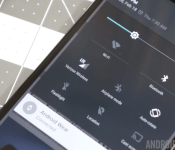
When using a multimedia-centric smartphone with 4G LTE capabilities everyday, it’s very easy to reach your data cap very quickly. The Nexus 6 has a convenient way to easily keep track of data usage. First, head to your notification shade, then pull down once more to get to Quick Settings. Next, tap the Mobile Networks setting icon. It will immediately show you a quick overview of your data consumption. From there, you can access your data settings, set a data limit, and even check out which apps are using the most data.
Tip #3 – Save battery by turning off Ambient Display

The 3,220mAh cell in the Nexus 6 may be larger than your standard smartphone’s battery, but it’s also powering a giant, 5.96-inch display. Despite the proclaimed one-day battery life, many users still struggle to last an entire day on a single charge. Fortunately, there are some ways to combat that problem. One way is by turning off the Ambient Display mode which pulses a dimmed screen as notifications come in, not unlike Motorola’s own Moto Display feature. Personally, I find the Ambient Display feature to be really helpful, but if you turn it off, Google claims your phone will get an extra 80 hours of standby time.
If you’d like to save a considerable amount of battery life on your Nexus 6, you may want to consider turning off this feature.
Tip #4 – Turbo charger

If you’re not one to turn off awesome features to get more stamina out of your device, you might want to keep the charger that comes with the Nexus 6 handy. It’s a Turbo Charger, which is said to get you another six hours of use out of a 15-minute charge. It supplies a whopping 15W and can give you the added boost you need to make it through the day.
The Turbo Charger is definitely worth keeping around, and if you have an extra $35 lying around, it may be worth it to pick up a second one.
Tip #5 – Wireless charging

The Nexus 6 has Qi wireless charging capabilities, though that feature was omitted on its original spec sheet. Despite the omission, it is in fact on the device, and offers an easy way to get a supplementary charge while you’re at a desk or bedside table.
Tip #6 – Water resistance

Another feature not originally listed on the spec sheet is the fact that the Nexus 6 is water resistant. Like the Moto X, it features a nano coating that doesn’t necessarily come with an ingress protection rating, but it is at least somewhat protected against the elements.
Tip #7 – Shoot 4K video

The 13MP rear-facing camera not only means you can take high-resolution images, but also high-resolution video. While it’s not enabled by default, you can enable it by launching the Camera, the choosing Settings>Resolution and quality>Back camera video>UHD 4K.
Tip #8 – Downtime settings

Lollipop’s new notification and sound settings might take some getting used to, but they do come with a really helpful feature called Downtime. It’s basically a ‘Do Not Disturb’ mode that you can put on a set schedule. To set this up, head to Settings>Sound and notification>Interruptions, then head to the bottom of the screen. Here you can schedule Downtime by selecting the days of the week and start and end times.
Tip #9 – Hidden LED notification light

Another lesser-known fact about the Nexus 6? It actually comes with a notification LED. It’s hidden beneath the top earpiece speaker, and is unfortunately turned off by default. But with a little elbow grease and determination, you can get it working. You’ll need to gain root access, then download Light Flow from the Google Play Store. Head to this page for more information on how to go through the steps.
Tip #10 – Numbers row in Google Keyboard

Since the Nexus 6 has such a large display, it makes sense to employ a different keyboard to use some of that extra room. Of course, you can always download a third-party keyboard from Google Play, but there’s also a larger layout built directly into the Google Keyboard.
Long-press the comma key to jump into the keyboard settings, head to ‘Appearance and layouts’, choose ‘Custom input styles’, and add another keyboard. Select ‘PC’ as the keyboard layout, then enable it in the Language settings. The next time your keyboard pops up, tap the globe icon and you will have a keyboard with a dedicated number row. If you aren’t fond of the new number row, switching back to your old keyboard is as simple as pressing the globe key again.
See also:
- Nexus 6 review
- Nexus 6 unboxing and first impressions
- Nexus 6: Camera shootout
- 6 common problems with the Nexus 6 and how to fix them
- Nexus 6 vs iPhone 6 Plus
- Nexus 6 vs Samsung Galaxy Note 4
So, there you have it, some useful tips and tricks to help you get the best experience on your Nexus 6! If there is anything we missed in this video, feel free to let us know in the comment section below!

Android customization – capture time lapse images using Tasker, coding 101: the For loop

We’ve been on a photography kick here on our Android customization series, we’ve been using Android devices as cameras, as remotes for other cameras and more. We’d like to do a photography project once again today, but our purpose is to learn how to use the For loop tool in Tasker, coding 101.
One of the most memorable lessons my college programming instructor gave was an intro to the IF statement and For loops. It involved gaming, robotics and a hot chocolate on a cold winter day. Since I’ve already talked about IF statements in this series, I will have to deny you games and robotics, but you are welcome to enjoy a hot chocolate as you read forward, learning about the For loop in Tasker.
Before we begin
 You will require Tasker installed on your Android device today. It is probably best to install and perform this project on your device with the best camera. Tasker is $2.99 in the Google Play Store, and is going to have to eventually start giving us a kickback, for all the times we’ve promoted the app around here.
Tasker For loop
In the coding world, the For loop is a coding method in which a section of code is performed over and over again, in a loop, until a predefined criteria is met. This may sound odd, until you see it at work. Examples of For loops can be found all over the place in every day life. Think of all of the repetitive actions you make that have a pre-set count to them.

Before I leave the house, I reach down, pull on a shoe, then sit back up, then I reach down, pull on a shoe and sit back up, again. There is but one variable in the action, left side or right side, but the action remains the same and I know exactly how many times I need to do it. If I were coding putting on my shoes, I would most certainly use a For loop to do it. (Special note: that is not my shoe, I’m not that cool!)
Although the For loop is designed to rapidly punch through code, we will use it on a somewhat battery draining project today, a photo time lapse.
Before we start this, let me remind you that Tasker has a method within the Profiles that allows you to trigger a Task over and over again based on time, which would be a little gentler on your battery, but we’re learning here, so let’s use the For loop.
Begin a new Tasker Task, name it appropriately, I’ll call mine “ForLoopse“.
Tap the “+” to add your first action.

Choose Task.
Choose For.
We must now decide how we want to handle this project, specifically, how many photos do you want to take in your time lapse. I shall start with 10, just for learning purposes – in the real world, you may end up taking hundreds, even thousands of images to get a quality time lapse of any length. Don’t worry about that too much though, I will show you a better option next week.
So, under Variable, enter a new local variable name, for ease I’ll call mine “%items“.
Now, in the Items section, fill in the parameters for which your For loop should run. I have entered “1:10” meaning that my loop will run ten times, each time it will add 1 to the value of %items, beginning at 1 and running through to 10. I’ll explain more later.
Hit the system Back button to save and exit the For configuration.
Now we take the picture. Tap the “+” button to add another action.
I’ll make this quick, since we’ve seen it a few times already: Media -> Take Photo. Set all the settings just the way you like them, except Filename, I’ll cover that next. Also, keep in mind that you will be taking ten, or hundreds of images here, and that if you plan to compile them into an animated GIF, you probably won’t need them at full resolution. Consider your desired output size and set the Resolution appropriate for that. I’m staying fairly large at 1280×720, which I will crop down for the final animation.
Now, under Filename, I want to use the %item variable to keep track of the photos. This also shows how the variable works. So, my Filename is as follows: “TimeLapse_photo%items“. Remember that the For loop will change the value of %items each time it runs, so this will properly number my photos for me for organizing later.

Tap the system Back button to save and exit.
If we do nothing more than just finish off the loop at this time, it would run as fast as it can through the ten iterations, instead, we want to introduce a delay.
Tap the “+” button to add another action.

Choose Task.
Choose Wait.
Enter an appropriate time between image captures. I will be watching the clouds, so a one minute interval should be more than enough. Keep in mind that your device will require 2-3 seconds to actually take each photo through Tasker, so I recommend going no less than 5 seconds here.
Also, the length of time your device will now be busy can be determined by simply multiplying your number of times looping by the time in between each loop. Mine is ten loops, at one minute each, for a total of ten minutes of device usage. Obviously I am not using my main device for this project.
Tap the system Back button to save and exit.
Finally, we must assign a termination for the For loop.
Tap the “+” button to add your next action.

Choose Tasks.
Choose End For.
All finished, you can hit the system Back button to save and exit all the way out of Tasker.
There you have it, your device is ready to start taking a succession of photos that you can compile into an animated GIF, or whatever you have in mind for it.

What’s next
Let’s remind ourselves some of the intricacies of animated images. First, you will need a good amount of images to make a smooth animation. That movie you watched the other day likely ran at about 24 or 29 frames per second. Of course, when recording, it would have had to capture at least 24 images each second to make this work.
We are capturing one image every 5+ seconds, thus, real time action is not entirely possible with today’s project. Don’t fret, I will show you a better option next week, oh, and I thought you just came here to learn the For loop anyway. Back to the animation, you can see that I put mine together at five frames per second, giving you a decent 2 second look out my front deck. You are seeing Mt. Hood there, if you were interested.

 If you are unsure how to compile your images into an animation, you can try uploading them to Google+, if the AutoAwesome tools do not do it for you automatically, you should be able to force it on your Android device. From there, I used the free and open source image editor GIMP. Simply drop the individual files into GIMP as layers, first image at the bottom, last image at the top, and save as a gif. Super simple.
Finally, I did not at all cover how to trigger your time lapse capturing For loop today. Can I leave it to you to create a Tasker Task widget on your homescreen, or create a Profile using Pushbullet to trigger the capture remotely? Or, maybe you want a Profile that triggers at a certain time of the day? I think you can handle this.

Next week
Coding 101 was fun in today’s Android customization post. I hope you get that a time lapse is not a great use for the For loop tool, instead, I suspect you’ll likely use it for variable manipulation within a larger project. If you are still interested in creating a time lapse, and really want to step it up, I invite you to join me next week as I show off one of the best time lapse tools I have ever experienced on an Android device. No hints, sorry.
What is the best use of Tasker’s For loop that you can think of?

Daily Roundup: build your own PC, Lenovo adware and more!

Are you thinking about putting together a new PC? Check out our handy guide to help get started. In other news, some Lenovo PCs have been found shipping with factory-installed adware, Sony could scrap its mobile business and a new lawsuit filed against Apple alleges that the company poached a number of engineers for an electric car battery project. All that and more can be found just past the break.
How to build a high-end, overclocked PC (as written by an idiot)

Do you want to build your own PC but have no idea where to start? Check out this handy walk-through, from someone who is “more likely to start an electrical fire than build a sophisticated PC.”
New Lenovo PCs shipped with factory-installed adware

Some Lenovo laptops have been found shipping with factory-installed adware. Users on the official Lenovo forums started noticing that search results were being injected with sponsored links (like what happens when a machine is infected with typical adware or spyware) as far back as last September.
Sony’s search for profits could put an end to its mobile future

Sony CEO Kaz Hirai set out to revive the company with a three-year plan, and he’s been coming up short ever since. Now he’s pushing ahead with a new and improved strategy, one that sees Sony basically giving up on growing its mobile business.
EV battery-maker says Apple poached engineers for a new project

According to a lawsuit from electric car battery maker A123 Systems, Apple has been poaching its best engineers, apparently to work in a battery division of its own. The company alleges poaching started back in June 2014, with Apple drawing away lead engineers from the battery maker’s “most critical projects.”
Epic Games head believes VR will ‘change the world’

Tim Sweeney knows the video game industry. He started Epic Games, the studio behind huge franchises like Gears of War, Unreal Tournament, and Infinity Blade, and the widely used game development software, Unreal Engine. So when he says virtual reality is going to change the world, we’re listening.
How cable networks speed up shows to squeeze in more ads

Does it feel like there’s more commercials than ever on cable TV? It turns out that channels like TBS and TNT are now speeding up syndicated programs, classics films and other shows by as much as 7 percent. One unnamed cable exec said that “it’s a way to keep the revenue from going down as much as the ratings.”
Booty drum turns twerking into ‘music’

The folks behind AIAIAI headphones created this video “about music made by the booty – for the booty.” It’s definitely a unique way to create music and it’s also NSFW. Probably.
Filed under: Misc
Google testing cloud backup for external devices in latest Dev Channel Chrome update
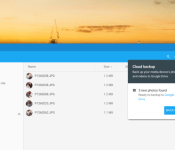
 Google appears to be testing a new feature for Chrome OS that will let you automatically upload files and folders from external media devices to your Drive cloud storage. The feature is only available in the Dev Channel as of right now, but it puts a new cloud backup option in the My Files app when browsing photos on something like an SD card or flash drive.
The option obviously only works with Google Drive, and it’s only going to work on devices that are set up using the standard DCIM folder for photos and videos. That means you won’t be able to sync music or documents this way, but Google does offer several other ways to take care of those.
Keep an eye out for this to roll into the official Chrome update channel sometime soon.
source: Google
Come comment on this article: Google testing cloud backup for external devices in latest Dev Channel Chrome update

USA Today gets Android Wear support, lets you check top stories from your wrist
 USA Today’s Android app has received an update today bringing a few new features for users. You’ll get your traditional vague bug fixes and improvements, a new video playlist section for keeping on top of the news clips in one place, and Android Wear support.
This update will let you quickly check the current top five stories from your Android Wear smartwatch without having to open the app. You won’t be able to read them on your watch (why would you want to?) but if you see something that catches your eye, you can take your phone out to catch up.
It’s hardly a massive update, but it’s good to see another app bringing Android Wear compatibility to the table.
Come comment on this article: USA Today gets Android Wear support, lets you check top stories from your wrist

Dragon Age Thursdays: Join us on Twitch tonight for more role-playing adventure

Windows Central has recently rolled out an aggressive Twitch livestreaming schedule. Tuesdays we play The Witcher 2, Wednesdays we play various Xbox One games, Thursdays we play Dragon Age: Inquisition, and Saturdays we play Xbox One games and give out big prizes. Plenty of chances to tune in for live commentary and gameplay while chatting with your fellow readers and viewers. It’s like a live interactive podcast!
It has been a couple of weeks since we started the Dragon Age: Inquisition campaign; last week we streamed the game’s addictive cooperative multiplayer mode instead. Tonight we return to the campaign, shortly after the first boss battle. To help get everyone caught up to speed, I’ve written a detailed summary of our initial playthrough. Read it to learn how the latest exciting installment of Dragon Age begins!
To tune in during the livestream, follow me on Twitch.tv/Eastxtwitch and enable email notifications. Then watch along at 8pm Central (9pm Eastern, 6pm Pacific). You can also watch the stream right here live or after the fact.

Apple Aiming to Begin Electric Car Production in 2020
Apple is hoping to begin production on the car project that it is secretly developing as early as 2020, reports Bloomberg. According to the sites sources, Apple is pushing employees working on the car to have it ready to go in five years, a timeline that will eventually allow it to compete with similar electric vehicles coming out from Tesla and GM in 2017.
The timeframe — automakers typically spend five to seven years developing a car — underscores the project’s aggressive goals and could set the stage for a battle for customers with Tesla Motors Inc. and General Motors Co., both of which are targeting a 2017 release of an electric vehicle that can go more than 200 miles on a single charge and cost less than $40,000.
Apple’s electric car plans first came to light last week, after The Wall Street Journal shared news of “Project Titan,” an electric vehicle that hundreds of Apple employees are working on. Apple has been heavily recruiting automotive experts to join the project and plans to have a team of about 1,000 employees developing the car.
 Tesla Model X
Over the course of the last few months, the company has picked up employees from companies like Tesla, Ford, GM, A123 Systems, MIT Motorsports, Ogin, Autoliv, Concept Systems, and General Dynamics.
As with The Wall Street Journal‘s initial report, Bloomberg‘s report is quick to point out that that Apple could decide to delay or abandon its car project all together if the company is unhappy with its progress. Apple works on many prototype projects that never make it to production.
Little is known about Apple’s electric car at this point, but rumors have suggested that it might resemble a minivan and that it may or may not be self-driving.
 AIVAnet