


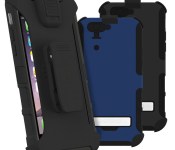
Save 45% today on this rugged hybrid case and holster for iPhone 6

Shield against damage with this durable CONVERT Combo for your iPhone 6! With this package you get a thin hard case on the inside, surrounded by a shock absorbing skin and plastic exoskeleton with kickstand. A rugged holster is included for snapping it all into on your belt or pocket. Comes in black or blue for just $29.95 today
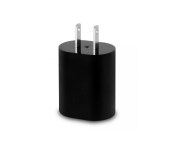
Save 50% on this Nokia USB wall charging adapter today while supplies last

This compact Nokia wall adapter features a USB port on the side for using your existing USB charging cable (not included). It’s great as a spare or a replacement and is conveniently portable, fitting in the palm of your hand, pocket or bag. Yours today for only $9.95!

Apple reportedly struggling to bring Apple Pay to China

Apple has reportedly run into a few roadblocks in its efforts to bring Apple Pay to China. The company has been in negotiations to bring the payment system over, but they are apparently facing delays due to resistance from regulators and UnionPay, China’s credit and debit card system operator.
For Chinese regulators, there are questions as to whether Apple Pay meets government standards for operation in the country, while talks with UnionPay that would open the operator’s system to Apple Pay appear to be on hold.
From MarketWatch:
Apple is also struggling with its relationship with UnionPay, China’s state-owned credit- and debit-card system operator. Sources close to the companies said that talks aimed at an agreement that would open China to Apple Pay have stalled.
At least one of the issues that seems to be holding up Apple Pay’s entry into China is technical. The chips behind the system are evidently not fully compatible with UnionPay NFC hardware requirements:
To qualify for access to any NFC system in China, according to regulators with the central bank, Apple Pay must comply with a central bank rule that restricts electronic payment systems to those using chips that meet a technical standard called PBOC 3.0. A source familiar with Apple Pay said iPhone chips that drive the payment system do not fully comply with this standard.
Additionally, the Chinese government has apparently demanded that Apple maintain a data center on mainland China for all Chinese Apple Pay customer information.
Assuming the company can clear the regulatory hurdles, there’s no telling when Apple Pay might launch in China, though Apple was reportedly aiming for some point in March.
Source: MarketWatch
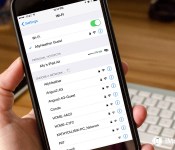
How to forget a Wi-Fi network on your iPhone or iPad

Wi-Fi networks are everywhere and we use them every day to connect our iPhones and iPads to the internet. As convenient as they can be, however, if an old Wi-Fi network consistently keeps connecting when you don’t want it to, it can be more of a nuisance than anything. Luckily, iOS lets you easily forget any network in just a few taps!
How to get your iPhone or iPad to forget a Wi-Fi network
Remember that you’ll only be able to forget a network on an iOS device that you’re currently using. If you’re using iCloud Keychain, it’ll also remove that network from any other iPhones, iPads, and Macs associated with your iCloud ID.
- Launch the Settings app on your iPhone or iPad.
- Tap on Wi-Fi.
- Tap on the info button next to the network name.
- Tap on Forget This Network.



How to save Google Maps for offline use


Google Maps puts a crazy amount of information at your fingertips, but that’s really only the case if you have an Internet connection. Step-by-step navigation, place searches and other advanced features require your device to be online, but Google Maps does offer you the ability to save one part of the experience for offline use. It’s not the best situation ever and it’s not feature-complete, but this is how you get some utility out of Google Maps when you happen to be away from a network.
How to forget a Wi-Fi network on your iPhone or iPad
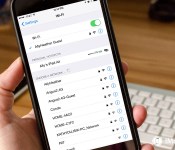
Wi-Fi networks are everywhere and we use them every day to connect our iPhones and iPads to the internet. As convenient as they can be, however, if an old Wi-Fi network consistently keeps connecting when you don’t want it to, it can be more of a nuisance than anything. Luckily, iOS lets you easily forget any network in just a few taps!
How to get your iPhone or iPad to forget a Wi-Fi network
Remember that you’ll only be able to forget a network on an iOS device that you’re currently using. If you’re using iCloud Keychain, it’ll also remove that network from any other iPhones, iPads, and Macs associated with your iCloud ID.
- Launch the Settings app on your iPhone or iPad.
- Tap on Wi-Fi.
- Tap on the info button next to the network name.
- Tap on Forget This Network.

Microsoft offers external cloud storage integration with Office Online

Microsoft has announced some changes have been made to Office Online to make it easier for cloud services to integrate with the suite. This move will enable users who actively use these platforms to view, open and edit documents in a web browser.

Microsoft wants to help you learn math with its latest app

Microsoft has released a new app for Windows Phone, called Microsoft Math. The app is developed for students to help out with math exercises, reading theory and taking exams. What makes the app rather interesting is the social element to the development, enabling students to collaborate and even compete against one another.

Video: We check out the BeastGrip Pro lens adapter and rig system for your iPhone
Heard of BeastGrip? Our sister site, Windows Central, had high praises for this camera lens adapter and rig system for smartphones. The company gave us an early look at their latest product: the BeastGrip Pro. Just like the original BeastGrip, it lets you attach standard conversion lenses and other accessories to your phone. Take a look at our hands-on video.
The iPhone 6 Plus was being used in the demo, but the BeastGrip Pro can be set up with different phones thanks to its adjustable clamps. There’s a cold shoe mount and multiple standard threads so you can attach lights, microphones, and other accessories.
What’s the main difference between the BeastGrip Pro and the original BeastGrip? The original was made with 3D-printers, while the newer product is made with mould-injected parts.
The BeastGrip Pro is expected to sell for $90. It’s not finished yet and there are still a few things that need to be worked on. We’ll keep our eyes open for updates on this interesting accessory. For more information, head over to beastgrip.com. Would you use this with your iPhone?

Droid Turbo review
Motorola Mobility has changed quite a lot over the past few years. From becoming a spin off of Motorola in 2011 to being bought by Google some short months later to being sold to Lenovo just this year. Amidst it all though Motorola has remained one of the strongest players in the mobile industry by proving that to make an awesome phone you don’t have to reinvent the wheel.
The Droid Turbo is one of the fruition’s of this effort and it stands out against its competitors with shining colors. What some are calling a more beefed up version of the Moto X, the Droid Turbo is an awesome phone with impressive specs, stunning build quality and fantastic performance.
Design

Let’s start off with the most obvious aspects of the phone, the design. Straight out of the box the first thing I noticed was the lack of carrier branding on the front which, to me, is a great bonus. I hate having to stare at branding when I am trying to use my phone and a nice clean surface is always a plus. With that said there really is nothing on the front other than the small camera on top, the speaker and the bottom where you will find the capacitive keys. I was slightly disappointed that they opted to use capacitive keys instead of software keys but that is by no means a deal breaker. Other than that the front of the Droid Turbo has nothing to detract from the screen as a phone should and it helps it maintain a modern sleek look.
Switching over to the back you are greeted with the iconic Kevlar back that Motorola introduced a couple of years back. This time around you get the ability to choose between Ballistic, Red MGF and Black MGF. I must say that I have always been a fan of the design of the Kevlar reinforced back plate and just holding it in my hands, I know that I am holding a high quality device. The camera is fitted on the top middle with dual flash separated on either side. On the bottom you do finally get to see some branding with the Verizon and Droid logo on the bottom but they maintain a small footprint and do not detract from the overall design of the device.
Software

When you first turn on the phone you are greeted with a stock Android experience. This has been Motorola’s take on the UI for the last few phones they have made and it is still a welcome addition. One of the first things I noticed was just how smooth everything felt. Animations were fluid, apps opened up quickly and changing screen was silky smooth. This could all be due to the fact that the Droid Turbo is quite a beast when it comes to specs and coupled with the stock Android UI, there is nothing to slow it down.
Where the Droid Turbo really stands out are the new software features that Motorola’s has built into it. You most likely are already familiar with the hands free features that Motorola introduced with the Moto X and all that and more are present here on the Droid Turbo. You can wake up the phone and give it commands by using your phone. Hand gestures can snooze or silence the phone if it is face up. The niftiest feature though is the ability to see if you have a notification by just picking up the phone. This does of course affect battery life but with the huge battery the Droid Turbo has it shouldn’t be an issue. One new feature that was recently introduced is the Zap ability of the Droid Turbo. What this basically allows you to do is send files and images to other Zap uses for fast access. You can do so publicly or using a secure pin. Again, nothing revolutionary but a welcome addition nonetheless.
Battery
The Droid Turbo comes with a 3900 mAh non replaceable battery. While a battery this size is not unheard of by any means it usually only comes in the latest trend of “phablet” phones. Motorola states the battery will net you up to 48 hours of battery life, or two full days, but I found it to be more of a day and then some. During my test drive I took it on my usual smartphone routine which consist of lots of Buzzfeed videos, checking the news periodically and streaming music. The phone lasted me all day and I didn’t have to charge it until late the next day. So I believe the 48 hours are feasible but only for light to medium usage.
Camera
Camera wise, the Droid Turbo has a 21 MP front shooter and 2 MP rear shooter. I was able to take some decent photos but nothing that is going to win any awards. It performed as a smartphone camera should though and was on par with other flagship phones except for the Galaxy S5 which did take better stills. The video quality was also good and I had no issues taking a video of my little brothers soccer game to showcase later. Nothing more than can be said in this department other than it is a smartphone camera and that’s how it performs.
Performance
The Droid Turbo performs brilliantly due to the combination of the great hardware and the fact that it runs stock Android. I loved how everything just felt smooth and fast. The main apps opened up quickly and after I finished downloading all my usual apps non of them lagged one bit. If you want a great performance and just want things to work smoothly then the Droid Turbo definitely does not disappoint in that area.
Final Thoughts
After having the opportunity to write this short review on the Droid Turbo I honestly have to rethink about stitching over to it. I already have a great smartphone but with the great build quality, awesome performance and just overall ease of use of the Droid Turbo it is hard for me not to want to do so.
Specifications
- Operating System: Android 4.4.4, KitKat
- Processor: Snapdragon 805 2.7 GHz quad-core
- Ram: 3GB
- Storage: 32 or 64 GB
- Camera: Rear 21 MP, Front 2MP
- Display: 5.2″ AMOLED
(function() var script = document.createElement(‘script’);script.src = ‘https://stacksocial.com/widget.js?publisher=androidguys&type=editorial_post_widget_preferences’;script.async = true;var entry = document.getElementsByTagName(‘script’)[0];entry.parentNode.insertBefore(script, entry);)();
http://www.androidguys.com/pubgalaxy/728×90.html
The post Droid Turbo review appeared first on AndroidGuys.
 AIVAnet