


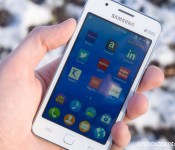
Samsung reportedly sold 120,000 units of the Tizen-based Z1

It looks like Samsung managed to find a footing in the entry-level segment once again with the Tizen-based Z1. According to Business Korea, Samsung sold over 100,000 units of the Z1 in India since its debut in the country in January, followed by 20,000 units in Bangladesh, where the device was launched earlier this month.

Microsoft updates Office for iPhone and iPad with iCloud Drive sync

Microsoft has today released an update for Excel, PowerPoint and Word on iPhone and iPad. Version 1.6 introduces iCloud Drive synchronisation support, as well as implementing some minor bug fixes.
The company now enables users to open, edit and save documents using iCloud Drive over Microsoft’s own OneDrive solution. More choice benefits those who don’t necessarily rely on Microsoft’s cloud storage platform.
The addition of iCloud Drive joins support for the likes of Dropbox. Do you prefer iCloud Drive for documents and other media? If so, update your Microsoft apps and let us know how you get on with the latest updates.
- Free – Download Excel
- Free – Download PowerPoint
- Free – Download Word
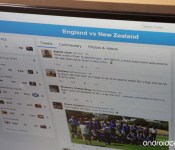
Indian carrier Reliance to provide free Twitter access throughout the Cricket World Cup

The Cricket World Cup is currently underway in Australia, and Indian carrier Reliance has announced today that it is partnering with Twitter to provide free access to the microblogging service to its customers for the duration of the event. If you’re a Reliance subscriber, you can now browse the latest tweets from the Cricket World Cup on Twitter without incurring any data charges.
QuickPost v2.1 released with a whole host of new features
One of my most used apps has just been updated — QuickPost. It brings a bunch of new features and new pricing for pro features. There’s handful of new design changes, such as being able to choose which accounts to show. If you don’t share to certain social media sites, you can hide those. You can also now use the native photo editing tools when you want to upload a photo. Handy little addition.
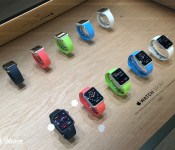
Apple Watch apps: Five wishes for the software we’ll soon be wearing

The first Apple Watch will be shipping in April — which means that, right now, developers are hard at work on the first generation of Apple Watch apps. Currently limited to actionable notifications (short and long looks), widgets (glances), and remote views (WatchKit apps), even though they’re bound to the iPhone, there’s still boundless potential.
I’ve tried several smartwatches and bands, seen most of what’s on the market, and I’ve even been lucky enough to try on a demo Apple Watch back at the September event. That may be why I’ve been getting a lot of questions from developers and designers regarding what I’d like to see from Apple Watch apps. After thinking about it for a good long while, the list turns out to be pretty straightforward.
1. Keep it black

The Apple Watch’s display is widely believed to be OLED. Unlike LCD, OLED is appreciably more energy efficient when displaying darker colors, especially black. Moreover, deep OLED blacks will better blend in with the watch’s black bezels, making everything seem more open and expansive. Apple’s human interface guidelines (HIG) is emphasizing black for a reason.
2. Keep it discreet

When a device is more intimate, its interactions have to be more important: Otherwise, it risks turning notification into interruption. Likewise, when a device is more visible, its interactions have to be more discreet: Otherwise it risks turning information into embarrassment. In other words, anything that could be contentious or inappropriate at a meeting or at a dinner party shouldn’t come up in a short look.
3. Keep it brief

The Apple Watch has a small screen, making it ideal for quick bits of information and interaction. That same size makes it less than ideal, however, for long-form information or prolonged interactions. Show me the critical stuff first, let me tap in for more, and then let me use Handoff for anything truly in-depth so I can immediately pick up and continue whatever I need to on a bigger, more powerful device.
4. Keep it consistent

Looks and glances are each appropriate for different types of information. Looks are for temporary notifications; glances are for persistent data presentations. If you need something temporary, go with a look. If you need something persistent, go with a glance. Because, just like a notification shouldn’t stay stuck on the screen, a widget shouldn’t ever empty out or vanish. If I go to a glance, I want to see something.
5. Keep it simple

Interactions with WatchKit will be more reactive than active. We’ll spend far more time engaging with looks than hunting around for third-party glances or apps. That means notifications will be the primary gateway for most software, and they’ll need to be polished and perfected. Glances, by contrast, will only need to be considered when data truly needs to be available all the time, and WatchKit apps only when interactivity is needed beyond what a glance can provide.
Bonus: No force-hamburgers
Force touch is a way to bring up extra, contextually-sensitive options. It’s not an analog for the “hamburger button” — a way to bury a basement-full of unrelated functions. If you feel yourself force touching, and start smelling burgers, step away from the Apple Watch and head for the joint of your choice. Then come back and pare down the options to the essentials.
Bottom line
Come this April, I expect to be surprised and delighted by what I get to see and use on my wrist. WatchKit apps work in tandem with the iPhone, and the developers and designers who make iPhone apps have had years to hone their chops and their craft. Developers who aren’t sure of what to do or how exactly it’ll all work simply have to wait for the Apple Watch to hit the market, get one, and and then test and tweak their apps on it until they shine. Because when it comes to the Apple Watch, shipping great experiences is going to be far, far more important than shipping on launch day.

Microsoft kicks off the Ultimate Xbox One Game Sale!

Microsoft today commenced the Ultimate Game Sale, slashing the price of multiple Xbox One titles. If you’ve been holding off for a price reduction, you may want to check out the list of games affected in this huge sale to see if anything takes to your liking. We’ve already looked at Duck Dynasty and GTA V going on sale for Gold members.

Transform photos into beautiful works of art with Autodesk Pixlr for Windows

Autodesk has released its Pixlr app for Windows, letting you get creative on your PC, laptop or tablet. The app itself enables you to turn photos into breath-taking works of art, utilizing crop, rotate and other editing tools at hand to change almost anything about the shot. It’s a superbly crafted app and one worth downloading if you happen to take a few photos and require a quick solution to make some edits.
How to forget a Wi-Fi network on your Mac

By default, your Mac will remember settings for any Wi-Fi networks it’s connected to in the past. This can make things really convenient as you move around; if it’s for networks that you no longer have access to or don’t want to use, however, it can be really inconvenient — because sometimes your Mac will try to connect to networks it can no longer work with. Here’s how to fix it.
Early one morning I found myself without a Wi-Fi connection when I opened my laptop. I blearily pulled down the AirPort menu and selected the first network that popped up. After a minute or two I realized something was wrong: I only had two bars of coverage, and things were slow. That’s when I realized I was connected to the wrong Wi-Fi network.
As it turned out, my next-door neighbor installed a Wi-Fi router with a strong enough antenna that I could pick up the network from my house, and left it open and unprotected to boot. But the connection wasn’t strong enough to actually work, so I noticed my error right away.
That’s a great practical example of why you should learn how to remove a Wi-Fi network from your Mac’s memory. There are other reasons, too: Using common shared networks can be a great temporary way of getting online, but sometimes passwords or logins will change, and you’ll have to reconnect from scratch in order to sign in again. Alternatively, maybe your Mac is trying to connect to a network you no longer have access to. Whatever the reason, here’s how to fix it.
To make your Mac forget a Wi-Fi network
- Click on the AirPort menu.
- Select Open Network Preferences.
- Click the Advanced button.
- Make sure the Wi-Fi tab is active.
- Select the network you’d like your Mac to forget. You can shift-click to select multiple networks, or command-click to select networks listed non-contiguously.
- Click on the – button.
- If you have iCloud Keychain active, the Mac will warn you that removing it will keep any devices connected on the iCloud Keychain from remembering it. Click on the Remove button.
- Click on OK.
- Click on Apply.
- Close the Network system preferences pane.


You’re done! The network is forgotten.

Seven things to know about the Microsoft Lumia 435

Some quick pointers on Microsoft’s newest budget Lumia
While the Lumia 435 isn’t the new Windows Phone for some, it’s still an important device for Microsoft. With the success of the Lumia 520 being proof enough that there’s plenty of device sales to be had at the low end, the Lumia 435 is right in that area of the market.
If it’s priced right, the Lumia 435 has real potential to capture the first-time smartphone buyer, those new to Windows Phone or just someone looking for a good phone without breaking the bank.
Whatever your take, here’s seven quick things you need to know.
ABC to air Modern Family episode shot entirely on iPhone and iPad

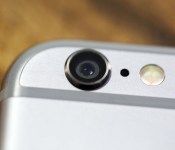
An upcoming episode of the ABC sitcom Modern Family, titled Connection Lost, was shot entirely with Apple’s iPhone 6 and iPad Air 2. The idea came from co-creator and executive producer Steven Levitan, who drew on his own real-life experiences — staying in touch with his daughters, who are away at college, over FaceTime. According to Re/code:
The episode revolves around Claire Dunphy, a working mother of three played by Julie Bowen, who is stuck in an airport and desperate to reach her daughter, Haley, to reconcile after a fight. The story plays out on her Macbook, as she employs all the forms of modern communication at her disposal, from e-mail to FaceTime to Facebook, in an attempt to locate her eldest child, played by Sarah Hyland.
John Brown, the shows graphics producer, had to recreate OS X Yosemite‘s interface while making sure it would look good, and stay readable, on television sets. Once that was done, however, it proved an ideal staging place for all sorts of gags and easter eggs.
A previous episode of Modern Family revolved around the launch of the original iPad.
While the iPhone — and now the iPad — have proven to be incredibly popular cameras, their use in professional photography and videography has also been increasing in recent years. Everything from fashion shows to commercials to short films have been shot, sometimes completely produced, on the iPhone.
No mobile device will replace the massive cameras and equipment of a typical Hollywood production any time soon, but most of us don’t have access to that level of gear. We do have iPhones and iPads. And if the pros can get results this good, imagine what those who dream of one day being pros can learn and accomplish with the devices they already have in hand?
Modern Family‘s Connection Lost episode airs February 25, 2015.
 AIVAnet