



Confessions of a former gamer

Maddy Myers’ recent column for iMore, A salute to iOS gamers, or how to stop intimidating your non-gamer friends, comes at an interesting time. Because it’s an issue I’ve been wrestling with myself for quite some time.
For almost a decade, I wrote a column for Macworld magazine called “The Game Room,” gently reminding our readers that Macs could be used to play games, and great games at that. Games have always been a central part of what I’ve used computers for. Over the years, I’ve found myself growing increasingly distant from gamer culture.
I’ve played computer and console games since I was a kid in the 1970s. I saw first-hand the rise of the home video game console market, and was part of the early hobbyist personal computer trend. Back in the old days, when we trudged uphill in snow to program BASIC on command lines to play Tic Tac Toe (get off my lawn).
Through many generations of game consoles, I’d be among those who would take time off from work to wait in the wee hours for the first day of sales; I remember doing so for my Sega Dreamcast; I remember excitedly opening my Xbox and my PlayStation 3 the same way. I bred that love for games in my kids, too, and we often used gaming as an excuse to play together, the same way other generations played (and still play) board and card games.
Now I’m in my mid-40s. As I’ve gotten older, my priorities have changed. I don’t have the leisure time I used to, and I don’t have the disposable income I used to. Those two things alone have dramatically affected my ability to get and enjoy games.
The other thing that’s changed is me. I no longer identify myself as a “gamer,” especially compared to my two boys — 19 and 14 respectively. (My daughter, in between the two boys, hasn’t really spent much time gaming.) As I recounted a few weeks ago, the 14 year old actually had me help him build a gaming PC, and the 19 year old spends most of his leisure time playing games with his friends online. Both of them are part of a culture I really don’t identify with anymore, partly because of age, partly because of shifting priorities.
Last year’s “GamerGate” controversy solidified that I wasn’t part of the “hardcore” gaming culture anymore. The violent reaction of a contingent of gamers against others looking for less marginalization struck me as a particularly immature, unacceptable reaction that I wanted no part of.
But mostly it’s about time. More specifically, it’s about how I spend my free time. The funny thing is that I probably spend as much, if not more time playing games now than I did when I was younger. But the way I spend that time is different.
Rather than grabbing hours during nights and weekends to master hardcore action games, in-depth strategy titles and adventure games that take hours to explore, I spend minutes here and there. That lends itself to a lot more play of casual titles, which usually sit on my iPhone or my iPad, rather than the computer.
There’s no question that as the smartphone market has exploded, so has the casual game market. And casual game makers are finding new and innovative ways to grab our attention all the time.
Some of the games I play most frequently are, by the measure of most “serious” gamers, utterly banal: Games like Hay Day, the Farmville-style task management game from the people who make Clash of Clans. But it’s a game I can get in and out of easily while waiting for an appointment to start. Trivia Crack has proven itself to be fun for the same reason: Easy to spend a minute on here or there, collaborative, but not overly demanding of time or resources. Even runners like Yak Dash have found their way onto my phone; fun time-wasters that I can spend a minute or two with here and there, then get out of and not think about again until I’m ready to play.
I still love well-crafted, involved and detailed games, especially ones that make it to the Mac. And I still plan to examine them critically and report on the business, because it’s still of enormous interest to me (and to my readers as well, I presume). But I no longer identify as a gamer the same way I used to. I’ve moved on. And I’m not sure that being a “gamer” even matters anymore, in the scheme of things. Games have become so interwoven into most of our daily experience, aren’t most of us gamers these days?

How to use your iPhone 6 Plus one-handed

The iPhone 6 Plus has an amazing 5.5-inch 1080p display, but while bigger is better for apps and the web, bigger can also be harder to use one-handed. With a smaller display, it’s easier to balance the phone and reach your thumb all the way up and across, from corner to corner. With a larger display, you may need to shift your grip more and maybe even bring the interface elements to you.
1. Put your best hand forward
Just because you’re right or left handed, doesn’t mean that hand will be the best one to hold your phone. Some people prefer using their dominant hand, others want to keep it free for other things. For example, I prefer using my iPhone with my right hand, even though I’m left handed. Spend some time using your iPhone in both hands and figure out which one is easier for you.
That’ll be the hand you use for the rest of these tips.
2. Grip higher

Most of us have learned to grip the iPhone at the bottom. Now that the iPhone 6 Plus is here, however, it pays to grip it higher. Teach yourself to bring your hand up so it rests slightly below the middle of the phone. This way you can still reach the bottom but your thumb can also reach closer to the top.
3. Optimize your apps

Now that you know what hand is best for you, pick up your iPhone 6 Plus and fan your thumb across the screen. That’s the sweet spot — the area that’s easiest for you to reach. And that’s where you should arrange all your most-used apps. So, for example, if you’re holding your iPhone in your left hand, the bottom left is where you’ll want to cluster your go-to apps.
4. Reach for Reachability

For apps, buttons, and other elements that aren’t in the sweet spot, there’s Reachability, which brings the entire interface halfway down the display. Since it’s new, it won’t be habitual. If you make a conscious effort to use it, however, you can make it a reflex. Any time you find yourself straining to reach the top of the screen, don’t use your other hand, practice using Reachability instead.
5. The slide

Once you get better at using your iPhone 6 Plus one handed, The balance will click and you’ll get better at shifting your grip around as well. In other words, you’ll get better at relaxing your hand, letting your iPhone slide a bit higher or lower, and then tightening your grip again. It’ll let you expand your up-and-down each, and the area where you can hit apps and buttons.
6. The turn

What the slide does for up-and-down, the turn does for side-to-side. By resting the side of your iPhone 6 Plus on your palm, a turn of your wrist lets your thumb reach the previously unreachable — even without Reachability. You’ll still need the previous tips from time to time, but with the slide and the turn, you’ll need them less often.
7. The pinky plank

Extreme situations call for extreme grips. Once you’ve mastered the slide and the turn, you can go for gold with the pinky plank. When you need to reach something on the extreme opposite of the screen, balance your iPhone 6 Plus on your pinky, and then reach your finger all the way up and across. It gives you both stability and flexibility.
8. The case for cases

Some people find the iPhone 6 Plus slippery. If you’re one of them, it’ll make one-handed use more stressful and perhaps even more accident prone. To compensate for it, you can use a case. You’ll want one that’s got some grip, but not one that restricts your grip. That means thin and smooth.
- Apple iPhone Leather Case – $49.00 – Order now
- Case-Mate Tough Air Case – $24.95 – Order now
- Case-Mate Naked Tough Case – $24.95 – Order Now
Your tips
The iPhone 6 Plus has an incredible display but its size makes using it one handed a challenge. These are some of the tips that I used to make myself as productive as possible with my iPhone 6 Plus when I need to use it one handed. With some practice and attention, it’s surprising just how good anyone can get.
If you’re using an iPhone 6 Plus one-handed, let me know how you’re doing, and more importantly — let me know your tips!

Deal alert: Microsoft selling Lumia 520 for $29 through eBay store

The Nokia Lumia 520 has been a great success story for Windows Phone and despite aging now, it’s still a popular little device. Microsoft is giving you the chance to grab one right now for the ridiculously low price of just $29 through its official eBay store.

Windows Phone 8.1 GDR2 confirmed in Microsoft docs, supports video conferencing

Windows Phone 8.1 GDR2 documents reveal new changes in a future update
All eyes are on Windows 10 for phone these days, even for Microsoft, who have shifted development to focus on the new OS. Reports going back to April 2014 note that Windows Phone 8.1 was to have at least two GDR (General Distribution Release) updates over its lifespan. Windows Phone 8.1.1 came out last year, but the fate of GDR2 (8.1.2) or Update 2 was not so clear.
Now, Microsoft has published documents on Windows Phone 8.1 GDR2 dated January 28, 2015. Usually, such information is put behind a firewall and is limited to manufacturing partners only – that is, these docs do not reflect consumer-facing features and may be hidden again.

Check this Play Store setting before you do anything else

App shortcuts are great, but can quickly overwhelm your homescreens

There are a few important settings in the Google Play Store app on your phone or tablet. Settings that keep the kids (or yourself) from making random in-app purchases, or content filtering for folks who want to sort mature-rated apps out of the store. But there is one setting that you need to look at before you do anything else — the one that adds a shortcut to your homescreen for each and every app you install from Google Play.

Fuji’s premium telephoto zoom packs some serious punch

Fujifilm may still be a relatively niche player in the mirrorless camera field, but that’s not stopping the company from putting out some serious lenses to go along with its well-regarded X-series cameras. With the $1,600 XF50-140mm zoom, Fuji’s hoping to provide a professional-level, weather-sealed telephoto zoom that can compete with the legendary 70-200mm lenses from companies like Nikon and Canon. I spent a month with the lens to see how close the company came.
First, the full name: It’s the Fujinon XF50-140mm f/2.8R LM OIS WR lens. Break out your decoder rings and you’ll find we’re dealing with a telephoto zoom with a constant max aperture of f/2.8, an aperture control ring (R) and Fuji’s “Linear Motor” (LM) for quieter focusing. Also on board: five-stop optical image stabilization (OIS) and weather-resistant (WR) construction. Build quality is unsurprisingly solid: Fuji’s XF lenses generally make heavy use of metal and textured rubber. Each of the three control rings move smoothly — save for the aperture selector, which features distinct, reassuring notches throughout its range of motion. At the front end, you’ll find threads for 72mm filters and a bayonet-style attachment for the substantial lens hood. While the all-plastic hood is the only significant component that’s not high-quality metal or rubber, it at least has a slide-out tab so you can control mounted circular polarizers more easily.
On the other end, you’ll find an all-metal (surprise!) lens mount surrounded by a rubber gasket — part of the lens’ weather-resistant design. Of course, to take full advantage of that protection, you’ll likely want a similarly robust camera body like the X-T1. Like the workhorse Canon and Nikon zooms it emulates, the 50-140 has a rotating and removable tripod collar allowing for better balance when mounted on a tripod. Of course, if you flip it around to the top, it makes for a nifty carrying handle as well.

As for the specs, Fuji says the 50-140mm range on its APS-C camera bodies gives users an angle of view (31.7 degrees down to 11.6 degrees) that’s broadly similar to what you’d get on Canon’s or Nikon’s full-frame bodies with their respective 70-200mm optics (about 34 degrees down to 12 degrees). Naturally, that comparison doesn’t hold when you’re using a 70-200 lens on a smaller APS-C DSLR, but it’s still an eminently useful focal range.
Image quality is fantastic throughout regardless of focal length, with pleasingly sharp details and accurate focus. Without Fuji’s current speed king, the X-T1, I wasn’t able to test out the upper end of its autofocus abilities, but it performed quickly enough on my trusty X-E2. As for bokeh, out-of-focus background elements were generally smooth and not distracting, meaning this should be a solid portrait lens if that’s your thing. It also pairs well with Fuji’s new macro extension tubes, enabling focus as close as 80mm (about three inches) from the front of the lens rather than the normal 800mm. This let me get up close and personal with some hungry hummingbirds.
 Uncropped shot from the Fujifilm XF50-140 with MCEX-16 macro extension tube.
Fuji’s onboard image stabilization feature let me hand-hold shots at far slower speeds than I’d normally be capable of. You can hear a faint hum emanating from the lens when the camera powers on, but it shouldn’t be too distracting.
In the end, did Fuji succeed in emulating that “classic” telephoto zoom lens SLR shooters have been enjoying for years? Pretty much, yeah. I’ve been lucky (foolish?) enough to have owned both a Canon 70-200mm f/2.8L IS and Nikon’s 70-200mm f/2.8 ED VR. They remain two of my favorite lenses, and the XF50-140 compares very well in image quality as well as overall build.
At $1,600 and around 1kg, it’s both cheaper and lighter than those DSLR lenses. Heck, if you attached an X-T1 to it, you’d still be around the same weight as those lenses without cameras attached. And you’d likely need that high-end X-T1 — with its weather-resistant body and improved autofocus — to get the most out of this lens. If you like that focal range but don’t require such heavy-duty glass, there’s always Fuji’s well-built XF55-200 f/3.5-4.8 optic. It’s less than half the price and may be all you really need. But if you’re convinced you need to pay the premium, you won’t be disappointed.
To view sample photos shot with the Fujifilm XF50-140, click here.
Filed under: Cameras
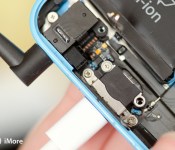
How to fix the Lightning connector on your iPhone 5c

If your iPhone 5c won’t charge, the problem could be one of two things; the battery or the Lightning dock itself. If you’re experiencing other symptoms such as headphone jack issues, or dock accessories not working when plugged in, the Lightning dock is more than likely the culprit. Luckily, a DIY repair to replace the Lightning dock entirely isn’t too time or labor intensive, and it’ll cost you a fraction of what a new iPhone would!
What you need to replace an iPhone 5c dock assembly
You’ll need some tools and parts in order to repair your iPhone 5c. If you’re in the United States or Canada, we highly recommend checking out eTech Parts as we’ve had lots of good experiences with them and know their customer service is out of this world. All the links below will route you to the direct item you need on eTech’s site.
- Replacement Lightning dock assembly – Buy now
- Suction cup – Buy now
- 5-point security screwdriver – Buy now
- Standard #000 Phillips screwdriver – Buy now
- Spudger tool – Buy now
- Razor blade – Buy Now
- iSesamo Opening tool (not necessary but awesome for prying up cables and getting under adhesive) – Buy Now
1. Power off your iPhone 5c

Before performing any repair on any iPhone, iPad, or iPod touch you should always remember to power it off. Simply hold down on the Power button until you see Slide to Power off. One you’re sure your iPhone is turned off, proceed to the next section.
2. Remove the two security screws on both sides of the dock connector

There are two security screws that secure the screen to the frame and they sit on each side of the dock connector. Use your 5-point security screwdriver to remove them. They are both the same size so it’s okay if you mix them up.
3. Remove the display assembly
- Place your suction cup slightly above the Home button assembly and secure it to the screen.

- Holding the iPhone in place with one hand, gently pull upwards on the suction cup until you free the bottom of the screen. You should now be able to use your fingers to slowly raise up the screen and expose where the front assembly is connected to the logic board.
- Remove the four screws holding down the shield that covers the display cables. To do this, use your #000 screwdriver. These screws are different sizes so make sure you keep them organized in a way you can remember for re-assembly.

- Once all four screws are removed, carefully remove the shield and set it aside.

- Now use your spudger tool in order to remove the three cables shown in the image below.

- The display assembly should now be free from the body of the phone. Go ahead and set the display assembly aside.
4. Disconnect the battery
We don’t need to completely remove the battery for this repair but it’s always a good idea to disconnect the battery before removing and replacing internal components in order to prevent a short from occurring.
- Remove the two screws holding down the battery cable using your #000 Phillips screwdriver.

- Gently lift the battery shield out of your iPhone 5c and carefully set it aside.

- Use your spudger tool to carefully pry up the battery cable.

- That’s it. We don’t need to go any further. Just remember to keep track of the shield and what order the two screws came out.
5. Remove the loud speaker assembly
- Start by carefully peeling up the adhesive shown in the photos below using your pry tool or iSesamo opening tool taking care not to tear it. This cable works in conjunction with your home button. It does not come completely out. You only want it to be detached from the speaker enclosure.


- Now remove the three screws shown in the photo below using your #000 Phillips screwdriver.

- Disconnect the small circular gold connector using your spudger tool. This is located under where you disconnected the battery. Pay attention to the adhesive that is holding it down. It’s quite easy to break but take your time so you don’t break the cable itself.

- The speaker enclosure can now be lifted out of your iPhone 5c. Just take care not to snag the dock, logic board or any cables while removing it. The photo below shows the best way to grab hold of the speaker assembly.

6. Replace the Lightning dock assembly
- Start by using your spudger tool to disconnect the single cable that connects the dock to the logic board. It is above where the battery connector is located.

- Use your #000 Phillips screwdriver to remove the remaining 4 screws that hold the dock in place. They are outlined below.

- The dock is now ready to be peeled out. The only thing holding it in now is adhesive. The easiest place to start is by peeling where the cable connects to the board. Once you get to the actual dock, use your spudger tool, or iSesamo opening tool which is what I prefer, in order to break the foam adhesive around the Lightning connector.

- Use your pry tool or any opening tool in order to pop off the rubber gasket that sits next to the headphone jack. It doesn’t come off completely. You just need to pop it away from the frame.

- Use your pry tool or iSesamo opening tool in order to break the adhesive around the headphone jack, which is also part of the dock assembly. You may need to use a finger on your other hand to work it up and around the battery.

- Now use your opening tool to remove the rest of the adhesive under the dock assembly, taking care not to tear anything. The dock should now come free from your iPhone 5c.

- Check out your old dock compared to your new one and make sure they look exactly the same. Peel off any adhesive backing on the new dock. This is also a good time to remove any old adhesive from inside the frame of your iPhone.

- Start by lining up the headphone jack and Lightning dock assembly with the screw holes. You can also lay the adhesive on the right side of the dock at this time and re-connect the cable to the logic board to ensure a good fit.
- Once you’re confident the dock is lined up, replace the four screws you removed earlier using your #000 Phillips screwdriver.
- Now is a good time to plug in a charging cable and a pair of headphones to ensure a good fit. If you can’t push one or the other in all the way (or both), the dock is lined up incorrectly and needs to be repositioned. Better to figure this out now instead of when you have reassembled your entire iPhone.
- If everything is lined up and looks good, you can move on to putting the loud speaker back in.
7. Put back the loud speaker assembly
- There are contacts on the dock assembly that must make contact with the loud speaker for it to function. Take note of those below and make sure you position your speaker accordingly.

- Once the speaker assembly is lined up, replace the three screws you removed earlier in order to secure it down.
- Replace the gold connector you removed earlier.

8. Re-connect the battery
- Re-connect the battery cable that you pried up earlier.
- Replace the battery cable shield.
- Replace the two screws holding the battery cable down using your #000 Phillips screwdriver.
9. Re-connect the display assembly
- Carefully reconnect the three cables running from the display assembly to the logic board.
- Reposition the metal shield that sits over the three cables and replace the four screws that hold it in place, remembering where each one came from — they are all different sizes.
- Line up the top of the screen carefully and make note of the teeth that line up to the top of your iPhone 5c’s frame. Once the top of the display is lined up, carefully snap down the remainder by moving your fingers along the edge.
10. Replace the security screws on each side of the dock connector
Once you are confident that the display is seated correctly again, use your security screwdriver in order to replace the two screws on either side of the dock connector.
11. Test the new Lightning dock assembly
After you’re iPhone 5c is fully assembled, turn it back on. Here’s some things you should do in order to fully test the new Lightning dock:
- Ensure your iPhone 5c charges as it should
- Play music through the headphones
- Test volume control and skip track functions through the headphones
- Test the loud speaker since we removed it by either taking a call on speaker phone or playing music over the loud speaker
- Ensure your iPhone 5c does not get too warm when charging it, if it does, remove the replacement dock immediately and have it replaced
If all of the above checks out okay, you’re good to go!
You’ll also want to check out:

72 hours with the new Dell XPS 13

Having been excited by it since that Tuesday announcement at CES in January, this past week saw me finally take possession of my very own, 2015 Dell XPS 13. It’s getting a lot of attention, both press and consumer, and the minute you lay your eyes on it it’s easy to see why. At the time of ordering, UK buyers were pretty restricted to which models were available, we had a choice of different spec Intel Core i7 versions and nothing more. It’s got a little better, since, with the addition of an i5 model, but it’s the i7 that I’ve got here.
Our own Daniel Rubino has already talked about and used the non-touch, i5 model, but now we’re moving on to the range topper. We’ll have more coverage in the weeks to come, but before all of that, here’s a few quick thoughts after 72 hours using it.

Proposed commercial drone rules would ban robotic couriers

If you were worried that the Federal Aviation Administration would require a pilot’s license before you could fly a drone for professional reasons, you can relax… well, sort of. The FAA has published its proposed commercial drone rules, and they’re a bit more lenient than some had feared. The good news? You wouldn’t need a license to fly any drone under 55 pounds; instead, you’d take an “aeronautical knowledge” (read: airspace rules) test every two years and get an operator certificate. And if you’re flying model airplanes that fit existing criteria, you’d only be bound by current laws.
Unfortunately, the other rules are still pretty onerous to companies whose businesses might revolve around unmanned aircraft. You’d have to maintain a line of sight to your drone at all times, for one thing — robotic courier services like Amazon’s PrimeAir are impossible under the proposal. You’d also have to fly in daylight, stay under 500 feet and travel no faster than 100MPH. The rules are open to public comments over the next 60 days and certainly aren’t set in stone yet, but it’s pretty clear that the FAA is more concerned with air traffic safety than flexibility. If these rules come into effect as they are, commercial drones would largely be limited to short-distance tasks like news gathering and monitoring farms.
Filed under: Robots
Source: FAA

Qualcomm Snapdragon 810 overheating issues may be exaggerated

In a recent study using side-by-side comparison, online blog STJS Gadgets Portal is reporting that overheating issues with the Qualcomm Snapdragon 810 may be blown out of proportion. The comparison uses one smartphone running a Snapdragon 801 processor next to a pre-commercial smartphone running a Snapdragon 810.
Talk Android has been covering all the news about the possible overheating issue with the Snapdragon 810 for a few months now. You can see how this new study falls in with the previous reports by clicking “Read more” and continuing after the break.
There have been many rumors flying around that Qualcomm’s newest processor, the Snapdragon 810, may be experiencing overheating problems. While Qualcomm has not publicly admitted it, sources have all but confirmed the issue did or still does exist. Even LG reported that there was an issue, but that it had been resolved.
Further adding fuel to the fire, it’s rumored that Samsung has taken the opportunity to back away from using the Snapdragon 810 in its newest flagships due to the overheating, instead opting to try its hand at using its personally developed processor, the Exynos. Even though it is still a rumor, Qualcomm did confirm that a key customer dropped its 810 processor, but it did not state who.
Despite widespread concerns about the overheating issue, STJS just published an article stating that it did a comparison between the Qualcomm Snapdragon 801 in a commercially available smartphone and a pre-commercial smartphone running the Snapdragon 810. In this comparison, STJS says that the overheating never really even showed up.

This chart shows that while the phone’s chassis did warm during the 30 minutes of gaming, it leveled off around 15 minutes and did not approach the upper limit of 45°C, whereas the Snapdragon 801 had a linear progression ultimately reaching that 45°C ceiling.
While not mentioned in the article, STJS did discuss that Smartphone A was sporting a 1080p display whereas Smartphone B was powering a 2K display.
So, with this newest study, consumers are surely left wondering whether or not this overheating rumor was a complete fabrication or perhaps there was a minor issue at the beginning that has been resolved a long time ago.
If you’re wondering what new bells & whistles will be appearing in the Snapdragon 810, you can read an article by Talk Android’s Jared Peters by clicking here.
Source: STJS Gadgets Portal
Come comment on this article: Qualcomm Snapdragon 810 overheating issues may be exaggerated
 AIVAnet