


How to remove your payment information from Google Wallet

Google Wallet and Google Play are wonderful services, and they’re very convenient when you want to make a quick movie rental or order a new album. However, as easy as it is to put your payment information into an account to authorize a purchase, taking it back out isn’t exactly difficult, but you do have to know where to look for it. Maybe you just wanted to buy your kid some Google Play credit and forgot it’ll save your information. Maybe you just decided to buy your friend an app yourself since they don’t quite understand the concept of buying apps yet. Whatever the case, you want your payment information back before they get into trouble with it.
Here’s how to do it.
Body movements create music in Microsoft’s Music Box exhibit at the Grammys
Microsoft has set up an interactive exhibit in Los Angeles called the Microsoft Music Box. It combines its Kinect and Surface products in a way to allow you to create music just with body movements. The exhibit is currently open to the public at the L.A. LIVE Plaza today and Sunday as part of the Grammy Awards event.

A look at the Android Central editors’ homescreens

Home sweet home
On Android, your homescreens are so much more than a grid of icons. Whether you want to keep things sparse and tidy, or file every app you would ever need to use in it’s own comfy folder, you’ll find plenty of ways to make your homescreen the perfect homescreen. We love that. None of us are the same, and none of us want to be the same.
We wanted to share how our homescreens look, and since we all have access to a great Android blog we got together and are gonna share. You’ll find our homescreens are as different as we are, with some boring (guilty) and some busy. And each is just perfect for us.
Have a peek, then hit the comments to analyze us — you can probably tell a lot about a person from his or her homescreen. Then we want to see yours, so click or tap the forum link below and show off your homescreen!

ICYMI: February 7, 2015

A lot can happen in a week. New apps join the Windows Phone Store or Windows Store. Your favorite apps can get a big update with a new look or new features. Device rumors come and go. Seven days might not seem like much, but it can be an eternity in the tech news cycle.
Every week we’re going to compile the biggest stories into one post, so you never fall behind – In Case You Missed It (ICYMI).

The best Android launchers of 2015

There are tons of launchers available for android — these are some of the best!

Launchers are the way Android users customize their smartphone and tablet experience. There’s superficial stuff, like changing screen transitions, icons, and fonts, but the best Android launchers out there enable users to tweak the device’s behavior to suit their daily usage, so long as you’re willing to put the time into defining those customizations. You can make your home screens as simple or complicated as you wish, while tweaking every little detail or just taking what’s given to you by default — but either way you can replace what your phone’s manufacturer gives you with the install of a single app.
If you’re looking for a change of pace from the out-of-box software experience on your phone, consider a new launcher. We’ve found the best ones available today, and listed all of the pros and cons of each.

Secret keyboard shortcuts: Twenty tips to speed up typing on your iPhone!

Apple popularized virtual, multitouch keyboards with the original iPhone and the brilliant work of the engineer who created it. Since then they’ve improved text entry with editing and insertion options, and the keyboard itself with a new, predictive engine. They’ve also added the option for custom keyboards. Yet not everyone knows every feature hidden in the keyboard and text editing controls. Once you learn them, however, your typing really starts to fly!
Note: Not every option is available in every app, and while the iPad contains all the iPhone shortcuts, it also contains additional features like the split keyboard and and flick quote.
1. Toggle your settings

There are a lot of settings you can toggle for the keyboard, including auto-caps, auto-corrections, spell-check, caps lock, predictions, and more. Go to Settings > General > Keyboard to toggle everything to your liking.
2. Hide QuickType

If you don’t want to turn predictions off all the time, but you do want them off some of the time, just touch the prediction area and pull down to hide it. Then touch the bar on top and pull up to show it again.
3. Speedy switches

If you only want to enter one number or symbol, don’t tap Number or Symbol button — touch it and slide to the number or symbol you want to enter, and then let go. It’ll enter and the keyboard will instantly switch back. The same works for shift and capital letters!
4. CAPS LOCK

When you want to SHOUT AT SOMEONE WHO IS WRONG ON THE INTERNET you don’t need to hit the Shift button for each letter. Just tap Shift twice and you’ll be in CAPS LOCK mode until you’re tap Shift again. YOU’RE WELCOME.
5. Special characters

Typing the letter ‘e’ is easy as tapping it. Typing ‘èéêëēėę’ is almost as easy. Just touch and hold down on the letter ‘e’ and you’ll get a popup with all the other options. In Safari, holding down ‘.’ will give you options for .com, .net, and more.
6. Shake to undo

If you type some text, delete some text, or even paste some text and later regret, just shake your iPhone and you’ll be given the option to undo what you did, and to redo what you undid.
7. Magnify mistkes

If you type a bunch of text and then notice a mistake, touch the screen and hold down until the magnifying loupe appears. Drag until the cursor is at the mistake, then let go and make your corrections.
8. Cut, copy, and paste

To cut or copy text, double tap on it and drag the handles to select the exact beginning and end points, and the tap Cut or Copy. To paste text, use the magnification loupe to position the cursor, then tap Paste.
9. Quick contractions

Instead of typing we-number-button-apostrophe-ll for we’ll, just type welll and auto-correct will switch it to we’ll. Weree for we’re, helll for he’ll and other common contractions work the same.
10. Undo auto-correct

Auto-correct will attempt to fix typing mistakes as you make them. If the correction is wrong, however, just hit the backspace key and iOS will popup what you originally typed. Tap on it, and it’ll be un-auto-corrected and restored.
11. Rapid replacements

Misspelled words will be underlined in red. Tap them and iOS will offer a suggested replacement. You can get suggested replacements for any word, however, at any time. Just tap the word, then tap Replace from the popup.
12. Fast formatting

To quickly apply bold, italics, or underline in any app that supports rich text formatting, double tap on it, tap the B/U option in the popup menu, and then choose the formatting.
13. Dictionary defined

If you’re not sure whether you’re using the right word — cite the site in sight? — you can double tap on it to bring up the popup, tap the arrow on the right for more options, and tap Define to get the dictionary definition. Tap Manage to change or add dictionaries.
14. Image insertion

If your typing a note or email and decide you want to insert an image, double tap where you want to insert it and then tap Insert Photo from the popup menu. It’s not full-on file attachment, but it’s something.
15. Super shortcuts
If you tap the spacebar twice while typing, iOS will automatically insert a ‘.’ for you and capitalize the next letter. You can set up your own shortcuts as well. It’s great for handling common misspellings or inserting anything your type frequently, like ‘gml’ for your gmail address. Go to Settings > General > Keyboard > Shortcuts
16. Enter emoji

Emoji are a special character set used to communicate pictographically. To insert them you need to add the emoji keyboard. Go to Settings > General > Keyboards > Add New Keyboard > Emoji.
17. Custom keyboards
You can now get custom keyboards right from the App Store. Download the app, then go to Settings > General > Keyboards > Add New Keyboard and choose the keyboard you downloaded. (Yes, the process is way too complicated.)
18. Swift switching

Once you’ve got a few keyboards installed, paging between them becomes arduous. Instead, touch and hold the Globe/Smily button until the keyboard selector pops up. Then tap the keyboard you want to switch to.
19. Dictation!

As improved as the iPhone keyboard is, sometimes it’s still easier to talk than type. Thanks to Siri’s new streaming speech-recognition, dictation is better and faster than ever. Just tap the mic button and start talking. You can even say punctuation, line and paragraph breaks, , and more!
20. iPhone 6 Plus power

If you have an iPhone 6 Plus, you can rotate to landscape mode and get access to an extended keyboard that includes editing, formatting, and even arrow keys. It’s a lot of keyboard to love, but it can help you power through documents.
21. Bluetooth bonus

The iPhone supports Bluetooth keyboard just like the iPad. That includes everything from the Typo2 case to a full-sized Apple external, and everything in between. If you want to get physical, you can do it with Bluetooth.
Your shortcuts?
Those are some of my favorite keyboard and text-entry shortcuts. They save me a ton of time when I’m typing. I’m always on the lookout for more, however, so if you have any I missed, add them to the comments! Either way, let me know your top tips!
<!–*/
.imageleft
float: left;
margin: 0 25px 0 0;
.imageright
float: right
margin: 0 0 0 25px;
.screenshot-16×9
height: auto;
width: 88.97%;
.screenshot-16×9.imageleft,
.screenshot-16×9.imageright
width: 50%;
.screenshot-4×3
height: auto;
width: 66.66%;
.screenshot-4×3.imageleft,
.screenshot-4×3.imageright
width: 50%;
/*–>*/

Office Work Assistant with Cortana integration revealed in newer batch of images

Office Work Assistant is part of Microsoft’s plan to overhaul the mobile Office experience for Windows Phone users. One aspect of that refresh coming with Windows 10 is Work Assistant, a Cortana powered metadata search engine to help users find documents, spreadsheets and PowerPoint presentations on their phone, OneDrive, OneDrive for Business, and SharePoint using “natural phrases and language”.
The Verge reported existence of the app on Friday, and Earlier this morning, WindowsBlogItalia posted a handful of images from the app, which is currently in internal beta testing at Microsoft. Now, Windows Central has even more images from the app in action, revealing a little more about the layout and capabilities.
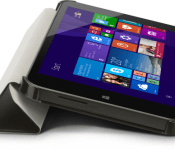
HP Stream 7 Signature Edition Tablet drops to $79 at the Microsoft Store (plus bonuses)

One of the best-selling and well-received tablets this holiday season was the HP Stream 7 Tablet. Running for $99, the tablet earned high reviews from owners who were looking for a low cost, but quality tablet running full Windows.
Now, Microsoft has the tablet on sale for just $79 – a $20 discount. This is not the first time this tablet dropped that much, as Microsoft had it on sale during the Christmas shopping period for the same price.

First impressions of Dungeon Hunter 5, the next big mobile action-RPG from Gameloft

During my recent trip to PAX South, I had the pleasure of meeting up with some fine folks from Gameloft and playing their current tablet build of Dungeon Hunter 5. The latest in the popular action-RPG series, Dungeon Hunter 5 promises better graphics, an improved system, and much more. It will be coming to Windows Phone, Windows 8, Android, and iOS later this year.
Since playing Dungeon Hunter 5 I’ve been dying to tell you more about it, and at last I’m free to do just that. Read on for my impressions, an in-depth look at some of the new systems and improvements it, and an update on potential Xbox Live features!
Swatch says to expect a Swatch smartwatch in the “next two to three months”
The threat of smartwatches is now great enough that even the most stoic of timepiece manufacturers are having to pay attention. This week, yet another big name, Swatch, has said it is throwing its hat into the smartwatch ring, and says to expect a Swatch smartwatch in the very near future. “Swatch will launch a new […]
The post Swatch says to expect a Swatch smartwatch in the “next two to three months” appeared first on AndroidSPIN.
 AIVAnet