


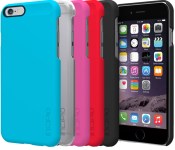
These ultra-thin hard cases for iPhone 6 are only $14.95 today!

Lightweight and durable, the Feather Case for iPhone 6 is engineered to provide inconspicuous protection. The snap-on application of this hard case allows for quick installation when needed and its soft touch finish provides a comfortable grip in the hand.

This see-through hard case for HTC One M8 is on sale today for only $14.95

The transparent design of the Naked Tough Case gives your HTC One M8 clear protection that lets the original look of your device shine though! This clear case includes a shock absorbing bumper that fits inside the shell for extra protection against drops. Get yours today and save 57%

Switching to Mac: Translating Windows terminology to OS X

When you switch to the Mac, it can feel disorienting at first. That’s especially true if you’ve used Windows PCs for years. Adjusting to the Mac doesn’t take long, but if you’re used to finding certain applications, files, and system settings on Windows, it helps to quickly pick up their OS X equivalents. Here’s a short glossary with all the essentials.
- Alt key: The Mac equivalent is the option key, which may be marked alt as well.
- Close button: The close button on Windows and OS X work very differently. The X, or close button on a Windows app will stop all processes associated with an app. The red close button on the Mac will only close that app’s active window. To quit the app out of memory, go to the application menu and select Quit (or type command Q).
- Control Panel: On the Mac, that’s System Preferences. Accessible from the menu, the Dock or the Applications folder.
- Ctrl key: The Mac equivalent is the command key.
- Ctrl+Shift+Esc: This Windows shortcut brings up the Task Manager, which enables you to kill an app that’s suddenly hung up or having a problem. We call it force quitting an application on hte Mac. The Mac command to bring up the Force Quit dialogue is command option esc. You can also click on the menu and select Force Quit.
- File Explorer/Windows explorer: The equivalent is the Mac Finder. It lets you look at all the files on your Macintosh.
- Maximize button: We call it the Zoom button on the Mac. It’s the green button on the title bar of many windows in Mac apps.
- Minimize button: The yellow button works the same way on the Mac as it does on the PC. Clicking it causes the window to shrink into the Dock. You can click the window icon in the Dock to restore it.
- My Documents/Documents: The Mac equivalent is the Documents folder. From the Finder, click the Go menu and select Documents (or type command shift O).
- My Music/Music: There’s a Music folder in your user directory on the Mac, too. That’s where iTunes keeps its library, and where other music apps often put their files too.
- My Pictures/Pictures: Look in the Pictures folder. The Pictures folder should be listed in the Favorites sidebar in any new Finder window.
- Notepad: On the Mac it’s called TextEdit. It’s a simple text editor that can read Microsoft Word, Open Document, Web archive, HTML, rich text and plain text file formats. Look for it your Applications folder.
- Recycle Bin: On the Mac, that’s the Trash. You’ll find it in the Dock.
- Shortcut: It’s called an alias on the Mac. You create one by selecting an app, folder or file icon and typing command L or clicking the File menu and selecting Make Alias.
- Taskbar: The Mac has the Dock, which by default is on the bottom of your screen. You can change its placement to the left or right side of the screen using the Dock system preference.
If you’ve recently switched to the Mac, let me know how the transition went for you, and what you had the easiest and the hardest time adjusting to.

Microsoft overhauls its Image Composite Editor for Windows

The Image Composite Editor (ICE) is Microsoft Research‘s advanced panoramic image stitcher for Windows, which has been overhauled to version 2.0. Importing a number of overlapping photographs from a single scene will enable the app to create a seamless high-resolution panorama. Think of this as a suite to create similar magic as the Windows Phone panoramic feature.

Swatch’s smartwatch due in 3 months, won’t have to be charged

Swiss watchmaker Swatch has been toying with the idea of a smartwatch for some time, and now CEO Nick Hayek is saying that we can expect in in the next three months. Swatch isn’t your typical Swiss watchmaker though — their wares fall on the much more affordable side of the watch spectrum, with retail prices as low as $50. What’s most interesting, however, is Hayek’s claim of a smartwatch that doesn’t have to be charged.

Office Lens can now scan documents straight to PDF

The super-handy Office Lens app for Windows Phone today’s received an update that enables users to save their scanned real-world-paper documents as PDF files. The update to the free app brings it up to version 1.4.3727.0.

Secret Castro gestures for podcast scrubbing, settings, and more!

Castro, the podcast player app by Supertop, is bold but minimalist by design. It also makes use of gestures for several of its more handy features. If you’ve been using Castro but haven’t poked around enough to find them yet, here’s what you need to know.
- $3.99 – Download now
Scrubbing lets you quickly move your way through a show so, at the touch of a finger, you can swipe from the beginning to just exactly the time code you want to listen from.
In Castro, you scrub forward by touching and holding the grabber on the bottom left and dragging to the right. You scrub backwards by touching and holding the grabber on the bottom right and dragging left. Combined, these two gestures will take you anywhere, in any show.

Settings lets you control everything from playback speed to jump intervals to sleep time to streaming and download options to sorting and notifications to… you get the idea.
To access settings in Castro, you can touch and hold the play/pause button at the bottom middle. You can also just grab the screen and pinch from anywhere in the app. When you’re finished customizing your options, hit Done to return to the player.

If you do have the sleep timer set and it runs out while you’re still conscious and listening, just tap the play/pause button to automagically extend it for another 5 minutes.
If you forget to set the sleep timer and fall asleep, Castro won’t delete the episode when you’re done. It’ll mark the episode as played, so you can go easily go back and re-listen to any parts you might have missed, but Castro will waits until you play the next episode before deleting the previous one. Just in case.
Also, any time you’re listening to one episode, you can swipe down on the screen to access the list of all episodes. You can also swipe from left to right to go back to the listing of all your shows or all previous search results.

The Supertop Blog has already announced that they’re hard at work on Castro 2. In the meantime, these gestures should help you get the most out of the current version of Castro. Give them a try and let me know!

Sci-fi shooter Midnight Star launching worldwide for the iPhone and iPad

Midnight Star, the free-to-play sci-fi first person shooter from developer Industrial Toys, is now available to download for the iPhone and iPad worldwide. The game got a soft launch in a few countries starting in July before today’s wider release.
Industrial Toys was founded by Alex Seropian, who previously was a co-founder of Bungie, the creators of the Halo first person shooter series. Here’s a summary of the game and its features:
Set 120 years into our future, Midnight Star takes players aboard the MSRV-Joplin, a research vessel newly outfitted with military weaponry to explore a mysterious signal coming from within our Solar System. When disaster strikes, they’re transported across the universe to take part in an epic war whose outcome will determine the fate of humanity. As 2nd Lt. Charles Campbell, players will encounter deep space, a strange alien landscape and a war that has long since been lost. Using the clues left to him, the crew that supports him, and a TON of awesome guns, Charlie must develop from modest exocommunications specialist to the one human being left with the chops to take down the bad guys!
- MASTER the most dizzyingly intense action shooter for mobile devices ever!
- UPGRADE everything – guns, skills, your ship, even your luck!
- UNCOVER ancient races whose fates are woven together with ours!
- LOSE your mind as you experience stunning graphics from the Unreal Engine!
- COMPETE with players worldwide in multiplayer Challenges and open Events!
- WIN TROPHIES that transfer from P2P daily, weekly and monthly!
- Free with IAP – Download now

Secret Castro gestures for podcast scrubbing, settings, and more!
Castro, the podcast player app by Supertop, is bold but minimalist by design. It also makes use of gestures for several of its more handy features. If you’ve been using Castro but haven’t poked around enough to find them yet, here’s what you need to know.
- $3.99 – Download now
Scrubbing lets you quickly move your way through a show so, at the touch of a finger, you can swipe from the beginning to just exactly the time code you want to listen from.
In Castro, you scrub forward by touching and holding the grabber on the bottom left and dragging to the right. You scrub backwards by touching and holding the grabber on the bottom right and dragging left. Combined, these two gestures will take you anywhere, in any show.
Settings lets you control everything from playback speed to jump intervals to sleep time to streaming and download options to sorting and notifications to… you get the idea.
To access settings in Castro, you can touch and hold the play/pause button at the bottom middle. You can also just grab the screen and pinch from anywhere in the app. When you’re finished customizing your options, hit Done to return to the player.
If you do have the sleep timer set and it runs out while you’re still conscious and listening, just tap the play/pause button to automagically extend it for another 5 minutes.
If you forget to set the sleep timer and fall asleep, Castro won’t delete the episode when you’re done. It’ll mark the episode as played, so you can go easily go back and re-listen to any parts you might have missed, but Castro will waits until you play the next episode before deleting the previous one. Just in case.
Also, any time you’re listening to one episode, you can swipe down on the screen to access the list of all episodes. You can also swipe from left to right to go back to the listing of all your shows or all previous search results.
The Supertop Blog has already announced that they’re hard at work on Castro 2. In the meantime, these gestures should help you get the most out of the current version of Castro. Give them a try and let me know!
Smartphone Futurology: The science behind smartphone glass


Welcome to Smartphone Futurology. In this new series of science-filled articles, Mobile Nations guest contributor Shen Ye walks through current technologies in use within our phones, as well as the cutting-edge stuff still being developed in the lab. There’s quite a bit of science ahead, as a lot of the future discussions are based on scientific papers with a vast amount of technical jargon, but we’ve tried to keep things as plain and simple as possible. So if you want to dive deeper into just how the guts of your phone function, this is the series for you.
This is the final instalment — for now — in our series on the future of smartphone technology. This week we’ll cover the science behind one really important area of smartphone build quality — the glass of the touchscreen. And as we’re wrapping up the series, we’ll also see how the current state of mobile tech compares to predictions made almost a decade ago. Read on to learn more.
 AIVAnet