
Katy Perry will get her own game from the makers of Kim Kardashian: Hollywood

Katy Perry is slated to get her own game from Glu Mobile, the makers of Kim Kardashian: Hollywood. The game will feature Katy’s voice and personality and will “introduce players to a digital playground of global success and talent.” You can expect the game to land on both Android and iOS sometime in late 2015.
So, why Katy? Aside from the killer Super Bowl XLIX performance, Glu CEO Niccolo de Masi says:
Katy is arguably the most recognized musician in America following her Super Bowl XLIX Halftime performance this past Sunday. She is a cultural icon and we expect to translate key elements of her success into an innovative, highly entertaining mobile experience. We anticipate that Katy’s significant global audience, including more than 170 million fans on social media, will make her a strong gaming partner for Glu.
Kim Kardashian: Hollywood launched in June 2014, and according to the Google Play Store the game has between 5 million and 10 million installs. Last year when Glu released Kim’s game, the company posted a total revenue of $223.15 million, which is a 111% jump year-over-year. How much of that did Kim’s game make? A whopping $74.3 million in months June through December. With that said, we’re sure Katy’s game will be extremely popular when it launches.
Are you looking forward to the new game?

Katy Perry will get her own game from the makers of Kim Kardashian: Hollywood
Katy Perry is slated to get her own game from Glu Mobile, the makers of Kim Kardashian: Hollywood. The game will feature Katy’s voice and personality and will “introduce players to a digital playground of global success and talent.” You can expect the game to land on both Android and iOS sometime in late 2015.
So, why Katy? Aside from the killer Super Bowl XLIX performance, Glu CEO Niccolo de Masi says:
Katy is arguably the most recognized musician in America following her Super Bowl XLIX Halftime performance this past Sunday. She is a cultural icon and we expect to translate key elements of her success into an innovative, highly entertaining mobile experience. We anticipate that Katy’s significant global audience, including more than 170 million fans on social media, will make her a strong gaming partner for Glu.
Kim Kardashian: Hollywood launched in June 2014, and according to the Google Play Store the game has between 5 million and 10 million installs. Last year when Glu released Kim’s game, the company posted a total revenue of $223.15 million, which is a 111% jump year-over-year. How much of that did Kim’s game make? A whopping $74.3 million in months June through December. With that said, we’re sure Katy’s game will be extremely popular when it launches.
Are you looking forward to the new game?

Daily Roundup: Microsoft leaks, lens cameras and more!

In today’s Daily Roundup, we look at a Microsoft document leaked in 2012 that foreshadowed the Xbox One and HoloLens, take a look at a new lens camera for smartphones from Olympus and discuss the US Navy’s new firefighting robot. All that and more can be found past the break.
Microsoft leaked the Xbox One, HoloLens and more way back in 2012

In June 2012, a 56-page business presentation was uploaded to the document-sharing service Scribd. It outlined four years of Xbox plans and even included some references to HoloLens.
Olympus Air is a lens camera that pairs with your smartphone

Olympus unveiled a lens camera of its own, the Olympus Air. Similar to Sony’s QX10, this lens clips onto your smartphone and uses a dedicated app to take photos.
US Navy’s firefighting robot finally appears (with a trusty sidekick)

SAFFiR, the humanoid robot overlord pictured above, looks like serious trouble. Fortunately for us humans, its primary purpose is to put out fires rather than start them.
Paper drops in-app purchases to encourage you to buy a Pencil

FiftyThree, the company behind the popular iPad sketching app Paper, has decided to forgo in-app upgrades and made a number of brushes and color sets available for free. How will they make money? By focusing specifically on hardware such as their Pencil.
Judge fines Typo for continuing to sell its BlackBerry-like keyboards

Despite an injunction banning the Typo keyboard from the market, the Ryan Seacrest-backed company has continued to sell its wares. BlackBerry took the company to court again and won.
Google Glass’ new boss wants to redesign the headset “from scratch”

The current project lead for Google Glass is none other than Nest CEO Tony Fadell. A report from the New York Times claims that he intends to redesign the head-mounted computer “from scratch.”
Why hunt rare Destiny weapons, when you can build them in Lego?

If you’re a fan of Destiny and happen to enjoy Lego products you might find this full-scale replica of the Ice Breaker, consisting of 2,100 individual Lego pieces, worthy of your time.

Google releases ‘Best Friends Furever’ video to promote Android’s togetherness

“Be together. Not the same.” That is the tagline Google has been running since the launch of Android 5.0 Lollipop. It embodies everything that the operating system is about while speaking on a bigger level. Devices (and people) do not have to be identical in order to work together. Everything and everyone has something unique to offer. The latest way Google is promoting the togetherness of Android is with animals. A new 60-second video was published and circulates through various scenes of different animals bonding: a cat and dog opening a door together, a bear and a tiger snuggling together, an elephant and a sheep digging together. Do you get it? Animals are working together with ease, something that humans have not yet mastered.
Hit the break to watch the video along with brief clips.
Click here to view the embedded video.
Click here to view the embedded video.
Click here to view the embedded video.
Come comment on this article: Google releases ‘Best Friends Furever’ video to promote Android’s togetherness
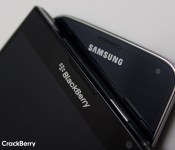
Regulators looking at possible stock manipulation in Samsung buying BlackBerry rumors

When it was rumored that Samsung was in talks to purchase BlackBerry last month, one of the major side-effects was that BlackBerry‘s stock price skyrocketed. Now, regulators from both the U.S. and Canada are reportedly investigating trading activity around the time of the rumor in order to ascertain whether it was started to profit from the resulting surge in BlackBerry’s stock price.
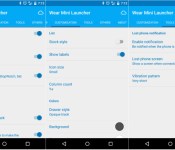
Wear Mini Launcher update brings a refreshed companion app and some new features

Google’s goal with Android Wear is to let you navigate through the OS with your voice, without the need to rely on touch navigation. However, sometimes its difficult to use voice navigation in certain situations. And because Google would like you to rely on your voice, it makes launching apps or performing simple tasks more difficult than it should be. Wear Mini Launcher is an app that aims to help with that problem. In fact, the app is receiving an update to version 3.0 that brings a few new features to the third party Android Wear launcher.
The biggest change in the update is the companion app, which now has its fix of Material Design. The app sports an all-around lighter color scheme, new toggles and many more enhancements. It doesn’t have a navigation drawer, so you’ll need to rely on swiping between the different tabs for navigation.
The companion app wasn’t the only thing to get an update. The developer has also added a few key changes to the launcher itself including double tap on an app to for ‘sticky’ mode, long tap an app to manage it, plus a few others. Take a look at the full changelog below:
- Material design for the phone’s app
- Double tap an app for sticky mode
- Long tap an app to manage it
- New tool: disconnection notification
- New Quick Setting to lock screen on
- New translations
Speaking from personal experience, I’d have a tough time using Android Wear without Wear Mini Launcher. If you have a Wear device, you should definitely check this out. And if you already have it, head to the Play Store link below to grab your update.
Download Wear Mini Launcher from the Play Store

New laws for unlocking phones go into effect February 11th
 SIM unlocking phones is something that comes up in the legal world every so often, with the most recent event making it completely legal to unlock your device. Like any other law, though, the fine print changes, and on February 11th there will be some slightly tweaked rules to go by when getting your smart device unlocked to use on other networks.
Most of the rules generally stay the same, but some of the details have been altered to keep up with the changing landscape of buying phones. When purchasing a subsidized phone, if you sign a 2-year contract for your device and it’s paid off, your carrier is still legally obligated to unlock the phone for you. This now extends to installment plans, too. Prepaid phones are similar, but the carrier has up to a year to unlock the device. A carrier can wait on unlocking your device for up to 12 months without doing anything wrong, which is frustrating, but if you’re buying prepaid phones and you want it to be unlocked, searching out a factory unlocked phone might be the better option.
So long as you’re still with the carrier that sold you the device, they’ll have to unlock your device for free, which is great. If you’re no longer with said carrier, they’ll be allowed to charge a “reasonable” fee, which will likely vary among carriers. Whether that’s good or bad depends on who you ask, but that’s how it’ll be.
A good thing that’s coming out of this is how carriers will start unlocking devices. Instead of dealing with unlock codes and pins, carriers will be able to push a signal out to a phone over the air, since that’s something most newer hardware supports. Sprint is reportedly going to start automatically unlocking phones like that once they’re out of contract or paid off, which is nice, if they manage to do it consistently.
source: CrackBerry
via: Pocket Now
Come comment on this article: New laws for unlocking phones go into effect February 11th
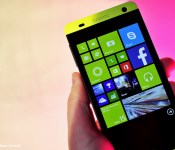
Blu Win HD and Win JR get little updates for little fixes

Attention users of the Blu Win HD and Blu Win JR: you have an update waiting for you. It’s a small one, sure, but an update nonetheless. In typical Blu fashion there’s nary a change log to be seen, for this update to 8.10.14226.359. At the very least, thanks to the keen eyes of Windows Central Forum member Greg Gray, it adds the ability to toggle cellular data through Notification Center.
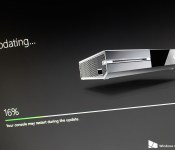
Xbox One February update rolls out to the masses with game hubs, tv updates, and more

After initially launching in preview form a little under a month ago, Microsoft announced the official release of the February system update for its Xbox One console today. Coming along for the ride is the addition of Game Hubs, along with a number of changes to party chat, OneGuide, and more.
Android customization – voice activated camera control using Tasker and an Android Wear smartwatch

Last week on our Android customization series we rounded up a handful of apps that not only push your SMS from your Android device over to your PC or tablet, but allow you to respond to messages as well. Sending and receiving SMS without having to pull your phone out of your pocket is pretty slick, let’s see what else can be done remotely.
Today, we would like to begin a multi-week project, the goal is to learn more about using Tasker, Pushbullet, a new app called Tasker Now for Android Wear and more, and we will be doing so by creating voice controlled and remote camera controls between two Android devices, between your Android device and Android Wear device and between your Android device and a PC. It sounds like a lot, but it will be worth it, if only to learn more about using the services.
We’ll start with some of the ground work today, let’s look at building the Tasker Task to fire the camera, another Task to accept voice command, then we’ll look at the new app Tasker Now that runs on your Android Wear smartwatch.
Before we begin
 To follow along today you will require a copy of both Tasker and Tasker Now installed on your devices. Tasker is $2.99 in the Google Play Store, but if you’ve been following along previous Android customization posts, you already know that.
Tasker Now is an Android Wear app, it is free in the Google Play Store, but has a $1.19 in-app upgrade to a pro version that unlocks more than just the most basic of functionality. Sorry to say, you are probably going to need the pro version to follow along today.
Use Tasker to take a photo
We took a look at using Tasker to take a photo in a previous tutorial, at that time we focused on discreetly using the front camera to capture an image of any person accessing your device without your permission. To take a full quality photo from the rear camera is very similar in procedure, just a few differing settings.
Create your new Tasker Task to take a photo, I called mine “QualityPhoto.”

Tap the “+” button to add an action.
Select Media.
Select Take Photo.
Leave it set to Rear.
Add a base Filename, I’ll put “TaskerPhoto.”
I like to change Naming Sequence to Chronological, but you can choose another option if you wish.
The above two settings will result in a file name in the format “TaskerPhotoFeb4_2015_160255.jpg.” It will be a little different than that, but it will take your base Filename and append the date and time down to the second.
It is up to you if you would like to leave Insert in Gallery turned on, I will.
I will leave Discreet turned off, meaning the screen will display the photo as it is being taken.
Change Resolution to the quality you desire, I want mine as high quality as possible. Tap the magnifying glass icon on the right hand side, choose your photo resolution. My camera is only capable of 3280×2460, but that should be good enough for most needs.
I recommend leaving the remaining settings on Auto. We can always come back here later to edit the settings if the photos just are not working out.
Tap the system Back button to save and exit. That is all for this Task, feel free to hit the play button to see how things work, or just tap that system Back button again to save and close the Task.
Create voice command input
We are going to do a few things in this Tasker Task. First, we will collect voice input, next we will validate the input and either halt the Task or proceed if the right words are spoken. Finally, we’ll need to trigger the “QualityPhoto” Task created above. Let’s do it.
Start a new Task, name it concisely and uniquely, I’ll call mine “VoicePhoto.”

Tap the “+” button to add your first action.
Choose Input.
Choose Get Voice.
The default settings are just fine, tap that system Back button to save and exit.

Tap “+” for the next action.
Choose Task.
Choose Stop.
Tap the + button beside If.
Enter %VOICE in the first field, or tap the label icon to find Voice Results from the long list of available variables.
Tap the center comparison button and choose Doesn’t Match. It will change the text on the button itself to “!~”.
In the right hand text field, enter the word or phrase that you would use to trigger the photo capture. I’ll keep it simple, I am entering the word “cheese“.
Tap the system Back button to save and exit.

Tap the “+” button one last time.
Choose Task.
Choose Perform Task.
Tap the magnifying glass icon to the right of the Name field.
Choose your photo capture Task, mine was called “QualityPhoto.”
Tap the system Back button to save and exit.
One last thing before we call this Task complete, tap the icon button in the very bottom right of the screen to add an icon to this Task. You can skip this if you wish, it will ask you to input one later if you try to use the Task as a widget.

That’s it for the creation process. I highly recommend testing things out before you move on, just in case. If things don’t seem to be working, try adding an Alert->Flash after the initial Get Voice above, put %VOICE as the popup message. This will show you what the microphone is picking up. Chances are, it will be a collecting the word “cheese” in lower case, and failing to match if you entered the Task->Stop validation as a capitalized “Cheese”.
You could now consider placing the VoicePhoto Task as a Widget on your Homescreen. This gives you one tap access to the voice command controlled photo capture. If you are thinking that this is a little silly aside from testing purposes, don’t worry, our next step is to create realistic and functional triggers.
Tasker Now
Tasker Now is a newer Android app designed for your Android Wear powered devices. Specifically, you’ll do best to run it on a smartwatch. The app serves just one purpose, to collect your voice input from your Android Wear device and fire it over to your connected Android phone or tablet to be interpreted by Tasker, which will fire off an action on your device.

As you might imagine, this gives you the power to perform any Tasker command on your device all by a quick tap and talk into your smartwatch.
I don’t know about you, but if you’ve ever tried to use your Android device to take a group photo, and be in the photo yourself, having to tap the camera button and try to run to your position in frame within the 10 seconds it gives as a delay time, can be tough. Wouldn’t a remote shutter control be awesome? Of course it would.
Start a Tasker Profile to accept the Tasker Now input, call it something appropriate, like “TaskNowCamReceiver.”

Choose Event.
Choose Plugin.
Choose Tasker Now.
Tap the pencil icon to configure the input.
Enter your statement to be matched. In the free version you will only be able to enter a 4 character phrase, and it will be locked to requiring an Exact Match. Pro users can input a full text string, more important, they can choose from a handful of Matching rules, including searching the collected voice input for one specific word, an exact match, starting words, ending words and more.
I have entered “take the picture” and stuck with the Exact match rule.
Tap the Done button in the top right to save and exit.
Tap the system Back button to save and exit out of the Profile editor.
Now, you do not want to choose your voice input Task created above, that would just make you have to talk again. Instead, choose your “QualityPhoto” Task.
Go ahead and give it a try now.

What’s next
We created a Task to take a picture, it should work pretty good by default, but I do urge you to head back into the Task itself and play with the settings, you can control the flash, scene mode and more. Find the right combination for your device and environment.
From there, if you find that the photos are not in focus, try heading into Tasker’s main Preferences settings menu, in the Action tab you’ll find a Camera Delay setting. The value is set in seconds. Newer devices work just fine at as low as 1 second, but older devices may need 3 or 4 to gain focus before the photo snaps.

We also created a Task that accepts voice input, validates it, and fires off the above picture taking Task. This was a great exercise, but I will fully admit that it serves little purpose when run on the same device as the photo taking Task. I am hoping you can think of other things, besides a Christmas count down timer, to use this voice input procedure.
Finally, we needed an effective way to trigger the camera taking Task from a distance, so we used the Android Wear app called Tasker Now. But what if you do not have an Android powered smartwatch? No worries folks, we’ll get you hooked up next week.
Next week
Android Wear users may be all ready to roll after today’s Android customization post. Next week we’ll explore methods to fire off the camera remotely without the need for a smartwatch. I’ll give you a little hint, Pushbullet will be on the list.
Aside from selfies and group photos, how will you use a remote trigger to take photos on your Android device?
 AIVAnet