


Oculus Go: Finally, VR for Everyone

The first VR headset everyone can, and will, enjoy.
AC
Score
4.5
Where most other VR headsets feel like experiments pushed into the world for users and developers to figure out what is cool and fun, Oculus Go is different. This headset has been built to offer a polished experience from the moment you open the box to the moment you excitedly hand the headset to someone else to share what you saw. It’s the evolution of the Samsung Gear VR headset, replacing the need to insert a phone into the front slot with its own standalone processor and display. It’s portable, capable, and by far the easiest to use VR system released to date.
Best of all? It’s yours for $200. No external hardware required, and no cable hanging off the back of your head. This is the VR headset you take with you on an airplane, or for your kids to enjoy with your supervision. It’s a full entertainment system, from game console with hundreds of titles to immersive high definition television, you can bring with you anywhere.
Got questions? We’ve answered them all right here.
See on Amazon
- What is Oculus Go?
- Oculus Go vs Daydream Standalone
- How good is the battery?
- How to set up Oculus Go
- Customize your options
- Tips, tricks, and helpful advice
- Playing with friends
- Choosing good headphones
- Sharing your experiences
- Travelling with Oculus Go
What is Oculus Go?

Put simply, it’s a virtual reality headset designed for everyone. Oculus Go is the third headset from Oculus, and it’s meant to exist between the phone-powered Samsung Gear VR and PC-powered Oculus Rift. It’s a little more capable than the phone-powered headset, but not quite as capable as the PC-powered experience. But as a standalone system, meaning it doesn’t need to connect to anything, Oculus Go offers something unique.
| Screen | 2560×1440 @ 72Hz |
| Lenses | Custom Fresnel |
| FoV | 101-degrees |
| SoC | Snapdragon 821 |
| RAM | 4 |
| Storage | 32/64GB |
| Battery | 2600mAh |
| Connectivity | WiFi |
| Audio | Speakers/3.5mm jack |
| Weight | 177grams |
| Price | $199/$249 |
The headset itself is plastic around the outside, with an easy to remove foam pad around the eye sockets to make cleaning and sizing easier. Most prescription glasses fit in the headset just fine, but Oculus has included guides in the box to replace the padding if your lenses don’t fit right away. If you’re not sure which configuration you prefer, swapping back and forth is fairly easy.
On the front panel you’ll see Oculus Go has been designed to reduce heat in such a way that overheating shouldn’t ever be a problem while wearing the headset. The metallic front panel conducts heat well, and a gap around the entire front rim helps with air flow where it is most needed. In all of our testing, the headset has yet to offer up a temperature warning.
Oculus Go comes in two models, available for those who would prefer more or less storage in the headset. These headsets are visually identical, but one has a total capacity of 32GB while the other supports 64GB.
Not sure which storage size is best for you? Here’s how you choose the right Oculus Go for you!
Already know which one you want? Here’s all your puchasing options!
Whats the difference between Oculus Go, Samsung Gear VR and Daydream Standalone?

Oculus Go is not the only VR headset to come out this year with its own computer baked in and no messy cables. Google’s Daydream Standalone project exists to take the phone-based VR experience it calls Daydream and extend it into its own headset system. Then we have the Samsung Gear VR, a headset that requires your phone to us. Like Oculus Go, no phone is required for the Daydream Standalone. Unlike Oculus Go, it’s $400.
The reason for this increase in price is the availability of features you won’t find on Oculus Go, like a more advanced head tracking system and a rigid plastic design that can take a couple of bumps. Choosing between these three headsets has more to do with the ecosystem you want to live in, whether you’d rather have Facebook and Oculus controlling the store selling you apps, or Google.
Check out more on Oculus Go vs Lenovo Mirage Solo
Check out more on Oculus Go vs Lenovo Mirage Solo
What can I do in Oculus Go?

All of the apps and games you install on the Oculus Go come from the Oculus Store, a separate store managed by Oculus. It has its own payment system and its own update system, which you manage through the Oculus app on your phone. While the Oculus Go headset does in fact run Android underneath, the Oculus App is available for Android and iOS users alike.
Check out our favorite horror games for Oculus Go
Check out our favorite beginner games for Oculus Go
Thee Oculus Store gives you access to over 1,000 VR experiences, ranging from action games to emotional stories and so many puzzles for you to explore. You will also find a healthy Educational section in the store alongside a huge selection of movies you can purchase directly from Oculus and enjoy in your very own virtual theater.
Our Parents Guide to Oculus Go will help you choose the right apps for your kids
How is the battery life in Oculus Go?
According to Oculus, the Go headset is capable of 2.5 hours of constant gameplay. In our testing of the headset, we found that number to depend heavily on the kind of gaming you were doing and what the brightness level of the display inside the headset was set to. If you find yourself browsing the web and watching YouTube 360 videos with the brightness a little lower than average, our tests found the headset battery will last closer to 4.5 hours. If you’re playing a visually intense game like Anshar Online with friends, the 2.5 hour claim from Oculus is just about right.
You can drain the battery in under three hours if you try.
This doesn’t include standby time, which is quite a bit longer. If you unplug the headset for travel, expect the battery to last several days between uses. Even of you use the headset for 20-30 minutes and set it aside, the battery will keep for quite a while. The same goes for watching movies in the headset, if you take a break in between viewings you’ll find you can just about watch two whole movies with the brightness down a little. But in a single use, you can drain the battery in under three hours if you try.
But the real secret to getting the Oculus Go to last for more than 2-3 hours is to have a backup battery nearby you can use while you are inside the headset. Depending on the capacity battery you choose, these backups can recharge the headset multiple times before it needs to be charged, and can deliver enough power to charge the headset even while you are playing the more visually intense games.
Take a look at the best Battery Backups for Oculus Go!
I just got my headset. Now what?

Before you go tearing open the box, there are a few things about setting this headset up you should know. This VR headset is a little different from the others, and while it doesn’t need a phone to power the inside there’s an app for Android an iPhone owners alike to make the experience a lot easier to manage.
How to set up your Oculus Go: Android Edition
How to set up your Oculus Go: iPhone Edition
Managing your options

After the initial set up with your Oculus Go headset, you may want to take a look through the privacy settings and make sure they are set the way you want. Oculus Go includes an online gaming component, which includes sharing information about your activities with other people in their headsets. If you want to avoid sharing that information publicly, you need to keep an eye on your privacy settings.
How to adjust your Oculus Go privacy settings
Once you get all set up and you’re happy with the experience, you might want to add a gamepad to play all of the latest games available in the headset. Check out our tested batch of the best gamepads for Oculus Go to complete the experience!
The best gamepads we have tested with Oculus Go
How to pair a Bluetooth gamepad to your Oculus Go
If you’d rather just use the included controller, that’s cool too! There are a ton of great things you can do with your Oculus Go remote, and all you need to power it is a single AA battery. Since the battery doesn’t recharge likeyou might expect from using other controllers, it’s important to know how to check on the battery capacity from inside the headset and how to swap the battery out when it’s time for a fresh cell.
How to check the battery on your Oculus Go controller
What to do if your Oculus Go controller doesn’t connect
Tips, tricks, and helpful advice
The first thing we’re going to show you here are a few helpful tips to get your started with your Oculus Go headset. From how to get the right fit, to how to play Steam VR games, we’ve got your back. Here are answers to some of the most frequently asked questions of Oculus Go owners.
How to get the most comfortable fit for your Oculus Go
How to deal with light bleed on the Oculus Go
Error messages and what they mean
How long in VR is too long?
How to play Steam VR games on Oculus Go
Now let get to the tricky side of things. Whenever a new device comes out we always want to find all the cool ways we can crack the device to make it do even cooler things. One of those awesome things that you have the power to do is sideload apps that normally aren’t available on your device, and here’s how!
How to sideload apps onto the Oculus Go
Maybe there’s an app in the store you already have that you want to unlock the full potential of. Here we’ll show you how to do all the cool things from getting YouTube VR videos working to seeing which games currently aren’t working on the Oculus Go.
How to use Oculus Venues
How to watch 360 degree YouTube vidoes
How to use the private browser
Live sport events you can watch
All the Oculus Go games that aren’t working
Have you experienced critical errors when trying to use your Oculus Go? Sometimes when all else fails the last resort option is to do a full factory reset on the device. Thankfully Oculus has made this pretty easy as you can do it from the headset or the Oculus app on your phone.
How to reset your Oculus Go
Playing Oculus Go games with friends
While most Oculus Go experiences are solo for now, there are some amazing multiplayer experiences in the Oculus Store. To fully take advantage of these experiences, you need to add a few friends to your list.
How to add friends to your Oculus Go
Check out our favorite multiplayer games for Oculus Go
This will make it easy for you to quickly jump into a game together, whether that game is something stationary like Catan VR or full of excitement like Anshar Online.
Adding headphones to your Oculus Go

Oculus did an incredible job including amazing speakers in the straps of the headset, but sometimes you need a little privacy. The 3.5mm headphone jack on the side of the Oculus Go makes it perfect for just about any set of headphones, which is great. You absolutely want to use wired headphones instead of wireless headphones though.
Bluetooth headphones, even really good ones, introduce latency in a VR headset. You’ll hear everything, but there will be a slight delay and that isn’t fun at all!
How to use bluetooth headphones with the Oculus Go
The best headphones for Oculus Go
How to share your Oculus Go experiences with others
It’s not always easy to hand your headset over to someone else to share an experience in VR. Oculus Go offers a couple of options for sharing what you’ve seen. You can either take a screenshot, record a gameplay video, or live stream your game right to Facebook for everyone to watch.
How to take a screenshot in Oculus Go
Once you have taken a screenshot, you can either post it to Facebook or connect your headset to your computer and extract the files yourself. If you want to share to anything other than Facebook, it’s going to take a little bit of work.
How to use your computer to grab files from Oculus Go
Oculus is planning on adding a local sharing feature soon, similar to the set up found on the Samsung Gear VR. This would allow you to stream what you see in Oculus Go to a Chromecast, which is a lot of fun.
It may be a little while before this feature is rolled out to everyone, but when it happens your friends will be able to see what you see right on the TV in front of you.
Choose the right Chromecast for your Oculus Go
Travelling with your Oculus Go

I love using my headset on an airplane, and I’ve seen others enjoy it in a car on a long trip. The coolest thing about Oculus Go is how portable it is, but there are a few things you can do to ensure you are prepared for your headset taking a long trip with you. For example, you can load movies on Oculus Go to watch while you travel instead of buying straight from Oculus.
How to load movies onto your Oculus Go
Since you will be travelling with the headset, you also want to make sure you have it in a protective case and you are able to keep in clean for when you inevitably share the headset with someone else.
Best travel cases for Oculus Go
How to clean your Oculus Go
No matter how you look at it, taking your Oculus Go with you as you travel is going to be a great experience. Even if all you do with it is kill some time in your hotel room because the TV doesn’t have much on it.
Updated July 4, 2018: Our epic user manual for Oculus Go now includes even more information to keep you in the headset longer!
Here’s what we’re reading, watching, playing, and listening to this week

How we’re spending our leisure time.
Everyone has a bit of quiet downtime once in a while. Whether you’re sitting quietly at home or trying to relax on a plane or just giving your busy mind and hands a break, it’s important to relax.
A good way to do that is to read a book, listen to some music or watch a movie or show. See what’s caught our attention for the week of July 7th.
Ara Wagoner

June was a very busy month for the only mobile game I play religiously, Disney Emoji Blitz, a match-3 game that unlocks emoji in an Android keyboard as you unlock characters and items in the game. Most months, Blitz only has 2-4 events, and June had 5 events, and Blitz is going to have 7 events in July, and they’re all winners.
We’re currently in the middle of the Snow White Villain Event, but next week we’re having a two-day event that combines my favorite event type and my favorite Disney movie. Food fights are quick player-vs-player events that let me see how other Blitzers handle playing emoji they might not normally use. Adding to my delight, the prize for this event is King Triton, a powerful emoji that has only been available twice before — and only via expensive Diamond Boxes. The Food Fight is going to give this previously-exclusive character to scores of newer users that weren’t able to buy him in past events, which is awesome.
Daniel Bader
There’s nothing like bingeing on a great TV show, and Unsolved: The Murders of Tupac and the Notorious B.I.G… was not one of them.
The 10-part fictionalized USA series, which aired earlier this year, follows the detectives behind the eponymous murders of two of rap’s best MCs, and makes a slightly less convoluted narrative of the real tale behind the 1996/1997 crimes.
Starring Josh Duhamel (who’s not great), Bokeem Wood (who’s better, but still not great), and Jimmi Simpson (who is terrible) as the cops and Wavyy Jonez and Marcc Rose as Biggy and Tupac, respectively (both of whom are excellent), the show uses the unsolved murders as a way to convey the dysfunctional and often-corrupt relationship between the LAPD and organized crime in the late 90s.
Given that the title gives away the ending — both murders are still unsolved today and no one has been charged in connection with either case — it’s a little anticlimactic, but as poorly acted and ham-fisted much of the story is (and let’s be clear, much of it is a story), the show is eminently watchable if only for the fraught relationship between Biggie and Tupac themselves. The episodes that focus on their short-lived friendship and longer-lived eastcoast-westcoast feud are magnetic, especially when “villain” Suge Knight gets involved.
As the story jumps between the mid 90s and late 2000s, spanning two separate investigations (one right after the murders, one nine years later), we follow the cops chasing conspiracy after conspiracy, and while the ending satisfies from a narrative perspective, I found it hard to shake the feeling that if the series was half as long, it would have been twice as effective.
Unsolved: The Murders of Tupac and the Notorious B.I.G is streaming now on Netflix.
Joe Maring
Panic! At The Disco’s new album, Pray For The Wicked, has been on repeat pretty much nonstop since it came out late last month.
I’m still not entirely sure if I like it more than Death Of A Bachelor, but there are a lot of great songs on here — some of my favorites being Hey Look Ma, I Made It, High Hopes, Dancing’s Not A Crime, and Old Fashioned. I’ve got tickets to my boy Brandon in January and I cannot wait to hear this album in person.
On the watching side of things, I recently got around to seeing Dirty Dancing for the first time. I wouldn’t say it’s one of my favorite movies, but even just for its soundtrack, it was a fun way to kill a couple hours.
Harish Jonnalagadda
There’s no shortage of British crime dramas, and Line of Duty may just be one of the best ever made. The series follows AC-12, an anti-corruption unit that investigates potential violations within the force, and each season focuses on one central character.
What makes the show great is that there’s an overarching theme that connects seemingly unrelated incidents, and without giving a lot away, it’s safe to say that the storyline will hook you in after a few episodes. There are currently four seasons of the show, with six episodes each season. The fifth season is set to debut sometime next year, followed by a final sixth season.
Netflix is handling distribution outside the UK, so you can stream the show from right here.
Quentyn Kennemer

Luke Cage is back! Well, I can’t say I’m actually watching it anymore. More like watched. I binged the hell out of that show from start to finish the day it dropped on Netflix. No spoilers, of course, but this season completely trounced the first, and I thought the first was great. My next task is to burn through The Defenders, because there were a lot of moments in the second season of Luke Cage that I didn’t understand due to the connectedness of the two shows.
Between all that, I’ll be continuing my grind on the 14th season of Diablo 3. I made a monk for the first time, and while it was a rough start that had me wanting to switch characters mid-way, I’ve finally gotten to a point where I feel untouchable. Now, it’s all about farming bounties and rifts to optimize my gear and clear the highest Greater Rift level I can. A little bit of For Honor is reserved for when I’m thirsting for head-to-head combat.
Your turn
What are YOU reading, watching, or listening to this week? Let us know in the comments!
Update, July 7th, 2018: This is a bi-weekly series where we tell you what we’re into, so check back every other weekend!
OtterBox Symmetry Clear Incredibles 2 case for Galaxy S9+ review: Your phone’s superhero
Is a superhero enough to save a troubled case?

OtterBox’s case offering is more diverse than ever, and we’re taking a look at one of the more peculiar options for the company. It’s the Symmetry Series Clear case for the Samsung Galaxy S9 and Galaxy S9+, and this variant features a pretty special guest.
OtterBox Symmetry Clear Series Incredibles 2 case for Galaxy S9+

Price: $54.99
Bottom line: This case is great for collectors who happen to be fans of The Incredibles, but if you’re in need of solid protection with no annoying quirks, we’d advise looking elsewhere.
The Good
- Great Incredibles artwork
- Slim profile
- Amply-sized port cutouts
The Bad
- Button covers are stiff
- Edges of case are unattractive
- Pricey
See at OtterBox

OtterBox Symmetry Clear Series Incredibles 2 case What I like
Here’s something a bit more playful than I’m used to from OtterBox. The company partnered with Disney to make promotional versions of the Symmetry Series Clear cases for The Incredibles 2, and the artwork is awesome. The case I received featured Mr. Incredible, but there’s also one with Elastigirl.
Installing the case was a simple task: just put one corner of the phone into the case and gently push the phone into the others at its edges. You’ll have to use an amount of pressure that teeters the line of uncomfortable, but the Galaxy S9+ is built well enough to withstand that.
Once I got it on, I immediately flipped the phone around to check out the main attraction. The print of Mr. Incredible against a city line backdrop is quite nice. The boldness of it all will immediately draw eyes to your phone when its backside is visible. And with this being a clear case, the rest of the scene is filled in with the natural color of your Samsung Galaxy S9 or Galaxy S9+. It looks great on the back of my black Galaxy S9+, but more exotic finishes may clash a bit with the strong shade of red featured on Mr. Incredible.
When it comes to executing its primary function — that is, protecting your phone — it performs excellently. The fact that it has raised edges means your display’s most vulnerable shatter points will never suffer a direct impact, which should minimize your risk in most scenarios. Those bumper portions are a bit thick to help with that goal, but the rest of the case remains thin enough to keep it pocket-friendly.
The Symmetry case has all the cutouts you’d expect. The holes around the USB-C and 3.5mm headphone ports offer enough room for most of your auxiliary gadgets and cables to have a comfortable fit.

OtterBox Symmetry Clear Series Incredibles 2 case What I don’t like
One of the most important factors of a quality case is button feel, and this is one area I feel the Symmetry Clear came up short. The buttons on my particular unit feel a bit too stiff for my liking. It requires me to use an amount of force that just barely crosses the threshold of annoying, and since I use a lot of gestures with the Power and Bixby buttons it hurts the overall experience.
I also feel the need to point out just how unattractive the case’s edges are. This isn’t at all a knock on OtterBox, but an unfortunate byproduct of the material being used. Clear plastic and silicone just don’t look good when the material has to be this thick, and it makes the Galaxy S9+ an eyesore when viewing it from the front.

OtterBox Symmetry Clear Series Incredibles 2 case for Galaxy S9+
Fans of The Incredibles will certainly want to consider this case to feed their lust for the series, but I don’t know if even Mr. Incredible’s presence is enough to fight the crimes on display here. It’ll protect your phone just fine, but it does so at the expense of attractive aesthetics. Factor in the button issues and it’s hard to recommend the Symmetry Clear series.
3.5
out of 5
I’m not totally in love with the Symmetry Series Clear, but you could do a lot worse. And diehard Incredibles fans are still going to pick this particular model up, right? Right.
See at OtterBox
Samsung Galaxy S9 and S9+
- Galaxy S9 and S9+: Everything you need to know!
- Galaxy S9 review: A great phone for the masses
- Complete Galaxy S9 and S9+ specs
- Galaxy S9 vs. Galaxy S8: Should you upgrade?
- Join our Galaxy S9 forums
Verizon
AT&T
T-Mobile
Sprint
What you missed this week on CordCutters.com
A major #CutTheCordDay contest, and we’ve been putting the Amazon Fire TV Cube up against everything we can.
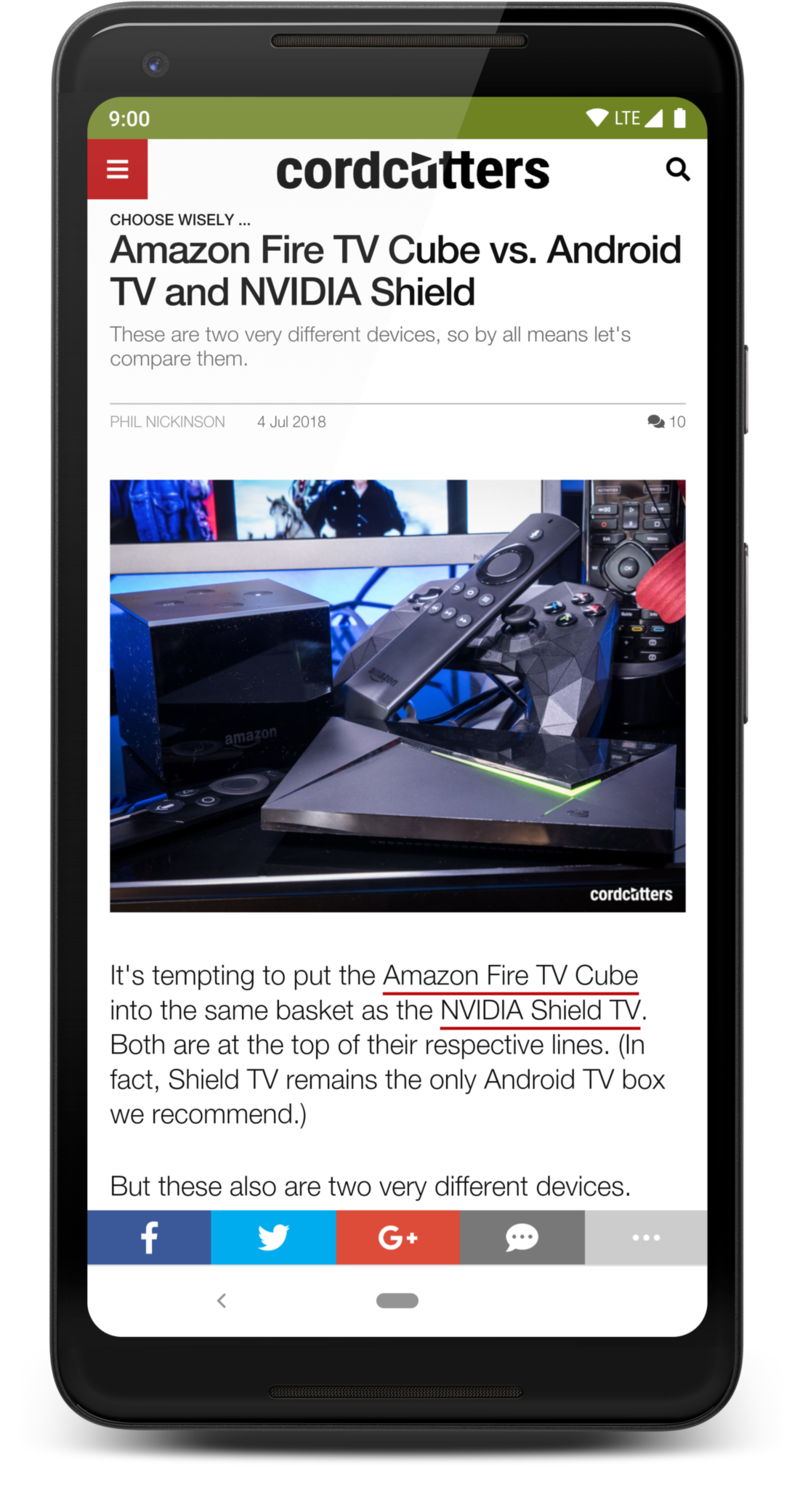 It’s been FIGHT WEEK™️ over at CordCutters.com, with the new Amazon Fire TV going head to head against the best streaming boxes you can buy, on all the major platforms.
But the first question we asked? Should you upgrade to an Amazon Fire TV Cube from one of the other Fire TV options. That’s a good question, and one without a clear-cut answer. It’s very much going to depend on what you’re currently using.
The basics, in case you missed it: Amazon Fire TV Cube is a mash-up of an Amazon Fire TV 4K and an Amazon Echo Dot. So it’s an custom Android-based entertainment system with full access to everything Amazon has to offer on the big screen, including movies and music and shows and apps and games. All that stuff. Plus it’s got all the hardware from an Amazon Echo built in, so you can control all sorts of things, hands-free. … To varying degrees of success.
So how well does it stand up against its competition, well. …
Amazon Fire TV Cube vs. NVIDIA Shield TVAmazon Fire TV Cube vs. Apple TV 4KAmazon Fire TV vs. Roku Ultra
What else did you miss? Quite a bit.
- DirecTV Now is raising its monthly subscription fee. And it announced the change late on a Saturday night. And it comes after parent company AT&T said merging with Time-Warner would save customers money. Go figure, hunh?
- PlayStation Vue is raising its monthly fees, too.
- And none of us should be surprised by any of this.
- We’ve been streaming the World Cup in 4K resolution on FuboTV. It’s brilliant, but still limited to just a couple devices.
- Win one of 103 TV and antenna bundles! July 7 is National Cut the Cord Day, and TCL and Mohu are giving away 103 55-inch TCL Series 4 TVs, along with 103 Mohu Blade antennas. Enter here by July 9!
Introducing CordCutters.com
- The hardware you need
- All about streaming services
- What channels are on which service
- FREE over-the-air TV
- How to watch sports
- Join the discussion
Get the latest deals
Google needs to learn from Amazon on how to build products for kids

We want the best for our kids, and right now that means we buy from Amazon.
It’s easy to think of mobile and its associated gadgetry as a two-way race between Apple and Google. When it comes to all things flashy that tech writers and Twitter pundits like to make words about, iOS and Android (their respective ecosystems actually) rule the roost. But that’s not quite accurate — companies like AT&Timewarner or NBComcast Universal or Verizonhoo! (sorry) are huge corporations with very deep pockets that have all played significant roles in shaping our tech landscape.
And one other company is so important that the rest are actually willing to work with it in order to get its ecosystem into theirs: Amazon.
Amazon quietly releases products for kids while Google tells us about notification dots. Both companies can learn from each other.
Amazon chugs along and does its own thing, which means more than just web retail. Amazon has its own services and builds its own hardware and makes so much cash from its web retail business that it can do both without caring about profit every quarter (which resembles Google’s loss-leading role in Android). The products sold are best used as a conduit to the profitable side of the company, which might be online shopping and semi-instant gratification, or AWS and storage. Both rake in more money than any of us can imagine.
One big difference between Amazon and Google, though, is how each company approaches a giant cash cow an important market segment — kids. Kids have no money, but if you have one or two, you know they don’t need any. Kids are adorable and adults buy them things they want. As a father of three, I have seen this sorcery in action and had these spells cast on me. We want to buy toys and games and other “fun” things for our kids, and when those things can teach the little rascals something we want to buy them even more.
Products like an Amazon Fire Kids tablet. Or a kids Prime Book Box subscription. Or even their own colorful Echo Dot Kids Edition.
Part of the reason is that these products are really good. They’re not just dumbed-down versions of the adult-branded models with have kid-friendly features. As an adult, part of me knows that buying a child their own tablet will help teach them something. Whether that’s reading, math or something more artistic like drawing or music, a kid will end up learning something no matter how hard he or she resists. To put me at ease a bit, Amazon includes ways to manage what kids can do on the device, monitor what they are doing, and shut it all down in case they try to slip one past you, the parent.
Amazon FreeTime is one of the best service ideas to come out of any tech company.
Which brings up the real question once again — why do services like Amazon FreeTime and hardware like a Fire HD Kids Edition best anything Google has to offer? I understand the part where Google is an advertisement company geared towards adult consumers, and Amazon’s retail presence gives it more kid-appeal, but that’s not enough of a justification.
Google has to know that it benefits by letting me pull my child into an ad-free and tracking-free kid-friendly experience through products of its own. The kids will grow up and be familiar with the Google way and remember it when they start to buy products of their own. This is half (or more) the reason Google wants Chromebooks in every school on earth.
I have to think Amazon is just better at it. There’s no shame in that; someone has to be the best at anything. Google offers kid-friendly features and parental software of its own, and while it’s not bad it just isn’t as good as what Amazon offers. Google needs to change that, especially now that Chrome tablets are a thing.

Ask any primary school teacher and they will probably tell you it’s best to start a very young child with a tablet as a teaching aid instead of a laptop. They are easier to hold, they are more interactive, and they garner more attention because kids love to touch things to experience the world. I might want a Chrome tablet to read in bed or lay back on the couch without a laptop. Young kids in the first few years of their education need a tablet to get a better learning experience. A Chrome tablet that can be administered to be educational during school and study hours and edutaining during the early evening or weekends must become a viable competitor to Amazon. I don’t think Amazon has plans to tap into the education sector and do it, but I know several kids who would love to have such a thing.
Google is a software company that could make its existing software more kid-friendly.
Google has plenty of the hard stuff figured out. It has a pretty good set of admin tools for things like Chromebooks or Google Apps accounts. When you make a product with access to the internet but design it for a child, these sorts of tools are mandatory. It’s not a stretch to think that some of these ideas and how they work could make for an excellent FreeTime-style competitor where kids could have all the music or books or approved apps they want, but only when the parents say they should have them. Amazon had to do it from the ground up and the company’s first version is pretty darn spectacular.
I’m not saying Google needs to release a blue or pink Nexus 7 tablet refresh, put half-baked parental controls on it and call it a day. I’m saying the company needs to think about how it can integrate kid-friendly services and parental controls into the Android and Chrome ecosystem.
Chromebooks
- The best Chromebooks
- Chromebooks in education: Everything you need to know
- Should you buy a Chromebook?
- Chromebook Buyers Guide
- Google Pixelbook review
- Join our Chromebook forums
Battle of the budget phones: Moto G6 vs. Nokia 6.1 camera shootout
Julian Chokkattu/Digital Trends
Budget phones have come a long way over the past few years. It’s not hard to find an inexpensive phone that’s both gorgeous and admirably kitted out for $300 or less. Two of our favorites for 2018 are the Nokia 6.1 and Moto G6, and they’re both similarly priced. The weakest part of these two phones — and most budget devices — is often the camera, so we put them both to the test in a week-long camera shootout across New York City to find out which one comes out on top.
If you want to see more camera comparisons, check out our smartphone camera shootout series. Comment below to let us know what camera shootouts you want to see next.
Camera specifications
The Moto G6 is Motorola’s first G-series phone to feature a dual camera setup. The primary lens has 12 megapixels with a f/1.8 aperture, while the secondary sensor is 5 megapixels with a f/2.2 aperture. There’s a dual-LED dual-tone flash as well. In theory, the wider aperture means the G6 should perform better than its predecessor in low-light environments.
HMD Global, the company licensing the Nokia brand, decided to stick with a single lens setup on the Nokia 6.1. There’s a 16-megapixel Zeiss lens with a f/2.0 aperture. It also uses dual-LED dual-tone flash like the Moto G6.
Camera apps and software
The Moto G6 camera software is fairly simple, but it’s packed with a few extra features. There’s a feature called Active Photos that allows you capture short GIF-like images when you take a photo. Spot Color lets you to convert photos to black and white while retaining one specific color, and there’s also a manual mode, portrait mode, time-lapse, slow motion, and face filter options in the camera app. As for the 8-megapixel front facing camera, there’s a beauty filter that can adjust skin tone and remove minor imperfections.
Julian Chokkattu/Digital Trends
Since the Nokia 6.1 is a part of the Android One program, the camera app is similar to stock Android with a few extra perks. There’s a beauty filter that works on both the front and rear-facing cameras, a Pro mode that allows you to mimic settings you’ll find on a DSLR, as well as a portrait mode only for the selfie cam. But the most interesting camera feature on the Nokia 6.1 is Dual-Sight mode, also known as Bothie mode, as it allows you to simultaneously capture images with the front and rear cameras. This can even be used for live-streaming video on YouTube and Facebook.
All of our photos are taken in auto mode, as that’s the method most people will use.
Courtyard at The Cloisters
Left: Nokia 6.1; Right: Moto G6 Steven Winkelman/Digital Trends
We started our camera comparison at The Cloisters museum in upper Manhattan. First up is a courtyard shot with natural overhead lighting. At first glance, both cameras appear to perform admirably, but if you look closer you’ll notice a few differences. The foliage detail is lost on the Nokia 6.1, and the image seems flat when compared to the Moto G6. The Moto captures the area behind the arches a little better, and the photo is overall a little brighter and sharper too.
Winner: Moto G6
Topiary gardens
Left: Nokia 6.1; Right: Moto G6 Steven Winkelman/Digital Trends
The Nokia 6.1 shines in this photo of the Topiary garden, also at The Cloisters. Foliage detail is sharper and more defined than the Moto G6 photo, which is fuzzy and pixelated when you zoom in. The overall color is also more accurate and vibrant in the Nokia photo, while the G6 just looks flat and washed out in comparison.
Winner: Nokia 6.1
Coffee and croissants
Left: Nokia 6.1; Right: Moto G6 Steven Winkelman/Digital Trends
We took the Moto G6 and Nokia 6.1 along for our morning coffee run in Brooklyn to see if the two could manage Instagram-worthy food shots, starting with coffee and croissants.
The Nokia 6.1 struggles with color accuracy. White balance is off in the photo, the background colors appear muted, and details are a little fuzzy. The Moto G6, on the other hand, seems to handle white balance a little better, and the colors pop out a little more. It’s not too over-saturated, but what we like is the solid, natural blur behind the subject (there’s virtually none in the Nokia 6.1). It’s the more shareable photo.
Winner: Moto G6
Cappucino
Left: Nokia 6.1; Right: Moto G6 Steven Winkelman/Digital Trends
The trend continues in our second indoor shot. The Moto G6 does a great job with color — look at the crema in the espresso cup — the photo from the Nokia 6.1 is muted and dull. The Nokia 6.1 tends to go for blue and cool hues, whereas the Moto opts for warmer tones. If you take a look at the bench and brick wall in the background, both photos have similar blur, but you’ll notice more detail in the G6 photo.
Winner: Moto G6
Street art
Left: Nokia 6.1; Right: Moto G6 Steven Winkelman/Digital Trends
To get a better idea of how the Moto G6 and Nokia 6.1 perform in daylight, we took a midday walk through Williamsburg, Brooklyn.
The Nokia 6.1 edges ahead slightly. Take a close look at the bricks and fire hydrant in both photos, and you’ll notice a loss of detail on the Moto G6 photo. On the Nokia, it’s easy to make out the brick detail everywhere, as well as the sticker on the fire hydrant. While color representation here may be a little subjective, the Nokia 6.1 photo looks more realistic. The colors on the Moto G6 photo pop a little more, but they’re a little washed out.
Winner: Nokia 6.1
Outside a bar
Left: Nokia 6.1; Right: Moto G6 Steven Winkelman/Digital Trends
While it’s been pretty easy to determine the better shot in each scenario so far, things get a little tricky with this photo outside the neighborhood pub. The Nokia 6.1 handles colors a little more accurately here, while the Moto G6 photo is too warm. Zoom in on the flowers in the Nokia photo and you’ll notice a lot more detail. But the Moto G6 takes the cake with dynamic range — look inside the bar and you can see more of what’s happening inside, but this is hardly visible in the Nokia 6.1 photo. We’re split in opinion over this photo. We like the Nokia 6.1’s result for its strong detail and color accuracy, but the fact that you can see a little inside makes the Moto G6 photo a little more inviting.
Winner: Tie
Midnight walk
Left: Nokia 6.1; Right: Moto G6 Steven Winkelman/Digital Trends
Budget phone cameras are certainly capable, but they suffer the most in low-light environments. Our first shot in this comparison is of a a restaurant in Union Square, and it’s easy to see the benefit of a wider aperture on the Moto G6. The photo is much more sharp than the Nokia 6.1’s photo, and it’s brighter so you can pick up more details like windows on the adjacent building. We do like the neon sign on the Nokia 6.1 a little more, but the rest of the photo is so poor that it doesn’t really matter.
Winner: Moto G6
Window shopping
Left: Nokia 6.1; Right: Moto G6 Steven Winkelman/Digital Trends
Our next shot is of a window display from New York’s famous Fishs Eddy at night. The Moto G6 photo is well lit, but it’s the white balance that’s far more impressive. The dish towels look pure white and clean, the rest of the colors are balanced, and the details are easy to make out. The Nokia 6.1’s photo isn’t too shabby, but the whole image has a yellow tinge, and details are fuzzy. The Nokia photo does seem to do a better job at not over-exposing the light bulbs, though.
Winner: Moto G6
William Seward
Left: Nokia 6.1; Right: Moto G6 Steven Winkelman/Digital Trends
Our final shot is of the statue of William E. Seward, former governor of New York, at the entrance of Madison Square Park. In this low-light shot, both cameras performed similarly, though the Moto G6 does a slightly better job overall. If you look closely at the G6 photo you can pick out more detail on the lower half of the statue compared to the Nokia 6.1, which mostly looks blurry. The trees flanking the statue are far more detailed on the Moto G6’s photo, and so is the building in the background. The pedestal is a little too over-exposed, though.
Winner: Moto G6
Conclusion
The wider aperture and second lens help the Moto G6 win this comparison. The camera consistently pulled ahead in low-light scenarios, and it was in general a little more reliable and versatile.
The Nokia 6.1 didn’t perform poorly, though, and it does have the ‘Bothie‘ feature that you won’t find on the Moto G6.
Editors’ Recommendations
- Moto G6 Play review
- Nokia 6.1 review
- Here’s everything you need to know about the Moto G6 and G6 Play
- Moto E5 Plus review
- Moto G6 Plus review
Donald Glover gets pixelated in a ‘This is America’ animation on a 1987 Mac
A video now appears on Instagram showcasing an animation of Donald Glover performing his dance pulled from the recent This is America music video (aka Childish Gambino). What makes this animation unique is that creator Pinot Ichwandardi used Apple’s old Macintosh SE all-in-one PC along with the discontinued (and decrepit) MacPaint and MacroMind Director tools. The animation itself consists of 375 frames putting Glover in blocky retro motion.
To get the full scope of this animation, Apple sold the Macintosh SE between 1987 and 1990 packing two floppy drives for $2,900 or with a 20MB hard drive for $3,900. It sported a built-in 9-inch monochrome display with a 512 x 342 resolution powered by a 7.8MHz Motorola CPU and up to 4MB of system memory. It served as the successor to Apple’s Macintosh Plus.
This model was the first compact Macintosh to include an internal storage device, an expansion slot, and support the Apple Desktop Bus. Overall, the device weighed 17 pounds and shipped with System 4.0 and Finder 5.4 that were released specifically for this all-in-one PC. Eventually, Apple renamed the operating system to Macintosh System Software.
MacPaint made its first appearance on the original Macintosh in 1984. It’s a raster graphics editor similar to Paint on Windows designed by two members of Apple’s original Macintosh developer team: One coded the software and one designed the interface. The menu was originally labeled as “Aids” prior to its official release but was renamed to “Goodies” due to the outbreak of AIDS during the summer of 1983. The latest version of MacPaint appeared in 1988.
Meanwhile, MacroMind was an Apple Macintosh software developer that eventually changed its name to the more familiar Macromedia who was purchased by rival company Adobe at the end of 2005. The company introduced multimedia animation software called VideoWorks in 1985 that saw its successor, VideoWorks II, launched in 1987. This second version was renamed to Director, which you see in the video, that’s now listed as Adobe Director.
That said, there is a lot of hardware and software history behind the Glover animation. The video shows Ichwandardi editing the monochrome bitmaps of each frame rendered in a timeline like-fashion within MacPaint on the Macintosh SE. After that, you see what appears to be every bitmap in a folder that will be imported into MacroMind Director and put into motion. The animation picks up as Glover fires a gun at a seated man’s head.
According to Pinot, the animation is a work in progress. So far, the Instagram video racks up 1,565,400 views on Instagram although how long its shelf life will last depends on Glover and his record label RCA Records given the included copyrighted content. Still, the project is interesting in that someone is using a working 31-year-old computer from 1987 to create animation stemming from a 2018 music video.
Editors’ Recommendations
- The best video-editing software
- Panasonic Lumix GH5S review
- Here are the best movies on Amazon Prime right now (June 2018)
- How to record a Skype call
- What to expect from Nintendo’s E3 2018 presentation
Looking for a new game to play? Check out these new Indie game highlights


Looking for the latest mobile gaming addiction? Have you considered trying out an indie game? Independent game studios develop some of the most unique and fun games you can hope to find out there. So we’ve put together a list of new indie games that are worth checking out when you have the time.
From casual puzzlers to startlingly deep storytelling games, you’ll surely be able to find something to munch on.
Shatterbrain
What it is:

Orbital Nine Games has come up with one of the most challenging puzzle games for Android. Called Shatterbrain, it invites players to draw shapes to solve complicated physics puzzles.
Why we like it:
- Extremely challenging, but also very fun and addicting, Shatterbrain allows you to come up with numerous approaches to tackle each confound.
- Each level brings a mixture of shapes you have to shatter to make them disappear, as well as others you need to avoid.
- The game lets you compete with leaderboards for the fastest time or best solution.
Install Shatterbrain
Spider Ball
What it is:

A game developed by TTGame Studio, set on a minimalistic stage filled with obstacles, in which you need to swing past the numerous obstacles.
Why we like it:
- Easy gameplay. Simply touch & drag to aim in the direction you want to fire your web and release to fire.
- In the beginning, the controls feel a bit tricky, but as you continue to play you’ll get used to them and be able to control the ball as smoothly as you want.
- Features different game modes including “Endless Mode” and “Arcade Mode”. In total, you get 45 levels of gameplay and around 40 funny balls to unlock.
Install Spider Ball
Returner 77
What it is:

Created by Fantastic, yes Returner 77 is a puzzle adventure set in a haunting alien world.
Why we like it:
- Stellar puzzle design and storyline. You play the 77th Returner and your mission is to save humanity by exploring a mysterious alien spacecraft that could quite possibly be the key to the mystery.
- Collect items and use them to solve challenging and beautiful puzzles.
- The game also benefits from an immersive, ambient soundtrack, so it’s recommended you play it with headphones on.
Sidenote: This is a paid app. It will cost you $4.99 to download it.
Install Returner 77
Still Here…A cute Adventure
What it is:

Designed by StillHere, this 2D platformer game will have you search for the answer to a very interesting question: Why did mankind leave earth?
Why we like it:
- It’s a very relaxing tap-to fly game.
- You control curious little creatures called “Pip” as you explore the environment and try to find out why there are no longer any humans around.
- 15 beautiful locations to explore and 3 playable characters for you to try out.
- Customize the look of your Pip and upgrade its qualities (speed, agility, weight).
Sidenote: This is a paid app. It will cost you $3.99 to download it.
Install Still Here…a cute Adventure
Losts.io
What it is:

Developed Replay Entertainment, Losts.io invites you to step into the shoes of a primitive man whose goal is to conquer land and become a powerful landowner.
Why we like it:
- The game challenge is to seize as much territory as you can by drawing hexagonal shapes with your weapon on the sand. Once you have conquered a piece of land you will need to guard it, because other players can easily take control over it.
- Use the prize money you get at the end of each round to buy new weapons, badges and even tattoos.
- 11 different characters to choose from including Poseidon, Dark Lord, Elf or Knight.
Install Losts.io
Beast Brawlers
What it is:

Created by PiiK Games, Beast Brawlers is a game that lets you join real-time PvP battles, and create your own collection of cool, unique beasts.
Why we like it:
- 3D top-down view game with colorful graphics and eye-catching character design and graphics.
- The game boasts a diverse system of beasts including Dire Hog, Emerald Dragon or Moten Phoenix. The characters are sorted in different rarities, and of course, each has its own set of abilities.
- 3 main game modes including Emerald Pit (gain points and protect beasts), Dark Forest (explore and pick up Orbs) and Ice Cove (cooperative mode for clan members).
Install Beast Brawlers
Dandara
What it is:

A superb platformer in which you play Dandara, the heroine who is needed to save the Salt world from the forces evil.
Why we like it:
- The game’s lack of traditional gravity is unique. As the heroine, you get to jump across floors, walls and ceilings. Dandara’s leaps have limited range and you can only latch on to certain places, so navigation becomes a small puzzle in itself.
- Dandara is a metroidvania, the world is open, but you need to unlock new skills in order to unlock some parts of it. It offers a lot of room for exploration
- Lovely handcrafted pixel art graphics and original soundtrack compositions make sure you’ll never forget the experience of playing Dandara.
Sidenote: This is a paid app. It will cost you $14.99 to download it.
Install Dandara
How to take better pictures with your camera’s automatic mode
Photography experts are always imploring people not to rely on a camera’s full-automatic mode – you know, that magic green icon that makes our lives easier by not asking us to fuss with the settings. After all, having control over how the camera shoots lets you produce better-looking photos. But what if your point-and-shoot camera offers only an auto mode? Can you still take great photos with a digital camera that lacks any advanced features?
Absolutely.
When you shoot in full-auto mode, you are telling the camera to pick what it thinks are the best settings. That means your camera decides everything concerning light sensitivity (ISO), aperture and shutter speed, focus, white balance, and even when to fire the flash. Auto mode is easy to use and convenient, but it isn’t foolproof, and a few simple tips can help you make the most of it. Here’s how to shoot great-looking photographs, even when the camera is doing all the work.
Hold steady
Camera shake causes blurry images. The slightest vibration to the camera as it’s capturing an image can affect how sharp the photo looks. Keeping still is even more important in low-light situations, because the camera keeps the shutter open longer to take in as much light as it can. Some new cameras offer image stabilization to help compensate for shaky hands, but it isn’t perfect. Here are some things you can do to prevent blurry photos:
Use a tripod
A tripod keeps a camera steady, but it’s not always a convenient accessory to lug around (mini desktop tripods like Joby’s GorillaPod, however, are great tools to keep in a camera bag). As an alternative, find a level, non-moving surface to stabilize the camera, like a kitchen counter, a ledge, or a stack of books.
Don’t move
Keeping your body still before, during, and after pressing the shutter button will help minimize image blur. Because a digital camera continues to process the image after clicking the button – especially if it’s gathering light in dark environments – you want to remain motionless for a few seconds afterward, depending on your camera’s lag time between shots. Of course, no person can stay completely stiff, so look for extra support (like keeping your back against a wall or leaning against a pole) to stabilize yourself.
Use the camera’s self-timer
By using the self-timer, you give yourself a few seconds to position yourself and avoid any movement from having to press the shutter button. You can also use this feature when using a tripod or any stable surface, as it would eliminate nearly any vibration caused by your body.
Bring the camera closer to your body
If you’re using the camera’s LCD screen to frame a picture, hold it with two hands and bring it as close to your eyes as possible (without affecting your vision), tucking your elbows and arms all the way in. You can minimize body movement this way, as opposed to having your arms stretched out.
Focus on the subject
Before you press the shutter button, you need to focus on the prize: your subject. Nearly every digital camera utilizes autofocusing, but here’s how to use it properly.
Press halfway and hold it
To tell the camera where to focus, lock in on the subject by pressing the shutter button halfway without letting go (you can feel when the button is physically at the halfway point). The camera will signal when something is focused with an audible beep or green indicators on the LCD display, for example. When you are ready to shoot, press the shutter button all the way. The key is to never let go of the shutter button from the halfway point, unless you want to refocus or reframe your shot.
Point the camera at what you want to be in focus
A digital camera doesn’t always know what to focus on in the frame. If you want to focus on a subject in the side of a frame, for example, your camera might focus on something dead center in the background instead. The easy way to fix this is to center your subject in the frame and then focus. Without letting go of the shutter button, you can pan around until you are happy with the shot, keeping your intended subjects focused wherever they end up in the frame.
Look ahead of moving objects
Most of the aforementioned tips require the subject to remain stationary, but what if you are trying to capture your kid playing ball or some sort of action scene? Most digital cameras that lack user controls, especially entry-level models with slow autofocusing, have a hard time capturing these types of scenes. To achieve this, autofocus on a point where the object in motion will end up, then snap the photo when the object reaches that point. With some luck, you’ll get that shot.
To zoom or not to zoom
Through software enhancement, fixed-lens cameras use digital zoom as a way to get closer to a far-away object. Cameras with an optical lens also use digital zoom to go beyond the physical max zoom. When should you use it? Never, because the resulting image taken with a digital zoom will always be pixelated. If you can, you should physically get up-close to a subject instead of zooming in digitally.
Use scene mode
In addition to a full-auto mode, some cameras include a selection of scene modes. Although scene modes aren’t manual controls, they offer the user a way to tell the camera what type of shooting environment it’s in, such as low light, under direct sunlight, portrait, and landscape. The camera then adjusts its settings for these conditions.
Some cameras may also let you adjust the exposure compensation. If available, use this option to play with the lighting conditions.
Master the flash
Digital cameras tend to always fire the built-in flash when in auto mode, whether it’s necessary or not. But camera flash is not always a bad thing. The best way to know your camera’s ability is to experiment by taking photos in various conditions with the flash on and off.
In dark scenes, the camera may activate the flash to compensate for weak low-light performance, but this could cause your subjects to look way too intense when lit. Without a flash, your photos could look fuzzy due to the lack of light. You can achieve better results by deactivating the flash and using all available light in the room. Hold the camera as still as possible until it has finished taking the photo (see earlier).
Believe it or not, the flash works well for bright conditions. For example, shadows on a subject’s face that’s caused by strong sunlight can be compensated with the use of the flash in “forced flash” mode.
Editors’ Recommendations
- How to photograph fireworks and capture the color of Independence Day
- Photography 101: exposure, aperture, shutter speed, and ISO
- How to photograph kids
- Samsung Galaxy S8 camera tips that will make you a better photographer
- Galaxy S9 Plus camera guide: Master the Galaxy with these tips and tricks
How to download songs from SoundCloud
Music discovery is a hot term these days, and while platforms like Spotify and Apple Music offer ways to find you new music to fall in love with, they tend to lean toward established artists. SoundCloud, on the other hand, is home to a ton of up-and-coming artists who use the platform to distribute their work. If you’re a fan of electronic music or are looking to dive deeper into a given subgenre, this is the way to do it.
But what do you do once you have found a new favorite artist and want to add their music to your collection? SoundCloud offers apps on various platforms, but it isn’t always convenient to hop from app to app depending on what you want to hear. That is why you’ll probably find yourself wanting to download tracks, and we’re here to help you do just that.
The official way to download songs from SoundCloud
If you’re looking at this guide, chances are good that you’re already aware that there is an official way to download tracks from SoundCloud, albeit with some limitations. On the off chance that you weren’t aware, downloading tracks using the official, SoundCloud-sanctioned method is incredibly easy.
Simply look below the track you’re playing, in the same area that you would go to comment on the track. On some tracks, you will see a button here marked “Download.” Just click that and you’re good to go.
This is the only way SoundCloud intends for users to download tracks, but you’ll notice that not all tracks can be downloaded. This is by design, as artists have the option to allow or disallow downloading of their tracks. You’ll also notice that you can only download one track at a time — downloading entire playlists isn’t an option.
The unofficial way to download songs from SoundCloud
If the tracks you’re looking to download aren’t available for download directly from the SoundCloud website, you’ll need to turn to alternative methods. This isn’t endorsed by SoundCloud and is actually forbidden in the company’s terms of use. To date, it doesn’t seem that the company has banned users for downloading via third-party means but do be aware that it isn’t officially supported.
Download via a browser extension
The simplest way to download from SoundCloud is to use a browser extension. There are a few out there, but we like SoundCloud Downloader Free for Chrome or SCDL SoundCloud Downloader for Firefox. The instructions here will be for Chrome since it’s so popular, but the steps are very similar for Firefox.
Step one: Install the SoundCloud Downloader Free extension for Chrome (or SCDL SoundCloud Downloader for Firefox).
Step two: Find a track you want to download from SoundCloud.
Step three: Click the download button that now appears below every track, or hit the download button at the top to download a playlist.
A word of caution
While these extensions may be handy if you’re downloading a lot of files from SoundCloud, they do run the same risk of infecting your computer with a virus that any browser extension does. Be careful about what you click and what you install.
Download via a third-party website
If you’re only downloading infrequently, there is an easy way of downloading from SoundCloud that doesn’t require installing anything. Instead, you just copy the URL of a given song from the top of your browser and head to a website that handles the rest for you. There are a ton of sites that promise to do this, but the one we’ll use for this example is KlickAud, which is a fairly common one. As with browser extensions, you’ll want to be careful about which sites you trust.
Step one: Find a track you want to download from SoundCloud and copy the URL from the address bar at the top of your browser.
Step two: Head to the KlickAud website.
Step three: Paste the URL and hit the Download button.
Next steps
It’s worth mentioning that the reason a number of artists don’t want their tracks available for download is that they’re trying to sell them somewhere else. If you fall in love with an artist, consider looking to see if they have a Bandcamp page. Not only does buying tracks this way help to support the artist, but you’ll often end up with higher fidelity. In the case of Bandcamp, you’ll be able to download FLAC versions of the song, which don’t suffer from the same compression artifacts you’ll find from sites that convert SoundCloud songs to MP3.
Once you have yourself a fair amount of tracks to listen to, you will want to make sure you’re listening in style, so be sure to take a look at our headphone buying guide and our list of the best headphones you can buy.
Editors’ Recommendations
- How to pin a website to the taskbar
- Here are the best free music download sites that are totally legal
- The best web browsers
- How to change your language in Google Chrome
- How to send a text message from a computer
 AIVAnet