


Microsoft to reportedly invest in popular startup Cyanogen Inc.
The Wall Street Journal is reporting that Microsoft is to invest about $70 million dollars into Cyanogen Inc. Many of you I am sure are familiar with the popular ROM CyanogenMod project that was started by software developer Steve Kondik back in 2009 that went on to become a huge success. Cyanogen Inc. was created as a way to make the ROM more accessible to more people and runs CyanogenMod as its OS.
Though what makes this report so interesting, if it is in fact true, is that Microsoft would be investing directly in one of its competitors. CyanogenMod is still a modified version of Android which Microsoft has been competing with for quite some time using their Windows Phone mobile devices. The Wall Street Journal states that neither Microsoft or CyanogenMod replied to their inquires pertaining to the investment so we can only wait and see until things are made official or denied. For more information regarding Microsoft’s investment please use the link below.
Source: Wall Street Journal
The post Microsoft to reportedly invest in popular startup Cyanogen Inc. appeared first on AndroidGuys.

LG’s Optimus UI vs. Vanilla Android
When I received my first Android smartphone about six years ago, I remember how much I desired stock Android on my HTC Droid Eris. I badly wanted to root my device, but as a young teenager at the time, I thought it would have been better to not risk bricking a phone I wasn’t paying for.
Fast forward to today, and now I’m on my fourth phone, an LG G3. If there is one thing I got the device for, it was the RAM. My last phone, with its 1GB of memory, just got so painfully slow that I couldn’t stand using it after it had been powered on for a few hours. It couldn’t even playback music without it hiccuping constantly.
Of course, this phone could end up the same. I’ve barely owned it for a month, which is not nearly enough time to measure its stamina.
Anyway, I knew right away that I might be dealing with a lackluster skin in the Optimus UI when I bought the G3. I recalled reviews of LG’s previous devices circa 2011 to 2013 where its skin was criticized time after time. Regardless, I just wanted the power the device offered, and at $30 on Verizon at the time, I felt it was calling my name. I’ll just put a launcher on it, I thought.
While it is true that I did put a launcher on it (Google’s Now launcher to be exact, which makes the home screen like the current version of Android), I’d be lying if I said LG’s skin didn’t make improvements on this pseudo-UI of Lollipop and that I didn’t enjoy the interface as a whole.
Before I go on, I should be clear that that my statements of stock Android are based partially on the Google Now Launcher since my phone still has KitKat. Likewise, my descriptions of Optimus UI are based on Android 4.4.
With the Now Launcher, a Google Search widget is located at the top of the screen. For better or worse, it cannot be moved around or removed from the display. I rarely use it, but I do like its minimalist appearance.
Speaking of minimalism, the Now Launcher starts the user off with two home screens, one of which is reserved for Google Now. There’s nothing inherently wrong with this, although I find it surprising that I can’t add a blank home screen manually. In order to add another, there has to be at least one app or widget on it, and if you remove them, the screen deletes itself. I don’t use many displays (Typically, just three), but this seemed a little cramped to me especially with its use of non-re-sizable, large icons.

By the way, LG allows for easy customization of icons by long pressing them until a smaller icon of a paintbrush in the top right appears and tapping them once more in order to enter a menu to resize it or change its appearance. Some will immediately like this idea because while LG’s icons for its apps aren’t ugly in my eyes, the company has used some rather bland colors like for messaging. I can easily see people preferring Material Design’s vivid color palette.

Next, there is the app drawer, which has apps sorted in alphabetical order on an opaque, white background. At first, I found this a bit jarring coming from LG’s UI since that allows the user to group apps into folders and to access widgets. The only way to do that with the Now Launcher (and probably with a stock ROM I’m assuming) is to long press an empty area of the home screen and select the widgets option above the home button. Of course, that becomes more difficult with a screen filled with apps.


Based on what I’ve seen on notifications in Lollipop, I’d say Google’s vision is superior. On the G3’s lock screen, I can see indicators for missed phone calls and text messages but not for emails. In addition, I can’t see a preview of those messages as I could if I was using vanilla Android (Google gives an option to hide those previews as well). Filtering notifications for just the important ones through Priority mode also sounds like a plus to me as is turning off an app’s notifications entirely.

Nonetheless, I still do enjoy LG’s use of the panel. At the top, I can activate toggles for Wi-Fi, Data, Bluetooth, and so on (which can easily be moved around), change the screen brightness (and even turn on or off auto brightness), and control the volume.
I do see how this would be annoying for someone who receives a lot of notifications because almost half of the screen is taken up by these toggles. My Gmail and just one other notification can be seen before I have to start scrolling.

Honestly, I’m not sure about the practicality of the Recents carousel in Lollipop. I think it could be easier to accidentally swipe away or activate apps in this view, but I’m going to reserve judgement until I actually get Lollipop on my G3. Until then, I have no problem using the cards system of the recent apps tray.

LG has added a nice addition of being able to activate dual window mode, which is similar to Samsung’s Multi Window, from this tray. Admittedly, I haven’t used it much, but it was useful for when I wanted to keep listening to a YouTube video while responding to a message.
Both UIs feature battery saving modes. For Lollipop, a device’s battery life can be extended for up to 90 minutes. The estimated time left on the battery can be found in the battery settings, and the OS immediately lets you know when it will be fully charged once it is plugged in.
Optimus UI’s battery saver works starting at 30% of a full charge once it is turned on, but I question why power usage of the phone cannot be scaled back as soon as it comes off the charger. Again, I have not used Lollipop personally yet, but I assume its interface does allow this.
Moving on to security–This might be more of KitKat vs. Lollipop at this point–, Optimus UI gives the options to lock files in Gallery, encrypt the internal storage, encrypt the SD card storage, set up a SIM card lock, install apps from unknown sources, install credential certificates, etc.
I expect Lollipop to also have most of these options especially for encryption, installation, and credential certificates. Additionally, to not be outdone, Google promises that all new devices will be shipped with encryption already turned on. It hopes to increase protection against malware and other vulnerabilities by using SELenforcing for all apps. Lastly, a phone or tablet can be paired to a device the user trusts such as a smartwatch or a car.
Device Sharing is similar as well, except Lollipop can set up multiple users for a single device on top of guest mode.
Android 5.0 supports USB microphones, speakers, amplifiers, mixers, etc., OpenGL ES 3.1 for supposedly desktop- and console-like graphics performance, raw photographic formats like YUV and Bayer RAW, HVEC for UHD 4K video playback, and improved HLS support for streaming.
While KitKat and Optimus UI support 64-bit SoCs and native apps just like Lollipop, Lollipop is built on the ART runtime. This gives the UI four times the performance of stock KitKat and more compact background apps and services, leading to improved memory usage. This is not everything, of course. You can read more these features at the official Android page for Lollipop.
To wrap this up, LG has shown me that with its Optimus UI on the G3 that it has been listening to consumer feedback and has made an interface that is enjoyable for me in many ways. Sure, I may never use the IR remote control or Smart Bulletin, but I just don’t mind because the overall package is that great. Meanwhile, Google has demonstarted that while it has a vision of the OS that it wants the various manufacturers to follow, it has updated it with features that were used in the likes of Samsung and Motorola’s phones.
Ultimately, as someone who has not yet used Lollipop, I can’t make a conclusion about which is better. Although, I will say this. Based on what experiences I’ve had with Android and various UI up until this point, I don’t feel that desire to root and install a ROM of Lollipop. I was quite satisfied that my last device received KitKat a month or two before I retired it and had 4.2 Jelly Bean before that. Perhaps, because KitKat did not do much if anything for my phone that I began to unconsciously think of Android updates as not as significant performance-wise. Hoping for an update for the latest version also has fatigued me for at least five years now.
I’ve been satisfied for well over a year to have a relatively modern version of Android that can fit my needs of occasional browsing and reading, music streaming and native playback, and downloading any app for the Google Play Store. Yes, I’m still excited Lollipop is coming quite soon to my device, but I’ll wait as long as it takes.
FEATURED POSTS


The post LG’s Optimus UI vs. Vanilla Android appeared first on AndroidGuys.
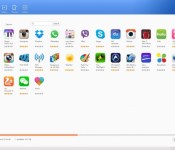
Android management app MoboRobo (review)
There are quite a few Android management apps out there, and honestly, a lot of them are just spam. Some of them force ads onto your devices, check data they’re not supposed to and the ones that seem ok never really live up to the expectations set by iTunes device management. I expected MoboRobo to be the same as the others, but I’m happy to say that it was actually quite different.
When you first open the application on your PC, MoboRobo gets you set up quickly with an option to connect via USB or via Wi-Fi. The USB connection was fully automatic and very quick, whereas the Wi-Fi connection was (of course) slower in data transfers and also required you to get the Mobo Market app on your phone. With the USB connection however, you do have to turn on the “USB Debugger” setting in the developer options of your device. If you don’t have access to developer options, simply follow this short guide and they should appear. As soon as your phone is connected, the app will automatically detect and install the necessary drivers and a small popup window will appear with the device’s battery status.


The four main tabs in the MoboRobo PC app are: Apps, Music, Images and Videos. The apps section can be used to not only manage apps that are already installed on your device, but also to install new apps quickly. Unfortunately, installing new apps through MoboRobo uses the MoboMarket service, which is not as polished as the rest of the app. The music section is one of the best features of the app due to its ease of use. Songs can be selected and renamed, deleted or even played on the PC and simply dragging songs to the app will sync them to your device.
Videos and images are a bit harder to manage in the app, due to there being no option for choosing the path to your media. MoboRobo will simply scan your entire device for any videos and images it can find, and a lot of the time, it finds more than you want. If you can deal with the overflow of media however, the video and images sections work with the same ease of use as the music section.
There are still two more tabs left, but they are a little more advanced. The first of the two is the themes tab. This tab is designed with very specific users in mind, as the themes can only be used with the MoboLauncher app. Honestly, I would steer clear of that app, as there are many more advanced and more polished launchers out there on the Android market. If you already use the MoboLauncher app, this tab could be very useful for managing your themes.
Lastly, there is the ambiguously named “toolbox” tab, which is arguably the most useful of them all. With any version of android you can read the texts from your device, however on devices that are pre android 4.4 kitkat, you can send and receive texts from your PC. You can manage contacts, bookmarks, files and call logs, all from the management section of the toolbox. The best feature in my opinion however, is the backup/restore function, which allows you to keep contacts, SMS logs and call logs safe, which is especially useful before a factory reset.
MoboRobo went above and beyond my expectations in both design and ease of use. I would definitely recommend using MoboRobo as your android management app. Do you have other management apps that you think are worth it? Let us know in the comments down below!
The post Android management app MoboRobo (review) appeared first on AndroidGuys.
Chrome Beta 41 for Android adds pull-to-refresh in pages
If you like running at the forefront of developments then no doubt you’re interested in the Beta channel for Chrome. An update just got pushed to the Play Store bringing the version to build 41.0.2272 that adds a nice little pull-to-refresh feature in webpages.
All you have to do is pull down the webpage and the animation will appear to refresh the page – very akin to what we’ve seen in apps like Twitter for a long time.
You can grab the new update and Chrome Beta from the Play Store below.
The post Chrome Beta 41 for Android adds pull-to-refresh in pages appeared first on AndroidGuys.
Milk Music from Samsung comes to Galaxy Tab 4 and Note tablets
Milk Music was released last year as Samsung’s answer to music streaming, but it was only available on certain smartphones. Samsung today has announced that Milk Music is not available on the Galaxy Tab 4 and Galaxy Note tablet lineups.
The list of compatible Samsung devices is as follows (per the Milk Music Play Store listing):
Galaxy S® III
Galaxy Note® II
Galaxy S® 4
Galaxy Note® 3
Galaxy Mega™
Galaxy S® 4 mini
Galaxy S® 5
Galaxy S® III mini
Galaxy Note® 4
Galaxy Note® Edge
Galaxy Tab S®, Tab S Pro®, Note Pro® 12.2
Galaxy Note® 8.0
Galaxy Note® 10.1, Note® 10.1 (2014 Edition)
Galaxy Tab® 4 family
Galaxy Tab® 3 8.0, Tab® 3 10.1
Gear S Smartwatch
So as you can see, the Note tablets this is available on are the Note Pro 12.2, Note 8.0, Note 10.1, and the Note 10.1 (2014 Edition).
Milk Music was initially released as free to owners of various Samsung devices, but it now costs $3.99 per month along with the prerequisite of needing the aforementioned Samsung devices.
via Talk Android
The post Milk Music from Samsung comes to Galaxy Tab 4 and Note tablets appeared first on AndroidGuys.

Qantas to amuse first-class passengers with Samsung’s Gear VR
Qantas, Australia’s largest airline, is set to entertain first-class guests with Samsung’s virtual reality headset in the near future. If you’re lucky enough to fly in Business Class on the airline, you might be set up with a Gear VR and a Galaxy Note 4 to play with while you fly. The Note 4 will come pre-loaded with a unique application that gives users a 360 degree view of the Qantas first-class lounge in LAX, a video that puts you on the runway to watch A380s land and take off, and even a VR boat ride that takes you down a Northern Territory river in Kakadu. Unfortunately, the Gear VR’s availability will be quite scarce in the beginning, as they’ll only be offered for first-class passengers on A380s traveling from LA to Sydney or from Melbourne to LA. Additionally, only four headsets will be provided by Qantas for the outbound flight to LA, four for the inbound flight from LA, and two each for Qantas’ Sydney and Melbourne first-class lounges.

Olivia Wirth, a Qantas Group Executive, explains:
Whether the user wants a virtual tour of our new Los Angeles First Lounge or experience an A380 landing from the tarmac, this technology gives us a completely new way to connect with our customers. From an inflight entertainment perspective, it’s an industry first. Qantas is committed to being at the forefront of innovation to give our passengers the very best and latest in-flight experiences, like accessing the virtual worlds of their favourite Hollywood blockbusters from the comfort of their seat 40,000 feet above the ground.
The first-class passenger lounges are forecasted to receive the headsets as early as mid-February, while the planes won’t get the devices until mid-March.
Due to Qantas’ inventory constraints, you may just want to pick a Gear VR up for yourself. If you’d like to check out the technology further, head to our overview and hands-on video here.
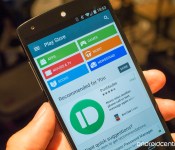
Google Play drives growth in ‘other revenues’ section of Google business to $1.95 billion

Google released its Q4 2014 earnings today, showing strong numbers all around, but on the earnings call we also got word on the strength of Google Play. Google CFO Patrick Pichette said today on the call that Google’s “other revenues” segment grew by 19 percent year-over-year (6 percent quarter-over-quarter) to $1.95 billion, driven primarily by growth in Play Store sales.
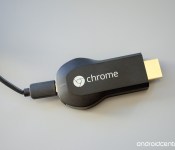
Chromecast is now the No. 1 streaming device in the U.S., users have casted 1 billion times

Today in the earnings call coinciding with its Q4 2014 release, Google CBO Omid Kordestani let us in on a few metrics of the Chromecast‘s success. The $35 (or less) streaming stick has been available for over a year and a half now, and just crossed the milestone of users tapping the “cast” button a full one billion times as of last week.
Microsoft silently investing in Cyanogen

The last two years have been quite good for Cyanogen. The company saw its software ship on new hardware and quickly gain praise. All of this made investors eager to become involved with the software developer. Microsoft, Amazon, Samsung, and even Yahoo all were said to have expressed interest in Cyanogen almost six months ago. In October, Google joined those interested but Cyanogen declined what was reportedly an offer to acquire the entire company. Cyanogen wants to operate on its own and keep Android as open as it should be. Of all the companies interested in Cyanogen, it looks like Microsoft has made the most progress.
Microsoft, according to The Wall Street Journal, is active with “putting money into Cyanogen.” A recent round of equity financing ended with about $70 million and Microsoft was labeled as a minority investor. The reason for Microsoft being involved with Cyanogen is not clear; however, the company’s issues with Windows Phone could be an indication that CEO Satya Nadella wants to see what other options are available. The software produced by Cyanogen is indeed Android, but it is quite different because of the adjustments and additions made. Microsoft could abandon Windows Phone altogether in the event Windows 10 does not improve market share. The more likely scenario is that Microsoft backs Cyanogen and, perhaps, launches devices with the software while supporting Windows Phone simultaneously.
Or maybe Microsoft intends to release dual-OS devices…
Source: The Wall Street Journal
Come comment on this article: Microsoft silently investing in Cyanogen
Smart Lock for Chrome open to all Chrome OS users

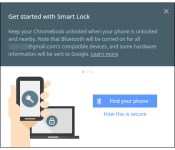
Prior to today, Smart Lock was only available to users of the Chrome OS Dev Channel. Today, that is no more as the feature is open to any and every Chrome OS user (with a Bluetooth connection). Smart Lock allows Android 5.0 Lollipop devices to unlock nearby Chromebooks seamlessly. The Chrome OS device will recognize the user is already signed in on their phone and bypass the lock screen.
Google provides these directions to setup Smart Lock:
- If you have more than one compatible phone nearby, turn off the ones you won’t be using.
- Sign in to your Chromebook.
- Make sure that your phone and Chromebook are connected to the internet.
- Click your account picture in the bottom right corner.
- Click Settings > Show advanced settings…
- In the “Smart Lock” selection, click Set up.
- Follow the on-screen instructions to connect your phone and your Chromebook.
- Place the phone and the Chromebook close together so that they can detect each other’s Bluetooth signal.
For a comprehensive look at how exactly Smart Lock works, click here.
Source: +Google Chrome
Come comment on this article: Smart Lock for Chrome open to all Chrome OS users
 AIVAnet