



Best of CES 2015 Awards, Disruptive Tech: Energous WattUp
#fivemin-widget-blogsmith-image-629182display:none; .cke_show_borders #fivemin-widget-blogsmith-image-629182, #postcontentcontainer #fivemin-widget-blogsmith-image-629182width:570px;display:block;
 trydocument.getElementById(“fivemin-widget-blogsmith-image-629182″).style.display=”none”;catch(e)
We like our wireless routers here at Engadget, but a wireless router that can charge your devices too? And one that can do so, well, wirelessly? If that sounds like a pipe dream, well, it isn’t. Energous’ WattUp solution promises to do exactly that. No longer would you have to plug in your laptop or charge up your smartwatch when you’re in the house. Seems like an innovation winner to us.
Filed under: Misc

iCloud end user agreement makes for art project

Apple’s end user license agreements (EULAs) are rarely-read from cover to cover; they’re often dozens of pages of legalese that make the average person’s eyes glaze over. While it’s mind-numbing for most of it, it was inspiration for artist Florence Meunier, who used an overlay featuring redaction marks to blot out unwanted text until what’s revealed is a poem that tells the story of a man who didn’t read the EULA and suffered the consequences.
Here’s what the artist has to say about the project:
Project to re-design and interpret the Apple ICloud EULA (End User License Agreement), perhaps one of the most overlooked and ambiguous agreement we make. By clicking “I Agree”, we accept rather odd conditions that we are not aware of because the very design of it is not intended to be read.
The aim was to design a more “user-friendly” document in a print format, that would make the user want to read the text. I decided to influence the user into reading the license. I created a second narration inside the actual EULA text, as an existing made up story about a man who agreed too quickly. The aim is to slightly guilt the user into reading, or simply amuse and therefore interest them.
A bit cheeky, very well done, and thought provoking.
Source: For Print Only (via The Verge)

PSA: Those Windows 10 on Phone images are not real

Late last night some new images started floating around the internet from the social sharing site Weibo and another on Wp7Forum.ru. The photos allegedly revealed the new Windows 10 format for the phone, something that Microsoft is expected to unveil this Wednesday.
As usual, many people are getting excited (or disappointed) at what was shown in the photos. Of course, the bigger question, to ask, is if they are real or not. In this case, those pictures are not accurate.

Latest issue of Charlie Hebdo available for Android devices

Throughout the year, Charlie Hebdo has a print run that totals around 50,000 copies. The No. 1178 issue published on Wednesday totaled 5 million copies. In the wake of the shooting at the French satirical magazine’s office, the demand for a copy of the latest issue skyrocketed. People around the world want to support the victims and free speech.
For those that cannot get a physical copy of the issue, Charlie Hebdo is available online. The Android app, which supports phones and tablets with at least Android 4.0.3, offers the issue alone as well as a subscription to Charlie Hebdo. This time, it has been translated to English, Spanish, and Arabic (aside from its native French). Why? So people of all different cultures have the opportunity to see what Charlie Hebdo is all about. The cover reads “Tout Est Pardonne” which means “All Is Forgiven.”
The No. 1178 issue of Charlie Hebdo costs $3.54.

Come comment on this article: Latest issue of Charlie Hebdo available for Android devices

What would you change from the HTC One M8 to the M9?

I’ve been using the HTC One M8 for the past week or two, in anticipation of it getting Android 5.0 Lollipop (which it did), and to start getting familiar with it again ahead of HTC’s March 1 announcement at Mobile World Congress in Barcelona.
The M8 was an imperfect phone, sure. I know what I don’t like about it. (And I recently forgot the cardinal rule of “Don’t you dare zoom in with that camera.”) But let’s here what you folks would change. What do you want to see done differently from the M8 to the … well, let’s just call it the HTC One M9.
Fire away in the comments.

Lumia Camera app likely to be expanded to all Windows Phones for Windows 10

As the Windows 10 event next week rapidly approaches, more information is slowly trickling out. A new Camera beta app has been found at the Store for internal use by Microsoft. Late last night, Jesse Leskinen managed to strip down the AppX file and side load it onto a Samsung ATIV S.
Images for the app provided to Windows Central by Leskinen reveal the familiar Lumia Camera app design, although it appears that some features unique to Lumia Denim like Rich Capture are not present.
Interestingly, the camera app lists HID (Human Interface Devices) Bluetooth support, although it is not clear in what context that would be useful for this app. Advanced Bluetooth format support is rumored for Windows Phone 8.1 GDR2 and likely for Windows 10 as well.

DEA kept records of US phone calls for nearly 15 years

The NSA isn’t the only American government agency keeping track of phone call metadata… or rather, it wasn’t. A Department of Justice court filing has revealed that the Drug Enforcement Administration maintained records of every call made from the US to Iran and other nations for nearly 15 years, stopping only when the initiative was discontinued (prompted at least partly by leaks) in September 2013. The DEA didn’t get the content of those calls, but it also didn’t get court oversight — it used administrative subpoenas that only required the approval of federal agents. And unlike the NSA, this program was meant solely for domestic offenses like drug trafficking.
While the program did help bust crooks, there’s a concern about the distinct lack of accountability. Besides the lack of judicial controls, the leaks revealed that the DEA’s Special Operations Division went so far as to “recreate” trails of evidence to hide that some info originated from call records. Moreover, it shared that information with agencies ranging from the FBI to the Department of Homeland Security. The Justice Department says that the database is gone. However, its existence has prompted worries among privacy advocates that the government thinks (or at least, thought) that it’s acceptable to extend its already controversial bulk surveillance gathering to everyday criminal cases, not just terrorism.
[Image credit: Tim Sloan/AFP/Getty Images]
Filed under: Cellphones, Mobile
Source: Wall Street Journal, Reuters

Google rumored to be purchasing Softcard

Paying for merchandise using your smartphone via Near Field Communication (NFC) is all the buzz these days since Apple Pay was launched. A lot of people in the media gloss over the fact that Google’s Wallet app on Android has given us this capability for quite a while now, though. Despite this oversight in media coverage, one beneficial thing does come out of it: the momentum generated by Apple Pay should help Google with retailers that were initially hesitant in supporting mobile-based payments.
Apple Pay and Google Wallet aren’t the only products on the field, however. One company that is also offering the same NFC payment services is Softcard, formerly branded as Isis Mobile Wallet. (The name change was due to the company not wanting to be even remotely associated with the militant terror organization named ISIS.) Similar to Google Wallet, Softcard has been struggling to make headway in the payment sector, but unlike Wallet, Softcard has lacked the financial backing needed to keep it afloat while it waits for retailers to catch up.
Google, who has not really put a lot of work into making Wallet a bigger game-changer, is rumored to be eyeing Softcard for acquisition in an attempt to bolster Wallet’s weak offering to Android consumers. Softcard does have a few perks in its portfolio, which Google may find appetizing.
Softcard is a joint venture project by mobile carriers T-Mobile, Verizon, and AT&T. The company also has strong relationships with Visa, MasterCard, Discover, and American Express, who have helped Softcard butter-up quite a few retailers in recent years to accept its mobile payment product. Google may find these joint ventures especially enticing because, up until now, it really has been going it alone in the mobile payments space. Notably, American Express has expressed that it will not participate in Google Wallet.
TechCrunch has reported that Softcard also possesses approximately 120 patents and pending patent applications. Similar to the reason behind Google’s acquisition of Motorola, there may be a Softcard patent that Google feels like it can’t live without.
When Google was approached by TechCrunch for a comment on the Softcard talks, the Mountain View search giant gave a rather humorous reply: “We don’t have a comment, background, deep background, off the record steer, nod, wink or any other verbal or non-verbal response to these sorts of rumors.”
Google hasn’t been the only company that is rumored to be approaching Softcard. The joint venture companies AT&T and Verizon have been named as possible buyers, as well as a familiar name in the payments sector: PayPal. Even Microsoft has been rumored to have approached Softcard. I also would not be surprised to hear that Samsung is keeping a close watch on Softcard, as previous reports have indicated that Samsung is looking to create its own NFC payment competitor.
So as Apple builds up a juggernaut with Apple Pay, will we see Google Wallet rise to challenge the competition? Or will it need to at all? Time will tell.
Source: TechCrunch
Come comment on this article: Google rumored to be purchasing Softcard
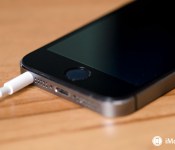
How to fix a broken headphone jack in an iPhone 5s

Have a busted headphone jack in your iPhone 5s? Not being able to listen to music, podcasts, and other kinds of audio is a complete bummer. Not only that, if your iPhone thinks headphones are plugged in when they aren’t, a broken headphone jack can mess with sound through the speaker too. Other symptoms could include crackling or audio cutting in and out sporadically. If any of this sounds like something you’re experiencing, a DIY iPhone repair can not only save the day, if you’re out of warranty, it’ll cost a heck of a lot less than a new iPhone.
Note: The headphone jack in the iPhone 5s is actually part of the dock assembly. This means you’ll be replacing the entire dock in order to restore functionality.
What you need to DIY replace a broken iPhone 5s headphone jack port
You’ll need some tools and parts in order to repair your iPhone 5s. If you’re in the United States or Canada, we highly recommend checking out eTech Parts as we’ve had lots of good experiences with them and know their customer service is out of this world. All the links below will route you to the direct item on eTech’s site.
- Replacement iPhone 5s dock – Buy black dock, Buy white dock
- Suction cup – Buy now
- 5-point security screwdriver – Buy now
- Standard #000 Phillips screwdriver – Buy now
- Spudger tool – Buy now
- Razor blade – Buy Now
- iSesamo Opening tool – Buy Now
1. Power off your iPhone 5s

Before performing any repair on any device, always remember to power it off. Simply hold down on the Power button until you see Slide to Power off. One you’re sure your iPhone 5s is turned off, proceed to the next section.
2. Remove the two security screws on both sides of the dock connector

There are two security screws that secure your device’s screen to its frame, and they sit on each side of the dock connector. Use your 5-point security screwdriver to remove them. They are both the same size, so it’s okay if you mix them up.
3. Remove the display assembly
- Place your suction cup slightly above the Home button assembly and secure it to the screen.

- Holding the iPhone in place with one hand, gently pull upwards on the suction cup until you free the bottom of the screen. Do NOT pull up all the way at this point, as the cable that runs to the Touch ID sensor is still connected. You only want to separate the screen about an inch at this point.

- Now that you have a clear view of the cables, use the pointed edge of your spudger tool in order to carefully remove the metal shield covering the Touch ID cable.

- Make sure you don’t lose the metal guard that covers the Touch ID connector.

- Again, use the pointed edge of your spudger tool in order to disconnect Touch ID.

- You can now safely swing the display up in order to see where it is connected to the board.
- Remove the four screws holding down the shield that covers the display cables. To do this, use your #000 screwdriver.

- Once all four screws are removed, carefully remove the shield and set it aside.

- Now use your spudger tool in order to remove the three cables shown in the image below. You’ll need to remove the two off to the far right in order to reveal the third and final cable, which sits below them.

- The display assembly should now be free from the body of the phone. Go ahead and set the display assembly aside.

*Note: I recommend the suction cup method here, but if you can’t get a firm grip with a suction cup, you can use a razor blade or the iSesamo opening tool. Carefully work your way around the bottom of the phone between the frame and display assembly with a razor blade or the iSesamo Opening Tool until you can gently pry up the screen using the flat end of your spudger tool. We recommend using plastic razor blades if you can find them, since they won’t cause damage to the finish of the iPhone’s frame.
4. Disconnect the battery
- Remove the two screws holding down the battery cable using your #000 Phillips screwdriver.

- Gently lift the battery shield out of your iPhone 5s and carefully set it aside.

- Use your spudger tool to carefully pry up the battery cable.

This is as far as you need to go. It isn’t necessary to completely remove the battery, but it’s always a good idea to disconnect it before replacing any components. This prevents any shorts from happening if the Power button accidentally gets pushed during the course of a repair.
5. Remove the loud speaker assembly
- Remove the three screws outlined in the photo below using your #000 Phillips screwdriver.

- Use the flat end of your spudger tool to lift up the right portion of the loudspeaker, as shown in the photo below. Just don’t attempt to completely remove it.

- Carefully use your fingers to maneuver the loudspeaker out of your iPhone’s housing, taking note of the caution areas in the photo below.


- Carefully examine the teeth on the bottom, as one slides underneath where the Touch ID sensor connects and the other goes underneath the bottom right of the logic board. Pay close attention to the circular antenna cable and how it sits in a small groove of the speaker assembly.

6. Replace the entire dock assembly, including headphone jack
- Disconnect the two cables shown in the photo below using your spudger tool. One cable goes to the Lightning dock itself while the other is a round antenna cable.

- Remove the five screws shown below that are holding the Lightning dock to the casing. Use your #000 Phillips screwdriver for this.

- Take note of the location of each screw as they are all different sizes and are not interchangeable.
- Starting at the top right by the cable connector, slowly start peeling back the adhesive until the cable itself is free.

- The Lightning connector itself and the headphone jack are held in with a mild foam adhesive. You will need to pry them up slightly by using a spudger or iSesamo tool in order to separate it. Not much force is needed.

- Flip up the rubber gasket shown in the photo below as well.

- Now use the flat end of your spudger tool or the iSesamo opening tool to carefully pry the rest of the Lightning dock from the case.

- Take note that there are tiny metal spacer rings that sit on the screw holds in the casing. Be careful not to lose these. You can see them in the photo below.

- The last thing you’ll need to do is transfer the Touch ID connector — which is highlighted below — to the new dock assembly. It’s just held on with a bit of adhesive. Just take care not to tear any part of the Touch ID connector as doing so will cause Touch ID to fail to work, and this component can not be replaced.

- To replace the dock connector, simply line up the rubber gasket, headphone jack, and Dock connector. Remove any adhesive backing on the new assembly before doing so.
- Once the dock connector is fitted in place, replace the 5 screws you removed earlier and replace the earpiece speaker and the two screws holding it in place.
Once you’ve got the Dock connector in place, try plugging in a Lightning connector to ensure that it is lined up correctly. It also is not a bad idea to plug in a pair of headphones as well to be sure that it goes in with no resistance. This way, if something is aligned improperly, you can fix it before re-assembling the rest of the device.
If everything appears to be aligned correctly with the replacement, continue on to finish re-assembling your iPhone 5s.
7. Reconnect the battery
- Reconnect the battery cable to the logic board.
- Replace the battery shield and the two screws you removed earlier.
8. Replace the display assembly
- Reconnect the three cables shown in the image below, starting with the cable to the far left, which sits underneath the other two.
- Replace the display shield using the four screws and your #000 Phillips screwdriver.
- Re-connect the Touch ID cable to the logic board. The easiest tool to help you do this is the pointed end of the spudger tool.
- Replace the Touch ID shield that sits over the cable.
- Carefully line up the top of the display into the top of the frame.
- Snap down the display until it clicks into place.
If the display doesn’t want to go back down, do NOT force it. Instead, be sure that the top is lined up correctly and that you aren’t snagging any cables. There should be no resistance when snapping it back into place. If there is, you aren’t lining it up correctly.
9. Replace the dock connector screws
Use your 5-point security screwdriver to replace the two dock connector screws that sit on either side of the dock.
10. Test the new dock and headphone jack
Once your iPhone 5s is completely re-assembled, not only will you need to check the headphone jack but the dock functions as well. In order to do so, complete the following tests:
- Plug your iPhone 5s into a charger and ensure it charges correctly. Monitor it for overheating.
- Plug in a pair of headphones and ensure you can hear through them.
- Turn the volume up and down with headphones plugged in and unplugged.
- Test sounds both from your ringer, loud speaker on a call, and music or some other kind of audio.
- Listen to music or some kind of audio to ensure you don’t hear any bad feedback. Also twist the headphones around in the socket to be sure that doesn’t cause interference or issues.
If all of the above checks out okay, give yourself a pat on the back, you successfully fixed your iPhone 5s headphone jack!
More iPhone DIY repair

12 best Android email apps

Email is one of the oldest forms of internet communication and one of the few from “the good old days” that we still use today. Email has evolved quite a bit since the old days but how we use and process emails has changed very little. Despite that, some still seem to be able to do it better than others. In this roundup, we’ll take a look at the best Android email apps.
 AOSP Email
[Price: Free]
The good old AOSP Email is first on our list because it’s a classic and has been around since the earliest days of Android. Of course, it’s been updated, refined, and redesigned multiple times since it was first created and that’s why it’s one of the best on the list. It supports pretty much all of the most popular email clients and has a clean design that is easy to use. It is important to keep in mind that this is a very basic email client. If you need something more feature rich and powerful, this is not the one you should be using.


 Aqua Mail
[Price: Free / $4.95]
Aqua Mail is an email client with a little bit more power and a lot of peripheral features. It allows for Exchange and IMAP accounts but also allows integration with Office 365, OAUTH2 for Gmail, and it has support for Tasker and Light Flow along with a number of other apps. It’s been updated with a fresh Material Design look that helps keep it with the times in terms of design. The pro version allows you to set up more than two email accounts and removes the promo signature from outgoing emails.

 Blue Mail
[Price: Free]
Blue Mail is another simple but elegant email solution that supports a metric ton of email accounts including Yahoo, Gmail, iCloud, Office365, and others. It has a simple interface similar to AOSP Email with a few unique tweaks here and there. Along with the standard features, you can also do a bunch of other things like set quiet hours for when you don’t want notifications, set emails to send at a later time or date, configurable menus, and a lot more. There are even some security features like locking up your personal emails.

 CloudMagic
[Price: Free / $4.99/month]
CloudMagic burst into the scene a little more recently than others. It has some Material Design elements but remains fairly minimal and that helps it feel more efficient and useful. It supports multiple accounts from a number of email providers and all of the standard features. Its most unique feature is the integration of various tools like Todoist, Asana, MailChimp, Pocket, Evernote, and others to help include your emails more fluidly in your workflow which is really useful. It recently updated with a new subscription model that wants $60/year for a few additional features but the free version should suffice for most.
 Email for Exchange – Mail Wise
[Price: Free with in app purchases]
One of the more difficult features to get right for most email apps is Exchange support and this app aims to be the one that Exchange users should use. It’s not perfect but it’s solid and reliable and uses a message-style email thread system that makes email conversations easier to read. Despite the focus being on Microsoft Exchange, you can also add other email accounts. It’s completely free with the in-app purchases being optional developer donations.
 Gmail
Gmail
[Price: Free]
For many, the road need go no further than Gmail. It contains the latest in Google’s design standards and comes complete with Google Now and Google Drive support. It’s frequently updated, provides a stable experience, and evolves every time Android does. Recent updates also allow for Microsoft Office support, the management of multiple accounts, and Android Lollipop optimizations. Most people who have just a Gmail account for their Android devices don’t need anything more than this.
 Inbox by Gmail
[Price: Free]
Inbox by Gmail is a different take on email from Google and the same team that brought you Gmail. It features heavier integration with Google Now along with advanced label management and a “newsfeed” style email layout. When it first debuted, a lot of pundits found it confusing and too “in your face” to be useful, but as the platform has grown, so has the positive opinions about Inbox. It’s a solid email application and a must-try if you also use Google Now heavily.
 K-9 Mail
[Price: Free]
K-9 Mail is one of the oldest email clients on Android and has garnered considerable respect over the years. It still utilizes an older, minimal interface that’s almost similar to Reddit but it manages to be easy to use and efficient. It’s also open source which is great if you’re a fan of FOSS. It has a basic set of features which is good for those of you who don’t need anything complicated or overly powerful. It’s also totally free.

 Mail.Ru
[Price: Free]
Mail.Ru is an enigma. It’s not a name that gets thrown a lot in the email game but it has silently amassed over ten million downloads to date and has accumulated a 4.5 out of 5 rating in the Google Play Store. It has multi-account support, advanced search, notification filtering, and a built-in spam filter. The interface is clean and looks a little bit like an older version of Gmail which isn’t bad at all. It’s totally free and has a decent design and feature set.

 myMail
[Price: Free]
myMail is a slightly antiquated email app with a decent list of features. It supports most popular email services including Google, Microsoft, Apple, Yahoo, and even AOL. The interface is a tweaked Holo which means it’s easy to navigate and use. There isn’t much that helps this one stand out other than its wide range of supported protocols and decent interface but sometimes that’s all people need. This is also the official email client of my.com and you can use extra features if you have a my.com email address.

 WeMail
[Price: Free]
WeMail was released in late 2014 and with it came some unique ideas. The main feature is its interface. It uses a modified Material Design, sorts emails by sender rather than chronologically, and shows emails in a messaging format. This gives the email experience an entirely different feel than normal and for some, it’s really good. Also included is the ability to search messages and attachments separately, one-touch voice emails, and access to all files you’ve ever sent or received to others. The only major downside is that it doesn’t work with as many email services as these others.
 Yahoo Mail
[Price: Free]
Yahoo Mail is last on our list and it remains one of the best ways to use Yahoo Mail. Other than the basic email features, Yahoo has also integrated a news section in with email so you can literally check your mail and read the news at the same time which may be a nice feature for some. Obviously, only Yahoo users can use it and much like other official apps, Yahoo Mail users can simply do more than they probably could in other clients.
Wrap up
If we missed any great Android email apps, let us know in the comments!
To see our complete list of Android apps and games lists, click here!
 AIVAnet