


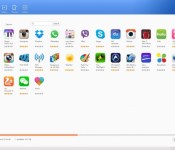
Android management app MoboRobo (review)
There are quite a few Android management apps out there, and honestly, a lot of them are just spam. Some of them force ads onto your devices, check data they’re not supposed to and the ones that seem ok never really live up to the expectations set by iTunes device management. I expected MoboRobo to be the same as the others, but I’m happy to say that it was actually quite different.
When you first open the application on your PC, MoboRobo gets you set up quickly with an option to connect via USB or via Wi-Fi. The USB connection was fully automatic and very quick, whereas the Wi-Fi connection was (of course) slower in data transfers and also required you to get the Mobo Market app on your phone. With the USB connection however, you do have to turn on the “USB Debugger” setting in the developer options of your device. If you don’t have access to developer options, simply follow this short guide and they should appear. As soon as your phone is connected, the app will automatically detect and install the necessary drivers and a small popup window will appear with the device’s battery status.


The four main tabs in the MoboRobo PC app are: Apps, Music, Images and Videos. The apps section can be used to not only manage apps that are already installed on your device, but also to install new apps quickly. Unfortunately, installing new apps through MoboRobo uses the MoboMarket service, which is not as polished as the rest of the app. The music section is one of the best features of the app due to its ease of use. Songs can be selected and renamed, deleted or even played on the PC and simply dragging songs to the app will sync them to your device.
Videos and images are a bit harder to manage in the app, due to there being no option for choosing the path to your media. MoboRobo will simply scan your entire device for any videos and images it can find, and a lot of the time, it finds more than you want. If you can deal with the overflow of media however, the video and images sections work with the same ease of use as the music section.
There are still two more tabs left, but they are a little more advanced. The first of the two is the themes tab. This tab is designed with very specific users in mind, as the themes can only be used with the MoboLauncher app. Honestly, I would steer clear of that app, as there are many more advanced and more polished launchers out there on the Android market. If you already use the MoboLauncher app, this tab could be very useful for managing your themes.
Lastly, there is the ambiguously named “toolbox” tab, which is arguably the most useful of them all. With any version of android you can read the texts from your device, however on devices that are pre android 4.4 kitkat, you can send and receive texts from your PC. You can manage contacts, bookmarks, files and call logs, all from the management section of the toolbox. The best feature in my opinion however, is the backup/restore function, which allows you to keep contacts, SMS logs and call logs safe, which is especially useful before a factory reset.
MoboRobo went above and beyond my expectations in both design and ease of use. I would definitely recommend using MoboRobo as your android management app. Do you have other management apps that you think are worth it? Let us know in the comments down below!
The post Android management app MoboRobo (review) appeared first on AndroidGuys.
Chrome Beta 41 for Android adds pull-to-refresh in pages
If you like running at the forefront of developments then no doubt you’re interested in the Beta channel for Chrome. An update just got pushed to the Play Store bringing the version to build 41.0.2272 that adds a nice little pull-to-refresh feature in webpages.
All you have to do is pull down the webpage and the animation will appear to refresh the page – very akin to what we’ve seen in apps like Twitter for a long time.
You can grab the new update and Chrome Beta from the Play Store below.
The post Chrome Beta 41 for Android adds pull-to-refresh in pages appeared first on AndroidGuys.
Milk Music from Samsung comes to Galaxy Tab 4 and Note tablets
Milk Music was released last year as Samsung’s answer to music streaming, but it was only available on certain smartphones. Samsung today has announced that Milk Music is not available on the Galaxy Tab 4 and Galaxy Note tablet lineups.
The list of compatible Samsung devices is as follows (per the Milk Music Play Store listing):
Galaxy S® III
Galaxy Note® II
Galaxy S® 4
Galaxy Note® 3
Galaxy Mega™
Galaxy S® 4 mini
Galaxy S® 5
Galaxy S® III mini
Galaxy Note® 4
Galaxy Note® Edge
Galaxy Tab S®, Tab S Pro®, Note Pro® 12.2
Galaxy Note® 8.0
Galaxy Note® 10.1, Note® 10.1 (2014 Edition)
Galaxy Tab® 4 family
Galaxy Tab® 3 8.0, Tab® 3 10.1
Gear S Smartwatch
So as you can see, the Note tablets this is available on are the Note Pro 12.2, Note 8.0, Note 10.1, and the Note 10.1 (2014 Edition).
Milk Music was initially released as free to owners of various Samsung devices, but it now costs $3.99 per month along with the prerequisite of needing the aforementioned Samsung devices.
via Talk Android
The post Milk Music from Samsung comes to Galaxy Tab 4 and Note tablets appeared first on AndroidGuys.

Qantas to amuse first-class passengers with Samsung’s Gear VR
Qantas, Australia’s largest airline, is set to entertain first-class guests with Samsung’s virtual reality headset in the near future. If you’re lucky enough to fly in Business Class on the airline, you might be set up with a Gear VR and a Galaxy Note 4 to play with while you fly. The Note 4 will come pre-loaded with a unique application that gives users a 360 degree view of the Qantas first-class lounge in LAX, a video that puts you on the runway to watch A380s land and take off, and even a VR boat ride that takes you down a Northern Territory river in Kakadu. Unfortunately, the Gear VR’s availability will be quite scarce in the beginning, as they’ll only be offered for first-class passengers on A380s traveling from LA to Sydney or from Melbourne to LA. Additionally, only four headsets will be provided by Qantas for the outbound flight to LA, four for the inbound flight from LA, and two each for Qantas’ Sydney and Melbourne first-class lounges.

Olivia Wirth, a Qantas Group Executive, explains:
Whether the user wants a virtual tour of our new Los Angeles First Lounge or experience an A380 landing from the tarmac, this technology gives us a completely new way to connect with our customers. From an inflight entertainment perspective, it’s an industry first. Qantas is committed to being at the forefront of innovation to give our passengers the very best and latest in-flight experiences, like accessing the virtual worlds of their favourite Hollywood blockbusters from the comfort of their seat 40,000 feet above the ground.
The first-class passenger lounges are forecasted to receive the headsets as early as mid-February, while the planes won’t get the devices until mid-March.
Due to Qantas’ inventory constraints, you may just want to pick a Gear VR up for yourself. If you’d like to check out the technology further, head to our overview and hands-on video here.
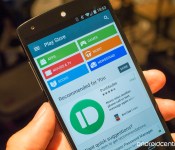
Google Play drives growth in ‘other revenues’ section of Google business to $1.95 billion

Google released its Q4 2014 earnings today, showing strong numbers all around, but on the earnings call we also got word on the strength of Google Play. Google CFO Patrick Pichette said today on the call that Google’s “other revenues” segment grew by 19 percent year-over-year (6 percent quarter-over-quarter) to $1.95 billion, driven primarily by growth in Play Store sales.
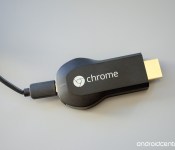
Chromecast is now the No. 1 streaming device in the U.S., users have casted 1 billion times

Today in the earnings call coinciding with its Q4 2014 release, Google CBO Omid Kordestani let us in on a few metrics of the Chromecast‘s success. The $35 (or less) streaming stick has been available for over a year and a half now, and just crossed the milestone of users tapping the “cast” button a full one billion times as of last week.

Microsoft silently investing in Cyanogen

The last two years have been quite good for Cyanogen. The company saw its software ship on new hardware and quickly gain praise. All of this made investors eager to become involved with the software developer. Microsoft, Amazon, Samsung, and even Yahoo all were said to have expressed interest in Cyanogen almost six months ago. In October, Google joined those interested but Cyanogen declined what was reportedly an offer to acquire the entire company. Cyanogen wants to operate on its own and keep Android as open as it should be. Of all the companies interested in Cyanogen, it looks like Microsoft has made the most progress.
Microsoft, according to The Wall Street Journal, is active with “putting money into Cyanogen.” A recent round of equity financing ended with about $70 million and Microsoft was labeled as a minority investor. The reason for Microsoft being involved with Cyanogen is not clear; however, the company’s issues with Windows Phone could be an indication that CEO Satya Nadella wants to see what other options are available. The software produced by Cyanogen is indeed Android, but it is quite different because of the adjustments and additions made. Microsoft could abandon Windows Phone altogether in the event Windows 10 does not improve market share. The more likely scenario is that Microsoft backs Cyanogen and, perhaps, launches devices with the software while supporting Windows Phone simultaneously.
Or maybe Microsoft intends to release dual-OS devices…
Source: The Wall Street Journal
Come comment on this article: Microsoft silently investing in Cyanogen

Smart Lock for Chrome open to all Chrome OS users

Prior to today, Smart Lock was only available to users of the Chrome OS Dev Channel. Today, that is no more as the feature is open to any and every Chrome OS user (with a Bluetooth connection). Smart Lock allows Android 5.0 Lollipop devices to unlock nearby Chromebooks seamlessly. The Chrome OS device will recognize the user is already signed in on their phone and bypass the lock screen.
Google provides these directions to setup Smart Lock:
- If you have more than one compatible phone nearby, turn off the ones you won’t be using.
- Sign in to your Chromebook.
- Make sure that your phone and Chromebook are connected to the internet.
- Click your account picture in the bottom right corner.
- Click Settings > Show advanced settings…
- In the “Smart Lock” selection, click Set up.
- Follow the on-screen instructions to connect your phone and your Chromebook.
- Place the phone and the Chromebook close together so that they can detect each other’s Bluetooth signal.
For a comprehensive look at how exactly Smart Lock works, click here.
Source: +Google Chrome
Come comment on this article: Smart Lock for Chrome open to all Chrome OS users
Google Chrome Beta updates with pull-to-refresh webpages [APK Download]
Just the other day I was browsing around the web on the tablet and bounced over to check on some numbers from a project. Out of habit from other apps, Gmail and G+ specifically, I tried to pull down on the page to get it to refresh. I thought to myself, “Stupid, why doesn’t the browser […]
The post Google Chrome Beta updates with pull-to-refresh webpages [APK Download] appeared first on AndroidSPIN.
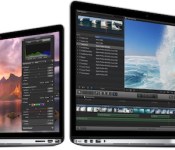
MacBook Buyer’s Guide: Choosing the Best Apple Notebook for Your Needs [Mac Blog]
From Apple’s Mac lineup, the company sells many more laptops than desktop computers, part of a trend that has been in place for years. Apple’s laptops are well made, they offer more than enough performance for a majority of users, and you can take the laptop with you wherever you go.
Apple’s laptop lineup consists of two models: the MacBook Pro and the MacBook Air. There are some obvious and nuanced differences between the two models that you need to consider while shopping for a Mac laptop. In this guide, we’ll take a look at the specifics, the differences, and the performance of the MacBook Pro and MacBook Air to help you decide which laptop is best for you.
Why you should pick a MacBook Pro
Of the two laptop lineups, the MacBook Pro is the one outfitted with a Retina display. These displays have many more pixels than the MacBook Air displays, which means images and text will look very sharp and clean — it’s a pleasing aesthetic if you’re spending all day at the computer. The high resolution is also great for anyone who’s working in HD video, allowing you to work in actual size and still have room for your app’s interface.
Apple’s definition of “Retina” is when a user, at a typical usage distance, cannot see the individual pixels on the screen. The 13-inch Retina MacBook Pro has a resolution of 2560 x 1600, while the 15-inch Retina MacBook Pro has a resolution of 2880 x 1800. In comparison, the non-Retina MacBook Air has a 1366 x 768 (11-inch) or 1440 x 900 (13-inch) resolution, so you can see there’s quite a difference between the displays of Apple’s two notebook lines.

The MacBook Pro is positioned as a computer than’s just as good performance-wise as a desktop computer. In general, the MacBook Pro is quite a bit faster than the MacBook Air, with the stock 13-inch models offering 2.6GHz to 2.8GHz dual-core processors and the stock 15-inch models offering 2.2GHz to 2.5GHz quad-core processors. Apps that take advantage of multiple cores, like Final Cut Pro, Photoshop, Logic Pro X, and more, are especially well suited to the 15-inch Retina MacBook Pro.
You’re going to want to choose a Retina MacBook Pro if you’re big on gaming. The MacBook Pros have superior GPUs, and the top-of-the-line $2,499 15-inch version even has a dedicated Nvidia GeForce GT 750M graphics card along with integrated Iris Pro graphics like the rest of the MacBook Pro lineup. It’ll switch between the two cards to maximize performance and battery life.

All of Apple’s newest MacBooks have amazing battery life. The 13-inch Retina MacBook Pro offers 9 hours of web browsing or iTunes playback, while the 15-inch model offers 8 hours of web browsing/iTunes playback. One thing to keep in mind though, the less powerful MacBook Air has the best battery life out of any of Apple’s notebooks — the 13-inch version lasts for up to 12 hours when browsing the web or when playing a video.
On the downside, the MacBook Pro is quite a bit heavier than the MacBook Air. Both the 13 and 15-inch models are under five pounds, with the latter weighing in at 3.46 pounds and the former at 4.46 pounds. That might not sound like a lot, but after an hour or two of schlepping a MacBook Pro around, 3 to 5 pounds can feel like 20.
You’re basically picking processing power and display over superior portability when you choose a Retina MacBook Pro, and you’re sacrificing a little bit of battery life. MacBook Pros are also the more expensive of the two notebook lines, with the entry-level 13-inch model priced at $1,299 and the entry-level 15-inch model priced at $1,999 — these are considered desktop replacements, after all.
Learn about the specifications of the MacBook Pro.
Why you should pick a MacBook Air
Travel is the forte of the MacBook Air. It’s lightweight (under three pounds) and won’t take up a lot of space in a bag. The smaller size comes with compromises, such as smaller non-Retina screens and slower performance, but if you’re using your laptop in meetings, a classroom, or a coffee shop for relatively simple tasks, those compromises may not matter too much.

Apple’s most affordable laptops are MacBook Airs with prices that start at $899, but that’s not to say that the MacBook Air offers entry-level performance — these are machines that can handle all of your day to day tasks. If your workload consists mostly of productivity tasks that use single-core apps (web, email, word processors, spreadsheets, presentations, etc.) and you’re frequently on-the-go, you’ll be happy with the performance of the MacBook Air. There’s nothing stopping you from using a pro-level app, but the 1.4GHz dual-core processor limits the performance.
If you’re a heavy user of apps that are really designed more for multi-core machines, like Final Cut Pro, Photoshop, or Logic Pro X, you may not be satisfied with the performance that a MacBook Air offers.

There’s a reason that the MacBook Air is one of Apple’s most popular offerings — they’re amazingly portable. The 11-inch model weighs just 2.38 pounds while the 13-inch model weighs 2.96, and both models are just 0.68 inches thick. Battery life is another major draw. The 11-inch model will last for nine hours when browsing the web or watching videos, and the 13-inch model will last for a whopping 12 hours during the same tasks. That’s enough battery life to more than make it through a full work day.
If you already read through the MacBook Pro section of this guide, you know the major trade off when choosing a MacBook Air — you’re losing out on that gorgeous Retina screen. You’re also missing out on faster performance, but if you need a machine for travel purposes, you won’t go wrong with a MacBook Air.
Get more information about the MacBook Air specifications.
Why you might want to wait
You’ve done your research, you’ve got your credit card out, and you’re ready to buy — but you might want to wait, especially if you want to buy a MacBook Air.
The current MacBook Air was released in April of 2014, so there’s a real possibility a new MacBook Air could come out soon. Recently, Intel announced its new Broadwell processors, which could be used in a new MacBook Air. Not only are the processors new, but they also feature improved integrated graphics. According to a report by AnandTech, the first computers using the new 15-watt Broadwell-U chips — the ones that could be used in a MacBook Air — are expected at the end of January.

A little more sensational is the rumor of a 12-inch MacBook Air, which could have a Retina display. The 12-inch MacBook Air will feature a complete redesign that introduces an ultra slim body that might do away with several existing ports, including the MagSafe, relying instead on a USB Type-C connector for charging and peripherals. It’s also rumored to have slimmer display bezels and an edge-to-edge keyboard design. It’s not clear exactly when the 12-inch MacBook Air might launch, but current rumors suggest it’s already in production for a spring to early summer launch.
 Rendering of the 12-inch MacBook by Martin Hajek
As for the MacBook Pro, the current version was released in July of 2014 and it looks like Broadwell Retina MacBook Pro machines may not be ready for a few months yet. The 28-watt Broadwell-U processors with the new Iris 6100 integrated graphics appropriate for the 13-inch Retina MacBook Pro are available, but chips appropriate for the 15-inch MacBook Pro will not be released in quantity until July or August, making an update before that time unlikely.
Of course, if you need a new laptop now, then buy one. If you have a Core 2 Duo-based MacBook, you’ll benefit greatly from the current offerings. If your laptop is two or three years old, you should probably wait, since you’ll see a better price/performance improvement with the new Broadwell-based MacBooks.
Which Mac laptop should you buy?
So you want to buy a MacBook Pro for its performance and Retina display. Which one should you get? The $1,499 13-inch MacBook Pro hits a sweet spot, offering more storage capacity (256GB) than the $1,299 model. And it’s only a few percentage points slower than the $1,799 model, which is your only option if you want a 13-inch MacBook Pro with 512GB of storage.
If you prefer a 15-inch laptop, you should get the $2,499 MacBook Pro if you use a lot of pro apps — you’ll benefit from the 512GB of storage and the discrete Nvidia graphics subsystem.
The MacBook Air is great for users who need a computer for productivity tasks while traveling. If you can afford it, opt for a model with 256GB of flash storage — not only do you get more room to store files, but you also get a slight speed boost as the 256GB model is a bit faster, according to speed tests. Remember, you don’t get as many ports as you would on a MacBook Pro, so make sure you have the proper adapters.
Apple also makes a $1,099 non-Retina MacBook Pro that we didn’t mention in this guide, but that’s not really worth purchasing unless you desperately need dedicated FireWire, Ethernet and/or a SuperDrive. The non-Retina MacBook is old, slow, and will probably be discontinued in the near future.
 AIVAnet