


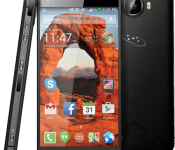
Saygus V2 pre-ordering opens February 2 at 11:59pm MST

At CES 2015, the Saygus V2 was introduced to the world with impressive components on the inside and out. Saygus announced at the event that the V2 would be released during the first quarter of 2015. We are getting closer to that release as Saygus will take pre-orders beginning February 2 at 11:59pm MST. The introductory price will be $549 before increasing to $599. To get the introductory price, though, customers will need a coupon code received only after pre-registering. That can still be done and ends on Monday afternoon.
Click here to view the embedded video.
SALT LAKE CITY—Jan. 29, 2015— Saygus, the progressive American smartphone manufacturer, today announced that the Saygus V2 (pronounced V-Squared) will be available at a limited introductory price of US $549 for a $50 savings off the standard pricing of US $599. Saygus has extended the pre-order registration deadline to noon MST on Monday, Feb. 2. Pre-orders at saygus.com will then officially commence at 11:59 p.m. MST Monday, Feb. 2.Those who pre-register will receive an additional battery and a customized, replaceable glass screen protector through the company’s website, saygus.com. Those who pre-register will receive a coupon code for the introductory package. There is a limit of 10 units per customer. Carrier or reseller inquiries regarding volume orders can be made at reseller@saygus.com.
“The V2 was created from the ground up to be one of the most feature-rich smartphones ever made,” said Chad Sayers, Founder of Saygus. “We are pleased to offer the introductory price of $549 for a limited time to those who have pre-registered.”
The Saygus V2 is housed in a hardened Kevlar protective edge with durable anodized brushed aluminum sides and is less than 10mm thick. With access to CDMA and GSM wireless technologies, the V2 is a world phone designed to be used around the globe. The V2 has a 5-inch edge-to-edge borderless screen offering a resolution of 1080 x 1920 (FHD). It comes with an industry first optical image stabilization (OIS) in both the rear (21MP) and front (13MP) cameras, waterproofed IPX7 “swimmable” capability, sunlight viewable screen, 3100 mAh battery with 50% battery savings chip boosting the battery to approx. 4600 mAh, and a compact, side-facing fingerprint scanner for personal security.
The V² comes with 64GB of onboard storage and includes dual MicroSDXC Slots which provide an additional 256GB of expandable storage capacity. Industry-first wireless HD gaming and movie beaming technology, as well as state-of-the-art 3D sound with front-facing Harman Kardon speakers make the V² the ultimate media smartphone.
About Saygus
Saygus is a U.S.-based mobile device designer and manufacturer located in Salt Lake City. Saygus is focused on delivering leading-edge cellular devices that introduce new, innovative features to the mobile marketplace. For more information on Saygus, please visit: http://www.saygus.com.
Come comment on this article: Saygus V2 pre-ordering opens February 2 at 11:59pm MST
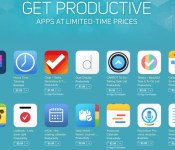
Apple Launches ‘Get Productive’ Promotion for iOS and Mac With Discounted Productivity Apps [iOS Blog]
Apple’s iOS and Mac App Stores were today updated with new “Get Productive” sections, offering discounted prices on many popular productivity apps for iOS devices and Macs.
In the iOS App Store, the 19 discounted apps include Fantastical 2 for iPhone and iPad, Workflow, Clear, Duet Display, Calendars 5, and more. Apps are available for up to 60 percent off their regular prices.

In the Mac App Store, there are 20 apps available at discounted prices up to 75 percent off, including popular offerings like Day One, Byword, iA Writer Pro, iTranslate, mSecure, iStudiez Pro, Notability, and more.
Apple has also named ProCam 2 as its App of the Week, and as a result, the camera and photo editing app is available at no cost, instead of at its regular $1.99 price. [Direct Link]
The iPad version of the app, ProCam XL 2 is also free. [Direct Link]
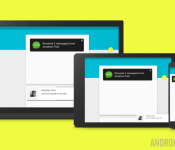
Android customization – Send SMS through your PC or WiFi tablet, app shootout

Last week in our Android customization series we took a look at how to push Android notifications to your computer screen using one of our favorite productivity apps, Pushbullet. As an extra, we tossed in that Pushbullet will let you handle your SMS right from your PC, so we wanted to take a look at a few other apps that can do the same for you.
In this mini app shootout, we will look at how to use Airdroid, DeskSMS, MightyText, MySMS and PushBullet to send and receive SMS through your computer and even from your WiFi only Tablet.
Before we get started
Today’s collection of apps vary in function and price. More importantly, some are made specifically to sync SMS between your PC and your Android phone, while others are designed for other purposes, but happen to be able to also tackle SMS.
Having installed all 5 on my device at the same time, I promise you, you are going to want to only try one or two at a time yourself. Things got a little crazy around here. Check out below what the apps have to offer, then I recommend grabbing the one that looks best to you.
Fair warning folks, we are skipping our usual in-depth step-by-step instructions today, instead, we’re cramming more apps in and looking at things from a general overview. But don’t worry, each of the apps has its own instructions that are easy enough to follow for these relatively easy to configure tools.
Airdroid


Airdroid is free in the Google Play Store. It offers a premium service for a monthly fee that provides access across networks and a few extras. But we don’t think you’ll need them.
Airdroid is an impressive productivity app, it allows you to do so much more than just send and receive SMS through your PC, allowing you to access files from your Android device and even take remote control of a few aspects of your Android gear. Airdroid has been mentioned a few times before here on the sight, most recently as a tool to remotely clear your microSD card before using Android Device Manager to factory reset your device.

To use Airdroid for your SMS, follow Airdroid’s fairly simple and bulletproof instructions on your phone to connect your PC to your Android device. From there, click into the Messages section of Airdroid on your PC and enjoy.
DeskSMS

DeskSMS is free in the Google Play Store. While the app may be free, the service will run a small fee to go beyond a short trial period.
DeskSMS is brought to you by Koushik Dutta, a popular Android app developer responsible for a number of unique and powerfully productive apps, such as Helium backup, Clockword Mod ROM manager and AllCast. DeskSMS is one of those apps specifically built to handle your SMS through the computer.
DeskSMS takes the approach of piggybacking on top of your other communication tools. In short, you send a chat or email message from your PC and it will translate into an SMS message through your Android device.
MightyText

MightyText is free in the Google Play Store, with no additional service fees. They’ve got a Chrome extension too.

MightyText is another popular app that is focus built for SMS management through your computer. MightyText focuses on handling your messages through a web browser, providing a web page for you to visit, from which all of your messages are synced between PC and Android device. Simply follow the setup instruction in the Android app and you’ll be up and running in a few clicks.
MySMS

MySMS is free in the Google Play Store. A premium option is available that brings sync across devices, backup into cloud services, export to a text file and more.

MySMS is another option that utilizes a web page to access and control your SMS off your Android phone. Startup the app and log in on your Android device, follow the instructions through and it will provide the local URL that you’ll need to access on your PC.
Pushbullet

PushBullet is free in the Google Play Store. Not only is there no extra fees to worry about, but Pushbullet offers APIs that allow you to build your own apps and programs to operate on their service.
Pushbullet, as we discussed last week, was originally designed to push files, URLs and more between your Android device and PC. As Pushbullet grew, and Android itself became more versatile, Pushbullet took on the ability to push your Android notifications to your PC and handle your SMS.

If you followed along last week, you’ve already got Pushbullet installed on device and the browser extension setup and rolling. There is nothing more to do here, Pushbullet on your PC will automatically handle SMS notifications in a way that allows you to respond to sender.
What’s next
Google Hangouts. The keen observer noticed that I did not include Hangouts in this list today. This was a tough decision, but ultimately it came down to the fact that Hangouts does not handle messages the same way as the others today. Hangouts is Google’s messaging service that melds together chat and SMS in one interface.

While Hangouts does bring SMS to your PC, for free, this is merely an available way to access the Hangouts tool. In contrast, each of the other apps today take your incoming SMS from your phone and have to convert them to a usable form for your PC. Bottom line, Hangouts works even when your Android phone is turned off, the others require your phone to be turned on and connected. Perhaps this makes Hangouts the best app for your needs, I just figured it was unfair to have it compete head on with the others today.
These are all great and popular apps in their own way. Some are built for SMS, some are not, but do a good job anyway. Either way, you are in good hands no matter which app you choose to run with.
Next week

We hope you find the SMS to PC app that suits your needs in this week’s Android customization post. Next week, we would like to revisit using voice commands to control your device, we’ll use Tasker to control the camera on your device, and throw in an Android Wear app to give you even more flexibility. That’s right, get both arms into your selfies, or be a part of that group photo without having to run for it.
The most important part of an app shootout like this is deciding which is the best. I am only a moderate user of SMS on a daily basis, and there is only one app on this list that I already use for other things – for me, Pushbullet will be my tool of choice (in addition to Hangouts, of course.) However, because the options all take a different approach to the task, we will need you to be the voice of reason here:
// <![CDATA[
(function () var opst = document.createElement('script'); var os_host = document.location.protocol == "https:" ? "https:" : "http:"; opst.type = 'text/javascript'; opst.async = true; opst.src = os_host + '//' + 'www.opinionstage.com/polls/2250086/embed.js'; (document.getElementsByTagName('head')[0] ());
// ]]>
Microsoft reportedly invests in Cyanogen Inc., world predictably freaks out

The Wall Street Journal today on its Digits blog dropped word that Microsoft is “putting money into Cyanogen.” No dollar amount figures were listed by the Journal’s anonymous sources, thought it is noted that Microsoft “would be a minority investor in a roughly $70 million round of equity financing.”
This, of course, means that Google is doomed and Android as we know it is over. The Internet said so shortly after the rumor broke.
Except that’s not what it means at all.

Tesla Model S is getting even quicker through a software update

If you didn’t think that Tesla’s Model S P85D was bonkers enough, you’re in for a treat. Elon Musk has revealed that the already speedy electric sedan is getting a software update that will improve its 0-60MPH acceleration time by a tenth of a second, to 3.1 seconds. That may not sound like much, but that makes the Model S as quick off the mark as McLaren’s MP4-12C supercar. The ‘regular’ P85 will also get a boost, Musk says, although it won’t be “quite as much.” No, this won’t be news to aftermarket tuners used to wringing out more performance through code, but it’s fun to think that a factory firmware upgrade could be the key to winning a drag race.
[Image credit: Free Photos, Flickr]
Tesla P85D 0 to 60mph acceleration will improve by ~0.1 sec soon via over-the-air software update to inverter algorithm
– Elon Musk (@elonmusk) January 29, 2015
Filed under: Transportation
Source: Elon Musk (Twitter 1), (2)

Chromecast dominates U.S. streaming, users have hit Cast 1 billion times

Google’s Chromecast costs only $35. At that price, people may assume the dongle is inferior to its competition. In reality, Chromecast is on the same level as other streaming devices. And today Google chief business officer Omid Kordestani pointed to a report from NPD Group that named Chromecast as the top selling streaming device in the United States. Holding the top spot in the United States should not be any surprise because of how low the price is to bring Chromecast home.
Kordestani announced a very impressive Chromecast statistic, too. In the near two years the device has been available, users have hit Cast one billion times. The milestone came last week. Also, Chromecast use has improved by 60% since launching in July 2013.
Come comment on this article: Chromecast dominates U.S. streaming, users have hit Cast 1 billion times
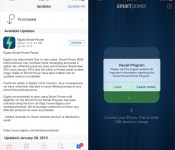
Elgato Recalls Some Smart Power Battery Packs Due to Overheating [iOS Blog]
Elgato recently announced that it is recalling some of its Smart Power 6000 mAh battery packs, as they can overheat while recharging. The company sent out notices to app users today, letting them know about the recall.

For those unfamiliar, the $99 Elgato Smart Power battery pack is a compact 6000 mAh external battery that integrated with an iOS app, a neat feature that allowed users to wireless monitor the charge level of the device and receive notifications when the battery was low or needed recharging. MacRumors went hands-on with the Smart Power back in December and found it’s app integration to be highly useful.

According to the company, affected Smart Power battery packs were sold between September 2014 and January 2015 and “fall within a limited serial number range.” Affected customers can check if their product is affected by entering their serial number on Elgato’s website.
Elgato has ceased selling the Smart Power until it can release an updated version, and all current owners of affected products will receive a full refund. The company recommends that users cease using their battery packs until they’re able to check whether they have a product with overheating issues, and Elgato also encourages all customers to return affected products “as soon as possible.”
Milk Music from Samsung comes to Galaxy Tab 4 and Note tablets
Milk Music was released last year as Samsung’s answer to music streaming, but it was only available on certain smartphones. Samsung today has announced that Milk Music is not available on the Galaxy Tab 4 and Galaxy Note tablet lineups.
The list of compatible Samsung devices is as follows (per the Milk Music Play Store listing):
Galaxy S® III
Galaxy Note® II
Galaxy S® 4
Galaxy Note® 3
Galaxy Mega™
Galaxy S® 4 mini
Galaxy S® 5
Galaxy S® III mini
Galaxy Note® 4
Galaxy Note® Edge
Galaxy Tab S®, Tab S Pro®, Note Pro® 12.2
Galaxy Note® 8.0
Galaxy Note® 10.1, Note® 10.1 (2014 Edition)
Galaxy Tab® 4 family
Galaxy Tab® 3 8.0, Tab® 3 10.1
Gear S Smartwatch
So as you can see, the Note tablets this is available on are the Note Pro 12.2, Note 8.0, Note 10.1, and the Note 10.1 (2014 Edition).
Milk Music was initially released as free to owners of various Samsung devices, but it now costs $3.99 per month along with the prerequisite of needing the aforementioned Samsung devices.
via Talk Android
The post Milk Music from Samsung comes to Galaxy Tab 4 and Note tablets appeared first on AndroidGuys.
Microsoft to reportedly invest in popular startup Cyanogen Inc.
The Wall Street Journal is reporting that Microsoft is to invest about $70 million dollars into Cyanogen Inc. Many of you I am sure are familiar with the popular ROM CyanogenMod project that was started by software developer Steve Kondik back in 2009 that went on to become a huge success. Cyanogen Inc. was created as a way to make the ROM more accessible to more people and runs CyanogenMod as its OS.
Though what makes this report so interesting, if it is in fact true, is that Microsoft would be investing directly in one of its competitors. CyanogenMod is still a modified version of Android which Microsoft has been competing with for quite some time using their Windows Phone mobile devices. The Wall Street Journal states that neither Microsoft or CyanogenMod replied to their inquires pertaining to the investment so we can only wait and see until things are made official or denied. For more information regarding Microsoft’s investment please use the link below.
Source: Wall Street Journal
The post Microsoft to reportedly invest in popular startup Cyanogen Inc. appeared first on AndroidGuys.

LG’s Optimus UI vs. Vanilla Android
When I received my first Android smartphone about six years ago, I remember how much I desired stock Android on my HTC Droid Eris. I badly wanted to root my device, but as a young teenager at the time, I thought it would have been better to not risk bricking a phone I wasn’t paying for.
Fast forward to today, and now I’m on my fourth phone, an LG G3. If there is one thing I got the device for, it was the RAM. My last phone, with its 1GB of memory, just got so painfully slow that I couldn’t stand using it after it had been powered on for a few hours. It couldn’t even playback music without it hiccuping constantly.
Of course, this phone could end up the same. I’ve barely owned it for a month, which is not nearly enough time to measure its stamina.
Anyway, I knew right away that I might be dealing with a lackluster skin in the Optimus UI when I bought the G3. I recalled reviews of LG’s previous devices circa 2011 to 2013 where its skin was criticized time after time. Regardless, I just wanted the power the device offered, and at $30 on Verizon at the time, I felt it was calling my name. I’ll just put a launcher on it, I thought.
While it is true that I did put a launcher on it (Google’s Now launcher to be exact, which makes the home screen like the current version of Android), I’d be lying if I said LG’s skin didn’t make improvements on this pseudo-UI of Lollipop and that I didn’t enjoy the interface as a whole.
Before I go on, I should be clear that that my statements of stock Android are based partially on the Google Now Launcher since my phone still has KitKat. Likewise, my descriptions of Optimus UI are based on Android 4.4.
With the Now Launcher, a Google Search widget is located at the top of the screen. For better or worse, it cannot be moved around or removed from the display. I rarely use it, but I do like its minimalist appearance.
Speaking of minimalism, the Now Launcher starts the user off with two home screens, one of which is reserved for Google Now. There’s nothing inherently wrong with this, although I find it surprising that I can’t add a blank home screen manually. In order to add another, there has to be at least one app or widget on it, and if you remove them, the screen deletes itself. I don’t use many displays (Typically, just three), but this seemed a little cramped to me especially with its use of non-re-sizable, large icons.

By the way, LG allows for easy customization of icons by long pressing them until a smaller icon of a paintbrush in the top right appears and tapping them once more in order to enter a menu to resize it or change its appearance. Some will immediately like this idea because while LG’s icons for its apps aren’t ugly in my eyes, the company has used some rather bland colors like for messaging. I can easily see people preferring Material Design’s vivid color palette.

Next, there is the app drawer, which has apps sorted in alphabetical order on an opaque, white background. At first, I found this a bit jarring coming from LG’s UI since that allows the user to group apps into folders and to access widgets. The only way to do that with the Now Launcher (and probably with a stock ROM I’m assuming) is to long press an empty area of the home screen and select the widgets option above the home button. Of course, that becomes more difficult with a screen filled with apps.


Based on what I’ve seen on notifications in Lollipop, I’d say Google’s vision is superior. On the G3’s lock screen, I can see indicators for missed phone calls and text messages but not for emails. In addition, I can’t see a preview of those messages as I could if I was using vanilla Android (Google gives an option to hide those previews as well). Filtering notifications for just the important ones through Priority mode also sounds like a plus to me as is turning off an app’s notifications entirely.

Nonetheless, I still do enjoy LG’s use of the panel. At the top, I can activate toggles for Wi-Fi, Data, Bluetooth, and so on (which can easily be moved around), change the screen brightness (and even turn on or off auto brightness), and control the volume.
I do see how this would be annoying for someone who receives a lot of notifications because almost half of the screen is taken up by these toggles. My Gmail and just one other notification can be seen before I have to start scrolling.

Honestly, I’m not sure about the practicality of the Recents carousel in Lollipop. I think it could be easier to accidentally swipe away or activate apps in this view, but I’m going to reserve judgement until I actually get Lollipop on my G3. Until then, I have no problem using the cards system of the recent apps tray.

LG has added a nice addition of being able to activate dual window mode, which is similar to Samsung’s Multi Window, from this tray. Admittedly, I haven’t used it much, but it was useful for when I wanted to keep listening to a YouTube video while responding to a message.
Both UIs feature battery saving modes. For Lollipop, a device’s battery life can be extended for up to 90 minutes. The estimated time left on the battery can be found in the battery settings, and the OS immediately lets you know when it will be fully charged once it is plugged in.
Optimus UI’s battery saver works starting at 30% of a full charge once it is turned on, but I question why power usage of the phone cannot be scaled back as soon as it comes off the charger. Again, I have not used Lollipop personally yet, but I assume its interface does allow this.
Moving on to security–This might be more of KitKat vs. Lollipop at this point–, Optimus UI gives the options to lock files in Gallery, encrypt the internal storage, encrypt the SD card storage, set up a SIM card lock, install apps from unknown sources, install credential certificates, etc.
I expect Lollipop to also have most of these options especially for encryption, installation, and credential certificates. Additionally, to not be outdone, Google promises that all new devices will be shipped with encryption already turned on. It hopes to increase protection against malware and other vulnerabilities by using SELenforcing for all apps. Lastly, a phone or tablet can be paired to a device the user trusts such as a smartwatch or a car.
Device Sharing is similar as well, except Lollipop can set up multiple users for a single device on top of guest mode.
Android 5.0 supports USB microphones, speakers, amplifiers, mixers, etc., OpenGL ES 3.1 for supposedly desktop- and console-like graphics performance, raw photographic formats like YUV and Bayer RAW, HVEC for UHD 4K video playback, and improved HLS support for streaming.
While KitKat and Optimus UI support 64-bit SoCs and native apps just like Lollipop, Lollipop is built on the ART runtime. This gives the UI four times the performance of stock KitKat and more compact background apps and services, leading to improved memory usage. This is not everything, of course. You can read more these features at the official Android page for Lollipop.
To wrap this up, LG has shown me that with its Optimus UI on the G3 that it has been listening to consumer feedback and has made an interface that is enjoyable for me in many ways. Sure, I may never use the IR remote control or Smart Bulletin, but I just don’t mind because the overall package is that great. Meanwhile, Google has demonstarted that while it has a vision of the OS that it wants the various manufacturers to follow, it has updated it with features that were used in the likes of Samsung and Motorola’s phones.
Ultimately, as someone who has not yet used Lollipop, I can’t make a conclusion about which is better. Although, I will say this. Based on what experiences I’ve had with Android and various UI up until this point, I don’t feel that desire to root and install a ROM of Lollipop. I was quite satisfied that my last device received KitKat a month or two before I retired it and had 4.2 Jelly Bean before that. Perhaps, because KitKat did not do much if anything for my phone that I began to unconsciously think of Android updates as not as significant performance-wise. Hoping for an update for the latest version also has fatigued me for at least five years now.
I’ve been satisfied for well over a year to have a relatively modern version of Android that can fit my needs of occasional browsing and reading, music streaming and native playback, and downloading any app for the Google Play Store. Yes, I’m still excited Lollipop is coming quite soon to my device, but I’ll wait as long as it takes.
FEATURED POSTS


The post LG’s Optimus UI vs. Vanilla Android appeared first on AndroidGuys.
 AIVAnet