



Rock a dual-screen setup on your MacBook with Mountie

Laptops are wonderful because they’re portable — you can work at your desk, you can work on a plane, you can work sprawled on your couch, you can work standing at a kitchen table. But with that freedom comes limitations: balancing a Stump Stand on your couch for your iPad or iPhone is doable, but not ideal.
Enter Mountie — the goofy gadget from Ten One Design I giggled over at first, but have grown to love.
Mountie’s goal is to take your iOS device out of your lap or cluttered table and attach it on your laptop screen: It’s a little plastic-and-rubber dongle that connects to a laptop bezel on one side; iPhone or iPad bezel with the other. I’ll be honest — when I first saw the initial advertising for Mountie, I laughed. Watch Netflix while you work? Okay, there’s a first world problem I hadn’t thought of.
But take away the silly reasons one could mount an iPhone or iPad to their laptop, and you’re left with a variety of quite compelling ones. Adding a second monitor using an app like Duet Display while on the go. Separating daily social tasks like Twitter and Facebook onto iOS while you save your work for OS X. Testing or prototyping applications as a developer. Saving table room when in a crowded workspace.

It’s the last one of those that I got first-hand experience with when taking Mountie for a test run. During the MIT Mystery Hunt, 35 teammates and friends of mine crammed into one classroom for 60 hours to solve puzzles; as you might expect, table space was pretty limited. I’d gotten my Mountie review unit in the mail that morning, and figured I might as well bring it along — and it ended up being one of the most useful gadgets I’d packed.
It helped that setting the Mountie up on my MacBook Air was simple as could be — just two plastic-and-rubber clips. The only thing I had a moment’s worth of difficulty over was figuring out which way to turn the device to properly mount it, but I solved that puzzle pretty quickly. (Hint: One of the rubber feet is bigger than the other. That one generally attaches to the thinner object, AKA your MacBook screen.)

Once attached, the Mountie gripped like a champ. It doesn’t slide down your screen, or feel in any way loose or compromising to your iOS devices. You can tap pretty hard on an attached iPhone 6 or iPad and not even feel any device shake. And since the mounting connections themselves are coated rubber, you don’t have to worry about accidentally scratching your screen.
Mountie achieves its tight lock on iPhones, iPads, and screens alike thanks to four removable rubber inserts; to swap mounts, all you have to do is slide the insert off the device and replace it with the insert best suited for your device. (You can check to see which of the included inserts you’ll need to swap in on Ten One’s website.)
You can mount iPhones or iPads in either portrait or landscape orientation, though I’ll say that I far preferred portrait when connecting them to my 11-inch MacBook Air; the Air is light enough that too much weight on its screen-side tends to make the laptop tip backwards if you’re not actively typing on it. Testing the same on a 13-inch Air and Pro, I had far less difficulty.

On an iPhone, the Mountie clasp does slightly cover one side of the screen when in portrait orientation, but it doesn’t interfere with multitouch gestures and I found it fairly easy to ignore while scrolling. In landscape, you’ll have no issues.
For those wondering about using a Mountie on desktop machines — say, an iMac? — it does work, though not as rigidly or nicely as on a MacBook. (And you’ll need a post-2012 iMac to make this work at all; the rubber feet don’t really fit on older models.) I also managed to clasp the Mountie on a 15-inch Windows laptop during the Mystery Hunt.
Bottom line
After two full days of using Mountie on my iPhone and iPad in a crowded environment, I was sold. I’ve been using it all the time in the days and weeks since, especially when working in non-desktop environs like a couch or plane. It’s an awesome little tool if you travel or like to work with your iOS device somewhere other than a desk, and I’d definitely suggest checking out Ten One’s website if you’re interested in learning more.
- Mountie – $25 – Buy now

iTunes Connect offline following login issues [Update: Back]

Update: iTunes Connect is now back online.
iTunes Connect, the portal Apple developers use to manage their apps, is currently offline. This follows several developers reporting login issues where they were presented with apps accounts not their own. That’s obviously an incredibly serious problem, as evident by iTunes Connect being taken down.
Apple is no doubt aware of the issue and we suspect iTunes Connect will be back online when the login issues have been resolved.
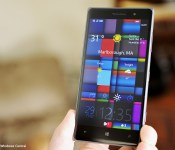
Microsoft’s Tetra Lockscreen for Windows Phone adds weather info with latest update

Tetra Lockscreen, the Windows Phone app that Microsoft launched a few months ago as part of its Microsoft Garage project, just got its first major update. It now displays local weather information along with some other additions and fixes.
Unfortunately, the app is still only for those in the US.
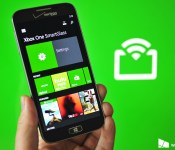
Xbox SmartGlass beta updated with TV streaming for Australia, shifts to Studios division

Microsoft has pushed out an update today for their SmartGlass beta app on Windows Phone. The update coincides with the recent rollout of OneGuide and Digital TV Tuner for Australia.
Additionally, the name of the publisher has shifted from Microsoft Corporation to Microsoft Studios. The transition of the publisher likely has to do with SmartGlass being folded into the new Xbox app for Windows 10. During our time last week at Microsoft’s event, we were told that SmartGlass indeed was going away as the Xbox universal app for Windows 10 makes SmartGlass functions redundant.


Evolve: Hunters Quest boils down first-person shooter to match-3, now available for Windows Phone

The fantastic upcoming first-person shooter Evolve is being reimagined for mobile as a match-3 Windows game called Hunters Quest, available for free today in the Windows and Windows Phone Store. As in the original, players are hunting a big, bad alien and have to work together to make sure they don’t become the prey. Over time, you earn ability mastery points in the mobile title that carry over to the full-fledged console game.

New BBM beta for BlackBerry offers landscape support, multiple picture transfer from the pictures app

Although this is a limited beta and not available to everyone right now, after many folks were upset that BBM on iOS got landscape support, I figured it was worth a mention that BlackBerry users haven’t been forgotten and it looks as though landscape support could be coming soon, assuming all goes well with the beta.

Miss the BlackBerry Enterprise Products and Services webcast? You can now watch the replay

Did you miss the BlackBerry Enterprise Products and Services webcast that was held on January 28th? If so, you can now watch the replay of the event. Principal Analyst Brian Bernard outlines the following BlackBerry Enterprise Products and Services and offers you invaluable insight into how they can amplify your business:

Disney Infinity Toy Box revamped with better graphics than ever
Version 2.0 of Disney’s Infinity Toy Box has come to iPad, leveraging the Metal API to offer exceptionally shiny graphics. The wide-ranging platforming game for iPhone and iPad includes level creation tools and a bunch of collectible heroes from Marvel and Disney.
Infinity Toy Box 2.0 is fully cross-platform so you can pick up where you left off on consoles and PC. Though separate from the original Infinity Toy Box, all of your previous progress is carried over.
Here’s a breakdown of what’s new in Disney Toy Box 2.0, for those interested.
- Try 3 Characters for Free – They rotate often, so check back to explore new characters and play styles.
- Build Toy Boxes Faster – New tools make it easier to create and customize your own worlds and games.
- Customize Your INteriors – Take it inside and theme rooms with Marvel & Disney characters.
-
Play With Friends – Connect online to play and build Toy Boxes together!
-
Free, IAPs – Download now

Watch the managing security threats in today’s Mobile Enterprise webcast replay

To go with the BlackBerry Enterprise Products and Services webcast, BlackBerry also hosted a ‘Managing security threats in today’s Mobile Enterprise webcast’ on January 27th, and if you missed out on that one you can now watch the replay. The event including the Q&A session lasts around 45 minutes and you can check out the overview below.
 AIVAnet