


Download 30 Texture Wallpapers

Enjoy a new batch of wallpapers ranging from wood, leather, camo and brick to give your screen the look you want. Download away, folks!


The post Download 30 Texture Wallpapers appeared first on AndroidGuys.
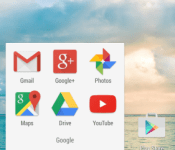
Devices with Jelly Bean and KitKat get Material Design with Google Now Launcher update

The majority of Android devices are not powered by the latest version of the operating system. Instead, it is Jelly Bean and KitKat running the show around the world. Google is doing the best it can to provide the benefits of Lollipop to those without it. For example, the Google Now Launcher has Material Design elements for Jelly Bean and KitKat devices. The elements include new animations (like when opening and closing apps) and a redesigned app launcher button. Also, Google Now itself has been improved with quick access to accounts and settings.
Hit the break for download links.
Come comment on this article: Devices with Jelly Bean and KitKat get Material Design with Google Now Launcher update

21 best Android games with no in app purchases

Freemium hit Android in a big way. In an atmosphere where developers were literally being destroyed by piracy, they needed to fight back and in-app purchases came into existence. This allowed them to make their games free and to slowly pluck money out of consumers’ pockets as they played. This turned into a serious cash cow for developers as in-app purchases now account for over 90% of all app and game revenue. However, even though in app purchases have slowed the lost flow of revenue from piracy, developers are still learning how to use them without offending all of us. For those who hate Freemium, there are still some developers who rock the old school model of pay-once. Here are the best Android games with no in app purchases.
 Baldur’s Gate, Baldur’s Gate II, and Icewind Dale
[Price: $9.99 each]
We grouped these three games together because they were all released by the same developer (Beamdog). All three titles are huge, immersive RPGs that were ported from PC to Android in 2014. They feature very long stories with complex game play and are sure to keep you busy for months upon months. The graphics are decent but not amazing because even by PC standards these games are pretty old. However, these are three of the better RPGs to grace PC and Android. It says that these games have in-app purchases but the purchases are nothing more than voice packs and other miscellany that has no effect whatsoever on the actual game.

 The Banner Saga
[Price: $9.99]
The Banner Saga is a strategy RPG developed by former members of BioWare. It features beautiful hand-drawn graphics, a deep story line that requires the gamer to make decisions that affect the story, and an easy learning curve. It’s inspired by Norse mythology and it happened to be a member of our best designed Android games of 2014. It’s a wonderful play if you like strategy RPGs.
 Doom & Destiny
[Price: Free / $0.99]
Doom & Destiny is another RPG title with a lot of content and no in app purchases. It uses retro style graphics similar to the SNES and NES RPGs of old and includes a 20-hour story line with 20 hours of additional stuff to do, turn based combat, 10,000 lines of dialogue, and hundreds of spells, items, and other things to collect. The $0.99 price tag makes this among the cheaper games on this list and there is even a free version you can pick up with advertising.
 Five Nights at Freddy’s 1 and 2
[Price: $2.99 each]
Five Nights at Freddy’s 1 and 2 are horror games. You play as a security guard who has to keep watch over possessed animatronics in a pizzeria. If you don’t do a good enough job (or disguise yourself in the 2nd one), they’ll get you. These games are strangely terrifying and were two of the best games released in 2014. They’re also fairly cheap and the game play is easy to learn.
 Goat Simulator
[Price: $4.99]
A lot of people don’t like Goat Simulator because it is, at its core, an intentionally unfinished piece of buggy garbage. However, if you have a sense of humor, this game can be quite a bit of fun. You control a goat as you do goat things like exploding and flying through the air as though you were shot out of a cannon. The frequent bugs and glitches are the game’s biggest draw and it’s a goofy way to spend a couple of hours.
 Grand Theft Auto III, Vice City, and San Andreas
[Price: $4.99, $4.99, and $6.99 respectively]
Rockstar has had great success in porting their Grand Theft Auto series to mobile. In fact, San Andreas won our best game of 2013 award. These games are huge and provide dozens of hours of game play. You can drive around doing whatever you want or follow the story, the choice is yours. The graphics aren’t amazing but they’re not terrible either. The only unfortunate part is the earlier Grand Theft Auto games suffer from some bugs here and there which have angered many people. In any case, make sure you try them before the two hour refund time in Google Play in case you don’t like them.

 Ingress
[Price: Free]
Ingress is a GPS-based strategy game where you must choose sides, build up portals, and hack the portals of the other team. The entire world is your playing field and aside from Wii Fit, this game is probably more responsible for getting nerds off the couch and out exercising than any other game. There is also a scavenger hunt features called Missions where you go on missions to find things and explore the city. It’s a lot of fun and one of the more unique games available anywhere.
 A whole bunch of LEGO games
[Price: Free]
LEGO has led a solo effort in making free to play games with no in app purchases that are actually somewhat decent. Altogether, they have 29 games that are all free with no in app purchases. These are great for kids because LEGOs are about as offensive as tomato soup and they have released a good variety of games. There’s a fashion game, a hack and slash game, and many, many others. You’ll have to try them out for yourself to see if there are any that you like and some are definitely better than others. It’s a good option for pretty much anyone who doesn’t hate LEGOs or LEGO games.

 Leo’s Fortune
[Price: $2.99]
Leo’s Fortune is a beautifully done platformer that first saw the light of day at Google I/O 2014. It features simple controls, crisp and colorful graphics, and an actual story. Along with the game play, you can also complete levels in a certain time frame and do so without being hit to earn additional stars and achievements through Google Play Games services. It’s one of the best 2D platformers ever designed on any platform.
 Machinarium
[Price: $4.99]
Machinarium was one of the first truly great puzzle games on Android. It features a little robot that you control and you must move about your environment finding items and using them to solve puzzles. It’s been remastered once since its release and includes Google Play Games services, cloud saving, and improved graphics. It’ll be among the first wave of games on Android to be considered “classics” and $4.99 isn’t a bad price for it.
 Minecraft Pocket Edition
[Price: $6.99]
Minecraft Pocket Edition is the Android version of the very popular Minecraft game. It features pretty much all of the fun, exploration, and enjoyment of the PC and console versions but you can carry it around in your pocket. It’s been a long time favorite title for Android gamers and has adorned the top paid games list for very large parts of the last two years. It also includes local multiplayer which is a nice touch.
 Osmos HD
[Price: $2.99]
Osmos HD is an atmospheric puzzle game where you play as a little mote. Your job is to absorb smaller motes in order to become bigger and eventually become the biggest. In some levels you must absorb special motes that act in different ways. The levels are challenging, the graphics are crisp and colorful, and there is even multiplayer support if you want that. It was one of the best designed games of 2013 and remains one of the best games available today.
 Out There
[Price: $3.99]
Out There is a hybrid of a survival game and a sim game. It brings with it some very challenging game play, google play games achievements, three different endings, and a truly unique and fun premise. You play as an astronaut who awakens from cryonics somewhere deep in the vastness of space. You have to survive, keep your oxygen levels up, and rebuild your ship while dealing with aliens who don’t speak as you speak. It’s entertaining, difficult, and a game that’ll keep you busy for a while.
 Pool Break Pro
[Price: Free]
If you’re looking for something a little more leisure, then Pool Break Pro is worth a try. It lets you play some billiards using a number of different rules on a variety of different tables. You can also play Snooker, Carrom, Crokinole, and other games with sticks, balls, and a table. There is a multiplayer available if you choose to use it and your moves go back and forth like chess so you can pick it up and play when you have time. It’s the best billiards game on Android and it doesn’t have in app purchases.

 The Room 1 and 2
[Price: $0.99 and $2.99 respectively]
The Room 1 and 2 are puzzle games with a unique premise and some amazing graphics. Each item in each room is a puzzle within a puzzle within a puzzle. In the background of all of these puzzles is an arcane and dark story line that revolves around the supernatural. The overall feel and atmosphere of the games is dark and the puzzles are very well done. The only downside is the length because these games are pretty short but that shouldn’t stop you from checking them out. It’s only a few bucks.
 Shadowrun Returns and Shadowrun: Dragonfall
[Price: $2.99 and $6.99 respectively]
The Shadowrun series of games are a part of a much larger line of products that dates back to a tabletop RPG game first released in 1987. Along with a rich history, you’ll get decent graphics and game play mechanics that are easy to learn. These are both strategy RPG titles that mix steampunk and fantasy elements to create a machines and magic universe that is just delightful to play in. On top of taking part in a series of games that have had a loyal fanbase for the better part of two decades, you’ll also get a couple of pretty good games.
 A whole bunch of Square Enix games
[Price: Varies]
Square Enix has released a good percentage of their early game library to Android. The re-releases include Final Fantasy 1, 2, 3, 4, 5, and 6 along with various Dragon Quest games, Chrono Trigger, and Secret of Mana. The best part is that these games remain untainted from their earliest days aside from a graphical boost here and there. The other best part is that none of them have in-app purchases. They can get kind of expensive but these are all games with tons of game play, deep stories, some of the best video game music of all time, and lasting value. The button will take you to Square Enix’s developer page on Google Play where you can browse all of their titles. Do beware, there are some Square Enix games that do have in app purchases but none that we just mentioned do.
 Star Wars: Knights of the Old Republic
[Price: $4.99]
Star Wars: Knights of the Old Republic (KOTOR) is an old PC RPG that took the world by storm. It allowed you to make decisions that affected the outcome of the game and let you play how you wanted. It helped start a trend that continues today with games like Fallout: New Vegas where you can pretty much create the story. This is a full port and has not been scaled down in any way from its original PC version which is just fantastic. For RPG fans, it’s a must-have.

 Surgeon Simulator
[Price: Free]
Surgeon Simulator is another satirical game much like Goat Simulator. In this game, you kind of play Operation but the intention is to lose. This can be accomplished by abusing the life out of your patient with various machines and tools of destruction and you can play as a doctor or a dentist. It’s meant to be humorous and that means how entertaining this game is depends heavily on your sense of humor. It’s pretty goofy and we can all agree on at least one thing: poor Bob.
 World of Goo
[Price: $4.99]
World of Goo is a puzzle game where you must connect little pieces of goo to reach a destination. The challenge comes with the physics of the game which drag you down combined with the limited number of goo bits you have to build with. The game is well designed with muted colors and tricky game play. There are a ton of levels to play and after a while, you can play in free-build mode where you simply aim to build the tallest tower of goo that you possibly can. It’s a lot of fun even if $4.99 is a tad expensive.
 XCOM: Enemy Within
[Price: $12.99]
XCOM: Enemy Within is a strategy game that was ported to Android from PC in 2014. It features graphics that are far above average for mobile, gripping game play, and tons of stuff to do. You play as humans as you research alien technology and use it to defeat the alien invaders. This is actually a continuation of an earlier release called XCOM: Enemy Unknown with more abilities, more missions to do, and more. There is a multiplayer option if you want to try your tactics online.

Wrap up
If we missed any great games with no in app purchses, let us know in the comments!
To see our complete list of Android apps and games lists, click here!

High-end Mac mini gets 2TB Fusion Drive option

Fans of the Mac mini may have been a tad disappointed with last year’s refresh, but it looks like Apple is looking to rectify that. According to a new report, the company has added the option to purchase a 2TB configuration of the 2.8GHz version of the mini.
The new option was spotted by 9to5Mac, and appears to have popped up sometime over the holidays:
According to our digging into web archives, the 2TB option returned for the priciest Mac mini model in mid-December, right around the Christmas holidays. The 2TB Fusion Drive upgrade costs a $100 more than the 1TB drive, and it requires the machine to be built-to-order.
This is definitely good news for those who may have felt a little claustrophobic with a maximum of 1TB of wiggle room on the refreshed model.
Give your bike a sense of direction with these smart handlebars

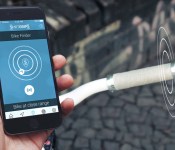
There haven’t been a lot of elegant ways to add navigation to your bike — unless you have access to prototype bikes, you’re probably stuck mounting a GPS unit or smartphone that might take your eyes off the road. That’s where Boreal Bikes’ crowdfunded smrtGRiPS project might just come in handy. These install-it-yourself handlebar ends pair with your smartphone to give you directions, whether or not you’re on the bike. While you’re riding, the grips will shake for imminent turns or traffic problems. They’ll also help you find your wheels, and you’ll even get separation alerts if you’re traveling with another smrtGRiPS-touting cyclist.
It won’t cost too much to give your bike some smarts, at least if you act early. You’ll need to pledge between $59 and $69 to get both a pair of smrtGRiPS devices and a basic set of replacement grips, and there are both slender and sporty grips ($18 and $23 respectively) to match your transportation style. Should everything go according to plan, you’ll get your upgrade just in time for those summer biking expeditions in July or August. And if you can’t wait that long, you can always hoof it.
Filed under: Peripherals, Transportation
Via: Wired
Source: Indiegogo

Belkin Plans to Add HomeKit Support to WeMo Line in ‘Very Near Future’ [iOS Blog]
Belkin’s WeMo line, which consists of a range of home automation products like light switches, motion sensors, cameras, and more, has been around a few years, but the company has been dedicated to updating it and adding new products on a regular basis.
It appears that the WeMo line’s next major update could be the addition of HomeKit support, letting the complete range of products integrate with Apple’s upcoming home automation platform. Speaking to MacObserver, a Belkin spokesperson confirmed that the company is committed to introducing HomeKit support, which will come in “the very near future.”
WeMo will continue to evolve as we deliver on our promise of being the most approachable entry point to the connected home, and it is a natural progression based on Belkin’s long-term partnership with Apple that compatibility with HomeKit will be a part of that evolution.
We are currently in conversations with Apple, but no specifics have been finalized at this point. Though our primary goal will always be to create a robust WeMo platform and unparalleled user experience for both current and future WeMo users, we are actively engaged in bringing HomeKit compatibility to fruition in the very near future. Stay tuned.
Belkin was one of the first accessory companies to embrace home automation, and its wide collection of connected products will likely help skyrocket HomeKit to popularity once it becomes available. Belkin started out with a line of connected WeMo switches that allowed any electronic item plugged into them to be controlled by a mobile device, but has since expanded to light bulbs, slow cookers, humidifiers, coffee pots, cameras, motion detectors, and more. There’s even a WeMo Maker that can be used by do-it-yourselfers to for a wide range of connected home projects.
 Belkin’s newest WeMo products
This January, Belkin debuted several new WeMo products, including a WeMo Door and Window sensor, a Keychain sensor, an improved motion detector, and an Alarm sensor that alerts users when an existing home alarm goes off.
Belkin has even bigger plans for home automation in the future. At CES this year, the company was demoing a smart home system that included an under-the-sink WeMo Water sensor designed to measure a home’s water usage, and Belkin told MacRumors that a similar product for measuring power usage was in the works.
Quite a few companies have announced plans to integrate with Apple’s HomeKit, including iDevices, Elgato, Schlage, and more, but Belkin is one of the largest. At the current point in time, it seems that Apple is still putting the finishing touches on its HomeKit tools with chips just beginning to ship out in November, so it may be a few months yet before we begin seeing the first HomeKit-compatible products hitting store shelves.
Xolo to push out Lollipop update for the One starting Friday, January 16

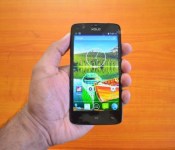
Keeping the promise it made back in October and to entice new customers, Xolo announced earlier today that it will begin pushing out the much-anticipated Android 5.0 Lollipop update to all unlocked variants of its first budget-friendly smartphone, the One, starting Friday, January 16.
“Having a dedicated software team is one of the key factors behind rolling out the Lollipop update ahead of other players. We have sold around 2,00,000 units of Xolo One smartphone since its launch in October last year. The acceptance of this device is too high and with the upgrade coming in, there will be more people interested in buying this device. The update will be an advantage with us,” writes Sunil Raina, Head of Business at Xolo.
For those unaware, the Lollipop upgrade brings support for multiple accounts, improved notifications, a smoother multitasking experience and the recently-announced Material Design guidelines.
The full changelog can be seen below:
Material Design: You will quickly notice a whole new colorful look and feel to your device – from fluid animations to new application and system themes, colors and widgets.
Notifications UI & Priorities: In order to alert you to the most timely and relevant information, the format and behavior of notifications have evolved:
- notifications will appear on the lock screen and are intelligently ranked by type and who sent them.
- you double-tap to open one, swipe left or right to clear one, or clear all notifications from the bottom of the list.
- you can set the priority and privacy of notifications for each application.
- very high priority notifications will pop up briefly over other applications so that you can take action.
- when you dismiss a notification on one device it will be dismissed on your other Android devices, if they are connected to the Internet.
- you can further tailor how notifications behave with the new Downtime and Ambient Display settings (see below).
New Interruptions & Downtime Settings: You can tailor how interruptions behave, choosing to allow all, none, or only priority interruptions. You can personalize what counts as a priority interruption (reminders, events, calls, messages) and even tailor them to be from only contacts you specify. The Downtime setting will allow only priority interruptions during the times and days that you specify. e.g. allow only priority interruptions on the weekend.
Recent Apps (Multi-tasking): The redesigned Overview space (formerly called Recents) will include both applications and separate activities within those applications. For instance, each open tab in Chrome will also appear here along with recent applications; both your Gmail Inbox and a draft email message will appear as separate cards. This provides a consistent way to switch amongst tasks.
Ambient Display: While your phone’s display is off, Ambient Display can show notifications without turning on the full display. This will be triggered when a notification arrives. You will see notifications similar to that shown on the lock screen. You can turn this feature on in the Display menu in Settings, and note that it will increase the power consumption of your device.
Motorola Assist and Downtime: Motorola Assist integrates the new Downtime settings to control when you don’t want to be disturbed. Motorola Assist also now uses the new Interruptions settings so that you can customize exceptions, such as letting only people on your starred contacts list get through.
Flashlight: Lollipop includes a new flashlight option as part of Quick settings (swipe down with two fingers from the status bar to see it).
Share your Device: You can now set up multiple user accounts on your phone. Guest mode is enabled by default. You can give calling and text privileges to other users of your device, or restrict them as you like in the Users menu under Settings. Note that the personalized Motorola experiences (Motorola Assist, Motorola Connect) are for the owner account only. The Motorola Camera, Motorola Gallery, and Motorola FM Radio applications support multiple user accounts.
Pin a view/app: Screen pinning allows you to keep a specific app or screen in view. For example, you can ‘pin’ a game and your child will not be able to navigate anywhere else on your phone.
Battery: The Battery settings panel now shows an estimated projection for how much time you have left while discharging or charging. You can also enable a new battery saver mode that will save power by reducing performance and most background data operations to extend your battery life.
Smarter Internet Connections: With Android Lollipop, your phone will not connect to a Wi-Fi access point unless there is a verified Internet connection. This feature improves hand-offs between Wi-Fi and cellular connections, helping to maintain your video chat or voice-over-IP (VoIP) call as you switch.
Performance: Your phone now uses the new Android Runtime to help optimize application performance. After upgrading to Lollipop, your applications will undergo a one-time optimization process. Note that the optimization for ART requires more space.
Smart Lock (Trusted Devices): Android Lollipop adds native support for allowing trusted devices to keep your phone unlocked (such as your Moto 360, a Bluetooth car kit or headset, etc.). Smart Lock replaces the prior trusted device capability in your Motorola phone. Note that you will need to add your trusted devices back after the transition to Lollipop in the Security settings menu under Smart Lock.
Security: Encryption can now use a stronger 256-bit key to help protect your data. Note that the stronger key willonly be used after you perform a factory reset on Android Lollipop. Otherwise encryption will continue to use 128-bit key. You can turn on encryption in the Security settings menu.
Come comment on this article: Xolo to push out Lollipop update for the One starting Friday, January 16
Google Now Launcher update now offers Lollipop design to older devices

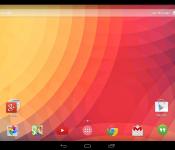
Here’s some great news for fans of pure Android, especially those who are afraid of rooting their devices. The Google Now Launcher, made directly by Google, now brings a Lollipop look to every device running at least Android 4.1 Jelly Bean.
It’s completely the same as stock Lollipop with the exception that the left-most home screen is Google Now. Therefore, swiping to the far left allows you to view cards related to your searches, your location, recommended websites, favorite sports teams, stocks, and so forth. You can even use voice commands on this screen.
Android Central notes that the only downside of the launcher is the lack of customization seen on other launchers. However, it adds that the Google Launcher offers high stability, Material Design, and the vanilla Android experience. You can get it in the link below.
FEATURED POSTS


The post Google Now Launcher update now offers Lollipop design to older devices appeared first on AndroidGuys.
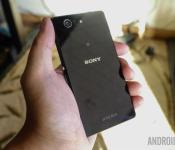
8 common problems with the Sony Xperia Z3 Compact and how to fix them
The Sony Xperia Z3 Compact is an amazing high-end smartphone that meets the requirement of those users who prefer a smaller display size and form factor, without a compromise on features and specifications. Sony’s signature design language, powerful camera, and the best processing package of the time are all key features of the Xperia Z3 Compact. However, like many other smartphones on the market today, there are a few issues with the Xperia Z3 Compact that users have faced. Today, we’re going to be taking a look at a few of these common problems, and providing potential solutions on how to fix them.
Disclaimer: Not every user of the Sony Xperia Z3 Compact will face these issues, and it is quite likely that you won’t come across any of the problems listed below.
Problem #1 – Build quality issues

Owners of the Xperia Z3 Compact have complained about the rear and front glass cracking, waterproofing failing to work, and flaps refusing to close properly.
Potential Solutions:
- Use a screen protector to keep your front glass from cracking.
- Use a protective case that covers both the front and the back of the phone for extra security.
Problem #2 – Bad audio quality and low volume.

A number of users have reported problems with low volume and bad audio quality.
Potential solutions:
- Attempt to repair the firmware by using the PC Companion
- Use Google Play Music to adjust the equalizer. The default configuration for the Xperia Z3 Compact speakers is quite poor, so you may need to turn the mid-range frequency up quite high to improve volume.
Problem #3 – Issues connecting to Wi-Fi

Many Xperia Z3 Compact users have complained about struggling to connect to a network.
Potential Solutions:
- Make sure that Stamina mode isn’t switched on. Settings – Power management – Stamina mode.
- Go into Settings – Wi-Fi and check the box to keep Wi-Fi on during sleep.
- Ensure the software for the phone is updated by going to Settings – About phone – Software updates – system updates
- Make sure that the router firmware is up to date.
- Go to Settings- Wi-Fi and hold your finger over your preferred network. Select Modify network – advanced options then select the box for “Static”.
- Make sure that all of the details entered are correct.
- Find the Wi-Fi MAC address for the phone and ensure it is recognized by your router. Settings – About phone – Status – Wi-Fi MAC address.
Problem #4 – Dead pixels on the screen

A few users have complained that they begin to see dead pixels on their Xperia Z3 Compact screen, either immediately, or after using the phone for a while.
Potential Solutions:
- Try adjusting the brightness on the phone to attempt to burn away unresponsive pixels.
- Restart the phone to see whether the issue persists
- Factory reset the device
- Use the Dead Pixel Detectto potentially discover and fix the problem
Problem #5 –Battery life drains quickly

A lot of users of the Xperia Z3 Compact feel that the battery drains too quickly.
Potential solutions:
- Make sure things like mobile data, Wi-Fi, Bluetooth, and NFC are turned off when not in use.
- Check which applications may be consuming excessive amounts of power and delete the ones that you don’t need.
- Lower the speaker/ringer volume or turn off vibrate.
- Reduce the brightness of the screen
- Go to Settings – Power management and turn on Stamina mode
- Avoid using games or the camera application when the battery is low.
- Make sure that the phone is up to date by going to Settings – Device – System updates
Problem #6 – Issues swiping between screens

Some consumers have reported problems with attempting to swipe between pages in applications and on their home screen. Swiping to unlock is also a problem, and many users have to attempt the process four or more times for it to work.
Potential Solutions:
- Make sure that “Glove mode” in Settings is not switched on (though this should make the screen more sensitive, instead of less).
- Turn “Double tap to wake” off and on.
- Try taking off any screen-protectors that have been applied to the glass of your phone.
- Make sure that the phone is completely dry, this includes wiping away any condensation.
- Download and use Nova launcher instead of the regular home application.
- Go to Settings – Power Management – Stamina Mode and select “Extended usage”. This lowers the speed of the processor.
- Keep up to date with any software patches or improvements.
Problem #7 – Overly sensitive touchscreen

Some users have commented that they struggle with over-sensitive touchscreens, especially during fast scrolling. The screen often seems to bounce or move erratically.
Potential Solutions:
- Make sure that glove mode is not enabled.
- Go to Developer options and enable “Show touches”.Test the screen a couple of times, then turn the option off again.
- Use a screen protector that is fingerprint resistant
- Go into Settings – Apps – Running apps and force stop com.sonymobile.touchscreen.touchfilter.tfpss.
Problem #8 – Speed-dial doesn’t work

Many Xperia Z3 Compact users have complained that they cannot get the speed-dial feature to function on their phone.
Potential Solutions:
- Backup any important data and factory reset the phone (find instructions on how to do this below).
- Try out some different dialling applications from Google Play Store.
Those were some of the most frequent problems that users have been having with the Sony Xperia Z3 Compact. If you’ve been a victim of one of these issues, then make sure to tell us whether our solutions helped. We’ll do our best to keep this list updated as more issues make themselves known.
SEE ALSO: Sony Xperia Z3 Compact Review
Following are the guides to force-restart, force-shut-down, and factory reset the Xperia Z3 Compact.
Force Restart:
- Hold down the Power key
- When a menu opens tap Restart
- Tap “Okay” to confirm
- The device should restart itself automatically
Force shut down:
- Detach the nano SIM card cover
- Use the tip of a pen to press down and hold the OFF button
- Wait for the device to vibrate, then release the button
Factory Data Reset:
- Backup any crucial data on external memory
- Tap the icon on your home screen that looks like two lines of three dots
- Go to Settings – Backup and Reset – Factory data reset
- Tap “Reset phone”.
- Enter any required PIN code
- Confirm by tapping Erase everything.
This week’s sidebar poll: are you using Chromebooks?

Chromebooks, Chromebooks, everywhere…
Chromebooks have come a long way this year. We’ve gotten both bigger, beefier Chromebooks and lighter, thinner, fanless Chromebooks. We can do more with Chromebooks now, including using Adobe Photoshop and even running Linux in a window if we’re feeling adventurous. And Chromebooks aren’t just making strides for consumers, as more businesses and more school districts ditch Windows — and iPads — for Google’s vehicle for web content and Google Apps for Education.
But the real question we have for you today is… do you even use one?
 AIVAnet