


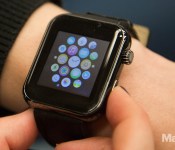
Chinese Company Hyperdon Sold Fake Apple Watches at CES
While Apple is rumored to be aiming for March as the launch month for the Apple Watch, Chinese company Hyperdon was at CES selling fake versions of the new Apple product called Smart Watch, according to Mashable.
 Fake Apple Watch known as the Hyperdon Smart Watch. Image via Mashable
The watch’s screen only displays when it’s turned on, and many of its icons are blatant ripoffs of Apple designs. The pairing process took a few tries, but once connected to my iPhone 6, I was able to make phone calls and play music through the watch. It even vibrates when I get a call.
Mashable was able to purchase the watch for $27. It comes with a pedometer, stopwatch, alarm and a feature referred to as “Anti lost”, which Mashable estimated could be used to alert a user to when the watch is out of Bluetooth range.
The Smart Watch also has notifications from WeChat and other apps, but it requires downloading a “sketchy-looking APK” that appears to only work with jailbroken iPhones. It charges via USB cable and Hyperdon claims it can last for “up to 180 hours”. Mashable was not able to test this claim. Hyperdon says it sells its products in retail stores in the U.S. and China, but did not detail where its locations are.
Apple has continually suffered from counterfeit Apple products in China, with authorities breaking up counterfeit iPhone rings and shutting down fake Apple Stores.
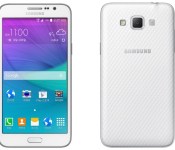
Samsung Galaxy Grand Max launches in South Korea, Galaxy A7 to debut in Malaysia

Following the launch of Samsung’s new mid-range Galaxy E5 and E7 handsets in India a couple of days ago, the smartphone giant is ready to launch its Galaxy Grand Max in South Korea. The extensively rumored Galaxy A7 also looks to be reaching its official launch, which will take place in Malaysia.
First up, the Galaxy Grand Max (pictured above) is scheduled to go on sale in South Korea on January 9th. The hardware is pretty much what we expected after last week’s leak. The Grand Max comes with a 5.25-inch HD (720p) display, 1.2GHz quad-core processor, 1.5GB RAM, 2500mAh battery and supports Category 4 LTE speeds of 150Mbps. The handset also comes with a 13MP rear camera and an interesting 5MP front snapper with a 120 degree viewing angle for “wide self-shots”.
The Galaxy Grand Max also has a quilted pattern on its back cover, which may or may not win you over. The handset is priced at 319,000 Korean Won ($290) and will be sold through Samsung’s online store and three unspecified Malaysian carriers.
Next up, Samsung’s Galaxy A series, which launched in the US just last week, has now also arrived in Malaysia. At the launch event, the illusive and still unofficial Galaxy A7 also made an appearance and will apparently go on sale in the country in February, although pricing details have not been announced.
The actual specifications on display are a mishmash of the various rumors that have trickled out over the past few months. The Galaxy A7 is indeed a larger 5.5-inch smartphone, featuring a Full HD display and Snapdragon 615 processor. The device supports 4G LTE and is said to come with 16GB of internal memory and a 2,600mAh battery.
Here are a few snaps taken at the Malaysian launch event.


What do you make of Samsung’s expanding product line-up? Have either of these two handsets caught your interest?

SwiftKey wraps up a huge year with big plans for themes

The folks at SwiftKey had an absolutely huge 2014, filled with users all around the world who have no idea how they managed to use a smartphone before this app existed. Not only is SwiftKey a big deal with Android users, but with iOS 8 opening the doors to third party keyboard the app quickly rose above the rest. When you add those users to the impressive accomplishment of working with Stephen Hawking to create a better language system for his chair, huge is the only way to describe the last year. It’ll be hard to top those accomplishments in 2015, but according to SwiftKey VP Rhodri Thomas a big part of this coming year is going to be more third party themes for their keyboard.
Given how incredibly popular the Frozen keyboards have been, there’s no doubt we’ll see keyboard themes for all kind of pop culture this year. I’ll take a Walking Dead board, how about you?

Raise fiery beasts (literally) in Gameloft’s Dragon Mania Legends

Another game from Gameloft is upon us and this time players are tasked with breeding and raising dragons. Dragon Mania Legends, which is free-to-play with in-app purchases, is all about rebuilding Dragolandia. Players choose from over one hundred species to ready for battle. Aside from playing against the computer, players can battle friends to win prizes. The entire setup of a battle is based on a 3-on-3 system. All of this is to finish as the Dragon Lord, having successfully raised dragons and defeated opponents.
Hit the break for the trailer, gallery, and download links.
Click here to view the embedded video.


Come comment on this article: Raise fiery beasts (literally) in Gameloft’s Dragon Mania Legends

CyanogenMod officially supports the Nexus 6 and LG G3 [D855]

Up until now, the only way you could get CyanogenMod on your Nexus 6 and LG G3 were downloading custom ROMs that were ported over. While these ROMs were very stable and efficient, they aren’t official. As of yesterday, Cyanogen has officially announced support for those two devices.
The Nexus 6 and the LG G3 (D855) will be receiving CyanogenMod nightlies, meaning the ROMs will be updated everyday. While this great for users, we should warn you that these ROMs are still in their infancy, meaning they aren’t the most stable. Just make sure you know what you’re getting yourself into when you are flashing new ROMs and make sure to backup your stock one. Also, the nightlies for the G3 are only on the international version. If you try to install on a device that isn’t international, you might brick your device.
CyanogenMod Nightlies
Source: CyanogenMod | Via: Cult of Android

The post CyanogenMod officially supports the Nexus 6 and LG G3 [D855] appeared first on AndroidGuys.
Android customization – Device security, intrusion detection using Tasker

Last week in our Android customization series, we looked at clearing device cache and wiping out the somewhat overloaded photo thumbnail cache on your Android device. These actions will be valuable if you follow along today.
Today we are looking at creating custom device security using Tasker, the idea is simple, we’ll show you how to make your device take a photo of any person accessing your phone. As a bonus, we’ll make sure the device location is saved in the name of the image file.
Before we get started
 To follow along today, you’ll need to have Tasker installed on your device. Tasker is $2.99 in the Google Play Store. Further, you are going to want to have a device with a front facing camera, but we can get by without, if you need.
Keep track of who is accessing your Android device
Let me explain again what we are up to, we are looking at security here today. We want to capture an image of anyone that turns on the display of your device. Then we save the current GPS coordinates, as well as the date and time, as a part of the image file name.

Let’s do this. Open up Tasker and head to the Tasks tab. We will start by creating a variable that includes the device location, then we’ll take the photo.
Create a new Task, name it concisely and uniquely, I’ll call mine “SecurityPic“.
Tap the “+” button to add a new Action.

Select Variables.
Select Variable Set.
In the Name field, create a local variable to the GPS coordinates. I entered “%securegps“.
In the To field, tap the label icon and look for Location, or just enter “%LOC“.
Tap the system Back button to save and exit.
Truth is, only storing the GPS location in the variable is a bit of a waste. I used a variable here so that you can easily include more information in your save file. Tasker will cover the date and time, but you may add battery level, keylock status, and so much more.
Tap the “+” button to add your next Action.

Select Media.
Select Take Photo.
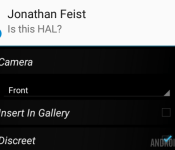
Under Camera, choose Front.
Under Filename, tap the labels icon and choose your location variable. Or just enter it manually, mine was “%securegps“.
Under Naming Sequence, choose Chronological. This is where it adds the date and time.
De-select the check box to turn off Insert In Gallery.
Select the check box to turn on Discreet. This makes it so that the photo app does not display on the screen, taking the photo in the background.
Feel free to change the Resolution if you desire.
If you see the option called Flash Mode, I suggest turning it off.
Hit the system Back button to save and exit, then hit it again to exit out of the Task.

Now that we have our Task in place, we need to decide how and when to use it. That is a simple decision based on the goal of our project today. So, head on over to the Profiles tab so we can set the trigger for our picture taking Task.
Tap the “+” to add a new Profile.
Name it uniquely and concisely, I called mine “SecurityCam“.

Select Event.
Select Display.
Select Display On. (You could select Display Unlocked, if you suspect your device is being accessed by someone who knows your unlock code/pin/pattern.)
Tap the system back button to save and exit.
From the list of available Tasks, choose your security cam Task, mine was called “SecurityPic“.
That is all there is too it. From here on out whenever your device is turned on (or unlocked) your device will take a quick snapshot of the user accessing it. These photos will be saved in the DCIM/Tasker folder. So be sure to head in there frequently to clean out, if needed.
What’s next
This is obviously not a great Tasker Profile to have running full time, unless you like to see hundreds of awkward photos of yourself, so we should look at creating a trigger to turn on the Profile when needed.
For these purposes, I would like to use a SMS trigger. This really should be a tutorial all its own, but let’s do it.

Create a new Task, name it something like “StartSecurityCam“. Create your task, hit the “+” button, choose Tasker -> Profile Status, tap the label icon beside Name and choose your SecurityCam Profile. Set Set to On. You’re finished here.

Create your Profile, name it as needed. Select Event -> Phone -> Received Text. Although you can mess with the details here, I would recommend simply entering a secret code into the Content field. Keep in mind that if your phone is lost and in the hands of an intruder, they will see this message, so enter something truly unique and inconspicuous. I have entered “Is this HAL?”
Hit the system Back button to exit out, then choose your “StartSecurityCam” Task from the previous step.
What you do now is turn off the SecurityCam Profile. When your device is lost, stolen or you suspect someone is tapping into it behind your back, find a service or another phone to send yourself a text. Be sure to enter the exact phrase entered above. When your phone receives the SMS, the SecurityCam Profile turns on and pictures begin snapping away of the person touching your phone.

You could also look at having your device automatically send a discreet return SMS that includes the GPS coordinates of your phone, to help find it if it is not where it should be. While it is not as easy to send the captured images of your culprit, if you make sure the folder auto-uploads images to a service like Google+ or Dropbox, you will have the date, time, GPS coordinates and a picture to take to law enforcement, or otherwise recover your phone.
Next week
Did we go overboard today with creating a security cam in our Android customization series? I hope not, and I hope that this project saves you some grief over a missing or compromised Android device. Next week, we would like to continue with the idea of recovering a lost phone – besides the lock screen contact info tutorial we had a while back, Google themselves have a tool for you, called Android Device Manager. We’ll be walking through how to set up Android Device Manager on your device, and how to use it from the web.
Do you use any similar type of security measures for your Android devices?

Toshiba’s Virtual Fitting room doesn’t have men’s wear

Toshiba was demoing its Virtual Fitting Room at CES this year. The premise is simple, stand in front of a large display while your image is projected on it. Using a Kinect for motion tracking, Toshiba’s software is able to superimpose various outfits onto your reflected self. Hold your right hand up to change outfits and your left to snap a selfie, that the software then throws up as a QR code so you can grab your pic. Typical of this type of virtual thing the clothes tended to wiggle about and were a bit ill fitting, but they were women’s outfits so we’ll give them a break there. We can see practical applications for trying clothing combinations without having to use a dressing room if you’re in a hurry, for example. Though, we don’t think using it for sizing would be useful at all, which is a large part of a fitting room’s job.

Google app broken in Spanish-speaking countries after yesterday’s update

Yesterday, Google pushed an update to its Android app that would fix bugs and introduce Now Cards. Everything is seemingly working fine in the United States and much of Europe; however, users of the app in Spanish-speaking countries are reporting otherwise. The update effectively disables the cards found in Google Now for those users. It will not push new cards with personalized information and that renders it useless. The purpose of Google Now is to be a personalized hub of information for a user.
Are you experiencing any issues with Google Now? Let us know in the comments.
Via: XDA-Developers
Come comment on this article: Google app broken in Spanish-speaking countries after yesterday’s update
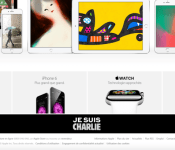
Apple France shows support for Charlie Hebdo in wake of terrorist attack

Apple has updated its French website today to show support for French satirical publication Charlie Hebdo, whose Paris offices were subjected to a terrorist attack yesterday. If you visit the site now, the words “Je Suis Charlie,” French for “I Am Charlie,” are displayed on a stark black banner across the bottom of the page.
With the display of the banner, Apple joins a chorus of voices around the world in condemning the terrorist attack that saw 12 people shot dead, the BBC reports. Since yesterday, countless people have taken to Twitter to show their support with the “Je Suis Charlie” hashtag — a message that also appears on Charlie Hebdo’s website.
Sources: Apple France; BBC

Pronto’s smart remote tech works with Peel for even more options
The promise of connected televisions and all of the streaming set top boxes in the world is more content with less effort, especially here at CES, but almost none of this new tech has done much of anything to get rid of the traditional remote control. Pronto is a connected box of a different kind, one that sits in front of your television instead of connecting directly to it. The combination of Pronto and the Peel smart remote app turns your phone into the remote control, and removes the need to use anything other than your phone to control just about everything that connects to your television. Peel can also act as a content suggestion system based on your input, making it infinitely more useful than your average scrolling TV Guide service.
It’s a bold new step for Philips, who is resurrecting their Pronto line and transforming it into this new connected box and placing a premium on offering the best possible experience.
 AIVAnet