



BBM beta now offers stickers, because that’s really what it needs to catch up

Good news! BlackBerry has finally figured out how BBM will pose a threat to messaging giants like WhatsApp. It’s… stickers. Yes, of all the things the company could do to improve its chat app, it’s introducing the same sort of purely cosmetic decals that everyone else offers. As with rival services, those using a new BBM beta can buy themed sticker packs to express themselves in creative (and very cutesy) ways. In all fairness, the addition may help BlackBerry court younger chatters. However, we hope that the phone maker has a lot more up its sleeve than this — me-too upgrades can only go so far.
Filed under: Cellphones, Mobile, Blackberry
Via: The Verge
Source: Inside BlackBerry

Samsung and UCSF create a research space for mobile health tech

Samsung has been developing its own mobile health technology, but it knows that it can’t do everything; there are plenty of entrepreneurs that have their own clever ideas. To help get those projects off the ground, the company is partnering with the University of California San Francisco to create the UCSF-Samsung Digital Health Innovation Lab. The venue will give up-and-comers a space to develop and test their mobile health breakthroughs, whether they involve wearable sensors or cloud services. We’ve reached out for more details regarding the lab, but it’s safe to presume that Samsung isn’t waiting for the lab to open before it releases some more health-related products of its own.
Filed under: Cellphones, Wearables, Science, Mobile, Samsung
Source: UCSF

Tablet deals of the week: 2.21.14

If you’ve taken a look at our winter 2014 tablet buyer’s guide, you now have a good idea of what slates you should be buying. With many purchases, price can be a sticking point, but thanks to our pricing tools, it doesn’t have to be. We’ve compiled some of the best deals from over the past week — including products from the buyer’s guide, and a few older models you should also take a look at — so you can add a new tablet to your tech arsenal without taking a serious hit to your wallet.
If there are other tablets you have your eye on that we haven’t included here — join us and add them to your “Want” list. Every time there’s a price cut in the future, you’ll get an email alert!
Nexus 7 (2013)

Price: $200
Regular Price: $229
Engadget Score: 90
Buy: Newegg
Though it’s not the most powerful small tablet, the 2013 version of the Nexus 7 still packs in a gorgeous screen, a fast processor, stock Android 4.4 and a rubberized casing that feels good in the hand. While its full retail price is still pretty affordable, today’s deal for a refurbished model takes the 16GB version to a sweet spot of $200, the lowest it’s been since November.

Nexus 7 (2012)

Price: $160
Regular Price: $199
Engadget Score: 88
Buy: Amazon
When we last looked at the original Nexus 7, it could be had for the low price of $170. If you passed on that deal, you’ll be happy to know that the 32GB version can still be had for the even lower price of $160. If that $40 difference between the old and new is making a buying decision hard, take a look at a direct comparison of specs, scores and prices; you can even add other tablets from our database to the mix if you want to see how they stack up.

Kindle Fire HDX 7-inch

Price: $200
Regular Price: $230
Engadget Score: 85
Buy: Best Buy
Another product from our buyer’s guide that’s getting a discount this week is the 7-inch Kindle Fire HDX, with Best Buy offering the 16GB version for $30 less than the folks at Amazon. If you value speed, the Kindle Fire HDX is a good buy (see how it compares to some other 7-inch tablets), but if you love the freedom that Android brings, you might want to look elsewhere — with the HDX you’re limited to Amazon’s content ecosystem and support services.

iPad 2

Price: $299
Regular Price: $399
Engadget Score: 90
Buy: Target
The iPad Air might be the big thing right now, but it’s worth noting that the iPad 2 is a great tablet that’s still available from Apple for $100 less than the Air — and it’s even cheaper at other retailers. It’s not featherweight like the iPad Air, but it does have the standard 10 hours of battery life and it runs iOS 7, so the iPad 2 can still run all the latest apps in the App Store.


Engadget Podcast 385 – 2.21.14

Gaming has been scoring big in the headlines lately and Ben Gilbert’s been paying attention. The studio that brought you BioShock Infinite has been dissolved and Doom 4 becomes ‘Doom’ all over again — which is fine with Terrence since that’s how he remembers it anyway. It might be IPO time for the company behind Candy Crush Saga and the numbers behind that reasoning are pretty interesting. Google even announced its Project Tango phone and it’s environment mapping capabilities could turn your home or work space into an augmented reality gaming zone. Oh, and Facebook just bought WhatsApp for about $19 billion, so there’s that. There’s a lot going on, so head on down to the streaming links below for your weekly dose of tech, courtesy of the Engadget Podcast.
Hosts: Terrence O’Brien, Ben Gilbert
Producer: Jon Turi
Hear the podcast:
02:15 – The studio behind BioShock Infinite is no more
09:37 – Doom 4 re-revealed as ‘Doom,’ beta access coming with new Wolfenstein
15:21 – The folks behind Candy Crush Saga think their company is big enough to go public
21:05 – Google’s Project Tango is a smartphone with sensors to map the world around you
34:32 – Mobile World Congress 2014: What to expect at the biggest mobile show on Earth
36:38 – Ubuntu phones arriving in 2014 from Meizu and BQ Readers
40:57 – Titanfall switches to an open beta on Xbox One today, PC will follow soon
54:02 – Why did Facebook spend $19 billion on a messaging app?
Subscribe to the podcast:
[iTunes] Subscribe to the Podcast directly in iTunes (enhanced AAC).
[RSS MP3] Add the Engadget Podcast feed (in MP3) to your RSS aggregator and have the show delivered automatically.
[RSS AAC] Add the Engadget Podcast feed (in enhanced AAC) to your RSS aggregator.
Download the podcast:
Contact the podcast:
Connect with the hosts on Twitter: @terrenceobrien, @realbengilbert
Email us: podcast [at] engadget [dot] com
Filed under: Podcasts

Oppo N1 review: a cameraphone that puts selfies first

If our articles have been tagged properly, the first mention of Oppo on Engadget dates back to August 2005. No one would have thought that this then-fledgling DVD player manufacturer — a spin-off from Vivo’s parent company BBK — would end up making some interesting smartphones. It’s funny how both of these Chinese brands have been getting our attention lately with top specs, nice designs and reasonable prices. However, in terms of global reach, Oppo is well ahead with its presence in Thailand, Indonesia, Russia, Vietnam and India. Vivo, on the other hand, is preparing to break out of China sometime this year.
Following the Find 5, Oppo’s latest flagship product is the N1, a 5.9-inch Android phone that’s bringing back the once-common swivel camera. This device is clearly meant to meet the growing appetite for large phones and high-quality selfie cameras, especially in Asia. For those seeking a different kind of selling point, the N1 is also the first device to offer CyanogenMod ROM — stock Android, but with neat enhancements — and with Google’s approval, no less. Thus, users get to choose between two officially supported ROMs. But what about the execution? And will these bonuses be enough to attract a global audience? Read on to find out.
Hardware

Ever since handling the super-thin Finder and the beautiful Find 5, we’ve grown quite confident in Oppo’s build quality. In fact, we’d go so far as to say that Oppo is one of the best Chinese mobile manufacturers when it comes to craftsmanship. Unsurprisingly, then, the N1 doesn’t disappoint. The new phone currently comes in white only for the global version (there’s a blue option as well for China), and its 9mm-thick body is mainly fashioned out of solid plastic with a smooth ceramic finish to deter fingerprints. It’s also surrounded by an aluminum alloy frame, which sticks out by about a millimeter to produce a double chamfer. The result is a good-looking phone with added grip and rigidity.
At 82.6mm wide, the N1 is clearly not designed for full-time single-hand use, but it’s narrow enough for a comfortable grip in portrait mode. The gently curved back and rounded edges help the ergonomics as well. Depending on the depth of your front pockets, they might just fit this 170.7mm-tall phone. For example, my Levi’s 505 jeans managed to conceal the N1 just fine, but my Uniqlo S003′s pockets expose about an inch of the phone, at which point there’s less leeway for when I’m walking upstairs.

On paper, the N1 has a decent set of specs, including a pretty 5.9-inch 1080p IPS screen (with Gorilla Glass 3), a 1.7GHz quad-core Snapdragon 600 SoC and 2GB of RAM. These are also featured on the HTC One Max, but the N1 edges it out with a larger 3,610mAh fixed battery. On paper, then, the N1 should have a longer battery life. Still, both phones weigh a little over 210g, which will take some getting used to. For your reference, lighter alternatives with the same or similar screen size include the 168g Samsung Galaxy Note 3, the 177.6g Alcatel OneTouch Hero and the 170g Coolpad Magview 4. Then again, you’d have to fork out a lot more money for one of these. That or move to a different country. And of course, none of them offer a swivel camera.
Other specs on the N1 include 16GB or 32GB of built-in storage ($599/$649), 13-megapixel f/2.0 camera, penta-band WCDMA radio (works on AT&T and T-Mobile), 802.11b/g/n WiFi, Bluetooth 4.0 and NFC. The lack of LTE is a given since this Chinese phone predates the upcoming dual-mode LTE lot, but we are slightly disappointed by the missing microSD slot, especially for the 16GB model — it won’t take long before you run out of room for your music, 13MP photos and full HD videos. On the bright side, the 32GB model is now available, but having an expandable storage option wouldn’t hurt, either — at least for the sake of easier content transfer from another device. We’ll change our mind when Oppo follows in Meizu’s footsteps and releases a 128GB version.

Like most Android phones these days, you get the usual three capacitive Android buttons below the screen, along with a power button and volume keys on the right-hand side of the device. The 3.5mm headphone jack, micro-USB port and loud mono speaker are located along the bottom side. The unusual bit — and the main selling point — is the hinged module at the top, which houses the earpiece, proximity sensor, camera and LED flash. With the ability to flip the camera from back to front at 206 degrees, you’re getting 13 megapixels of selfie goodness here, as well as the versatility of shooting at all sorts of angles without having to hold the phone awkwardly — just be careful with whom you’re doing this in front of, naturally. As a bonus, this feature doubles as a multi-angle LED flashlight.
Oppo claims to have tested the rotation 100,000 times, and assuming one flips the camera about 40 times a day, the mechanism is guaranteed to last for up to seven years. We haven’t had any problems with it so far — the hinge is still tight, and we also like how the camera snaps back into its default position at about five degrees in. We’ll go over the camera performance later on in this review.
O-Touch

We’d much prefer having the trackpad positioned farther up on the phone.
There’s one more hardware feature on the phone: Oppo’s thrown in a 12-square-centimeter “O-Touch” trackpad on the back, which is for scrolling and capturing photos with one hand. Alas, it’s far from perfect. We’d much prefer having the trackpad positioned farther up on the phone — preferably where the Oppo logo is. With its current position, I often swipe the trackpad by mistake while holding the phone; and when I do want to use it, I have to shift my hand farther down the phone in order to reach the pad with my index finger. This way, I end up with an awkward hand grip, with the phone’s bottom-right corner digging into the base of my right thumb. I’ve let several people try this feature and they, too, found it awkward due to the position. Another problem is that even with the trackpad fenced in, I still often have to flip the phone around to get my finger within the right area. The small glossy logo in the middle only helps to an extent; the phone would need something like a texturized surface across the entire trackpad to make a significant improvement.
As for O-Touch gestures, I’ve had different experiences between my CyanogenMod N1 and my Color OS N1. Simply put, the Color OS implementation is more advanced, allowing real-time scrolling in many apps like Photos, Google Maps, Gmail, Play Store and Chrome. What’s been bugging me here is the delay between an initial touch and response (which is likely an intended condition for the gesture’s activation), so hopefully Oppo can reduce this. Oddly, you don’t get real-time scrolling for the home screens — as in you only jump from one home screen to another after you’ve done a swipe, not while you’re swiping. Some popular apps like Kindle and Baidu Map lack O-Touch scrolling altogether, but Oppo should be able to add support if there’s a demand.
On the other hand, O-Touch on CyanogenMod is still stuck with gesture-based input at the moment, meaning you only get a single scroll once a swipe gesture is complete, and it’s a page jump instead of a smooth scroll. This obviously becomes a nightmare when browsing continuous content like text and maps. Oppo told us that the CyanogenMod ROM will eventually receive the same O-Touch update as featured on Color OS, but there was no date given at the time of writing this review.
The O-Touch camera shutter tap gesture on CyanogenMod is also bizarre, as it requires a double-tap to capture a photo, which often resulted in blurry shots for us. The Color OS version has a slightly better implementation: You tap and hold until the phone acknowledges with a vibration, and then let go to take a photo. Still, you’d be better off using the countdown timer, volume keys or the bundled O-Click remote control for the sake of stability.
O-Click

Speaking of which, the O-Click is a minimalistic Bluetooth LE key fob that serves three roles: a remote camera shutter button, a phone locator and a proximity alarm. It’s really just a prettier version of the HTC Fetch. We found it a bit tricky to rip the battery cover open at first, but once the CR2016 button cell was inserted, it was just a matter of following the pairing instructions — either in CyanogenMod’s settings menu or in Color OS’ O-Click app.
As a phone locator or a remote shutter (a handy feature for group selfies), the O-Click works from up to 15 meters, as advertised. The proximity alert feature, however, only worked well with my Color OS N1 and not with my CyanogenMod N1; the alarm goes off even when the phone and the fob are relatively close to each other. Specifically, I occasionally got the beep on the O-Click in my pocket, when I was merely holding the phone while walking, so it was well within the 5-meter limit. We’ve also seen similar complaints on the internet. At any rate, Oppo told us that there’s a fix on its way.
Audio
The N1 comes with a pair of surprisingly good metallic in-ear headphones, but for some reason, Oppo’s earlier batch of N1s only provides medium-sized noise-isolating tips. If you need other sizes, you’ll have to make a request through either the online or offline stores. Unsurprisingly, the earphones are hardly top-of-the-range, but the audio performance is still satisfactory — just a slight bias to the treble range, whereas the bass is just right for the likes of jazz and classical music. If you don’t mind losing the hands-free feature, you’ll want to plug in some more decent headphones (we’ve been using the KEF M200, for instance), as the N1 really deserves better equipment to justify its great audio output capability.
As for call quality, we haven’t had any issues with the bundled hands-free headphones or the phone alone, and the dual-mic noise cancellation has been working quite well. All we ask of Oppo is that it bumps the phone’s earpiece volume up slightly, as we’ve struggled to hear the other side in noisy environments.
| Oppo N1 | |
|---|---|
| Pricing | $599 (16GB) / $649 (32GB) |
| Dimensions |
170.7 x 82.6 x 9 mm (6.7 x 3.25 x 0.35 in.) |
| Weight | 7.51 ounces (213g) |
| Screen size | 5.9 inches |
| Screen resolution | 1,920 x 1,080 (377 ppi) |
| Screen type | IPS |
| Battery | 3,610mAh (non-removable) |
| Internal storage | 16GB / 32GB |
| External storage | None |
| Camera | 13MP, 1/3.06-inch CMOS, f/2.0, dual-mode flash |
| Video capture | 1080p@30 fps |
| NFC | Yes |
| Radios |
GSM: (850/900/1800/1900); WCDMA: (850/900/1700/1900/2100) |
| Bluetooth | v4.0 |
| SoC | Qualcomm Snapdragon 600 |
| CPU | 1.7GHz quad-core |
| GPU | Adreno 320 |
| RAM | 2GB |
| WiFi | 802.11b/g/n |
| Wireless Charging | No |
| Operating system | Android 4.3 (CyanogenMod) / Android 4.2.2 (Color OS) |
Software

While the N1 boasts the title of being the first CyanogenMod-supported phone approved by Google, the regular edition is preloaded with Oppo’s own Color OS, which is skinned with optional online themes and laid out differently than stock Android. (Our review unit is based on Android 4.2.2.) We’ve been able to use the N1 extensively on both Color OS (above left) and CyanogenMod 10.2 (above right), and as much as we like the latter’s cleaner, more original experience, we ended up preferring the Color OS version for its bigger feature set.
Color OS
Let’s start off with Color OS’ general layout. The ROM offers three home screen panels by default, but you can add up to nine and rearrange them in the home screen portal, which is accessible by pinching any of your home screens. Nothing unique here. The portal is also a quick way to jump from one home screen to another, or you can quickly slide between them by scrolling along the dots just above the five-icon dock. As for the usual swiping between home screens, you have the ability to toggle between three animation effects: the default scrolling, tilting mode (the entire home screen panel tilts) and vivid mode (each icon and widget tilts). You can set this by hitting the menu button on any home screen, and then hitting “Effects.” You can also change the ROM’s theme in the same menu or in the Theme app, with the latter offering more than 90 online themes for free.

Our favorite visual feature on the home screen is the live weather effect. In the home screen menu, hit the middle round button and you’ll see the “Live weather” option. Here you can choose to activate it according to real-time weather (which is tied to the location last displayed by your weather widget or app), or you can manually pick an effect from this list: dandelion (windy), sunny, rain, snow, fog, cloudy and thundershowers. The results are pretty cool, including how the raindrops bounce off icons, how the snow settles on them (you can also shake it off), how they reflect lightning and how the fog steams up your screen (you can wipe it clean with your finger). The virtual precipitations and dandelion seeds also sway in the direction you’re scrolling. Most of the time these don’t affect the UI’s smoothness, but the rain effect often suffers from a stuttering frame rate. Overall, this is a fun feature to have, not to mention show off to others.
In addition to these home screens, Color OS offers “exclusive space” panels that work like full-screen widgets, but they still offer a few essential shortcuts at the bottom. Sadly, you can’t move these around as they are always placed in the farthest right of the panels. At the moment, you only get “photo space” and “music space,” but Oppo plans to add more spaces at some point. You can toggle these by hitting the menu button on any home screen, tapping on the middle yin-yang-like round button and hitting “exclusive space.”
Photo space is a photo diary timeline with a little camera app at the top, and you can add a 30-character caption to each framed and date-stamped photo. Girls might enjoy this feature more than guys would. As for music space, it’s essentially a simplified version of Oppo’s own music app, showing you just a slowly rotating vinyl record (with the album art in the middle). If you’re on a home screen, music space loads up automatically when you plug in your headphones, and you can start playing music by dragging the tonearm onto the record. To switch to the next song, just flick down on the record. Between these two, we don’t mind using photo space, but we wouldn’t miss music space if it were taken away.

For Android traditionalists, the one common problem with Chinese Android ROMs is the lack of an app drawer, meaning your entire app collection is spread across home screens. Fortunately, Color OS isn’t in this category. And unlike stock Android (and CyanogenMod, for that matter), Oppo’s ROM also lets you group apps into folders in the drawer, as well as sort the apps alphabetically only when you want to (the option pops up when you hold down on any icon in the drawer).
The pull-down notification tray in Color OS consists of both setting-shortcut buttons and notifications on the same page, as opposed to having separate tabs for each group. We like it this way, especially since we have plenty of screen space to play with. You can also toggle between the full shortcuts panel (showing all 15 buttons plus the brightness slider), and a smaller version with just a row of five common buttons (WiFi, mobile data, ring, O-Touch and screen rotation) and the brightness slider. The only thing missing here is the ability to rearrange these buttons by the user.

We’re most impressed by the gesture panel feature in Color OS, which lets you toggle an app, launch a website or call a contact with custom gestures. By default, you toggle this mode by swiping down from the left-most section of the status bar, but you can also change this to launch from the right edge of the bar. You’re given two gestures to start off with: a circle for camera, and a “V” for flashlight. Adding a custom gesture is just a matter of drawing your desired pattern on the panel, and then clicking “Apply the gesture to” at the bottom-left corner. You can also hit the “Settings” button to see your list of active gestures, but if you do end up trying to add an assigned gesture, you’ll be prompted by the system about that to avoid a clash.
Conveniently, you can also use the camera and flashlight gestures when the screen is turned off. These work alongside the music-control gestures (“>” or “<” to switch songs, and two fingers down to play or pause) and the double-tap wake gesture. But just to be clear, these music-control gestures aren’t available in the gesture panel, which makes sense as you’re better off using the music widget in the notification tray. On a related note, your custom gestures for the gesture panel don’t work when the screen is off, but if Oppo can work around the technical difficulties, we’d love to have more versatility here.
Color OS offers more gesture-based features beyond the aforementioned gesture panel, and these can be toggled in the system settings. At any instance (as long as the screen is turned on), you can activate the camera by pinching the screen with three or more fingers; likewise with volume control by swiping with two fingers up or down, as well as taking a screenshot by swiping with three. There are also motion-based features, such as camera activation when you flip the camera around (even when the screen is off or password protected). You can also flip the phone to mute and turn off speaker mode when you lift the phone mid-call. Plus, there are a few gestures that use the proximity sensor: Auto call the contact you’re looking at (when the phone is placed near the ear), auto-answer a call and lock the touchscreen while in a pocket. Some of these features already exist in other modern phones from the likes of HTC, Samsung and Nokia, but not all of them have a portfolio as complete or as flexible as Oppo’s.

Color OS comes with a set of customized essential apps, including Calendar (it took us a while to discover that a vertical swipe cycles through different view modes), Compass, Email, Gallery, Files, Music, Notes (with image and camera support, but no voice memo), Sound Recorder, Weather and even a user manual. Needless to say, if you’d rather stick with what you’re used to, you can head over to Google Play — which is included in the global version of Color OS, but not on the China version — and grab your apps from there.
Oppo’s also thrown in some handy extras, namely Data Monitor, Data Saving (for preventing your chosen apps from connecting in the background), App Encryption and Holiday Mode (the phone alerts you of calls and messages only from whitelisted contacts, as well as a third consecutive call from the same contact in the space of three minutes). You also get 5GB of Amazon-powered cloud storage with backup service using the O-Cloud app.
For those who care, the N1′s Color OS comes with three Gameloft games: Green Farm 3, Little Big City and Wonder Zoo. The good news is you can uninstall these if they’re not your cup of tea, but there is one third-party app that we’re more than happy to keep: Swype. This keyboard is a very recent addition to Color OS (since build N1_12_140124), replacing the GO Keyboard that brought us more frustration than productivity. While it’s true that you can install other keyboard apps, Oppo deserves credit for drastically improving the N1′s out-of-the-box experience.
CyanogenMod

Now, the CyanogenMod side of the Oppo N1. For the majority of N1 users, you can download this ROM — essentially stock Android 4.3 with CyanogenMod enhancements — and then flash it in recovery mode. It’s pretty straightforward; anyone can do it. Alternatively, you can just buy the CyanogenMod Edition N1 to save the hassle, plus it comes with a cool limited edition silicone case. As you’d expect, this alternative firmware has at least basic support for the N1′s unique hardware features, and as it stands, CyanogenMod delivers a more up-to-date Android core than its Color OS counterpart. But that doesn’t necessarily mean you should ignore Color OS entirely.
This is the true beauty of CyanogenMod ROMs — it’s a dream come true for OCD smartphone users.
You see, as we mentioned in the hardware section earlier, CyanogenMod is slightly behind when it comes to O-Touch and O-Click support. And while CyanogenMod also supports the same set of screen-off gestures (double-tap to wake, circle for camera, arrows or pause sign for music control and “V” for flashlight), it’s still missing out on the pull-down gesture panel and weather effects. But what you get in return is greater flexibility when it comes to tweaking the interface. For example, you can rearrange the quick settings tiles, adjust the home screen grid size (up to 7 x 7, but labels are cropped), change the status bar indicators, add a quick settings ribbon to the notification drawer, reorient volume buttons when the screen is rotated and toggle each of the four orientation angles for screen rotation. That’s the beauty of CyanogenMod ROMs: It’s a dream come true for OCD smartphone users.
So in summary, stick to Color OS for all the bells and whistles (and likely quicker updates), and use CyanogenMod if you want a smooth and native Android experience, total control over the UI and better overall performance. It’s also worth mentioning that CyanogenMod is likely to get Android 4.4 sooner, as the CM 11.0 M3 release came out not long ago.
Swivel camera

Before this review, we wondered whether the N1′s swivel camera would end up being a gimmick. After all, most of us have been putting up with our phones’ lesser front-facing cameras just fine. Plus, until now, the swivel camera hadn’t made an appearance since the days of feature phones. But over time, we grew fond of the N1′s swivel camera more and more. Two things: One is that the 13-megapixel f/2.0 camera easily beats all existing front-facing cameras on phones, and the other is the attention one indulges in when showing off this huge and weird device. For the latter, it’s usually the sheer size that wows people first (a TSA officer at McCarran International Airport once asked this author, “Damn! Is that a TV you got there?”), and then jaws drop when they see the camera flip around (“I need one!”).
Ultimately, it’s all about the camera performance, and we’re happy to say that in most cases, the image quality is top-notch. But first, let’s get one thing out of the way: Going back to the issue of the two ROMs’ performance being out of sync, Color OS appears to have better camera software. For instance, when we compared the two ROMs side by side, the focus speed and accuracy were slightly better on Color OS. Also, while the camera apps from both ROMs share a near-identical set of features, the minimally designed CyanogenMod version lacks manual-exposure time setting for the slow-shutter mode, though it does gain a few extra scene modes and numerical choices (like resolutions, burst-mode limit and timer countdown). We’ll focus on the Color OS version for this section.

The Color OS’ camera UI is pretty straightforward, with the button at the bottom-right corner of the viewfinder offering five camera modes: normal, HDR, panorama, beautify and slow shutter. The normal and beautify options are further supported by six scene modes at the top-right corner: auto, smart scene, portrait, landscape, sports and night. The settings are at the top-left button, where you can toggle the image resolution (13MP at 4:3, 10MP at 16:9, 3MP at 4:3 and 2MP at 16:9), video mode (1080p, 720p, 480p, HDR and slow motion at 480p), tap shutter, timer (5-second countdown; but you may as well just use the O-Click remote), shutter sound, location and O-Touch shutter. The flash settings are simply on, off, auto and fill light; but what’s less obvious is how the dual LEDs work: The bottom one is for a normal flash, and the top one is for a diffused, softer light that’s activated in fill light mode. The latter LED also switches to a lower intensity when you flip the camera around, and our selfies turned out pretty well using this flash mode.
Speed-wise, Oppo claims the N1′s camera boots up in just 0.6 second. In reality, it’s closer to somewhere between 0.8 and one second, which is still satisfactory. Burst mode is enabled by default: Simply hold down the capture button and you’ll get up to 20 full-resolution shots in about four seconds — so yes, make that 5 fps. These numbers may sound impressive, but it’s the image quality that counts, and we regret to say that the latter has been a hit-or-miss affair even for single shots.
The main culprit appears to be the slower-than-usual shutter speed, which often produces slightly blurry shots in any lighting environment other than outdoors in the daytime. As such, we’ve conditioned ourselves to keep the steadiest possible hands, and also to always take multiple shots (but not burst shots) just in case. This becomes frustrating after a while, especially when you have to ask your friends to pose again after several blurry shots. Oppo needs to set HTC’s UltraPixel as its benchmark for shutter speed, and at where it is now, it has some catching up to do. Even if this is due to Oppo intentionally lowering the CMOS sensor’s sensitivity for the sake of cleaner images, we think there’s still some leeway for a speed boost. At least let the users experiment with different ISO settings, which aren’t available on either Color OS or CyanogenMod version at the moment.

When you do get a steady shot, the result can be sharp and stunning. We’ve managed to take many nice landscape stills (but slightly underexposed sometimes), macro shots (down to 5cm) and, of course, selfies. The beautify mode is a fun one: It whitens and smoothes your skin, as well as enlarges your eyes slightly while slimming your face at the same time. As you can imagine, the effect was quite popular among the ladies who tried it out on our N1, but it actually works well on men, too (unlike some earlier phones that offer similar features).
Another fun camera setting is slow-shutter mode, which lets you do light painting or long-exposure shots (either auto or up to eight seconds long), but you’ll obviously need to keep the phone stationary in the first place. The above long-exposure shot was achieved by propping the phone against the wall, and then triggering the camera remotely using the O-Click. For some reason, Color OS doesn’t let you toggle slow-shutter mode if the N1′s camera is facing the front, so you’re not able to use the screen to check whether you’re in the frame. At least until Oppo comes to its senses and adds this missing mode back. Funnily enough, there’s no such limitation on the CyanogenMod version.
Overall, the auto white balance is usually accurate except for certain indoor scenarios (the camera doesn’t seem to like red subjects), and sometimes we could fix those using HDR or manually picking other white balance modes. Having said that, the HDR mode itself is also a tough beast to tame here. A lot of the time, we didn’t get consistent results, so you’ll need a bit of luck and patience; and even when we did, the stitching often looked unnatural due to color clipping. It’s as if the software jacked up the contrast on the highlights, thus creating the unwanted color burn effect. The fact that you have to wait two to three seconds to save an HDR shot doesn’t help, either. If Oppo can fix this and the shutter speed, we’d have a near-perfect still camera experience on the N1.
Don’t worry, we haven’t forgotten about video recording. From our observation, the N1 does 1080p video at 30 fps, but caps the video bandwidth at about 10 Mbps. This is significantly lower than what we got out of ASUS’ new PadFone Infinity (20 Mbps max), the HTC One Max (21.6 Mbps) and even the Meizu MX (25.5 Mbps max) from two years ago. The loss in detail is noticeable if you look closely: Even on a sunny day, we could see heavy compression on a nearby hill’s vegetation, and farther objects are softened, making them appear slightly out of focus. Oppo may also want to look into the occasional hiccups that we’ve been getting during playback.
The N1′s video camera also makes use of the on-board noise-cancellation system, but it does take about one second to analyze, so you can hear the background noise drop suddenly at that point during playback. This is particularly useful for capturing a speech or conversation, though you may have to push up the volume in playback or edit. We would, however, appreciate the option to turn off noise cancellation, because sometimes we do want to capture some mechanical noise. Another problem you’ll notice near the beginning of each clip is the autofocus, which also happens at around the same time as the noise cancellation. This occurs even when the camera is already in focus just before you start recording, which seems pointless and is obviously annoying. Here’s hoping this is an easy bug to fix.
We’re most impressed with the HDR video mode. Despite the aforementioned issue regarding video bandwidth, the colors turned out great for us — much better than the HDR in still-camera mode, ironically. See for yourself in the sample clip below.
Performance and battery life
The N1′s focus has always been on its camera, build quality, gesture input and O-Click remote from day one. The processor? Not so much, as evidenced by its Snapdragon 600, which now counts as a last-generation chip. But make no mistake: This is still a very powerful phone that has yet to let us down. The CyanogenMod-powered N1′s been running very smoothly in general, which suggests the occasional lag (but thankfully no reboots) on our Color OS version is to do with the software, not hardware. Besides, had Oppo thrown in a Snapdragon 800 instead, then the prices wouldn’t be as attractive. Those swivel cameras and trackpads don’t come cheap, either.
In terms of battery life, we managed to get an impressive 11.5 hours of battery rundown time in our standard video loop test (50 percent display brightness; WiFi enabled, but disconnected; data over 3G). It goes without saying that the battery lasts much longer in everyday use, so you can use the N1 as a WiFi hotspot for a couple of hours and still get home with plenty of battery juice left.
The HTC One Max shares the same SoC and display panel as the N1, so the two are practically related, hence the similar sets of benchmark scores (though CF-Bench failed to complete its tests on the N1). That said, the One Max managed an extra hour and a half in our video loop test, despite its smaller battery. So the only thing Oppo needs to look into here is its power optimization. Obviously, there’s not much point in comparing the N1′s scores with the Snapdragon 800-powered phones, but we’ve included them here for your reference, anyway.
| Oppo N1 (CM10.2) | HTC One Max | LG G2 | Samsung Galaxy Note 3 (Snapdragon 800) | |
|---|---|---|---|---|
| Quadrant 2.0 | 10,927 | 11,973 | 19,138 | 21,360 |
| Vellamo 2.0 | 2,400 | 2,568 | 2,895 | 2,501 |
| 3DMark IS Unlimited | 10,955 | 10,985 | 15,913 | 18,178 |
| SunSpider 1.0 (ms) | 966.6 | 1,173 | 880 | 824 |
| GFXBench T-Rex Offscreen (fps) | 15 | 15 | 20 | 26 |
| CF-Bench | N/A | 29,483 | 37,120 | 24,653 |
| SunSpider: lower scores are better | ||||
Wrap-up

We have to hand it to Oppo for making such a bold move to solve an increasingly common problem. While most other manufacturers have stuck with the form factor they’re comfortable with, Oppo’s taken the extra effort to craft a high-end swivel camera, instead of just drilling an extra hole for a fixed secondary camera. Sure, there are now many phones with satisfactory front-facing cameras, but the versatility of a swivel camera adds so much more fun to mobile photography. I honestly never thought I’d end up taking so many group selfies using the N1, but the extra clarity and remote shutter make a difference here. And of course, Oppo’s build quality plus software innovation here are just as reassuring.
But as we said, the N1 seems to have rolled off the production line before the engineers could finish tuning the swivel camera. On the bright side, with the exception of the O-Touch trackpad’s awkward position, there’s nothing a software update can’t fix here: The camera just needs a faster shutter speed, an improved HDR mode, better white balance for red backgrounds and better video quality. Given Oppo’s commitment to fixing bugs in the past, we can safely recommend the N1 to anyone who’s seeking the best smartphone for the highest-quality selfies; and Android purists will also appreciate the bonus option to switch to CyanogenMod.
Filed under: Cellphones, Mobile

The original Legend of Zelda goes first-person for Oculus Rift demo

What happens when you cross Being John Malkovich with NES classic The Legend of Zelda? You get the terrifying Oculus Rift demo seen in video below the break. The mod is currently just the game’s overworld and its first dungeon, but there are plans to scale up the whole game to VR playability by March of this year (yes, for free — this is Nintendo’s property, after all). Should you already have an Oculus headset and a strong constitution, the demo’s available right here.
Filed under: Gaming, Peripherals, Wearables, Software, HD, Nintendo
Via: Kotaku
Source: VirtualReality.io

LinkedIn now allows you to block other users

The ability to block people on social networks seems like a basic idea, but that’s one thing LinkedIn didn’t have prior to today. Now, thanks to a new (and aptly-named) Member Blocking feature, LinkedIn will start letting you block other members on the site. LinkedIn points out that while having an option to block users may sound quite simple, it wasn’t easy to bake into its product. Paul Rockwell, LinkedIn’s head of Trust & Safety, cited the need to research different use case scenarios, and coming up with the right interface as some of the reasons why this tool took a while to develop. Member Blocking is currently rolling out to all profiles, and thus it shouldn’t be too long before you can go to town on those unwanted connections.
Filed under: Internet
Via: TechCrunch
Source: LinkedIn
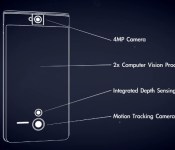
The future is awesome with Google’s Project Tango
When Google recently sold Motorola to Lenovo, it kept the vey best part of the company for itself, the Advanced Technology and Projects group, which is working on the ambitious Project Ara modular smartphone.
On Thursday, Google announced another project that the group has been busy with, known as Project Tango, a smartphone that, of course, runs Android and can map the world around it, creating detailed indoor maps.
The team said that over the past year it has been working with universities, research labs, and industrial partners in nine countries around the world “to harvest research from the last decade of work in robotics and computer vision” and has been scaling that down into an advanced, unique smartphone.
Project Tango is capable of learning the dimension of rooms and spaces just by being moved around inside of them, whether it be your living room or bedroom. It then creates a map that could allow Google to offier precise directions to any point. You can think of this as Google Maps on steroids.
The project takes into account that humans live in a 3D world and that the physical world should not end at the boundaries of our smartphone screens.

While the technology is in the very early stages, it could potentially help millions of people around the world such as those that are visually impaired by helping them navigate an unfamilar area, in addition to fun and games with augmented reality turning your living room into “a little game world.”
Google is accepting applications for 200 devices it has available to distribute to developers who want to build applications, games, and algorithms. It was also noted that since it runs Android, it includes development APIs to provide position, orientation, and depth data to standard Android applications written in Java, C/C++, as well as the Unity Game Engine. The smartphones are still early prototypes, so algorithms and APIs are still being developed, and this not a final shipping product. Google plans to have all of the devices distribued by March 14, so if you’re an interested incorporated entity or institution, you better get your application in soon.
via +SundarPichai, Project Tango
The post The future is awesome with Google’s Project Tango appeared first on AndroidGuys.
Glove fits users with the best carrier based on coverage needs [App of the Day]
So your contract is up and you’re ready to switch to a new carrier, eh? Or, maybe you’ve gotten so aggravated with your providers data speeds that you’re ready to call it quits. Before you sign any long-term agreements or commit to a particular wireless carrier, try out Glove.
As the name implies, it “fits” the user with the right provider. Glove runs in the background of your Android device for a few day and keeps an eye on where you use the device most often.
Using crowdsourced data the app is able to determine which network gives you the best reception. As you may already know, a lower data plan isn’t necessarily all that great if it’s slow or inconsistent.
Not only does Glove make a recommendation but it even hands the user off to the carrier, making it easy to switch.
While all of this sounds awesome, it’s worth pointing out that this is only available in two select markets: New York and San Francisco. Here’s to a swift expansion!
The post Glove fits users with the best carrier based on coverage needs [App of the Day] appeared first on AndroidGuys.

Intel’s Processor Roadmap Leaves Uncertainty for Apple’s 2014 Mac Updates
 With Apple’s Mac lineup beginning to show signs of aging, consumers are no doubt starting to wonder when they can expect updated models to hit the market. Apple’s product update cycles are in large part driven by availability of new processors, so it pays to take a look at Intel’s roadmap to see what might be coming when to give Apple new options for upgrades.
The MacBook Air is the older of Apple’s two current notebook lines (setting aside the non-Retina MacBook Pro that has been reduced to a single 13-inch model and hasn’t been updated since June 2012), and Apple’s ultrathin notebook currently offers a choice of two low-power 15-watt Haswell chips to help achieve remarkable all-day battery life. Entry-level models include a 1.3 GHz i5-4250U chip, while higher-end models bump up to a 1.7 GHz i7-4650U processor. Both chips include Intel’s “Iris 5000″ integrated graphics that offers reasonable everyday performance in a power-efficient design.
According to an Intel roadmap leaked by VR-Zone [Google Translate], a successor to the current low-end chip is set to launch in the third quarter in the form of an i5-4260U Haswell refresh, presumably carrying just a small speed bump compared to the current chip. Another alternative for Apple could be the 1.4 GHz i5-4350U or its just-announced successor 1.5 GHz i5-4360U. The 4350U chip has been available since last year, but Apple elected not to use it in the current MacBook Air. The high-end MacBook Air situation is less clear, as leaked roadmaps have not yet shown a direct successor to the current i7-4650U chip.
Read more 
 AIVAnet