


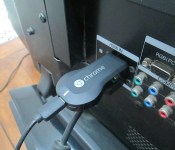
Keeping up with Chromecast Supported Apps is Tough, but we Found Some More
 Just last week Google released the official Cast SDK for Chromecast app developers to start fully implementing Chromecast support to their apps. Since then we have been attempting to search out and check in on apps that were supposed to be adding the support along with finding new ones. It certainly isn’t an easy task. We all know the original apps quite well by now, and even some of the more prolific ones like AllCast. Obviously more and more are starting to get updated and released. Sadly, they aren’t in a simple “Chromecast” section in the Play Store. Hey Google, you hear that? We need a Chromecast page for apps that work with the magic stick. Ok, off to the races with a few apps we recently discovered. We haven’t gone and tested any of them yet, more so in discover mode.
- Juice for Chromecast – This is similar to AllCast because it lets you cast your locally stored Photos and videos to your TV. However, Juice for Chromecast also lets you cast music. You can send individual songs, albums or playlists and they can be shuffled. In the photo arena you can send individual photos or a slideshow. Juice for Chromecast is Free, but doe have an IAP for $2.99 to unlock all features.
- LocalCast Videos 2 Chromecast – Another local video casting app. That is all it casts right now is you locally stored videos. Some formats might not work. It is worth checking out since it is free with now purchase of any sorts to cast anything videos.
- Gallery Cast – Gallery Cast was one that we mentioned back on the 5th of February to be getting Chromecast support soon. They have since added in cast support. It supposedly casts local photos and videos. It is ad supported with no option yet to pay to remove them.
- GR8CTZ for Chromecast – This looks like a rather interesting brain/puzzle game that uses Chromecast. A Street View image will appear on your TV and you can rotate the view and image via your Android device. Then you have to guess what city it is in the shortest amount of time and the shortest number of guesses. The description says there are 177 cities and you start out in random points. You can also drill down and only do capital cities or just cities in Europe ect. GR8CTZ for Chromecast is $0.99 and could be a fun educational tool or great drinking game.
- Dayframe – This one came and went and is finally back. Dayframe offers you more than local image casting tough as it can tap into your G+ feeds, Instagram, Twitter, Facebook and many more. You interact with the images, can plus, like and share from your phone all while they are on the big screen. Dayframe is free but you will need to upgrade to Pro to utilize the Chromecast features.
- MyShoeBox – This is a completely new app that has just landed on the Play Store. It offers free and unlimited cloud backup of all your photos on all your devices to one cloud. MyShoeBox will let you cast any and all those photos through your device to your Chromecast connected TV. The app says it is free and doesn’t mention an IAP’s.
- WatzOnTV – This is supposedly a fully customizable online tv service that you can cast to your TV. The reviews are pretty low, but it has Chromecast support and is free.
- Podcast Addict – With this one you can manage all your audio and video podcasts on your device along with YouTube channels and News feeds. The Chromecast side, according to their FAQ section, works just fine but doesn’t have playlist support just yet. You can select a specific episode and cast it though. The app is free with a small banner ad at the top of the screen. You can purchase the paid version to remove the banner for $2.99. The donate/paid version is identical to the free version and doesn’t offer new functions.
- BeyondPod Podcast Manager – Another Podcast managing and streaming app that recently added Chromecast support. The app offers a 7 day free trial before you have to buy it, which is $6.99.
- RemoteCast – RemoteCast is in Beta still but has some powerful sounding options. The app lets you remotely control Chromecast apps. As one comment says, it works best if you have your Chromecast connected to multiple devices. Start casting from your PC and then control the volume and tracks and media with your phone.
I am sure there are some more out there, but that should get some of you started and keep you busy for a few days. I know I just installed a few of them to check out later this evening. Any others you guys see, feel free to add them in the comments and we will circle around and add them in. Besure to check and see if they weren’t already mentioned in the last Chromecast app article.

Make your own clothes with this open source printer

Store-bought clothing can be expensive, but not everyone has the talent or patience to make their own attire. That may not be an issue if OpenKnit takes off, though. The open source platform combines an affordable (under $757), build-it-yourself clothing printer with Knitic design software to let you make your own apparel quickly and easily; once you’re set up, you just need a template file and some yarn. Aspiring designers can share their creations with the world through Do Knit Yourself. OpenKnit’s output is more appropriate for the street than the fashion show catwalk, but it could be ideal for anyone who wants to shake up their style at a moment’s notice.
Filed under: Household
Source: Gerard Rubio, Do Knit Yourself, OpenKnit
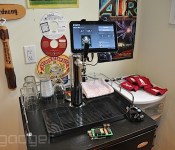
Kegbot makes creating an Android-controlled kegerator easy

The idea of a connected kegerator isn’t anything new. We’ve seen quite a few startups build high-tech kegs — even Google has gotten in on the action. Those projects, however, require quite a bit of technical know-how. Now there’s an easier solution for the beer enthusiasts: Kegbot. Kegbot is a bit different simply because it handles most of the geeky stuff for you. To get the device up and running, you just have to connect a flow sensor to your keg’s line, and connect the pre-made board to your favorite Android tablet. With a minimal amount of effort, the device can track how much beer is left in your keg, who’s drinking it and what days of the week you’re consuming the most booze.
Creators Mike Wakerly and Eric Webb have been at the smart keg game for a while. The two originally sold Kegbot as a do-it-yourself open-source project. They realized there was a market for a little easier option, and developed the plug-and-play version they’re currently raising money for on Kickstarter. We recently met up with the team to see the device in action.

The Kegbot we saw was hooked up to a run-of-the-mill single-tap Haier kegerator, and used a Motorola Xoom tablet for its interface. Wakerly says you could create the system using any cheap, knockoff Android tablet as long as it supports USB-host mode, or any kegerator (including one you’ve put together yourself).
Once you’ve gotten everything connected, everyone drinking from your keg will need their own Kegbot account. Creating an account is a simple process that involves typing in an email address and selecting a password, as well as taking a keg-side mug shot. Before each pour, you tap “Beer Me” on the tablet’s home screen and then select that undoubtedly sexy photo to identify yourself. The tablet can even take an action shot as your face lights up in the presence of fermented barley and hops, while ticking off the exact number of alcoholic ounces filling your mug (or chalice). You can also set the keg up to tweet as drinks are poured, or even check in brews to Untappd.
Drinks are grouped into sessions, so you can see how much you and the guys really consumed while watching the game, or how many sessions it takes to kill a keg. Brews are also broken down by person, so you can prove (in pie-graph form, no less) Brad had only half as much to drink as everyone else when he decided to profess his undying love to your neighbor.
Since you can’t always be there, Kegbot notifies you via email when a new keg is tapped, when your friends have started drinking or when the unthinkable is about to happen — i.e., when you might run out of beer. A limiter on the flow sensor allows you to prevent friends from drinking too much or coworkers from kicking one back on the clock. Optional NFC support can let you pass out access cards so drinkers can swipe to start pouring. If you’re really hardcore, you can even put QR codes on the bottoms of pint glasses, and have a scanner on the keg’s drip tray confirm each drinker’s identity when they put their glass under the tap. The project is open source, which means tech-savvy drinkers can program Kegbot to do almost anything.
You can pre-order your own Kegbot now through Kickstarter — $50 will get you just a kegboard, while $150 gets you all the necessary sensors and connectors as well. Cough up $400 and you’ll even get a Nexus 7 preloaded with the Kegbot app. The boards are actually ready to go and should ship to backers shortly after fundraising ends next week — just in time for that first spring BBQ.

T-Mobile’s eSIM eliminates roaming charges for connected devices in US and Canada

Don LaFontaine: In a world where everything can connect to the Internet, one thing stands in the way of always-on communications: roaming charges.
When your car, watch or blood sugar monitor is constantly transferring data to and from the cloud, you have to be concerned with where you go. These sorts of machine-to-machine (M2M) communications (sometimes obnoxiously referred to as “the internet of things”) bring convenience but also their own set of unique problems. T-Mobile’s eSIM addresses at least one (extremely narrow) sliver of those issues by eliminating roaming costs when moving between the US and Canada. The carrier gives the example of a trucking company that could easily rack up $2,400 in roaming charges per-year, per-truck thanks to navigation, email, tracking software and vehicle diagnostics. By building eSIM into its systems, even a company with a relatively small fleet of big rigs could save hundreds of thousands a year. Obviously though, that’s just the start. Future medical implants that keep doctors abreast of changes in a blood sugar or pressure could also rack up steep roaming fees if the patient is a frequent traveler.
T-Mobile is making eSIM available to businesses today and it’s compatible with “multiple international carriers” right out of the box. While wandering between the US and Canada certainly limits its appeal at the moment, support in other countries will be announced over the course of the year.
Filed under: Wearables, Wireless, T-Mobile
Source: T-Mobile

Showtime’s Anytime app arrives on Roku

If you subscribe to Showtime, you’ll now be able to watch Homeland on your Roku. Previously only available for mobile and desktop, the Showtime Anywhere app gives you access to both current and past episodes of the premium cable’s original series, including Dexter, House of Lies and Nurse Jackie, in addition to live broadcasts. A “my list” feature lets you organize your favorite programs, and the app lets you resume watching where you left off on another device.
Roku shared this news on its blog today, complete with a list of which providers will get access to the Showtime Anytime app: AT&T U-verse, Brighthouse, Cablevision’s Optimum TV, DirecTV, Time Warner Cable, Verizon FiOS and “more to come.” (Missing from that list, of course, is Comcast, which is poised to acquire Time Warner.) Current Showtime subscribers can add the channel through their Roku accounts.
Filed under: Home Entertainment, HD
Source: Roku Blog
Apple Preparing Fix for Sleep/Wake Crashes in 2013 MacBook Airs
 Apple is preparing an update to fix an issue that causes 11 and 13-inch 2013 MacBook Airs to crash when they are wakened from sleep, according to information from an Apple Authorized Service Provider.
According to multiple lengthy threads on the Apple Support Communities, 2013 MacBook Air users have been experiencing sleep/wake issues for several months. Crashes, freezes, and blank black screens are common after waking a MacBook Air from sleep, and fixing the problem requires a hard restart.
It appears that the problem is related to OS X Mavericks and requires a combination of the computer going to sleep and a press on the keyboard or touchpad to initiate. One user has been able to successfully re-create the problem by pressing the power button to put the MacBook Air to sleep and then immediately clicking on the touchpad, which causes the machine to freeze.
The service provider that notified MacRumors about the update has said that it appears to be a bug in the sensor that detects when the lid is being opened, which has led to multiple machine returns and replacements as it was previously unclear whether it was a hardware issue or a software issue.
An Apple Support representative has also confirmed that a fix is in the works and should be bundled with the next OS X Mavericks update, which likely points to 10.9.2. A user on Apple’s support forums has noted that 10.9.2 beta 4 appears to fix part of the problem by altering the function of the power button, preventing the machine from going to sleep when the power button is mis-tapped.
Ahead of the update, customers who are experiencing sleep/wake crashes with their MacBook Airs appear to be able to repair the problem with a restart.
     |
 AIVAnet