


Seven Advanced Facebook tips and tricks you should know
As it stands, Facebook is one of the most popular and most used social media platforms, with billions of users active every day. There are so many features that Facebook has provided to the users, that it is nearly impossible to fail as a brand operating on this social media platform.
Advertising being one of the strongest arms of Facebook features, businesses have a lot to benefit from this platform. Could you have dabbled with Facebook and not realized the results you anticipated? Here are seven advanced Facebook tips to help you out:
Test engagements for different times
It could be that your activities and posting in Facebook have been at the same time, and the problem with this is that you may not be capitalizing on all your audiences, from different locations, time zones, preferences, among other factors.
The ideal way to maximize your audience reach is to do a test run, where you try sharing messages at different times of the day. You may find that most people who are interested in your product and content are from abroad, or are night owls. Facebook sharing and scheduling tool should allow you to reach out to more people in different walks of life, even when you are not online at the time of posting.
Gather fans off of Facebook
As wide as the Facebook platform may be, you cannot entirely rely on your activity there to bring you all the fan-base you need. Building your fan-base off of Facebook allows you to widen your scope as your increase your visibility as a brand.
On your website, be sure to bring attention to your social media platforms by encouraging them to like you on Facebook for every content you share. You can also cross chare your Facebook posts on other sites and platforms, with links that direct them to your call-to-action.
Clear call-to-action
Basic as a call-to-action seems, people still ignore its essence. Assuming the audience, you have attracted with a particular piece of information is not willing to come back, you need to ensure that you have achieved your goal.
Use a clear call-to-action on your pages, with simple information like “like us,” “call us,” among others. Whatever you want your audience to do, you must show them, and when you are clear with what your intent is, you secure the confidence of your target audience while achieving those very goals.
Post pins
Different from Pinterest pins, Facebook has a feature that allows you to select one post every week that can be featured as the top post on your Facebook page.
If you have a specific message, you have been trying to push out all week long, pin in on the top of our page, and this way, you allow your visitors to see it as the first thing when they open your page. You can customize a shorter version of your main text, stating it is a more intriguing manner that will capture the attention of your audience at first glance.
Emphasis on your milestones
It is okay to flaunt your achievement and accomplishments every once in a while. Facebook is big on capturing milestones, which is why they keep bringing up memories they think are important to you.
Other than celebrating friendships, you can capitalize on your milestones as a business, showcasing your progress. Consider things like events, anniversaries, awards, among others. Create a milestone in the status update section and add as many relevant details as possible, including an image.
Organize for events and activities
Facebook is a rather an active forum, where people want to be engaged in different kinds of activities. Most even promoters have acquired their largest attendance from Facebook. The best thing about using the event feature on this platform is that once a follower shows interest in your activity, Facebook will notify friends of friends about the event.
The more events and activities you set up, the more people are aware of the existence of your brand, with more willingness to consume more content from your page.
Reviews make a difference
As a brand, do not for a moment take for granted the essence of reviews. People on social media are drawn to specific actions because their friends referred it to them, and in a sense, reviews work to your advantage.
Encourage your visitors to review your products or services, which will give you a ranking and preference against your competitors. If you have testimonials, let them be in the frontline of your page, so people can begin to trust your brand.
For the ad messages you create, you can position one testimonial at the start of the ad, which will capture the attention of your target clients.
Facebook is such a powerful tool for any business seeking to grow online, with an audience-base that keeps growing by the day, not to mention, diversifying. These seven tricks should give you dominance and expertise on matters to Facebook in no time.
New-found Icon in iOS 12 Supports iPad Pro Redesign Rumors
A newly discovered icon in iOS 12 appears to confirm recent rumors surrounding Apple’s redesigned iPad Pro, which is expected to be unveiled on Tuesday.
Similar to a previous icon found in iOS 12 beta 5, the new icon discovered by 9to5Mac’s Guilherme Rambo features a tablet with slimmer bezels and no Home button, and more importantly, no notch.
A recent case maker’s rendering of the upcoming iPad Pro displayed many of the same design elements shown in the icon, including the rounded corners and a small top and bottom bezel, with the top bezel housing the TrueDepth camera system for Face ID.
Dimensions sourced from the same case maker indicate the smaller iPad Pro will be 7 inches wide and 9.7 inches tall, while the larger model will be 8.5 inches wide and 11 inches tall.
Icon elements aren’t always proportional relative to the physical dimensions they represent, but the way the iPad Pro’s bezels are drawn suggests Apple has also left plenty of room for holding the device without unintentionally triggering the touchscreen.
The new iPad Pro models are said to be equipped with an A12X Bionic processor that’s even faster than the A12 chip in the new iPhone lineup, with a USB-C connector potentially replacing the Lightning port, and a new version of Face ID that works in both portrait and landscape orientation.
The new iPad Pro devices are expected to be announced at Apple’s second fall 2018 event, set to be held on Tuesday, October 30 in New York City at 10:00 a.m. Easter Time.
Apple is planning to live stream the event on its website and through the Events app on the Apple TV, but for those unable to watch, MacRumors will have live coverage both here on MacRumors.com and on our MacRumorsLive Twitter account.
For more details on everything we could see at the product unveiling, check out our comprehensive What to Expect event roundup.
Related Roundup: iPad ProBuyer’s Guide: 10.5″ iPad Pro (Don’t Buy), 12.9″ iPad Pro (Don’t Buy)
Discuss this article in our forums
Mission to Mercury successfully launched by Japanese and European space agencies
A spacecraft with a mission to explore the planet Mercury has been launched from French Guiana in a combined effort by the European Space Agency (ESA) and the Japan Aerospace Exploration Agency (JAXA). The aim of the mission is to study Mercury’s inner core and perhaps even to discover information about the formation of our solar system.
As the planet closest to the sun, Mercury has been little explored, with only two spacecraft ever visiting it before. The Mariner 10 probe passed by the planet in 1974 and again in 1975, and the MESSENGER robotic spacecraft orbited the planet between 2011 and 2015. These NASA missions succeed in capturing data and images from Mercury, but now Japanese and European scientists hope to gain more information about the least explored inner planet.
Due to its proximity to the sun and the fact that the planet spins very slowly, temperatures on Mercury are extremely variable, ranging from 427 °C (801 °F) to −173 °C (−279 °F). In addition, the planet is bombarded by solar rays leading to high levels of radiation on the surface. This makes collecting data from the planet challenging, although it is known that Mercury has a huge iron core. The current mission aims to learn more about this core through the use of probes.
The BepiColombo spacecraft that was launched is named after the Italian scientist Giuseppe “Bepi” Colombo, and was built in a partnership between the ESA and JAXA. It has an unusual design: it is a “stacked aircraft” consisting of a transport module and two orbiters. One orbiter was built by ESA, and the other by JAXA. The orbiter built by ESA has a special coating of ceramics and insulation designed by the aircraft company Airbus, which should protect it from the high temperatures and harsh conditions on the planet.
The trip to Mercury will take seven years, so we won’t be seeing results from the probes any time soon. The craft will follow an elliptical path and its journey will include one fly-by of Earth, two of Venus, and a total of six of Mercury to allow the craft to slow before the probes are released. If all goes well, the craft should arrive at Mercury in December 2025.
Editors’ Recommendations
- We’re going to the Red Planet! All the past, present, and future missions to Mars
- A Japanese spacecraft just landed two rovers on an asteroid
- Europe’s space agency plans to build its own “low-gravity” moon base — on Earth
- NASA’s planet hunter satellite gets first hit in its search for another Earth
- NASA’s Parker Solar Probe sets out to try and ‘touch’ the sun
Moto brings Android 8.1 Oreo to the G5 and G5 Plus
Who’s ready for some Oreo?
Android Pie has been out for over two months now, so when Moto G5 and G5 Plus users in the US were notified that there was a system update for them, they might have gotten their hopes up for getting a slice of the latest and greatest Android has to offer.
Well, sorry to steal your dessert, but Android 8.1 Oreo is still an upgrade, right?
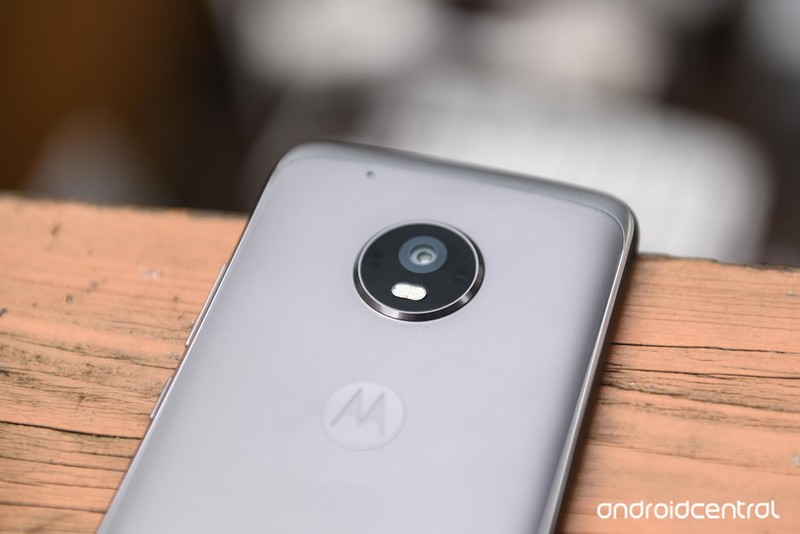
Android 8.1 Oreo may not be the newest Android on the block anymore, but there are still plenty of upgrades in there for users who have been stuck on Nougat. The official release notes on the Motorola support site for the Moto G5 Oreo 8.1 update and Moto G5 Plus Oreo 8.1 update list its improvements as:
- Android™ 8.1 Oreo™: many enhancements including new multitasking features, more efficient notification controls and improved data saver, battery features, new power menu UI and Bluetooth improvements.
- Android security: includes the updates of Android security patches through June 1st 2018.
- Stability improvements: includes changes that fix bugs and improve the stability of your phone.
You may have noticed that monthly security patch is still a few months old, but at least it’ll be slightly less outdated. The OTA update is rolling out to US models of both devices. If you’ve gotten the update, tell us if you’ve noticed any improvements with it — or if any bugs have surfaced after updating.
Chrome OS 70 comes to Stable Channel with floating keyboard, new system UI

Not sure what’s new in Chrome OS? We’ve got you covered!
Chrome OS, Google’s own desktop operating system, receives regular updates to outfit it with new features, bug fixes, and more. There are three main levels of Chrome OS (Stable, Beta, and Developer) and while you can learn more about what these mean here, this guide will be updated regularly to highlight the main additions with each new release.
Since Google releases updates so frequently, we’ll only share them when something significant is added or patched as new builds are rolled out.
Without further ado, here’s what’s new in the Stable, Beta, and Developer Channels for Chrome OS!
Stable
September 19, 2018 — Stable Channel starts getting Chrome OS 70 with floating keyboard, centered dock, and combined notification and quick settings panel

The centered dock we’ve seen popping up on Beta and Dev Channels is finally arriving on the Stable Channel with Chrome OS 70, and with it comes a newer, slicker, and slightly weirder Quick Settings panel, as well as a floating keyboard similar to the one we saw on Gboard’s beta last week. It’s easy to toggle the floating keyboard on and off — the icon resembles a picture-in-picture screen — and even easier to slide the keyboard around the screen with the navigation dot at the bottom of the floating keyboard, but unlike Gboard, this floating keyboard does not turn transparent after a few seconds of inactivity. There’s still no option to theme the on-screen keyboard, either.
The new dock features rounded a rounded pill shape around the time time and connectivity icons on the right, the app drawer icon still on the left — I’m playing with Chrome 70 on my old ThinkPad 11e Chromebook since it’s not available for the Pixelbook yet — and in the middle is a centered bevy of app icons, with pinned apps on the left and open, unpinned apps on the right. This will take some getting used to, but nowhere near as much as the newly combined quick settings/notification panel.


This newly combined panel features rounds corners, a deliciously dark UI, and the Quick Settings portion of it now has two modes: condensed and expanded. I dig the new look — #DarkThemesForever — and it puts the DND for notifications with the rest of the Quick Settings instead of hiding by itself in the Notification panel. The slider for brightness is also a now permanent fixture here, as previously the slide would only appear in the Quick Settings panel when in tablet mode. You can’t re-order or pick which settings you see here yet, but I truly do hope that feature with make the jump from Android to Chrome OS before long.
When a notification appears, you open the Quick Settings panel and the notification will be sitting there above your settings. This makes notifications sit much higher than before and leaves less space for multiple notifications, so I’m not a huge fan so far. The Clear all option is hidden now, too; you’ll have to pull up on the bottom-most notification to reveal it.
Chrome OS 70 also brought with is some security upgrades with it, such as the ability to restrict which websites your installed extensions get to see, as well as updates to Autofill and text-to-speech. The update is rolling out to dozens of models already, and if you’ve got a Chromebook, it’s probably waiting for you.
September 19, 2018 — Stable Channel now getting Chrome OS 69 with Material Theme UI, easy emoji access, and more!
After making its way to the Beta Channel last month, users in the Stable Channel are now receiving their official update to Chrome OS 69.
All of the changes we were introduced to last month are included here, meaning there’s a new UI for the Files app, refreshed Material Theme design for the Chrome browser, the night light feature can be enabled without having to mess with flags, and using a Chrome OS device in tablet mode should now feel a lot better.
Chrome OS 69 also brings something we’ve been waiting for for years — easy access to emojis! Just right-click on any open text field, click “Emoji”, and a virtual keyboard will pop up at the bottom so you can quickly find what you want.
The update is rolling out to everyone on the Stable Channel now, so be sure to keep your eyes peeled!
June 7, 2018 — Progressive Web Apps can be installed and Tablet Mode gets split-screen support
Chrome OS’s Stable Channel was updated to 67.0.3396.78 on June 7, and it comes equipped with a host of new features.
One of the big highlights is the ability to download Progressive Web Apps as standalone applications — similar to how you’d download Android or regular Chrome OS apps. Progressive Web Apps are technically portals to websites but come with refined user interfaces and increased performance. They essentially give you desktop apps for things like Spotify, Flipboard, and more without developers having to create apps specifically for Chrome OS, meaning that we’ve just about ended the complaint that Chrome OS doesn’t have enough applications available for it.
Another big addition is that you can now use apps/websites in split-screen while in Tablet Mode. With devices like the HP Chromebook X2 and Acer Chromebook Tab 10 now around, a feature like this couldn’t have come at a better time.
Other goodies include a cleaner list of your Bluetooth devices, the ability to zip files on Google Drive via the built-in Files app, and new shortcuts that pop up when holding down your power button.
Read through the full changelog here
Beta
August 24, 2018 — Chrome OS 69 adds a blue light filter, Linux app support, and Material Theme UI
Chrome OS 69 is rolling out now to the Beta Channel for “most” Chrome OS devices, and there’s a lot of cool stuff to check out.
First of all, Linux app support is finally included! This is something that’s been limited to the Developer Channel for quite some time, so it’s exciting to see it now be ready for Beta users. Linux support is only available for select Chromebooks, including the Pixelbook, HP Chromebook X2, Samsung Chromebook Plus, and more.
Also new is a night light / blue light filter mode right in the quick settings. This is something that previously required you to enable a flag, so while not an entirely new feature, it’s much easier to access now.
Lastly, this update brings an updated UI with elements from Google’s Material Theme aesthetic and changes to the BIOS and trackpad firmware.
June 7, 2018 — All HTTP sites are now labeled as “Not Secure”
HTTPS is the future of website security, but for whatever reason, there are still some sites that continue to use the old HTTP standard.
As it stands right now, sites using HTTPS show a green “Secure” badge to the left of the domain. Starting with the Chrome OS 68 beta, that “Secure” badge is being removed and all HTTP sites wil show a “Not Secure” label so users can more easily identify if they’re on a site that’s not as safe as it should be.
Read through the full changelog here
Developer
October 21, 2018 — ‘Better Together’ Android phone pairing feature rolling out
Pairing and syncing between Chromebooks and Android phones has been something we’ve all wanted for a while, and Google has been working on the Better Together feature to do it for quite a while, but until now, we’ve only had placeholders, rumors, and strings of Chromium. Well, some users are getting the chance to actually test out Better Together as the service rolls out on the Chromeook Dev channel.
 Source: Android Police
If your Chromebook is eligible, you’ll receive a notification about the service asking you to set it up and manage your device preferences in the new Connected Device settings. Currently, those settings include two of the three features that Better Together was reported to include back in the summer: SMS syncing through the Android Messages desktop client and Smart Lock to keep your Chromebook unlocked when your phone is nearby.
The last feature was Instant tethering — something that the Pixelbook and Pixel phones already do — but as the feature is just beginning its time on the Dev channel, there are plenty of changes that could happen in the coming weeks and months.
July 11, 2018 — Android Nougat’s app shortcuts are now live!

App shorcuts, first introduced with Android Nougat, are finally making their way to Chrome OS.
On July 11, 2018, Chrome OS evangelist François Beaufort announced that they are now live in the Chrome OS Dev Channel.
To start using them, simply enable the flag chrome://flags/#enable-touchable-app-context-menu. Once that’s done, right-click on an Android app that’s pinned to your shelf or in your app drawer and you’ll see the app shortcuts menu pop up.
The flag is still experimental, so don’t be alarmed if things are a bit buggy right now.
June 8, 2018 — The Pixelbook’s power button can act as a physical two-factor authentication key
Two-factor authentication is a great way to secure your online presence, and one way to go about this is by using a USB key. If you’ve got a Pixelbook running the Developer Channel, you can now mimic the functionality of a USB U2F key with its power button.
To enable this, simply open a Chrome Shell and enter u2f_flags g2f. As with everything in the Developer Channel, this feature isn’t the most stable so consider having a USB key anyways just in case something goes wrong.
June 5, 2018 — Chrome OS’s emoji shortcut is now available!
Chrome OS has long been in need of an easy way to access emojis, and if you’re running the Developer Channel, there’s a new tool that allows you to do just that.
After enabling the flag chrome://flags/#enable-emoji-context-menu, right-click on a text field and you’ll see a new “Emoji” option. Click on this, and you’ll be able to insert whatever emoji you’d like.
It’s reported that the implementation is still a little wonky, but it should smooth out as it makes its way through the Beta and Stable Channels.
How to change your software channel on Chrome OS
Chromebooks
- The best Chromebooks
- Chromebooks in education: Everything you need to know
- Should you buy a Chromebook?
- Chromebook Buyers Guide
- Google Pixelbook review
- Join our Chromebook forums
Keezel review: wireless portable VPN made easy
Internet security is a top priority for many these days, especially for those who travel a lot and regularly work on untrustworthy public Wi-Fi networks. Threats of tracking, monitoring, and data theft have seen an increasing number of the general public head for the reassurance of a VPN provider, but managing multiple phones and computers can be a hassle. Keezel, a portable VPN networking hub, aims to tackle these problems with a dash of convenience thrown in.
Editor’s Pick
The best VPN routers of 2018
If you use a VPN service, you’ve likely already encountered the annoyance of having to install the VPN software onto all of your devices. The advantages to going the VPN route are obvious: you get …
Launched with an Indiegogo campaign back in 2015, Keezel is essentially a portable Wi-Fi hotspot with built-in VPN encryption capabilities. The idea is to offer protection on public WiFi networks, such as a coffee shop or airport, while also streamlining the connection process for multiple devices. It even acts as a power bank too, which is always a great backup to have when you’re on the road.
The hub’s main selling point is that rather than installing VPN software on each of your devices and manually connecting each to public Wi-Fi, the Keezel acts as a secure middleman for all your gadgets. Configure the Keezel and everything connected to it is secure and ready to go. I’ve been using the Keezel on and off while traveling for work for the past couple of months, so here are my thoughts.
The device used in this review was provided to Android Authority by Keezel, along with a premium tier VPN subscription.Show More

What’s in the box
In the box, you’ll find the Keezel itself, which is rather nicely designed — it’s neither too bulky nor heavy. There’s also a reversible USB Type-A to Micro USB connector (a nice touch), a carry pouch, and a couple of manuals to get you up and running.
Keezel packs in 802.11 b/g/n Wi-Fi support with both 2.4 and 5GHz modes available, with AES256 encryption used as standard. There’s a Micro USB port for charging the Keezel and a second USB Type-A port for powering up other devices, such as your smartphone. The little hub packs in an 8,000mAh battery, which is certainly enough to fully charge up any smartphone in addition to its regular duties.
The power bank feature is great for business and power users
The company expects the battery to last 20 hours or more on a single charge. Although this will vary on how much you download and the number of connected devices. I obtained multiple days of use on every charge, so battery life is certainly nothing to worry about.
Keezel offers a range of purchasing options. The basic package is priced at $179/199 euros, and comes with unlimited basic VPN use which is capped at 500kbps. There are one and two-year premium VPN options priced at $229/249 euros, and $289/289 euros respectively, which offer HD streaming speeds and many more global VPN locations. After your premium subscription ends, you can pay $60/60 euros for each additional year, which is reasonably competitive. Alternatively, a Keezel with lifelong premium costs $499/499 euros up front.
Secure public Wi-Fi made simple(r)
If you’re fed up of logging into public Wi-Fi over and over again for your laptop, and personal and business phones, Keezel is a breath of fresh air. It eliminates the tediousness of connecting up multiple devices while simultaneously keeping them all secure at no extra hassle.
Setting up for the first time on all your devices takes the same time as connecting to any other Wi-Fi network. It’s a familiar process — turn on your Wi-Fi, connect to your Keezel, enter your password and you’re connected. The hub pays dividends when connecting to unfamiliar networks thereafter, as all of your other devices automatically connect to the Keezel when you turn it on and all you have to do is configure the Keezel once to connect to the public Wi-Fi.
Keezel pays dividends when keeping multiple devices secure over public WiFi
However, Wi-Fi connections can sometimes be slow to connect to devices and occasionally drop out just after powering on. This was only noticeable in busy public places.


Connecting to public Wi-Fi is a simple enough procedure too. Head into any browser on a device connected to the Keezel and enter 192.168.11.1 or type Keezel. From there you can configure the network you want to connect to, log in through a portal if necessary, and change your VPN settings.
My only real complaint with the Keezel is connecting to public networks and swapping over to new VPN locations can be sluggish. It’s certainly slower than performing the equivalent function just once on your phone or laptop. Between 20 and 30 seconds might not sound like a lot of time, but it’s long enough for you to start questioning whether the Keezel is actually connecting.

Keezel easily handles five devices connected to it at once.
How it compares to a VPN app
First up, Keezel works with virtually anything that can connect to Wi-Fi. You can connect your SmartTV, Chromecast, and even Xbox to Keezel for secure browsing and streaming. That’s a lot more options than any regular VPN app, though given the lack of a plug socket it’s definitely not intended for home use in that way. Perhaps I’ll have to start bringing a Chromecast with me for hotel room TVs.
Keezel partners with ProXPN, Le VPN, NordVPN, and PureVPN to offer a wide range of locations and plenty of bandwidth as part of your subscription. You can’t pick which partner your connection goes through, just which country the server is in. This relationship offers an extra layer of protection with the VPN providers though because to them you’re just an anonymous Keezel user rather than a potentially identifiable subscriber.


The premium tier VPN options are bountiful, with 160 different countries to choose from. Although the number drops off quite substantially with the basic service. Speeds are generally very good too, but as I mentioned before, connection times can be a bit slower than other VPN solutions.
Video streaming is certainly possible with the premium tier subscription. However, I found Netflix and some other U.K. streaming services didn’t work abroad when connecting back via the U.K. This is probably the result of new VPN detection systems rather than an issue on Keezel’s end, but it’s something to consider, since you can’t manually configure any VPN settings should you find an alternative provider that better suits your needs.
Keezel’s premium subscription is very competitive, and there’s a free option for light users too

Keezel is almost the perfect solution
As a portable VPN hub, Keezel does everything you could want. It’s simple enough to set up and configure, connects to everything you can throw at it, and streamlines connecting multiple devices to a public Wi-Fi source. The longterm subscription costs are good value compared with the competition too. I can live with the occasional slow login and VPN location switch times, though it takes the sheen off an otherwise streamlined experience.
Editor’s Pick
15 best Android VPN apps
Virtual Private Networks (VPNs) are among the best security tools a web surfer can have. You can use them to surf otherwise seedy public WiFi with more security and privacy. They can even get around …
The Keezel certainly isn’t for everyone though. The lack of VPN provider settings will be a bugbear for more advanced users. Single device owners are better off with a dedicated VPN app, as Keezel has a high setup cost compared with subscription-only services. However, the wider range of providers and locations, superior device compatibility, and power bank functionality will bring Keezel into great value territory for some.
Ultimately, Keezel is targeted towards frequent travelers, business, and power users looking for extra security for multiple devices on the go. If that’s you, Keezel is certainly worth considering.
- Best VPN routers
- How to use a VPN
How to make a Discord bot
Update 8/21/2018: Made some changes to code, added some additional instructions to resolve two common errors some readers encountered during the tutorial.
The rise of Discord, a chat and voice program favored among gamers, has made it fairly common for Internet denizens to find themselves hanging around “Discord servers” based on a variety of topics. One of the best things about Discord, in fact, is that you can easily make a free server of your own, deck it out with channels, and invite whoever you want to take part in it.
(If you’re not up on Discord, read our full rundown of what the service is and how it works.)
One of Discord’s coolest features is the ability to create automated users — bots — that can perform various functions. Those bots are coded in JavaScript, and can become rather complex. They do things like play music for users in a server, greeting new users when they arrive, and more.
Creating your own Discord bot doesn’t take much effort, even if you’re new to coding and JavaScript in general. Here’s everything you need to know to make a (super, super simple) Discord bot of your own.
Step 1: Download Node.js and set up a Discord account if you haven’t
Node.js is a JavaScript runtime that’s free and open source, and you’ll need it to actually make your bot, uh, work. Download it at nodejs.org and install it before you get started on anything else.
Obviously, you’ll also need a Discord account, and your own server to use to test your bot. If you haven’t created one yet, go to Discordapp.com and create one. If you do have one, login to your account and open up the server in which you want your bot to live.
You’ll also need a text editor program, like Notepad++ on Windows, to code with.
Step 2: Create your bot
Now you’ll need to create an “application” on Discord to make your bot work. This takes a little doing, but it’s not too complex. The goal here is to get an “authorization token” for the bot so that Discord recognizes your code and adds it to the bot on its servers.
First, head to discordapp.com/developers/applications/me. Your account should be logged in, so you’ll go straight to your account’s list of applications. Hit “New Application” to get started. Give the bot a name, then hit the button marked “Save Changes.”
Now, on the right-hand menu, click “Bot.” Once in the new menu, click “Add Bot” under the Build-a-bot option. If you only have one application — the one we just made — it should appear automatically. Otherwise, select it.
Step 3: Get your bot’s authorization token
In the box marked “App Bot User,” look for the words “Token: Click to reveal.” Click that link and you’ll reveal a string of text. That’s your bot’s authorization token, which allows you to send it code. Don’t share it with anyone — that token allows whoever has it to create code for the bot, which means whoever has it can control your bot. If you think the token has been compromised, the good news is that you can easily generate a new one with the link right under the token, which reads “Generate a new token.”
You’ll need that token in just a second.
Step 4: Send your bot to your server
Now scroll up to the box marked “App Details” and find your “Client ID,” a long number. Copy the number and add it to this URL, in the place of word CLIENTID.
https://discordapp.com/oauth2/authorize?&client_id=CLIENTID&scope=bot&permissions=8
The final URL should look like this, but with your client ID number in it instead of this fake one:
https://discordapp.com/oauth2/authorize?&client_id=000000000000000001&scope=bot&permissions=8
Copy the URL with your client ID number in it into your browser. That’ll take you to a website where you can tell Discord where to send your bot. You’ll know it worked if you open Discord in an app or in your browser and navigate to your server. The channel will say a bot has joined the room, and you’ll see it on the right side menu under the list of online members.
Step 5: Create a “Bot” folder on your computer
While you’re doing that, you can also take a moment to create a folder in an easy-to-reach place on your computer where you can store all your bot’s files. Call it something simple, like “DiscordBot” or “MyBot” so you know exactly what it is.
Step 6: Open your text editor and make your bot’s files
You’re going to create three files for your bot from your text editor. In the first, paste this code:
“token”: “Your Bot Token”
Replace “Your Bot Token” with the token you generated earlier on your bot’s application page. Make sure the token is inside the quotation marks. Then save the file into the Discord bot folder you made on your desktop, using the filename “auth.json.” Remember not to save it as a .txt file — it won’t work if it’s .txt instead of .json.
Make a new file, and put in this code:
“name”: “greeter-bot”,
“version”: “1.0.0”,
“description”: “My First Discord Bot”,
“main”: “bot.js”,
“author”: “Your Name”,
“dependencies”:
Replace the author name with your name if you want; you can also change the “description” to something other than “My First Discord Bot” if you want something more in line with what you’re making, which will be handy for remembering what your bot is supposed to do.
Save this file as “package.json” in your Discord bot folder.
Step 7: Define your bot’s code
There’s one more text file to make, and this is the important one that controls your bot’s behavior. You’ll want to be familiar with JavaScript to really have full control of your bot and know what you’re doing, but if you’re new to coding and just want to make something, you can copy and paste this code into the file to make a simple bot that will greet you in your server.
(Thanks to Medium user Renemari Padillo, whose bot tutorial helped us create this one. Check out his tutorial for code troubleshooting and other advice.)
var Discord = require(‘discord.io’);
var logger = require(‘winston’);
var auth = require(‘./auth.json’);
// Configure logger settings
logger.remove(logger.transports.Console);
logger.add(new logger.transports.Console,
colorize: true
);
logger.level = ‘debug’;
// Initialize Discord Bot
var bot = new Discord.Client(
token: auth.token,
autorun: true
);
bot.on(‘ready’, function (evt)
logger.info(‘Connected’);
logger.info(‘Logged in as: ‘);
logger.info(bot.username + ‘ – (‘ + bot.id + ‘)’);
);
bot.on(‘message’, function (user, userID, channelID, message, evt)
// Our bot needs to know if it will execute a command
// It will listen for messages that will start with `!`
if (message.substring(0, 1) == ‘!’)
var args = message.substring(1).split(‘ ‘);
var cmd = args[0];
args = args.splice(1);
switch(cmd)
// !ping
case ‘ping’:
bot.sendMessage(
to: channelID,
message: ‘Pong!’
);
break;
// Just add any case commands if you want to..
);
This code sets up a Discord bot that will respond to certain messages: Specifically, anything that starts with a “!” character. In particular, we’re programming the bot to respond to the command “!intro”, so if anyone types that in your server while the bot is in it, the bot will respond with a programmed message. In our code, we defined the message as “Greetings! Welcome to the server!” You can change both the prompt message and the response message by redefining them in the code above. Just make sure to maintain the single quotation marks around the messages.
Save this last text file as “bot.js” in your Discord bot folder.
Step 8: Open your computer’s “Command Prompt” and navigate to your Discord bot folder
On a Windows PC, you can easily get to the Command Prompt by clicking the Windows icon and typing “Command Prompt” in the field. Once it’s open, type “cd” followed by the file path to your folder. On my computer, the command looks like this: “cdUsersPhil’s DesktopDesktopDiscordBot”. That should change the command prompt line to include the file path to your folder.
Alternatively, you can navigate to your folder in Windows and hold Shift while right-clicking on a blank area of the folder, and choosing “Open Command Prompt.”
Step 9: Use the Command Prompt to install your bot’s dependencies
Now it’s time to make use of Node.js. In the Command Prompt, with your Discord bot folder in the file path line, type “npm install discord.io winston –save.” This will automatically install files you need to for your Discord bot into the folder directly.
Also use the following command line prompt to install additional dependencies: npm install https://github.com/woor/discord.io/tarball/gateway_v6
That should provide you with all the files you need.
Step 10: Run the bot
That should be everything. To try running your bot, type “node bot.js” in the Command Prompt (make sure you’re still navigated to your Discord bot folder).
Now head back to your Discord server and try testing your bot by typing “!intro,” or “!” followed by whatever you made your prompt message in your “bot.js” file. If everything went correctly, your bot should immediately return the message you coded for it.
Congrats! You just made a Discord bot!
Step 11: Figure out if your bot has been made by someone else
Discord has a big community of people making stuff for the greater good of the service all the time, and that includes bots. There are whole databases of bots other people have made that perform a variety of functions, and often their creators make those bots available for anyone to download and use. Save yourself some time and some coding by checking out some of the usual places where Discord bots are found, to see if someone has already done your work for you.
Some handy places to search for Discord bots are discordbots.org and bots.discord.pw, but you’re also likely to have luck googling for what you need, as well.
Editors’ Recommendations
- How to rip a Blu-ray or DVD
- How to add external games to your Steam library
- How to download Instagram photos from any device
- How to reset your Apple ID password
- How to make emoji
Hubble Telescope functioning again after activation of backup gyro
The Hubble Space Telescope has been responsible for some of the most stunning and informative pictures of deep space since it was launched in 1990, but the telescope suffered a failure on October 5 that placed it into safe mode. Now NASA has announced that the telescope has been fixed and will return to normal operations.
The failure occurred due to a problem with one of the six gyros which measure the speed at which the spacecraft turns. The Hubble instruments had to be deactivated when the third gyro malfunctioned, which caused the telescope to have problems with turning to new directions and locking on to new targets. Fortunately, there was a backup gyro onboard the spacecraft which the NASA team was able to activate remotely. Although the backup gyro was activated the day after the failure, there were issues with the data that it was sending, as it suggested that the craft was rotating far faster than it actually was.
It took three weeks to rectify the problem with the backup gyro, during which time the NASA scientists commanded the craft to perform various turns and maneuvers, and switched the gyro between different operational modes. The scientists believe that this fixed the problem by clearing a blockage between parts inside the gyro which was causing the inaccurate readings. With the gyro operating effectively, NASA then performed more tests to ensure that the gyro was stable and installed additional safeguards should the problem arise again in the future. The gyro was recalibrated by setting the telescope to rotate to point at various locations in the sky and by instructing it to lock on to targets, all of which were performed effectively.
The last stage of fixing the telescope was reactivating the instruments which had been powered down, and checking that it was sending back data correctly. All went well, and the telescope started transmitting data back to Earth for the first time since the problem arose on October 5.
Now the gyro is running correctly and the instruments have been reactivated, so Hubble can resume its data collection, capturing beautiful images of space objects.
Editors’ Recommendations
- Giant NASA space laser satellite to gauge impact of climate change on ice sheets
- 11 common Google Pixel problems and how to deal with them
- Did your Windows 10 audio stop working after the update? Microsoft has a fix
- Windows’ October 2018 update wants to be best buds with your phone
- Joby’s tiny tripods double as selfie sticks and hide four different modes
Downloading Google Chrome through Microsoft Edge is dangerous
New Windows 10 PC owners should be careful about downloading Google Chrome through Microsoft Edge, as Bing is apparently returning search results that contain malware and adware.
There is a running joke that the only purpose of Microsoft Edge is to download Google Chrome, but it appears that the tables could easily turn for users who are not careful. Fortunately, Twitter user Gabriel Landau did not fall prey to a fake Google Chrome download page returned by a Bing search.
Brand new Win10 laptop. Attempt to install Chrome. Almost get owned with my very first action. Why is this still happening in 2018, @bing? Please explain. pic.twitter.com/uYJhu7xa9H
— Gabriel Landau (@GabrielLandau) October 25, 2018
In a video that Landau posted on his Twitter account, he showed how he searched for “download chrome” on Bing through the Microsoft Edge browser. He clicked on the first link that appears, which is marked as from “google.com,” leading to what appears to be the legitimate Google Chrome download page.
However, upon closer inspection, the URL for the page is “googleonline2018.com.” The page is not an exact replica of the official Google Chrome landing page, but it looks real enough to trick users. In addition, clicking on the Download Chrome button starts the download for ChromeSetup.exe, but checking the file’s properties reveals that it is digitally signed by a company named Alpha Criteria, which is obviously not Google. It is very likely that the fake file contains malware.
An investigation by How To Geek revealed that the fake website is actually marked as a “deceptive site” by Google Chrome, but it is not flagged as such by Microsoft Edge and Bing. The Bing search query was reproduced on some systems, not all, but it was only appearing on Microsoft Edge.
The major issue here is that Bing is apparently not checking the URL of the search result, allowing what is likely malware to be downloaded by unsuspecting users. Making matters worse is that Bleeping Computer reported the same advertisement in April, so this is a recurring issue.
A Microsoft spokesperson reached out to How To Geek to say that the fake ad has been removed from Bing, and that the account associated with the malicious content has been banned. However, there was no explanation on why the ad was marked as from “google.com,” and no assurance that the ad will not reappear again after a few months.
The issue drives home the point that users should always be extra careful about downloading anything from the internet. Even if websites and links look legitimate, it is always best to check everything thoroughly to prevent headaches from malware infections.
Editors’ Recommendations
- How to change your Windows 10 login screen background and desktop wallpaper
- Canon and Nikon’s new mirrorless cameras impress. Should Sony start worrying?
- Cord-cutting 101: How to quit cable for online streaming video
- Colby Brown isn’t afraid to fail (or fall) in pursuit of the perfect travel shot
- Google plans crackdown on tech-support scams appearing in search ads
Let your case pull double-duty protecting your Pixel 3 and your money
Wallet cases are a great option if you want to cut down on your pocket carry. Because the Pixel 3 supports wireless charging, it’s doubtful you’ll find too many wallet case styles with the card slots on the back, but there are a growing number of folio-style wallet cases to choose from. We’d recommend the ProCase Genuine Leather Wallet Case ($26) but we’ve got more affordable and more premium options to choose from, too.
Always reliable
ProCase Genuine Leather Case

Available in three colors, ProCase delivers a classic wallet case design made with genuine leather. The inside flap features two card slots and a pocket for storing cash and receipts and the whole thing folds up into adjustable kickstand. Keeps your phone safe and stylish.
$26 at Amazon
Budget folio case
Abacus24-7 Flip Cover Wallet Case

Made of synthetic leather with a clear ID pocket and a hidden money pocket, this folio-style wallet case may just check all your boxes. It can store up to three cards along with some cash and the front cover doubles up as a kickstand.
$10 at Amazon
Stylish and affordable
Maxboost Magnetic Wallet Case

This case from Maxboost is made of synthetic leather to keep the price down but has a nice look to it with white stitching and a stylish magnetic flap. On the inside, you get three card slots and a pocket for cash. Backed by a lifetime warranty.
$10 at Amazon
Real fancy
ProCase Mirror Wallet Case

On top of the three card slots, money pocket, and folding kickstand functionality, this ProCase wallet also includes a small mirror that lets you check on your look without turning on your selfie camera. All in all, a very stylish and functional case.
$11 at Amazon
Premium, dude!
Bellroy Leather Phone Wallet

Bellroy’s premium leather case four card slots — two on the front cover, and two more hidden between the case and the back of your phone. Made from environmentally certified leather and available in five beautiful colors, this case is expensive but the best option for those who want a genuine leather case for the smaller Pixel 3.
$84 at Bellroy
We’ll be updating this list with other wallet-style case options as they emerge, but for now we’ll continue to swoon over that beautiful Bellroy Leather Wallet case. It’s definitely worth picking up if it fits in your budget, even if our needs are satisfied by with the ProCase Genuine Leather Wallet Case.
 AIVAnet