


Review: Eve Aqua Brings HomeKit Automation to Your Irrigation Sprinklers
Just prior to rebranding as Eve Systems to focus on HomeKit devices in late June, Elgato launched its Eve Aqua water controller, a HomeKit-enabled device that attaches to an outdoor water faucet to control and monitor water usage.
While Eve Aqua can be used with any hose connection, it’s primarily intended for use with sprinklers, which can be set to run automatically on a schedule for optimal watering. I’ve been testing out an Eve Aqua at my home over the past few months, and I’ve found it to be a helpful automation tool to assist with irrigation needs.
Installation
Installation of Eve Aqua is simple, as it comes with two AA batteries needed for power and simply screws onto your existing exterior water faucet. The bottom of the Eve Aqua has a male connector that allows you to screw a hose with female connector directly on, or the Eve Aqua comes with an adapter that can be screwed on to support quick connections.

I did have initial issues with some water leaking around the top connection, but after several attempts and making sure things were screwed together quite tightly, I was able to mostly eliminate the problem. I’ve retightened it a couple of times over the past few months after slight drips have appeared, and that’s kept things under control.

Once you have the Eve Aqua installed, the Eve app walks you through the rest of the setup process: scanning the HomeKit code, assigning it to a room, giving it a name, and configuring options such as schedules. If you need to change the unit settings such as liters to gallons, you’ll find that in the Eve section within the iOS Settings app, which can be a bit tricky to discover.

Controls
With schedules, Eve Aqua can run your sprinkler automatically at the optimal watering times, but you can also control things on demand through a number of methods. The Eve app and Apple’s Home app both offer manual control, while Siri lets you turn things on and off with just your voice. And if you prefer not to use a device or someone else needs to control things, there’s a button on the Eve Aqua itself that will start and stop the water flow. A “child lock” option in the Eve app settings can disable the button to prevent kids or others from manually turning on the water.

Schedules are stored locally on the Eve Aqua, so they will run automatically regardless of whether it has a wireless connection. A connection is of course required to add or modify schedules or to control Eve Aqua on demand. Notably, the schedules used for Eve Aqua are limited to the Eve app, so you won’t be able to use the Home app to set them up.
Beyond controlling watering schedules, Eve Aqua is also able to estimate water usage, which can be handy if you want to keep tabs on how much water is going into maintaining your lawn or garden. Eve Aqua doesn’t measure water flow directly, but if you use the Eve app to input the flow rate for your sprinkler attached to the Eve Aqua, the app will calculate your estimated usage based on the duration of your watering sessions. It does, of course, mean that you need to know the flow rate for your irrigation device.
Similar to how Scenes work in Apple’s Home app, the Eve app also supports Scenes, and Eve Aqua can be used as either a trigger or as a part of a scene if you wish to automate multiple aspects of your home simultaneously.
Connectivity
Eve Aqua connects wirelessly over Bluetooth Low Energy, allowing you to control it via the Eve app, Apple’s Home app, or Siri right from your iOS devices. If you have an Apple TV, iPad, or HomePod, you’ll also be able to remotely access Eve Aqua.

Siri and Home app controls generally work well, although I did have a couple of instances where it failed to connect to Eve Aqua. It wasn’t a consistent problem, however, and most of the time the Eve Aqua responded to my Siri commands within a few seconds.

I’m not sure how long to expect the batteries in the Eve Aqua to last, as the Eve app is still reporting a 100 percent battery level even after three months of occasional use. Obviously the more often you access Eve Aqua wirelessly, the faster the batteries will run down. But once they do get low, it’s a simple process to swap in new AA batteries, and it’s a good idea to remove batteries anyway while storing it over the winter.
Weather resistance
As an accessory that will likely remain mounted on the outside of your home for weeks or months at a time, the Eve Aqua needs to stand up to the elements, and Eve Systems has done that, with the device carrying an IPX4 water resistance rating. That means the Eve Aqua can stand up to splashing water from any direction, which is what you’d expect with exposure to the elements. The rating doesn’t cover exposure to forceful water jets or immersion, both of which your Eve Aqua is very unlikely to encounter in normal use.
Eve Aqua also has UV protection under an Australian certification program, assuring that the device will stand up to sun exposure for an extended period of time without being damaged. I’ve had mine attached to an external spigot for three months, and aside from some dirt and leaf matter it’s picked up over time that can be easily cleaned off, it’s still in great shape.
While Eve Aqua can stand up to sun and rain, it is not protected from frost or freeze exposure, so you will need to remove it and bring it indoors for the winter, depending on your location. That’s to be expected, as any freezing of water inside the device could easily damage the internals, and homeowners in colder areas should generally be turning off water supplies to their exterior faucets for the coldest parts of winter anyway in order to avoid frozen faucets and potentially burst pipes.
Wrap-up
Eve Aqua is a handy accessory if you want to regularly schedule sprinkler watering sessions, and if you’re a data geek you might appreciate the estimated water consumption graphs provided within the Eve app. The conveniences come with a price tag, however, and $100 is a bit of an outlay, so you’ll need to consider whether the cost is worth it for your specific situation.
Connectivity can occasionally be spotty, but for the most part, the controls work well and even when connections aren’t working, the issues seem to resolve fairly quickly and already-set schedules will continue to run thanks to the onboard memory. And hopefully, Eve will be able to address some of the connectivity issues in future firmware updates.
If this is the sort of accessory you’re interested in, it’s Eve or nothing, and the Eve Aqua is the only HomeKit product we’ve seen in this niche. Rachio’s irrigation controller has recently gained HomeKit support, but that device is for controlling dedicated irrigation systems rather than traditional spigot-and-hose systems.
Eve Aqua is priced at $99.95 and is available from Amazon, Apple, and other select retailers.
Note: Eve Systems provided the Eve Aqua to MacRumors free of charge for the purposes of this review. No other compensation was received. MacRumors is an affiliate partner with Amazon and may earn commissions on purchases made through links in this article.
Tags: HomeKit, Eve
Discuss this article in our forums
How to Batch Convert Images Using macOS Preview
There are many third-party apps available for Mac that will batch convert images for you (Permute is one example). And then there’s Preview, the powerful file viewer that’s built into macOS.
Preview will happily convert several images for you in one go. If you accidentally take lots of photos on your iPhone in Apple’s HEIC format, for instance, you can use Preview on your Mac to quickly convert them to the more accessible JPEG format.
In fact, what’s not obvious to many users is that Preview is capable of converting files in 18 different image formats, including the following:
- GIF
- HEIC
- ICNS
- JPEG
- JEPG-2000
- KTX
- Microsoft BMP
- Microsoft Icon
- OpenEXR
- PBM/PGM/PPM
- PNG
- PVRTC
- Photoshop
- PostScript
- QuickTime Movie
- TGA
- TIFF
The secret to accessing all of the available format export options in Preview is with the Option (⌥) key. Keep reading to learn how it’s done.
How to Batch Convert Images in Preview
In a Finder window, hold down the Command (⌘) key and individually click all the images you want to convert; if they’re grouped together consecutively, hold down Shift and click the first and then the last file, and all of them will be selected.
Double-click one of the selected images to open them all in Preview. If Preview isn’t your default image viewer, right-click (Ctrl-click) instead and choose Open With -> Preview from the dropdown menu.
Click inside the Preview sidebar. (if it’s not showing, click the View Menu button and select Thumbnails.) Alternatively, if you’re using the Contact Sheet view, drag a box over all the images to select them.
Select Edit -> Select All from the Preview menu bar, or use the Command-A keyboard shortcut to select all the open images.
Select File -> Export Selected Images… from the menu bar.
Choose a location to export your converted images.
Click the Options button in the Export window.
Drag the Quality slider to the desired level (keep an eye on the file size).
Select an image type from the Format dropdown. Pro tip: Hold down the Option (⌥) key when you click the Format button to reveal several more image formats available to you.
Click Choose.A progress indicator bar will replace Preview’s Export window. Once it has completed you’ll find your exported images in the chosen location and format, ready for use in your projects.
- How to Quickly Resize Images on Your Mac Using Automator
Note that you can also batch resize images using the method outlined above. After Step 4, select Tools -> Adjust Size… from the menu bar, input the resolution you want all the selected images to take, and click Resize. Note: You may need to select all the images again for export.
Tag: Preview
Discuss this article in our forums
Robot uprising a step closer with plan for factory where they build themselves
If the dreaded robot uprising is ever going to happen, it will soon have a base where it can manufacture its army … a place where robots will be making robots.
Located in the Chinese city of Shanghai, the $150 million factory is being built by Swiss industrial technology giant ABB. It claims the facility will be “the most advanced, automated, and flexible robotics factory in the world,” describing it as “a cutting-edge center where robots make robots.”
The ambitious plan, unveiled by the company last week, is to combine ABB’s connected digital technologies, collaborative robotics, and artificial intelligence (A.I.) research to create a highly sophisticated “factory of the future” that will produce around 100,000 robots a year.
To make optimal use of the 75,000-square-foot facility, ABB’s factory will use a so-called “flexible floorplan” using interlinked islands of automation rather than assembly lines that are fixed in place. Such a setup will enable production to adapt more easily to developments in China’s robot market without the need for additional capacity expansions, the company said.
Robots making robots
A big part of the design is the incorporation of ABB’s SafeMove2 software, which allows humans and robots to work safely alongside one another in an industrial setting.
The setup will include areas where the company’s advanced YuMi robots work closely with human workers on many of the more intricate assembly tasks that are required to make an ABB robot.
ABB’s very clever YuMi robot. ABB
YuMi’s remarkable skills gained worldwide recognition in 2017 when the dual-arm robot successfully conducted an entire orchestra. If that isn’t impressive enough, then take note — YuMi is accurate enough to thread a needle with its robotic hands, and can be taught a new task by being physically guided through it, thereby doing away with the need for time-consuming code-based instruction.
“I think we’re truly making history and writing the future of robotics applications,” ABB CEO Ulrich Spiesshofer said at the time.
The Zurich-based firm claims to already be the top robotics manufacturer in China, a country that bought one in three robots sold globally in 2017.
With many years of experience, ABB appears well placed to make a success of its factory, which is expected to go into operation by the end of 2020.
Editors’ Recommendations
- Moxi the ‘friendly’ hospital robot wants to help nurses, not replace them
- Look out, bartenders: This cocktail-making robot is coming for your job
- To speed up operations, XPO Logistics will hire 5,000 smart robots to workforce
- Spirit animals: 9 revolutionary robots inspired by real-world creatures
- I ran into LG’s Cloi robot at the airport in South Korea. Here’s what happened
Here’s how a new MacBook could blow us away (but we’re not holding our breath)
Apple’s October 30 event is just around the corner, and if you believe the rumors, a new MacBook just might make an appearance. We don’t know much about this mythic laptop — whether it’ll be called a MacBook Air, MacBook, or maybe even an Apple Laptop (okay, okay, that one’s stupid).
What we do know for sure is that it’s been many years since Apple has shown any interest in selling cheap Macs. So, while ours hopes aren’t high that Apple will do all these things (or even one of these things), here are a few ways Apple could really bring us on board with a new MacBook.
A lower price
The price of the new MacBook will be the most important aspect about it. When we’re talking about the range of around a thousand bucks for a laptop every couple of hundred counts. The difference between $1,300 and $1,000 is a wide chasm. It’s the main reason we could never fully recommend the current 12-inch MacBook. As great of a laptop as it seemed, it sat at the same exact price as the 13-inch MacBook Pro.
The rumors that this new MacBook is meant to replace the MacBook Air has us feeling more positively about the potential price point. The Air’s $1,000 price tag always made it an affordable way for college students and professionals alike to get into the Mac ecosystem. It’s about time Apple reclaimed that important segment of the laptop-buying population with a laptop that doesn’t feel five years old.
A broad demonstration of iOS apps on the Mac
Apple has stated repeatedly that it has no intention of ever merging iOS and MacOS. However, it has certainly demonstrated some ways they can share more of the same apps.
At WWDC this year, Apple gave us a hint as to how it would solve the Mac’s App Store problem. By changing some of the APIs involved behind-the-scenes, it’s now easier than before to port an app from iOS to MacOS. Apple started off with some low hanging fruit: First-party apps like Apple News and Stocks. But they promised more. The proof will be in the pudding of third party app support, and we’re hoping to see Apple show off a broad range of new apps that have brought over to the Mac.
If Apple shows off some high profile apps that weren’t previously available, we’ll be impressed — and a bit more hopeful about Apple’s new approach.
Insane thinness or weight
Most of us remember when Steve Jobs pulled the MacBook Air out of a manilla envelope on stage.
If this new MacBook is indeed a complete redesign, Apple could have made significant strides in the size of its chassis. The two-pound 12-inch MacBook is still one of the lighter laptops out there, but it no longer holds the record. Laptops like the Samsung Notebook 9 now hold the lightweight championship title, while the Acer Swift 7 is impossibly slim.
Laptops have become so slim, and so light, that only a drastic new design would let Apple take the crown. It’d likely be a controversial move, but it could also help the company regain its status as a trendsetter in laptop design, a title it hasn’t held for years.
Record-breaking battery life
Battery life is another area MacBooks used to trounce its rivals. The MacBook Air’s twelve-hour battery life was revolutionary at the time. Owning a Windows laptop used to mean you needed to be close to an outlet, but today, the roles have reversed.
Windows laptops have improved over the just a few years, and many now score better than the MacBook Pro, Air, or 12-inch MacBook. While the laptops like the new HP Spectre x360 are claiming over 20 hours of battery life, the MacBook hasn’t seen a significant increase in endurance for many years. In fact, the MacBook Pro saw a decline in battery life in its last redesign in 2016.
If Apple has managed to beat its peers and call dibs on some of Intel’s Whiskey Lake or Amber Lake processors, we could once again see a MacBook at the head of the pack in terms of battery performance.
Editors’ Recommendations
- Apple could announce a new MacBook this week. Here’s what we want to see
- The 2018 MacBook: Everything you need to know
- The best MacBook deals for October 2018
- What to expect from Apple’s September 12 ‘Gather Round’ event
- Apple iPhone XS: News, release, specs, and more
Best cases for the LG Stylo 4
The LG Stylo 4 may be your new phone and if that’s the case, you don’t want to ruin that new-phone look with a drop. There are plenty of great cases for the LG Stylo 4 from reputable brands like Spigen, and many won’t cost you too much. Here are our favorite cases for the LG Stylo 4.
Rugged beauty
Spigen Rugged Armor Case

Spigen has been making phone cases for a while, so you know you’re getting a good product. This case will protect your phone in the event of a fall, and there’s just enough lip on the front to keep it raised off of flat surfaces. You get easy access to the ports and fingerprint sensor, and the volume and power buttons are still easy to click.
$11 at Amazon
Clean and clear
SKYLMW Clear Case

The Stylo 4 is only available in black, but that doesn’t mean you should cover up that shiny back. This clear case offers plenty of protection, but you can still see your phone inside. The case comes in three different layers and you get a generous cutout for the fingerprint sensor and rear camera, plenty of room to plug in your charger or headphones, and the buttons are still easy to press.
$10 at Amazon
All-in-one
LK Luxury Leather Wallet Flip Case

A great way to save space in your pockets is to consolidate your cards, IDs, and phone together into a wallet case. This one is made from either black, purple, or rose gold leather, so you can get the color that best matches your style. There are slots for three cards or IDs, a small pocket for paper currency, and you can use the case to prop the phone up for your favorite YouTube videos.
$10 at Amazon
Slim down
Aeska Ultra Slim Thin Case
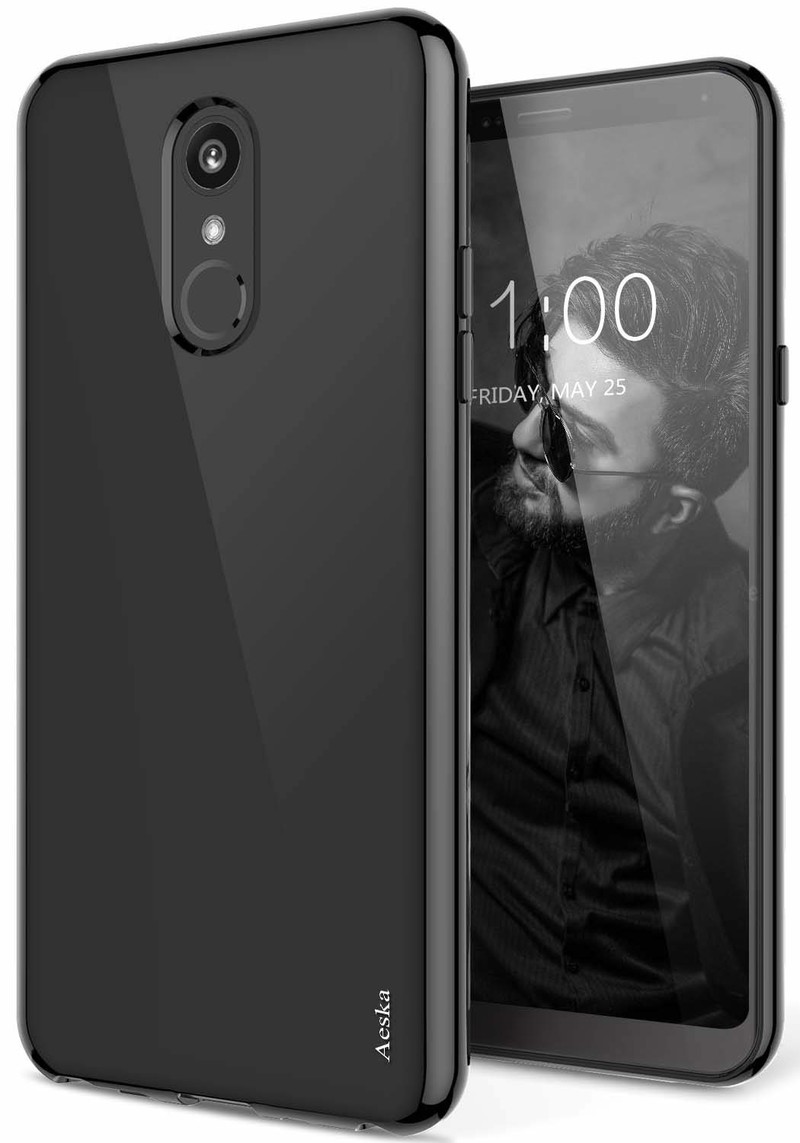
The Stylo 4 is already a big phone, and any case is going to make it that much bigger in your pocket. A thin case is great for adding a bit of grip, without a lot of added bulk. This case from Aeska comes in black, clear, translucent pink, translucent purple, translucent mint, and translucent black, and you have clear access to all your buttons and ports.
$7 at Amazon
All you need
IDEA LINE Heavy Duty Case

In addition to its own rugged design, this case includes a tempered glass screen protector to keep the display looking as pristine as the back. The case itself comes in black, blue, and red, and has a two-piece design for maximum shock absorption.
$9 at Amazon
Shining, shimmering, splendid
LeYi Glitter Case

If you want a bit of bling on your phone, a glitter case is for you. This one comes in purple, mint, and rose gold, so you can get one that best matches your style. It also includes a tempered glass screen protector to keep the front side looking pretty, and the case comes in two pieces to better absorb shock.
$10 at Amazon
These are the go-to cases for your LG Stylo 4, and all of them would do a great job of protecting your phone. My personal favorite is still the Spigen Rugged Armor due to how reputable the brand is, but each one of these would do a great job of protecting your phone in style.
RED Hydrogen One review: The cinephile’s dream phone … some day

There are few names as highly regarded as RED in the world of cinematography. In the ever-changing, fast-paced world of smartphones, however, it’s a complete unknown. In the 15-month run-up to the release of its first phone, RED has tried to change that, but has been stymied with manufacturing problems and other delays.
Built on lofty ambitions, the Hydrogen One is a distinctly unique device made without any delusions of taking on the Galaxies and iPhones of the world as the next phone in everyone’s pocket. Instead, it’s catered towards the same people who would recognize the iconic brand name in the first place: videographers and film buffs who want to carry a pro-grade camera in their pocket.
While it doesn’t live up to that ambition just yet, I still think the Hydrogen One is one of the most fascinating phones to come out in years, if for nothing other than its wild potential.
Unmet potential
RED Hydrogen One

$1295 at AT&T
An ambitious phone for the cinephile with deeply lined pockets and few others.
The Hydrogen One is a massive phone designed around the promise of powerful modular attachments to create the best mobile imaging experience around. But until those additional components are made available, it’s just an unremarkable phone that does little to justify its high price.
Pros
- Extremely solid build
- Promising modular design
- Impressive cameras
- Clean Android interface
Cons
- Slow, choppy performance
- H4V isn’t very useful
- Software is full of bugs
- High cost doesn’t feel justified

RED Hydrogen One The Review
| Operating system | Android 8.1 Oreo |
| Processor | Qualcomm Snapdragon 835 processor |
| Screen | 5.7-inch Quad HD (2560×1440) LTPS-TFT |
| RAM | 6GB |
| Storage | 128GB (expandable) |
| Rear cameras | 12.3MP + 12MP |
| Front cameras | Dual 8MP |
| Speaker | Dual front-facing |
| Water resistance | No |
| Security | Side fingerprint sensor |
| Battery | 4500mAh |
| Colors | Black |
| Dimensions | 85.71 x 164.78 x 10 mm |
| Weight | 253g |
The very moment I pulled the Hydrogen One out of its box, I was taken aback by its construction. Even though my unit is the aluminum model, rather than the ritzier titanium one — RED doesn’t have nearly enough of those to seed to reviewers just yet — it feels unlike any other phone I’ve held. The back is covered in Kevlar with a metal section in-between that’s reminiscent of a heat sink, and the sides are lined with grippy ridges for easier handling.
The phone is heavy. It’s massive. It’s … kind of badass. And that’s exactly what RED CEO Jim Jannard wanted; the Hydrogen One feels every bit like a RED product, fitting in perfectly with the company’s lineup of equally well-constructed cinema cameras. It seems almost like a direct response to the growing trend of thin and fragile glass constructions — by contrast, if you were to drop the Hydrogen One, I’d be more worried about the surface it hit than the phone itself.
While I’m personally a fan of much smaller phones these days, the Hydrogen One is about as comfortable as a phone of its stature can be. The ridges along the sides are perfectly placed, at least for my hands, and make the phone a little easier to grasp without resorting to the “pinky shelf” method — though because it’s so heavy, you’ll want to avoid propping it on your pinky for too long anyway.

A little further than halfway up the right edge, there’s an unmarked power button tucked into one of the ridges. It doubles as a speedy fingerprint sensor, and while it’s easiest to reach with your right thumb, I programmed my left index and middle fingers to work with it as well, all of which seemed to work as expected during my week or so of testing. There’s also a dedicated camera button near the bottom of the right edge, which is a nice rarity in 2018.
Unfortunately, a few of the more standard options you might expect in a flagship phone these days are missing from the Hydrogen One, namely wireless charging and water resistance. Still, there are holdovers like a 3.5mm headphone jack, and even a tool-less tray for the nanoSIM and microSD cards.
The Hydrogen One is a huge phone in every dimension, and it feels every bit like a RED product, thanks to the combination of Kevlar and aluminum.
A few more notes on the back of the phone: in the middle of the upper Kevlar panel is a huge camera dome housing the Hydrogen One’s dual 12MP rear cameras, which work together to create RED’s Holographic 4-View effect — we’ll talk about that in a bit. There’s a large RED MEDIA MACHINE emblem along the aluminum panel to show off to your cinephile friends, and down near the bottom of the phone is a series of magnetic pogo connectors that will eventually be used for RED’s modular accessories.
At the time of this review, there still aren’t many details surrounding those accessories, but we’ve gotten to see a few prototypes over the last year or so. RED has been keen to show off a lens mount attachment, which will allow Hydrogen One owners to attach professional lenses to their devices — the same kind you’d attach to a DSLR or one of RED’s cinema cameras. We’ve also seen blueprints detailing a full-blown shoulder rig system, as well as an 8K 3D camera that uses the Hydrogen One as a display.

I love the idea of these modular attachments — they’re like souped-up Moto Mods built for video-focused “prosumers.” In fact, RED’s already been doing this sort of thing for a while; its cinema cameras are sold in bits and pieces, starting with the “brain” that houses the sensor and allowing you to choose the monitor, lens mount, audio interface, and so on that best fit your needs. I’d love to revisit this once those attachments are available, but “2019” is as specific as RED has been, so for now I’m reviewing the phone as a standalone product.

RED Hydrogen One The Display
There’s been a lot of talk surrounding the Hydrogen One’s display, and it’s all about RED’s long-teased 4-View tech. It’s actually Leia Inc’s tech, which is why there’s a Lit by Leia logo on the back of the phone, but RED’s been talking up a big game about it, calling it “an experience that goes beyond 3D with no glasses required” and partnering with media companies like Warner Bros to provide 4V-optimized content — including Fantastic Beasts and Where to Find Them and Ready Player One, both of which come free to the first 10,000 people who buy the Hydrogen One on AT&T.
The Hydrogen One uses Leia’s Diffractive Lightfield Backlighting underneath an ordinary LCD display to jump quickly between 2D and this new holographic “4-View” mode, which is capable of displaying up to 16 images simultaneously. RED says its 4-View mode produces more realistic textures and lighting effects, from skin to lens flares and ambient lighting.
In theory, it’s a much more advanced technology than the glasses-free 3D we’ve seen on devices like the Nintendo 3DS and HTC Evo 3D … but in practice, I’m not so sure that it’s much better. Despite claims of H4V (Holographic 4-View — this tech has a lot of different branding) being less strenuous on the eyes, I found that even after just a few minutes of viewing 4V content makes my eyes feel off, and everyone I’ve shown the phone to has had the same experience.
RED’s Holographic 4-View display isn’t always easy on the eyes, but there’s already a fairly expansive network of apps in place for discovering and sharing 4V content.
Part of this is because there just doesn’t seem to be a “sweet spot” for viewing 4V content; on devices like the 3DS, you’d need to look at the screen from just the right distance and angle to get the best 3D effect, but whether I’m looking at the Hydrogen One dead-on or tilted off-axis, it doesn’t get any easier. That’s not to say that 4-View isn’t working, though. There’s a clear depth between the foreground and background, and images do pop out a bit from the screen, it’s just not something I want to look at for long.
Maybe that’s just my eyes — I’m a bit nearsighted in my right eye, and though wearing glasses helps correct it, my eyes still aren’t perfectly balanced — but then again, it’s unlikely that every person handling a Hydrogen One will have perfect vision either, and everyone in my small sample size noted discomfort in their eyes after trying out the 4-View mode.
Moving away from 4V for a bit, the rest of the display is fairly typical; after all, as I said before, the display sitting on top of Leia’s DLB layer is just a regular LCD. It’s a Quad HD 5.7-inch panel, though given the Hydrogen One’s massive forehead and chin, and even the sizable black borders around the display glass itself, it almost feels a bit cramped on this giant phone — especially considering phones like the OnePlus 6T have larger screens in much smaller bodies.

Color reproduction is good; I never found the display oversaturated or leaning overly warm or cool, though there aren’t any color profiles to choose from anyway, aside from toggling the blue light filter. The display seems to suffer a bit from the underlying 4V technology, though. It’s hard to see in direct sunlight, and there’s a pretty visible dot matrix that you won’t always notice but at times can make things look almost a bit pixelated.
What struck me the most about the display is how the auto brightness moves in clearly visible steps, rather than the smooth and subtle transitions of just about every other phone. It’s nit-picky, I’ll admit, but it just makes the Hydrogen One feel like something out of 2011 instead of a 2018 superphone. Being an LCD panel rather than OLED, you also won’t get the infinite black levels of phones like the Galaxy S9 or Pixel 3, but I didn’t mind this too much since the display manages to get pretty dim, which makes it comfortable to use even in a completely dark room.

RED Hydrogen One The Software
Staying true to RED’s minimalist, bring-your-own-add-ons philosophy, the Hydrogen One runs on a nearly stock build of Android 8.1 Oreo. Aside from a few RED apps and a custom home screen launcher (and yes, a bit of pre-installed AT&T bloat), this is more or less the same interface as you’d get on a Pixel or Android One device, albeit without the new Pie goodness.
The included RED apps all center around making 4V content more accessible. RED Player acts as a gallery for the photos and videos you capture, seamlessly switching between 2D and 4V as you scroll through mixed content. When viewing 4V content, you can tap a button near the bottom of the screen to switch to the 2D version, and in 4V videos you slide your finger up and down the screen to adjust the intensity of the 4V effect.
Since you can only share 4V content with other Hydrogen One owners and in turn won’t find any on Instagram or Twitter (the phone will instead default to the 2D version of the content when you try to post it), RED had to build its own hosting community. Holopix is a sort of gallery/social network (think Flickr for 4V) where you can share 4V photos you’ve taken or find and comment on photos others have taken. At the moment it’s a bit clumsy — there’s no support for video yet and the uploader displays all of your photos rather than isolating the 4V ones — but it’s good to have easily discoverable 4V content nonetheless.
You can also find short films optimized for H4V from shows like The Mars Channel and Louie Schwartzberg’s Moving Art in the Hydrogen Network app, and RED|LeiaLoft acts as a 4V-centric app store. There aren’t many titles available yet, but you can at least download Asphalt 8 or Modern Combat 5 to test out 4V gaming, which works surprisingly well despite the Hydrogen One shipping with a year-old Snapdragon 835 chipset.

RED has clearly focused a lot of time and effort on making sure its 4V network is fairly comprehensive right out of the gate, but I wish it would have put the same focus towards the overall software experience. Performance isn’t great; despite a generous 6GB of RAM and a Snapdragon 835 that’s still plenty capable in 2018, the Hydrogen One is easy to bring to a halt with enough apps running in the background.
This is most evident in RED’s custom launcher, where opening a folder is so choppy that you can practically count the animation frames, and moving apps in and out of folders is just as slow. Luckily it’s easy enough to install a third-party launcher, and Nova Launcher yields dramatically better performance — though that doesn’t excuse the poor out-of-box experience on such a high-end phone, especially since RED’s launcher doesn’t really add anything of value beyond ugly (but changeable) app icons.
Performance on the Hydrogen One isn’t anywhere near where it should be, but it’s likely that RED can iron out some of the bugs with a software update.
I’ve noticed a few other software bugs, as well. Scrolling, particularly horizontal scrolling, doesn’t always register correctly, with the phone sometimes registering a swipe as a tap and interacting with the element beneath my finger rather than, say, sliding out the settings pane in an app like Twitter. Holding down the camera button, which should launch the camera even from standby, sometimes just doesn’t work. I’ve missed quite a few shots expecting the camera to open and finding that my screen is still off.
It’s important to note that I’ve been testing the Hydrogen One with pre-release software, and these issues could easily be fixed with a software update, but until then this just isn’t the kind of performance you’d expect from a phone that costs even half as much as the Hydrogen One. Should RED push out a major update that significantly improves performance and reliability, I’ll be happy to revise this review with any new findings.
One deliberate software decision that I’m definitely not a fan of is the Audio 3D mode, which is enabled by default. The Hydrogen One has dual front-firing speakers surrounding the display, and while they’re decent speakers with loud, full sound, the Audio 3D tweaking reduces volume and creates a jarringly unbalanced sound by delegating most of the bass to the top speaker and sending treble to the much louder bottom speaker. Music has an ultra-compressed sound, and it makes listening to just about anything less enjoyable — turning off Audio 3D should be one of the first things you do.

RED Hydrogen One The Cameras
It’s almost impossible to bring up RED in any context without immediately talking about cameras. The cinema giant is known for its incredible color science, tack-sharp image quality, and flexible RAW encoding, and though its cameras are primarily used on the sets of high profile films like Guardians of the Galaxy and The Hobbit, they’ve more recently become popular cameras for music videos and even YouTube creators.
So how much of that legacy trickled down to the Hydrogen One, the company’s first ambitious venture into the smartphone market? The phone features two 12MP cameras in the rear housing, along with dual 8MP sensors up front, all of which are capable of capturing 2D and 4V photos and videos.
On the whole, I’ve been pretty impressed with the Hydrogen One’s cameras. Whether in broad daylight or the dead of night, the primary rear sensor (the second camera is only used for 4V capture) performs well, with a nice natural depth of field and impressive fine detail retention. Dynamic range is above average, and there’s a nice warmth to photos, rather than the overly cold tones from a lot of other phones. Having a dedicated camera button is also a huge plus — though again, it doesn’t always launch the camera app in my experience.

Where I found myself disappointed was with the camera app itself. This is RED, after all — you’d think there’d be a bevy of manual controls and a long list of settings, but it’s actually the opposite. There’s no settings menu at all, and the most control you get is changing the color temperature or adding a histogram to your viewfinder. Even switching to manual mode, you’re only given control over ISO (ranging from 100 to 6400) and shutter speed (from 1/4th of a second to 1/1000th).
Up top, there are toggles for HDR, flash, a few filters, and bokeh mode, the latter of which works about as well as any other phone, for better or worse. It does a good job at ramping up the number of bokeh bubbles produced by lights in the background, but it takes in less light than the default camera mode and the blurring around the subject of the shot is still questionable, especially around curly or messy hair.


RED has confirmed that a more involved pro mode will be coming to the Hydrogen One with an upcoming software update, but until then this is one of the more minimal camera UIs around. I’m a bit more forgiving of that because the Hydrogen One generally produces good-looking photos straight out of auto mode, but they’re no better than what you might get from a Pixel 3 or Mate 20 Pro — not quite what I’d hoped for, given RED’s legacy as an imaging company.
Of course, 2D imagery is only half the conversation here. While you’re in the camera app, there’s an icon next to the shutter button that switches you from 2D to 4V mode. The whole screen shifts to reflect the change, and any photos or videos you capture will end up in RED’s new holographic standard. It’s a bit obvious, but the 3D effect works best when there’s a reasonable distance between the subject and the background.
The Hydrogen One’s cameras on their own don’t do much to stand out against the competition.
Oddly enough, you can only shoot 4V in landscape with the rear cameras, and only in portrait with the front cameras. The 2D/4V switcher disappears when you’re in the wrong orientation, and if you try to view landscape shots in portrait orientation or vice-versa after the fact, the content just displays as a square image.
When shooting 4V photos, the aspect ratio changes from 4:3 to 16:9, and the Hydrogen One saves a 2D copy of the image for sharing on conventional social networks. Image quality suffers a bit when compared to native 2D captures — there’s slightly less light intake, and focus isn’t as sharp — but not so much that you should avoid shooting in 4V altogether.
I’m definitely interested to see what improvements RED’s camera modules bring to the Hydrogen One once they’re made available. Being able to attach interchangeable lenses to a mount on the back of the phone could in potentially elevate the phone from a semi-competitive smartphone shooter to a breakthrough in portable videography … but only time will tell.

RED Hydrogen One Battery Life
The Hydrogen One may be a huge phone, but that just means more room for an enormous battery. Packed inside is a 4500mAh cell that provides more than enough longevity to get through the day with plenty of battery to spare. I took the Hydrogen One on a day trip out of town last week, and even with over five hours of turn-by-turn navigation and Bluetooth streaming over a poor network connection (a triple whammy as far as battery life is concerned), I managed over five hours of screen-on time before reaching the single digits.
Throughout the rest of my testing, I typically ended my days with about 30% battery to spare. Once Android Pie eventually hits the phone, Google’s new power-saving measures should help stretch that battery life out even further, turning it into a potential two-day device. Despite the massive 4500mAh battery, the Hydrogen One is quick to recharge, as well. Starting with 3% remaining, I managed to fully top up the battery in just over an hour and a half using the included USB-C wall charger.
RED Hydrogen One Final Verdict
As a videographer and tech enthusiast, I can’t remember the last time I was this excited to check out a phone, and even as I conclude this review I’m yearning for RED to reveal more details on the phone’s modular attachments. There’s still so much left to be done with this phone, so much bottled up potential.
Until those attachments are available, though, it’s hard to recommend the Hydrogen One to … well, anybody. Performance isn’t anywhere near where it should be, and while a lot of my problems with the software could be alleviated with a final build, there’s still a lot left to the unknown. When will the phone receive Android Pie, if at all? What will the update situation look like further on down the road? How much better will the modules actually make the phone? Will they work with any consequent RED phones, or will you just have to buy new ones all over again?
3
out of 5
These are questions that would give me pause if the phone were half its price. For the same $1295 RED is asking for the Hydrogen One, you could buy any other flagship phone and walk away with an immediately better experience and, more importantly, confidence in long-term support. I’m hopeful that RED will continue to improve the Hydrogen One long after its release on November 2nd, but in the meantime, your money is better spent just about anywhere else.
See at AT&T
Amazon Echo Show (2nd Gen) review: The same, but way better
The new mission at Amazon is quality, and I am here for it.

There’s no nice way to say this — the original Amazon Echo Show isn’t enjoyable to use. The screen is at an odd angle, in addition to being small and easily washed out by direct sunlight. The speaker is loud, but doesn’t sound all the great. And at its launch, it wasn’t entirely clear what Amazon wanted the Echo Show to actually do.
Over a year has passed, and among the wave of Alexa-enabled gadgets Amazon recently announced is a refreshed Echo Show. This second generation is bigger, better, and like the other Echo products released this generation has a significant focus on audio quality. And while bigger isn’t always better, especially when it comes to something you want to stick in a space-constrained kitchen or living room, in this case Amazon seems to have done a lot of things right.
So much nicer
Amazon Echo Show (2nd gen)

$229 at Amazon
An improvement in every way
With its killer speakers and huge display, Amazon’s new smart display is ready to show you a good time. Provided, of course, you know the magic words.
The Good
- Ridiculously good speakers
- Improved display
- High-quality build
- Simple set-up
The Bad
- Alexa is still weird on displays

Amazon Echo Show (2nd Gen): What I like
I don’t know if Amazon’s hardware team has been listening to me complain about the Echo Show through its microphones to compile a list of improvements, but it sure feels like it. For starters, this Echo Show has its own Zigbee hub built in, so I can connect smart home things directly to it, instead of having a different hub installed elsewhere. Over time, Amazon hopes to have a whole suite of devices designed specifically to function through this hub, which is exactly the kind of future-proofing I want. This should be good enough that I don’t feel the need to upgrade to the next generation right away, and I think that’s what we have here.
Amazon is quickly becoming the golden standard with its speaker quality this year, which has been a lot of fun to explore.
This new model addresses every single concern I’ve had with the original smart display. The screen is an impressive 10.1 inches in a significantly smaller profile than the Lenovo Smart Display. It’s noticeably brighter too, and the angle is just slightly bent forward compared to the original Echo Show to address the glare I would frequently get from overhead lights. While this wasn’t really a problem on the original, the decreased bezels on this new Echo Show are nice, too, with the largest section being up top where the microphones and cameras are.
The star of the Show is, like all of the other Echo devices this year, the speaker. The rear-firing Echo Show 2nd generation speakers are incredible. Not only are they nice and loud, but you get lots of bass. Given the size of the speaker, it’s a surprising volume and a surprisingly high quality. I can watch shows on Prime Instant Video with no problem while making lots of noise cooking in the kitchen, and when I’m in the living room I can play music and feel like the speakers are filling more than one room. Amazon is quickly becoming the golden standard with its speaker quality this year, which has been a lot of fun to explore.


Because I’ve been using the original Echo Show for a year now, there was no learning curve with this new model. The software is as close to exactly the same as you can get, which is impressive. The Alexa app is much better at detecting these new Echo models, so finding the new Echo Show and setting it up with my preferences and on my network was a breeze. Amazon is getting very good at making it so I can add devices with ridiculous ease, which is great for everyone.
This is kind of a small thing, but the fabric back of the speaker is really nice as well. This is the same fabric used on all of the other Echo speakers, but on the new Echo Show it makes moving what is otherwise a slab of glass and plastic way easier because the fabric provides grip. Not only does it make the Echo Show feel more like the rest of the Echo line, but it’s functional. And I dig it.

Amazon Echo Show (2nd Gen): What I don’t like
I now have two displays in my house with Alexa-powered brains, but Alexa still isn’t display-friendly. That’s kind of weird, given how much lead time Amazon had over the competition. Lots of the most popular Amazon skills still do nothing with the display, even a handful of the cooking skills. There’s still not a lot of control over what gets displayed on the Echo Show when it’s not in use, the things Amazon chooses to show me as “news” is still a weird situation. This is a really good Amazon Echo, but the Show part of this experience feels a little lacking next to the Google Home Hub experience.
I wish this big beautiful touch screen let me do more with my fingers.
The one place this is particularly apparent is when I’m streaming video. Amazon’s options are a bit limited thanks to its long-standing spat with Google, but even its own services struggle. I can’t say “Alexa, play the next episode of The Man in the High Castle” and have it pick up where I left off, even if I was watching on that Echo Show earlier in the day. I have to specifically give the season and episode number I want to watch, if I want it to start playing right away. In general, using this Echo Show for video while I cook is not as convenient as it should be. Which sucks, because it’s actually enjoyable to use for that.
Finally, I wish this big beautiful touch screen let me do more with my fingers. I like being able to swipe down on the screen to handle Smart Home things like light bulbs when I don’t want to speak to control them, but there’s just about where the touch functionality ends on this thing. I can swipe through the carousel of “news” stories, but can’t really do anything with those items unless I follow the command the display gives me. I have this great big display with all of this extra space now, but it feels terribly underutilized by the software. Hopefully, that changes in the not-too-distant future.

Amazon Echo Show (2nd gen): Should you buy it?
If you’re already a part of the Alexa ecosystem, you’re going to love this new Echo Show. It sounds so nice, and Amazon’s track record of improving the Alexa experience speaks for itself. This experience will be way better than it is right now in a matter of months, and that progress won’t slow anytime soon. It’s a quality kitchen companion, and a solid home hub if that’s what you need.
But if you’re not a part of the Alexa ecosystem already, I’m not sure I’d recommend this as your starting point. For starters, the Echo Dot 3rd Gen gen is way cheaper and very nice as a starter speaker. But the software for this display is currently way outclassed by the considerably less expensive Google Home Hub, making it difficult to recommend this new Echo Show if you’re not already deep in the Amazon game.
4
out of 5
More than anything, I’m excited by the direction Amazon is going with its audio quality. You can pair an Amazon Echo Sub to this thing, which I wasn’t able to do but I bet it’s incredible.
See at Amazon
Do you use Wi-Fi calling on your phone?
Time to check in with the AC forums.
Making phone calls may not be the most exciting thing smartphones are capable of these days, but when you do need to make or accept one, having the call be reliable and clear is a top priority.

If you’re in an area that doesn’t have great wireless coverage, one way you can overcome this is with Wi-Fi calling — the ability to have your entire call handled over a Wi-Fi network.
This is a feature a lot of modern phones support nowadays, but does anyone out there actually use it?
Here’s what the AC forum community says.
mustang7757
10-23-2018 06:39 PM“
not at all , I have good service for most part but I also run 2 Carrier Sims AT&T and T-Mobile on different phones
Reply
bhatech
10-23-2018 06:34 PM“
Same here don’t use Wi-Fi calling partly because I get great signal at both home and work. So never bothered with it or care if my phone has WiFi calling or not.
Reply
digitalbreak
10-23-2018 07:23 PM“
I turn on and let it decide.
Reply
TraderGary
10-23-2018 07:26 PM“
I have a rural acreage at lake level with hills on all sides. Since a cellular connection is only line-of-sight, there is no cellular connection with any carrier at my house. The ONLY way to have calling or data is with WiFi. I have a reliable 180 Mbps Comcast connection. That’s better speed and reliability than most cellular service in my area. I have excellent calling and data via WiFi at my…
Reply
What about you? Do you use Wi-Fi calling?
Join the conversation in the forums!
Halide Developers Enable Portrait Mode on iPhone XR for Objects and Pets
Developers behind iOS camera app Halide say that they are planning to ship a version of the app that enables Portrait Mode on iPhone XR for “all sorts of things,” and not just people (via Reddit). Because the iPhone XR has a single-lens rear camera (and not a dual-lens like iPhone XS), the cheaper smartphone doesn’t capture as much depth information and the Portrait Mode bokeh effect in Apple’s own Camera app only works on people.
Depth on iPhone XR vs iPhone XS. The XR has 1/4 the depth data. (Ignore color differences.) pic.twitter.com/WMkDtznY5o
— Ben Sandofsky (@sandofsky) October 27, 2018
As Wired explained in its review, if you try to take a Portrait image of a pet or object, the camera app will state “No person detected” at the top of the screen. Now, Halide says that it has already gotten the iPhone XR camera to work with Portrait Mode on pets and inanimate objects, but results haven’t been consistent and some subjects can be harder to create a depth effect around.
We think with some more tooling, we’ll be able to ship a version of our app that enables portrait mode for all sorts of things. It seems it’ll be a bit more ‘temperamental’; in some settings it won’t work if there’s not enough variance in relative distance of objects, but a can of soda water on my desk worked just fine.
Still, as Halide’s Reddit post explains, this means that third-party camera apps on the iOS App Store will be able to provide users with a form of Portrait Mode on iPhone XR that enables bokeh effects around more than just people. Halide mentions that the iPhone XR’s depth map is “way lower resolution” than the dual cameras on the iPhone XS, “but it seems usable.”
iPhone XR launched a few days ago on October 26 and was met with positive reviews from the media, which praised its LCD display, bright colors, and iPhone XS-level performance. Thanks to the smartphone’s lower price tag in comparison to the iPhone XS and XS Max, most outlets agreed that the iPhone XR will be the smartphone that most people will want to choose when looking at the new 2018 lineup of iPhones.
Related Roundup: iPhone XRBuyer’s Guide: iPhone XR (Buy Now)
Discuss this article in our forums
Apple Watch Series 4’s ECG Feature Will Work Internationally When Set to U.S. Region
Apple revealed the Apple Watch Series 4 during an event in September, highlighting a new electrocardiogram (ECG) app that will be coming to users in the United States through a watchOS software update later in the year. Regulatory clearance is required for the ECG feature, and because of this it will be limited to the U.S. at launch, although the company is working on approval for other countries.
In a new post by 9to5Mac today, code found within iOS related to the ECG feature suggests that the ECG limitation is based on software, not hardware. This means that gaining access to the ECG app in a non-U.S. territory will be as simple as changing the region of the Apple Watch Series 4 and connected iPhone to the United States.
iPhone region can be changed by going to the Settings app > General > Language and Region, and then selecting the Region of your choice. Those who switch regions should note that the time, date, currency formats, and more will be affected by the change.
The ECG app on Apple Watch Series 4 works by placing a finger on the Digital Crown while wearing the watch. The electrodes in the Apple Watch detect the electrical impulses from your heartbeat and route the data to the S4, where it is converted into a signal for Apple’s algorithms. This results in a heart rhythm classification that can vary between a normal rhythm to an atrial fibrillation. All of your ECG results are stored in the Health app in PDF format and can be easily shared with your doctor.
While the FDA has granted de novo clearance for the ECG feature, that’s not the same as FDA approval and the agency does not recommend that the ECG feature be used by those under 22 or those who have already been diagnosed with atrial fibrillation. The FDA warns that Apple’s ECG app is not designed to replace traditional methods of diagnosis or treatment and is intended for informational use only. The Series 4 is the first ECG product being offered over the counter directly to consumers.
Related Roundups: Apple Watch, watchOS 5Buyer’s Guide: Apple Watch (Buy Now)
Discuss this article in our forums
 AIVAnet