


The biggest Apple disappointments, flops, and failures
Another WWDC 2018 has officially come and gone. The annual conference, which Apple uses to highlight its latest-and-greatest software initiatives, saw the announcement of iOS 12, ARKit 2, and MacOS Mojave, as well as increased functionality for AR emojis and Siri. In the past, the tech giant has also used this event to announce new iterations of the iPhone and Mac but, alas, that wasn’t the case this year.
And while Apple showed off some cool refinements coming to its desktop and mobile operating systems, not everything the company has done in the past has been as elegant. To prove our point, we went back and reflected on some of Apple’s biggest failures over the past 40 years, from Bendgate to that U2 album nobody wanted.
Here’s what we found.
Ping, the failed music social media network (2010)
iTunes Ping, often referred to as just Ping, was Apple’s attempt at a social media network, one that combined music-oriented social networking with a recommendation system for finding new music. The service allowed users to follow artists they liked and see short posting from said artists and friends. While in many ways a spiritual predecessor to services such as Spotify and Apple Music, Ping was considered a major flop. The service launched with a million members in 2010, but didn’t manage to keep them around for long.
The immense amount of spam and fake accounts on the network, along with its lack of integration with Facebook and other social media platforms, led to the service’s demise in 2012. Before the announcement of Apple Music, Apple replaced Ping integration in iTunes with links to Facebook and Twitter. Perhaps Ping was just ahead of its time, but it seems a lot more likely that it was just something that people never wanted. Whatever the reason for its lack of engagement, we weren’t particularly sad to see it go.
Bendgate (2014)
Americans aren’t exactly well-known for their clever naming conventions when it comes to controversies, so when people started reporting that the iPhone 6 was bending in their pockets, Bendgate — a terrible play on Watergate — was born. The phrase has since expanded and often references structure issues across various electronic devices, but it was originally created in response to the bendy iPhones of 2014, a fact Apple would probably prefer most of us to forget.
According to Apple, the company only received nine complaints regarding bent devices following the initial launch of the iPhone 6. This isn’t very many, especially when you consider that first-weekend sales topped 10 million units. Nonetheless, the controversy quickly spread across the web, prompting Apple to issue an official response. In a press release, Apple determined that any damage to the iPhone 6 during regular use was “extremely rare,” despite online reactions.
Wait, where did the headphone jack go? (2016)
Julian Chokkattu/Digital Trends
With the release of the iPhone 7, Apple made the bold decision to get rid of the smartphone’s 3.5mm headphone jack, opting instead for a lightning port that will charge the device and act as a port for compatible headphones. But many people weren’t impressed. From the initial lack of compatible devices to the fact that people were now having a harder time using what they considered an essential function of their phone, removing the headphone jack did not go over well with consumers at all.
Apple stuck to its guns, however, and no flagship since has featured a headphone jack, including the iPhone X. And while it’s important to innovate and challenge previously held notions regarding technology, getting rid of something that many people use regularly — and preventing them from using their headphones while charging — was probably not the best way to go about it. Wireless headphones and charging have helped alleviate this problem, but we won’t be so quick to forget what Apple did.
Antennagate (2010)
Does anybody else remember those weird bumpers everybody had on their iPhones back in 2010? Shortly after the release of the iPhone 4, many users began noticing reception issues and an increased frequency of dropped calls that simply didn’t exist with previous iterations of the iPhone. The issue? The iPhone 4’s antenna, which ran nearly three-quarters of the length of the phone on the outside of the device, without any coating or insulation, where it was often covered by the hand of the person using it.
The design was a callback to the cellphone antennas of days past and was, in theory, supposed to improve reception. Sometimes things don’t work out like was planned, however, and if you put your hand or finger over the antenna, it would wreak some serious havoc on your reception. While the malfunction was an issue in and of itself (some of which was alleviated by those weird bumpers), Apple managed to make the matter worse when it accused its user base of simply holding their devices wrong.
“You’re holding it wrong,” a reference to Apple’s response to the controversy, quickly became a meme.
iOS 11 glitches galore (2017)
The first iteration of Apple’s mobile operating system, iOS 11, had more than a few glitches when it first launched. From a bug in the QR code reader that direct users to malicious sites, to instances where receiving certain characters would cause iMessage to crash, it was prone to all sorts of issues. There was even an issue where a letter “A” and a symbol would appear when you typed the letter “I,” which caused all sorts of problems. New OS releases are always a little buggy, yes, but this one was particularly bad, and it’s still fresh on our minds.
That U2 album no one wanted (2014)
In an idea that probably sounded a lot better on paper, Apple managed to anger hundreds of thousands of users in 2014 by adding U2’s 13th album, Songs of Innocence, to everyone’s iTunes accounts. Whether you’re a fan of the band or not is kind of beside the point; the fact you couldn’t remove the album from your Song Library was infuriating on multiple levels.
It was such a bad PR disaster that Bono, lead singer of U2, even apologized for the album’s release, saying that “I had this beautiful idea and we got carried away with ourselves.” Apple eventually was eventually forced to release a tool that would allow customers to remove the album from their accounts, and the giveaway was ultimately deemed worse than spam.
The Apple III (1980)
The Apple III was Apple’s attempt at a business-focused desktop computer, which turned out to be a thing that no one actually wanted or asked for. Released in 1980 as the successor to the Apple II series, the 8-bit Apple III was considered a remarkable failure, selling only 120,000 units (including the Apple III Plus). Several factors contributed to the machine’s failure, including FFC radio interference qualifications and the 16-bit IBM Personal Computer that was released the following year.
The original version of the machine was also recalled due to serious stability issues that required a complete design overhaul. That, coupled with competition from IBM, meant the Apple III was never quite able to bounce back. In his 2006 memoir, iWoz, Apple co-founder Steve Wozniak attributed the Apple III’s failure to the fact that the system was designed by Apple’s marketing team, and not the engineering team, instead of just admitting it was a bad idea from the start.
Editors’ Recommendations
- Documents show Apple knew the iPhone 6 range would bend
- Apple HomePod review
- Apple iPhone 8 review
- Apple Music vs. Spotify: Which service is the streaming king?
- Bye to Apple Maps, hello to Waze: CarPlay to support third-party navigation apps
This algorithm turns World Cup games into 3D augmented reality
The men’s World Cup kicks off this week. As exciting as it promises to be, however, most of us will only get to watch it on flat television sets, as opposed to getting the three-dimensional experience of seeing it live and in person. Researchers from the University of Washington have come up with an augmented reality alternative, though. While it probably won’t be available to the masses in time for this year’s tournament, it does hint at one way in which fans at home may be able to enjoy sports games in the future.
What the researchers have developed is a machine learning algorithm capable of transforming 2D soccer clips into 3D reconstructions, which may be viewed using AR headsets like Microsoft’s HoloLens. The results allow viewers to turn flat surfaces like their desk or kitchen table into a virtual pitch, complete with three-dimensional action that you can circle around to view from different angles.
It’s not quite the equivalent of watching it in person, but it’s much closer than regular TV. And significantly cheaper, too!
“Our goal is to enhance the viewing experience of sports,” Konstantinos Rematas, one of the researchers on the project, told Digital Trends. “Instead of watching a soccer game or highlights on a flat 2D screen, we convert the original video into 3D and visualize it in augmented reality. Essentially the game becomes a hologram, where you can move around and look from different viewpoints, generating a more immersive experience.”
Konstantinos Rematas
As its input, the algorithm generating the AR experience requires just a single YouTube soccer video. Because this is not enough information to train an entire rendering system to “upconvert” 2D players into 3D, the neural network learned to estimate depth by playing the playing the EA video game FIFA 2018. Using the totality of this information, it can do a passable job of accurately gauging where players are on the pitch.
At present, the system is still a work in progress. For instance, the ball is not yet properly rendered (something which turns out to be pretty darn important in soccer) and the players remain two-dimensional cutouts. These are two improvements the researchers hope to make.
“The next steps are about increasing the quality of the game reconstruction,” Rematas continued. “In particular, we want to estimate precisely the location of the ball and reconstruct better the players — occlusions, full 3D shape estimation, [and more].” In addition, the researchers plan to extend the framework to also cover other sports such as basketball, hockey, and football.
A paper describing the work is available to read online.
Dual-screen Andromeda headlines Microsoft’s leaked 2018 Surface lineup
drserg/123rf
This year’s E3 conference is proving to be a veritable treasure trove of Microsoft news and leaks. After the company revealed during its E3 keynote that it was “deep into architecting the next Xbox consoles,” we are hearing reports that Microsoft may be on track with releasing its oft-rumored and highly anticipated dual-screen computing device this year. Although Microsoft initially killed off its Courier concept, the idea was more recently revived under the Andromeda codename.
In a video discussing the company’s hardware road map spotted by OnMSFT, Thurrot.com writer Brad Sams stated that Andromeda is targeted for a launch this year. “Andromeda was mentioned in this content that I was able to view,” Sams said. “It says a release date of 2018, which is this year.”
Microsoft, however, won’t be the only one to embrace the dual-screen computing form factor — its hardware partners may also be planning their own devices, which could be timed around the same time as Microsoft’s big unveiling when that happens. “So we’re looking at a pocketable device, also the documentation says that OEM partners are also going to release similar devices,” Sams added.
This shouldn’t be too surprising given the news coming from chipmakers Intel and Qualcomm. The latter recently unveiled its Snapdragon 850 processor, which is not only geared toward Microsoft’s Windows on ARM platform known as Always Connected PCs, but was designed with innovative form factors in mind. The latter part may hint at the dual-screen computing devices on the horizon. Similarly, rival Intel showed off its Tiger Rapids prototypes with dual-screens. Although Intel has no plans on commercializing Tiger Rapids — the concept comes with one traditional LCD screen and one E Ink display to save power — partners Asus and Lenovo are adding their own spin to bring the idea to market. Asus showed off its Project Precog concept at the show, highlighting Intel’s dual-screen design while adding artificial intelligence capabilities.
Unlike the dual-screen PC prototypes shown at Computex, Microsoft’s Andromeda is said to be a pocketable device, bridging the gap between a smartphone and a laptop, Sams noted. It’s unclear if Microsoft will maintain its 2018 target for Andromeda given the company’s recent leadership changes.
In addition to Andromeda, Microsoft also has some updates to its Surface hardware lineup. A Surface Pro 6 — the current Surface Pro is the company’s fifth iteration — is in the works, as is a new Surface Tablet, Sams said. The Surface Pro 6 is also referred to by its Caramel code name, while the new Surface Tablet is known internally as Libra. The Surface Tablet is said to come in at a lower price point and is likely positioned as a Surface 3 successor aimed at competing against Google’s Chrome OS and Apple’s iPad devices in the education space. These devices are expected to arrive this year. The next-generation HoloLens is expected to arrive in the first quarter 2019 as is the new Surface Hub 2.
Editors’ Recommendations
- Dell is reportedly working on its dual-screen version of the Surface Phone
- Here’s everything we know about the Microsoft Surface Phone
- HoloLens virtual touchscreen is the futuristic tech we’ve been waiting for
- Code in latest Windows 10 preview hints at a Surface Phone
- Microsoft Surface Pro (2017) review
Plume is launching a $60/year subscription service for its Wi-Fi routers
You can also spend $200 for a lifetime subscription.
Mesh Wi-Fi systems have exploded in popularity over the last few years, with some of the standouts including the likes of Google Wifi and Eero. Plume debuted in late 2016 as yet another entry into this niche, and today the company announced that it’s completely redoing its business model to be centered around a yearly subscription.
See at Plume

The Plume Pods.
Dubbed as Plume Adaptive WiFi, the service costs $60 each year (or $200 for a lifetime membership) and grants you access to things like parental controls, speed tests, and things Plume refers to as “security products” and “active management.” It’s still unclear what that “active management is”, but according to The Verge, Plume’s CEO described it as something like this:
We’re attaching more and more devices to our routers — from computers to phones to streaming boxes to speakers to smart home gadgets — and it’s all getting really complicated and needs additional work… from somewhere or something… to run smoothly.
However, perhaps the biggest change is that you’ll now be required to have a Plume Adaptive WiFi subscription to actually purchase any of Plume’s products. The prices of these are heavily discounted (a three-pack of Plume Pods now costs $39 instead of the regular $179), and while prices will still rise as you add more to your cart, you’re going to save a substantial amount of cash compared to retail prices of Plume’s competitors.
Bet you didn’t wake up this morning thinking your Wi-Fi would be turning into a subscription service, did you?
Also, if you sign up for the service, buy a few Plume Pods, but decide not to renew, your routers won’t be completely bricked. They’ll continue to work, albeit not as well compared to a paying subscriber. It’s unclear what sort of differences we’re talking about, but it’s likely that Plume will do what it can to keep you handing over those $60 each year.
In addition to the new subscription model, Plume also announced the Superpod — a more powerful version of its Plume Pod that’s capable of tri-band networks. There’s currently no word on how much Plume Adaptive Wi-Fi members will have to pay for it, but orders will begin soon on June 15.
Whether or not you’re an existing Plume customer, what do you think about the transition to a subscription model? This is the first time we’ve seen it enter the router space, but it likely won’t be the last.
VPNFilter malware has infected a million routers — here’s what you need to know
This Dremel two-speed rotary tool kit is down to $35 today
One day only deal.
The Dremel 200-1/21 two-speed rotary tool kit has dropped to $35.19 from a $55 street price. This is the lowest we have seen it go in more than a year, but it is part of Amazon’s Gold Box deals so the price is temporary.

Rotary tools are great for sanding, cutting, carving, engraving, grinding, and more. They have a lot of possible uses, and this particular tool comes with 21 different accessories to help you get the job done. The variable speed lets you switch between 15,000 and 35,000 rpm with the flip of a switch, which is useful for dealing with multiple materials in one project. It uses a ball bearing construction that runs cool and quiet. The motor brush is replaceable, extending the tool’s life for as long as you need it. Users give it 3.9 stars based on 40 reviews.
See on Amazon
Every Oculus Go game we’ve found that doesn’t work
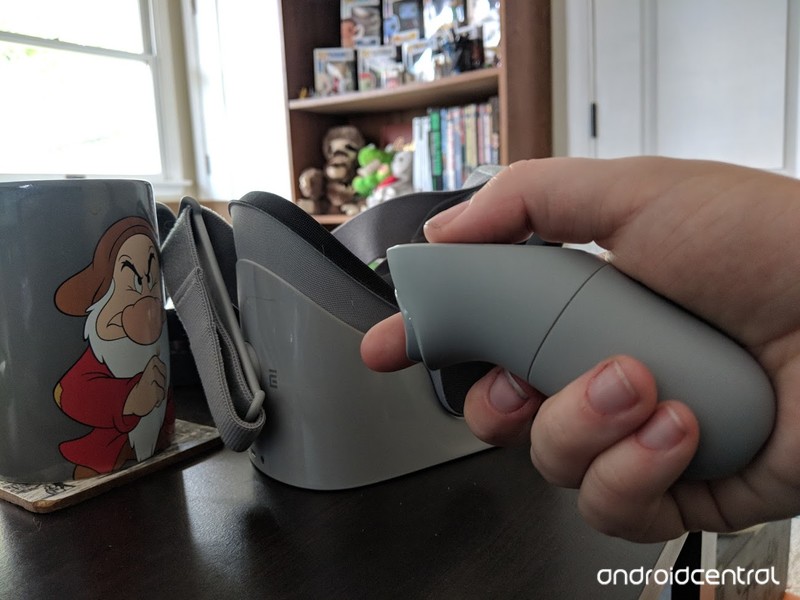
Did Oculus REALLY mean it when they said Go had over 1000 games?
When the Oculus Go was released we were told there was going to be over 1,000 games and apps for us to play around in. Yet from the moment I received my I’ve been experiencing quite a bit of error messages when trying to get into games. That or the controls for games straight up don’t work.
This got me wondering how many of the games were actually transferred properly to work with the Oculus Go, and how many of them were just merged straight from the Gear VR list. These theories are constantly proven to be the latter when games load and give you “how to use your controller” that most certainly is not an Oculus Go controller.
I will not be listing games that show a Gear VR or Daydream controller at startup. If I did 99% of the app store would be on this page. Most of the games that show a Gear VR is very self-explanatory as to what the controls are. (I.E. Press the trigger for grab, press the touchpad for moving). Listed are games where the controller settings are so out of place it almost didn’t make sense.
Games that are working, but have some issues
These games work enough that you’ll be able to play them, but something (whether that be a control or an error) is missing. If the controller settings had never told you that you should have had an option to do something that you later found out wasn’t compatible with your controller, you’d never know.
The Vault
The Vault is one of the better horror games available on the Oculus Go, but it will give you some problems. The only one I encountered was how many times you have to click a button to pick something up.
When approaching scrap it turns out you can’t pick up any of the items with one click. It takes quite a few clicks to pick up your targets and take them to their compartments. Other than that the game is still terrifying and fun to play so a few extra button clicks didn’t actually bother me all that much.
Doors of Silence
This game is another one of the best horror games for the Oculus go. While there is a small problem with the controls it surely didn’t stop me from having a baller time with this game. The problem is that it doesn’t appear that there is actually a control to make your character run. The instructions say “You’ll sound out of breath when you’ve run too much” and my character has heavy breathed before. But the problem lies in when I’m supposedly “running” the screen doesn’t appear to be moving faster. In fact, it moves at the same pace as the slow walk you spend most of the time in.
Regardless, I was able to beat the game without needing the running option and still had an amazing time. So don’t let that be a reason to not play!
Games not even worth the download
For reasons listed under each title, these games aren’t even worth downloading to your device. They’re either not working at all, or have so many complications they might as well not be working at all.
Temple Run
Nothing works. No controls, no nothing. It took a frustrating amount of button mashing to pick up the idol just to get the game to work. Then, when it started running none of the other controls work. Not moving your head, pushing any buttons, swiping, nothing.
Dead and Buried
When you load in this game everything seems to be perfectly fine. The controls show a different controller but work well enough it’s still playable. But then you get to the game and after the 2nd or 3rd time you have to reload your gun you notice your controller is about 4 inches off its calibration. You see, you have to reload your gun by whipping your gun down to the left and then back up to the right.
I’m not sure if it’s bad design or a poor transfer to Oculus Go controller settings, but, every time you reload your gun it throws off the controller calibration. You can’t really pause the game without having to go back to your Oculus Main menu so having to reset your controller in the middle of a gunfight is actually pretty annoying and makes this game unplayable.
Underworld Overlord
This game is actually pretty fun and makes me a little sad it’s not working on the Oculus Go. For the most part the controls do work, but the problem lies in how sensitive the Oculus Go controller is and the controller settings they decided to use. Constantly I kept accidentally opening the spell menu by accident and even when I was trying to be **very conscious* of my hand placements so it wouldn’t happen, it still did!
Later I would be instructed to open my spell menu and go figure it wouldn’t work. I didn’t get past the 3rd or 4th challenge of this game before I was uninstalling it in a huff.
The Harbinger Trial
I’m actually kind of mad this one didn’t work because it seems like it would be such a good horror game to play. I knew I was in for a potential problem when, at startup, it showed the Gear VR controller. I did not realize how much of a problem that was going to be. At first, it was a scramble to figure out what controls actually meant what and nothing was even remotely like any usual controller options. (Like swiping left to walk forward, what?)
To top it all off, it took me 5 solid minutes to figure out the actual controls for combining items in the inventory menu. To top it all off, later when the need for combining items came up again it didn’t work. I tried my hardest to get this game to work because of how cool it really is, but my frustration got the best of me. Hopefully, this game will receive an update and make me a little less sad.
NBC Sports VR
This Gear VR app will allow you to download it to your Oculus Go but that’s as far as the compatibility goes. When it comes down to connecting the app to your account the authorization process does not work, leaving this app useless.
Have you found any games not working?
Tell us in the comment section below and we’ll do our best to make sure this article is constantly updated with games that aren’t working.
Oculus Go
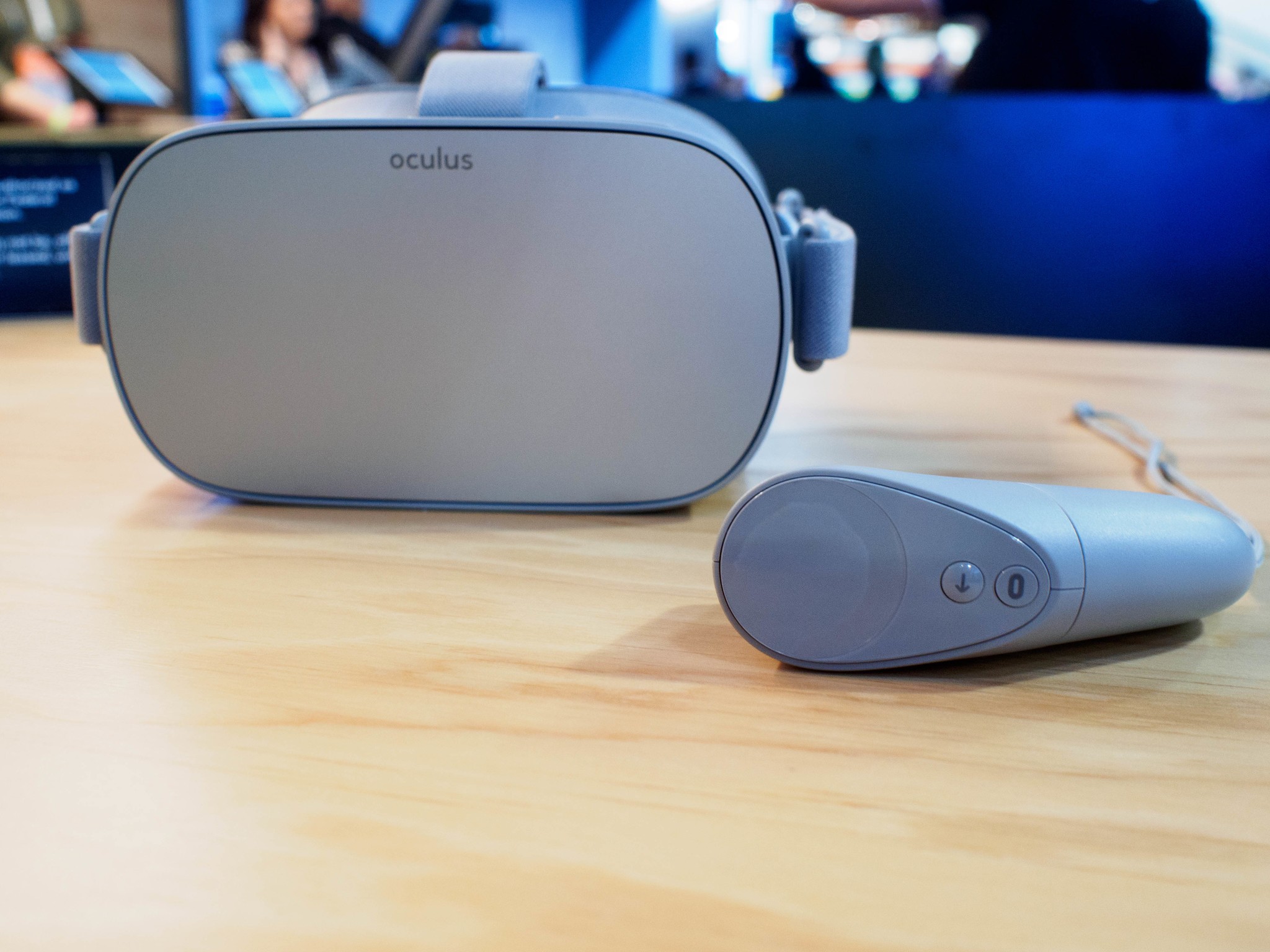
- A parent’s guide to Oculus Go
- Oculus Go vs. Lenovo Mirage Solo
- Best Gamepad for Oculus Go
- Best Battery Backup for Oculus Go
Oculus Go 32GB
Oculus Go 64GB
Acer Chromebook 11 (2018) review: Simple, dependable, and affordable

Acer’s refresh of the trusty Chromebook 11 is the best $270 you’ll ever spend on a laptop.
We look at a lot of products here at Android Central. We try to spend our time on things that we would recommend and see devices that cover just about every price point. We love it when we can find a product that’s reasonably priced and it turns out to be great, and that’s a perfect description of Acer’s 2018 model Chromebook 11.

Building on the success of its previous offerings, Acer has refined both the look and the hardware to deliver a great basic Chromebook that offers awesome performance and checks in well under $300. It’s a worthy successor to the original Acer Chromebook 11 that adds a touch of extra flair with its gorgeous indigo blue textured lid and satin-finish interior. The engine that drives the Chromebook 11 is an Intel N3350 with 4 GB of RAM (the Chromebook 11 comes in only one configuration), and it offers all the power necessary for a great experience.
See at Amazon

Acer Chromebook 11 The construction
The Chromebook 11 doesn’t look like your typical grey or black Chromebook. You’ll immediately notice the deep blue color of its lid, and when you reach for it, you’ll love the textured finish. It’s not a rugged model, and it’s not a convertible — it’s a Chromebook for the person who wants a Chromebook and not a tablet or an easel-style display.
You can do plastic two ways: good or bad. This is done the good way.
It’s plastic, and in a world where thin light Chromebooks that offer a metal shell and look like a MacBook Air, which might be a turn off for some. But plastic shouldn’t equal damnation because it has some very redeeming qualities and Acer takes advantage of them very well.
No part of the Chromebook 11 is glossy or slick; the plastic is finished in a matte coating that offers a light satin feel. In contrast with the outer lid, it’s subtle and feels good. I’m not afraid to say plastic can both feel and look good when done right, and the Chromebook 11 is plastic done right.


It’s also very rigid and seems to be well constructed. There’s no flex in the lid or screen, the hinges are stiff but not too stiff, and the base supports it all while its open very well. There’s not much more you can say about how it’s built — it’s a traditional laptop that’s sturdy, looks great, and should last for a while with minimal care. I do appreciate high-end laptops or convertibles that are taking on the tablet space, but it was a little refreshing to use a simple and sturdy laptop that’s built like you would expect a laptop to be built.
It was refreshing to use a small sturdy little Chromebook without any tablet ambitions again.
I can’t overlook that the Chromebook 11 doesn’t act as a tablet, doesn’t have a touchscreen or pen input, and doesn’t have a 360-degree hinge of any sort. I appreciated that the company went for a more simple design that focuses on doing a laptop well and is leaving other models to take up the torch when it comes to those features. But you might not. If you’re looking for a Chromebook that has touch input options or can fold over into a tablet configuration, the Chromebook 11 isn’t for you.
 François Beaufort’s Cog extension; get it at the Chrome Web Store.
Acer Chromebook 11 Specifications
| Processor | Intel Celeron N3350 (1.10 to 2.4GHz) |
| Display | 11.6″ HD (1366 x 768) “ComfyView” LED backlit IPS panel |
| Graphics | Intel HD 520 |
| Battery | 3490 mAh (up to 10 hours) |
| Camera | 720p HD front facing camera with HDR support |
| RAM | 4GB LPDDR3 |
| Storage | 32 GB eMMC |
| Ports | 2 USB-C 3.12 USB 3.0Micro SD card readerAudio combo jack |
| Connectivity | Intel dual-band Wireless AC (2×2 MIMO)Bluetooth 4.2 |
| Dimensions | 11.65-in x 7.83-in x 0.71-in |
| Weight | 2.43 pounds (1.35kg) |


Acer Chromebook 11 Ports and user features
I love a Chromebook that gives me plenty of USB ports. I know the future is filled with devices that all use the USB Type C standard, but for me, that future isn’t here just yet, and I like legacy support when it comes to the holes in my Chromebook. You’ll find two USB-C 3.1 ports and two USB A 3.0 ports, one of each on both sides.
You’ll also find a Kensington lock slot, a combo headphone, and microphone 3.5mm jack, and a Micro-SD card slot that Acer says accepts cards up to 128 GB. It read and wrote with several different 128 GB cards but nothing bigger was available for testing I’ll wager it will work with larger capacity cards, and the 128 GB labeling is simply boilerplate like we see so often in other devices.
You say you need ports? The Chromebook 11 has you covered.
The USB-C ports follow the USB Consortium 3.1 standards, and that means they will carry audio and video as well as “regular” data transfers. The Chromebook 11 was able to send video out through my generic USB C docking station/adapter to a television or a computer monitor via HDMI. The USB ports and software drivers also supported an Anker USB 3.0 ethernet adapter without any fiddling around in the command line.
Both USB-C ports also support charging, and you can charge another device with the correct USB cable using the Chromebook 11’s battery. Everything is there, and everything works.

Acer Chromebook 11 Keyboard and trackpad
The keyboard is good, but not great. Part of this is that 11-inch Chromebooks don’t have much extra room in the keyboard pan so things can feel a bit cramped. The keys don’t feel small, but they are tightly spaced, and that can make touch typing a little more error-prone. The amount of travel and feedback when a key is pressed is adequate to let you know you’ve hit it, but nothing spectacular. It’s also possible (read: I’m spoiled and hate to admit it) that I’m a very picky typist and will notice the tiny details because my fingers are always tapping keys.
The Chromebook 11 is proof that a plastic trackpad can be excellent. Who knew?
The trackpad, however, is excellent. It used to be normal to expect a sub-par trackpad on any Chromebook not made under the Pixel brand. Things progressed slowly, and there were some models last year that had more than serviceable touchpads, but the Chromebook 11 has a trackpad I enjoyed using. It’s plastic without any glass coating — and I expected to hate that — but with a smooth finish that has just a bit of drag for feedback. It’s “clickable” anywhere which is always a plus, and manipulating the cursor in both Chrome applications and Android apps was smooth and precise.
And that’s great because, once again, we have to remember that the Chromebook 11 doesn’t have a touch display, so the cursor is your only interaction in most apps.


Acer Chromebook 11 Display
I have a love/hate affair with the Chromebook 11’s display. It’s what you would expect on a no-frills Chromebook with a 1366 x 768 resolution on an 11.6-inch IPS panel. That’s not ideal by any means, but it’s not what bothers me.
The display has a matte finish, which can be wonderful in certain conditions. You won’t have any issues with annoying reflections because of the matte finish, but glare from light at just the right angle can be a problem if it’s not bright enough. And the display isn’t extremely bright, topping out at 228 Nits. It’s not a bad display and the matte finish is great under most conditions, but forget using this one outside on a sunny day.
Matte finishes are great when the display is bright enough. This one’s not, so beware the sunshine.
As mentioned the display is not touch-capable. Models in the 11-inch size with touch screens and pen input are coming from Acer, but the Chromebook 11 is intended to be a dependable workhorse with a standard laptop configuration. I’m not knocking the Chromebook 11 because of this, but I do feel that it needs to be mentioned whenever we talk about the display to make sure any potential buyers know what they are getting.

Acer Chromebook 11 Software and performance
Chrome OS is the same on every Chromebook that is still supported. That makes it great from a consumer standpoint — you know what to expect and any software flaws are addressed directly from Google in short order. It makes things hard on a reviewer though, as there aren’t any standouts to feature.
The Chromebook 11 supports Android apps through Google Play out of the box, and the Google Play on-boarding process is simple. Enter your Google credentials to log into the Chromebook the first time, and you’ll be directed to the Play Store and asked if you would like to sign in. From there, it’s just like your phone — find an app you like and press the install button.
You’re guided right into Google Play during the setup process.
Because there is no touch support, I tried a few extra Android titles in addition to the those I use every day and those I use to review a device. Every Google service worked flawlessly (as expected) and nothing I installed seemed broken. Some things, Final Fantasy IX seemed a little clunky compared to an install on a phone, tablet, or other Chromebook with touch support as you’ll need to use the keyboard and/or trackpad to play. Overall, a Chromebook without a touch screen worked better than I expected even if the experience wasn’t perfect.

Expect a full day of normal use from a single charge unless you get lost playing Final Fantasy IX when you should be working.
The performance was exactly as expected and advertised. The dual-core Celeron CPU and integrated GPU were able to handle processor-intensive applications, and 4 GB of RAM meant I could open more tabs than I needed in the browser or keep all the Android apps I need running in the background with no problems. As of today, the specs of the Chromebook 11 are all you would ever need in a Chromebook, but I fell they aren’t enough to provide a great experience should Linux support come to the Chromebook 11 — and that’s a possibility because it has a 64-bit processor that can also run 32-bit applications without issue.
We can go on and on here and gush over Chrome’s features and future, but that’s not needed. The Chromebook 11 runs Chrome (version 66 as of this writing) flawlessly and was able to handle a fairly heavy workload for 8-9 hours on a charge.

Should you buy the Acer Chromebook 11 (2018)? Probably
If you ask someone what a Chromebook is, the answer you would likely get is that it’s an affordable, durable, and simple computer that’s great to use at home or on the go. And that’s what the 2018 Chromebook 11 is — the archetype of the Chromebook world.
The Chromebook 11 is a throwback to what made Chromebooks great in the first place.
I think the Chromebook 11 is a real winner and perfect for the person who wants a dependable laptop they can use every day, anywhere, and doesn’t want to give an arm and a leg for it. The lack of touch and pen support mean there will be some applications and features that don’t work as intended, but not very many, and if you’re looking to use them, the Chromebook 11 isn’t for you.
I actually like what Acer has done here, but I’m not using my Chromebook as a tablet and have yet to find any must-have reasons for pen support. The Chromebook 11 gives me a great way to work or play in the configuration I prefer, and I would recommend it to anyone who feels the same way.
The Good
- The unique indigo blue lid is beautiful.
- An excellent trackpad.
- All-day battery life.
- Plenty of ports that are spaced well on both sides.
The Bad
- The matte display is beautiful, but the 228 Nit brightness makes it unusable outdoors.
- 1366 x 768 resolution is expected at this price, but we don’t have to love that.
- No keyboard backlighting.
- No touch or pen input.
4
out of 5
If you’re looking for a Chromebook that offers those extra features that make it a great tablet, too, Acer has models — including a second 11-inch device — coming that should meet your needs without breaking your bank. If you’re looking for something rugged, the Lenovo 500e is a great Chromebook that’s only $40 more. I just think it’s great that someone is still making a Chromebook that wants to be a laptop and nothing else and love that it works so well, looks so good, and costs less than $300.
Chromebooks
- The best Chromebooks
- Chromebooks in education: Everything you need to know
- Should you buy a Chromebook?
- Chromebook Buyers Guide
- Google Pixelbook review
- Join our Chromebook forums
Nest has slashed its Secure alarm system pricing by $100, now starting at $399
A new permanent price.

Nest has just announced a $100 price reduction of the Nest Secure, the company’s home security system. The original retail price was $499, and we rarely saw it drop from that price. It will now sell for $399, and this discount is already available at a few different retailers. You can pick up the kit from Nest directly, Best Buy, and B&H. To sweeten the deal even further, B&H is also offering a free Nest Tag, which is a $25 value.
The base Nest Secure package comes with 1 Nest Guard, which is the alarm, keypad, motion sensing brain of the system, two Nest Detects, and two Nest Tags. You can arm and disarm the system from anywhere using the free iOS and Android Nest app, or you can enter a passcode right on the Guard’s keypad. It integrates with other Nest products, like the currently discounted Nest Outdoor cam, the Nest Hello Video Doorbell and more.
Inline installation of Chrome extensions coming to an end

Extensions will soon require a visit to the actual Chrome Web Store listing to start the install process so that users know what they will be getting.
There are a lot of great extensions for the Chrome browser. They run on Chrome for the desktop or your Chromebook and can do anything from check for the best price at Amazon to keeping you safe from bad ads. Almost everyone has an extension or two that they wouldn’t want to be without.
But not all extensions are great. Nobody wants the ones that aren’t great and try to do things like change your default start page or change your search settings so developers of those often resort to a bit of social engineering to get them installed. Google is going to put a stop to the biggest offender when inline installation of extensions is blocked this coming December.
More: The Best Chrome extensions you didn’t know about but should be using
This doesn’t mean any extensions are being removed or anything of the sort. Inline installation means that you can click and install an extension from a third party website. You still need to approve the installation and the files themselves still come from Google through the Chrome Web Store. You’re just clicking to start the process from another website.
Inline installation can lead to you installing something you didn’t really want or installing something that can be confusing. This happens because a developer can put any description they like at a third party web page, but the Chrome Store listing requires things like screenshots and a full description. Google is very clear about why this is being done.
As we’ve attempted to address this problem over the past few years, we’ve learned that the information displayed alongside extensions in the Chrome Web Store plays a critical role in ensuring that users can make informed decisions about whether to install an extension. When installed through the Chrome Web Store, extensions are significantly less likely to be uninstalled or cause user complaints, compared to extensions installed through inline installation.
This change is coming in three waves, starting today.
- Any new extensions from today forward are not able to be installed without a visit to the actual Web Store listing.
- On September 12, 2018, inline installation for all extensions will need to happen through the Chrome Web Store. To ensure compliance, Google is forcing install requests from outside the Chrome Web Store to instead redirect users to the actual listing in a new tab.
- Finally, in December when Chrome 71 is released the inline installation APIs will be removed from Chrome for good. Developers will need to update any third party links to point to the store listing before then, because depreciation of the API will also disable any automatic redirect during the installation process.
Google can keep malicious extensions out of the Chrome Store and prevent any sort of normal installation of them by doing this (you can sideload any extension through developer settings). What it can’t do is police what developers write outside of the store that may not be an accurate description of what’s really going to happen.
You’ll still be able to use the same Chrome extensions you use today, and things will be a little more transparent for the new ones you might like to try. We call that a win-win.
Chromebooks
- The best Chromebooks
- Chromebooks in education: Everything you need to know
- Should you buy a Chromebook?
- Chromebook Buyers Guide
- Google Pixelbook review
- Join our Chromebook forums
BlackBerry KEY2 and 6GB of RAM: Why it’s a big deal

More RAM means BlackBerry’s Apps have room to breathe, and they appreciate it!
The BlackBerry KEY2 might look a lot like the KEYone on the outside, but under the glass, you’ll find a whole new set of components. One thing that’s new is already a welcome change — more memory. In this case, a lot more as the KEY2 ships with 6GB of RAM.
That’s not uncommon in 2018. Samsung’s Galaxy line comes with extra RAM, we saw the OnePlus 6 ship with oodles of it, and plenty of companies now offer flagship phones with more than the “industry standard” 4GB of RAM. It’s also worth mentioning that no phone needs more than 4GB of RAM (at least not right now), but it’s never a bad thing to have a little bit extra. In some cases, and this is one of them, it actually makes things better even if it’s not a requirement.
More: BlackBerry KEY2 Hands-on
Space for features

Ask anyone who used a KEYone about the weird lag you see sometimes when you use the BlackBerry Hub. The original silver model that shipped with 3GB of RAM was much worse, but even the updated black version would still get a little slow, then stop completely for a fraction of a second from time to time whenever you opened up the Hub. Everything still worked as expected, but it was there and it was a thing you couldn’t unsee.
The BlackBery Hub “app” ties into over 20 other apps and bundles a lot of data together. That needs lots of RAM.
It was because the BlackBerry Hub is a RAM hungry beast. We know this is true because Mr. Mobile and I spent an evening with one attached to the Android studio tool that monitors resource usage (it’s called the Android Profiler) and watched things while we used one. You could see it suck up all the available RAM when you first opened it, and it was drawing your list of messages. Once all the free RAM was used, the system had to close something you’re not using to free up more until everything was loaded and on the screen.
This is because of the way the Hub works. It’s reading and writing a bunch of individual records from many different databases filled with data. This type of data needs read and written in order which means it takes up a tiny bit more memory for each listing. It also means the system can’t try and do more than one thing at a time after its CPU cache is full. The Hub is a rich application and it has to work this way. I’m sure BlackBerry is always looking at how it can reduce the memory footprint, but BlackBerry Hub will always be a RAM hog. A worthy RAM hog for most people with the phone, but a hog all the same.
More is … more
More features take more memory or more time. There is no way to get around this.
Adding memory means extra features can run faster and without any stuttering.
Adding extra RAM gives the Hub room for all this overhead. BlackBerry’s core system may not be as bloated as other manufacturer software, but the Hub makes up for it. We know how extra RAM makes the Galaxy S9 seem more responsive while we’re using it, and that’s because Samsung’s system components all take a bit more memory than “stock” Android versions do. That’s what happens as you add features and most anyone with a Samsung phone will tell you they love the features and wouldn’t complain if the phone was fluid all the time and didn’t slow down on occasion. More RAM in the S9 is a way to get there.
Folks who have used the BlackBerry KEY2 aren’t seeing the same “microstutter” that was present in the KEYone because there is more room in memory to read and write more single records. This is just like the S9 where 4GB was enough, but a bit extra makes software features run a little faster and smoother.
We all like faster and smoother. Anyone moving up from a Priv or a KEYone to the KEY2 is going to appreciate that extra spec bump in the memory department.
See at BlackBerry Mobile
BlackBerry KEY2
- BlackBerry KEY2 hands-on preview
- BlackBerry KEY2: Everything you need to know!
- BlackBerry KEY2 specs
- BlackBerry KEYone review: Coming home
- Join our BlackBerry KEY2 forums!
BlackBerry
 AIVAnet