


Xiaomi Mi 7: Rumors, Specs, Release Date, and More!
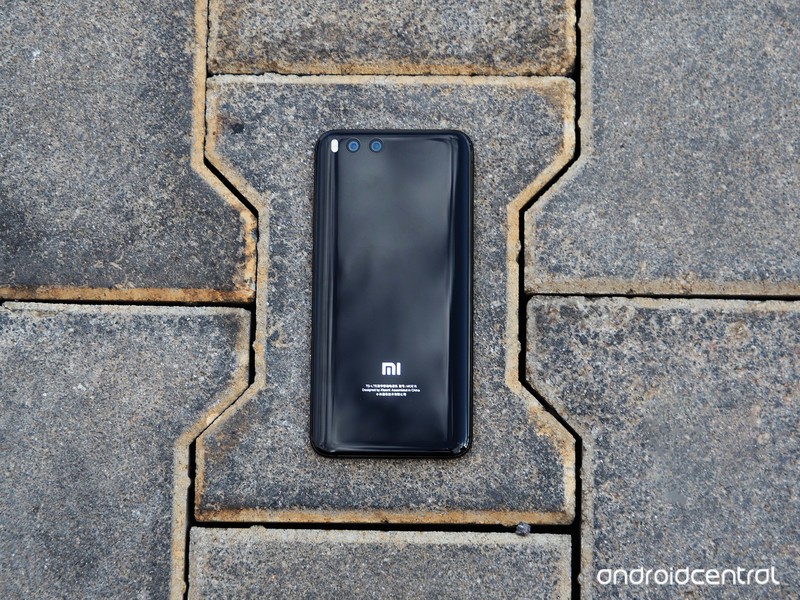
Here’s what we know so far about Xiaomi’s 2018 flagship.
Xiaomi’s Mi flagships have always offered great value for money, and that was the case last year with the Mi 6. The phone managed to undercut rivals by a few hundred dollars while still offering a similar user experience. Xiaomi isn’t looking to change the formula this year, with the Mi 7 also expected to feature top-of-the-line hardware and a price tag under $500.
The Mi 7 will be powered by the Snapdragon 845
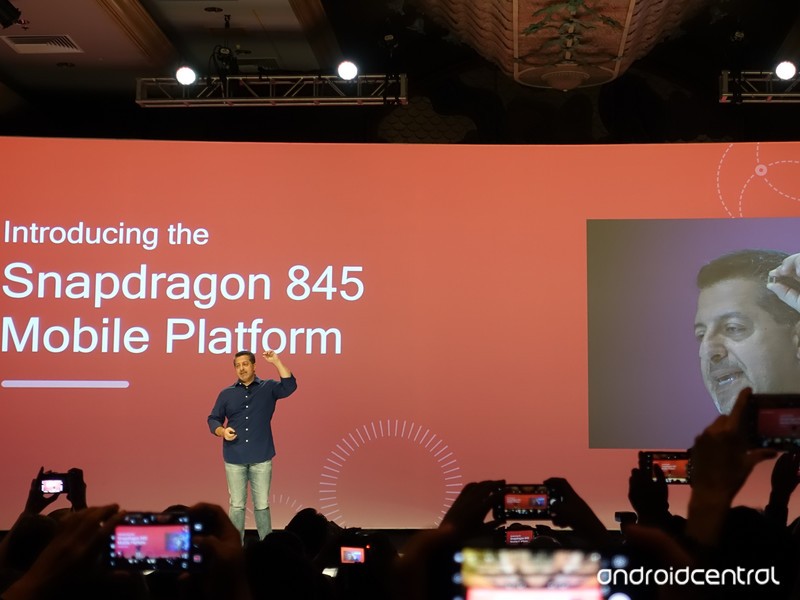
Qualcomm announced the Snapdragon 845 platform back in December, touting significant improvements across the board. Qualcomm is heavily relying on AI for its Hexagon digital signal processor, and is claiming a 10-20% bump in performance from the Kryo 385 CPU and a 30% boost for the Adreno 630 GPU.
Xiaomi has always been one of the first manufacturers to roll out phones featuring Qualcomm’s latest hardware, and that tradition will continue this year. Xiaomi CEO Lei Jun was on hand at Qualcomm’s annual tech conference last month to announce that the Mi 7 will be the first phone to be powered by the Snapdragon 845.
Cameras will be the differentiator
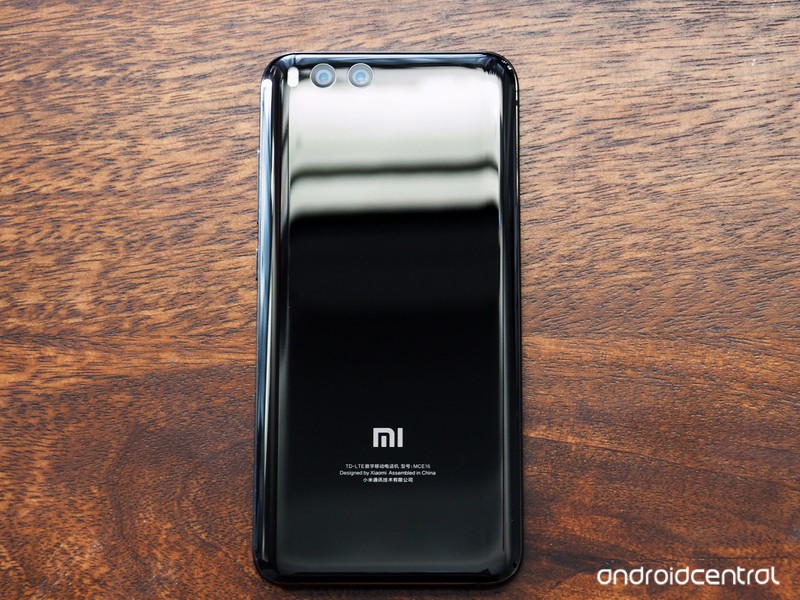
Xiaomi’s focus in 2018 is going to be on the camera segment. The manufacturer prioritized battery life last year, leading to devices like the Redmi Note 4 and Mi A1, which could easily last two days on a full charge.
We don’t have any details on what Xiaomi has in store, but it should certainly be interesting. The company switched to a dual camera configuration with the Mi 6, and that’s likely to remain unchanged this year. Whether we’ll see a telephoto lens as the secondary shooter remains to be seen.
It will have an 18:9 Samsung-made display
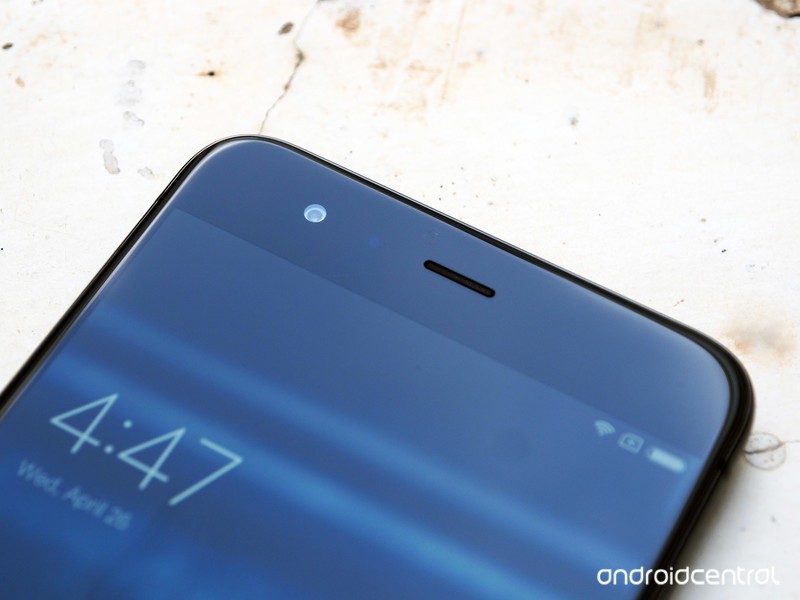
The 18:9 form factor is fast becoming the standard, with Xiaomi being one of the first to introduce a thin-bezel display in the first-gen Mi Mix. The manufacturer hasn’t seen fit to do the same for the more mainstream Mi 6 last year, but that’s set to change this year with the Mi 7.
Early rumors suggested the Mi 7 will come with an 18:9 panel manufactured by Samsung. There’s no indication of screen size or resolution, but we’re likely to see a 6-inch display. Xiaomi is set to introduce a phone with a Quad HD panel, but that could change with the Mi 7.
3D face recognition rumored to be a key feature
Another rumor that made the rounds hinted at a face unlock feature coming to the Mi 7. Xiaomi is said to be considering getting rid of the fingerprint sensor in favor of facial recognition tech.
Interestingly, Xiaomi CEO Lei Jun said during the unveil of the Mi Mix 2 last year that the brand tried out different approaches to integrate the front camera module into a device with thin bezels, including an iPhone X-style notch. So if the brand decides to roll out facial recognition as the de facto way of unlocking the phone, we could see a similar cutout at the front of the Mi 7.
Don’t hold out for a 3.5mm jack
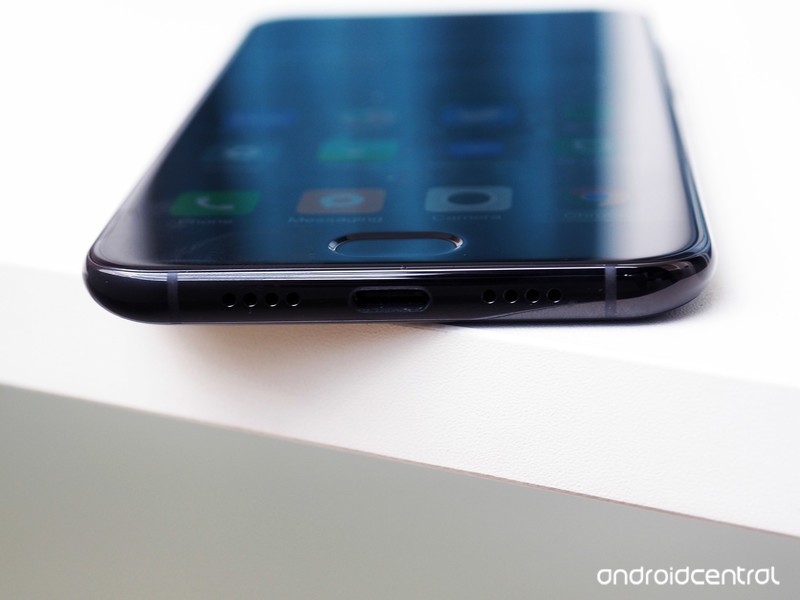
Xiaomi ditched the headphone jack last year in favor of additional battery life, and it’s unlikely to make a return with the Mi 7. It’s a shame that the brand removed the 3.5mm jack, but the industry at large is moving away from the analog standard and embracing wireless headphones.
Unveil slated for MWC
There’s no official confirmation on when we’ll see the Mi 7, Xiaomi is scheduled to exhibit at Mobile World Congress next month, and it is possible the manufacturer could use the venue to unveil the Mi 7. Even though Xiaomi is primarily focused on Asian markets, the brand took to the global stage to showcase the Mi 5 two years ago, and it’s likely it will do so again next month.
What are you interested in seeing from the Mi 7? Let us know in the comments below.
Google’s Hangouts Meet video calls are now available on tablets
Google has extended support for video calling on Hangouts Meet, its enterprise version of the chat service, to iOS and Android tablets. This comes almost a year since the company split Hangouts between Chat, for casual users, and Meet, which is geared toward corporate videoconferencing.
Enabling video calling is an obvious boon for folks using Meet, especially as it’s been the better part of a year since Google integrated Hangout calls into iOS’ Callkit. It’s the latest step in the company’s efforts to specialize its chat services, dating back to June 2016 when it officially killed Gchat to let Hangouts, Allo and Duo inherit stronger roles.
Via: VentureBeat
Source: Google blog
Lenovo’s tough, hybrid Chromebooks are built for education
Lenovo has launched a handful of new laptops designed for classrooms, including three new Chromebooks. The new devices were designed to be tough enough to survive students’ rough handling and have rubber bumpers, reinforced hinges and mechanically anchored keyboards. Google has also subjected them to drop tests, and they include support for Google’s Classroom and G Suite for Education. Lenovo 500e (pictured above) is a convertible Chromebook that comes with a pressure sensitive pen stored in a built-in compartment. It has a 5-megapixel rear-facing camera, so kids can take pics of the board, their experiments and activities. The convertible is powered by an Intel Celeron processor, has an 8GB RAM, a 64GB storage and an 11.6-inch HD touchscreen display.
The 300e, which is available as a Chromebook or as a Windows 10 device, is also laptop-tablet hybrid. 300e for Windows has pen support, but it doesn’t come with its own stylus like the 500e. Its Windows version is powered by Intel Apollo Lake and has an 8-hour battery life, while the Chromebook version is powered by a MediaTek MTK 8173C processor and can run for 10 hours. Finally, there’s the most basic model among the three Chromebooks: the 100e, which is also available as a Windows machine. It’s purely a laptop that runs on Intel Celeron and has an 11.6-inch display.
Lenovo’s 500e Chromebook will be available starting this month for $349 and above. The Chromebook version of 300e will come out in February 2018 for $279, while Chromebook 100e will be out in March 2018 for Chrome and will set you back $219.
Source: Lenovo
How to install Windows 10 on a Mac
Sometimes, you just need Windows. It’s not something that Apple would like to admit, and for the most part MacOS has done an admirable job of keeping up with its less stylish and more utilitarian cousin, but sometimes you just need access to a computer that runs Windows 10. Thankfully, as Apple used to say, “there’s an app for that.”
Apple’s custom-tailored solution is called Boot Camp, and it’s the easiest way to get Windows on your Mac without resorting to dark rituals and eldritch sorcery. So here’s how to install Windows 10 on a Mac with minimal fuss and danger!
Step 1: Confirm your Mac’s requirements
Before getting started, make sure your Mac has the available disk space and hardware necessary to handle the Windows install via Boot Camp. Make sure all the latest updates are completed before you begin!
First, the install requires an Intel-based Mac computer and an empty external USB drive capable of holding up to 16GB of data. You can connect the hard drive when preparing if it is not already connected.
Second, the Mac you intend to use for the install needs to have at least 55GB of free disk space on the startup drive. Most Mac devices from 2012 and later will work, but you will need much more recent versions of devices like the MacBook (2015). Apple provides a handy system requirements list for various Mac models which details the version of Boot Camp your system requires to complete a Windows install.
Step 2: Buy a copy of Windows
Windows 10
Luckily, acquiring Windows 10 has never been easier. Just head over to the Windows Store. You’ll have options here, first you can choose to purchase a digital copy, which you’ll need to download (and then download this tool to create a Windows 10 disk image), or you can purchase a Windows 10 flash drive which Microsoft will ship to you.
If given an option, always choose the ISO file, which should be available for download even if you bought a physical version of Windows 10: The flash drive option tends to be time-consuming and unnecessary, and should only be used if you have compatibility issues with a download.
Step 3: Open Boot Camp
Now that you’ve got an install drive of your desired Windows operating system (you can even download the Creator’s Update version), it’s time to open the MacOS Boot Camp Assistant. To do this, simply select the Utilities folder from your Mac’s application list and open Boot Camp Assistant.
Once the program opens, an introductory screen offers information on the application and also suggests creating a backup of your data before continuing with the Windows install — we highly recommend doing this. Click Continue to advance to the next screen.
Make sure both installation options are checked as seen above. At this point, Boot Camp Assistant copies your desired Windows operating system installation files from either an .ISO file, or a physical disc, onto the plugged in USB drive. Here, depending on your setup you will probably need that connected external hard drive we mentioned. Simply choose the location of the .ISO file and its intended destination (the USB drive) and click Continue. The next screen should say Copying Windows files… and may take a while to complete; be patient even if it looks like the progress bar freezes.
Once the next window opens, Boot Camp Assistant gives you the option to choose where to save the Windows drivers and installs support software files. Follow the on-screen instructions and make sure you have an Internet connection, selecting Continue when prompted. You may need to connect empty external USB storage, depending on how the downloads progress and where you choose to download the Windows files. The process of downloading the drivers could take quite a while to complete, so stay patient!
Step 4: Create a partition for Windows
After the drivers complete installing, the next step is to create a partition for the new Windows installation. By default, Boot Camp Assistant assigns just 55GB of space for the Windows partition, which is enough to complete the installation but hardly anything else.
To increase the GB limit for the Windows partition, simply slide the bar between the MacOS partition and the Windows partition until it assigns the desired amount of space. Once you finish this, click Install to complete the partition process.
Step 5: Install Windows
With the partition completed, Boot Camp Assistant now asks you to begin installing the Windows operating system. After following a few on-screen prompts the installer asks which partition you wish to install the Windows operating system on. Simply select the partition labeled BOOTCAMP and choose Format. Continue to follow the install wizard’s commands and Windows should complete installing in around 30 minutes.
When ready, head over to Startup Disk preferences (you can search for it using Spotlight or find it in System Preferences). Choose the startup disk housing Windows 10 so that from now on your Mac will start in Windows. Restart your computer entirely, and it should open onto the Windows screen.
Touch Bar Support on Windows
If you’re installing Windows on a brand-new MacBook Pro with Touch Bar, worry not, you’ll still be able to get some functionality out of your OLED touch pad when running Windows. Once you boot into Windows your Touch Bar will retain some functionality, but not exactly the full range available in MacOS. The Touch Bar will still have support for all of your MacBook’s basic controls – brightness, volume, play and pause – and at the touch of a button it can switch over to a standard row of F keys.
It’s also worth noting many features may not work correctly while using the Windows partition. Apple supports Windows 10 but you’ll still notice a difference in performance. MacBook hardware is made for MacOS, so it doesn’t always get along with Windows 10, in particular your trackpad might be a little less responsive, and some Apple-specific hardware will cease to function entirely – like the TouchID sensor on the power button.
Updated on January 18th by Tyler Lacoma. Updated to Windows 10 instructions and images.
Editors’ Recommendations
- How to uninstall Windows 10
- How to factory reset Windows and make your PC new again
- Like Chrome OS, but miss Windows? Here’s how to install it on your Chromebook
- How to speed up Windows in a few easy steps
- Why gaming on MacOS is dead forever and never coming back
‘Sonic’ designer Yuji Naka joins Square Enix
Here’s a game industry move you probably weren’t expecting: Sonic the Hedgehog co-designer Yuji Naka has joined Square Enix. He’ll continue to pursue game development, but he isn’t exactly dropping many hints as to what’s next. Naka wants to make an “enjoyable game,” which sounds like a good goal to shoot for. It’s not clear what will happen to his game studio, Prope, with the change in career path.
Whatever he does, Naka will bring a lot to the table. He started at Sega in 1983 and quickly developed a reputation for his programming skills, which proved instrumental to games like Sonic — the game’s signature loops and curves were the result of his work. He eventually became a producer who managed titles like Nights into Dreams and Phantasy Star Online. Naka left to form Prope in 2006 simply because he wanted to create his own games that weren’t Sonic-related. Prope’s titles weren’t as high-profile, of course, but they covered a wide range of platforms ranging from TV consoles to the 3DS and iOS devices.
Naka isn’t likely to have much direct hands-on time at Square Enix given his stature and the size of the company — this isn’t an indie outfit. However, it won’t be surprising if he leaves his mark on whatever his new project might be.
Via: Gamasutra
Source: Yuji Naka (Twitter)
Google hires former Xbox, PlayStation exec Phil Harrison
Phil Harrison followed up almost two decades as an executive for both Sony and Microsoft as an investor in computer and video game companies. But he’s moving back to the tech world with a new role as Vice President and GM of Google, Harrison announced on Twitter.
Excited to be able to share that today I’ve started a new role as Vice President and GM of Google – and relocating (back) to California.
— Phil Harrison (@MrPhilHarrison) January 22, 2018
Most of his career has been involved with production or oversight of gaming platforms. Starting in 1992, Harrison spent 15 years working for Sony, some of it heavily involved with the PlayStation family in regional and global executive positions. His assurance that the PS3’s holistic platform would make the PC obsolete didn’t pan out, but he stayed in gaming after leaving Sony, heading Atari for a year before stepping down and joining Microsoft in 2012 to become lead for Xbox in Europe. It’s unclear what area Harrison will oversee at Google, but given his investments in VR and AR companies, it’s possible he will be involved with projects in those or other gaming fields at the tech giant (we’ve reached out for comment).
Source: Phil Harrison (Twitter)
Apple CEO Tim Cook Learned to Code in College
Under the leadership of Apple CEO Tim Cook, Apple has spearheaded an “Everyone Can Code” initiative designed to introduce coding curriculum into elementary schools, high schools, and colleges, so kids and adults of all ages can learn to code.
Apple CEO Tim Cook always speaks passionately about the importance of teaching coding to children of all ages, and last week in an interview, he even said that if you have to make a choice, it’s more important to learn to code than to learn a foreign language.
Cook’s recent comments spurred MacRumors reader El-ad to ask Cook about his own coding experience in an email, which Cook responded to. Cook says he learned to code in college because coding wasn’t offered at the high school he attended.
El-ad,
I learned in college. No classes exist in the high school I attended. I’m happy this is now changing.
Tim
That Cook can code may not be immediately obvious as he ran Apple’s worldwide operations before becoming CEO of the company, but it’s no surprise. Before going to Duke University’s Fuqua School of Business for his MBA, Cook graduated from Alabama’s Auburn University with a bachelor’s degree in industrial engineering, a major that requires a programming background.
In October of 2017, Cook shared additional details on his coding experience in an interview with The Sun. Back when he was attending Auburn University, Cook built a system to improve the traffic lights near the university. He aimed to optimize traffic to reduce wait times while maintaining the safety of the lights. His work was a success and it was implemented by the local police force.
“That was pretty cool at the time – and it worked, Cook said. “Law enforcement implemented it.”
Apple’s Everyone Can Code curriculum is available in schools and colleges around the world, with many colleges offering Apple’s App Development with Swift Curriculum. That course is a full-year coding course designed by Apple engineers and educators and it is designed to teach students how to code and design apps for the App Store.
For younger learners, Apple offers Get Started With Code and Swift Playgrounds curriculum, and for those who want to learn outside of a classroom, Apple offers the Swift Playgrounds app on the iPad.
Tag: Tim Cook
Discuss this article in our forums
Tim Cook Discusses Apple’s Partnership With Malala Fund to Support Girls’ Education
Apple today announced that it has teamed up with Malala Fund to become the fund’s first Laureate partner, providing Malala Fund with the support it needs to double the number of grants it provides and expand into India and Latin America.
The Malala Fund, led by Nobel Peace Prize Laureate Malala Yousafzai, champions every girl’s right to 12 years of free, safe, quality education.
Following the announcement, Apple CEO Tim Cook spoke with iMore in a short interview in Toronto where he shared some insight into how Apple and the Malala Fund came to form a partnership. Cook says that after meeting Malala, it became clear that their values aligned. “Not only the Malala Fund and Apple, but our personal values as well,” Cook said.
“One, equality is at the core of our belief and values and, two, that education is the great equalizer of people. If you believe both of those, it’s not an extension at all to say, ‘how do we help Malala achieve her vision of educating 130-million young girls around the world?’”
Cook said that he loves the Malala Fund’s focus on secondary education, because in some places around the world, girls receive an education until grade 6 or grade 7, and then their schooling stops. “This isn’t right,” said Cook. “It doesn’t maximize potential and it doesn’t treat people with dignity or respect.”
With Apple’s help, the Malala Fund will double the grants it provides through its Gulmakai Network (which supports educational programs in Afghanistan, Pakistan, Lebanon, Turkey, and Nigeria) and extend funding programs to Latin America and India, offering secondary education opportunities to more than 100,000 girls to start with.
Apple will provide technology, curriculum, and research into policy changes needed to help girls around the world attend school and complete their education. Going forward, Cook will also serve on the Malala Fund leadership council.
Cook’s full comments on the Malala Fund and some additional commentary on Swift Playgrounds can be read over at iMore.
Note: Due to the political nature of the discussion regarding this topic, the discussion thread is located in our Politics, Religion, Social Issues forum. All forum members and site visitors are welcome to read and follow the thread, but posting is limited to forum members with at least 100 posts.
Tag: Tim Cook
Discuss this article in our forums
Camera app gets user interface upgrades in latest Windows 10 build
In early January, Microsoft released build 17074 of Windows 10 to members of the Insider program, giving them a preview of what’s next for its flagship operating system. Among the new and updated features was a new version its Camera app.
The update to the Camera app focuses on tweaks to its user interface, which have now been officially detailed by Microsoft in a recent blog post. The idea is to make the app a little more personal, by making some thoughtful tweaks to the nuts and bolts of how the tool operates.
Under the hood, there have been some edits to the core architecture that underpins the Camera function. Windows 10 is now able to do most of the heavy lifting when it comes to unsupported devices and functionality, so the duplicate handling that’s specific to the app has been removed. Since this could potentially cause some hiccups, Microsoft is rolling the change out to Insider program members first.
“From a Windows team perspective, the complexity of the Camera application made it difficult to innovate, fix bugs, and deliver new features,” the blog post from the Insider team reads. “From a Windows user perspective, this led to performance problems during photo capture time, lack of new features, and sometime failure of the Camera app. We think that this set of changes will long term yield a much higher-quality Camera experience for all users!”
The app now remembers which camera and scene were last selected, and loads them by default when it’s loaded, according to a report from On MSFT. More photo resolutions and video ratios are available, attached cameras can be used in parallel on different app windows, and the brightness slider is smoother and more accurate. A couple of features have also been removed; swiping left on the capture button to show all sliders, and wheeling on the capture button between scenes.
Members of the Insider program who have already updated to build 17074 should already have access to the latest version of the Camera app. Assuming that the Windows team doesn’t find any major issues, the rest of the Windows 10 user base should receive the new iteration soon.
Editors’ Recommendations
- Tired of Twitch? Here’s how to stream on Microsoft’s Mixer
- Microsoft pokes fun at Apple’s panoramas with new multidirectional tool in Pix
- Insider Build 17063 shows Paint is gearing up to depart for the Microsoft Store
- Microsoft brings muted tabs, quick sharing in new Windows 10 Insider Preview Build
- Darktable, the free Lightroom alternative, is available for Windows
Samsung’s Isocell sensors promise slo-mo, one-shot HDR, or bezel-free design
Samsung’s semiconductor division will soon allow smartphone cameras to prioritize speed, low light or a bezel-free design. Announced with a new product page on Monday, January. 22, Samsung’s new Isocell series of camera sensors each has a different priority. With a handful of options in each category with different resolutions, Samsung’s Isocell Fast focuses on speed, Isocell Bright on low-light performance and Isocell Slim on eliminating that camera bump, while Isocell Dual is designed for two lens devices.
The Isocell Fast uses a three-layer sensor design. (Samsung’s stacked sensor announcement comes almost a year after Sony announced a similar stacked design, the first time a stacked DRAM was designed for a smartphone.) Stacked sensors use a traditional layer of pixels mixed with another layer dedicated entirely to processing all that information and a third layer of temporary memory to store the data. The design allows the sensor to process data faster and for Samsung’s Isocell Fast, that means at least the 480 fps Samsung is teasing in the product graphics. The three-stack sensor allows for high-speed video which can be used to create some serious slow-motion effects.
Along with the faster frame rate, Samsung says the Phase Detection Auto Focus, which uses a Dual Pixel design, is also better at focusing on quick subjects, including when recording in challenging low-light scenes.
Speed is the focus for the Isocell Fast — while size is a priority for the Isocell Slim. The sensor on this option is small enough to allow for a bezel-free design, Samsung says, measuring at 0.9um. Samsung says the Isocell Slim sensor “offers the highest quality images ever built on a smaller camera module.”
The IsocellBright focuses instead on improving low-light technology. With this sensor, Samsung merges four pixels into a larger photo site that is more sensitive to light. Powered by Tetracell technology, the sensor also allows for wide dynamic range exposures with one photo, rather than merging multiple photos with the more common high dynamic range technique.
While Samsung has already launched Dual Pixel sensors that will allow for some of the same dual lens effects from a single camera, the Isocell Dual offers a stacked sensor duo. Samsung says the Dual allows for optical zoom and background blur effects. The company says the dual lens option will also enhance the camera’s performance in low light.
Samsung has not said where the sensors will wind up, but the upcoming Samsung Galaxy S9 seems like a likely destination for one of those sensor types. Each sensor also comes in different resolution and sizes, with the smaller options likely for front-facing cameras.
Editors’ Recommendations
- Here is everything we know about the Samsung Galaxy S9
- Sharp shooters: The best camera phones you can buy
- OnePlus 5T review
- These are the phone trends that will dominate 2018
- The best mirrorless camera you can buy (and five alternatives)
 AIVAnet