


Engadget HD Podcast 391 – 3.27.14

Keeping it real used to be the goal, but now it seems that real reality just isn’t that interesting anymore. Virtual reality, on the other hand, that’s taken the tech world by storm lately. Both Sony and Oculus demoed their latest VR wares at GDC last week, and this week Facebook decided to drop some big news. The social network has just purchased Oculus VR for a whopping $2 billion. Ben and Richard dig into the positive and potentially negative aspects of this deal and what it could mean for the future. On top of that, Netflix decides to pay ISP tolls for its heavy bandwidth use, while AT&T feels that these things are really the subscribers’ problem. It’s a complicated web of news these days, but luckily you have the Engadget HD Podcast to help break it down into a more digestible format.
Hosts: Richard Lawler, Ben Drawbaugh
Producer: Jon Turi
Hear the podcast:
05:46 – ‘Project Morpheus’ is Sony’s virtual reality headset for the PlayStation 4
07:16 – Using the PlayStation 4′s virtual reality headset, Project Morpheus
13:10 – Facebook is buying Oculus VR for $2 billion, plans to ‘unlock new worlds for all of us’
14:23 – Palmer Luckey says Oculus’ future ‘just became crystal clear,’ but Facebook’s impact is still murky
14:34 – Oculus founders: Facebook lets us bring the best VR experience to a billion people
16:06 – Notch cancels Minecraft for Oculus Rift, but other developers still have interest
19:10 – Xbox One bundle price drops to $399 on Amazon (update: back to $450)
24:14 – MLB.tv and Epix streaming apps are coming to Xbox One
27:16 – AT&T thinks increased bandwidth costs are Netflix subscribers’ problem
28:43 – Netflix’s Reed Hastings calls out weak net neutrality rules, ‘reluctantly’ pays ISP tolls
33:03 – Latest Apple TV rumors have it teaming up with Comcast for streaming
35:24 – Comcast Xfinity TV adds 18 live-streaming channels with USA, HGTV and more
36:15 – Several states join the Justice Department in probe of Comcast and Time Warner Cable merger
38:00 – Sony’s bringing Hulu Plus and Redbox to the PlayStation Vita
38:58 – PlayStation Network’s first original TV show is an adaptation of the ‘Powers’ comics
43:18 – Netflix signs Jane Fonda and Lily Tomlin to original series, but what about Dolly?
43:18 – Must See HDTV for the week of March 24th: The Walking Dead, Psych, Fez, Louis CK on SNL
Get the podcast:
[iTunes] Subscribe to the Podcast directly in iTunes (MP3).
[RSS – AAC] Enhanced feed, subscribe to this with iTunes.
[RSS – MP3] Add the Engadget HD Podcast feed to your RSS aggregator.
Contact the podcast:

This system can tell if workers are lying by looking at their eyes

Eye-based lie detection has long been the stuff of research and science fiction, but it’s about to become a practical reality in the office. Converus is releasing EyeDetect, a hardware and software combo that helps companies find out if their workers are on the level. The system revolves around an SMI-made camera that monitors pupil dilation as well as the positions of the eyes and head. If you look shifty when answering questions, your supervisors will likely know within minutes. It’s not a perfect system; Converus claims 85 percent accuracy, which could allow for occasional false positives. We’ll know EyeDetect’s real-world usefulness very soon, though, as it’s launching in Mexico this April.
Filed under: Peripherals, Software

Android 4.4 OTA Heading to AT&T Samsung Galaxy Note 3 Customers
 Those of you with a AT&T branded Samsung Galaxy Note 3 will start seeing a new update to download that moves the device up to Android 4.4 KitKat. It brings the usual KitKat goodies like the white icons in the status bar, default messaging app choices, and specific sounds for Samsung apps. Here is what AT&T has to say about what is on the way.
•Improved user interface: The latest version of Android includes enhancements such as re-styled status and navigation bars, a new full-screen-immersive mode, color emoji support, improved closed captioning support, stronger security and smarter power use.
•Default messaging app: Choose a default messaging app when multiple messaging services are installed.
•Improved GPS performance
•Enhanced music access: Full screen album art and media controls are available from the lock screen when listening to music.
•Camera access: The camera can also be accessed directly from the lock screen.
•Location menu: An integrated location menu enables users to easily activate GPS and share location details.
•Wireless printing: Integrated support for wireless printing available in enhanced settings.
•New sound controls: Set sound for specific Samsung applications in enhanced settings.
As always, the OTA is going out in stages, so not everyone will see the update today. You can check in as always and see by going to Settings > More > About Device > Software Update > Check for Updates. If you do happen to see it available, make sure you have more than 50% battery left when you start the download and that you have some time on a solid Wi-Fi connection.
Via AT&T
Thanks Simon
//<![CDATA[
ord = window.ord || Math.floor(Math.random()*1E16);
document.write('’);
//]]>
Sprint Pushing Out Android 4.4.2 to HTC One Max
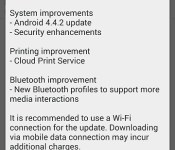
Hot on the heels of AT&T’s update to the Galaxy Note 3, we find that Sprint is also pushing out an update to one of their devices today too. The update was picked up at Android Central‘s forum when a screenshot of the update made and appearance. It carries with it a software version number of 2.09.651.1 and weighs in at 343.93MB’s. Sprint doesn’t have the new update listen on the One Max support page just yet though.
 In the image you can see a small change log that outlines the OS update to Android 4.4.2. Along with Cloud Print Service, security enhancements, bug fixes and Bluetooth improvements.
Anyone with a Sprint HTC One Max see the update as well? Let us know how it looks and anything else you find different after updating.
Source: Android Central
//<![CDATA[
ord = window.ord || Math.floor(Math.random()*1E16);
document.write('’);
//]]>

Star Wars: Assault Team Out Now for Android
Star Wars: Assault Team has just been launched by Disney Interact and LucasArts. The game originally was released to a limited market, Australia, but has now been made available in the U.S. and a few other locales too.

The game is a turn based strategy style game that incorporates various collectible cards. You will collect your cards to build a team of heroes to face off against computer enemies and real players alike. As you progress you characters cards will benefit from leveling up and, of course, making them more valuable in battle.
Key Features:
· Build and Customize a Team: Collect hundreds of character cards to create the ultimate team using such heroes as Luke Skywalker, Han Solo, Boba Fett, and more.
· Advance Heroes: Train, improve and strategically deploy each character’s special attacks, making a team even more dominant against ever-powerful enemies.
· Player vs. Player Combat: Fight against other players in PvP battles to win extra rewards.
· Original Story: Complete all-new missions set between Star Wars: Episode IV A New Hope and Star Wars: Episode V The Empire Strikes Back.
Star Wars: Assault Team is also available for iOS and Windows devices today as well. Feel free to pick it up via the link below.

//<![CDATA[
ord = window.ord || Math.floor(Math.random()*1E16);
document.write('’);
//]]>
DEALS & STEALS: Use Verizon promo code to buy 2 x HTC One M8 for $140
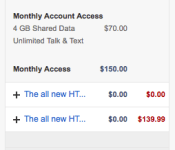
Looking to purchase the new HTC One M8? Or perhaps you’re looking at picking up a pair of them for you and the wife? Luckily for you, Verizon is currently running a Buy One Get One Free promotion allowing you to pick up two HTC One M8′s for $140 upfront cost.
The deal is part of a two-year contract and by using the code “VERIZON30″ at the checkout, you’re able to secure two devices for as little as $139.99.

If that doesn’t seem to be working for you, then try “VZWDEAL,” which should drop the price to $149.99.
The post DEALS & STEALS: Use Verizon promo code to buy 2 x HTC One M8 for $140 appeared first on AndroidGuys.
New Droid expected in Q4, report says
Last time we heard something new from Motorola, it was regarding the Project Ara. We were expecting to see a new smartphone from Motorola either at the CES or MWC, but instead there was nothing from their side. Maybe Motorola is planning something huge behind the curtains? Now according to a new source on Weibo, Motorola is working on a new Droid and it will hit the market in the 4th quarter of the year.
The new Droid is said to have a larger screen ratio, as Motorola will be taking advantage of next-gen Kevlar materials, the area of the display itself will cover the most of the area of the front panel. Last time we heard about the new Droid, it was back in October 2013 when we heard about the Droid Quantum for the first time; said to be the successor of the Droid Ultra.
Lets take this rumor with a grain of salt because nothing is set on stone right now. Do you think Motorola will release a new Droid? Let us know in the comment box below.
Via: GforG
The post New Droid expected in Q4, report says appeared first on AndroidGuys.
ZTE Nubia X6 introduced for Chinese market
ZTE has announced its latest Android-powered smartphone, the massive 6.44-inch Nubia X6. With a price of roughly $640 (US), the handset boasts a quad-core 2.3GHz Qualcomm Snapdragon 801 processor, 3GB RAM, and a 4250mAh battery. In addition to being big and powerful this one is able to snap 13-megapixel images on front or back. Indeed, the front-facing camera features a f/2.2 aperture and the backside offers optical image stabilization and dual-LED flash. Unfortunately, it does not look like we’ll see this one outside of China anytime soon.
via Digital Trends
The post ZTE Nubia X6 introduced for Chinese market appeared first on AndroidGuys.

Microsoft releases Office for iPad, subscription required for editing docs

Rumors have been circulating for years that Microsoft was working on a version of Office for the iPad, with speculation getting so intense at one point that the company went out of its way to categorically deny it. Still, once Microsoft released Office for iPhone, an iPad version seemed more plausible; indeed, credible sources said it would arrive in the first half of this year. Turns out, there was something to all that scuttlebutt: Microsoft today announced Office for iPad, a trio of apps that bring Word, PowerPoint and Excel to tablets. Those should be showing up in the App Store shortly — around 11AM Pacific (2PM Eastern), to be exact.
As with the iPhone version, these apps are free to download, and you can view documents/give presentations without a paid subscription. As ever, you’ll need to sign in with a OneDrive or SharePoint account to retrieve your documents, or else have your stuff stored on the iPad itself. However, if you ever want to edit a doc or create something from scratch, you’ll need an Office 365 subscription (you can even use Microsoft’s cheaper Office 365 Personal plan when it launches later this spring). If you like, you can also sign up for a 30-day trial at Office.com.
Once that expires, though, you’ll need to pony up, at which point Office for iPad will count toward a new five-tablet limit — not your five PC/Mac limit. As you may have gathered by now, this is all par for the course for Microsoft, though it’s worth pointing out that Apple offers its iWork suite for free on iOS devices purchased on or after September 1st, 2013. And it’s a fairly feature-rich suite, too.
What’s especially interesting about Office for iPad is that it’s not just a blown-up version of the iPhone version, which we pooh-poohed for offering a watered-down feature set. Here, Microsoft was careful to take advantage of the iPad’s extra screen real estate: whereas the iPhone version wouldn’t even let you add rows in the middle of a spreadsheet, the iPad edition includes advanced features like Sparklines and author blocking, which only power users might appreciate. Throughout, too, you’ll find an impressive array of formatting options, including custom text colors, dozens of PowerPoint transitions and a full suite of fonts. In PowerPoint, there’s also a presenter mode where you can write off-handed remarks in “white board mode” and use your finger as a laser pointer (though that last feature doesn’t seem that useful, at least not without AirPlay support). Excel, meanwhile, brings a custom numerical keyboard alongside the traditional QWERTY one. And of course, all the apps rock the ol’ Ribbon UI — it wouldn’t be an Office product without the Ribbon.
Update: Our review of Office for iPad is now live. Check it out!
Vote on our poll for Office for iPad is here. Would you use it?!

Office for iPad review: three beautiful apps, each with strong competition

After loads of leaks — and some serious denial from Microsoft — the company has finally released a version of Office for iPad. It’s not surprising, in a way, given that Microsoft already has Office Mobile for iPhone. And yet, this new trio of apps (Word, Excel and PowerPoint) isn’t at all what we expected. In fact, it’s a lot better. You see, rather than simply blow up the current iPhone app to iPad-sized proportions, the company started from scratch, and built a software suite that takes advantage of the iPad’s extra screen real estate. This means a lovely design that looks less like a mobile app, and more like a full version of Office. It also means more features — everything from custom text colors to a “whiteboard” that you can use to write off-the-cuff comments during presentations. But as ever, you’ll need an Office 365 subscription to edit or create documents with it, and meanwhile, there are plenty of free alternatives. That said, could it still be worth it?
Getting started

Though the product is called Office for iPad, it’s actually a trio of individual apps (Word, Excel and PowerPoint) listed separately in the App Store. As with Office Mobile for iPhone, each of these core programs is free to download, and you can use them in read-only mode without a paid subscription. If you wanna edit or create documents, though — and let’s face it: You definitely will — an Office 365 subscription is required. In particular, we’re told it will even work with Microsoft’s upcoming 365 Personal plan, which will cost $7 a month when it launches later this spring. And if you happen to be a student using Office 365 for University ($80 for four years), the monthly cost of ownership drops to just $1.67.
All told, this subscription model isn’t a problem if you already have an Office sub; in fact, your iPad download won’t even count toward the usual five-PC/Mac limit. Unfortunately, too, this is also one of the only mobile office suites that works with Microsoft OneDrive and SharePoint, so if that’s where you store your documents, you’re best off sticking with Office. That said, Apple offers its iWork suite for free, so long as you purchased your device on or after September 1st, 2013. And, it works with popular services like Google Drive, which Office doesn’t, so depending on what ecosystem you use, Office might immediately seem like a weak proposition.
General UI

All told, Office for iPad looks exactly as you’d expect. Which is to say, it features the same Ribbon UI as desktop Office apps, along with a few icons borrowed from Microsoft’s OneDrive service. Regardless of which Office app you’re using, a few things are universal: When you enter the app, you’ll see your Microsoft profile pic in the upper-left corner, with icons just below for creating a new document, opening a file or viewing only the recent ones. By default, you’ll open files from your OneDrive account, though you can search just through your iPad’s local storage as well. You can also add a storage location, but again, your only other options are another OneDrive account (personal or business) and a SharePoint site. No integration with other cloud storage services, sadly.
Once you open a document, whether it be a spreadsheet or a PowerPoint presentation, you’ll see a small file-shaped icon in the upper-left corner, where you can turn off AutoSave (not recommended), create a duplicate, restore a previous version or inspect the file properties (mainly useful if you want to see how much space it takes up). Nearby are self-explanatory undo and redo buttons. Meanwhile, over on the right, there’s a people-inspired icon for sharing. From here, you can email a file as a link or an attachment, or simply copy the link to your clipboard. Basically, any sharing options you already enjoy in Office Online you can use here too. Finally, in Word and Excel there’s a magnifying glass in the upper-right corner that’s for, well, you get the idea. What we’re trying to say is: The UI is simple. And that’s a good thing.
Oh and by the way, because the UI is so straightforward, with so many settings hidden inside the Ribbon menu, the whole thing scales well in both landscape and portrait mode. Even with a vertical orientation, that upper layer of menus and icons never looks busy. In fact, we rather enjoyed using Word in portrait mode, as the keyboard took up less vertical space. If you do find yourself switching, though, you’ll find the accelerometer and A7 chip inside the new iPads do a good job keeping up.
Word

Ah, this looks familiar. If you’ve been using Word, even just the online version, you should instantly feel at home here. Up top, as we said, is the Ribbon menu, where you’ll see options for Home, Insert, Layout, Review and View. Below that are all the super-common formatting options, including fonts, letter size, bold, italics, underlining, strikethrough, subscript, superscript, text effects, text color, background color, text alignment, line spacing, bullets, numbered lists and indentation.
Phew.
Let’s just back up for a minute and say that this is already more than you can do with the iPhone version. Even in cases where the iPhone app does offer a given feature, it’s usually less complete than what you see here. Whereas the iPhone variant only gives you a handful of text color options, for instance, the iPad app has a custom color gradient allowing you to pick from along a wide spectrum. Not too shabby.
Might we add, too, that in addition to being a more full-featured offering, it’s just an all-around easier user experience. With the extra screen real estate, you can actually see how big the font is; you don’t have to press up and down arrows and hope for the best. Comments appear along the right-hand side, just where you’d expect them, and it’s easy to tweak those simply by tapping the comments box.
Adding and adjusting photos is easy as well. Just go to Insert, then “Pictures” and grab a photo from your Camera Roll (that’s the only option right now, unfortunately). Once the photo is in, you can tap it to reveal anchor points in the corners and along the sides, which make it easy to resize the shot and drag it around. What’s nice, too, is that the text automatically wraps around the image — and it all happens smoothly thanks to that fast A7 chip. Really, our only complaint there is that you can’t source photos from other locations, not even OneDrive.
At this point, we think we’ve covered pretty much everything casual users will need to do. If you’re not a casual user, though — and many Engadget readers aren’t — we’ll tell you a bit more about what Word for iPad has to offer. For starters, you can insert tables, shapes, text boxes, footnotes and hyperlinks in addition to plain photos. You can also play with the header and footer, margins, page numbers and page size/orientation.
As for revision tools, you can turn spell check on or off, pull up an onscreen ruler, keep track of your word count, and use “Track Changes” for group editing. What’s more, there are individual icons allowing you to skip forward or backward through comments, and then either delete or respond to them. And if you’re what we’d call a control freak, you can use the “block authors” feature to make sure your co-editors aren’t able to touch certain sections of the text. Speaking of the sort, real-time co-editing works the same way here as it does in the Windows versions of Word and PowerPoint. Which is to say, you’ll see a note saying that someone else is the document, as well as a flag marking the specific portion of text they’re working on.
Excel

It’s a similar story with spreadsheets: Excel for iPad is far more robust than the iPhone version which, if you recall, doesn’t even let you add columns in the middle of spreadsheets. Here you can indeed add columns, as well as tables, pictures, shapes, text boxes and all manner of charts. Oh, the charts. Last time there were six choices; now you have loads of options, which take the form of column, line, pie, bar, area and scatter charts (each category has multiple variations to choose from). And, as with photos in Word, it’s easy not just to add them, but also to change their format on the fly; the A7 chip once again proves it’s fast enough to keep up. If you like, you can even include Sparklines, those micro-charts that take up just a single cell. Unfortunately, though, you can’t add any fancy pivot tables here. Let’s not get ahead of ourselves.
As you’d expect, the app also comes with a long list of various formulas you can use to crunch all your data. Sure, the iPhone version has this too, but the selection here is especially impressive. In addition to the all-important AutoSum button, you get financial, logical text, date/time and math/trigonometry formulas, with a special section for ones you’ve used recently. Just like you’d expect to with Excel, you can hit the “fx” button next to the search bar, at which point you can start typing the name of the formula you want, or find it on a long list. Really, though, the formulas section is organized such that you probably won’t have to type out the word “AVERAGE” anyway.
Speaking of number-crunching, Microsoft elected to tweak the classic iOS keyboard so that in Excel, at least, there’s both the traditional “ABC” option as well as a custom “123″ layout. Hit that one and you’ll see a large, finger-friendly dialpad, along with arrow keys and commonly used symbols, like the dollar sign. As for editing tools, you have a similar comments system as in the Word app, along with the ability to freeze panes and either show or hide the formula bar, sheet tabs, headings and grid lines.
PowerPoint

We’re not sure what it is about PowerPoint, but every time Microsoft releases an app for iOS, it’s the presentations piece that feels the most complete. Maybe that’s because creating a presentation from scratch on a mobile device seems unlikely, or maybe it’s because there really aren’t that many different kinds of edits you could make, besides shuffling slides, adding text and inserting transitions (bada bing, bada boom). Whatever it is, we’re pretty satisfied with the shape of the PowerPoint app here, even in its 1.0 state. Once you load up the app, you’ll see a list of slides along the left-hand side, which you can reorder by pressing and dragging the thumbnails. Most of the screen, of course, is taken up by whatever slide you happen to be working on, which you can magnify using a good ol’ pinch-to-zoom gesture.
As you can imagine, you can add text to slides, as well as insert tables, shapes and pictures (here, too, you’re limited to photos from your iPad’s Camera Roll). And can we talk about the transitions? (Please, let’s talk about the transitions.) For those of you who like having fun with fade-ins — and who doesn’t, really? — you’ve got plenty of options here. Thirty-eight, to be exact. If you like, too, you can apply the transition to all slides with the tap of a button.
Finally, what would a presentations app be without a slideshow mode? Here, as ever, you can play all the slides from the start, as well as your current position. (You can hide certain slides too, if it’s convenient.) You can also press and hold your finger to bring up a laser pointer, which will come in handy if you choose to push the presentation to a bigger screen using either AirPlay or some sort of dongle. Wrapping up, there’s a so-called whiteboard mode — a black screen you can use to scribble comments and diagrams. A neat trick for when you want to go on a tangent mid-presentation and don’t have any slides that match up with whatever it is you’re saying.
The competition

We’ve mentioned the iWork suite a few times already in this review. It’s not that it’s the only option; it’s just the most relevant one. Much like Office, Apple’s suite includes three separate apps: Pages for word docs; Numbers for spreadsheets; and Keynote for presentations. For lots of folks, they’ll all be free; you just have to have activated your iOS device on or after September 1st, 2013. For everyone else, they cost $10 a pop — not bad considering even the cheapest Office 365 subscription will cost $7 for a single month (less if you get Microsoft’s $70-a-year plan). Either way, it’s clear that buying the app outright is more cost-effective than paying a subscription fee month after month.
So what, then? This means iWork is automatically the better choice? Not so fast. For many people, iWork will indeed be a smarter choice, both because it’s free for newer iDevice owners, and because it works with a wider range of cloud services, including Google Drive. That said, one service it doesn’t work with is Microsoft’s OneDrive and Office 365, so if you’re already locked into those services, then Office for iPad is a no-brainer.
Otherwise, there are other iPad-friendly office suites out there, including Documents to Go ($10 and up), Quickoffice (free), Polaris ($13) and Kingsoft (free), just to name some of the more popular titles. Given that iWork is probably robust enough for most people, we wouldn’t suggest paying for an office suite at this point. That leaves a few free options, which we haven’t spent enough time with to either pan or heartily recommend. That being said, iWork is a safe option for iPad users who can get it for free, and who use a cloud service other than OneDrive.
Wrap-up

With few concrete details before today — other than the fact that this was coming — it was easy to imagine Office for iPad would be little more than a blown-up version of the existing iPhone app. That it is most certainly not. Microsoft took its time developing this software (years, perhaps), and the result is a suite that makes excellent use of the iPad’s extra screen real estate. The design here is beautiful, straightforward. What’s more, it masks a delightful selection of customization options, many of which you wouldn’t know were there at first glance.
For people (and businesses) who use OneDrive to store documents, this isn’t just your best choice — it might be your only choice. Fortunately, it’s a fine choice indeed, and you’re lucky that the user experience is so similar to the web and desktop Office apps you’re already using. It’s also a no-brainer for people who already have a 365 subscription; you’re already paying to run Office on five computers, so the iPad app is really just a nice freebie. But let’s be clear: Office for iPad is not for iPad users looking for a productivity suite; it’s for Office customers who happen to own an iPad. Until Microsoft’s apps are free for all, Apple will continue to have the home-court advantage on iOS devices, if only because its apps don’t cost anything. With so many free alternatives (all of which can open Office files), we’re not sure why someone would pay for Office if they weren’t already locked in with Microsoft.
 AIVAnet