


Tip: Add a multitasking button to the LG G Pro 2
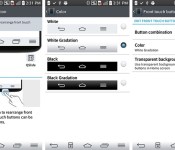
The LG G Pro 2 unfortunately has a legacy menu button included on the on-screen navigation keys that you cannot seem to get rid of, but whilst you cannot hide it completely, you can add a dedicated multitasking button alongside it.
LG have enabled the ability to add up to two more buttons and that includes multitasking, QMemo, QSlide, or one that will open up the notification pane.
To add buttons to your G Pro 2, go to Settings>Display>Front touch buttons>Button Combination. From there, you simply drag the buttons into the order you want. You can’t have more than five buttons though, and you’re stuck with the standard back, home, and menu buttons.

There is also an option to change the background colour of the keys which enables you to change it to a black gradient, white, or white gradient, or even transparent if you so wish.
Whilst it would have been great for LG to enable the ability to remove the menu button completely, at least this way you can add a multitasking button to your LG G Pro 2.
The post Tip: Add a multitasking button to the LG G Pro 2 appeared first on AndroidGuys.
 AIVAnet