


Xbox One’s pre-Titanfall multiplayer update goes live today: here’s everything in it

We’ve already touched on what you could expect from the Xbox One’s next update, but now it’s here. Alongside those multiplayer improvements (easier invites, chat upgrades), Twitch TV live-streaming is here (though you won’t be able to broadcast until the app is updated), as well as a new quiet mode to temper those notification pings. There’s that 5.1 Dolby Digital support and SmartGlass improvements, while Bing and Google Map control through both gestures and controllers. We’ve listed all the updates after the break, and Microsoft’s own Major Nelson has a full video tour of what’s new, too — or you can just grab the update yourself, right now. If you’re on the Xbox One preview program, you’re already running the latest version. Please stop smirking.
Improved Multiplayer & Party chat
- Cross title party chat
- Party chat on by default
- Easier multiplayer invites
- Easier multiplayer joining
- Ability to see what the people in your party are doing
Improved Friends List + Profile
- Improved friends list utility & speed of access
- Ability to see people you recently played games with
- See when friends are broadcasting, including live broadcast thumbnails in activity feed
- Get to a friend’s profile faster using type-ahead suggestions
- Contextual app menu actions on friends list and activity feed items
- Enabled more multiplayer (join and invite) actions on user profiles
- 54 new contest-winning gamerpics
Twitch TV live streaming support
- Broadcast gameplay on Twitch.TV through Xbox LIVE (When the updated Twitch app ships next wee)
- Voice support for starting and ending broadcast
Bringing out social in home
- See favorite friends currently online
- See friends broadcasting gameplay
Miscellaneous shell improvements
- Improved notification center experiences including “quiet mode”
- View Game Clips while in snap mode
- Protect user settings with passkey
Browser improvements
- Control Bing and Google maps with gesture and controller
- Quick search when highlighting a term on a page
- When searching from Bing search on the console, direct link to Internet Explorer in order to see additional web results.
New Devices – Driver and Firmware updates
- Firmware update to the Xbox One controller to support the Xbox One stereo headset adapter
- Support for 1st and 3rd party headsets
- Driver updates for the Xbox One Media Remote
SmartGlass Improvements
- Push notification to your device for Xbox Live messages
- Quickly see what a friend is doing including presence and recent
- Enhanced viewing of personal and a friend’s game progress and clips
- Ability to close snap from SmartGlass
Live TV
- 50Hz fix – users can set the Live TV app to display at 50Hz for full or fill modes
- Volume up/down adjustments – user can tailor the number of volume increments when using “volume up” or “volume down” commands
- IR blasting of power & volume to TVs/AVRs in all regions
- AVR setup maps to include model number for most sound bars or AVRs when setting up TV
Improved Audio output support
- SPDIF (optical out) now supports 5.1 Dolby Digital – enabling devices such as sound bars with only Optical In to be able to receive 5.1 Dolby Digital from console over optical
- HDMI output now supports stereo uncompressed, 5.1 uncompressed, 7.1 uncompressed or 5.1 Dolby Digital live or 5.1 DTS
Filed under: Gaming, Microsoft
Source: Major Nelson, Xbox

Facebook Messenger arrives for Windows Phone sans voice features

Microsoft was clearly being cautious when it said Facebook Messenger would be available for Windows Phone within a few weeks of Mobile World Congress — it’s already here, just over a week later. The app offers much of Facebook’s familiar chat experience, including group conversations, photo sharing and (of course) stickers. However, are a few missing features in this first revision. There aren’t any voice messaging options, and chat heads aren’t around to let you quickly jump between active discussions. If those absences aren’t make-or-break for you, though, Messenger is ready and waiting at the Windows Phone Store.
Filed under: Cellphones, Internet, Mobile, Facebook
Via: Facebook (Twitter), Windows Phone Blog
Source: Windows Phone Store

GoPro Hero3+ Black Edition: Big Things Come In Small Packages

When it comes to recording extreme sports like Skydiving, Bungee Jumping, or even free climbing there isn’t much that you need to do so. If you have a GoPro camera handy you’re all set and really what more could you ask for. With the new GoPro3+ Black Edition you have the capability to record in 4k and take pictures at 12 megapixels, if that wasn’t enough you can also take the thing underwater and really push your creative limits. Of course this is the most common use for the GoPro so me being a geek I decided to test it out at CES 2014. My plan was to be completely mobile and not need a laptop to do anything for my videos, if you have ever been to CES, or any other convention like it, you know that the amount of time available is never enough to see it all. That being said I can tell you that when you’re at CES you don’t really have much time to sit down, especially if you are part of a small team trying to get as much out of the show as possible. Using a GoPro3+ Black Edition camera and my trusty Galaxy Note 3 to put out quick posts and clips of CES 2014 all while staying completely mobile and rushing to my next meeting was my solution to staying mobile and capturing demos, events and meetings. Sounds simple enough right? Well let’s just see in my review of the GoPro Hero3+ Black Edition.

What’s In The Box:
The GoPro Hero3+ Black Edition is a high end device and with a high end price comes some great box contents such as:
- The GoPro Hero3+ Camera (Of Course)
- High Capacity Li-Ion Battery
- A Wireless Waterproof Remote
- 131′/41m Waterproof GoPro Housing
- Charging/Transfer Cable For GoPro
- Charging Cable For Wireless Remote
- Quick Release Buckles
- Curved and Flat Adhesive Mounts
- 3-Way Pivot Arm
That’s quite a bit of stuff to play with. Personally I like the Wireless Remote, huge lifesaver. I’ll tell you why later on.

Physical Attributes:
When I first saw the GoPro camera I knew it would be tiny but taking it out of the box, man it was something else. It is really small, I mean I knew how small it was going to be but you have to know, I am used to carrying around my DSLR for recording which after a while can get pretty heavy so the fact that I can have a camera that can shoot 4k video and 12mp photos while still fitting in my pocket is a great physical feat all in itself.
The lens is big and it has to be, that’s how you get all those amazing wide angle shots that make this style of video shooting a true GoPro video. As far as the material and build quality goes it feels great in your hand and has a grip with it, which is great because you wouldn’t want to put a scratch on that big beautiful lens.


Performance
It’s a GoPro camera so it has a tough and proven track record for the extreme side of things. The camera proved durable and portable as it should be. Thanks to the waterproof housing I was able to get in and record where others with their thousand dollar cameras could not which made for some really great footage. The videos in 4k came out great and file size wise HUGE which was to be expected given the recording format I was using. Photos were great as well, however while using the Protune feature of the camera some of the photos did get really washed out.
Video Quality:
This is a no-brainer, it’s a GoPro with 4k video recording, I think that says it all. It records videos in such an amazing way and well just watch the video below to get an idea. Keep in mind YouTube doesn’t do the GoPro justice as it only goes up to 1080 :(. The thing I loved the most is the insane amount of choices when it comes to video recording formats.There are exactly 11 different video modes that you can choose from through the Android app and these include;
- 4k (17:9)
- 4k
- 2.7k (17.9)
- 2.7k
- 1440
- 1080 (Super View)
- 1080
- 960
- 720 (Super View)
- 720
- WVGA
That is quite a array of choices, personally I found myself switching between 1080 Super View (that’s the one that gives you the signature GoPro wide angle recording format) and 4k.


Photo Quality:
It shoots 12 megapixel images that look great. I did find that some images were a bit washed out or too overexposed when using the Protune feature so I left that off and manually tweaked the photos myself. Using the GoPro Hero3+ during CES 2014 was great and having such a tiny camera was great as it allowed me to get some shots that were nearly impossible to get among the mobs of journalist that flooded press conferences. Thanks to the Android app you also have quite a few options when it comes to using the GoPro Hero3+ as a camera. These options include; the ability to change your photo resolution (12mp wide, 7mp wide, 7mp med, and 5 mp med), choose how many shots are taken via continuous shot (single, 3SPS, 5SPS, or 10SPS), change how many photos are taken on a second basis in Burst Rate mode (3/1 sec,5/1 sec,10/1 sec, 10/2 secs, 30/1 sec, 30/2 sec, 30/3 sec), and you can also change the settings of the Time-Lapse mode to fit when a photo is taken based on seconds (0.5 sec, 1 sec, 2 sec, 5 sec, 10 sec, 30 sec, 60 sec). As you can see GoPro really went above and beyond when it comes to the GoPro Hero3+.
Accessories:
I received the GoPro Jaws(Flex Clamp) with the GoPro Hero3+ and I had a blast using it. Unfortunately a certain idea of mind didn’t quite pan out so I was unable to use it during CES. After I came back though I purchased the GoPro Suction Cup mount and well I have not stopped using my GoPro Hero3+ camera since. The GoPro Suction cup mount can withstand winds of up to 150 mph (which is crazy) and well living in the city the closest I was going to get to that was going 70 mph down the freeway. I will admit it is a bit scary putting a $400 camera on top of your car with nothing but a suction cup but for the sake of this review I did it and it was great. The mount held up easily to the 70mph winds and there was little to no shake in the video which is, quite frankly, amazing to me. All in all I’d say a GoPro Hero3+ isn’t complete without at least one accessory so check out the link below and see which one suits your needs.

Android App
PROS:
This was the main feature of the GoPro camera for me, the Android App. If it wasn’t for this application I would have had to carry around my laptop just so I could transfer videos off the memory card. Thankfully the GoPro Android app allows me to connect to my camera via Wi-Fi and move videos off the GoPro wirelessly. This came in very handy as I didn’t have to stop and sit down to transfer files to my laptop.

The second most valuable feature of this app is the Live View function. I can connect wirelessly to the GoPro camera from my Note 3 and see what the GoPro is seeing. This is pretty much a necessity as there are quite a few other Journalists trying to get their own shot, especially during Press only events. Being able to mount the GoPro camera on a monopod and use my Note 3 as a viewfinder really helped one up some of the other guys at my eye level.

The third and final thing that the GoPro app allowed me to do is tweak the settings and modes. The GoPro can shoot in a variety of different video formats (4k, 1080 super-wide, 720, and many more). It can also take photos in both single, time-lapse, and burst mode. With all these features to use being able to use my 5.5 inch screen to tweak the settings is a whole lot easier than having to go through the menu on the GoPro camera itself.
Additional Features:
These are the other features that you get with the GoPro app:
- Locate Camera- Makes the GoPro camera beep so you can locate it (No GPS :/)
- SD Card Capacity- Allows you to see exactly how much room is available on your Micro SD Card)
- Upside Down- Allows you to record the video right side up while the physical camera is upside down
- Delete files- Allows you to delete the files when connected wirelessly to the GoPro Hero3+ (thank you captain obvious)
CONS:

When using certain format types the GoPro app does not provide a thumbnail making it hard to see which video is which. Now normally this wouldn’t bother me so much but the fact that the videos are not being stored in a organized manner makes it harder to know which video is which. The only way to figure that out is to play the video. Unfortunately this was also an issue as when using a recording in 4k for example you can’t play the video on your mobile device (in my case my Note 3) because it isn’t supported.
On some occasions Wi-Fi would stay despite having turned off the camera. This required me to turn it back on and turn Wi-Fi off manually
What We Liked About It:
- Great video and photo capabilities
- Portable (fits in a pocket)
- Waterproof housing is AMAZING!!!
- Creates it’s own wireless access point for data transfers
- Can be controlled via Wi-Fi with included wireless remote or free Android app
- Wide range of accessories
- Can take a hit in the housing case
- Battery life (normal use)
What We Didn’t Like About It:
- Battery life (keep in mind this was through heavy video recording, normal use battery life is great)
- Photos sometimes washed out with Protune enabled, same for videos
- No thumbnails for some of the content in the GoPro app
What Could Make It Better:
- Bigger battery (maybe the ability to have a mount with a built-in battery
- Zoom option
Overall Thoughts:
The GoPro Hero3+ Black Edition camera is one the most versatile and capable little cameras out there. While the price maybe be a bit high at $400 I can tell you that it is certainly worth it. Not only do you get a camera capable of 4k video and 12 mp photos you also get a wide range of accessories to use it with that enhance the functionality of the Hero3+. All things considered the GoPro Hero3+ Black Edition is solid proof that big things sometimes do come in small packages.
A quick sidenote:
After doing this review I am still surprised at how resilient the GoPro camera is in the waterproof housing (which also serves as a strong case) and after watching the video I am sure you will believe in the almost indestructible GoPro. Just to give you an idea, this video was shot with a GoPro camera that accidentally fell out of an airplane and landed in a pig pen.
I have included links to the GoPro camera along with the accessories I used for this review, feel free to check them out and if you can nab one for yourself, you won’t regret it.
Gallery


Dish wins all the wireless spectrum in the FCC’s latest auction

Dish has a seemingly insatiable appetite for wireless spectrum, and it’s willing to spend a lot of cash to get its fill. Need proof? The FCC has just confirmed (PDF) that Dish bought all of the 1,900MHz licenses in a frequency auction that wrapped up last week, using a shell company to hide its name. The satellite provider paid just short of $1.6 billion for the airwaves — chump change next to the spending on 700MHz blocks, but a large amount for spectrum where there wasn’t much competition. While Dish isn’t saying just what it will do with all that extra bandwidth, it’s reasonable to believe that the company will use the newly acquired frequencies to boost its wireless broadband efforts.
Filed under: Wireless, Internet, HD
Via: Recode
Source: FCC (PDF)

Daily Roundup: Apple CarPlay hands-on, G Pro 2 review and more!

You might say the day is never really done in consumer technology news. Your workday, however, hopefully draws to a close at some point. This is the Daily Roundup on Engadget, a quick peek back at the top headlines for the past 24 hours — all handpicked by the editors here at the site. Click on through the break, and enjoy.

LG G Pro 2 review
LG’s newest flagship, the 5.9-inch G Pro 2, steps into 2014 with a Snapdragon 800 CPU, 3GB of RAM and the same 1080p display found on the last-gen model. Though currently exclusive to Korea, this handset will be a worthy competitor to the Galaxy Note III once it lands in the US.

Apple CarPlay hands-on
Yesterday at the Geneva Auto Show, Apple unveiled its new in-car interface called CarPlay. So naturally, Engadget’s Matt Brian hopped into a nearby Ferrari for a test run. Read on for our video and hands-on photos.

Facebook might buy a drone company
Let’s say you just spent $19 billion on a messaging service. What’s next on the agenda? Well, for Facebook, it might be drones. According to TechCrunch’s sources, the company is looking to buy Titan Aerospace, a company that builds autonomous, solar-powered vehicles.

Roku’s new Streaming Stick costs $50
After rethinking its first-gen device, Roku’s back for round two. The company’s new Streaming Stick dongle packs all the features of a Roku 1 and comes with its own remote. What’s more, it’ll be available for just $50 come April.
You also might like:
Filed under: Misc

Compact ‘Stubilizer’ could smooth out your GoPro footage

Though GoPro cameras excel at capturing your insane escapades, the resulting shaky footage is not what we’d call production-ready. Now an inventor named Stuart Smith is looking to smooth things out with his self-named Stubilizer, a kind of mini-Steadicam designed for the GoPro’s mount. Thanks to the small size, you can attach it almost anywhere you’d normally put a GoPro — like on a helmet or vehicle, for instance. Despite the size, it seems to excel at drastically improving shaky video (shown after the break) even when you’re running. Smith has launched three versions on Kickstarter, the Solo, Duo and Pro, which run £149, £199 and £299 (about $250, $340 and $500), respectively. All three use gyroscopes and motors to steady footage, with the Solo helping roll only, the Duo adding the pitch axis and the Pro stabilizing all three: pitch, roll and yaw. If you’re interested in pledging, you can hit the source — just keep in mind the extra risk to your neck with such helmet-attached devices.
Filed under: Cameras
Source: Kickstarter

What gadgets were you rocking 10 years ago?

Ten years ago, the internet was introduced to a new tech blog called Engadget. The world was a much different place. Smartphones as we know them didn’t exist and almost everyone had a flip phone. The cloud? What did that even mean back then? Tablets and e-book readers were just a glimmer of hope in an engineer’s eye. You have to wonder how we managed to survive such a dark period in history. Somehow though, we did. And we were every bit as enthusiastic about technology back then as we are today. So, what gadgets were you using way back in 2004? Head over to our forums and share the goods!
Filed under: Misc

Evernote for Windows gets Skitch-like annotation tools

If you use Evernote religiously, chances are you’ve got more than a few snapshots and screen captures saved. To make it easier to edit and annotate those photos, Evernote has fully absorbed Skitch’s features into its Windows app. We’re not talking about being able to open an image on Skitch from Evernote like on the Mac version — we’re talking about being able to crop, resize, add arrows, shapes and text on photos from within the note-taking app. You simply need to hover your mouse over a pic and click the Annotate button that pops up on top to access those features. Other than that (and stability fixes), you should also be enjoying much, much faster syncing if you’re a business user, assuming you didn’t get that upgrade when it launched.

Filed under: Misc
Source: Evernote
TwelveSouth Debuts SurfacePad Case for iPad Mini [iOS Blog]
TwelveSouth today introduced the new SurfacePad for iPad mini, an compact leather case that’s able to double as a viewing stand and a desktop typing wedge.
The case, which is billed as a simple leather wrap, uses an adhesive backing to hold the iPad mini in place, cutting down on bulk and allowing it to function without an enclosing framework.
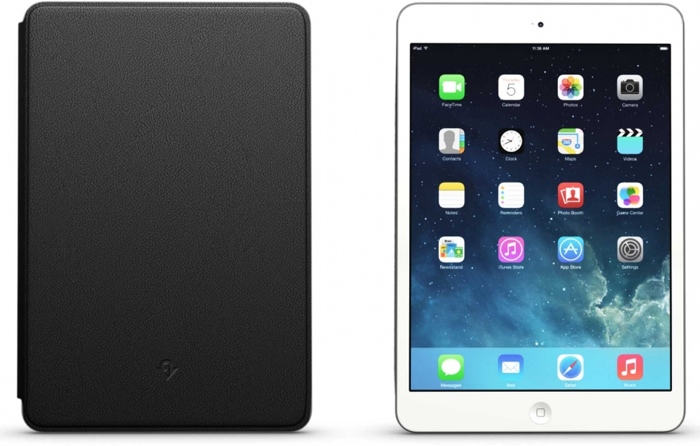
With hidden magnets build into the inside of the cover, it can be propped into two separate positions for viewing and typing, and as with most iPad cases, the SurfacePad offers sleep/wake functionality.
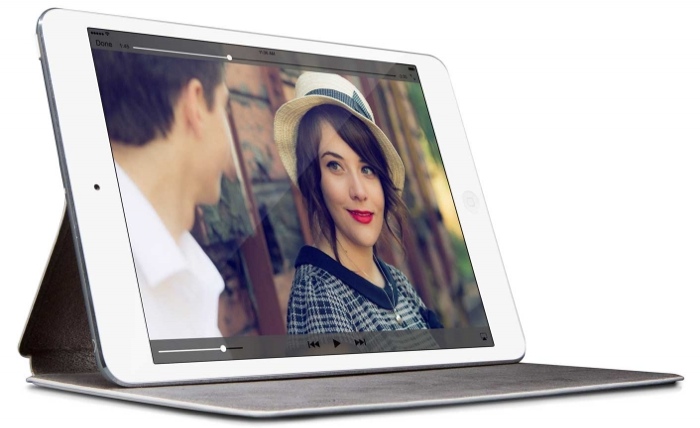
Slide iPad up along the inside cover and hidden magnets magically reach out to grab the edge of iPad. This cool trick replaces the need for extra sewn-in stops or notches. If the angle’s not quite right, slide iPad a little further and a second row of magnets will grab and hold iPad at a second viewing angle.
Another clever feature built into SurfacePad for iPad mini is a small kickstand that turns this sleek cover into a typing wedge and desktop display. Flip down the kickstand, and – as with the hands-free viewing stand – a hidden row of magnets grabs the edge of your iPad.
The new iPad mini SurfacePad follows similar products designed for the iPhone and the Mac and TwelveSouth has plans to release a SurfacePad for the iPad Air as well.
SurfacePad for iPad mini is available in Pop Red, Mod White, and Jet Black. It can be purchased from the TwelveSouth website for $69.99.
     |

Roku Takes Aim at Chromecast and Apple TV With $49 Streaming Stick [iOS Blog]
Roku today introduced a new $50 HDMI streaming-stick to compete directly with Google’s Chromecast and give consumers a significantly cheaper alternative to the Apple TV.
The new streaming stick is a sequel of sorts to a stick that Roku introduced last year that only worked with select Roku-ready TV’s. The new stick comes with a full-fledged remote control and largely replicates the functionality of the full-sized Roku 3 set-top box, though it lacks an Ethernet jack and support for gaming. Users get access to more than 1,000 Roku channels, including Plex, Netflix, Hulu Plus, Amazon, Spotify, Major League Baseball, Showtime, WatchESPN and many more.
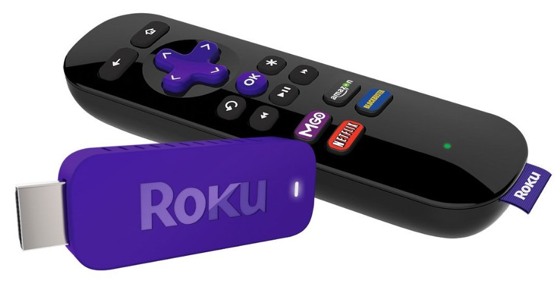
“The new Roku Streaming Stick gives consumers more choice for streaming entertainment to the TV than any other device,” said Jim Funk, senior vice president of product management at Roku. “Consumers want a ton of entertainment, an easy way to search for movies and TV shows, and options to control the experience with a remote or mobile device. This new Roku Streaming Stick brings all that and more – and in a tiny form factor.”
The Roku Streaming Stick connects to the Internet via 802.11n Wi-Fi and plugs into the USB port present on most modern flat-screen TVs for power. It is available for pre-order for $50 from Roku’s website or on Amazon.com.
| |
 AIVAnet