


Canonical shutters Dropbox competitor Ubuntu One

Canonical announced plans today to shut down its Dropbox competitor Ubuntu One, a move that will also signal the end of its streaming music service. “If we offer a service, we want it to compete on a global scale,” CEO Jane Silber noted in a blog post. “For Ubuntu One to continue to do that would require more investment than we are willing to make.” Rather than compete with other cloud services that routinely offer substantial amounts of free storage, the company has instead decided to focus efforts on its operating system. Storage and music are no longer available for purchase from the Ubuntu One Store starting today. Existing customers can use the service until June 1st, while stored content will be available to download through July 30th. Annual subscribers, meanwhile, can expect a prorated refund soon.
Filed under: Internet, Software
Source: Canonical Blog
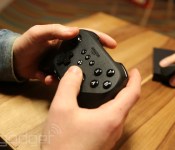
Fire TV ‘isn’t trying’ to be a game console, but is Amazon’s first real investment in gaming

What is Fire TV? Well, it’s Amazon’s set-top box. Er, at least it has that functionality. But Fire TV does more than just stream media, thankfully; we’ve got plenty of devices that do that stuff. The $99 tiny black box that Amazon unveiled this morning in New York City streams media (video and music through a variety of services) and it also plays games. Despite that being half the device’s functionality, Amazon VP Pete Larsen reassured us that Fire TV “isn’t trying to be a game console.”
So, what is it trying to be then?
Good question — even Larsen doesn’t know. We asked him what product category Fire TV is aimed at. “We didn’t really think about that,” he told us. “We looked at what customers were doing with the current streaming media devices out. We tried to mine the customer reviews to find what was working and not working. And then we say to ourselves, ‘How do we solve those problems?’ Which we did, with performance, voice search and open ecosystem.”
Amazon’s “create-a-market” approach isn’t new to the company. The Kindle is but one example of Amazon creating a market by creating a product. In the case of the Fire TV, a $99 box that straddles the worlds of set-top box and game console, it’s less clear that a market is ripe for creation. Larsen disagrees. “This isn’t trying to be a console, but we do think there’s a great opportunity there in between a console and a smartphone for fun, quality games,” he told us. Time will certainly tell, but Amazon’s far from the first to broach that angle (OUYA, anyone?).
Regardless of the hardware involved, there’s no doubt that Amazon’s making a massive gaming push with Fire TV. Even if the device ultimately doesn’t succeed, Amazon’s mass-hiring veteran game devs like Kim Swift, Clint Hocking and Ian Vogel (and buying studios, like Double Helix) to build internal talent. There are swathes of internal teams working on dozens of games for Fire TV, all created in-house at Amazon Game Studios. The man heading up games for Amazon, Mike Frazzini, told us that’s exactly the idea.

“We’re taking this very seriously; we’re committed; and we’re making big investments,” he said. Frazzini spoke to the history of Amazon’s game investment, calling Game Studios “a few years” old, though it’s only within the last year that his staff really ramped up development. Indeed, the few developers on-hand at this morning’s event echoed that sentiment — Minecraft studio Mojang said it got the Fire TV build of Minecraft: Pocket Edition running in just the past few weeks (with some help from Amazon). The same goes for the folks at Telltale Games, who only first started working with the Fire TV in January (they’re jumping in headfirst on support, with The Walking Dead Season One available at launch and other Telltale Games titles arriving later this year).
At very least, even if the half-media player/half-sorta-kinda game console idea that is Fire TV doesn’t work out in the long term, Amazon’s making a seriously major investment in the world of video games. And that — regardless of the rest of today’s news — is a seriously interesting piece of news.

Google Play Movies & TV app Updates with Info Cards and UI Enhancements [APK Download]
Another Google app that we have been waiting to get our grubby little hands on has finally made its way to our desk. The Google Play Movies & TV app is currently rolling out in typical staged roll out fashion and move to version 3.1.22. The Play Store description is still not updated though. However, we have noticed a number of changes in the looks and options of the app.
One of the main new features is the new Info Cards. In the settings you can disable the function if you want, but now when you pause a movie if there is info available about the actor on screen or the sound track playing, you will get some details. Such as the actors name, current age, other movies they were in with links to explore the Play Store for movies and shows along with the web.


 Along with the the info cards, there is also a change to the UI. Google has finally ditched the three dot over flow button at the top right and brought everything into the slide out on the left. Previous Play Store version on the left and the new update is on the right.

 However, the three dot over flow does reappear when you are looking at the movie lists and offers you ‘refresh and ‘personal videos”.
 You will also find new settings for captions. Instead of only being able to adjust the size, you can now set the language and the caption style along with a preview box.


 There is probably a bunch more that I am missing in the update, but those are the ones that stood out the most to me.
As always, we have the APK for you all to download at Gappsearly if you aren’t all that interested in waiting for it to cvome to you naturally from the Play Store
//<![CDATA[
ord = window.ord || Math.floor(Math.random()*1E16);
document.write('’);
//]]>
Google Keep v2.2.05 Brings Searchable Images, List Settings and More [APK Download]
It looks like it is going to be another awesome Google app update Wednesday. Last week was pretty uneventful, but today is looking pretty good so far. The first app we see with a new update is Google Keep. Today’s update brings it up from v2.1.01 up to v2.2.05.
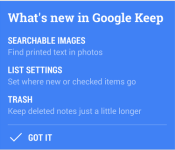
With the new number advancement comes some new features. The Play Store lists some battery life and data usage improvements, optimization for high res screen and bug fixes. That might be old though. When you update and open the app up though, you are greeted with a small list of improvements.
 The update also brings in a funky yellow action bar, an updated muli-account selector and the ability to make copies of your notes. Pretty decent little update.
You can run off to the Play Store and pick it up at your leisure. If it isn’t showing up for you just yet, you can also just grab the APK from Gappsearly.
//<![CDATA[
ord = window.ord || Math.floor(Math.random()*1E16);
document.write('’);
//]]>
Misfit Shine app Updates, Becomes More Useful Finally
Back at the end of January we offered up our thoughts in a review of the Misfit Shine wearable fitness tracking device. It does its job, but the Android version of the app was lacking quite a bit compared to the iOS version. Since the review there have been a number of small updates that fixed a few bugs and made the app sync with the device much faster and more consistently. Up until late last night, the app hadn’t seen much functionality or changes to the UI.
Lastnights update brought quite a few things to table that may, or ma not have been a deciding factor in you buying one. The first major change with the app is a complete UI overhaul. Take a look at the previous UI look.

 It obviously worked, but wasn’t the prettiest looking set up. Now take a look at the change in the new UI.

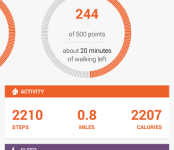
 You can see a huge improvement, not just in how it looks, but also in the information that you are presented with. You can see a bar graph now that will show you when you were most active and corresponding to when you were sleeping. On the Sleep side you can see the times where you were in your deepest sleep and the times you were moving about.
In addition to the added information that is actually quite useful, there are also a number of new settings to adjust. One being your target sleep goal for the night. The biggest setting change, in my opinion, is one that solves my biggest irritation with the Misfit Shine. It can automatically detect when you are sleeping vs having to ALWAYS triple tap the device to let it know you are trying to go to bed.

 They kept the triple tap setting for those that might like the manual mode better. I barely ever remembered to triple tap before bed so I hardly ever had any sleep pattern data.
The update is live for everyone in the Play Store. If you have a Shine and put it away, you should pull it back out and give it another chance. For anyone else who might be interested in picking up a Shine, you can do so through Amazon for $99.99 in black, grey, gold or blue. There used to be red one too, but we aren’t seeing listed anymore.
//<![CDATA[
ord = window.ord || Math.floor(Math.random()*1E16);
document.write('’);
//]]>

Sev Zero is the First Game from Amazon Game Studios for the Fire TV
Here comes the flood of Fire TV news. With the device available to purchase now, it shouldn’t come as much surprise that we will start to see a laundry list of games and apps that have been redone, or built , specifically for use with the new set-top box. The first game to be created elusively for the Fire TV from Amazon Game Studios is Sev Zero.
 The game will require the gaming controller for the Fire TV to be able to play, not surprising. The Fire game controller is $39.99. It also has a companion app for the Kindle Fire tablets much like Battlefield 4 and other current games on the market that allows for multiscreen/multiplayer action.
Sev Zero is a mix between a tower defense game and a third-person shooter. You will build towers to help protect your ‘Core’ in the base from aliens. You can beam down anywhere on the battlefield and take unleash holy goodness on alien scum in the third-person perspective.
It looks pretty cool and certainly puts the TV and Kindle together in a good mix of gaming fun. The game alone is $6.99, but if you pick up the gaming controller, you will get it for free.

//<![CDATA[
ord = window.ord || Math.floor(Math.random()*1E16);
document.write('’);
//]]>
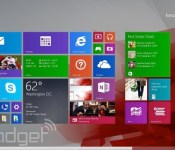
Windows 8.1 update aims to win over mouse-and-keyboard users, arrives April 8th as an automatic download

The whole point of Windows 8 was to make Microsoft’s aging OS easier to use on touchscreen devices. Mission accomplished, we’d say (more or less). But now the folks in Redmond have a new challenge afoot: Make Windows 8 equally easy to use on tablets and traditional PCs. The company’s already made some progress — last year’s Windows 8.1 update was all about keyboard shortcuts, better multitasking and the return of the Start button (sort of). Now, with its latest update, Microsoft is going after mouse-and-keyboard users. In particular, you can pin Windows Store apps to the desktop Taskbar, and close out of a Metro app by pressing an “X” in the upper-right corner. Heck, you can even shut down without having to open the Charms Bar. Shocking, we know.
It’s all very exciting, and indeed, you can see for yourselves soon enough; the update will arrive as a Windows Update download on April 8th, which means most folks will simply install it automatically. In the meantime, we’ve got a full primer after the break, along with a healthy dose of screenshots (we know you love your screenshots).
Desktop

Since this update is aimed mostly at keyboard-and-mouse users, let’s start where those folks are likely to spend a lot of their time: the desktop. For starters, depending on what kind of machine you have, the PC manufacturer might program it to boot into the desktop by default. Of course, that was already an option in Windows 8.1; the difference is that if you buy, say, a mouse-and-keyboard machine, like a clamshell laptop, the OEM can make that the default so that you never even have to bother with the settings. And yes, if you’d rather go straight into the modern Start Screen, you can do that too by unchecking a box in Taskbar settings.
Speaking of the Taskbar, the rumors were true: You can now pin Windows Store apps to the bottom of the screen, along with traditional legacy programs. In particular, the Windows Store shortcut will come pinned by default on every Windows machine, though you can, of course, remove it if you’re so inclined. As for everything else, you’ll have to pin those programs manually. In fact, the default setting is not to show Windows Store apps on the Taskbar at all, which means another visit to the Taskbar settings is in order.
Start Screen and Windows Store apps

It’s not just Windows Store apps making a cameo on the desktop — the Start Screen has meanwhile gotten more mouse-friendly. Most exciting of all, perhaps, are those new power and search buttons you can see in the upper-right corner. That’s right, you no longer have to expose the Charms Bar to power down or restart your machine (search is a bit different, because all you ever had to do to bring up search results was start typing). What’s interesting is that if you’re using a touch-first device like a tablet, the power button won’t be there; just the search icon. The reason: Users are apparently used to shutting down their mobile devices by holding down a physical power button, but with laptops they still expect a soft key. We won’t argue with that.
But wait, here comes another revelation: right-clicking. Now, if you right-click on something like a Live Tile, you’ll see a pop-up menu right there, where your cursor is. That way, you don’t have to bring your mouse to the bottom of the screen, where the menu options would normally show up. Forgive us if we sound sarcastic here — we really don’t mean to — but there just isn’t much to say about this. It’s a welcome change, but also something that probably should have been part of Windows to begin with. Additionally — and this feels like a small change — anytime you install a new app you’ll see an arrow at the bottom of the Start Screen with a message that says something like, “12 new apps installed.” See? Fairly minor change. But it makes sense.

Meanwhile, inside the Windows Store apps themselves, navigation will feel a little more similar to using Windows on the desktop. In particular, if you hover at the top of the screen, you’ll bring up the Title Bar, showing the name of the app, with an options menu on the left, and an “X” on the right to close out. And when you’re inside an app, you can also bring up the Taskbar on the bottom of the screen. Again, the desktop making a cameo where you previously wouldn’t have expected it.
Throughout, too, Microsoft has fine-tuned Windows so that all of the existing mouse gestures are more precise. For instance, in earlier builds of Win 8, it was perhaps too easy to move your cursor into the upper-left corner and accidentally pull up a list of open apps (remember that the back button in IE is located in the same corner, which makes it a tough spot to avoid). Now, following this latest update, mousework in Windows feels more… controlled. So, if you want to see that list of open apps, you can still poke around in the upper-left corner, but you’ll really have to push your mouse in there; you’re less likely to pull up the list by mistake. Ditto for bringing up the Charms Bar on the right, or menu settings on the bottom of the screen; they’re the same gestures, just with a little less sensitivity.
Performance enhancements

In addition to all the fun stuff (read: features we can capture in screenshots), Microsoft also made a bunch of under-the-hood tweaks that should improve performance, regardless of what kind of device you’re using. First off, Microsoft will be shipping its operating system to manufacturers as a compressed image, so that it takes up less space than it would have otherwise.
Additionally, the so-called Process Lifetime Manager in Windows more aggressively suspends apps to reclaim memory. The keyword there, of course, is “suspend,” as opposed to “terminate,” which means although the OS should now be more memory-efficient, apps should still open quickly the next time you use them. Think of it as a deeper sleep state for apps, similar to what laptop makers have already achieved for Ultrabooks. Finally, Microsoft improved compatibility with IE, a tweak that should be especially good news for enterprise folks using Internet Explorer on Windows 7.
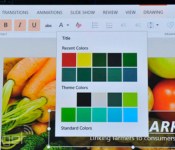
Here’s what a touch-native Office for Windows looks like in action

You didn’t think Microsoft was going to launch Office for iPad without a Windows counterpart waiting in the wings, did you? Sure enough, Microsoft has just shown off its long-expected touch-native Office for Windows in beta form. The software shares a few interface elements in common with the iPad release, but not much — this is clearly built for Windows tablets, with a more traditional layout that expands objects to make them finger-friendly. There will be plenty of gesture support, though. You can circle an item with your finger to highlight it, and you can pinch and swipe to get around much of the productivity suite. Unfortunately, the folks in Redmond aren’t saying when this touch-ready Office will ship. The demo is just a preview of what to expect, so it could be a while before you’re using the software yourself.
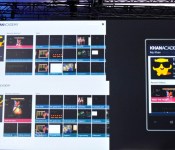
Universal Windows apps are coming to your Xbox One

Many were expecting to see universal Windows apps in the Build 2014 keynote, and they have. However, Microsoft had a surprise in store — you’ll eventually see those universal apps running on the Xbox One, too. Developers will get to write apps for Windows and Windows Phone that translate to a TV screen with relatively little effort. The company hasn’t said exactly when you’ll see these multi-platform apps pop up on your game console, but we’re hoping they appear sooner than later.
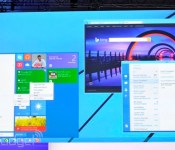
Microsoft teases a classic Start Menu for Windows 8.1 with built-in Live Tiles

As a part of its Build 2014 announcements, Microsoft showed off an interesting twist on its classic Start Menu. Coming to Windows 8.1 in a future update, it has the look of the Start Menu Windows users have experienced for years, but adds the Live Tiles Microsoft has been pushing as a part of Windows 8 and Windows Phone. Terry Myerson made the announcement as part of an example of how universal Windows apps will be able to run in a window (and on Xbox), although users craving something familiar will probably just be happy to see their old Start Menu again. We didn’t hear any more details on exactly when to expect the update, but you can follow along with our liveblog for all of the information as it happens.

