


Best Car Mounts for Google Pixel and Pixel 2
The Google Pixel and Pixel 2 series are beautiful, dependable phones that get updates years longer than the majority of Android devices. If you want to keep your Pixel safe, secure, and easy to use with Google Assistant or Android Auto’s standalone mode, you need a car mount you can trust to keep it from coming crashing down when you hit a pothole. Car mounts come in a wide variety of styles and types, and we have some favorites to share with you!
Our pick
Spigen Kuel A201 Premium Magnetic Air Vent Mount

Car mounts don’t get much easier than this: hide the included magnetic plate in your phone case — or stick it to the back of your phone — then hold your phone against the mount. Magnets will hold it in place while you drive, then you can just grab and go; no hassling with clamps or cradles! It even comes in three colors.
$12 at Amazon
Compact for car-swappers
WizGear Universal Air Vent Magnetic Phone Car Mount

This compact mount keeps your phone highly visible without obstructing the road and has over 14,000 5-star reviews. The WizGear is ideal for people who swap vehicles in a multi-car household or frequent fliers who need a rental car mount. It also doubles as a kickstand!
$7 at Amazon
Magnets with a curve
Nite Ize Original Steelie Dash Mount Kit

Making sharp turns and hitting potholes? Nite Ize’s magnet is super strong and the concave magnetic dot moves around the mount’s ball mount to prevent it from falling off. This magnetic mount boasts a bold look, and it gets the job done.
$14 at Amazon
Upgrade your CD player
Koomus Pro CD Slot Car Mount

Koomus’s low-profile mount is easy to slip into the long-forgotten CD slot, allowing you to mount your phone in an easily visible location without damaging the old disc player. The slide-out clamp holds your phone easily and can rotate 360 degrees for any angle you need.
$17 at Amazon
Easy as 1, 2, 3, 4
iOttie Easy One Touch 4

iOttie has been a leading brand for car mounts for years, and its latest dashboard/windshield mount, the Easy One Touch 4, is the best mount it’s ever made. It’s easy to use, can be positioned at just about any angle you’d ever want and can accommodate the Pixel XL or Pixel 2 XL with or without a case.
$25 at Amazon
Go pro
ProClip

For a completely customized car mount, direct your attention to ProClip. Eliminate the guessing by customizing every aspect of your car mount and know that it’s going to fit your Pixel — and your car’s dashboard — just the way you want it to.
$35 at ProClip
I’ve always been partial to Spigen’s Kuel magnetic mounts, as they’re easy to use with multiple phones or multiple cars. Since the Pixel and Pixel 2 lack wireless charging, you don’t have to worry about the magnetic plates interfering with anything, either, but if you don’t want a magnetic mount, the iOttie Easy One Touch 4 is adaptable, dependable, and will grip your Pixel tight as you head down that backroad “shortcut” with all the potholes.
Samsung’s new Android 9 Pie interface is called One UI, beta opens November

One UI will be available for the Galaxy S9 and Note 9 in January.
At the 2018 Samsung Developer Conference, one of the big announcements was a big refresh for Samsung’s custom Android interface. The Samsung Experience is gone, and in its place, we have One UI.
One of the biggest goals with One UI is to help users “focus on the task at hand.” To achieve this, One UI removes a lot of clutter from the Samsung Experience and makes things much cleaner. For example, the settings page is being simplified even more and regrouping certain settings together so that they’re easier to get to. The phone app also has a new look to only show essential information.

Samsung’s also marketing One UI as being more natural, saying that it’s “restructured the way we interact with our devices.” Buttons that are traditional towards the top of the screen have been moved closer to the bottom, and in many of Samsung’s apps (such as Messages and Clock), the top area is reserved exclusively for viewing content you don’t have to interact with.
Third, One UI aims to “be visibly comfortable.” Colors have been tweaked to provide better clarity, and based on the color of the phone you have, elements of the UI will be tweaked to match it.
If you’re interested in being among the first to test One UI, an open beta will be available this November in the U.S., Germany, and Korea. One UI will then rollout officially to the Galaxy S9 and Note 9 in January 2019.
NVIDIA Shield TV, Pikmi pops, and more are all discounted today
Whether you’re looking for new tech gear or household items, we’ve got you covered.
There’s never a shortage of deals available, but sorting through all of them can be difficult at times. We’ve handpicked all the best tech, and everyday essentials discounts that you can take advantage of right now and brought them to one central location. From laptops to toys, these are today’s best deals.
Tech Deals
Everyday Essentials
If you want to know about the deals as soon as they are happening, you’ll want to follow Thrifter on Twitter, and sign up for the newsletter, because missing out on a great deal stinks!
Samsung’s new Infinity Flex Display will come to market in phones in 2019

Get ready for modern phones to be flexible.
Samsung took the stage at its developer conference to announce all sorts of new products and features, but the headline-grabbing one is its new flexible display technology called “Infinity Flex Display.” That’s an evolution of the current “infinity display” branding we see used on Samsung’s last couple generations of flagship phones, and this marks an entirely new generation of technology. It’s launching alongside a yet-to-be-named Samsung-branded flexible phone, currently referred to in the rumor mill as the “Galaxy X.”
Samsung’s device using the Infinity Flex Display has a 7.3-inch panel that’s designed to be folded in half vertically, and the fold happens inward so that the display is protected while the device is folded. (This particular device also has an additional traditional fixed display on the outside of one half, called the “cover display,” to be used when the device is folded shut.) Samsung says the display will withstand “hundreds of thousands” of folds, thanks to a new screen covering and thinner overall display components that can handle the tight bend without breaking.
This is @SamsungMobile’s Infinity Flex display technology — 7.3-inch foldable display, which can be folded and unfolded “hundreds of thousands of times.” #SDC18 pic.twitter.com/NmQx4gMDiR
— Faryaab Sheikh (@Faryaab) November 7, 2018
But Samsung isn’t keeping this technology exclusive to its own devices: it goes further than what Samsung showed off in its reference device, and will be available to other companies that want to develop foldable phones. Infinity Flex Display is capable of folding inward, as shown off in Samsung’s prototype phone, but also folding outward (without a cover display), rolled up tightly, and stretched or bent without folding over entirely. There are tons of possibilities once manufactures have the option of buying a flexible display from Samsung just as they would a fixed flat one today.
Alongside Samsung’s announcement of the foldable display hardware, Google is pledging support at the software level to make sure Android and apps will work properly on devices that can seamlessly change their display size.

And Samsung didn’t stop at just announcing new flexible display technology; it also has new displays with a variety of cutout and notch options. There’s a “new infinity display” that pushes the display size even further to the edges (expect this to be in a Galaxy S10), and then three other fresh designs: the Infinity V, Infinity U and Infinity O. Looking at the image to the right, you can see why they take on those names: one has a V-shaped notch, the other a U-shaped notch, and the third an off-center O-shaped cutout that lets the display flow around a camera.
I wouldn’t expect Samsung itself to take advantage of any of these, at least in its high-end Galaxy S and Galaxy Note lines that have held strongly onto the “no notch” position thus far, but all three of these new “Infinity” display styles offer unique options for other manufacturers that want to use fantastic Samsung display technology but have designs that necessitate a notch or cutout.
NVIDIA Shield TV vs. Shield TV Pro: Which should I buy?
We live with the best tech, both on the go and back at home. When it comes to cutting the cord and improving our home theater experience, we do the research to get all of the right gear.
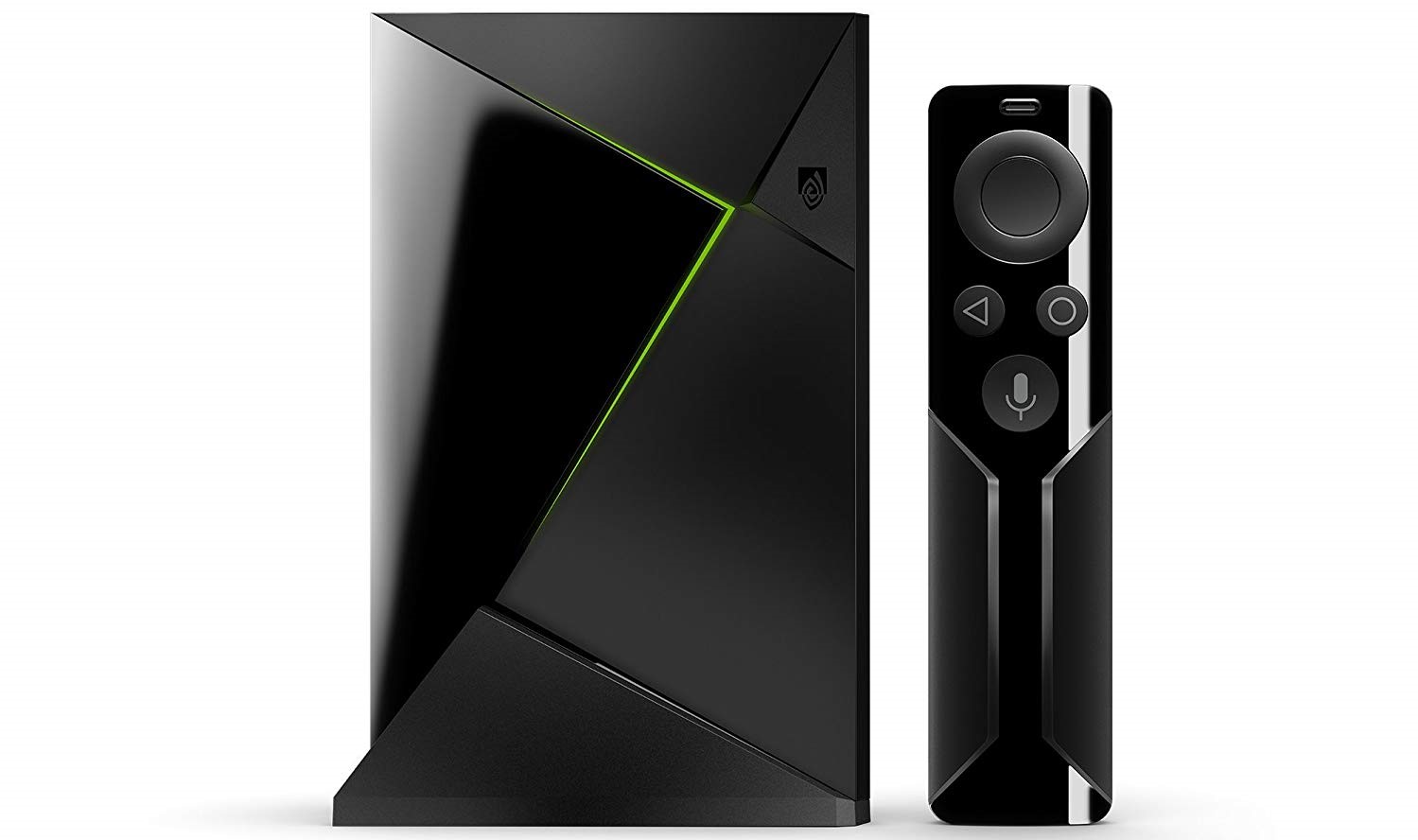
NVIDIA Shield TV
Our pick
$179 at Amazon
Pros
- Does all of the basics at an affordable price
- Remote has year-long battery life
- Small, light case that’s easy to hide
Cons
- Have to pay extra for game controller
- No headphone jack for private listening from remote
The NVIDIA Shield TV is the best Android TV box, and one of the best set-top boxes overall. It has amazing power, 4K HDR support, good gaming potential, a quality remote, and an excellent software track record.
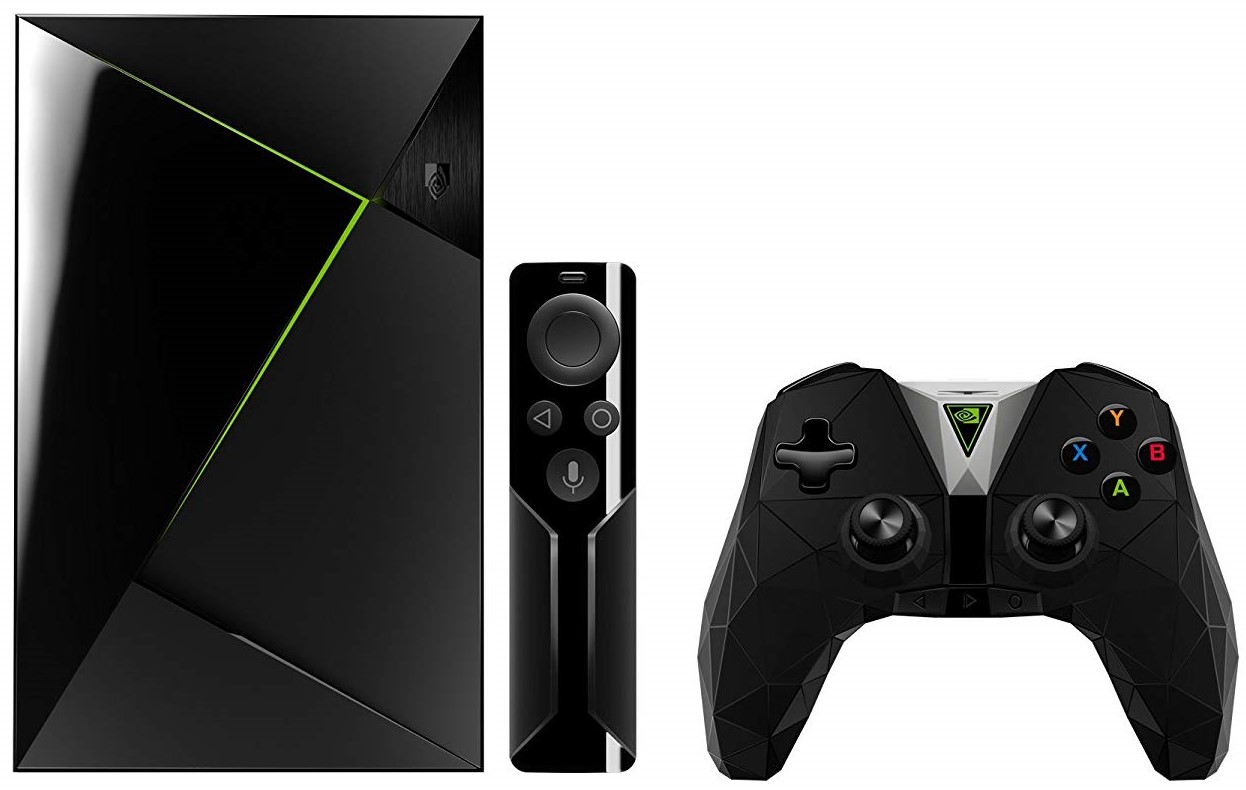
NVIDIA Shield TV Pro
Subtle upgrade
$299 at Amazon
Pros
- Massive storage for all of your media and games
- Game controller included
- Remote has a headphone jack for private listening
- IR port for control from universal remotes
Cons
- Very expensive for small upgrades
- Larger case from previous generation
- Remote needs to be recharged often
The NVIDIA Shield TV Pro is for the hardcore home theater and gaming crowd. Its 500GB of storage is a must for big-time media watchers, and the included remote offers private listening over a headphone jack. But it’s $120 more than the base model for those few changes.
Both models offer a great set-top box experience, with 4K HDR support and tons of power to stream and game all day. So we’re really comparing just a few marginal differences. Let’s get into the details.
What’s the difference?
On the face of it, there’s one big choice: can you get by with 16GB of internal storage in the base model, or do you need the breathing room of a 500GB hard drive? The Shield TV Pro’s 500GB storage will give you tons of room to install as many games and store as much media as just about anyone would want.
More storage sounds appealing, but it’s not necessary — and you can always add more later.
With NVIDIA’s streaming game solutions GeForce Now and GameStream there are fewer games to be properly “installed” than before, and most popular media services are streaming-only. But if you plan to load local media or use the Shield Android TV as a Kodi or Plex device you’ll probably want the Pro’s extra storage.
But also remember that you can add storage to the Shield TV via basically any USB drive — whether it’s a flash drive or spinning drive — and have it integrate right into the system. That starts to eat into the $100+ you saved by going with the standard model, but it is an option if you already have a high-quality USB 3.0 flash drive hanging around you can dedicate to the system.
| Storage | 16GB | 500GB |
| Expandable | USB | USBMicroSD card |
| Infrared control | No | Yes |
| Bluetooth | Yes | Yes |
| Ports | USB-A (2) | USB-A (2)Micro-USB |
| Remote | Coin cell batteryNo headphone jack | Rechargeable batteryHeadphone jack |
| Game controller | Optional | Standard |
Because the Shield TV Pro is still based on the original hardware design, it retains a few of the features that were lost when the standard model moved to a smaller body. That means the Pro retains the microSD card slot for expanding its storage and Micro-USB port a direct connection to your computer.
Chance are you have no need for the microSD expansion or IR receiver.
Both features are nice to have, but not essential. You already have 500GB inside the box and can extend it further with any USB storage device, and NVIDIA has enabled PC connections via one of the USB-A ports on the new box.
One slightly bigger deal is the inclusion of an IR receiver on the Shield Pro, meaning it can be easily controlled by popular universal remotes that use IR for multi-device management. If you already use something like a Logitech Harmony for your entertainment center, this may be a make-or-break situation. Don’t count out the chance that universal remote makers like Logitech can update or release Bluetooth versions of the remotes that would work just fine with the standard Shield TV, though.
A decision on remotes and controllers
All Shield TVs work with the great Shield Controller, but the base Shield TV no longer comes with it in the box — you have to pay $20 extra for a different Shield TV bundle. If you need the controller, making that jump now puts you closer to the Shield TV Pro, which includes a controller in the $299 price.
Private listening via the remote’s headphone jack is a very nice feature to have.
Controllers aside, NVIDIA has decided to ship different versions of the TV-style remote depending on which version of the box you buy. The standard Shield TV comes with a new design, which drops the headphone jack and rechargeable battery in exchange for year-long (or more) battery life from a pair of coin cell batteries.
The Shield TV Pro still comes with the original remote — offering rechargeable batteries (via included Micro-USB cable) and a headphone jack for private listening. You can get private listening over Bluetooth on either box, but the headphone jack is nice to have — the downside is remembering to charge the remote every few days, which is a hassle.
NVIDIA Shield TV
Our pick
$179 at Amazon
The best balance of price and features.
The Shield TV is the best pick for most people given its great capabilities and features at an affordable $179 price. The only decision is whether to get it with a game controller or not.
NVIDIA Shield TV Pro
Subtle upgrade
A tough sell at this price.
$299 at Amazon
The Shield TV Pro is clearly a better overall product with more storage, an extra expansion option, and an included controller. But it’s also $120 more for just a couple extra features most people won’t need or want.
Samsung shows off its foldable phone for the first time

This will be the next big thing … at some point.
The mobile industry has been tracking this rumored Samsung “Galaxy X” prototype phone for several months, and while we don’t even know if that’s what the phone will actually be called, it’s what the current rumor mill has been spitting out. In any case, here’s what we know and what to look forward to with Samsung’s upcoming foldable smartphone.
The latest Galaxy X news
November 7, 2018 — Samsung shows off its foldable display tech for the first time
The Samsung Developer Conference 2018 was held today, and while we didn’t get an actual product announcement for a foldable smartphone, we did see a live demo of how the foldable screen tech works.
Samsung’s calling its foldable panel “Infinity Flex,” and during the opening keynote, we saw a live demo of a device built with Infinity Flex. The gadget itself was hidden in a large case as to not reveal its actual design, but what we did see is that Infinity Flex has one display on the front, and when opened up, reveals a large 7.3-inch panel that’s not interrupted by any black bars or bezels.
Google’s already announced native Android support for foldable devices, and apps will be able to transition seamlessly from both the inside and outside of the display based on what you’re doing.
Mass production for Infinity Flex will begin on the coming phones, so while we’ll have to wait a little while longer before we can purchase one ourselves, we’re a heck of a lot closer to the long-awaited Galaxy X than ever before.
November 5, 2018 — Samsung begins teasing its upcoming foldable phone

They did it. They finally did it! After years of endless back and forth rumors, Samsung’s officially begun marketing for its upcoming foldable phone.
If you take a look at Samsung Mobile’s Facebook and Twitter accounts, you’ll see that the profile picture has been changed to show the Samsung logo folded underneath itself — obviously hinting at the foldable Galaxy X smartphone.
It’s still unclear when exactly the Galaxy X will be announced, but a report from late last week claimed we’d learn more about the phone at Samsung’s developer conference that’s taking place on November 7 and 8.
October 12, 2018 — Samsung’s foldable phone will basically be a pocketable tablet
The folks at CNET recently had a chance to speak with DJ Koh (Samsung’s head of mobile) about the upcoming Galaxy X, and during their conversation, Koh offered some further details about what we can expect from the upcoming foldable phone.
Per CNET’s article:
DJ Koh, CEO of Samsung’s mobile business, said you’ll be able to use the device as a tablet with multitasking capability before being able to fold it up into a more portable phone.
We’ve been expecting that the Galaxy X will offer more screen real estate compared to traditional phones, so it’ll be interesting to see how close of a tablet experience it really is able to offer.
The Galaxy X is still scheduled to arrive at some point before 2018 is over, so stay tuned.
September 4, 2018 — Samsung confirms a folding phone will be launched this year
While there’s been no doubt that Samsung’s working on a foldable smartphone, one detail we haven’t had a definite answer on is when the thing will be released. That’s now changing, however, as the company’s CEO of its mobile division — DJ Kohn — confirmed to CNBC that a folding phone will launch at some point this year.
Koh told CNBC that “it’s time to deliver” and that Samsung has “nearly concluded” its development of the phone. We’re still uncertain how exactly the foldable nature will be implemented, but during IFA in Berlin, Kohn went on record saying:
You can use most of the uses … on foldable status. But when you need to browse or see something, then you may need to unfold it. But even unfolded, what kind of benefit does that give compared to the tablet? If the unfolded experience is the same as the tablet, why would they (consumers) buy it? So every device, every feature, every innovation should have a meaningful message to our end customer. So when the end customer uses it, they think ‘wow, this is the reason Samsung made it’.
July 18, 2018 — Galaxy X reported to fold in the shape of a wallet, might cost over $1,500
A report from The Wall Street Journal surfaced this morning outlining a few key details we can expect from the Galaxy X. When describing the design of the phone, part of the report notes that:
The screen can be folded in half, like a wallet, these people said. When folded, the exterior of the phone boasts a small display bar on the front and cameras in the back, they added.
Furthermore, it’s said that the Galaxy X has a screen that measures in at 7-inches diagonally.
As for pricing and availability, WSJ notes that the Galaxy X has “taken on a greater sense of urgency in recent months” and that its price tag could reach well beyond $1,500. The phone’s expected to be released at some point in early 2019.
All the big details
Samsung’s folding screen tech is called “Infinity Flex”
At its 2018 Developer Conference, Samsung announced that its foldable AMOLED panel is called “Infinity Flex.”
Infinity Flex consists of two different displays — a smaller one on the front that looks like a traditional phone, and when you open it up, there’s a large 7.3-inch panel inside. Unlike other foldable smartphones, the actual display is bending rather than a separate hinge. That means no black bars or bezels covering the display. It’s just one, gorgeous, uninterrupted screen.
Per Samsung’s announcement:
Users now have the best of both worlds: a compact smartphone that unfolds to reveal a larger immersive display for multitasking and viewing content. The app experience seamlessly transitions from the smaller display to the larger display as the device unfolds. Also, users can browse, watch, connect and multitask without losing a beat, simultaneously using three active apps on the larger display.


The device seen in the pictures above is likely what we’ve been referring to as the “Galaxy X,” but that large, chunky body isn’t what it looks like. It’s simply a dummy case to hide what the phone’s real design, but the function of the foldable panel will work the same come launch time.
Samsung’s new Infinity Flex Display will hit mass production soon, enabling foldable phones of all kinds
Android natively supports foldable phones
Just before Samsung’s conference, Google officially announced support for foldable smartphones.
With this native support, apps will be able to adjust and rearrange themselves based on whether they’re being used on the smaller display or the larger, folded-out one.

Google’s referring to this process as “screen continuity” and is best to be thought of as an evolution of how elements on your screen move around when you go from portrait to landscape mode.
Mass production will begin in a few months
If you were hoping to rush out and buy Samsung’s foldable phone soon, you’re unfortunately going to have to wait a little while longer.
Samsung says that it’ll begin mass production of its Infinity Flex displays within the coming months, meaning we’re looking at a release at some point in 2019. We currently don’t have anything more specific than that, and while the price is unknown, don’t expect it to be cheap.
Samsung toont opvouwbare telefoon met Infinity Flex Display
Samsung heeft voor het eerst een vouwbare telefoon getoond. Het nog naamloze Galaxy-toestel lijkt op een notitieboekje dat geopend kan worden. Niet alleen aan de buitenkant zit een scherm, aan de binnenzijde zit een nog groter scherm.
Samsung heeft dankzij haar eigen beeldschermfabriek de mogelijkheid om innovatieve producten te bouwen. Zo waren ze de eerste met een AMOLED-scherm en de eerste met een grote phablet. Het voordeel van de AMOLED-techniek is dat het een stuk flexibeler is. Mede dankzij nieuwe ontdekkingen is het Samsung nu gelukt om een duurzaam scherm te maken dat gebogen kan worden.
Samsung’s vouwbare Galaxy gesloten en geopend
Dit type scherm heet Infinity Flex Display en maakt geheel nieuwe vormgevingen mogelijk. Samsung heeft nu definitief gekozen voor een horizontaal te vouwen telefoon. Het oogt daarmee sterk op een notitieboekje. Aan de buitenkant zit een volledig functioneel touchscreen waarmee je het toestel op een normale manier kunt bedienen. Eenmaal geopend ontvouwt een 7,3 inch scherm dat daarmee groot genoeg is om 3 apps tegelijk te draaien. Dit heet Multi Active Window en stelt je in staat om verder te gaan met de app waarmee je gesloten toestand mee begonnen was.
Ontvang een e-mail wanneer de Galaxy F verkrijgbaar is
“Komende maanden” beschikbaar
Het apparaat dat Samsung tijdens de presentatie liet zien bevond zich in een verhullende behuizing. Hiermee impliceert het dat het al een definitief productieklare telefoon gereed heeft. Sterker nog; Samsung verwacht de komende maanden met een release te komen. In telefoontermen is dat redelijk snel. Een officiële aankondiging zal plaatsvinden tijdens een speciale Unpacked Event. Hoogstwaarschijnlijk gaat het om de Galaxy F waarbij de F staat voor ‘Flexible’ of ‘Fold’.
Samsung kondigt nieuwe telefooninterface One UI aan
Samsung heeft tijdens haar Developer Conference een opvolger aangekondigd voor haar Experience UI interface dat op de Galaxy-telefoons gebruikt wordt. One UI oogt eenvoudiger, krijgt grotere lettertypes, kleurthema’s en een nachtmodus.
Samsung stond altijd bekend om haar tekenfilmachtige interface, toen nog bekend onder de naam TouchWiz. Het werd met Samsung Experience al een stuk moderner en bruikbaarder. One UI moet dat principe op een hoger niveau tillen. Het idee achter One UI is dat het elementen toont wanneer je ze nodig hebt, en verbergt wanneer je niet nodig hebt.
Demo van One UI
One UI is gebouwd om met één hand te gebruiken. In plaats van elementen zoals knoppen of menu’s over het hele scherm te plaatsen worden ze nu voornamelijk in de onderste helft geplaatst. De bovenste helft wordt dan gebruikt voor het bekijken van content. Deze filosofie moet telefoons met grotere schermen een stuk bruikbaarder en natuurlijker maken.
Open beta
Verder heeft Samsung een nachtmodus ingebouwd en kun je de primaire kleur zelf aanpassen. Echte thema’s zijn het niet maar je hebt wel meer mogelijkheden om je toestel te personaliseren. Samsung One UI wordt niet eerder dan januari 2019 verwacht. De eerste telefoons die One UI krijgen zijn de Galaxy S9, S9+ en de Note 9. Tot die tijd opent Samsung een open beta waar inwoners van Duitsland, de VS en Zuid-Korea aan kunnen deelnemen. Andere Europese en Aziatische landen volgen.
Apple Updates GarageBand, iMovie, and iWork Apps for Mac and iOS
Apple today updated its GarageBand app for iOS devices to version 2.3.7, adding support for keyboard commands when using a Smart Keyboard such as the new Smart Keyboard Folio for the 11 and 12.9-inch iPad Pro models or a Bluetooth keyboard.
The update adds the Wah stompbox pedal and Face Control to the Smart Guitar tool, and Apple says it includes stability improvements and bug fixes.
Apple also updated its suite of iWork apps for iOS and Mac devices, which includes Keynote, Numbers, and Pages. According to the release notes, the update includes performance and stability improvements, which could also include display optimizations for the new iPad Pro models.
The new version of Pages on both Mac and iOS adds support for publishing books directly to Apple Books for download or purchase.
iMovie for iOS gains support for external displays when connected to the new 2018 11 and 12.9-inch iPad Pro models, and it offers several bug fixes.
– Connect an external display to your iPad or iPhone and choose to mirror the iPad display or preview your video fullscreen while you edit — with support for uncompressed 4K video output on iPad Pro 11-inch or iPad Pro 12.9-inch (3rd generation)
– Resolves issues which could cause video distortion when editing a vertical video clip with the iMovie edit extension in the Photos app
– Addresses an issue which could prevent sharing videos through a cellular connection on iPhone or iPad
– Improves stability including an issue which could occur after adding speed change effects to clips in your movie
iMovie for Mac is the final Apple app updated today, with Apple removing the option to share files directly to Facebook. The update also adds a new “Prepare for Facebook” option as a replacement that is designed to export a Facebook-compatible video file to your Mac that can then be manually added to the Facebook website.
GarageBand, iMovie, and the iWork apps can be downloaded from the App Store and Mac App Store at no cost.
– GarageBand for iOS [Direct Link]
– iMovie for iOS [Direct Link]
– iMovie for Mac [Direct Link]
– Pages for iOS [Direct Link]
– Keynote for iOS [Direct Link]
– Numbers for iOS [Direct Link]
– Pages for macOS [Direct Link]
– Keynote for macOS [Direct Link]
– Numbers for macOS [Direct Link]
Discuss this article in our forums
GigSky Announces eSIM Support for iPhone XS, XS Max, and XR
GigSky, a company that offers pay-as-you-go cellular data plans in more than 190 countries around the world, today announced that it now supports the eSIM in the iPhone XS, XS Max, and XR.
eSIM-based GigSky data plans are available on Apple’s new devices through the latest version of the GigSky World Mobile Data app, which was updated today.
Adding a GigSky data plan when traveling can be done by downloading the app on an iPhone XR, XS Max, or XS running iOS 12.1 or later. GigSky says that built-in data connectivity will activate the eSIM with a cellular data only plan with no need to acquire a GigSky physical SIM card.
GigSky offers data bundles from 300MB to 5GB, which span from one day to 30 days. Pricing in select regions in North America, Europe, Asia Pacific, Africa, Latin America, and the Caribbean starts at $10 for 300MB of data. For other countries not included in these regional plans, pricing and data caps vary.
GigSky is one of the only ways for iPhone XR, XS, and XS Max customers to use the eSIM on the new iPhones at the current time.
Apple implemented eSIM support in the recent iOS 12.1 update, but no U.S. carriers support it at this time. Verizon, AT&T, and T-Mobile are working to implement support later this year.
In other countries, eSIM functionality is available from various carriers, with Apple providing a list of all the carriers around the world that support the eSIM at the current time.
Tags: GigSky, eSIM
Discuss this article in our forums

