


Samsung Galaxy On6 review: Old wine, new bottle
Samsung’s latest budget phone is underwhelming to say the least.
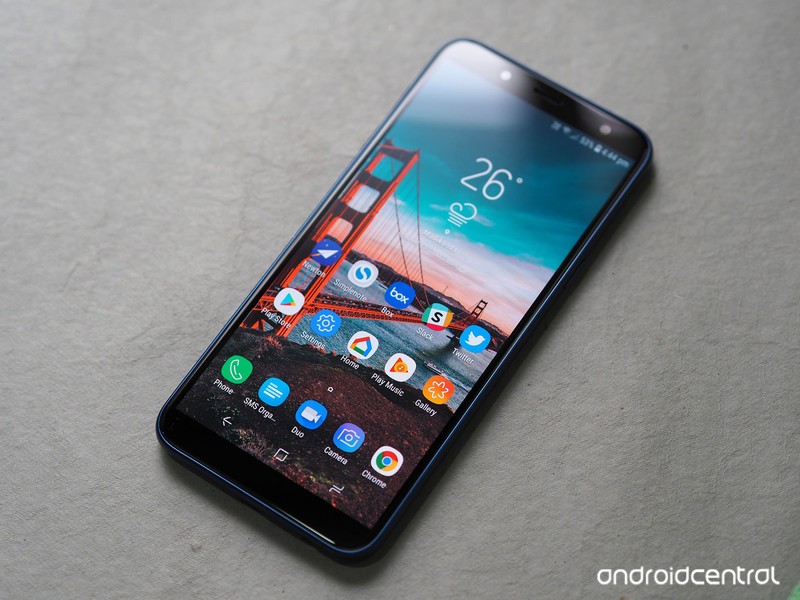
The one constant in the Indian handset segment over the years has been Samsung. The last five years saw local manufacturers like Micromax, Intex, and Lava fade into obscurity as they failed to meet the challenge put forth by their Chinese rivals, but Samsung has weathered the storm unscathed.
Sure, the South Korean manufacturer is no longer India’s top smartphone brand, but its market share is still holding steady at 31% — Xiaomi had to steal market share away from other players to get to 34%. Things haven’t changed much for Samsung either; whereas everyone else is pushing the barrier for value in the budget segment, Samsung is content rolling out underwhelming devices in the Galaxy J series year in, year out.
Take for instance the latest entrant in the series, the Galaxy J6. The device shares a similar design aesthetic as its predecessors, and while there’s a new 18.5:9 panel up front, the rest of the hardware seems derivative. That would automatically make any other device a flop in this highly competitive segment, but it looks like Samsung is the one manufacturer that can get away with launching lackluster devices and still manage to rake in millions of sales.
On the subject of sales, the Galaxy On6 is identical to the Galaxy J6, with the only difference being that the former is sold online while the latter is primarily targeted at the offline segment. It’s baffling that Samsung felt the need to create a new name for an existing product just to list it online, but this isn’t the first time the company has done so. As we’ll see later on, it’s not just the name that’s being recycled here.
Samsung Galaxy On6

Price: ₹14,490 ($215)
Bottom line: The Galaxy On6 gets full marks for effort, but it falls behind its rivals in several key areas, making it a poor recommendation in 2018.
Pros:
- Super AMOLED display
- Dedicated MicroSD slot
- All-day battery life
Cons:
- No ambient light sensor
- Dated chipset
- Mediocre camera
- No fast charging
- No dual-band Wi-Fi
See at Flipkart
Samsung Galaxy On6 What I like
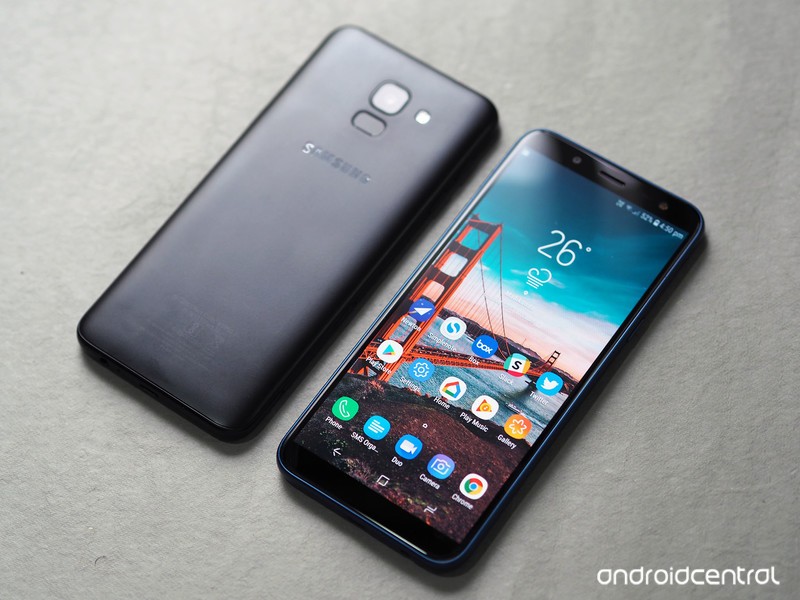
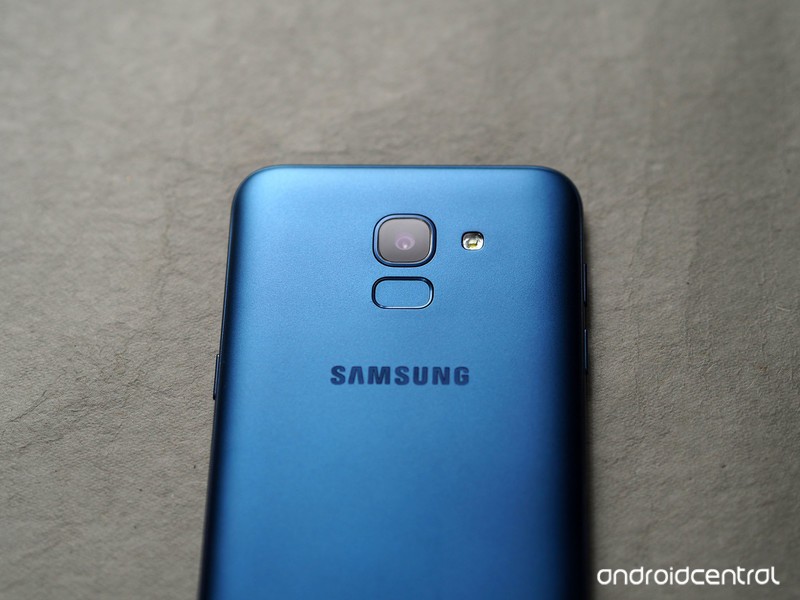
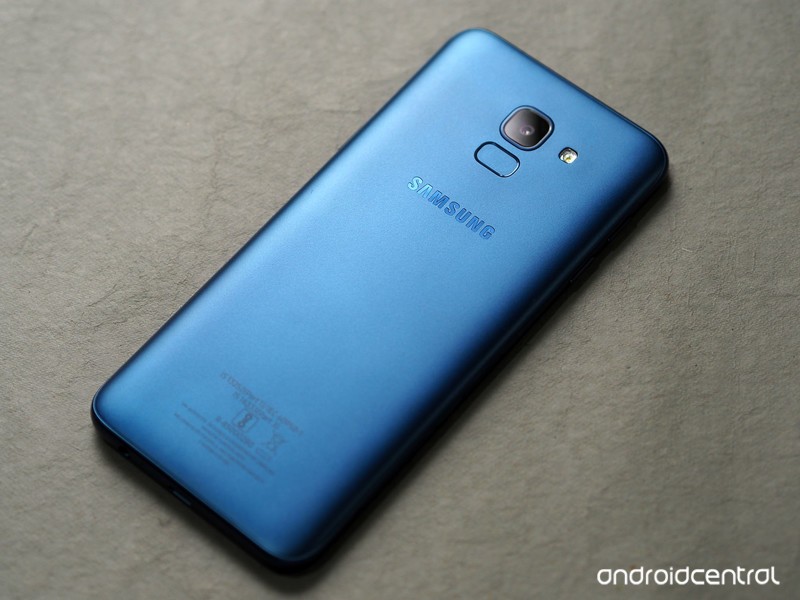
The one redeeming factor on the Galaxy On6 is the display: the device features a 5.45-inch 18.5:9 panel, and the reduced bezels at the front mean there’s no home button anymore. The fingerprint sensor is now located at the back of the device, and you also get a face unlock feature. The feature is dicey as it had issues with authenticating my facial features in anything other than ideal lighting conditions, but it’s a feature that actually made its way onto the device, unlike so many others.
The screen itself is noteworthy, as it is a Super AMOLED panel. But this being Samsung, it is an HD+ display (1440×720) and not a Full HD panel, but it is a step in the right direction. It isn’t a curved panel like the Galaxy S9, and has larger bezels at the top and bottom, but it is better than the 16:9 panels Samsung used in the last generation. Colors are vibrant, and while the panel itself is great, it is let down by the omission of a few key sensors.
The Galaxy On6 brings the Infinity Display to the budget category.
You’ll also get a full day’s worth of usage out of the 3000mAh battery, as it’s driving an HD+ panel and the Exynos 7870 is geared toward efficiency. But the downside on the battery front is that there’s no fast charging.
Another point in favor of the Galaxy On6 is that it has two SIM card slots as well as a dedicated MicroSD card slot. There are two trays located at the bottom left corner of the device, with the first tray facilitating the primary SIM card and the second slotting in the secondary SIM card as well as the MicroSD card.
The phone comes with the latest version of Samsung Experience (9.0) — based on Android 8.0 Oreo — out of the box, along with the June 1, 2018 security patch. The user interface is similar to what you get on the much more premium Galaxy S9, and Bixby Home is also present on the device.
A new software addition to Samsung’s budget phones is Samsung Mall, which is an aggregator that pulls in items from several sources like Amazon, Jabong, Flipkart, and the like. The idea is that instead of searching on each individual platform, you use a service like Samsung Mall to find the product you’re looking for. There’s also an image recognition feature that works astonishingly well — just take a photo of an item of clothing or any physical product, and Samsung will serve up suggestions.
Samsung Galaxy On6 What needs work
The Galaxy On6 is powered by the Exynos 7870 Octa, a chipset that first made its debut back in 2016. That’s not a bad thing in and of itself — the Snapdragon 625 launched in Q2 2016, and it’s still featured in Xiaomi phones today — but the main issue with the Exynos is that it wasn’t great when it launched two years ago, and it hasn’t aged well since. But Samsung is unwilling to change, and as such its 2018 budget series is powered by a chipset that wasn’t good enough even in 2016.
How does a phone in 2018 not have an ambient light sensor or gyroscope?
Samsung continues to omit basic sensors in its Galaxy J series, with the J6 missing out on the ambient light sensor. So when you’re using the phone outdoors, you’ll have to adjust the brightness manually. There’s no gyroscope either, so you won’t be able to see your orientation in navigation apps like Google Maps.
Also, the Galaxy On6 doesn’t have dual-band Wi-Fi, so Wi-Fi connectivity is limited to the 2.4GHz. I’ve used a few $100 phones that don’t offer the feature, but at the On6’s price point it is yet another omission.



Then there’s the camera. Samsung’s budget phones weren’t really known for their camera prowess, but the 13MP primary camera isn’t quite as good as the rest of the devices in this category. Images come out muddy and there’s a lot of noise, and that’s just for the daylight shots.
Samsung Galaxy On6 Review
Samsung made the right call to go with the 18.5:9 panel on the Galaxy On6, but the internal hardware itself is overdue a refresh. The camera doesn’t hold up to other devices in this category, and while you’ll get a day’s worth of usage out of the 3000mAh battery, ASUS and Xiaomi are offering phones that consistently deliver two-day battery life in this segment.
There really is no reason to pick up the Galaxy On6 in lieu of the Redmi Note 5 Pro, ASUS ZenFone Max Pro M1, the Nokia 6.1, or the Moto G6. There’s no shortage of great budget phones in India, and you’re better off buying any of the aforementioned phones over the Galaxy On6.
3
out of 5
The Galaxy On6 misses the mark in a lot of categories, and the fact that it’s missing basic features like an ambient light sensor and gyroscope make it a poor recommendation. Thankfully, there are plenty of great alternatives available at the same price point. If you’re unwilling to wait for a flash sale to pick up the Redmi Note 5 Pro or the ZenFone Max Pro M1, the Moto G6 is a great choice.
See at Amazon
How to take screenshots in Android P
Here’s everything you need to know about screenshots in Android P!

Android P brings a lot of new features and changes to our favorite mobile OS, and one of the most basic elements of Android — taking screenshots — hasn’t been left out.
Google’s vastly improved the screenshot-taking and editing experience in Android P compared to past versions, and today, I’m going to walk you through all the changes to keep an eye out for.
Without further ado, let’s get started!
Quick note — the steps shown below are based on a Pixel 2 running Android P. The core elements should remain intact for your device, but depending on the manufacturer, things could look slightly different from phone to phone.
How to take a screenshot
In Android P there are two ways to take a screenshot — the old-fashioned way and a new method.
Starting first with the combo we’ve known for years now, you can take a screenshot by holding the power button and volume-down buttons at the same time. That hasn’t changed at all in Android P, and while it still works just fine, the new way might be even easier for you.
Hold down the power button until you see the pop-up menu on the left.
Tap Screenshot.
Once you do this, a screenshot will be captured.
How to edit a screenshot using the built-in Markup tool
No matter how you take a screenshot in Android P, there’s now a built-in feature called Markup that allows you to quickly edit screenshots right after you take them.
After taking a screenshot, you’ll get a notification. From that notification, tap the Edit button.


From here, you’ve got a full set of tools for making whatever edits you’d like. Here’s a quick overview of what you can do:
- Crop your screenshots by dragging any of the arrows found on all four corners.
- Write on screenshots with a pen and highlighter tool
- Change the color of the pen/highlighter (black, red, yellow, green, blue, purple, white)
- Undo and redo edits


After you’re done editing a screenshot, you can either save it to Google Photos or instantly share it wherever or with whomever you’d like.
That’s it!
With that said, that’s everything you need to know when it comes to taking screenshots on a phone running Android P.
Have more questions? Leave a comment down below and let us know what’s on your mind!
Android P: Everything you need to know about Android 9
Android P
- Android P: Everything you need to know
- Android P Beta hands-on: The best and worst features
- All the big Android announcements from Google I/O 2018
- Will my phone get Android P?
- How to manually update your Pixel to Android P
- Join the Discussion
Treat yourself to Toshiba’s 50-inch 4K Fire TV for just $290 today
You can clearly see this is a deal.

As part of its Prime-exclusive deals of the day, Amazon has Toshiba’s 50-inch 4K Fire TV on sale for $289.99, which is $110 lower than it normally sells for. This TV was only just released at the end of May and has never had a price drop prior to this one. The TV set itself has a beautiful 4K panel, 3 HDMI ports (including 1 with ARC), a USB, composite, optical, antenna, audio output, and an Ethernet port.
The Fire TV software brings smart features to the TV like the ability to stream your favorite media from popular services like Hulu, Netflix, SHOWTIME, STARZ, and more. The included Voice Remote with Alexa lets you find something to watch by simply asking for it, and you can even switch apps, play music, and control smart home devices using it as well.
Amazon also has a bunch of its other hardware on sale for all-time low prices, like the Fire TV Stick, Echo Dot, Cloud Cam and more. Be sure to check them out.
See at Amazon
Apple Restructures Sales Team in India Amid Sluggish Growth
Apple sold fewer than a million iPhones in India in the first half of 2018, according to Bloomberg. The company has suffered slowing sales in the world’s second largest smartphone market, which has reportedly seen three high-ranking sales executives leave Apple as the company restructures its operations there.
Among the executives who’ve departed are its national sales and distribution chief, the head of its commercial channels and mid-market business, and the head of telecom carrier sales, said the people, who asked not to be identified discussing internal matters. Apple’s Indian sales team is now undergoing a restructuring, one of the people said.
Apple has a 2 percent market share in India, according to Counterpoint Research. It sold 3.2 million iPhones in the country in 2017, but high tariffs on imported electronic devices continue to push consumers toward cheaper alternatives from Xiaomi, Samsung, and other phone makers. In February, India announced the latest tax increase on imported mobile phones from 15 percent to 20 percent, and that came under two months after the previous increase.
Last year, Apple started manufacturing the iPhone SE and iPhone 6S in India in an effort to exempt the phones from import duties and reduce their price, but the company’s facilities have yet to start running at full capacity. Apple doesn’t manufacture its latest iPhone models domestically, so they still incur import levies.
“iPhone India sales were weak in the first half of 2018 and, even if they show a big jump in the traditionally strong second half, Apple will still fall short of last year,” said Neil Shah, a research director with Counterpoint who spoke to Bloomberg.
Apple CEO Tim Cook has made upbeat comments about the company’s performance in the Indian market, despite Apple’s sluggish growth and single-digit market share.
Cook believes that young, aspiring Indians will look to upgrade their devices as they move up the socio-economic ladder, but sales have yet to reflect that prediction. Apple has also faced criticism for the poor performance of core services like Apple Maps and Siri in India, suggesting the Apple ecosystem has yet to align well to the usage and value of Indian users.
Tag: India
Discuss this article in our forums
How to Use the New Photos App Features in iOS 12
In iOS 12, Apple has introduced some new features to the Photos app that aim to make it easier for you to search, share, and enjoy your photo collection. Here’s how to make the most of them.
The most prominent addition in the Photos app is a new For You tab, which replaces the old Memories and Shared tabs and brings together their features – along with any iCloud Shared Albums you may have – in a single scrolling panel.
For You Tab: Sharing Suggestions
Top of the For You tab is where your latest Sharing Suggestions appear. If the app recognizes someone in the photos it will ask if you want to share the collection with them, otherwise an option to “Share with friends?” is shown.
The great thing about sharing photos this way in iOS 12 is that if your friends have any pictures that are from the same event, time, or location, they will also be prompted to send those back to you, allowing you to fill any holes in your collection.

Tap the Sharing Suggestions card and you’ll be taken to a screen where you can choose the pictures you want to share. Tap Select and then tap any photos you don’t want to include, or choose Deselect All and then tap the ones you want to share.
Choose Next to select people in your contacts that you want to share the pictures with. Tap Share in Messages when you’re done – just note that anyone with access to the shared photo link will be able to view the photos.
For You Tab: Memories
Immediately below Sharing Suggestions you’ll find Memories, which curates various photos and videos you’ve taken in the past into specific memory collections. Without any steps required on your part, Memories gives you an automatic homemade movie from these past family gatherings or vacations.
Tap a memory and you’ll see a list of all the photos and videos contained in the memory (tap Show More to see more than a summary), the geographic location the pictures were taken, nearby photos, and related memories you might be interested in.

If you press the play button to begin viewing a memory, you can also use a number of customization options to edit it. For more on editing memories in Photos, see our dedicated tutorial.
Note that tapping Select on this page and deleting a photo doesn’t just remove it from the memory, but also deletes it from your iPhone and iCloud Library. The last two options at the very bottom of the screen let you favorite the memory or delete it permanently.
If your device supports 3D Touch, you can also hard press on any memory in the For You tab to get a preview of its contents, and then swipe up for options to add it to your favorite memories, delete the memory, or block it.
For You Tab: Shared Album Activity
At the bottom of the For You tab is any Shared Album Activity related to your iCloud account.

This lists iCloud albums shared by you as well as albums shared with you by other users. From here you can view photos and videos, “like” them with a thumbs up, and read comments or add your own.
How to Use Enhanced Search
In iOS 12, the Photos search function in the Search tab is more intelligent than before, so it’s easier to find the most relevant photos to you from events, people, or places.

You can also combine multiple search terms to narrow down your results. Simply start typing a person’s name, a date, a place, or a word like “cat”, “beach”, “waistcoat”, or “selfie”, and the Photos app will offer up similar or identical indexed search terms that you can tap to add to the search field.
Related Roundup: iOS 12Tag: Photos
Discuss this article in our forums
Tech Armor claims its new screen protector improves performance, so we tested it
Tech Armor Enhance Screen Protector Embedded with Clear Technology for iPhone X.
Tech Armor has a new screen protector for various iPhone devices called the Enhance, but the company claims it does more than protect your smartphone’s screen. The Enhance Screen Protector Embedded with Clear Technology reportedly shields your brain from cellphone radiation and improves the phone’s signal strength, while extending battery life in the process. Skeptical? So were we, so we decided to try it out and see if there are any truths to these promises.
Smartphones and radiation
But first, we need to talk about radiation. Smartphones emit radio frequency (RF) energy, a form of non-ionizing electromagnetic radiation. There have been scores of studies exploring the health risks of exposure to this radiation from smartphones — such as whether you can get cancer from prolonged cellphone use — but the consensus from the scientific community suggests there is no evidence linking the two. The U.S. Food and Drug Administration has the following statement on its website:
“According to current data, the FDA believes that the weight of scientific evidence does not show an association between exposure to radio frequency from cell phones and adverse health outcomes. Still, there is consensus that additional research is warranted to address gaps in knowledge, such as the effects of cell phone use over the long-term and on pediatric populations.”
“Still, there is consensus that additional research is warranted to address gaps in knowledge.”
The Federal Communications Commission, the Centers for Disease Control and Prevention (CDC), the National Institute of Environmental and Health Sciences, the National Cancer Institute, and the World Health Organization all provide similar statements, including that more research is needed.
The U.S. Federal Trade Commission even has a website warning people of cellphone radiation scams, advising people against radiation shields as “there is no scientific proof that so-called shields significantly reduce exposure from these electromagnetic emissions.”
“In fact, products that block only the earpiece – or another small portion of the phone – are totally ineffective because the entire phone emits electromagnetic waves,” according to the FTC. “What’s more, these shields may interfere with the phone’s signal, cause it to draw even more power to communicate with the base station, and possibly emit more radiation.”
Tech Armor’s method
The Enhance is a screen protector that’s available for the iPhone X, iPhone 6, iPhone 7, iPhone 8 (including all the Plus models), as well as the iPhone SE and iPhone 5S. It has the same defensive strength as Tech Armor’s other screen protectors, it looks ordinary, and it’s applied the same way. Tech Armor claims Enhance can do three additional things.
The first is it can redirect harmful radiation. The screen protector — which covers the entire phone — acts as a barrier between your head and the RF emissions (when you hold the phone up for phone calls). The embedded Clear Technology in the Enhance will redirect up to “100 percent” of those emissions away to the sides and rear of the phone, away from your brain.
The technology that enables this isn’t new — it’s called a band-pass filter, and it’s currently used in cellphone towers to reject frequencies within a certain range to filter out unwanted emissions, and pushes the signals towards a specified direction. Tech Armor told Digital Trends the folks at Clear Technology helped translate this tech into the screen protector using carbon nanotubes. These are microscopic in size and the team was able to print it on the screen protector glass in a transparent manner.
We have no way to test if the Enhance really does push away RF energy, but even if it does, the overwhelming consensus suggests there is no consistent link between RF energy from smartphones and health risks. That being said, if it provides some peace of mind for you, we can’t argue against it. We decided to test Tech Armor’s two other claims that stem from redirecting the RF energy: Better battery life and stronger cell signal.
The test
We slapped the Enhance screen protector onto an iPhone X on AT&T, and compared it with an iPhone X without any screen protector on the same network (and same plan). We went to various locations where we often had low signal to test whether cell signal improved with the Enhance. The idea is that the “redirected emissions concentrate the phone’s signal to provide a stronger signal for both calls and data downloads,” according to Tech Armor. Whereas Tech Armor’s claims are based on controlled lab environments, we used a real-world approach (minus the radiation testing, which we had no way of testing at press time).
Did it work? It’s hard to tell. In most of our test locations, we found a negligible difference of signal strength between the two; we’d often have the same amount of bars on both iPhone X devices.
In one area where we frequently encountered low signal strength, the iPhone X with Enhance (right) showed no improvement. This was our usual experience.
But in one instance, the iPhone X with the Enhance screen protector fluctuated between three and four bars of connectivity, while the other iPhone stayed at 2 bars. The improved connectivity was sustained for more than an hour, so there very may well be some truth to this claim. Did we notice a difference in our day-to-day experience with the phone and screen protector? No, we didn’t start suddenly seeing a dramatic improvement in our cell signal everywhere.
Interestingly, in one spot where we consistently had two bars of service, the iPhone X with Enhance (right) did show significant signal improvement of three or four bars.
When your smartphone is struggling to find cell signal, it chews through more battery life. Tech Armor claims that since the cell signal is stronger with the Enhance, you should see up to 40 percent longer battery life. We set both our iPhone X devices to similar configurations, and played a 10-hour long YouTube video through a LTE data connection — this is when we noticed the slightly stronger service on the Enhance screen protector. The two iPhone devices consistently had a 2 percent difference in battery life, with the Enhance-covered iPhone X edging out ever so slightly. Still, the differences are negligible, and we don’t think you’ll see a drastic improvement in battery life here.
Should you buy it?
The Enhance screen protector costs $30 from Tech Armor’s website, and it’s available now. It’s more expensive than the bulk of screen protectors on the market, but you can also find ones from other manufacturers that cost $40 or more. (You can see a selection of our favorite iPhone X screen protectors, ranging from less than $10 to $30 and up.)
Stripping away all the claims Tech Armor makes, the screen protector itself is anti-smudge and anti-scratch ballistic glass, so it should keep your screen free from scratches. If you don’t care about cellphones and the RF energy they emit, or don’t particularly think the signal and battery improvements are worth the price, then there are far more affordable options you can buy. However, if you are concerned about potentially harmful radiation coming out from your smartphone, this screen protector should give you peace of mind if the price tag is agreeable. In the end, you are purchasing a high quality screen protector, and that should be the main draw.
Editors’ Recommendations
- Apple iPhone X Plus: News, rumors, specs, and more
- Here’s everything we know about the Samsung Galaxy S10
- Here’s everything we know about the 2019 iPhone
- Everything you need to know about the performance dip on your iPhone
- SBode M400 Bluetooth speaker review
Amazon Prime Day kicks off in India — here are the best deals
Amazon’s 36-hour deal extravaganza is now live, and we’ve rounded up the best deals.

Amazon’s Prime Day is now live in India, and over the next 36 hours the retailer is discounting hundreds of thousands of products across categories. Alongside the deals, Amazon is using its sale as a platform to launch new products, notably the red OnePlus 6. The limited-edition color option is now listed exclusively on Amazon, and if previous launches are any indication, it’s likely to sell out in a matter of days.
The red variant of the OnePlus 6 comes with 8GB of RAM and 128GB of internal storage, and is available right now for ₹39,999. Amazon is also incentivizing usage of Alexa — use any four Alexa skills in the 36-hour window and you’ll win ₹200 in cashback credited to your Amazon Pay account. As usual, there are limitations associated with what skills you can use, but it’s an easy way to pick up ₹200 if you have an Echo device.
Haven’t bought into the Echo family yet? Prime Day is the best time to pick up an Alexa-enabled speaker, with the Echo available for ₹6,999, ₹3,000 off its retail price. The Echo Dot is available for just ₹2,449, making it an affordable entry into the Alexa ecosystem. If you’re looking for a headset for travel, the Bose QuietComfort 25 is available for 50% off, bringing it down to just ₹12,600. It’s not the latest from Bose, but at that price it’s a steal. If you’re looking for a wireless option, the Sony WH1000XM2 is available for ₹22,990, ₹9,000 off its retail price.
Kindle e-readers are also going up for sale, and you can pick up an annual Kindle Unlimited subscription for ₹1,388. The base Kindle is available for ₹4,699, the Kindle Paperwhite is up for sale for just ₹8,249, and you’ll be able to pick up an Oasis for ₹18,699.
Here’s a look at some of the best deals currently live:
- Red OnePlus 6 – ₹39,999 – Debuting today
- Honor 7X – ₹11,999 – ₹1,000 off
- Huawei P20 Pro – ₹59,999 – ₹5,000 off
- Huawei P20 Lite – ₹17,999 – ₹2,000 off
- Sony WH1000XM2 – ₹22,990 – ₹9,000 off
- Bose QuietComfort 25 – ₹12,600 – ₹12,600 off
- Sennheiser HD 4.50 SE – ₹7,490 – ₹7,500 off
- JBL 2.0 Wireless Sound Bar with Built in Dual Base Port – ₹7,999 – ₹3,991 off
- Bose SoundLink Mini II Wireless Bluetooth Speakers – ₹12,960 – ₹3,240 off
- Amazon Echo – ₹6,999 – ₹3,000 off
- Amazon Echo Dot – ₹2,449 – ₹2,000 off
- Amazon Fire TV Stick – ₹2,799 – ₹1,200 off
- Kindle – ₹4,699 – ₹1,300 off
- Kindle Paperwhite – ₹8,249 – ₹2,750 off
- Kindle Oasis – ₹18,699 – ₹3,300 off
There are plenty of non-tech deals up for grabs too. If you’re a LEGO fan, the Taj Mahal — one of the largest LEGO sets ever — is available direct from Amazon for ₹38,079. It isn’t affordable by any means, but this is the first time the set has been available for under 40K.
I’ll be updating the list with more deals as they go live, so check back often to see the latest deals during Prime Day. The Echo Spot will be up for sale at a discounted rate later today, and Amazon is set to add more products over the course of the day.
See at Amazon India
Amazon Prime

- Benefits of Amazon Prime
- Get a free 30-day Amazon Prime trial
- Top microSD cards
- Top-selling battery packs
- Top charging cables
Xiaomi teases Android One-based Mi A2 ahead of official unveil
Xiaomi’s 2018 Android One device will be unveiled on July 24 in Madrid.

Xiaomi teamed up with Google to launch an Android One-based phone last year, and it looks like the collaboration wasn’t a one-off. The Mi A1 turned out to be one of the best phones of 2017, and now Xiaomi is all set to launch a successor. The company has teased the launch of the next-gen model in the series, which will be dubbed the Mi A2, ahead of its official unveil. Xiaomi has a global launch event scheduled in Madrid, Spain, on July 24, and it’s likely the Mi A2 will be unveiled at that event.
Are you a big fan of #MiA1? You will love this…#Xiaomi #AndroidOne #2isbetterthan1 pic.twitter.com/aLlfothn9g
— Mi (@xiaomi) July 16, 2018
The teaser doesn’t reveal much other than stating that fans of the Mi A1 will love the upcoming device. Like last year’s Mi A1 — which was based on the Mi 5X — the Mi A2 is set to be a rebrand of the Mi 6X. As such, we’re likely to see a 5.99-inch FHD+ panel, Snapdragon 660, up to 6GB of RAM, 128GB of internal storage, dual 12MP + 20MP cameras, 20MP front camera, and a 3010mAh battery.
Last year’s Mi A1 turned out to be a hit with consumers because it offered great hardware based on the Android One platform, and the Mi A2 looks set to build on that foundation. That said, the Mi A1 wasn’t without its faults — Xiaomi pulled the Android 8.1 Oreo update earlier this year, with the rollout resuming at the start of July.
This year, we’ll likely see a Mi A2 Lite alongside the standard variant of the device. With the launch just a week away, we should know more about the Mi A2 shortly. In the meantime, what are you looking forward to seeing from the device?
Xiaomi Mi A1 review: Best of both worlds
18 Lightroom keyboard shortcuts you can actually remember
Bacho12345
Lightroom is designed to be fast, and while the user interface is pretty quick, there’s still another way to make those edits faster: the keyboard. But there’s a problem. Adobe’s list of Lightroom shortcuts is somewhere in the ballpark of 300 combinations – pretty impressive for a laptop’s 80-some keys.
Unless you use a keyboard skin or you have a photographic memory, you’re probably not going to be whizzing through your edits using every memorized hot key anytime soon. Thankfully, several of the most helpful keyboard shortcuts aren’t too difficult to remember. After you’ve mastered the basics of Lightroom, memorize these 18 most-often used Lightroom shortcuts — and note that we’ve provided an easy way to remember them.
Lightroom shortcuts for organizing and flagging photos
Many photographers who start with digital shoot many more photos then they actually need (I’m so guilty of this that my first newsroom editor nicknamed me Pepper). Keyboard shortcuts make quick work of picking out the best shots. Most users know that you can use the arrow keys to navigate to the next image and the backspace or delete key to remove photos, but there are a number of other commands that are (almost) as easy to remember.
Action
Windows Command
MacOS Command
Memory Trick
Switch to the compare View, to see two photos side-by-side
C
C
C is for for Compare
Zoom
Z
Z
Z is for Zoom
Add a Flag
P
P
P is for Pick
Unflag
U
U
U is for Unflag
Select all flagged photos
Control + Alt + A
Command + Option + A
Control or Command A works in a number of apps to select everything — just add an Alt or Option to select only the flagged photos
Reject photo
X
X
Cross out that photo
Delete all rejects
Control + Backspace
Command + Delete
Just add control or command to the delete keyboard shortcut to control all those rejects
Add a star rating
Number keys 1-5
Number keys 1-5
This one really is as easy as 1-2-3
Add a color label
6 – Red
7 – Yellow
8 – Green
9 – Blue
6 – Red
7 – Yellow
8 – Green
9- Blue
Color labels are used in the order of the rainbow: Remember ROY G. BIV? Just skip the vowels.
Add a keyword
Control + K
Command + K
K is for Keyword
One more handy trick — Hold down shift to move to the next photo after marking, this trick works for flagging, star ratings, color labels and rejecting a photo.
6 pro tips to taking amazing portrait photos with the Huawei P10
Previous
Next
1 of 11

Inez del Prado Photography

Inez del Prado Photography

Inez del Prado Photography

Inez del Prado Photography

Inez del Prado Photography

Inez del Prado Photography


The Huawei P10 has a dual-lens Leica camera on the back, just like the P9 and the Mate 9, but it also has several cool new software features — including a Portrait photo mode — and it has already impressed us with its ability. What’s more, the front camera has been given the Leica treatment, with a bokeh mode for some amazing selfies. A good camera is only part of the equation when it comes to taking great pictures. Your own ability, and a basic knowledge of how the camera app works, is just as important.
To prove it, and to show just what the P10 can do in the hands of a professional photographer, Huawei ran a “Photo Masterclass.” Hosted by Manfred Baumann, known for his striking celebrity portrait photos and use of monochrome, he helped us put the P10 through its paces, while sharing some valuable tips on composition and editing. We concentrated on taking pictures of people, using the new Portrait mode on the P10.
While we used Huawei’s new phone, the tips we’re going to share with you equally apply to the P9 and the Mate 9, along with most other dual-lens cameras with a manual mode. Don’t worry if manual mode seems complicated, we actually used auto for all the images shared here, and some post-production editing.
Get closer
Don’t be afraid of putting your camera in the subject’s face. Baumann would get in really close, almost filled the frame on several occasions, which worked very well shooting monochrome against a stark, featureless background. To take one particular portrait, he stood on a chair, about two feet in front of the subject. He experimented with different angles and stances, too.
 Inez del Prado Photography
Inezdelprado Photography
If your camera has a bokeh mode, like the P10, it will blur out background detail. We took some spectacular photos in front of a window overlooking Barcelona, but it doesn’t over-power or detract from the person’s face in the picture. However, also try framing your subject against a featureless background — an alternative way of making them the focal point of the picture.
Ignore the camera
Yes it sounds like a cliché, but it really works. Baumann explained he shot a lot of celebrity pictures, but many are not models and wouldn’t automatically start posing for the camera. He’d have to choose his moments carefully, after getting the person to relax and act naturally. We were taking pictures of each other in a fun environment, and laughing about it produced fun, lively, and happy pictures. Standing back and just observing what’s going on around you, especially if people aren’t that comfortable around the camera, may end up giving the best results.
Monochrome
This is best experienced with the Huawei P10, the Mate 9, or the P9, due to its dedicated monochrome Leica camera lens. It produces amazingly detailed black and white pictures. However, pictures taken with other cameras will have filters that provide a similar effect. We were in a bright, airy room with a high ceiling, large windows, and neutral coloured walls. The afternoon light created shadows which could be used creatively when shooting with it behind the subject. We tried leaving parts of the face covered in shadow, for example.

With the light in front of the subject, another option for classy pictures is to choose a dark or shaded background. The light ensures this comes out almost black, but the subject remains lit. The bokeh mode obscures any detail, pushing the subject to the forefront of the picture. We had particular success using this method, and took pictures in settings we’d never have considered before.
Highlights and shadows
Don’t get fixated on taking the best photo possible the first time. Take several, and then edit them. Most camera apps have extensive editing features that can change the end result after the picture has been taken. If you’ve been taking portrait or bokeh pictures on the P10, even the focal point can be altered. We came away with a really excellent tip, which transformed the way our monochrome images looked. Instead of changing the brightness and contrast settings, plays around with the highlights and the shadows. These settings exposed more detail, or made already moody shots even more effective.
Crop the picture in creative ways
 Inez del Prado Photography
Inezdelprado Photography
It turned out we’ve been cropping our selfies and pictures of other people all wrong. Rather than centralising our subject, try cropping faces right down, and setting them at the side of a photo. Don’t always stick to a basic aspect ratio either, play around with the sizes. Baumann sliced the very top of our heads off, which surprisingly ended up looking superb. He’d also cut off backs of heads, shoulders, and minimize background detail. Yet all the time, he was bringing the subject of the photo into better view. It’s a simple, yet incredibly effective trick to learn, which can transform a mundane selfie into one worthy of a professional.
Don’t be shy
Perhaps the biggest tip we can share comes from our own experiences taking photos. Many of us (me included) probably don’t consider ourselves photogenic. However, this doesn’t mean you can’t be photographed well. Through our experience with Baumann, we saw it’s not always about the subject; it’s about taking the right picture in the right way, in the right environment, then using the tools available to creatively compose an attractive final image. Like us, you may end up being genuinely surprised and very pleased with the final result.
We had a great afternoon learning about getting the most from the P10’s Leica camera, and hope these suggestions will help you get the most from it too. The great thing is, because dual-lens camera phones made for producing bokeh-effect pictures are plentiful today — from the iPhone 7 Plus and the Honor 6X, to the ZTE Blade V8 Pro and Xiaomi Redmi Pro — so you can apply them to taking portrait photos with many phones.
Editors’ Recommendations
- Tips on how to take jaw-dropping monochrome pictures with the Huawei P20 Pro
- What is portrait mode? How tech helps smartphones capture a better you
- Using this A.I.-based healing brush, repairing an image is no biggie
- Huawei P10 camera guide
- How to take perfect Portrait Mode selfies with an iPhone X
 AIVAnet