


With Dropit’s delivery service, you can literally shop till you drop
Andy Boxall/Digital Trends
Imagine the end of a long day of shopping. You’re left with several bags of all shapes and sizes from various stores, they’re heavy, you don’t have a car, and you’re slowly realizing you will need to carry all of this home. It’s a burden most shoppers are familiar with, particularly those in urban areas.
But a new service called Dropit is promising to relieve that part of the shopping experience. It takes the best part of retail store shopping — seeing and feeling items in person — and adds in a distinct benefit of online shopping: Not having to carry anything home. We recently had a demonstration of Dropit’s service in London, and a company representative told us the service will launch in the U.S. later this year. Here’s how it works.
No more bags to carry
The concept is simple. You buy stuff from participating stores, leave it all at a special location in those stores, and by the next day it will all be dropped off at your house. There is a delivery charge involved, but it’s a reasonable 10 British pounds, or about $13 at current conversion rates — that’s for as many bags as you can fill during the day. At the moment, before Dropit comes to the U.S., it’s available in the West End of London. That’s where we tried the service out.
Dropit is controlled through an app on your phone, which means it needs to be well-designed, simple, and reliable. It’s available for Android and iOS, and we tried it out on an iPhone X. Once you’ve shopped in a store, the app prompts you to start the drop-off process, which you’d do at the checkout. Pictures of receipts are taken, providing a record of everything being delivered for all involved. Once this is done, your items are secured inside a special Dropit bag, and the barcode is scanned in the app.
The Dropit app is fast and smooth, and the instructions are simple to follow.
From here you can either end the Dropit session and a delivery driver will pick your items up later on, or you can leave it open and keep on shopping. This is a considerable benefit, as you don’t have to shop at just one store or pay multiple delivery charges. It’s a single session, at as many participating shops as you can cram in.
Once your credit card has had enough, you end the shopping day in the Dropit app, and it’s sent out for the delivery team’s attention.
Depending on the time of day you complete your Dropit delivery request, it’s possible everything will be delivered on the same day, minimizing the wait time completely. Otherwise, if you’re too late for same day delivery, your items will arrive the day after. We dropped off our products at around 5 p.m., so our delivery was scheduled for the next day between 7 a.m. and 10 p.m.
Convenient
The app is fast and smooth, and the instructions are simple to follow. It requires basic personal information and a payment method to get started. Unfortunately it doesn’t accept Apple Pay, but the Dropit app will take a scan of your card to save you the hassle of entering all the information.
Andy Boxall/Digital Trends
The drop-off points are usually in the partner store at checkout, and staff don’t need to do anything except bag up the products and hand it over to the deliver driver later on. Everything is booked through the app. Our bag contained a variety of items, from toys to toiletries, and Dropit will take most things aside from anything breakable.
For same day delivery, the delivery distance is limited to the greater London area. For next day delivery, you can get your items delivered anywhere in the U.K. They’re also happy to send your goods to a hotel or an office, increasing convenience for travelers too. Our delivery point was outside London, and the Dropit delivery driver arrived before 8 a.m. the day after.
The app sent notifications before and after delivery — although the delivered notification was several hours late — and it’s also possible to track your order in the app.
Anyone traveling into the city to shop should try this service out.
Sadly, this didn’t include location data, only that the package was on the way. As you’d expect, everything was in perfect order and the bag was still completely sealed. It’s also seemingly impossible to break it open and reseal it, giving us peace of mind about security, and we resorted to scissors to get inside.
We were impressed by the simplicity and speed provided by Dropit. Anyone traveling into the city to shop — residents or tourists — should definitely try the service out. Tourists stand to really benefit from not having to carry around bags if an impromptu shopping break interrupts a day of sightseeing. Dropit’s partner stores include Uniqlo, New Balance, Gap, Topshop, Urban Outfitters, French Connection, Adidas, and M&S. You can find a full list here.
Dropit is a free app download for iOS and Android, and although plans for a U.S. launch are in place, we don’t know details of when it will occur, or in which cities the service will be available.
Editors’ Recommendations
- The best tablets you can buy
- Instagram begins trials on in-app payments to help you insta-pay
- Wherever the road takes you, the Pivt app will make you feel at home
- Google Assistant: Everything you need to know
- Tread carefully if you return a lot of products to Amazon
Microsoft provides free lessons for quantum computing basics
Steven Winkelman/Digital Trends
Want to learn more about quantum computing and how to program in the Q# language? Microsoft just launched Quantum Katas, an open source project that does just that by providing you with tutorials for learning at your own pace. According to Microsoft, these exercises are based on three learning principles: Active learning, incremental complexity growth, and feedback.
“Each kata offers a sequence of tasks on a certain quantum computing topic, progressing from simple to challenging,” Microsoft Quantum Team states. “Each task requires you to fill in some code; the first task might require just one line, and the last one might require a sizable fragment of code. A testing framework validates your solutions, providing real-time feedback.”
Currently, there are only four katas covering basic quantum computing gates, superposition, measurements, and the Deutsch-Jozsa algorithm. Each kata is a stand-alone project containing a sequence of tasks progressing from trivial to challenging, requiring you to manually insert chunks of code. They also provide a testing framework that sets up, runs and validates your final code.
For instance, the first kata covers computing gates, another term for basic operations, used in quantum computing along with the concept of adjoint and controlled gate versions. Those provided in the kata belong to the Microsoft.Quantum.Primitive namespace, the notes reveal.
To use these katas, you need to install the Quantum Development Kit for Windows 10, MacOS and Linux. This kit is typically used to build your own quantum computing programs and experiments. It includes the Q# language and compiler, the Q# standard library, a local quantum machine simulator, a quantum computer trace simulator, and two other components. After installing the kit, you can grab the katas through Git or by downloading stand-alone copies in a ZIP file.
Microsoft says you shouldn’t panic when all tests initially fail after opening a kata. You need to jump into the Tasks.qs file and manually enter code to complete all tasks. These tasks are covered by a unit test that requires you to insert the correct code, rebuild the project, and then re-run the related tests. If you did everything correctly, the corresponding unit task will pass and you can move on to the next stage.
Microsoft’s katas arrive after the company hosted its first Q# coding contest in early July, challenging more than 650 developers and new programmers alike. According to Microsoft, more than 350 participants solved at least one Q# problem while 100 participants solved all 15. The problems ranged from generating a superposition of all basis states to creating a second array reconstruction algorithm. The contest winner completed all tasks under 2.5 hours, Microsoft says.
Given Microsoft’s Quantum Katas is an open-source project, the company welcomes all contributions and suggestions. “Most contributions require you to agree to a Contributor License Agreement (CLA) declaring that you have the right to, and actually do, grant us the rights to use your contribution,” Microsoft adds.
Editors’ Recommendations
- You may never own a quantum computer, but IBM will still let you use one
- To put a quantum computer on your desk, Intel has a plan unlike any other
- Amazon designs an A.I. camera to teach computer vision to developers
- Quantum mechanics could save the blockchain from quantum computers
- Machine learning? Neural networks? Here’s your guide to the many flavors of A.I.
5 features we want in Google’s Pixelbook 2
Thanks to its clean design and powerful internals, Google’s Pixelbook remains one of the best Chromebooks on the market today and a capable laptop replacement. However, it’s been almost a year since the Pixelbook went on sale, and rumor is ripe that Google will announce a Pixelbook successor later this year with updated internals.
Even though we liked the first-generation Pixelbook, there are a number of upgrades that would help the Pixelbook 2 stay competitive against Apple’s recently refreshed MacBook Pro, Microsoft’s newly announced Surface Go tablet, and a slate of Windows 10 convertibles, detachables, and laptops. Here are five features we’d love to see Google adopt on the Pixelbook 2:
Thinner bezels
Dan Baker/Digital Trends
Dell was one of the first PC companies to experiment with barely-there bezels on its XPS laptop, and the feature has proven to be so popular that other notebook manufacturers followed suit. Even if Google recycled the current current aluminum-clad design with glass accent on the current Pixelbook for its second-generation laptop, thinner bezels would not only help the laptop appear more modern against competitors, but it’s a feature that also brings business appeal. A design with slimmer bezels would help the Pixelbook 2 occupy a smaller footprint on a desk or a laptop bag.
The coveted feature is now all but officially confirmed. VentureBeat reporter Evan Blass recently tweeted that smaller bezels is part of this year’s upgrade, and given his previous record with providing reliable leaks, the feature appears highly likely. Smaller bezels coupled with a modern design, a high resolution touchscreen display, and improved pen support would make the screen on the Pixelbook 2 a big winner.
Updated processors
When it launched in late-2017, the original Pixelbook shared the same 7th-generation Intel mobile processors as Apple’s MacBook Pro, making it a capable machine, especially for a Chromebook. However, with most laptop manufacturers (including Apple) recently making the switch to newer 8th-generation processors, we can likely expect that Google will make similar upgrades when it refreshes the premium Pixelbook. If this happens, the Pixelbook 2 could be the most powerful Chromebook ever made, topping out with a six-core Core i7 8th-generation Intel processor.
Depending on the launch timing of the Pixelbook 2, Google’s switch to an 8th-generation processor may make for an awkward refresh this year. Intel is rumored to debut its 9th-generation CPU later this year as well, though it may take some time before laptops with the newest chipset to appear on store shelves.
Improved tablet support
Chromebook partners have already begun experimenting with new form factors for Chrome OS. Though the Pixelbook brought the convertible form factor to the premium segment for Chrome OS, Acer has since debuted a Chromebook Tab 10 tablet and HP launched its Chromebook x2 with a detachable form factor, similar to Microsoft’s Surface Go.
Interestingly, source code discovered earlier this year by XDA-Developers suggest that Google is working on a new Chromebook with a 4K screen and a detachable form factor. While we doubt that applies to the new Pixelbook, Google needs to improve the tablet experience either way. On the software side, Google has been making subtle tweaks to make Chrome OS better for tablets, but there’s still a long way to go.
Alongside the bolder Material Design 2.0 refresh to modernize the aesthetics of the operating system, Chrome OS is also said to be borrowing heavily from its Android cousin, bringing larger buttons with rounded corners to better support touch. It’d be great to see Google launch some of these new interface tweaks with its new flagship device.
Stylus silo
Google brought stylus support to the first-generation Pixelbook, but the stylus seems more like an afterthought. Having a stylus silo or even magnetic attachment to stow the digital pen when not in use would show that Google is serious about the stylus. Samsung provides a stylus silo on its premium Chromebook models, while Lenovo offers a similar design for some of its premium pen-enabled ThinkPad convertibles.
Currently, Google sells the Pixelbook Pen as an optional $99 add-on, and a $29 third-party leather sleeve with a magnetic clip provides similar functionality to Microsoft’s magnetic Surface Pen. If a stylus silo is built into the Pixelbook 2, Google may also bundle the stylus, making the pen feel more integrated into the Chromebook experience while saving users some money.
Integrated LTE
Having a built-in LTE modem on the Pixelbook 2 is much more than just about convenience. With better Android support on Chrome OS devices, and the operating system’s potential to supplant and replace Android tablets, having always-on connectivity would be a huge advantage. This is the same vision that rival Microsoft has for its Always Connected PC platform.
The feature wouldn’t be too hard for Google to do, given that it already runs its own virtual mobile network through Project Fi, which relies on T-Mobile’s and Sprint’s network infrastructure for the backbone. Google’s experiment to deliver voice and mobile data service on its Android smartphone hardware has been met with positive reviews. Google could potentially apply a similar business model to take on data-only devices, like Chromebooks and Chrome OS-powered tablet.
Even though LTE on laptops is uncommon in the US outside of business-class notebooks, it’s still a coveted feature that’s starting to grow in popularity. Microsoft’s Surface Pro, a Windows-powered tablet that’s positioned for premium consumers and business users, comes with an LTE option, and recently Microsoft partnered with Sprint to deliver free data access to the Always Connected PC platform. If it wants to compete with the Surface Pro or iPad Pro, it’s a must.
Editors’ Recommendations
- Google could release the most powerful Chromebook ever this year
- The best Chromebooks of 2018
- Google Pixelbook now on sale for $750, its lowest price ever
- Samsung Chromebook Pro review
- Dell, HP may be building premium Chromebooks to compete with Google Pixelbook
Need a new laptop? We’re giving away a Dell XPS 13 compact laptop PC
In the past, if you wanted a slim and super-light laptop, your best choice was to stick with something like a MacBook Air. Slimline laptop PCs generally lagged well behind Apple’s offerings, and unless you wanted to deal with one of those goofy little 11-inch netbooks that were a nightmare to type on, your Windows options were fairly limited.
But Apple hasn’t held this edge against other laptops in recent years as MacBook innovations seem to have slowed while PC makers keep upping their game in big ways. Dell, in particular, has hit a home run with its fantastic XPS series, and we’re giving our readers a chance to score one for themselves, with one grand-prize winner taking home a brand-new Dell XPS 13 Windows 10 laptop.
Compact laptops can sometimes be hit-or-miss. This smaller form factor is hard to pull off properly, and these designs have to strike a careful balance between laptop functionality and tablet-like convenience without sacrificing portability or hardware capability. Start packing in too much beefy hardware and the computer will end up being too bulky and heavy, but make it too small and light and it won’t be powerful enough to perform well.
Dell has successfully threaded this needle with the XPS 13, which our review team named the best 13-inch laptop you can buy and the best laptop of 2018. Under the hood, this super-light compact computer punches well above its weight class with an 8th-generation Intel Core i7 CPU, a beefy 16GB of RAM, and a generous and snappy 512GB solid state drive. It comes loaded out of the box with Windows 10 as well.
Just as impressive, especially for a laptop of this size, is its crisp 4K display. The 13-inch screen boasts an Ultra HD resolution of 3,840 x 2,160, something that was unheard of for displays this small until very recently. The internal battery on the 4K also provides about 10 hours of juice when running under constant load, so you’ve got more than enough in the tank for a day’s work before needing to recharge.
To secure your place in the giveaway contest, simply submit your entry below. You can also visit Dell’s website, where you can find more details, photos, and videos about the new 2018 XPS 13 laptop.
Editors’ Recommendations
- The best laptops
- The best Dell laptops
- The best touchscreen laptops
- The best laptop brands
- The best budget laptops
Android distribution numbers: Everything you need to know!
Your (usually) monthly fix on the current state of Android.
About once a month, Google releases distribution numbers that outline the various Android versions and the percentage of current devices they’re running on. This data is meant for developers so they can create and update their apps according to which Android versions are the most popular, but they also give enthusiasts like us a glimpse into how quickly OEMs are adopting the latest and greatest the platform has to offer.

To source this data, Google tracks the Android versions of any devices accessing the Play Store over the course of a 7-day period. This ensures that only active Android gadgets are being accounted for and not your HTC Dream that’s been sitting untouched in a drawer for the past few years.
Any version that accounts for 0.1% or more is listed, but versions that have less than that are ignored.
Without further ado, here’s the current state of Android.
July 2018

It’s been a hot minute since we got our last batch of distribution numbers, but after skipping over June, Google’s back with an all-new set of data for July.
The biggest highlight for this month shows Android Oreo (8.0 and 8.1) now available on 12.1% of all devices — a huge step up from the 5.7% it saw just a couple months back. That’s still not a great adoption rate, but at least we’re getting somewhere.
The rest of the changes compared to May are as follows:
- Gingerbread — 0.1% decrease
- Ice Cream Sandwich — 0.1% decrease
- Jelly Bean — 0.7% decrease
- KitKat — 1.2% decrease
- Lollipop — 2% decrease
- Marshmallow — 2% decrease
- Nougat —0.3 decrease
- Oreo — 6.4% increase
May 2018

The data for May corresponds to Play Store activity for the seven-day period ending on May 7. Oreo has picked up another percentage point over the course of the month, and is at 5.7% overall — 4.9% being 8.0 and the other 0.8% for 8.1.
Nougat also saw a slight increase from 30.8% to 31.1%, followed by Marshmallow by 25.5%. Here’s the breakdown of how things changed:
- Gingerbread – No change
- Ice Cream Sandwich – No change
- Jelly Bean – 0.2% decrease
- KitKat – 0.2% decrease
- Lollipop – 0.5% decrease
- Marshmallow – 0.5% decrease
- Nougat – 0.3% increase
- Oreo – 1.1% increase
April 2018

For April of 2018, Google tracked Android devices accessing the Play Store for 7 days with the collection period ending on April 16.
The last report from February showed Oreo just barely accounting for more than 1% of Android devices, but that number has since climbed to 4.6% (4.1% being 8.0 and the other 0.5% going to 8.1). Nougat also sees an increase with a jump to 30.8% compared to 28.5% (7.1 and 7.0 combined), and Marshmallow is still trailing in second place at 26%.
Comparing these numbers to February’s findings:
- Gingerbread – No change
- Ice Cream Sandwich – No change
- Jelly Bean – 0.5% decrease
- KitKat – 1.5% decrease
- Lollipop – 1.7% decrease
- Marshmallow – 2.1% decrease
- Nougat – 2.3% increase
- Oreo – 3.5% increase
February 2018

February’s report was the first time Android Oreo crossed the 1% threshold despite that version of the OS being released back in August of last year.
Marshmallow continued with a tight grip at 28.1%, but this also marked the first time that Android Nougat jumped into first place with a combined total of 28.5% – that including versions 7.0 and 7.1.
Additionally, Ice Cream Sandwich (4.0.3 to 4.0.4) also finally dropped to 0.4% from last January’s 0.5%.
January 2018

In January 2018, Android Marshmallow still reigned supreme as the most popular version of the OS at 29.7%. This also saw 8.1 Oreo make an appearance on the board for the first time with 0.2% adoption, and 8.0 remained at the same 0.5% it was at in December.
Jellybean and KitKat both decreased compared to last month’s check-in, but Ice Cream Sandwich and Gingerbread are still holding on at the same 0.5% and 0.4%, respectively.
What version of Android are you running?
What about the phone you’re using? What one is it and what version of Android is it rocking? Sound off in the comments below and let me know!
Spotify’s Fewer U.S. Premium Members and Higher Churn Rate Attributable to Competition From Apple Music and Others
Consumer Intelligence Research Partners this afternoon shared analysis comparing data collected from Spotify subscribers in the United States and Spotify subscribers globally, finding some notable differences in habits between the two.
Spotify has a lower percentage of Spotify Premium subscribers in the United States compared to the global share, according to CIRP, which CIRP attributes to the competitive U.S. market that offers many different services from Apple, Google, Amazon, and others.
In the United States, 35 percent of Spotify users have signed up for a premium subscription, while the other 65 percent listen to the company’s free tier or were previously Spotify Premium subscribers.
Of premium subscribers in the U.S., 55 percent have individual accounts, 24 percent use a family plan, 12 percent have student subscriptions, and 9 percent have a subscription that combines access to Spotify Premium and Hulu.

“In our first survey of Spotify users, we can see differences between the US and the rest of the world,” said Josh Lowitz, Partner and Co-Founder of CIRP. “In the US, a somewhat lower percentage of listeners have Spotify Premium compared to the global share.
The US is a competitive market, with a number of options for both free and paid streaming music. And, among these Premium subscribers, over half have the standard Individual membership, while one-quarter have the broader Family Plan, which offers multiple individual accounts for a single higher monthly fee. A significant percentage of Spotify customers have chosen these alternative subscription options.”
During the second quarter of 2018, which is when the data was collected, 11 percent of ad-supported Spotify listeners started a trial Premium subscription, while 74 percent of subscribers continued with a paid Premium subscription when a trial ended.
16 percent of Premium subscribers ended a subscription and reverted to the free listening tier or stopped using Spotify all together, a churn rate that CIRP says is higher than Spotify’s global churn rate.
“Spotify’s financial success depends on creating a robust funnel of users, converting casual listeners that download the app to long-term paid Premium subscribers,” said Mike Levin, Partner and Co-Founder of CIRP. “Spotify encourages free Ad-Supported listeners to begin a free or nearly-free trial of a Premium subscription, typically of seven or thirty days. It then seeks to convert that trial to some form of paid Premium, with users paying for the service monthly. The monthly payment plan does allow Premium subscribers to cancel at any time, a situation that Spotify calls ‘churn’.
We estimate a US churn rate of 16% for the quarter, higher than what Spotify suggests is the global rate. Again, we attribute this to a competitive US market, with many choices for paid and free streaming music services.”
While Spotify and Apple Music both operate in multiple countries around the world, Apple Music has been gaining popularity rapidly in the United States since its 2015 launch.
In early July, an anonymous source from a major U.S.-based distributor told Digital Music News that Apple Music has surpassed Spotify’s subscriber count in the United States, something The Wall Street Journal accurately predicted would happen this summer given the subscriber growth rates of the two companies.
Both Apple Music and Spotify are said to have more than 20 million subscribers in the United States, with Apple “a hair ahead” of Spotify. Spotify and Apple Music do not break down their subscriber counts by country, so there’s no official confirmation.
Spotify in May announced that it has a total of 75 million paid subscribers worldwide, and Apple during the same month said that it has 50 million paid subscribers and free trial users around the globe. Spotify’s total user base continues to be much larger — 170 million active users – due to the free ad-supported tier that Spotify offers.
Customers in the United States have a lot of choice when it comes to streaming music services. Along with Apple Music and Spotify, Pandora Radio, SoundCloud, Google Play Music, Amazon Music and others offer subscription options.
CIRP’s Spotify data for its report was gathered from surveys of 500 U.S. participants who used Spotify from April to June 2018.
Tags: Spotify, Apple Music
Discuss this article in our forums
Feedly review: Does it still hold up in the crowded news reader category?


You may not be old enough to have experienced Google Reader, but the beloved RSS feed reader was the perfect solution for ingesting news without all the noise. Just a bare-bones list of headlines curated by you, the reader.
What could be more useful material than subjects and items that you specify? It made the morning ritual a truly blissful habit.
But, seemingly just when you had the perfect amount of sources carefully categorized, Google announced it was discontinuing the service due to a declining user base. Business is business, and although Google cited dwindling interest, the audience actively using the service displayed utmost devotion.
I distinctly remember the feeling of despair in the waning moments of Google Reader. A sense of abandonment. You think I’m sensationalizing this? All hope was lost.
Enter Feedly
A product developed out of sheer necessity. A service that would put its arms around the hundreds of thousands of fallen souls to resurrect this once proud faction of netizens.
Ok, clearly sensationalizing. But still … Feedly was in existence prior to the Google Reader shut-down, however the once small platform instantly gained 500,000 new users in 2013 as a result. Having long since established itself as a premiere news aggregator since those early days, how does Feedly stack up nowadays with so many alternatives?
Get Reading
As an early adopter I had the ability to import all of my existing Google Reader feeds to Feedly, so I was instantly up an running. If you are just starting out from scratch, it is just a matter of either registering for an account or signing in with your existing Google profile.
From there you can choose from a collection of topics, search for sources or enter an exact RSS feed if you’re not finding what you’re looking for. Once you start adding sources, you can assign them to categories and begin to organize your news feed.
The News Feed
The viewing experience has always been buttery smooth and the content quick to load. These are rather important factors when choosing among similar apps, and Feedly absolutely perfects this immediacy. Along with function comes fashion, and there are several different layouts to choose from including Detect (based on the content being rendered), Title Only, List, Magazine and Cards.


Other cosmetic components include “Open Animation” (when tapping on articles), “Transition” (the style with which you navigate through your news feed) and “Theme” which is simply light or dark mode.
Extras! Extras!
Feedly has a lot going for it. The overall minimal experience should not be confused with having a lack of bigness. Under the hood, users can connect to saving tools like Pocket, Evernote, etc. and assign favorite sharing methods. But one feature that Feedly has that many will appreciate is a desktop presence.
This alternative destination includes options to upgrade to paid tiers for unlocking some more business-focused features such as team collaboration and deeper third party integrations.
Love/Hate
From a purely functional standpoint, it’s hard to find many other news readers to get me completely off of Feedly. But I sure as hell have tried. And there are a few main reasons for me test driving other apps.
The first being my indifference toward the aesthetics. One can’t really say Feedly is ugly, but it needs to be more modern or “materialized.” Which could be a result of my next item of agony and that is very infrequent updates. In their defense though, the team is currently undergoing a beta project in collaboration with users to gain feedback for upcoming app enhancements.
The main stickler, however, is the inability to search my entire news feed (sources) for a keyword or phrase.
The usefulness of that type of function cannot be understated. I have a slew of news in my face, but want to see if there is an article on, say, “Black Ops 4?” Well damn I should be able to pinpoint that.
A now-defunct app (taptu) had this feature and spoiled me. Although I typically have Feedly installed, I have definitely flirted with the likes of Palabre (Material Design and keyword search).
Always a Contender
Feedly does way more things right than wrong. It’s a solid performer and is not too bloated or distracting (ahem, Flipboard).
My dislikes are not deal-breakers and what some other readers might do better, just simply cannot compete with the speed at which I get my news within Feedly. Qualms aside, Feedly will most assuredly have a spot in my app rotation.
Honor 7S review: Your grandma deserves better
With the Honor 10, Honor created a smartphone that challenged a lot of flagships at a very affordable mid-range price tag. The OEM has proven itself to be a master of efficiency in engineering and highly competitive in lower price categories.
This is Honor’s cheapest phone yet. So, what happens when that same company takes on the budget market? What can we expect for a measly 99 pounds (~$129)? Let’s find out in this Honor 7S review. Let’s just say it’s best not to get your hopes up.
Don’t get your hopes up
Design and features: Plain Jane
Let’s start with the design. You should expect a number of concessions in a phone costing 99 pounds, and this one’s got plenty.
This is a very plastic phone with a generic design. It’s also quite thick, which may not be an issue depending on your preferences – but it further betrays the phone’s budget nature.
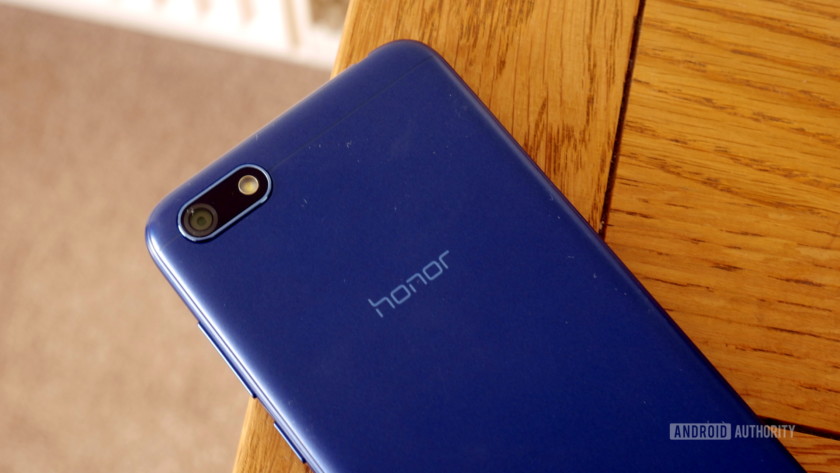
It’s not necessarily ugly, though. In fact it actually looks fairly solid — I really like the rounded edges. It’s not even close to premium, but it’s certainly acceptable.
The screen is 5.45 inches, with a 1,440 x 720 resolution. A sub-1080p screen is pretty rare these days, even at this price. That said, the 18:9 aspect ratio and 73 percent screen-to-body ratio make it feel at least somewhat modern.
From purely a design standpoint, this is a well-made budget device with sensible cost cutting compromises.

Unfortunately, the average design is one of the device’s best aspects.
Features: None to speak of
Another moderately good aspect of the 7s is its 3,020mAh battery. It isn’t absurdly big, but does very well with the chipset and the low-res screen. I’ve gotten 8 hours of screen-on time with basic usage, which is pretty darn good. Taxing the CPU and connectivity will drain it a lot faster. You’re really looking at just over a day when it comes to more intensive use.
There’s no fingerprint scanner here, which is a bit of a blow. There’s no face detection either, so you really are left with only the basic PIN or password for your security.

Hello, old friend
The 7s uses Micro-USB. Nicer features like water resistance, NFC, and wireless charging are missing — all perfectly fair and to be expected (even if the AWOL fingerprint scanner stings a bit).
What strikes me as a really cheap move on the other hand is the complete lack of a speaker grill. The 7S instead uses the phone speaker for media and notifications, which creates a lot of distortion at higher volumes. It’s useful if you want to kick a YouTube habit, but otherwise actually quite unpleasant.

Coupled with the 720p screen, this really isn’t a good option for media consumption. I’ve used plenty of cheap devices but none completely lacking a speaker grill!
It’s only got 16GB of storage, which meant I actually had to pick and choose which apps I wanted to transfer from my previous device.
This really isn’t a good option for media consumption
However, there is expandable storage up to 256GB, so you’ll at least be able to store a lot of data there. Still, 16GB is very limiting, especially considering the apps that need to be installed on internal storage.
There’s dual SIM, which I know will please a lot of people.
Performance: Low specs meets bloated OS
I’m just going to come out with it: the Honor 7S is not an impressive phone — even taking into account the low price.
The Honor 7S packs a low-end Mediatek MT6739 processor, and a minimal 2GB of RAM. That’s certainly not an impressive showing on paper, but the actual real-world performance somehow manages to fall short of even the most modest expectations.
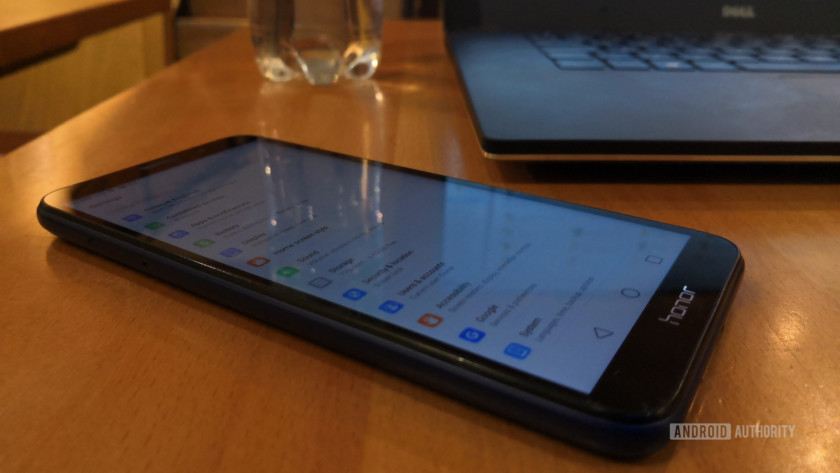
Response time, load times, browsing, and smoothness all take a serious hit. Often, you’ll hit a key and wait a fraction of a second for it to respond. You’ll spend a fair amount of time looking at splash screens while apps load, or wondering if the phone’s crashed. It’s not uncommon to find basic animations freezing mid-way through. Pretty much any time the Swiftkey keyboard pops up (the pre-installed default), you’ll get a brief blank space underneath your current app.
I’ve actually become bored waiting for my photos to open up. Even trying to use the wallpaper app for photos was a chore. Technically it supports split screen multitasking, but I wouldn’t bother.
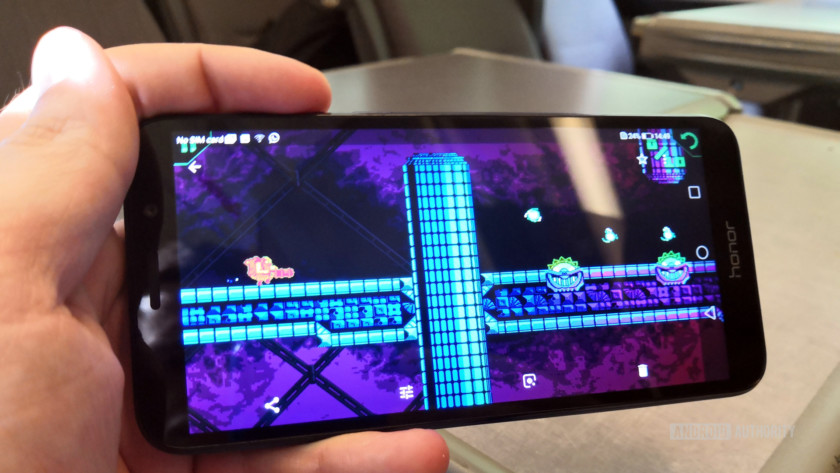
While most other lower end devices can handle most games just fine, the Honor 7S is not the device for you if you plan on playing 3D titles with decent performance. Even a favorite 2D title of mine — Run Gun, Jump Gun — runs in slow-mo as though everything is taking place under water. PUBG doesn’t work due to a glitch. There’s no gyroscope sensor either, so 360-degree content is off limits and VR is definitely a no go. It probably wouldn’t have the horsepower to run it anyway.
It really isn’t any fun to use
The performance should be better than this, even given the hardware. I suspect the issue may have something to do with the Color OS UI layer, the amount of bloat (especially egregious given the small amount of space), and a lack of optimization. The Honor 10 made up for software bloat with its Kirin 970, and some potential AI RAM management. The Honor 7S is an experiment in combining poor software optimization with sub-par hardware, and it really isn’t any fun to use.

The default Huawei launcher is not pretty, but at least you can change it
Phones aren’t just luxuries anymore — they’re essential tools for most of us. When you can’t rely on your device to open up the camera, maps, or even contacts quickly, you have a problem.
It at least works well as a phone. Call quality was good and the phone allows turning the volume on the earpiece up extra loud to drown out background noise. It’s a nice touch, though clearly only included to sidestep the need for a speaker.
Camera: Meh
Believe it or not, I take no pleasure in writing a negative reviews (well, maybe just a little bit). I was really hoping the camera might be this phone’s saving grace. Honor has a habit of sticking feature-packed cameras into even its cheaper models.

That’s not the case here. All the Honor 7x’s fun options have been stripped out of the app, including the pro mode and light painting. You get a few fun filters, but it’s otherwise a basic, stripped-down affair. As a result, the camera gets very little support.
The good news is that the rear shooter here is 13MP, which is respectable. The selfie camera is also not bad at 5MP — it even comes with an LED light.
Unfortunately, photos are dark, lack detail, and often come out blurry due to the lack of stabilization. White balance is all over the place, and a lot of shots just don’t work because of that. Low light performance is also poor, and the aperture is fairly narrow at f/2.2, limiting the depth of field effects that you can achieve.

It’s not atrocious — I have seen worse. If you take a lot of photos, you’ll probably want to bring your camera along too. You won’t be hanging these on your wall.

Video is available at 1080p, but seeing as there’s no gyroscope, you shouldn’t be surprised to find that there’s no stabilization here either resulting in some pretty shaky footage.
Bottom line: There’s better out there
I usually aim to use a phone for at least a week before writing a review , so I can give it a fair chance and catch any kinks not immediately apparent. To be completely honest, I gave up after a few days with the Honor 7S — it was simply too frustrating to use. There were already enough “kinks” for me to make up my mind.
This might all seem a little unfair. Maybe it comes across as a rant (my apologies). I am perfectly aware that you shouldn’t expect the world for 99 pounds.

However, other devices out offer far more impressive specs, features, and performance that cost a similar amount.
Take the OPPO Realme 1 that I reviewed recently. The base model costs $110 and it comes with a better screen, more RAM, face detection, a glass back, faster processor, bigger battery, and (gasp!) speaker grill.
For 50 pounds (~$65) more, you could get something like the Moto G6 Play or a host of other much more compelling devices.
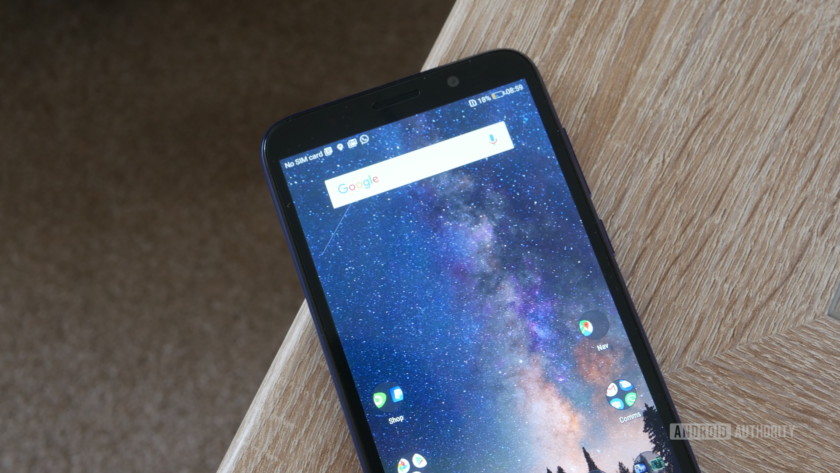
I could live with the design and the lack of high-end features. Even the low resolution would be fine; the sluggishness is just too much. The sound quality is also actively unpleasant. To conclude this Honor 7S review, I just can’t recommend this device.
So that’s it for our Honor 7S review. If it weren’t for the poor performance, I could suggest this as a gift for your Grandma or someone else who doesn’t need any high-end features. As it is, I wouldn’t wish this on your Grandma.
New study suggests CRISPR gene editing might have unforeseen side effects
From the promise of malaria-free mosquitos to a potentially limitless supply of transplant organs or cures for some of humanity’s worst diseases, CRISPR-Cas9 gene editing sounds almost too to be true. Unfortunately, at least according to researchers in the United Kingdom, that could turn out to be true. In a recently published Nature paper, researchers from the Wellcome Sanger Institute — a nonprofit British genomics and genetics research institute — warn that gene editing has the potential to end badly. Specifically, they are worried that DNA alterations could result in cells turning cancerous.
Their conclusions are based on studying two genes in different cell types in the form of mouse embryonic stem cells and human immortalized cells. By studying these genes, they observed that genomic damage was a “common outcome.”
“Many researchers assumed that the repair of Cas9-induced DNA breaks results only in local changes of a few to few hundred DNA bases,” Michael Kosicki, a researcher at the Wellcome Sanger Institute, told Digital Trends. “This is often the intended result and even as a side effect, it is not expected to be especially harmful. We have found that large deletions of thousands of bases and complex rearrangements are another frequent outcome. Both are difficult to detect using standard methods and may have consequences beyond the intended ones.”
The idea of CRISPR technology causing something akin to genetic typos is unsettling, but Kosicki notes that this isn’t just the stuff of alarmist Michael Crichton-style sci-fi warnings about the future. In fact, gene editing has led to damaging results before, when early gene therapy trials a decade and a half ago led to the accidental activation of a gene that caused cancer.
“Gene therapy often involves editing of hundreds of millions of cells and even one cell can potentially initiate a neoplasm,” he continued. “This is why ‘off-target effects’, the potential for Cas9 to mistakenly target another gene, were taken so seriously by the gene editing community. We believe ‘on-target effects’ should as well. [It may also] depend on the targeted gene. Some places in the genome may be more likely to be at risk, especially if they are close to oncogenes.”
Kosicki said that the research institute’s paper is a “call for more scrutiny and caution” when deploying CRISPR-Cas9 technologies in the future. “The changes we described can be easily detected, if you know what you are looking for,” he said. “In some cases, this additional risk may be worth the potential benefit; in some, it will not. More knowledge will make regulators’ choices more informed.”
Editors’ Recommendations
- Scientists will use use stem cells to grow ‘mini brains’ using Neanderthal DNA
- 8 Amazing CRISPR projects that could change life as we know it
- Yale scientists edit genetic diseases out of mice before birth; humans are next
- Scientists have mapped the genome of the most common cancer among younger men
- Scientists may soon be able to treat autism with CRISPR gene editing
Here’s how to get the best from the BlackBerry Key2’s camera
You buy a BlackBerry phone for the keyboard, the security, or the battery life, right? Absolutely, but since the release of the KeyOne and the adoption of the Android operating system, the camera can be added to the list, too. The new BlackBerry Key2 takes it to the next level, and while it’s not going to challenge the Samsung Galaxy S9 Plus or the Huawei P20 Pro, it’s definitely a capable performer ready to take some very shareable shots.
If the phone is in your hand, and you’re ready to go and take some photos, then it’s time to read our guide on how to find and use all the BlackBerry Key2’s best camera features.
The camera
The BlackBerry Key2 has a dual-lens rear camera to keep up with the current trend. Both sensors have 12-megapixels, but the primary lens has an f/1.8 aperture and a large 1.28nm pixel size, while the secondary lens has an f/2.6 aperture and a 1.0nm pixel size. Other camera features include a dual-tone LED flash, phase detection autofocus, and 4K video recording. Around the front is an 8-megapixel selfie camera. It’s all used with the standard BlackBerry camera app.
5 features you have to try
The BlackBerry Key2’s camera isn’t complicated, so don’t expect it to take hours to learn, or weeks to try out the different features. However, there are a few you need to try, and we’re sure several will become ones you use regularly. Ready?
Portrait Mode
Andy Boxall/Digitaltrends.com
The dual-lens camera makes bokeh-style photos possible, where the background blurs around the main subject. BlackBerry hides the option to use the feature away, and it’s not immediately obvious where it is.
- To the right of the camera shutter button in portrait orientation is a button that looks like a camera. Tap it and a menu appears, and the Portrait option is in the top right. Tap it to activate the feature.
- Once it’s active, point the camera at a subject and when it’s in focus you’ll see a yellow notification saying Depth Effect appear. You can hit the shutter release now to take the photo. The camera will suggest moving further away from your subject if it can’t bring it into focus.
Zoom mode
Andy Boxall/Digitaltrends.com
Portrait mode isn’t the only advantage a dual-lens camera brings to the Key2. It also adds a 2x zoom mode that doesn’t sacrifice quality like one would expect from a single-lens digital zoom. It’s easy to find and use.
- Open the camera app and directly above the shutter release is a little circular button with a 1x inside it. Tap it and the camera jumps to 2x zoom, with that number appearing in the circle to confirm the change. Tap it again to return to 1x.
- Don’t forget that you can also use the zoom feature from 1x to 2x by pinching the screen. This allows further tuning of the zoom to get the photo you want, such as a 1.5x zoom being preferred over the full 2x zoom. Careful though, as you can zoom in further than 2x, but the quality of your photo will steadily decrease.
Live filters
Andy Boxall/Digitaltrends.com
BlackBerry’s camera app has live photo filters to enhance your photos while you take them. Finding and using them is simple.
- With the phone in portrait orientation, look for the magic wand logo to the far right of the shutter release. Tap it and a series of filters appears. Each one changes the photo live on the screen, so you know exactly how the end result will look. Swipe from left to right to see different options.
- When a filter is active, the magic wand icon will change from white to color. If you would prefer to return to a non-filtered view, swipe completely to the left and select the filter called None. Tap the magic wand icon again to turn off the filters.
Take a private photo
Andy Boxall/DigitalTrends.com
If you would rather take a photo that is private, and won’t sit in your gallery for everyone to see, then the BlackBerry’s private photo feature is for you. Before using it, you need to learn how to use BlackBerry Locker.
- With Locker all set up, instead of taking a photo using the shutter release, use the fingerprint sensor in the spacebar. However, it’s important to just touch the fingerprint sensor, and not actually press the spacebar.
- Provided you get this step right, the photo will not be saved to your gallery or be uploaded to the cloud. Instead, it’s saved to your private gallery found inside the Locker app. This is opened only after fingerprint authentication, ensuring the photo stays private.
Activate manual mode
Proving the BlackBerry Key2 has a camera to be taken seriously, there is a manual mode, but like several other features, you have to know where to find it.
- Once the camera app is open, tap the Settings cog in the top right of the screen, then in the menu that appears, tap Control Mode. It’s the first option in the list. In the next menu, tap Manual.
- If it is the first time you’re activating manual mode, then when you return to the viewfinder, the camera will provide instructions on how to use the new mode. All the options run down the lefthand side of the screen (in portrait orientation) including focal length, aperture, ISO, and white balance settings.
- Each setting can be adjusted manually, or some can be left in auto mode. To do this, we’ll use White Balance as an example. Look for the yellow marker next to it. This indicates it’s in auto mode. At the bottom of the settings list is a button marked Auto. Tap this to adjust the setting manually instead, or again to lock the mode in auto.
- To return to Auto mode for the camera, you need to reverse the process and go back to the Settings menu, Control Mode, and then switch to Auto.
That’s it for our BlackBerry Key2 camera guide. Now all that’s left is for you to go out and take some great pictures with the phone.
Editors’ Recommendations
- Beginners guide to the BlackBerry Key2’s keyboard
- How to use BlackBerry’s Privacy Shade
- How to use BlackBerry Locker
- BlackBerry Key2 review
- Blackberry Key2 tips and tricks
 AIVAnet