


Airbus to build Mars rover to get first soil samples back to Earth
With Mars the focus of so much exciting space research these days, scientists must be chomping at the bit to get their hands on some of those dusty red rocks that until now we’ve only been able to view via images beamed back to Earth.
In April, we learned that NASA and the European Space Agency (ESA) had teamed up on a project to do just that — retrieve samples from the red planet and return them to Earth for the first time.
This week the bold plan took a major step forward when the ESA granted Airbus a $5.3 million contract to design a concept vehicle capable of retrieving Martian samples that will have already been collected by the Mars 2020 rover. The vehicle would then load them aboard an ascent vehicle that will put the samples into orbit before being brought to Earth in a separate spacecraft.
If it sounds like a fiendishly challenging project, then you’re right. It is.
The so-called “fetch” rover will be built by Airbus at its site in Stevenage, England, just north of London.
“One rover bound for Mars in 2020 is already under construction by Airbus in Stevenage and the knowledge and expertise honed there will now be applied to designing this new mission, which aims to safely deliver – for the first time – material to Earth from another planet,” said British science minister Sam Gyimah.
Assuming the complex project proceeds smoothly, the team behind the fetch rover aims to send it on its way in 2026.
“It will be a relatively small rover, about 130kg, but the requirements are very demanding,” Ben Boyes, leader of the feasibility team at Airbus, told the BBC. “The vehicle will have to cover large distances using a high degree of autonomy, planning its own path ahead day after day.”
Preliminary work by Airbus suggests the fetch rover will look something like this. Airbus
How will it all happen?
The Mars 2020 rover will drill for and scoop up soil samples of interest, transfer them in small containers, and place them at pick-up points.
Six years later, an ascent vehicle will land on Mars, together with the fetch rover. The rover will collect the canisters and bring them back to the ascent vehicle. The ascent vehicle will then depart Mars and rendezvous with an orbiter that will return to Earth with the samples.
At least, that’s the plan.
The technology is complex and still being developed, and for that reason the timing could change. Boyes said that one of the “cool new technologies we want for the rover is to be able to detect the canisters visually from a distance and then drive over and automatically pick them up.”
Scientists say the samples could provide answers to questions about whether there was ever life on Mars and hopefully take our understanding of the planet to a whole new level.
Commenting on the project, British astronaut Tim Peake, who spent time aboard the International Space Station in 2015/2016, said we’re now in “an exciting new era where businesses and space agencies are working closer than ever before on ambitious missions to expand our knowledge of the solar system and deliver benefits to people’s lives.”
Editors’ Recommendations
- NASA and ESA will team up to bring Martian soil samples back to Earth
- A miniature chemistry lab is headed to Mars to search for signs of life
- Who needs a nurse? This robot can extract and analyze your blood
- Spit-checking mouthguard can tell if athletes are tired or mentally drained
- AMD preps 7nm chips in wake of Intel Cannon Lake delays
Surface Go vs. Surface Pro
In fleshing out its tablet range with the Surface Go, Microsoft is looking to offer a decidedly cheaper option for prospective Surface buyers.
But how does the Surface Go measure up to its bigger brother, the Surface Pro? Is it worth spending that bit extra, or can you get what you need with the lower-cost option? In this head to head, we pitted the Surface Go versus the Surface Pro to find out where the best value for money lies.
Design
Mark Coppock/Digital Trends
We call the Surface Pro the best Windows 2-in-1 you can buy for good reason. It sports a fantastic chassis that’s sleek and sturdy with a solid, premium feel to it. It’s a little heavier than the Surface Go and measures up at nearly a couple of inches longer, but that doesn’t detract from it being a versatile, compact device. It has a great hinge that lets it fold out to almost flat (165-degrees) with the kickstand and you can always flip the keyboard around for full tablet mode when needed.
The Surface Go is comparable in almost every way and looks near identical. You’d be hard-pressed to tell them apart by look or feel, and it’s hard to tell at first glance where the Surface Pro’s enhanced price tag comes from. You do have a smaller screen — 10-inches versus 12.3-inches on the Pro — but both sport great little keyboards and touchpads (not bundled in, unfortunately). The keyboard on the Go really impressed us enough that we’d happily say it’s the best 10-inch keyboard we’ve ever used, but at that form-factor, it’s just not as comfortable over long periods as the larger, but arguably inferior quality, Pro keyboard. In both cases, you have to pay extra for that input option.
In terms of connectivity, the Pro shows its age a little by offering a traditional USB-A 3.0 port, alongside a microSDXC card reader, miniDisplayPort output, Surface port for power, and a headphone jack. The Surface Go changes that up for a single USB-C port, a microSDXC card reader, and a headphone jack.
Performance
Internal hardware is where you stop wondering why the Surface Pro is a more costly device. It’s significantly more powerful. Where the Surface Go starts at $400 and sports an Intel Pentium Gold 4415Y dual-core processor with up to 8GB of RAM and 256GB of storage space, the Surface Pro has much more impressive choices to pick from. Where the $800 base model comes with an Intel Core m3 processor — which the Pentium Gold chip should pull slightly ahead of — from there things get far more interesting. For an extra couple of hundred dollars, you get a quad-core Core i5 CPU, and if your budget allows it, there are options for a Core i7 CPU, up to 16GB of RAM, and a TB of storage space.
The Surface Pro is also available today with LTE Advanced connectivity, while we’re told that the Surface Go will be available with that as an option further down the line.
The Surface Pro’s display is more impressive too. Coming in at 12.3-inches, it has a resolution of 2,736 × 1,824 resolution, with a pixel density of 267 pixels-per-inch (PPI). In comparison, the Surface Go offers an 1,800 x 1,200 display with a PPI of 217. While both displays look great, it’s hard to argue that the significantly greater density of pixels on the Pro doesn’t look better.
While the Surface Pro is the more expensive device in almost all configurations, that gets you a more powerful system and one that can do far more than the basic, general-computing tasks of most Surface Go configurations.
Portability
What the Surface Go lacks in power, it makes up for in portability. It’s a smaller device at 10-inches at its broadest point, where the Surface Pro measures 11.5 x 7.9 x 0.33-inches. It’s also lighter, weighing just 1.15 pounds, while the Pro tips the scales at up to 1.73 pounds with the weightiest hardware configuration. Both tablets are very portable, but if you plan to lug one around all day, the Go is the noticeably lighter device.
The Go may struggle to last as long as the Pro on a single charge though. While the Surface Go is said to manage around nine hours of general computing, the Surface Pro is rated for up to 13.5-hours. In our testing it managed more than 10-hours of constant video looping, so it will easily make it through a full workday and then some. We have some misgivings about whether the Go can do the same.
Pay for the Pro
Mark Coppock/Digital Trends
If you’re considering both devices in this head to head, you should almost certainly opt for the Pro. While its price tag is higher, its hardware configuration far outstrips the Surface Go. They might look roughly the same, but the higher-resolution display, more powerful processor, and lengthier battery life make the Surface Pro an all-around better convertible table than its cheaper, newer counterpart.
The Surface Go is a decent little device, but it’s more suited to competing with the likes of Apple’s iPad than it is with the Surface Pro. If you can afford it, buy the Pro. You won’t be disappointed.
Editors’ Recommendations
- Microsoft Surface Go hands-on review
- The Surface Go tablet unofficially leaks online
- Microsoft Surface Book 2 15-inch review
- Microsoft Surface Pro (2017) review
- Acer Switch 7 Black Edition vs. Microsoft Surface Pro
Surface Go vs. iPad
Of all the low-cost tablets out there, the one Microsoft is most keen for its new Surface Go to come out on top against is Apple’s iPad.
Both touchscreen mobile devices have decent internal hardware, great screens, and are lightweight and portable. But which is best? To answer that question, we pitted the new $400 Surface Go versus the $330 iPad in a classic head-to-head comparison.
Design
The 2018 Apple iPad sports what is, at this point, the classic iPad design. It looks near indiscernible from its predecessors and while that isn’t a bad thing, this does mean it sports relatively chunky bezels compared to most of its contemporaries. The Surface Go isn’t much trimmer around the edges though. The overall look and feel of both devices is premium, but not the most cutting edge in terms of design. They feel sturdy and solid in the hand, though the iPad is ever so slightly lighter.
When it comes to external connections, the Surface Go offers a USB-C connector, as well as a MicroSDXC card reader, and a headphone jack. The iPad has even less connectivity options, with just a headphone jack and Lightning port — the latter of which you’ll need an adaptor for to connect USB devices.
The software on both systems is decidedly different. Where the iPad runs Apple’s iOS platform and is limited to App Store applications, the Surface Go runs a full Windows 10 installation. Although it defaults to Windows 10 S — thereby restricting users to Microsoft Store apps only — you can run a full Windows 10 install on there with a few clicks. That expansive support for applications outside of the Microsoft’s closed garden gives the Surface Go an advantage over the iPad in that respect. It is clear from our time with the Microsoft tablet though, that Windows 10 is still better suited to keyboard and mouse, over touch, control. It’s a more functional software suite than the iPad offers, but it’s not as intuitive.
If you do spend a bit extra for the Surface keyboard, you’ll get an input option that is leaps and bounds ahead of the iPad’s offering, but at just 10-inches, it can still feel cramped compared to those found on larger devices.
Performance
One of the most important aspects of any tablet is the display, and both the iPad and Surface Go have great looking touchscreen panels. The Apple tablet sports a 2,048 x 1,536 Retina screen that looks sharp and has good coloring. It’s not quite as black as we’d like, but for less than $350 for the base model, it’s a great looking display. The Surface Go’s has a lower resolution screen at 1,800 x 1,200 with a noticeably reduced pixel density (256 vs. 217), but it still looks good in the 10-inch form factor.
Underneath their glossy surfaces, the two tablets offer quite different hardware suites. The iPad sports Apple’s own A10 Fusion core, with an embedded M10 coprocessor. It pairs that with 2GB of RAM and a choice of 32GB or 128GB of on board flash storage space. The Surface Go packs one of Intel’s dual-core (with hyperthreading) Pentium Gold 4415Y processors with 4GB of RAM and 64GB of storage. There are options however, for up to 8GB of RAM and 128GB of storage. That should give it significant memory bandwidth advantages over the iPad, though in our testing we didn’t notice much of a difference between the two in general computing ability.
The biggest differentiator between the two is in graphics performance. While the Pentium chip does have Intel’s HD 615 graphics chip, that doesn’t give it the ability to do much beyond handle very light 3D-rendering apps like Powerpoint. While the iPad is hardly built for serious gaming, it’s much more capable of handling anything you can throw it from the App Store.
The iPad is also available with full LTE connectivity. While that isn’t quite yet a possibility with the Surface Go, we’re told it will be in the future.
Portability
At 1.03 pounds, the iPad comes in a shade lighter than the Surface Go, which weighs 1.15 pounds without the keyboard. It’s also a little more compact, though 9.7-inches is about as close as you’re going to get to the Surface Go’s 10-inches, without calling them the same size.
Battery life is likely to be better on the Apple hardware too. Apple claims up to 10-hours of general usage for full charges and we found that played out in our testing. After five hours of YouTube videos, the battery life had only drained more than a third. While we don’t yet have hard battery-life results for the Surface Go, its battery is four watt-hours smaller than the iPad’s and Microsoft only claims nine-hours of life. The concern there, is that the Surface Go may not be able to handle a full eight-hour workday on a single charge, especially if you’re using it for slightly heavier lifting.
For small, lightweight, portable tablet devices like these, that’s a must and suggests that the iPad would be a much more stable pick for day to day use.
Conclusion
Julian Chokkattu/Digital Trends
Microsoft’s Surface range has grown from strength to strength over the years, giving us some fantastic hardware like the Surface Book 2 and the Surface Pro. While the Surface Go makes a valiant attempt to resurrect the low-cost, convertible tablet part of that range, it doesn’t do it well enough to supplant its main rival. Apple’s iPad has a lower base cost, a higher-resolution display, a larger battery, and more impressive graphical chops. While the Surface Go might have greater productivity features with its option for a full Windows 10 operating system, that’s not what the average person usually wants to sacrifice for better accessibility.
The Surface Go is a worthy contender to the iPad’s entry-level crown, but it falls noticeably short of its classic rival.
Editors’ Recommendations
- Surface Go vs. Surface Pro
- Microsoft Surface Pro (2017) review
- Office Depot just slashed the price of a Surface Pro Core i5 model in half
- Google Pixelbook review
- Acer Switch 7 Black Edition vs. Microsoft Surface Book 2 13
Best Cases for Nokia 7 Plus
Safeguard your Nokia 7 Plus with a case.

The Nokia 7 Plus is one of the sturdiest phones you can buy today thanks to Gorilla Glass 3 layer on the screen backed by a series 6000 aluminum chassis. That said, there’s a decent possibility that the screen will shatter should the phone take a particularly nasty tumble onto the pavement or a tiled surface.
While the phone isn’t officially available in the U.S., you can pick it up on Amazon for $348, and the listing is backed by Prime. These are some of the best cases available if you’re thinking of picking up a Nokia 7 Plus.
- Yiakeng Crystal TPU Case
- MAIKEZI Dual Layer Armor Case
- Olixar Leather Wallet Case
- Kwmobile Canvas Wallet Case
- Solimo TPU Mobile Cover
- WOW Imagine Armour Series
Yiakeng Crystal TPU Case

The Nokia 7 Plus has a striking design, and the best way to show it off while still adding a layer of protection is with a clear case. Yiakeng’s TPU case costs just $6.98, and it’s slim enough that it doesn’t add a lot of bulk to the device.
It has the requisite cutouts for the ports and buttons, a raised edge to protect the screen, and rounded corners to absorb impact from tumbles.
See at Amazon
MAIKEZI Dual Layer Armor Case

If you’re looking for an Otterbox-style case, MAIKEZI’s Dual Layer Armor Case should do nicely. As the name suggests, the case has two layers: a hard polycarbonate outer shell and a soft TPU inner layer.
The case surrounds the camera sensor at the back, and has a raised edge all around the front to protect the screen. You get the usual cutouts for the charging and headphone ports, there’s a built-in kickstand, and you get a range of color options with two-tone finishes.
At $7.98, the Dual Layer case costs as much as a basic TPU case, but you get much more value for your money. If you don’t want to take any chances with your Nokia 7 Plus, this should be the case to get.
See at Amazon
Olixar Leather Wallet Case

Need a wallet case to go with the Nokia 7 Plus? Olixar’s offering comes with a provision to store three cards and an inner pocket to store some cash, and the case also doubles up as a kickstand.
The case itself is made out of faux leather, and there’s a magnetic fastener that secures your cards. It is backed by a two-year warranty, and for $12 you really can’t ask for much more from a wallet case.
See at Amazon
Kwmobile Canvas Wallet Case

If you’re looking for a wallet case but don’t want one with faux leather, Kwmobile’s canvas case is a great alternative.
The case has a cardholder as well as an inner pocket, and the two-tone design gives it an upmarket look. It also has a magnetic fastener at the front, and you’ll be able to use the case as a kickstand. For $9.90, it’s a fabulous choice.
See at Amazon
Solimo TPU Mobile Cover

If you’re looking for a clear TPU case that provides an added layer of protection to your Nokia 7 Plus, look no further than Solimo’s offering. Solimo is Amazon’s in-house label, so you can be assured of the case’s quality.
The case has cutouts for all the ports and sensors, and has a raised edge at the front that protects the screen in the event of a fall. It’s extremely slim at 1.2mm, so it doesn’t add a lot of bulk to the device, and it’s slip-resistant as well.
The best part is that the case costs just ₹199 ($2.80), making it an absolute steal.
See at Amazon India
WOW Imagine Armour Series

I’m a fan of Spigen’s Rugged Armor cases, and while the brand doesn’t make cases for HMD devices just yet, you can easily find alternatives on Amazon. The one that looks closest to Spigen’s offering is the WOW Imagine Armour Series. The case has similar carbon fiber accents at the back, and the brand is even advertising a similar Air Cushion technology that absorbs impacts.
The case has raised edges at the front and back to protect the screen as well as the camera sensors, and it has the requisite cutouts for the charging and 3.5mm ports.
You’ll only have to shell out ₹329 ($4.75) to get your hands on the case. If you’re in the market for a rugged case to safeguard your Nokia 7 Plus, this one should fit the bill nicely.
See at Amazon India
Sonos Beam vs. Sonos Playbar: Which should you buy?

Alexa vs. Goliath.
In the world of soundbars, to say there’s variety in what’s offered, and how much you can pay, is an understatement. Searching “soundbar” on Amazon sees companies like Vizio offering a basic $75 option that’s no-frills and pretty well-received, while big names like Yamaha offer hardware twice the size with an included subwoofer — and a $300 price point.
But neither options do, or even claim to do, what Sonos soundbars offer. Sonos is in a league of its own, both for sound quality and extensibility. Adding a Sonos soundbar to your TV experience doesn’t just amp the sound; it opens up convenient music streaming options through Sonos’s excellent app, and when connected to the company’s other speakers, facilitates seamless whole-home audio playback from nearly any source.
Sonos offers two soundbars, the compact and modern $399 Beam and the older, larger, ultra-powerful $699 Playbar. Most people should buy the Beam, and I’ll explain why shortly, but there’s still a market for the Playbar.
Beam vs. Playbar The similarities and differences


At their cores, both the Playbar and Beam are meant to connect directly to a TV set to replace its usually-terrible onboard speakers. Once installed, they take over the main output from the TV and, once configured, respond to the volume controls on your TV’s remote control.
Note: If you’re already using a receiver, both soundbars assume that all your inputs — Apple TV, Switch, etc. — will be connected directly into your TV’s HDMI ports, since neither speaker is designed to be used as passthrough when connected to a receiver. Most TVs have between two and four HDMI ports, and most modern receivers have more than that — if you require more HDMI inputs than your TV currently allows, neither the Beam nor the Playbar will be appropriate for your setup.
| No. of Woofers | 6 | 4 |
| No. of Tweeters | 3 | 1 |
| No. of Radiators | N/A | 3 |
| No. of Amplifiers | 9 (Class D) | 5 (Class D) |
| Optical Audio | Yes | Yes |
| HDMI-ARC | No | Yes |
| Alexa support | No | Yes |
The Playbar, which was released in 2013, is a very large piece of equipment, meant for large living rooms to small theaters. It’s built to rest just in front of a flat-screen TV, on a console or ledge (Sonos logo facing up) or mounted on a wall below the TV (Sonos logo facing forward). Because of its large enclosure, Sonos placed six woofers for bass, three tweeters for mids and highs, and nine Class D amplifiers for power, to fill a room with sound.
At 35 inches in width and just under 12 pounds in weight, the Playbar, which is only available in black, is an imposing piece of equipment that looks more comfortable below a television 55 inches in size or higher.
| Width | 35.3″ | 25.63″ |
| Height | 3.35″ | 2.7″ |
| Depth | 5.51″ | 3.94″ |
| Weight | 11.9 lbs | 6.2 lbs |
On the flip side, the Beam is available in either black or white, and is not just narrower but stouter and skinnier than the Playbar — it was able to fit on the ledge below my LG B7 OLED TV where the Playbar could not. It also benefits from Sonos’s more modern design ethos that it debuted with the Play:1 and new Play:5 — it’s rounder and more inviting but manages to disappear into the environment thanks to its color uniformity.
The Beam’s smaller stature translates into a sound more appropriate for a small-to-medium-sized living area. It has just four woofers, a single tweeter, and three passive radiators in which sound bounces around before being shot out of the speaker. Five Class D amplifiers ensure the top volume is loud enough for most people, but the Beam is not designed for capacious living areas or home theaters.
Sound

The difference between the Playbar and Beam in terms of sound output is significant. The Playbar just has more space to work with, and more individual components from which to send sound directionally. Directionality and soundstage are only important for the mid-range and high-end of a movie or song (bass, or low end, spreads outward from its source but does not care about direction), but it makes a big difference in making a soundbar feel like two, or even five, separate speakers.
In this case, the Playbar is the clear winner: an explosion on the right of the screen sounds like it’s coming from that side, thanks to dedicated drivers, and dialog emerges from a dedicated tweeter in the middle clearer and more distinct than that of the Beam. Bass rumbles more deeply and more accurately than that of the Beam, too, and couches far from the Playbar can feel the effects more easily.

Playbar’s numerous drivers have the same dramatic effect on music as they do on movies and TV shows: not only can the speaker go louder, filling more of space with beautiful harmonies, accurate bass, and pleasing, warm mids, but the separation of instruments and vocals feel more natural.
The Beam sounds very good, too, and produces sound larger and more versatile than one would assume from its size — watching Star Wars: The Last Jedi was about as visceral a movie-watching experience as I can remember — but the components of dialog, sound effects, and music all emerges from the same place. Whereas the Playbar truly makes you believe you’re listening to a set of surround sound speakers, the Beam reminds you that you’re listening to a very good speaker. Singular.
If you listen to a lot of music in your living room, the Playbar is going to sound a lot better than the Beam. For movies, the difference isn’t as significant.
Keep in mind that for movies, the difference between the Playbar and Beam on their own isn’t going to be significant except for those with large, cavernous rooms. The major difference in quality emerges when listening to music, where the Playbar pulls ahead by a wide (pun intended) margin.
Both the Playbar and Beam support true 5.1 surround sound playback by wirelessly syncing surround pairs and a subwoofer. You can make wireless pairs using two Play:1, Sonos One, or Play:5 speakers as rear surrounds, along with Sonos’s $699 dedicated subwoofer. Doing so isn’t cheap, and it’s less necessary with the Playbar up front, but the irony is that many homes that have already invested the money in a Playbar may want to augment it with Sonos’s other components.
Connectivity

Both the Playbar and Beam connect directly to a TV, but the former has only one input method: optical. That fiber-optic cable facilitates great sound, but it’s limited in what else it can do.
On the other hand, the Beam is the first Sonos speaker to support HDMI-ARC, which connects directly to a compatible TV to perform a whole bunch of useful things, like working with the built-in Alexa speaker to turn the set on and off and, when used in conjunction with an Amazon Fire TV box or dongle, perform specific tasks. Those actions can include phrases like “Watch Handmaids Tale on Hulu” or “Play Rihanna on Spotify,” which is super useful.
Note: HDMI-ARM is a standard that’s been around for 10 years, and most TVs support it. But if you’re using an older set or one that doesn’t have an HDMI-ARC input (it’s usually input #2 on most modern sets), Sonos includes an HDMI-to-optical adapter in the Beam’s box.
HDMI-ARC also allows for the Beam’s most useful feature: seamless switching between sound on the TV and sound from other places, be it a knowledge request from Alexa or playing a song on the Beam through the Sonos app. Here’s the way it works: say you’re watching a Netflix show on your Apple TV and decide to ask a question about the actor on screen. You can just say, “Alexa, who is X,” and the database should spit out an answer. Once Alexa is finished, the sound should resume on the show automatically. If you paused it using the Siri remote, you can just press play again and sound will resume over the Beam. If you want to play a song on Beam through Spotify, you can ask Alexa to play whatever you want and the speaker will do its thing, resuming the TV audio once the song is finished.
The whole system is seamless and very useful, and it leads us to our next point of comparison…
Alexa and AirPlay 2

With Alexa built-in, the Beam boasts five directional microphones and a ton of smarts to be able to listen for the hot word at all times. While the Playbar technically supports Alexa, too, you’ll need to link it with an Echo or Echo Dot speaker, which does the listening and routing on the Playbar’s behalf. That extra step is a bit clunky and doesn’t work nearly as well as it does on the Beam.
The Beam will also support AirPlay 2 through an update later this summer, and from early indications, it will be as seamless as it is on Apple’s own HomePod speakers. That means using a nearby HomePod to build a whole-home audio setup, or just using Siri to route Apple Music throughout the house using various commands. Playbar will never support AirPlay 2, and for many Apple Music listeners that may be all they need to know.
Finally, Sonos does promise Google Assistant support for the Beam, but it’s not clear when it will be added.
Who should buy the Playbar?

The Sonos Playbar is, surprisingly, still a very attractive product five years after its announcement. At its $699 price and its limited connectivity options, its appeal is quite limited, but it’s also the best-sounding soundbar I’ve ever heard — by a mile. Crisp highs, beautiful, accurate mids, and deep, accurate, rumbling bass emerge from the six woofers and three tweeters, and if I had a bigger living room I’d probably still use it over the Beam.
Why? Because I have other smart speakers in my living room, including an Amazon Echo for Alexa and a HomePod for dedicated music. If I just wanted the best, most immersive sound possible from a soundbar, the Playbar would be my top pick.
See at Amazon
But.
Who should buy the Beam?

At $399, the Sonos Beam is probably the most versatile soundbar on the market today. Not only does it play music, podcasts, and audiobooks from over 80 sources, including Apple Music, Spotify, Audible, and more, but it has built-in Alexa support for powerful smart home control, and among the best sound quality you’ll find in a compact speaker.
The addition of HDMI-ARC is a big deal for Sonos because it opens the platform up to the future of TV control — voice. It also expands the viability of Beam in general, since its more attractive price and design will see people choosing it over cheaper, less capable soundbars. Sonos has also ensured that the Beam can be wall-mounted, though it requires a separate $59 accessory.
The Sonos Beam is the best soundbar available for most people today, and is a better product than the Playbar in almost every way. If size and convenience are more important than sound quality, the Beam is a no-brainer.
See at Amazon
Which will you buy?
Are you interested in either the Sonos Beam or the Playbar?
How to sideload Android apps to Oculus TV on your Oculus Go

A cooler way to use your standard Android apps
Previously we talked about how to sideload apps onto your Oculus Go. As it turns out, we were given a pleasant surprise today when Reddit user Colonel_Izzi discovered you can sideload standard Android Apps to your device and launch them from within Oculus TV.
Most people were experiencing a problem with a lack of compatibility with the Oculus Go controller and the Android Apps, but we’ve found a solution for you to that as well. This all runs through adb and will require a few downloads and a decent amount of patience. Read on below to see how!
How to get Android apps onto your Oculus Go

In order to get the apps you want to try out on the Oculus Go, you’ll need to sideload them through a series of steps. After the apps are installed you won’t need any more steps to have them show up in the actual Oculus Go TV app. When the app is installed a new section in the TV app itself will appear labeled “Unknown Sources”. From there you can click on the app you want to load and get the party started.
Most of the apps you open through Oculus TV won’t be compatible with your Oculus Go controller. Sometimes it won’t allow you to scroll through menus and other times it won’t allow you to use any controls at all. The answer to this is using Vysor, an app that will mirror your Oculus Go onto your computer. See how to use Vysor below!
Click here for the instructions on how to sideload apps to your Oculus Go
How to get your Oculus Go ready for Android apps

Vysor will mirror the screen of your Oculus Go onto your computer and allow you to work the controls when your Go controller isn’t working – for whatever reason. Alternatively, it can allow the option of screen captures and more by controls on your computer when it’s locked on your actual device.
How to enable Developer Mode on your Oculus Go


In order to get your Oculus Go into developer mode, you will first need to create a developer account on the Oculus website.
Go to this website and sign into your Oculus account.
Create a name for your “Organization”.
Read over the “Developer Non-Disclosure Agreement”.
If you agree to the terms, check the box and press “I Agree.”
This will allow debugging on your Oculus Go after you turn the Developer Mode options on by following the instructions below.
Open the Oculus app on your phone.
Select settings from the bottom right.
Select your Oculus Go headset.
Select “More Settings”.
Toggle Developer Mode on.
How to download your Oculus Go ADB files
Download your ADB Oculus Go drivers here.
Go into your device manager on your computer.
When you connect your Oculus Go it will show up on the list.
Right click on your Oculus Go click the option that says “Update driver.”‘
Click, “Browse my computer for driver software.”
Click the option to send it to a folder yourself and select the folder where your downloaded ADB driver is.
Select the downloaded file and it will automatically update the driver.
Check to make sure you have you ADB connected by typing this command prompt into your computer, “adb devices”.
If the device code pops up into your command prompt this shows that the adb can see the device and you can move onto using Vysor.
How to use Vysor with Oculus Go


You’ll want to download the following files to your computer. After the downloads are complete the next section will go over how to use them with your device.
Download the Vysor app here.
Make sure your Oculus Go is plugged into your computer via USB port and your debugging option is still enabled.
Press the gears icon above settings.
Check to make sure it’s showing the details of your Oculus Go and press “Connect”.
A second screen will now appear on your computer, showing you what your Oculus Go is currently seeing. From here you can use your computer mouse to control everything in the Oculus Go. This will help with the compatibility issues in your standard Android apps you’re looking to use inside of Oculus TV.
Now go have fun

Now you should be all set up to get yourself up and running. You can use your normal Oculus Go controller to launch our Oculus TV app and select which app from the “Unknown Sources” section you want to use. From there, if you experience any controller issues, you can move on to using your mouse on the computer to control what is going on in your Oculus Go.
If you have any questions let us know in the comment section below! Other than that, tell us what apps you’re using and why they are or aren’t your favorites!
Select Dash Buttons are down to $1 for Prime members today with a $5 credit
Press the button to order.

Amazon has a few great deals today for its Prime members, including a bunch of different Dash Buttons for just $0.99 each. These normally sell for $4.99 each and come with a $5 credit after using it for the first time. The discounted buttons still score you the same $5 credit, which means that you essentially make $4 in Amazon credit for buying these today.
- Peets Coffee Dash Button
- ZipLoc Dash Button
- Cascde Dash Button
- AmazonBasics Batteries Dash Button
- Keurig K-Cup Pods Dash Button
- Gatorade Dash Button
- Dunkin Donuts Dash Button
This is just a small sample of all the buttons that are available. Each of these can be set up to reorder a variety of products in the brand’s category. Not sure if Dash Buttons will work for you? Be sure to check out this review from our pal Modern Dad.
These prices are exclusive to Amazon Prime members, so if you aren’t already a member, you’ll want to sign up for a free 30-day trial right now.
See at Amazon
Android P features we love: Adaptive Battery support

Google taps into Artificial Intelligence to learn when to shut down apps and save your battery.
Artificial Intelligence is something you’ll hear a lot of talk about, but much of that talk can be a little confusing. That doesn’t mean that AI can’t be used to do simple things that have a real benefit to the way you use our connected things and Android P’s Adaptive Battery is one of them.
It’s one of the least spectacular yet most effective ways of using AI in our phones that we’ve seen so far. Google’s AI can track the way you use the apps on your phone and know when to clamp them down so they aren’t running wide-open in the background. This keeps those apps from using your network and the processor and frees up a bit of your phone’s memory so something that you might want or need to use can stay there instead.
Adaptive Battery might not use AI to fly drones at night, but it can do something even better — save some battery power.
How it works is as simple as it sounds: The operating system knows when you open an app, when you use that app and when you “close” it. In Android when you close an app it may not really close. The OS is designed to keep apps alive in the background until there is no more room left in your memory for a new thing to open. It then has a set of rules — these are defined by the company/person who built the OS from the source code — about what apps it will purge from your memory to make room for a new one.
This makes sure apps you use the most are usually ready to open in an instant and that apps which need to do something in the background every now and then are able to without disrupting your experience. It’s a good way to do things, but like most every idea there is always room for improvement, and Adaptive Battery refines the way it’s done.
If, for example, you wake up every morning at the same time, sit down for a cup of coffee and open the Twitter app, the OS knows this. It also knows that you tend to keep the app open for 10 minutes or so and then tap the home button to go do something else. When that happens, Twitter is still running in the background. If you normally don’t check Twitter again until lunch at noon, there is really no need for Twitter to keep fully running and refreshing in the background until 11:50.
We all are creatures of habit. AI can leverage that.
AI can “learn” these habits. In the example above, you might get a message when you look at your phone at 10 AM that says Twitter is still running, and if you like it can be optimized so that it saves some battery when the OS knows you’ll not be using it, and start back up when it thinks you will. If you say yes, the Twitter app is changed to run in a very low-power state so it’s barely running and not refreshing at its regular intervals. If Android can put Twitter to sleep every morning after you’re done reading and tweeting, it saves battery power. For the most part, this works well.
You won’t want to allow it to optimize apps you use throughout the day unless you don’t mind waiting for a second or two for them to be completely reopened and then sync with their online data, but a lot of what we do is routine and can be managed by AI this way. Adaptive Battery might not be the sexiest way to use AI, but if it saves us some battery power it might be one of the best!
Android P
- Android P: Everything you need to know
- Android P Beta hands-on: The best and worst features
- All the big Android announcements from Google I/O 2018
- Will my phone get Android P?
- How to manually update your Pixel to Android P
- Join the Discussion
Microsoft Takes on Apple’s Entry-Level iPad With 10-inch ‘Surface Go’ Starting at $399
Microsoft yesterday unveiled the 10-inch Surface Go, the company’s smallest and lightest tablet computer to date. Priced at $399, the device is aimed at the same $500-and-under market as Apple’s 9.7-inch iPad, which starts at $329.
Looks-wise, the Go is basically a smaller version of the $799 Surface Pro, including the integrated kickstand and a front-facing camera above the 1800 x 1200 resolution IPS touchscreen display.
On the right side of the Go is a magnetic Surface Connector port for charging and connecting to a desktop dock, one USB-C port, and a headphone jack, with a microSD card slot located underneath the hinge.
Inside, the Go features a fanless Kaby Lake dual-core Intel Pentium Gold processor, 4GB or 8GB RAM, and 64GB or 128GB solid-state storage. Microsoft claims the Go has up to 9 hours of battery life.
Weighing in at 1.15lbs, the Go is slightly heavier than Apple’s iPad. Like the Surface Pro, the Go supports the $99 Surface Pen (Apple added Apple Pencil support to its $329 iPad in March.) and optional keyboard cover, which starts at $99 in black, with four color options costing $129. The optional Surface Mobile Mouse costs $35.
Off the shelf, Surface Go devices will run Windows 10 in “S mode”, a streamlined version of Microsoft’s desktop OS that only runs verified apps downloaded from the Windows Store, although customers can switch to the regular version of Windows 10 at no additional cost. For business customers, Microsoft is also offering a Surface Go with Windows 10 Pro installed for $449.
The $399 Surface Go ships August 2 in the U.S. and two dozen other markets, with Wi-Fi versions available initially and LTE versions to come later in the year.
Related Roundup: iPadTags: Microsoft, Surface GoBuyer’s Guide: iPad (Buy Now)
Discuss this article in our forums
Happy 10th Anniversary, App Store!
Today marks the 10th anniversary of the App Store for iOS devices, which launched on July 10, 2008, just a day before the iPhone 3G came out. The iPhone 3G was the device Apple used to debut the App Store, with the new functionality built into the iPhone 3G’s operating system, iPhone OS 2.
Prior to the launch of the App Store, Apple in March of 2008 introduced an iPhone SDK, providing early app developers with the tools to build the first third-party apps. On stage at the announcement event, demo apps included EA’s Spore Origins for the iPhone, AIM, Sega’s Super Monkey Ball, and a Salesforce app, and within a matter of days, the original iPhone SDK had been downloaded more than 100,000 times.
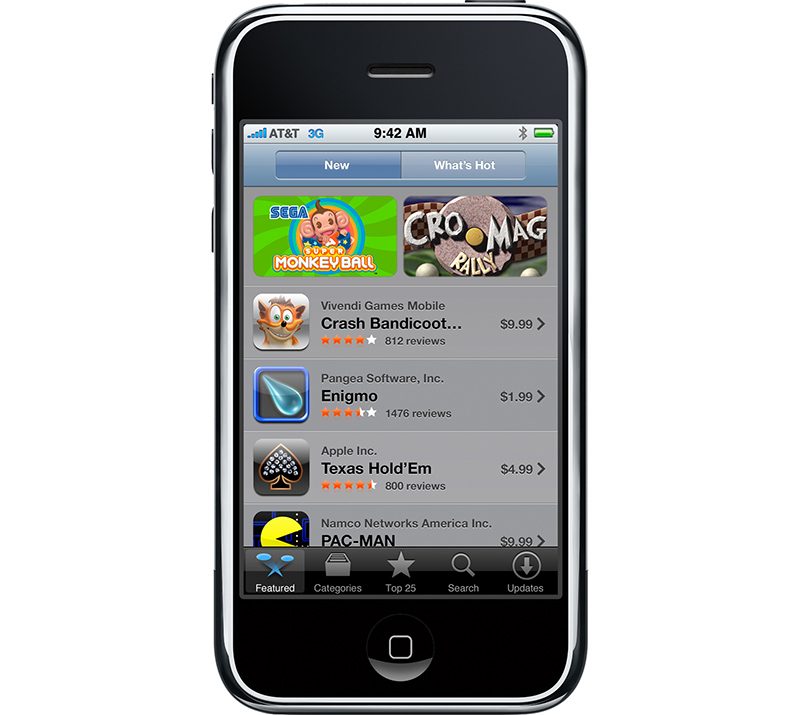
When the App Store opened up in July 2008, 500 third-party apps were ready to download, and in less than a week, Apple announced 10 million apps had been downloaded. From Apple CEO Steve Jobs:
“The App Store is a grand slam, with a staggering 10 million applications downloaded in just three days. Developers have created some extraordinary applications, and the App Store can wirelessly deliver them to every iPhone and iPod touch user instantly.”
Since that initial debut, the App Store has evolved on a yearly basis, with Apple continually refining and revamping the App Store experience for both consumers and developers. We thought we’d explore the App Store’s history, highlighting the major evolutionary steps (and a few fun facts) that have ultimately transformed the way we use our iOS devices.
– July 10, 2008 – The App Store launches with 500 apps available, 25 percent of which were free, and 75 percent that customers had to purchase.
– August 20, 2008 – A Koi Pond app becomes the number one selling app in the App Store.
– September 3, 2008 – Apple rejects a “Pull My Finger” app for limited utility, giving us a first taste of the (sometimes confusing and conflicting) curation and moderation policies that have since governed the App Store. Other early app rejections were for reasons that included excessive data transfer, pornography/nudity, duplicating iPhone features, objectionable words (in a dictionary app), and fake reviews.
– September 18, 2008 – Trism, one of the first popular games in the App Store, generates $250,000 in revenue in two months. Trism 2, Trism’s sequel, is launching today in celebration of the 10th anniversary of the App Store.
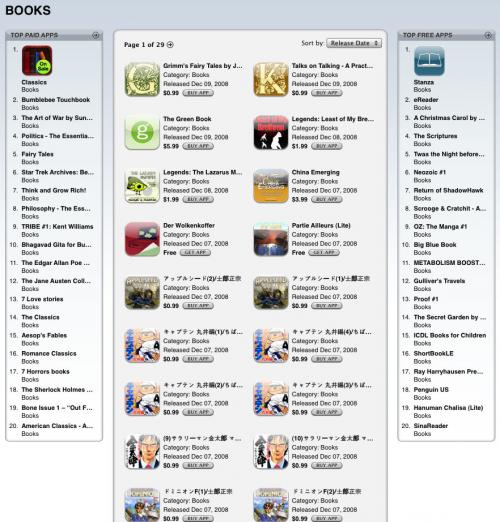
– December 11, 2008 – Apple adds the first Top Charts section to the iTunes App Store.
– March 30, 2009 – The iPhone wins 6 out 7 categories of the Independent Game Festival Awards at the 2009 Game Developers Conference (GDC), establishing it as a serious gaming device. Gaming has since become one of the most popular App Store categories.
– April 23, 2009 – Apple issues its first App Store apology for approving an app called “Baby Shaker, where the aim of the game was to make a baby stop crying by shaking the iPhone.
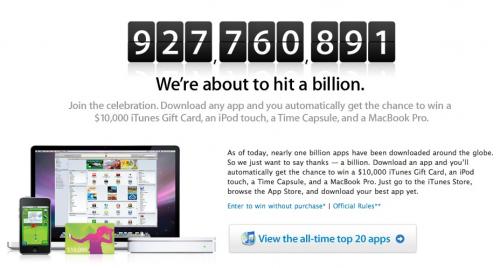
– April 24, 2009 – Apple hits its one billion apps downloaded milestone and awards a $10,000 iTunes gift card and other prizes to one lucky winner.
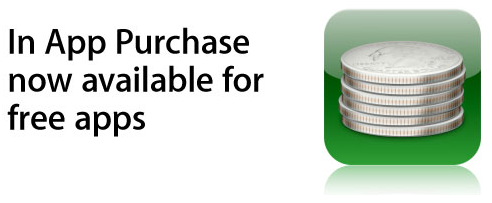
– October 15, 2009 – Apple starts allowing in-app purchases in free apps, leading to the freemium apps that dominate the App Store today.
– April 3, 2010 – The first iPad is released in the United States, and along with it, the first iPad apps come out, including the original “iBooks” app for the iPad, and the first Netflix app. 2,000 iPad apps were available at launch, a number that grew to 7,000 within two months.

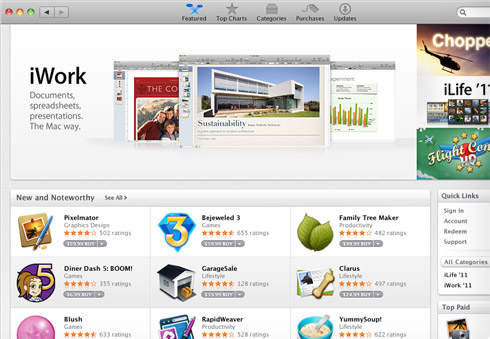
– January 6, 2011 – The Mac App Store launches and sees one million app downloads during its first day of availability.
– January 22, 2011 – Apple hits a new milestone, 10 billion apps downloaded, and awards another $10,000 iTunes gift card.
– February 15, 2011 – Apple launches subscriptions for the App Store, paving the way for App Store users to subscribe to services like Netflix with billing through iTunes. At the same time, Apple makes a rule that apps that offer subscription services must make those services available for purchase in apps, with Apple taking a 30% cut. The rule was reversed four months later.

– March 10, 2011 – Apple begins requiring passwords for in-app purchases after children spend thousands of dollars within “free” apps. Apple later settles a lawsuit levied by parents affected by the lax in-app purchase rules.
– March 5, 2012 – Apple hits a new milestone, 25 billion apps downloaded. Disney’s “Where’s My Water? Free” was the lucky 25 billionth app that the winner downloaded.
– July 13, 2012 – A hack lets people bypass Apple’s in-app purchase mechanism and download apps for free. Piracy continues to be a problem throughout 2012, and even shutters one app, Battle Dungeon.
– May 6, 2013 – Apple starts heavily cracking down on app discovery apps that mimic the App Store, like AppGratis and AppShopper.
– May 15, 2013 – The App Store hits 50 billion downloads., and Apple gives more prizes away.
– June 10, 2013 – Apple unveils iOS 7 with an overhauled interface, including a new look for the App Store. New features include “Apps Near Me” and automatic app updates.
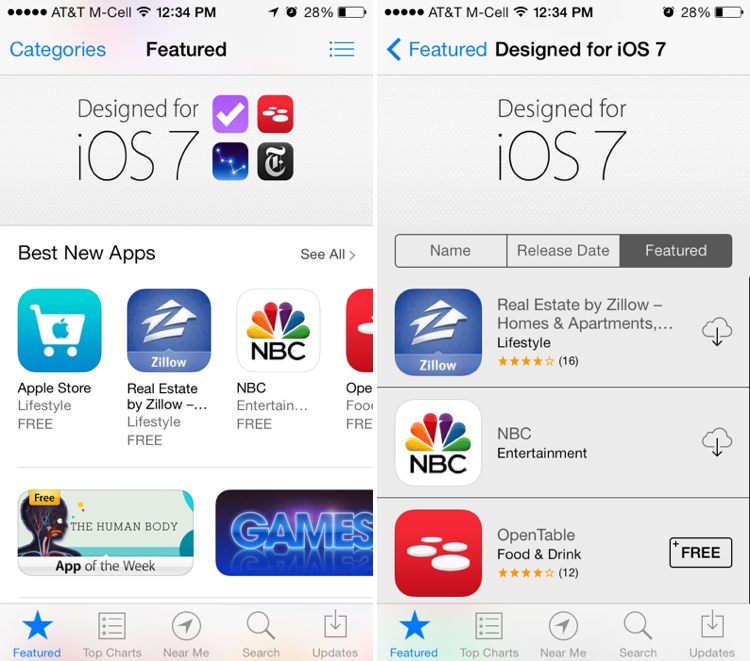
– July 26, 2013 – The Developer Center gets hacked, goes offline for eight days.
– September 19, 2013 – The App Store gains a dedicated Kids category.
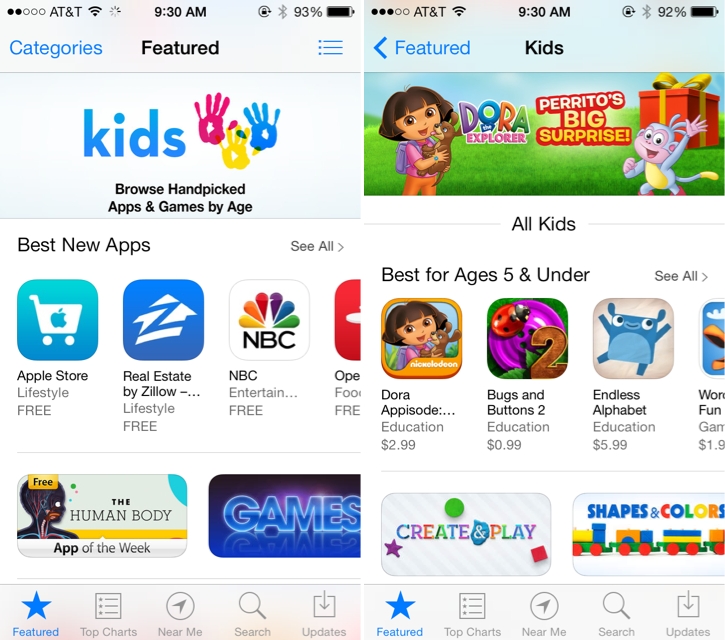
– October 20, 2014 – Apple Pay launches and can be used in apps to make purchases.
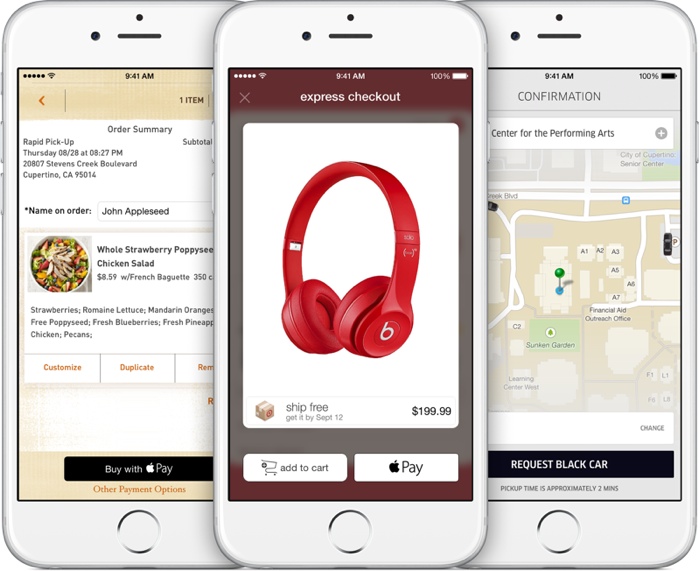
– October 23, 2014 – TestFlight launches, making it easier for developers and customers to beta test apps.
– November 19, 2014 – Apple changes the download button for all “Free” apps to “Get” to signify that free apps may have in-app purchases.
– April 25, 2015 – The first Apple Watch launches, bringing Apple Watch apps with it. Apple Watch apps are tied to iOS apps and are installed as an add-on.
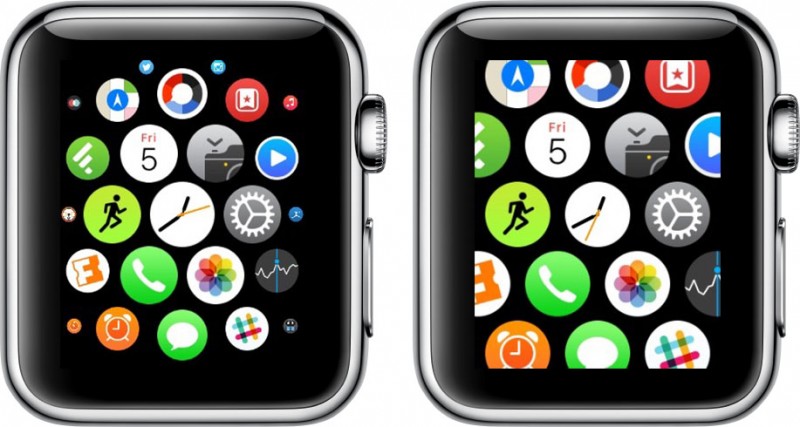
– June 8, 2015 – The App Store surpasses 100 billion lifetime app downloads.
– October 30, 2015 – The fourth-generation Apple TV with built-in App Store launches, allowing third-party apps and games to be downloaded on the Apple TV for the first time.
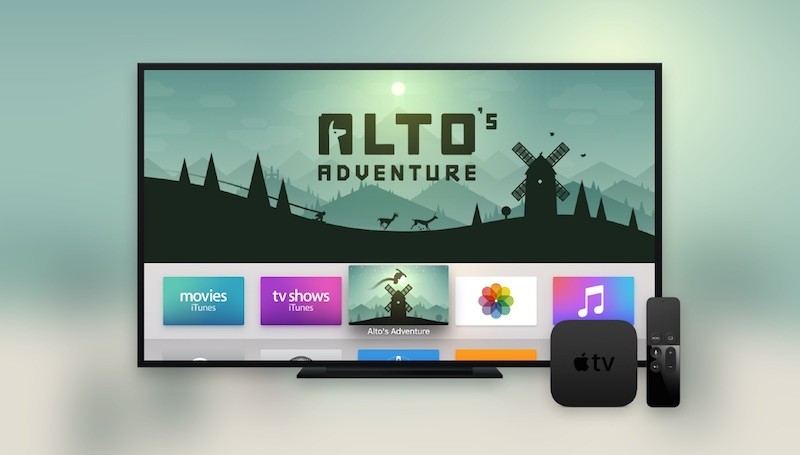
– December 17, 2015 – Marketing chief Phil Schiller takes over the App Store, which was previously led by Eddy Cue. He promises a “renewed focus and energy” on the App Store.
– June 8, 2016 – Apple announces major App Store changes, including subscription terms that cut down on Apple’s fees after a year, search ads, and the availability of subscription options for all apps. This also includes a commitment to clean up the App Store, eliminating old and outdated apps.
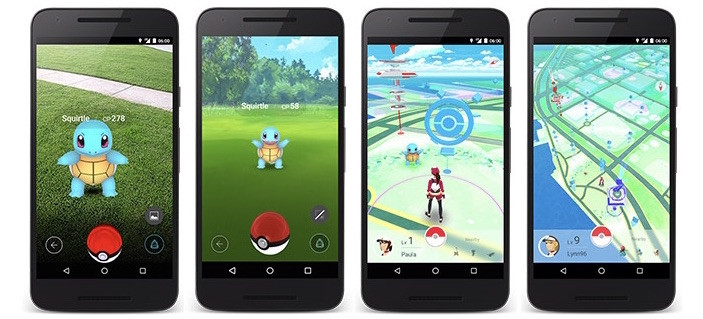
– July 5, 2016 – Pokémon Go, the first super popular augmented reality app for iOS devices, launches. It spends 74 days as the highest grossing app in the U.S. App Store and remains popular today.
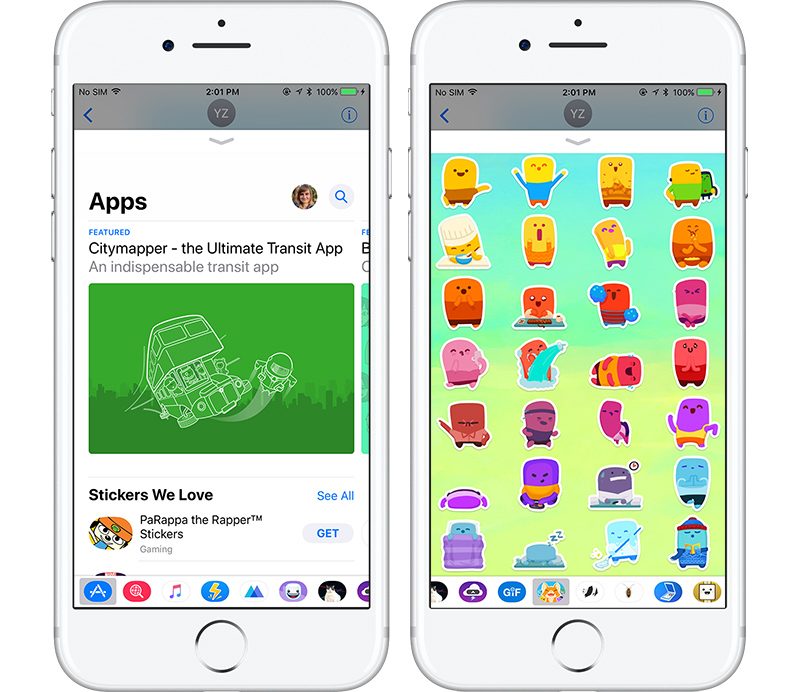
– September 13, 2016 – iOS 10 launches with Messages App Store, filled with apps that work in the Messages app and stickers.
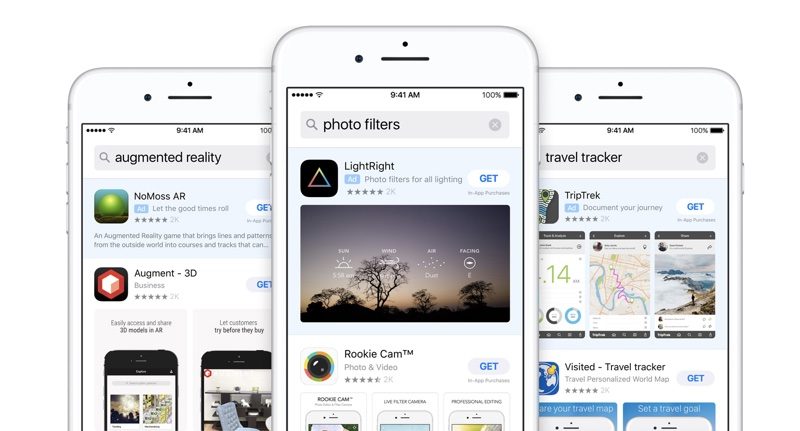
– October 6, 2016 – App Store search ads roll out, providing developers with new ways to promote their apps.
– December 15, 2016 – Nintendo launches Super Mario Run, its first app from an ultra popular franchise, which makes more than $53 million in under two months. Fire Emblem Heroes and Animal Crossing follow in later months.
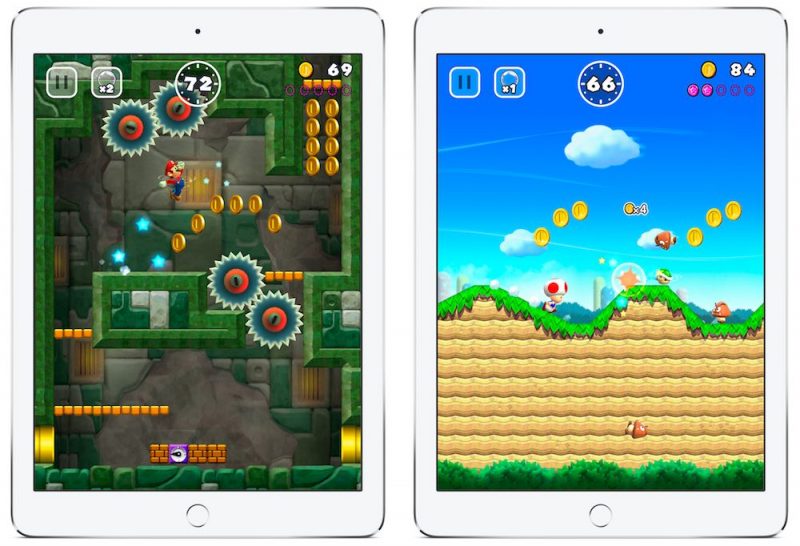
– September 12, 2017 – Apple releases iTunes 12.7, which removes the built-in iTunes App Store. Apple later released a version of iTunes 12.6.3 that retains the App Store for businesses that require desktop access to apps.
– September 19, 2017 – iOS 11 launches with an entirely revamped App Store.
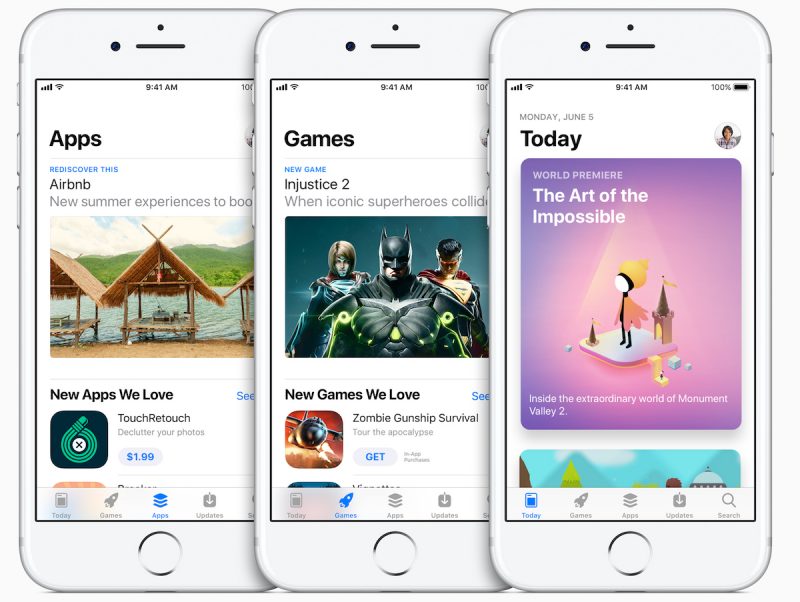
– September 19, 2017 – Alongside the revamped App Store in iOS 11, Apple launches ARKit, turning iOS into the largest augmented reality platform overnight.
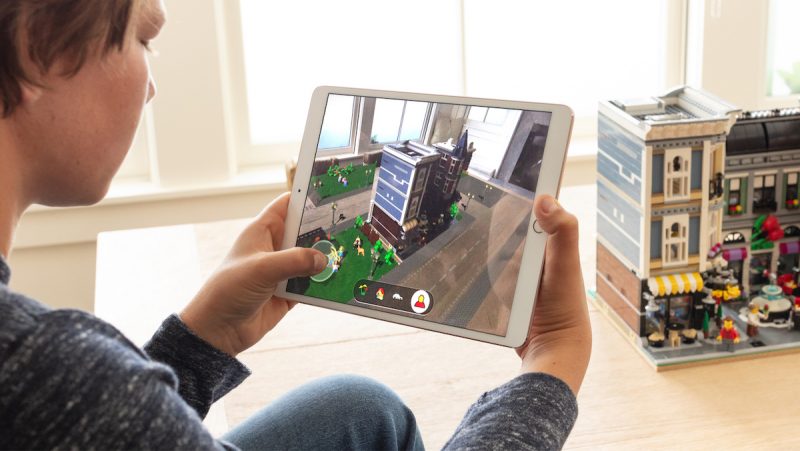
– December 11, 2017 – Apple begins allowing developers to offer app pre-orders.
– June 4, 2018 – Apple announces macOS Mojave with a major overhaul for the oft-overlooked Mac App Store that brings it in line with the iOS 11 iOS App Store redesign, which should improve app discovery and lure more developers to the platform.
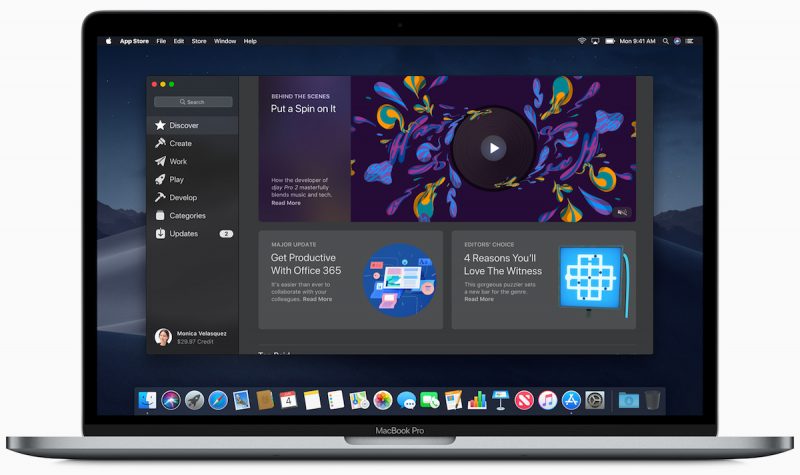
– June 5, 2018 – Apple changes its App Store guidelines, allowing all apps, not just subscription apps, to offer free trials to customers.
As of today, apps are available across all of Apple’s platforms, from the iPhone, iPod touch and iPad to the Mac, Apple TV, and Apple Watch. The new iOS 11 App Store sees more than 500 million weekly visitors, and developers have earned a total of $100 billion in revenue as of June 2018. There are more than 1.3 million apps available for the iPad, 28,000 apps that offer subscriptions, and 3,000 augmented reality apps.
Apple last week published its own retrospective of the App Store, which is well worth reading as it explores thoughts from some of the most influential developers along with milestones that Apple feels are most important. In a statement, Apple’s Phil Schiller said the App Store has exceeded the company’s “wildest expectations.”
“In its first decade, the App Store has surpassed all of our wildest expectations — from the innovative apps that developers have dreamed up, to the way customers have made apps part of their daily lives — and this is just the beginning. We could not be more proud of what developers have created and what the next 10 years have in store.”
There’s more in store for the App Store in the future, with some major changes in the works. In addition to the redesigned Mac App Store, Apple is developing common frameworks for iOS and Mac apps, with the eventual goal of making it easier for third-party developers to port iOS apps to the Mac.
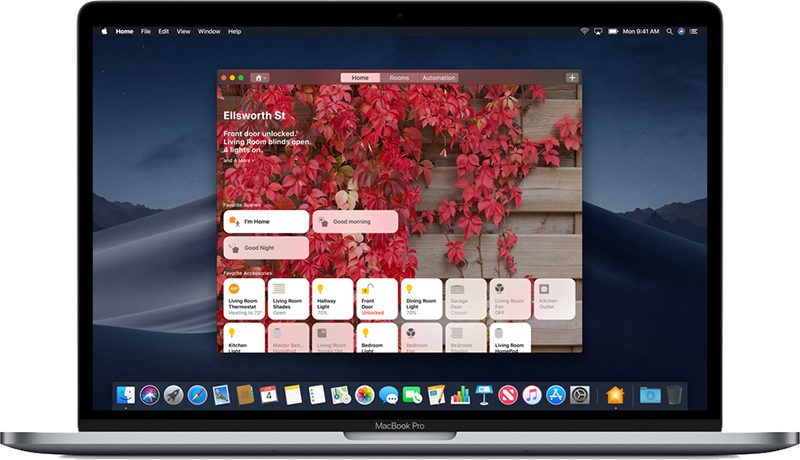
As a first step, several iOS-only apps have been brought to the Mac, including Apple News, Stocks, Home, and Voice Memos. Starting in 2019, Apple plans to let developers begin porting iOS apps to the Mac using these frameworks, which will increase the availability of Mac apps.
What changes do you hope to see Apple introduce to the App Store in the future? What was your favorite change that’s been implemented so far? Let us know in the comments.
Tag: App Store
Discuss this article in our forums
 AIVAnet