


Malala Fund Partners With Apple’s Developer Academies in Brazil to Advance Education Opportunities for Girls
Apple today announced a new collaboration between its Apple Developer Academies in Brazil and the Malala Fund to further advance education opportunities for girls.
Apple became the Malala Fund’s first Laureate partner in January 2018. The Malala Fund, led by Nobel Peace Prize Laureate Malala Yousafzai, advocates for quality education and equal opportunity for girls around the world.
Apple CEO Tim Cook with Malala Yousafzai and students in Beirut, Lebanon
Through its expanded partnership with Apple, the Malala Fund will “harness the creativity and ingenuity” of Apple Developer Academy students and alumni in Brazil, providing them with the opportunity to work with the Malala Fund to design and develop apps aimed at furthering the Fund’s goals.
Developers at the Apple Developer Academy in Rio met with Malala Yousafzai on Friday, where she said that with Apple’s help, the Malala Fund will gain new tools to support its mission to empower girls, teachers, and policy makers through skill development, education advocacy, and school enrollment.
“My hope is that every girl, from Rio to Riyadh, can be free to choose her own future,” said Malala Yousafzai. “Whether she wants to be a developer, a pilot, a dancer or a politician, education is the best path to a brighter future. By tapping into Apple’s network of student developers, Malala Fund will gain access to new tools to support our mission of free, safe, quality education. The students in Apple’s Developer Academy program share my passion for improving the world around us, and I am eager to see their innovative ideas to help girls in Brazil and across the globe.”
Apple CEO Tim Cook also said that the company is “thrilled” to further its partnership with Malala Fund.
“We share Malala’s goal of getting more girls into quality education and are thrilled to be deepening our partnership with Malala Fund by mobilizing thousands of Apple Developer Academy students and alumni across Brazil,” said Tim Cook, Apple’s CEO. “Apple has been committed to education since day one, and we can’t wait to see what our creative student developers come up with to help Malala Fund make a difference for girls around the world.”
Since it launched in 2013, more than 3,000 students have participated in the Apple Developer Academy program in Brazil, with another 500 currently enrolled. Apple has 10 sites in Brazil in Brasilia, Campinas, Curitiba, Fortaleza, Manaus, Porto Alegre, Recife, Rio de Janeiro and São Paulo.
Note: Due to the political nature of the discussion regarding this topic, the discussion thread is located in our Politics, Religion, Social Issues forum. All forum members and site visitors are welcome to read and follow the thread, but posting is limited to forum members with at least 100 posts.
Discuss this article in our forums
Canary’s Safety Button adds personal security when you’re away from home
Since its Indiegogo crowdfunded launch in 2013, Canary’s smart security cameras and monitoring service have focused on protecting people and property at home. In partnership with Noonlight, Canary subscribers now have a personal Safety Button for automated emergency response regardless of location.
Noonlight’s emergency response app costs $3 per user per month purchased from the developer. Canary subscribers get the button for all family members at no extra charge beyond the $10 monthly Canary fee per residential location.
Canary subscribers with relatives living at the same location who aren’t registered with the application can send invites so those people can register and have access to the Safety Button immediately.
The personal Safety Button is in the updated Canary mobile app. After a user sets up a personal Noonlight account, any time or place when they feel uncomfortable all they have to do is start the app and tap and hold the Safety Button.
Previous
Next
1 of 4


As long as a user’s thumb is on the button icon, nothing happens. Releasing the button starts a 10-second countdown. If the user correctly enters their four-digit Safety Button PIN within 10 seconds, nothing happens. In any other case, when the countdown reaches zero the app sends a distress signal to the closest emergency service dispatcher with the user’s name, identification, and location.
Additional articles about home security cameras
The best home security cameras
The best outdoor security cameras
The best wireless security cameras
According to Canary, the Safety Button app’s location identification is faster and more precise than 911 services. Canary claims the Noonlight app determines the precise location with 5-meter accuracy within five seconds while average 911 calls determine location with a 50- to 300-meter accuracy and can take more than six minutes.
If you’re in a threatening situation and need to connect with emergency services, the Safety Button doesn’t require any talking. You don’t need to know your location and you don’t need to attract the attention of someone within hearing distance who is already making you nervous.
If you use the Canary Safety Button and don’t talk to anyone or add any information, the service sends police to your precise location. If you used the Safety Button because other than police response is needed, such as a fire or injury that requires an ambulance, you can also send a text message or speak with the emergency service to share more information.
“With Noonlight, Canary customers can access an added layer of security that extends beyond their physical environment, equipping them with a personal safety net and empowering them with even more ways to take action in an emergency,” Canary Chief Marketing Officer Bob Stohrer said in a statement.
Editors’ Recommendations
- Google’s Chrome desktop browser is about to receive a major facelift
- Uber adds panic button for U.S. customers, with driver button to come later
- iOS 12’s best new features
- Canary View review
- Canary and partners to donate security devices to first responders in May
Best Replacement SSD for PlayStation 4 in 2018

Gotta have an SSD for your PS4? Here are some great options
So you have decided that you have got to throw an SSD in your PlayStation 4. You read our article about whether or not it’s worth it, and you have your heart set on a solid state drive to replace the stock PS4 drive. Here are some of the best options available to you.
- Crucial MX500
- Samsung 860 EVO
- Mushkin Reactor
- SanDisk Ultra II
- Seagate 2TB SSHD
500 GB SSD’s
Solid state drives are cheaper than they used to be but they still land on the pricey side when compared to their mechanical drive brethren. If you want SSD speeds but you aren’t horribly concerned about having a ton of space, you might want to consider a 500 GB drive.
Crucial MX500

This crucial drive will get you into SSD speeds while not breaking the bank. In addition, if anything goes wrong with it, you are supported by a 5 year manufacturer warranty. You can pick up yours for $110.
See at Amazon
Samsung 860 EVO

The Samsung Evo drive is about twenty dollars more than the Crucial drive but also offers slightly faster advertised write speeds. Just like the Crucial, you will have a 5 year manufacturer warranty. You can pick one up for $120
See at Amazon
1 TB SSD’s
If you need an SSD and you want to have a good amount of storage space, then a 1TB drive may be the place to start. 1TB drives are of course going to be more expensive than their 500GB counterparts but the increase in price is going to give you space for a lot more games.
Mushkin Reactor

When it comes to bang for your buck in the world of 1TB solid state drives, you can’t do much better than this Mushkin Reactor drive. For less than $100 more than the previously mentioned SSD’s you will have a lot more room to spread out. You can pick this one up for $190 on Amazon.
See at Amazon
SanDisk Ultra II

SanDisk has been in the solid-state storage game for some time and from my experience, they make pretty darn reliable products. This drive comes with a three-year warranty and it can be had on Amazon for $256.
See on Amazon
The compromise
If you’re looking at all these SSD prices and getting overwhelmed, I don’t blame you. Solid state storage is still pretty expensive. If you still want to see an increase in speed on your PS4 but you want to save some bucks, there is another option.
Seagate 2TB FireCuda SSHD

SSHD stands for Solid State Hybrid Drive. The elevator pitch for drives like this is that you will see SSD speeds with traditional drive prices. This claim is somewhat dubious and I probably wouldn’t put one in my PC and expect the same performance as an SSD. That being said I would totally put one in my PlayStation. Upgrading from the stock PS4 drive to a Hybrid drive like this one should show a marked increase in speed and you will only have to pay $95 to do it.
See at Amazon
No matter how you get the job done, expanding the storage in your PlayStation is a really nice quality of life upgrade. I know that once I expanded my storage space and got to stop worrying about what to delete next, my PS4 experience got just a little more enjoyable.
Have you put an SSD in your PS4?
Did you upgrade the internal drive on your PS4? What drive did you use and what was your experience?
Why are we talking PlayStation 4 on Android Central? Let us explain.
PlayStation 4

- PS4 vs. PS4 Slim vs. PS4 Pro: Which should you buy?
- PlayStation VR Review
- Playing PS4 games through your phone is awesome
Amazon
BlackBerry announces an Android Oreo beta for the KEYone
An upgraded beta program is also launching.
The BlackBerry KEY2 is the best way to get your hardware keyboard fix in 2018, but if you’re still rocking a KEYone, it looks like you’ll soon be able to finally throw Oreo on it.

If you’re registered for the BlackBerry Beta Zone, you should be receiving an email soon that highlights a couple big changes.
First off, BlackBerry’s moving its beta testing program over to a new platform that’s hosted by Centercode.
Secondly, the email also announced the following:
We’re also happy to be starting an invitation-only beta program for Android Oreo on the BlackBerry KEYone. If you’re a KEYone user, make sure to visit the new community and complete your profile to secure an invite.
It’s interesting BlackBerry’s even bothering with a beta considering that the KEY2 ships with Oreo out of the box, but even so, at least there’s a way to upgrade the phone from the now stale-tasting Nougat.
Sign up for the beta and new community here
Android Oreo
- Android Oreo review!
- Everything new in Android Oreo
- How to get Android Oreo on your Pixel or Nexus
- Oreo will make you love notifications again
- Will my phone get Android Oreo?
- Join the Discussion
Google Assistant music controls are now everywhere, and it’s a geek’s dream come true

I had precision playback control once, and how I’ve longed to have it once again.
I was the person who always had her headphones snaked up her shirt. I was so attuned to the click wheel on my iPod video — and my iPod mini before that — that I could fast forward and rewind my music without even pulling it out of my pocket with almost frightening precision. I don’t miss much from my iTunes days — especially not having to replace my earbuds once a year because the right earpiece on my Sony MDR J20s went out again — but I really did miss being able to sit in total darkness and fast forward or rewind my music without having to turn on the screen and blind myself.
Thank you, Google Assistant, for finally bringing it back to me.
Google Assistant’s music controls have always been rather robust, but only on Google Home. In fact, when Google Assistant first replaced Google Now on most smartphones, music controls saw a huge downgrade as even basic commands like Pause and Next Song didn’t work on phones for a long time. Eventually, basic music commands migrated from Google Home out to other platforms, but the best of its commands were still reserved for Google Home: the precision commands like “rewind 45 seconds” or “fast forward 8 minutes.”
Oh, like you’ve never skipped the beginning of ‘Funeral for a Friend’ on ‘Goodbye Yellow Brick Road’.


Rewinding and fast forwarding is something that isn’t usually included on music apps’ persistent notifications, though for a very brief period years and years ago you could summon a progress bar in Google Play Music’s notification if you knew the secret handshake. Even the most advanced music widgets still can’t offer consistent rewind and fast forward options, and so you can hit next and previous track all the livelong day, but to just rewind a few seconds and replay that killer bridge or drum solo, you had to unlock your phone, open the music app, and seek from the Now Playing screen.

The ability to fast forward and rewinds music with just my voice was all the justification I needed for the Google Home I purchased the day it hit store shelves. I mostly used it in the shower — a duty now taken over by my battery-powered Google Assistant-powered TicHome Mini — but I longed to have that ability everywhere instead of just my bathroom. I wanted to use it in the car when my hands shouldn’t be fiddling with any music controls beyond the volume. I wanted it at work so I could control music while my phone charged on the other side of the control room.
I wanted to control my music with my voice everywhere, and I finally have it. Google Assistant’s music controls now work on Android smartphones and tablets, as well as Android TV, Chromebooks, and Android Auto. “OK Google, fast forward 95 seconds” works when I’m in the car, the office, or singing in the shower.
 “OK Google, rewind 60 seconds while I drive 60 MPH.”
This isn’t to say that things are perfect. The music commands available for Google Assistant still vary by platform/app and the number of music services that can be set is still pitifully small. YouTube Music isn’t an option in most of the countries that were recently added to the service, and for all of Google’s smarts about which device is the closest to answer respond, Google Assistant doesn’t recognize while device is playing music and respond to a media command there, subjecting me to “Nothing’s playing right now” with depressing regularity.
I’m happy we’ve come so far with voice controlling music on Android, Chrome OS, and other Google-controlled platforms, but the execution still needs fine-tuning. The difference between what Google Assistant can control with a service that’s tied into it like Spotify or Google Play Music and other music apps that Google Assistant tries to interface with strictly based on persistent notifications is wide and growing. We need more music service options with Google Assistant, too, especially abroad.

For now though, I’m going to settle in for a nap. “OK Google, fast forward 4 minutes to the softer part of this suite.”
Google Hardware

- Google Wifi review
- Google Home review
- Chromecast Ultra: all you need to know
- Which Chromecast should you buy?
Google Wifi: Google
Amazon
Google Home: Google
Best Buy
Chromecast Ultra: Google
Best Buy
Deal: HTC’s knocking up to 20% off the U11 and U11+ in the UK
A 64GB U11 can be yours for as little as £323.19.
If you’re an HTC fan but aren’t quite sold on the new U12+, now might be the time to pick up last year’s U11 or U11+.

Right now in the United Kingdom, HTC’s offering 10% off the U11 and U11+ for all customers — bringing prices down to £359.10 and £539.10, respectively.
That’s not a terrible deal, but if you sign up for the free HTC Club, you can score an additional 10% off on top of that to bring your total savings to 20%. Under that scenario, you’d only spend £323.19 for the U11 and £485.19 for the U11+.
The U11 at that price is a pretty good offer, but if you’re in the market for a bigger phone, we’d still recommend looking beyond the U11+. While it’s a good handset, the newer OnePlus 6 costs just a few pounds more at £519.
If you’re interested in either the U11 or U11+, HTC says its 10% offer for all customers will be good until supplies last.
See at HTC
HTC U11
- HTC U11 review
- HTC U11 specs
- Manufacturing the U11: Behind the scenes
- Join our U11 forums
- HTC U11 vs Galaxy S8
- HTC U11 vs LG G6
Amazon
Sprint
HTC
Spigen Rugged Armor Case for OnePlus 6 review: Solid protection on the cheap
This is one of the best ways to protect your OnePlus while staying on a budget.

The OnePlus 6 is OnePlus’s best-looking phone to-date, but those good looks do come at a cost. While the use of glass does make it more eye-catching compared to its predecessors, it also results in the phone being slippery and more prone to scratches and cracks.
OnePlus has some excellent first-party cases to choose from, but with prices ranging from $19.95 up to $24.95, they aren’t necessarily the cheapest.
Spigen’s one of the biggest names when it comes to mobile accessories, and its Rugged Armor case for the OnePlus 6 aims to be an alternative to OnePlus’s offerings for folks looking to spend a bit less cash. How’s it hold up in the real world?
Spigen Rugged Armor Case for OnePus 6

Price: $12.99
Bottom line: Keeps your OnePlus 6 safe without turning it into a meatball or destroying your wallet.
The Good
- Adds some welcomed grip
- Buttons are still easy to press
- Makes it easier to find the fingerprint sensor
- Offers ample protection
The Bad
- Alert slider is more difficult to use
- Only one color available
See at Amazon

No junk in the trunk
Spigen Rugged Armor OnePlus 6 Case What I like
Even though I understand the value and importance of cases, I hate the added bulk that rugged/durable ones typically add. Thankfully, this isn’t an issue at all with the Spigen Rugged Armor case.
Spigen’s case doesn’t add much thickness to the OnePlus 6, but even so, still manages to offer all of the protection you could ask for. It’s been military-grade certified in drop tests, uses Spigen’s exclusive AirCushion technology to help reduce the impact of falls, and has a lip that’s ever-so-slightly raised over the screen to keep you safe in the event of a front-facing drop.
The cutouts for the 3.5mm headphone jack and USB-C port don’t cause any issues, the hole for the speaker grill doesn’t muffle any audio, and more importantly, in my opinion, the power button and volume rocker are just as easy to press and reassuringly tactile as they are when using the OnePlus 6 naked.
Lastly, I’ve actually found the using the fingerprint sensor on the OnePlus 6 is easier with Spigen’s case on it. The flush glass design for the phone’s back can sometimes make it tricky to figure out where you need to place your finger, but thanks to the hole on the back for the camera and sensor, your finger is able to more easily find it.
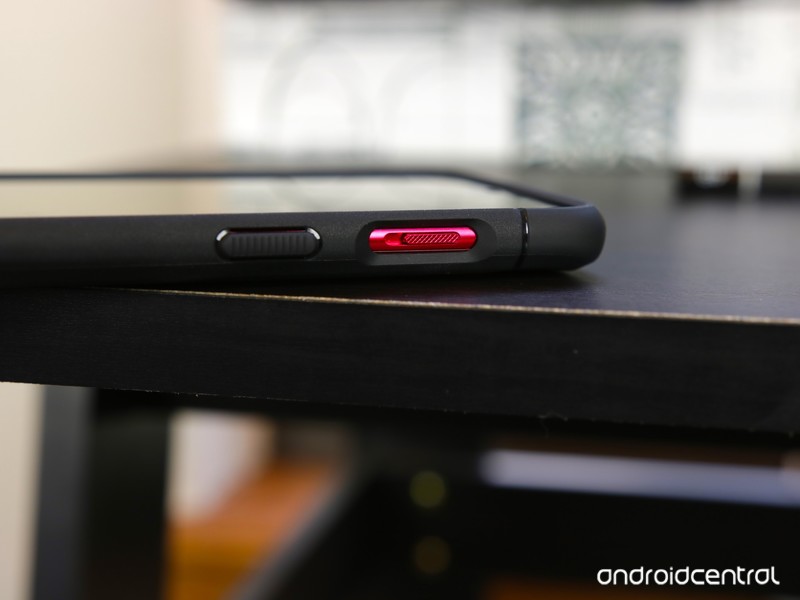
Slider troubles
Spigen Rugged Armor OnePlus 6 Case What I don’t like
While Spigen did a great job with handling the OnePlus 6’s buttons, the same can’t be said for the alert slider.
This is one of my favorite features on the OnePlus 6, but unfortunately because of Spigen’s cutout for it, it requires a bit more effort to use with the case.
It’s certainly not impossible to move the slider up and down, but it’s not as mindless of an action as it usually is. The functionality remains the same, but the convenience factor is taken down a notch.
Also, I would have liked some additional color options. The standard black looks perfectly fine, but with OnePlus offering stunning paint jobs like Silk White and Red, it’s a shame that black is your only option here.

Spigen Rugged Armor OnePlus 6 Case
With all that said, should you pick up the Spigen Rugged Armor case for the OnePlus 6? I say go for it!
While the alert slider isn’t as easy to use with the case on, I don’t think that’s nearly reason enough to pass on it. The case looks good, offers great protection, and does so without compromising the OnePlus 6’s thinness or buttons.
4
out of 5
For just $12.99 and free shipping if you’ve got Amazon Prime, the Rugged Armor case from Spigen is a great pick. It may not be as flashy as OnePlus’s official cases, but it offers even better protection while saving you a few bucks in the process.
See at Amazon
OnePlus 6
- OnePlus 6 review
- OnePlus 6 vs. OnePlus 5T: How much changes in six months?
- OnePlus 6 vs. OnePlus 5: Should you upgrade?
- These are the official OnePlus 6 cases
- The OnePlus 6 doesn’t work on Verizon or Sprint
- Join the discussion in the forums
Top 5 Productivity Hacks for BlackBerry KEY2

More than the sum of its keys.
The BlackBerry KEY2 is a productivity powerhouse — just look at everything you can do with its keyboard.
But there’s more than meets the keyboard with this phone. BlackBerry has outfitted the KEY2 with some additional productivity “hacks” that will make using the phone even more convenient.
Convenience key


If you’ve ever used an Alcatel phone, you’ll be familiar with the Convenience Key, which has made its return on the KEY2. Located on the right side below the power button, it offers quick access to three apps, contacts, or other shortcuts, as set by you.
The beauty of the Convenience Key is its flexibility: you have myriad options because you have four individual sets of options depending on your situation.
- Normal
- Home
- Meeting
- Car
The “Normal” mode is default and available whenever the three other conditions are not met. The “Home” mode uses your home Wi-Fi to determine when you’re planted on the couch or working upstairs, and shows another set of actions. “Meeting” uses your calendar to determine when you’re occupied with work. And “Car” uses your vehicle’s Bluetooth to show yet another set of keys. Why would you want this? Let’s go through a few options:
- At home, you may want the convenience key to offer quick access to your favorite music or TV apps, or to quickly set a timer, or quickly open a particular security camera view.
- In the car, you may want the key to call a pre-set phone number, or open Android Auto, or a favorite Google Play Music playlist.
- During a meeting, you may want the KEY2 to be able to open Google Docs or Keep for quick note-taking.
You can change what the Convenience Key does by going into Settings —> Shortcuts & gestures —> Convenience key.
Shortcuts

We’ve already gone over this, but just to reiterate — because it’s so useful — the KEY2’s Speed Key is awesome in facilitating shortcuts from anywhere in the OS.
You can assign any keyboard key to perform an identical set of tasks to that of the Convenience Key (negating one, or both? Nah, choice is good!): opening an app, setting a speed dial, sending an SMS, or engaging in any one of Android’s native shortcuts.
Get started by holding the Speed Key (it has nine small dots and is located on the bottom right of the keyboard, next to the SYM button) and tapping any letter of the alphabet.
Productivity Tab

The Productivity Tab is something that debuted on the PRIV in 2015, and it’s still useful today — especially if you use BlackBerry’s own productivity apps.
By default, you access the Productivity Tab by swiping in from the right side of the screen (there’s a little silver indicator) which opens an overlay with a bunch of tabs. You can see your upcoming calendar entries, your emails, your tasks, and your contacts, with a bottom tab offering a space for widgets from other apps.
You do need to be using BlackBerry’s native apps for the Productivity Tab to be useful — including the Hub. To get started, swipe in on the silver sliver to configure it, or turn it off completely.
Launcher tweaks

The BlackBerry Launcher is surprisingly robust and customizable, especially when compared to some others that ship on popular phones. For instance, you can apply custom icon packs to the entire home screen, which is a fun way of expressing yourself, and you can also change their size and grid formation.
Even more granular, you can change the labels on a particular app, or hide it altogether, which is neat.
Finally, BlackBerry supports something called “Pop-up widgets,” which allow you to swipe up on an icon to engage its widget. Perfect for calendars, messaging apps, and news readers.
Quick Privacy Shade

Our final trick is a little one with a potentially large impact: quick access to the phone’s built-in Privacy Shade.
Swiping down anywhere on the screen using three fingers activates the Privacy Shade, which is a quick way to shield unwanted eyes from what you’re reading or watching on the phone. Even better, pair it with a privacy-focused screen protector, and you’ll be working for the DoD in no time.
What are your favorite productivity tweaks?
If you’re a KEY2 owner, or even a holdover from the KEYone days, what are your favorite productivity tweaks to keep you working hard and getting sh*t done?
See at Amazon
BlackBerry KEY2
- BlackBerry KEY2 review
- BlackBerry KEY2: Everything you need to know!
- BlackBerry KEY2 specs
- BlackBerry KEYone review: Coming home
- Join our BlackBerry KEY2 forums!
Buy the BlackBerry KEY2
 AIVAnet