


Rugged portable SSDs, Black+Decker lawn tools, robot vacuums and more are all discounted today
Whether you’re looking for new tech gear or household items, we’ve got you covered.
We found plenty of great deals today that include big discounts on SanDisk’s rugged portable solid-state drives, Black+Decker lawn tools, robovacs, and more!! Time’s running out to take advantage of these prices, so hurry!
View the rest of the deals
If you want to know about the deals as soon as they are happening, you’ll want to follow Thrifter on Twitter, and sign up for the newsletter, because missing out on a great deal stinks!
Best Outdoor Speakers in 2018

Make your garden sing with some outdoor speakers.
Portable speakers are great additions to your Android stable. But maybe you want something you can leave outside, and not have to lug back and forth every time you want to remind the neighbors just how much you love Journey. Or maybe you want both. So wouldn’t it be nice to have more options for audio fixtures in your yard?
We’ve rounded up the best outdoor speakers for your backyard listening pleasure.
Bluetooth speakers:
- Acoustic Research Hatteras Northern Lights
- Acoustic Research Pasadena
Wired speakers:
- Bose Free Space 51
- Klipsch AWR-650-SM All Weather 2-way
- TIC GS-3
- Dayton Audio IO655
- Polk Audio Atrium 4
What to consider when buying outdoor speakers
The best outdoor speakers (or speakers of any kind, really) are wired. Wired audio gives you better sound and a tried and true connection – no worrying about how the layout of your home or backyard might affect the wireless signal. If you’re unsure about a wired setup, consider adding a Sonos Connect:Amp ($499). This handy little device acts as a receiver for your wired speakers, so you can wirelessly stream music from your phone or tablet without even needing a receiver.
If you do have a receiver, then consider the Sonos Connect ($349), which just plugs into your existing setup, allowing you to wirelessly stream music to your receiver.
If you do want to go wireless (as most of us do nowadays), then consider Bluetooth speakers, since they’ll offer you great sound and you can have your device near them to help eliminate interference and a choppy signal.
A third option is to get wireless speakers that operate using a wireless transmitter. The transmitter plugs into your receiver (usually in the house) and transmits your music outside. Though this type of speaker has gotten better over the years, it’s still pretty hit and miss when it comes to audio quality and signal consistency. If your receiver is turned up too loudly, your outdoor speakers will distort — even at low volumes. If you’re in a crowded part of town, you’ll get all kinds of interference.
This is why we’ve included some wired and some Bluetooth options in this roundup, so that you’re getting the best audio quality possible, especially if you’re planning on spending a ton on speakers.
Bluetooth outdoor speakers
Acoustic Research Hatteras Northern Lights

If you’re looking for some solid wireless outdoor speakers, then the Acoustic Research Hatteras speakers might have what you’re looking for.
Unlike many wireless outdoor speakers, the AR Hatteras speakers operate via Bluetooth. You can set them up on your deck or elsewhere in the backyard and enjoy music from your smartphone or tablet. The best part is you get to keep your device near without having to go inside to change anything with your stereo setup. You can also control playback right on the speaker itself.
The Hatteras is attractively designed as a high-tech lantern, which should nicely complement most backyard aesthetics. The cool factor is its “northern lights” 360-degree light, which changes colors and operates in six modes, which include various pulsating and flashing patterns, as well as solid colors.
The bass thumps, thanks to 40 watts of peak power, two tweeters, and two mid-ranges. You won’t get the true stereo sound that you would from a pair, but it’s still more than acceptable, especially for a speaker of this size.
If you want a great-looking outdoor Bluetooth speaker, then look no further. This is as good as it gets, if not a bit pricey, at around $200.
See at Acoustic Research
Acoustic Research Pasadena

Acoustic Research makes the list again with their more affordable, battery-powered Pasadena. These speakers start at around $65 each and sound great on their own — and even better when paired with a second one.
They offer Bluetooth connectivity and up to 8 hours of battery life — ideal for outdoor listening — plus it’s easy to store and charge them in the garage or house when not in use. There’s also an auxiliary jack on the back, just in case you’d prefer a wired connection or are dealing with a device that doesn’t have Bluetooth.
The best part is that you get three-way sound in a 9.5-inch-tall package. There’s a front-facing 2.5-inch tweeter, a front-facing 3.5-inch mid-range, and a rear-facing 3.5-inch woofer, offering well-balanced sound, though the bass is a bit muted.
AR is all about that lantern look, so the Pasadena resembles a more traditional lantern than the Hatteras does — perfect for the patio, though it emits no light.
If you’re looking for a solid little Bluetooth speaker that’s battery-powered, offers decent sound, won’t break the bank (around $80), and can even be hung from a sturdier wire, then check out the AR Pasadena.
See at Amazon
Wired outdoor speakers
Bose Free Space 51

If we’re talking about the best speakers of any sort, then it’d be a sin not to mention Bose in some capacity. In this case, they truly are some of the best outdoor speakers money can buy.
In true Bose fashion, these are not wireless, but once you do wire them in outside, you can set them and forget them; these speakers are designed to withstand temperatures from -40 to 150 degrees Fahrenheit. One of their neatest features is that they can be in or on-ground speakers, so you can bury them up to a certain point and still receive top-of-the-line sound quality.
Bose is all about room-filling sound and when there’s no room to fill, these still provide immersive, 360 degree sound, thanks to their radial design. They are quite pricy, starting around $450 for a pair, but with outdoor speakers, you certainly get what you pay for.
If you want high-quality sound with rich bass tones, a present mid-range, and crisp-but-not-shrill highs, then Bose is the way to go — so long as you don’t mind doing some outdoor wiring.
See at Amazon
Klipsch AWR-650-SM All Weather 2-way

Klipsch is another company that makes fantastic-sounding speakers, and their outdoor AWR-650-SMs, which resemble rocks, are no slouch. They are, however, another wired option, which some folks may shy away from.
That being said, if you want HD sound outdoors, you’ll have to put up with the wires, along with the steep starting price of around $225 for each of these speakers. They feature a 6.5-inch woofer and two 0.75-inch tweeters, which deliver low, rich bass and pleasing,crisp highs, respectively. Having two tweeters also means that you can listen in stereo without having to break the bank and buy two.
Aside from awesome sound, these speakers are all about aesthetic. They come in either a granite or sandstone finish and should blend in seamlessly with your yard.
If you’re looking for a speaker that won’t distract from your existing backyard decor, sounds great, and don’t mind wiring, then check out the Klipsch AWR-650-SM All Weather 2-way speakers.
See at Amazon
TIC GS-3 omnidirectional

These in-ground speakers from TIC have a neat army green finish and feature a 360-degree speaker, making them perfect for backyards.
They’re made from ABS, which is a strong and durable plastic that has a much higher melting point than most other plastics, which makes them resilient in just about any climate. With 200W of peak power, you should have no trouble cranking the tunes outside.
At around $77, these are your best option for in-ground speakers if you’re on a budget.
See at Amazon
Dayton Audio IO655

These wall-mounted speakers come in at around $108 per pair and sport a 6.5-inch woofer each, as well as a 1-inch tweeter, so you have your lows, mids, and highs all well-covered in a compact package.
The outer plastic is made from weather-resistant ABS plastic, and the grills are made of aluminum, so they can hang out in your yard for years. Though these are inexpensive, they actually sounded as good or better than more expensive competition in the the Wirecutter’s tests. If you’re looking for outdoor wall-mounted options, these are dynamite.
See at Amazon
Polk Audio Atrium 4

I love Polk products. Its soundbars are excellent, its indoor speakers are superb for the money, and as the company gets a little older, it’s beginning to refine the designs of many of its speakers (which haven’t always been the most aesthetically pleasing). The black Atrium 4s are sexy, sleek, and designed to stay outside and last. The tweeter domes are made from anodized aluminum with rubber surrounds, and they actually exceed baseline and military specs for environmental endurance. That basically means that you can mount them and then not worry about them for years to come.
At just under $100 for a pair, you absolutely can’t go wrong with these.
See at Amazon
Looking to set up an outdoor home movie theater? We can help!
How to create an outdoor movie theater in your backyard
What’s in your yard?
Do you have an outdoor speaker that you find aesthetically pleasing with awesome sound? Let us know in the comments below.
Updated July 2018: Updated pricing, added the Dayton Audio IO655 and the Polk Audio Atrium 4.
How to get custom text tones back on your Samsung Galaxy phone

We can get dozens of text messages a day, so why not spice them up with custom tones for your loved ones?
Custom text message tones might seem like a small feature, but they can be immensely useful. A custom text message tone can tell us to respond to one notification among a sea of default notification tones. A friend of mine has a custom text tone, a revolver shot, that echoes through the station when his wife texts him.
He was quite sad when his phone updated and Samsung took that away, and he’s not the only one.
- Why you need another text messaging app now
- How to set custom text tones in Android Messages
- How to set custom text tones in Pulse
- How to set custom text tones in Textra
- How to set custom text tones in Mood
Why you need another text messaging app now
Before Samsung updated its Galaxy S8 and Note 8 phones to Oreo, there was a place in Samsung Contacts to set a personal ringtone and notification tone for friends’ incoming messages. After the Oreo update, Samsung contacts only have the option to set a personal ringtone. I don’t know why this was removed during the update, though it may have something to do with changes to notification in Android Oreo.
Samsung has heard the uproar over the change and has announced that it will bring it back, but that update is taking its sweet time rolling out to individual users. If you still want a custom text tone for individual contacts right now, you can still have them, but you’ll have to switch to another text messaging app.
This is also exactly why you should want to use a third-party text messaging app. Samsung yanked out a fairly standard, fairly popular text messaging feature and we have no concrete timetable for it roll back out to millions of phones across dozens of carrier variants. Third-party text messaging apps are updated more regularly, have more robust features since they have to compete in an app category that is very busy and very popular, and they tend to look and work the same across all devices, so you won’t have to get used to a new text messaging app every time you switch phones.
There are dozens of great text messaging apps out there, but all of our favorites support custom text tones on a per-conversation basis.
Find your new favorite text messaging app here.
After you’ve picked one, here is how to set a custom text tone in each of them.
How to set custom text tones in Android Messages
Tap the Conversation you wish to set a custom notification for.
Tap the three-dot menu icon in the top right corner of the screen.
Tap People & options.


Tap Notifications.
Tap Sound.
Tap your desired tone.
Tap Save.


How to set custom text tones in Pulse
Tap the Conversation you wish to set a custom notification for.
Tap the three-dot menu icon in the top right corner of the screen.
Tap Conversation options.


Scroll to the bottom of the menu and tap Notification Channel Settings.
Tap Sound.
Tap your desired tone.
Tap Save.


How to set custom text tones in Textra
Tap the Conversation you wish to set a custom notification for.
Tap the arrow down icon in the top right corner of the screen.
Tap Customize this conversation.


Tap Notifications.
Tap Notification Sound.
Tap your desired tone.
Tap Save.


How to set custom text tones in Mood Messenger
Tap the Conversation you wish to set a custom notification for.
Tap the three-dot menu icon in the top right corner of the screen.
Tap Options.


Scroll to the bottom of the menu and tap Current tone under Notifications & Sounds.
Tap the bell icon to go to the system sounds list.
Tap your desired tone.
Tap Save.


Your turn
Going away from the standard Samsung Messages can be a big change for some users, but it’s a small price to pay to get that distinct tone when a parent or an ex-boyfriend is texting you. In fact, may I suggest a notification tone for just such a contact?
Updates June 2018: This post has been updated to include that Samsung is bringing custom text tones back, though the timetable for it rolling out to everyone is anyone’s guess.
Samsung Galaxy S8 and S8+
- Galaxy S8 and S8+ review!
- Galaxy S8 and S8+ specs
- Everything you need to know about the Galaxy S8’s cameras
- Get to know Samsung Bixby
- Join our Galaxy S8 forums
Verizon
AT&T
T-Mobile
Sprint
Unlocked
Samsung Galaxy S9 vs. Galaxy S9+: Which should you buy?
An easy-to-manage decision.
Samsung’s seen serious success with launching its yearly flagship in two sizes. In the last couple of years, the larger version has become the more desirable model while the smaller turned into the solid, default choice at a lower price.
Unlike the Galaxy S8 release, the Galaxy S9 and S9+ have more differences than just size: you get a few feature and spec improvements as well, offering a bit more to justify the higher price.
So when you go to get a new Samsung flagship, you have a choice: should you buy the Galaxy S9 or Galaxy S9+? Here’s what you need to know to make the best decision.
What’s the same
When it comes to design, Samsung doesn’t discriminate between its two flagship sizes. Whether you get the compact Galaxy S9 or larger Galaxy S9+, the materials and proportions are identical. Neither size has an exclusive color or hardware feature. When it comes to the core experience of using the phones, you won’t notice a difference beyond the size.
The screens are of course different dimensions, but the resolution and quality of the panel are the same. Yes, that means that the Galaxy S9 has a slightly higher pixel density, but in real-world use you’d never notice the difference — particularly if you leave the phones set at the 1080p resolution they are out of the box.
What’s different
The Galaxy S9+’s differences come down to a larger size, two spec changes and a camera addition. The most important ones to consider are about size: moving up to a 6.2-inch display gives you more room to work and play, but also makes the phone larger and relatively tough to manage in one hand. The Galaxy S9+ is about 10 mm taller, 5 mm wider and 15% heavier than the standard Galaxy S9 — that’s nothing to sneeze at.
But to go along with that increased size is, of course, a larger battery, which at 3500mAh can help you get through a full day without worrying about charging. The capacity is over 15% higher than the Galaxy S9’s 3000mAh, but the larger display certainly doesn’t use that much extra power — so you’ll be able to do all of the same things for longer on a charge. Battery life hasn’t really improved from the last generation, so the Galaxy S9 once again is likely to leave heavy users in need of charging before the day is done.
The Galaxy S9+ gets a secondary camera, but it may not be a deciding factor in your buying decision.
The primary camera on the Galaxy S9+ is identical to the Galaxy S9, and that’s a great thing for everyone because this camera is great. But the larger chassis in the GS9+ afforded Samsung the room to add in a secondary camera that mimics the Galaxy Note 8’s. That means it has a longer “telephoto” focal length, roughly twice the length of the main camera. The secondary camera lets you seamlessly zoom in without losing resolution at 2X, and enables Samsung’s “Live Focus” portrait mode that artificially blurs the background behind your subject for a dramatic effect.
The secondary sensor isn’t the same type of “Super Speed” Dual Pixel that the main camera is, so the quality isn’t the same. And as we saw with the Note 8, those extra features of zooming and Live Focus aren’t something that completely changes the camera experience. The main camera’s improvements in this generation are far more important for daily photography — you just have to decide how much you want the zooming and Live Focus, because you just don’t get them on the Galaxy S9.
Samsung Galaxy S9 and S9+ specs
The least consequential addition in the Galaxy S9+ is more RAM, which Samsung bumped up to 6GB to match the Galaxy Note 8. Considering it left the standard Galaxy S9 with 4GB, and the two phones run identical software, it’s hard to think that Samsung’s done much optimization to take advantage of that extra RAM itself. But the extra memory will, of course, help you hold just a few more applications in the background, and give you more runway into handling future software updates and more powerful apps. This is absolutely a “nice-to-have” and not a necessary feature.
Bottom line: Which should you buy?

As I said from the start, the Galaxy S9 is the default choice for so many people when they walk in the store simply because it’s less expensive. If you’re unsure about whether you want a “big” phone, start by using the standard Galaxy S9 — you won’t regret the size, and it can do almost everything the larger Galaxy S9+ can.
You’re going to want to start with the standard S9 and decide whether it’s worth spending the extra money on a second camera and larger battery.
But by moving up to the Galaxy S9+, you get a better overall phone. To choose it, you have to know you want a bigger device — maybe you want the extra screen space for everything you do, or need the extra battery life. But you also have to know you can manage the extra size and give up some one-handed usability. If you want to take that trade-off, you then also get the bonuses of more RAM and a secondary camera for extra photography choices — I very clearly put those two additions below the decision regarding screen size and battery capacity, which have clear benefits in everyday use.
Finally, remember the cost involved. To get that bigger screen, larger battery and couple extra features, you have to pay about $120 more for the Galaxy S9+. Over the course of a two-year payment plan, it’s about $5 more a month, which is easy for a lot of people to handle — but everyone has their own threshold for how much they’ll pay for a new phone, especially when it’s just incrementally better. If you can afford it, and your hand can manage the size, the Galaxy S9+ is the better overall phone — and if you can’t, the Galaxy S9 gets you most of the way there for less.
Samsung Galaxy S9 and S9+
- Galaxy S9 and S9+: Everything you need to know!
- Galaxy S9 review: A great phone for the masses
- Complete Galaxy S9 and S9+ specs
- Galaxy S9 vs. Galaxy S8: Should you upgrade?
- Join our Galaxy S9 forums
Verizon
AT&T
T-Mobile
Sprint
Update July 2018: Changes made to reflect our further use of the phones and our opinions of their strengths.
Apple’s First MacBook Pro With Retina Display is Now ‘Vintage’
On June 11, 2012, at its annual Worldwide Developers Conference, Apple introduced its first MacBook Pro with a Retina display. Impressed by its thinness, the crowd at Moscone West erupted with a huge round of applause.
The notebook was also praised in many reviews, which awarded it top marks for its mix of functionality and portability. Marco Arment, a well-known developer, even called it “the best laptop ever made,” with a “crowd-pleasing design.”
“Introduced in 2012, less than a year after Steve Jobs died, I see it as the peak of Jobs’ vision for the Mac,” said Arment, in a blog post last year.
In addition to being the first MacBook Pro with a Retina display, the 2012 model had a much slimmer design compared to previous models, after Apple removed the built-in Ethernet port and optical disc drive for CDs/DVDs. The external design of the notebook remained largely unchanged through 2015.
Despite being thinner, the 2012 to 2015 era MacBook Pro had an array of connectivity options, including a pair of Thunderbolt and USB-A ports, an HDMI port, a SD card slot, and a MagSafe power adapter that breaks away safely if tugged.
 I/O on 2012 MacBook Pro with Retina display
By comparison, the 2016 and later MacBook Pro has two or four Thunderbolt 3 ports, depending on the model, that can deliver power, USB, DisplayPort, HDMI, and VGA over a single cable. Apple in turn removed dedicated USB-A and HDMI ports, an SD card reader, and MagSafe from the notebook.
 I/O on 2016-and-later MacBook Pro
While the latest MacBook Pro lineup hasn’t led to any significant declines in Mac sales, which Apple reports on a quarterly basis, a subset of customers continue to favor the older models. In fact, Apple continues to sell one configuration of the 2015 MacBook Pro, priced from $1,999 in the United States.
For those clinging to a 2012 model, however, there’s a bit of bad, but inevitable, news.
Just over six years after Apple released the Mid 2012 model 15-inch MacBook Pro with Retina display, which is more than a fair amount of time, Apple has officially classified it as “vintage” or “obsolete” depending on the region.
What this means is that at least five years have passed since the model was last manufactured, meaning that Apple and Apple Authorized Service Providers are no longer obligated to provide hardware service or replacement parts, except in the state of California and Turkey, where required by law.
Of course, if you own a 2012 MacBook Pro, there is nothing stopping you from following one of iFixit’s many do-it-yourself repair guides.
Apple routinely updates its vintage and obsolete products list with additional devices as they age, so this was to be expected eventually, but it’s still somewhat of a sad reminder that the first MacBook Pro with Retina display has nearly reached the end of its life. Anyone still using one is now on their own in terms of hardware.
Apple’s support team should still be able to answer questions about macOS and be able to perform software troubleshooting if needed.
Apple’s website does not list the Late 2012 model 13-inch MacBook Pro with Retina display, released in October 2012, as “vintage” yet. Only the 15-inch model, released in June 2012, carries this distinction.
Related Roundup: MacBook ProTag: vintage and obsoleteBuyer’s Guide: MacBook Pro (Don’t Buy)
Discuss this article in our forums
Get patriotic this Fourth of July with our quickest home screen theme yet

This theme is quite fitting for our country: it looks complicated, awesome and time-consuming, but it’s really quite easy.
The Fourth of July is a day to celebrate our union, to acknowledge its past and look ahead to its future. It’s also an excuse for everyone to take a day off work in the middle of the summer, go swimming by the river, grilling in the backyard, drink some star-spangled beer and blow up some fireworks. Whatever your plans for this Independence Day, make sure that your phone is decked out in some red, white, and blue brilliance with our quickest theme yet, built upon American adaptability and KLWP.
- About KLWP and our July 4th theme
- Applying the July 4th Preset in KLWP
- Adjusting the July 4th Preset in KLWP
- Applying Whicons Icon Pack
About KLWP and our July 4th theme
KLWP — short for Kustom Live Wallpaper — is the bigger, bolder brother of KWGT, the what-you-see-is-what-you-get widget builder that we’ve used in many of our theme the last few years, including our recent Heart Canada and Deadpool themes. KLWP is a what-you-see-is-what-you-get live wallpaper builder, allowing you to build widgets, shortcuts, and designs right into your live wallpaper.

See the 5 white app icons on the screen? Everything besides those is part of our live wallpaper, and that means that since we’ve already built the theme, all you lucky users need to do is apply the live wallpaper, apply your icon pack, and get on with grilling and chilling.
This theme was originally based around a widget I found and liked in Element for KWGT, which is a wonderful preset pack I recommend checking out for KWGT. I hunted down the fonts and fonticon pack to help re-create the dock in KLWP and then made several edits and additions, including:
- Converted the three app shortcuts into music controls
- Added song information to the bottom of the dock, just above the nav bar
- Organized the Time/Weather elements to help them remain better aligned
- Tied all the theme elements to Globals for easy color adjustments
- Created and adjusted a custom tricolor music progress bar to sit sit along the edge of the dock
- Added a conditional layer to hide the interactive elements while on the lock screen

This is a theme I’ve tinkered and toyed with for over a month, and a KLWP Preset that I’ve adjusted and fine-tuned through weeks of personal use. Since you’ll be importing the KLWP Preset I’ve made, you’ll need KLWP Pro, which is $4.50. Considering how powerful KLWP is and how responsive its development team and community are, I think it’s more than worth that price.
The only elements you’ll need besides KLWP and KLWP’s Pro Key are our July 4th Preset, the free Whicons Icon Pack, and a home screen launcher that supports custom icon packs. I’m using Nova Launcher so that I can take advantage of subgrid positioning and lay out my apps in an angle that matches the theme.
Applying the July 4th Preset in KLWP
Once you download the July 4th Preset, use a file manager app to copy it to Internal Memory/Kustom/wallpapers. If you haven’t opened Kustom before, you might have to make the Kustom folder or wallpapers subfolder. Once the preset file is saved in Kustom/wallpapers, let’s get it imported.
Open KLWP.
Tap the next arrow three times.
Tap Allow to let Kustom access your device’s storage.


Tap the next arrow.
Tap Allow to let Kustom access your device’s location.
Tap Done.


A welcome message will appear.After reading it, tap Done.
Tap Load Preset.
In the Presets menu, tap the Exported tab.


Tap July 4th Preset.
The preset will load, but Kustom is still missing some important permissions for our theme. Tap Fix now.
Tap Fix.


Tap Kustom LWP or Kustom Notifications.
Tap Allow.
Tap the back button.


Tap the floppy disc icon in the top right bar of the screen to Save the wallpaper.
We still need to set KLWP as our wallpaper. Tap Fix.
Tap Set Wallpaper.


Tap Home screen and lock screen.
Tap the floppy disc icon in the top right bar of the screen to Save the wallpaper.
Tap the home button to see the applied theme in action.


The theme should adapt well to most home screen sizes since most the element groups are anchored and organized from the bottom of the screen.
Adjusting the July 4th Preset in KLWP
Ideally, the only thing left you’ll need to do is set the icon pack, but if you need to adjust the theme, here are some ways you can do that.
- Is the dock not fitting the width of your screen properly? Tap Layer and adjust the Scale up to down to your liking. Be advised that not all elements adjust at the same rate, so you may need to readjust individual elements after doing this.
- Want to re-position the sections of the dock to better fit your screen? Tap the Item group or element you wish to move (for instance the Progress Bar), and then tap Position. Adjust the X and Y offsets or directional padding to re-position the element as desired.
-
You can change what tapping an individual element or group triggers. For the base Preset, tapping the Hour opens the Kustom editor so you can adjust the wallpaper to your liking, but you could change it to open your clock or calendar app.


- Weather providers offer different descriptions of current weather conditions and some providers are more accurate in different regions than others. To change the weather provider KLWP uses, tap the three-line menu icon in the top left corner of the screen and tap Settings. Under Weather, you can tap Weather Provider and select from half a dozen sources.
-
KLWP by default will pull in the details and controls for any media notification that it sees. If you only want KLWP to pull in data from one app, you can enter KLWP Settings and set Preferred Music Player to your chosen music app.


There are plenty of ways to edit and alter this theme. For instance, here in Texas, the weather is horribly hot and sunny all the time, so I’ve switched the weather fonticon out for a Google Keep icon and shortcut.
Because, really, knowing how hot it is outside during the Fourth of July barbeque doesn’t help us endure it any better; it only makes us more aware of our misery.
Applying Whicons Icon Pack
This is a simple red, white and blue theme, and it works best with a simple white icon pack, and for a simple white icon pack, we turn once again to one of my favorite icon packs on Google Play. Whicons is one of the three free icon packs from Randle that mesh with so many themes that it’s just unnatural.
Open Whicons.
Tap the three-line menu icon in the top left corner.
Tap Apply.


Tap your desired launcher.
Tap OK.


I arrange my apps on the home screen using Nova Launcher’s subgrid positioning, but you can place your icons anywhere above our patriotic dock.
Your turn

So, do put fifty icons on your home screen for the 50 stars — assuming your home screen is big enough for that many — or do you take a more reserved approach to our Fourth of July theme? Want to kick it up a little more? Try this Captain America variant I made using The First Avenger’s colors and signature shield for some Star-Spangled Awesome.
Are there any themes you’d like us to tackle? Let us know in the comments!
Best Screen Protectors for BlackBerry KEY2
Keep your KEY2’s display looking as good as can be with these screen protectors!
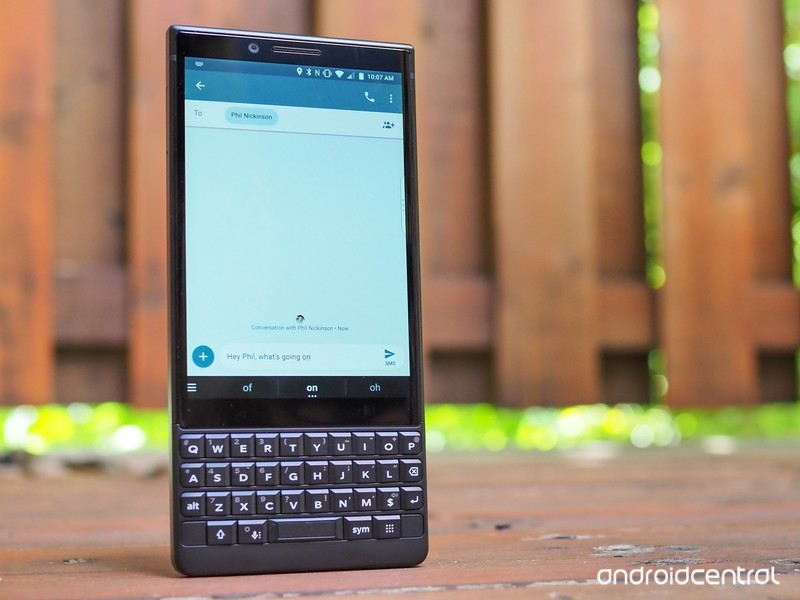
Whether you’re a productivity machine or still hate the feeling of typing on an on-screen keyboard, the BlackBerry KEY2 and its excellent physical keyboard are here to save the day.
There’s no doubt that the KEY2’s keyboard is the star of the show, but don’t forget about its 4.5-inch touchscreen display. It’s sharp, crisp, and works well in most situations, but a few nasty scratches will leave you wishing you’d put on a screen protector.
If you want to cover up your KEY2’s display so that it stays safe and sound, these are the screen protectors we recommend picking up!
- PULEN Tempered Glass Screen Protector
- AVIDET Tempered Glass Screen Protector
- Skinomi Film Screen Protector + Full Body Skin
- DeltaShield Military-Grade Film Screen Protector
- TopACE Tempered Glass Screen Protector
PULEN Tempered Glass Screen Protector
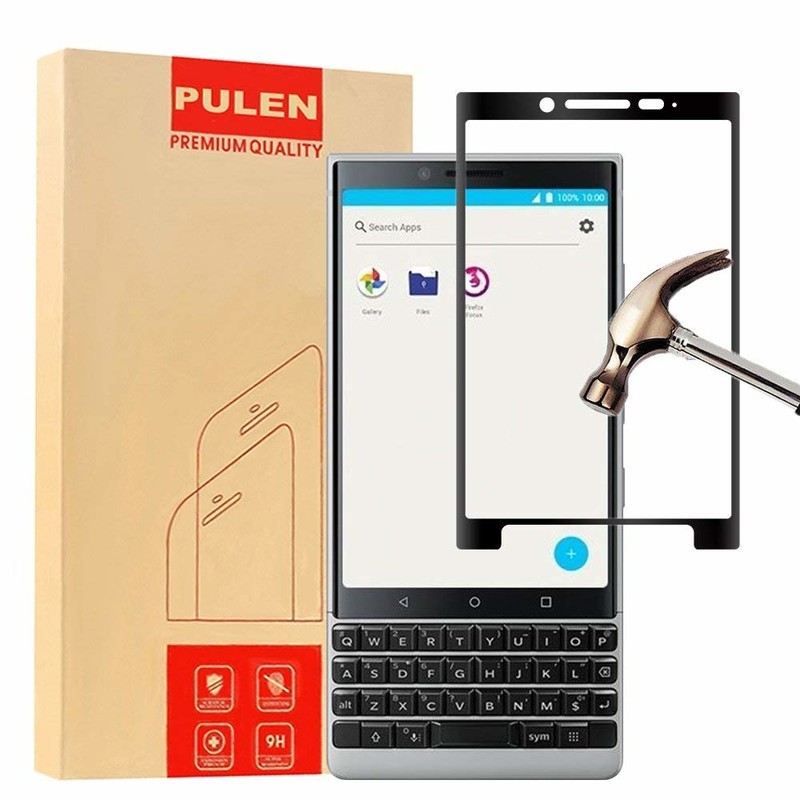
For folks in the market for a tempered glass protector, PULEN’s got you covered.
PUELN’s tempered glass screen protectors are laser-cut for the exact dimensions of the KEY2, resulting in a perfect fit for your device. There’s a 9H hardness rating to ensure no scratches find their way onto the protector, and even if you take a knife to the thing, it’ll still just as good as it did from day one.
The installation process is as easy as can be, with PULEN promising none of those pesky bubbles while doing so. There’s also a hydrophobic and oleophobic coating to prevent residue from sweat and oil.
If you’re interested, you can get a pack of two for just $7.99.
See at Amazon
AVIDET Tempered Glass Screen Protector
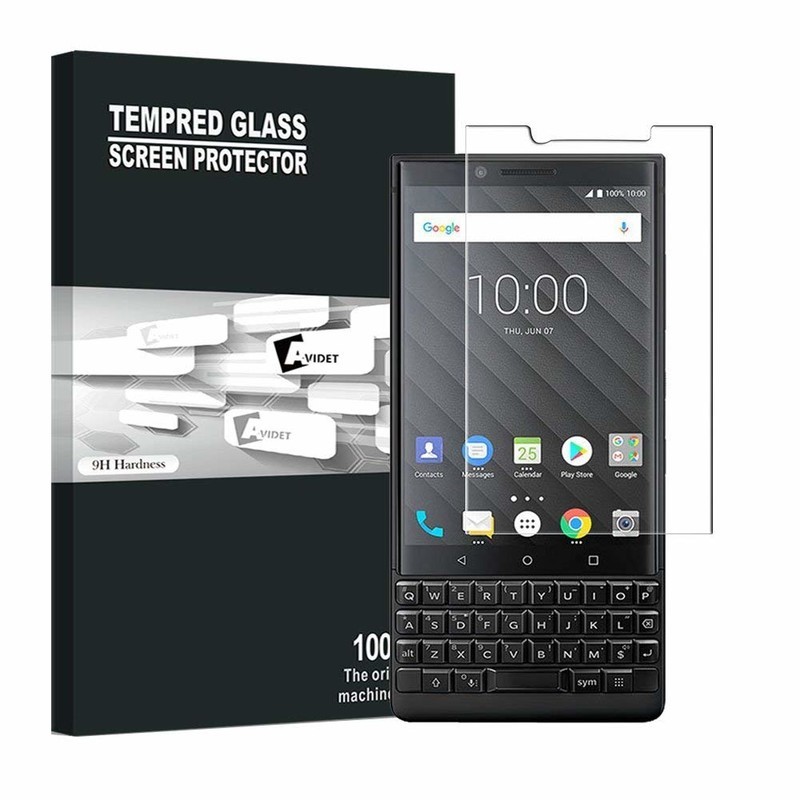
Let’s say you’re in the market for a tempered glass protector but want to spend as little as possible. For you, we’d recommend looking at what AVIDET is selling.
AVIDET’s tempered glass protector costs just $7.69, and while you don’t get two like you do with PULEN, the upfront cost is less.
The protector measures in at just 0.3mm with an impressive 9H hardness rating, 99.9% transparency makes it virtually impossible to see the protector when it’s on your KEY2, and 2.5D curved edges help to prevent any unwanted chipping of the glass.
This is an add-on item on Amazon, meaning it’ll ship on any orders that are over $25 or more.
See at Amazon
Skinomi Film Screen Protector + Full Body Skin
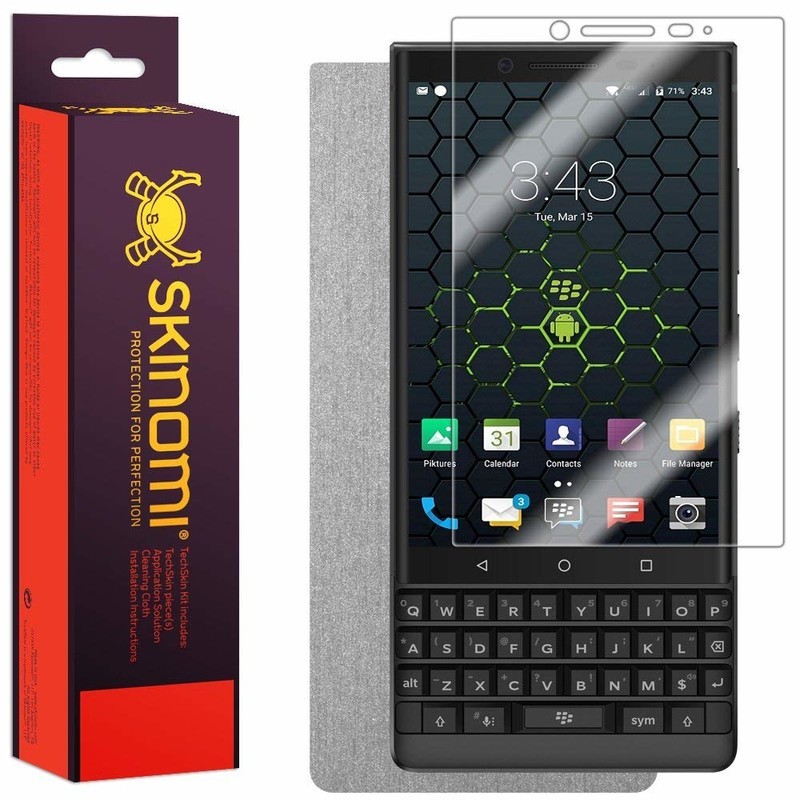
As great as tempered glass screen protectors are, they do have a tendency to crack much easier compared to film protectors. If you’re not about that glass life, Skinomi has a pretty great option for you.
Skinomi used laser cutting to match the size of its screen protector for the exact dimensions of the KEY2, and as such, it fits like a glove. The film protector is extremely easy to install thanks to Skinomi’s grid adhesive that doesn’t require any sort of liquid or solution, and it comes with a 100% risk-free lifetime replacement warranty in case anything goes wrong.
In addition to the film protector, Skinomi also includes a full-body brushed aluminum device skin! You’ll pay a bit more for this combo at $12.95, but even so, it’s a tremendous value.
See at Amazon
DeltaShield Military-Grade Film Screen Protector
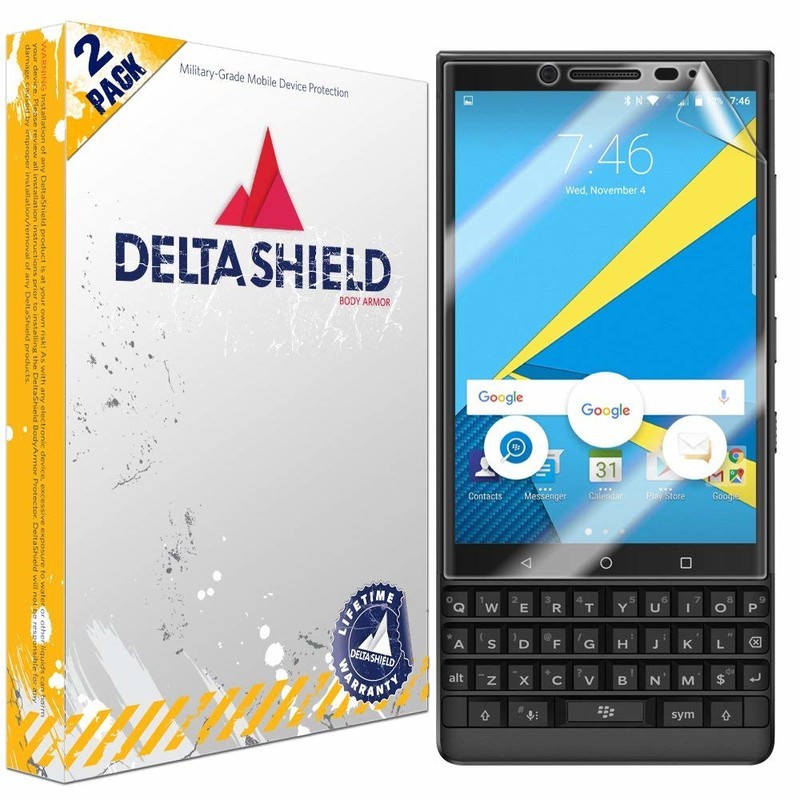
If you want another film option that’s a bit more affordable than what Skinomi’s selling, DeltaShield might have exactly what you’re looking for.
For a little more than $7, you can get two protectors with military-grade protection and a 99.9% transparency rating. DeltaShield’s protectors come with a “Self-Healing” technology that allows any imperfections in the protector to work themselves out over time and a UV-filter protects against troublesome yellowing.
The protector is barely visible once applied, and should anything go awry, DeltaShield covers its protectors with a lifetime warranty.
See at Amazon
TopACE Tempered Glass Screen Protector
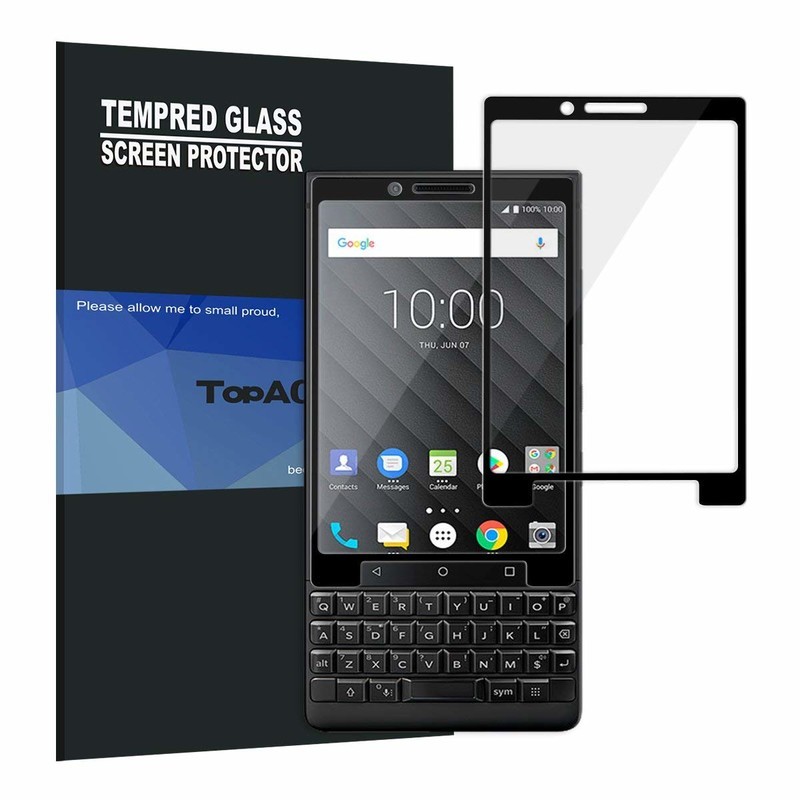
If you want a screen protector that’ll keep your KEY2’s display scratch and crack-free no matter what, tempered glass is the way to go. TopACE has created exactly that, and they’ve done an exceptionally great job.
For just under 10 bucks, you can get one glass protector with 99.9% transparency for a crystal-clear view of your screen, a 9H-rated durability, and full edge-to-edge coverage.
TopACE guarantees that you won’t get any unwanted bubbles during the installation process, and along with the protector, you’ll also get wet/dry wipes and dust removal stickers.
See at Amazon
What’s your pick?
What screen protector are you going to pick up for the KEY2? Is there another option that should be added to our list? Let us know in the comments below!
BlackBerry KEY2
- BlackBerry KEY2 review
- BlackBerry KEY2: Everything you need to know!
- BlackBerry KEY2 specs
- BlackBerry KEYone review: Coming home
- Join our BlackBerry KEY2 forums!
Buy the BlackBerry KEY2
Best microSD Cards for Lenovo Mirage Solo

Temper your expectations.
Lenovo’s Mirage Solo is a compelling option for those that love virtual reality, since you don’t need to buy an expensive phone just to enjoy VR. The Mirage Solo offers 32GB or 64GB of internal storage, but while it includes a microSD slot, it’s not what you’re expecting.
Here’s what you can do with a microSD card in the Mirage Solo, and the best cards!
- What can you do with a microSD card in the Lenovo Mirage Solo?
- Best microSD cards
What can you do with a microSD card on the Lenovo Mirage Solo?

Most Android devices let you use a microSD card as adoptable storage to serve as permanent storage. Failing this, every other Android device lets you browse the contents of the microSD card, and apps like Google Play Music or Netflix let you download music or movies onto the SD card.
The Mirage Solo doesn’t let you do either of these. You can see your movie files with the built-in file browser, but trying to select them doesn’t actually do anything. Similarly, Plex, Netflix and other movie players don’t give you the option to save media to the SD card.
The only official use for a microSD card in the Mirage Solo is to playback footage that was filmed on Lenovo’s Mirage Camera. This is a 180-degree camera specifically for recording VR video.
Best microSD cards
Since you’ll be recording high-resolution video, you’ll need a card that has the fastest write speeds you can find. Here are our picks!
Samsung EVO Plus 256GB

If you need to spend money on a card for capturing videos, you may as well spend a bit more and get the biggest card you can. Samsung’s EVO Plus card offers 256GB of storage, and is fast enough to handle all the footage you take. The card is heat-, water- and cold resistant, so feel free to take your camera to extreme locations. There are other cards that offer more storage for less money, but they aren’t nearly as fast as this one.
The Samsung EVO Plus 256GB is available for about $90.
See at Amazon
Sandisk Extreme Pro 64GB

This card doesn’t offer as much storage, but it’s also not as expensive. Just like the previous choice, this card is safe to use in almost any harsh environment, so you can take your camera snowboarding or hiking without worry. Most importantly, it’s more than fast enough to handle your 180-degree footage. If you don’t mind offloading storage from the Mirage Camera regularly, give this card a look.
The SanDisk Extreme Pro 64GB is available for $38.
See at Amazon
Samsung EVO Select 128GB

Samsung has another card that is a nice middle option, depending on how much storage you’re looking at. The EVO Select is available in 32GB, 64GB, 128GB, and 256GB flavors, but the 256GB version is more expensive than the EVO Plus above. The lower tiers are a great value though: the 128GB version runs for $40. The card offers 100MB/s write speeds, more than fast enough to keep up with your VR camera. Like the other options, this card can withstand seawater and extreme temperatures, meaning your footage will survive wherever you can take the camera.
Samsung’s EVO Select 128GB card is available for $40.
See at Amazon
What say you?
Which card would you pick for the Lenovo Mirage Camera? Let us know down below!
Best Android Launchers in 2018

Want to upgrade your Android experience? Try upgrading your launcher.
The way we arrange, organize, and interact with our apps on Android is called the launcher. Launchers usually consist of a series of home screens, where we can arrange app shortcuts and widgets and an app drawer. Every phone comes with a launcher, but when they drop the ball, there are endless third-party launchers that not only pick it up again but knock it clear out of the park.
Previous incarnations of this article have tried to claim that there is one launcher to rule them all, that there truly is a best launcher out there. I don’t believe that’s possible, even though I have a launcher I value over all others. You use your phone differently than I do, and I use my phone differently than my co-workers do or my friends or my family do. Everyone has their perfect launcher, but if you haven’t found your favorite yet, then here are a few launchers we think will satisfy users of every type.
Best light and easy launchers
- Evie Launcher
- Microsoft Launcher
Best customization launchers
- Nova Launcher
- Action Launcher
Honorable mention launchers
- Best app drawer: Smart Launcher 5
- Best business launcher: BlackBerry Launcher
Best light and easy launchers
Are you someone who doesn’t want to mess with a lot of bells and whistles? Do you just want to put your most-used apps front and center, maybe a widget or two, and get one with your Android experience? You want a fast launcher, a light launcher, one that doesn’t need a lot of fussing and tweaking, and these are the launchers for you.
Best light launcher: Evie Launcher

Evie Launcher is a lightweight launcher that just doesn’t quit and uses its gestures in effective ways. Evie’s gestures got 200% this summer, allowing us to finally set swipe down to “Open Notifications” instead of Evie Search and well as customize the rest of the its gestures the way we want rather than being stuck with their gestures or nothing. This launcher is light enough to let you hit the ground running with it while still letting your personality show through with it.
Evie is easy to set up and run with, but you can customize the desktop grid and icons just enough to keep things beautiful. It’s a quick launcher that’s completely free, so look forward to more optimizations and tweaks to help speed up your launcher experience. You can even back up your Evie layout and settings directly to Google Drive.
- Read more: Evie Launcher review
- Download Evie Launcher (Free)
Runner-up: Microsoft Launcher

You’d think that if Microsoft was going to bring a launcher to Android it’d be a launcher that matches the launcher on Windows Phone — and you’d be wrong. Microsoft Launcher doesn’t look a thing like Windows Phone, and that’s great news. Not only is Microsoft Launcher a completely Android-native experience, but it’s a top-quality launcher to boot, and one of the few launchers besides Nova Launcher to offer edge-to-edge widget placement.
Microsoft Launcher is a browser that’s centered around a clean home screen with a robust dock, a smart feed centered around your Microsoft account and your daily phone use, and a speedy app drawer where you can easily find all your apps. Microsoft Launcher’s set up is a touch long-winded, but it’s a breeze to navigate. It’s not quite as bare-bones as Evie, but it is a light launcher that’s well-worth considering, especially if you have an Outlook account for work or school that it can tie into for email and calendar appointments.
Download Microsoft Launcher (Free)
Best customization launchers
Do you want full control over your home screens? Want to set more than just an app grid and a widget or two? Want to make your home screen look and act the way you want? Then you want a customization-based launcher. Often called theming launchers because theming is one of their more obvious uses, these launchers are for far more than just making your home screen look pretty; they’re for making your home screen function more efficiently and more effectively for your life.
By giving you control over gestures, advanced UI controls, and almost every aspect of your launcher experience, these launchers let you customize the way you interact with your phone in ways that truly exemplify the Android experience. These two customization-based launchers dominate much of the third-party launcher market, and there’s a very good reason: they’re awesome.
Best customization launcher: Nova Launcher

Nova Launcher is over six years old, and this storied launcher has been a major player in the Android launcher market longer than most of us have used Android. The reason for this continued dominance is simple: Nova’s mix of customization, convenience, and cunning is unparalleled. Nova lets your phone look more Pixel-y than a Pixel and more TouchWiz than a Galaxy S9 and does it with ease and grace. In fact, Nova’s biggest strengths are things that are hidden in plain sight, like its pocket ace Subgrid Positioning or its excellent backup system.
When we build themes for our Android Central readers, nine times out of 10 the launcher we use to build it and to share it with you is Nova Launcher. It’s an excellent launcher if you want to build complex themes or if you just want a smartly laid out launcher with excellent gesture controls.
Read more: Nova Launcher review: Still king of the mountain
Download Nova Launcher (Free, $4.99)
Runner-up: Action Launcher

Action Launcher is one of the most popular launchers on the market, and the watchword of both the launcher and its users is QUICK. Quicktheme, Quickdrawer, Quickpage, Quickbar, quick, quick, quick. Action Launcher is determined to be a launcher that gets what you need to be done quickly so that you can get back to doing whatever you actually need to get done. To ensure that Action Launcher can be the quickest and best launcher for users who want to set everything up just so, Action Launcher has taken it upon itself to be one of the most customizable launchers on the market. From its robust gesture controls to its ubiquitous Covers and Shutters to hide folders and widgets under a seemingly plain looking app shortcut, no matter what you want to use, Action Launcher makes it easy to set up, even if its Quicktheme sometimes misses the mark.
Action Launcher is also quick to support features from the newest versions of Android, and it’s already started integrating some Android P flair. There’s a reason it’s the only launcher Phil uses: Action Launcher is damn good at what it does. While it’s not quite as intense as Nova Launcher, it’s a launcher that’s incredibly — well, quick — about getting you set up and on your way.
Download Action Launcher (Free, in-app purchases)
Honorable mention launchers
Now, there are launchers that don’t quite top the list for the lighter, easier quick launchers and can’t quite crack the intense theming prowess of Nova and Action. This doesn’t mean that these launchers aren’t awesome, and in an effort to highlight launchers with a standout feature or that serves a launcher niche excellently. After all, there are a lot of launchers out there, and there are a lot of ways to use them to interact with your apps.
Lawnchair Launcher was going to be added to this list, however the Lawnchair team just announced that they’re dialing back on the current version as they ramp up an overhauled v2. As such, while Lawnchair Launcher is a neat take on Launcher 3 — the AOSP launcher and base of Google’s Pixel Launcher — with some Pixel flair, edge-to-edge widget placement, and basic but beautiful theming, we’ll wait and see what Lawnchair v2 brings before adding it as the Best Early Access launcher.
Best app drawer: Smart Launcher 5

Smart Launcher has been around for a while, but they really kicked things up a notch with Smart Launcher 5. The home screen features a new gridless widget-placement system, and Smart Search has been overhauled, but the real star of the show here is still the app drawer. Smart Launcher 5 automatically sorts your apps into several categories, and if you pay for Smart Launcher Pro, you can even add your own custom categories and sort your various drawer tabs in a variety of ways, from most-used to install time to even icon color.
Smart Launcher 5 has a lot here to like, from a responsive and comprehensive categorical app drawer to some of the most precise widget placement on Android to the most diverse icon options on the market. Its gestures are also top-notch, especially the double-tap shortcuts that can at least double the functionality of every app on your home screen. Remember when I said that I use Nova Launcher for 9 out of 10 themes? Smart Launcher is the launcher I use for that other 10%, including our dead awesome Deadpool theme and our Heart Canada theme!
Read more: Smart Launcher 5 review: An amazing balance of customization and simplicity
Smart Launcher 5 (Free, $6.99)
Best business launcher: BlackBerry Launcher

BlackBerry has made something of a comeback since its migration to Android a few years ago, and nowhere is this more apparent than BlackBerry Launcher, which is openly available on Google Play. BlackBerry Launcher is a stable launcher that eases Android newcomers into the many, many possibilities available in an Android launcher today. Part of this is by necessity, as millions of government and enterprise users are introduced to Android and what an Android launcher can do through DOD-certified BlackBerry phones.
From pop-up widgets that can appear with the swipe of an icon to one of the easiest-to-understand Shortcut galleries I’ve seen on Android to a no-nonsense approach to launcher settings and customization, BlackBerry Launcher lets you get things set up just the way you like them and then streamline your launcher experience for efficiency.
BlackBerry Launcher’s keyboard shortcuts are the best on Android
Keyboard shortcuts on BlackBerry Launcher are exclusive to BlackBerry’s physical keyboard phones, but they offer unparalleled ease and versatility. In the esteemed words of our own Jerry Hildenbrand:
My KEYone and its keyboard shortcuts let me keep my home screen blank and I just long press a keyboard key to open the app I want to open: “A” for the AC app, “C” for Chrome, “G” for Gmail, “K” for Slack, and “S” for Signal. This keeps me from tapping things with my bumbling fingers or worrying about things happening in my pocket.
How to set up keyboard shortcuts on the BlackBerry Launcher
As a business-geared launcher, BlackBerry Launcher offers a premium experience, and rather than paying a one-time fee for the launcher, BlackBerry Launcher relies upon a BlackBerry Hub subscription to eliminate its ads after 30 days. Or you could buy a BlackBerry phone and get access to the best launcher shortcuts on Android.
Download BlackBerry Launcher (Free, subscription)
What’s your favorite?
Do you have a favorite launcher? What’s on your Android phone now? Sound off in the comments below.
Updated July 2018: We’ve been hopping launchers religiously, and it’s official — these are still the best launchers on Android!
Add Aukey’s 20000mAh Quick Charge 3.0 battery pack with USB-C to your bag for $33
Put all this power in your bag!
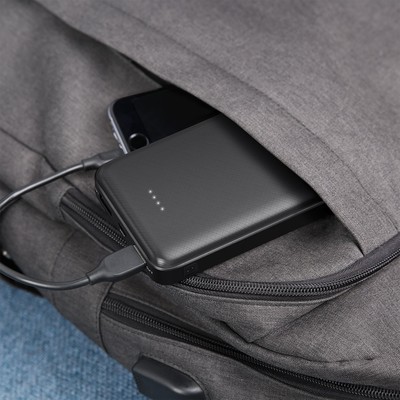
Aukey is offering its 20000mAh portable USB-C battery pack for just $33.29 when you check out using coupon code AUKEYB07 at Amazon. This battery pack normally retails for $45 and rarely drops from that price. It has support for Qualcomm’s Quick Charge 3.0 and a max output of 5V at 3A on the USB-C port or 5V at 2.4A on the USB-A port. The USB-C port can be used to charge the battery pack itself or to charge a connected device, and the two full-sized USB ports are outputs only.
The top has four LED lights to help you know how much charge is left in the battery at a glance, and there is a power button on the side for easily turning it on and off while on the go. The 20000mAh capacity is enough to charge an iPhone 8 six times, most Android devices about five times, and even a MacBook once. If you’d rather something with a little extra capacity, Aukey’s 30000mAh option is on sale for $10 more when you use coupon code AUKEYB03.
See at Amazon
 AIVAnet