


ViewSonic’s 4K projector is $300 off today, dropping the price to just $1,000
Watch on any surface.
Amazon has the ViewSonic 4K 3500 Lumen projector on sale for $999.99 today, a savings of $300 from its regular price. Other retailers, like Best Buy still have it listed for $1,300, and it’s nearly $1,400 at Office Depot right now. It used to sell for around $1,600 and has never had a direct price drop below the $1,300 mark until now.

With a 3840 x 2160 resolution, this 4K projector can broadcast on a screen up to 300 inches at 3500 lumens, which is quite impressive. It offers HDR support, has two HDMI ports, audio inputs, a PC input, mini USB and a full-size USB port. The lamp is rated at up to 15,000 hours, which is almost 14 years of usage at three hours per day.
Of course, you’ll need a display to watch this on. If you have newly-finished walls, you could always opt for some ultra white projector screen paint and paint the whole wall, or just a section and frame it in with a custom wood border. Or, you can grab a regular projector screen to hang on the wall.
Either way, this discount is only good for today, June 14, so don’t miss out.
See on Amazon
Chromecast vs. Chromecast Ultra: Which should you buy?
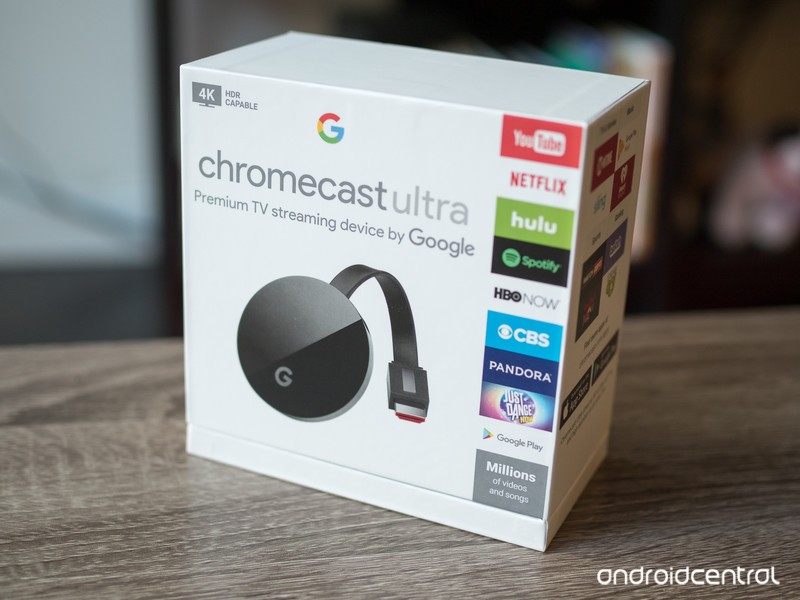
If you’re looking to buy a Chromecast, here’s what you need to know.
Google unveiled the new Chromecast Ultra at its October 2016 event in San Francisco, and while it doubles the price of the original Chromecast at $69, it packs quite a punch when it comes to its capabilities. It’s still the small, easy to use, and affordable media streamer that people love, but designed for folks who want all the high-end features when they stream their media.
That means it might be one of those products that offer things you won’t need or can’t use, and the “regular” Chromecast may be a better fit. Here’s everything you need to know to pick the right Chromecast for you.
What exactly is a Chromecast?

A Chromecast is a small device that plugs into an open HDMI port on your TV, A/V receiver, or any other display that can playback video and audio. There is a Chromecast that’s built for audio only, too, if that’s what you’re looking for, and it makes building a great whole-house audio system easy.
Once in place, you use an app for your phone (Android and iOS only) or through Google Chrome to set it up, give it a name, and get it ready to receive a movie or TV show or anything else you want to see on a bigger screen. To send the media there, you first open it on your phone or in Google Chrome and “cast” it to the Chromecast receiver. Your stream will start playing on your TV and you’re free to do other things on your phone or in Chrome while it plays.
The features and price make a Chromecast the best way to stream your media.
A Chromecast can stream local content like pictures or video you took yourself, but when you’re streaming from an online source like Netflix, it doesn’t go through your phone. Instead, it makes a connection with the source and streams directly, saving battery and not using your phone’s network bandwidth. You can still use your phone or Chrome to control the stream and do things like pause playback or change volume, but the actual transmission from Netflix (in our example) goes to the Chromecast. Think of your phone as the remote.
There are hundreds of apps in Google Play or the App Store that are Chromecast-enabled, and we see more and more every day. The Chromecast is simple to set up and use, is very inexpensive, and does a great job, This is why it’s one of Google’s best-selling products, and why we think it’s the best way to stream the media you enjoy watching.
The ‘regular’ Chromecast
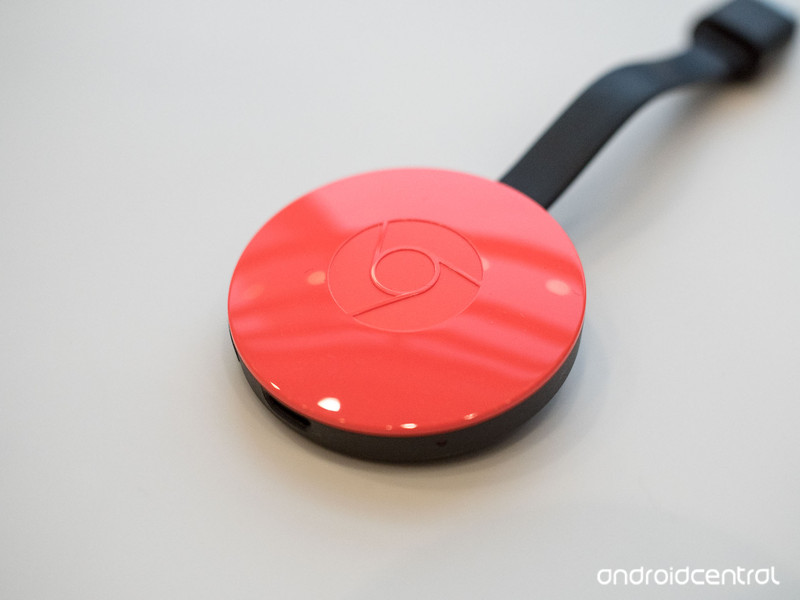
This $35 HDMI puck (it’s often on sale, too) is the basic media streamer many of us want. It handles 1080p video streams really well, it’s very small, and can be powered by your TV if you have a suitably powered USB port on the back. It supports 802.11ac Wi-Fi at both 2.4GHz and 5GHz and is powered with a Micro-USB cable connected to a 5V/1A power source. If your TV can’t provide the power, there is an adapter included along with a 1.75-meter cable.
If you like, you can buy an ethernet adapter built for the Chromecast instead of using Wi-Fi. It replaces the power cord and has a standard RJ-45 socket (the one that looks like a great big telephone plug) where you plug in a 10/100 ethernet cable. The power cord on the ethernet adapter is 2-meters long to make sure you can position it where you need it. Everything else works the same — you cast from your phone or the Chrome browser and watch the streaming media on your TV — but you’re using a faster and more stable network connection.
- If you don’t have a 4K television or won’t be streaming any 4K content, the Chromecast is for you.
See Chromecast at Best Buy
See Chromecast Ethernet Adapter at Google Store
The Chromecast Ultra
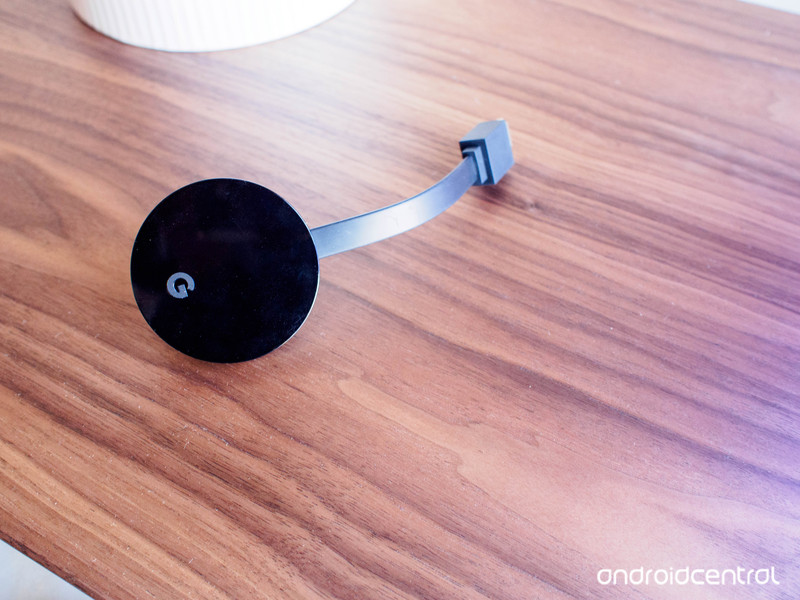
The Chromecast Ultra offers a step up from the regular version. When provided with a suitable broadband connection, it can stream 4K Ultra HD and HDR content. The hardware inside the Chromecast Ultra is fast and powerful enough to do things on the fly without a lot of buffering or skipping. It’s more expensive at $69 but can stream the highest quality content with ease.
Of course, to stream UHD or HDR content you need a fast network. The Chromecast Ultra connects to 802.11ac 2.4GHz and 5GHz Wi-Fi with a 1×2 SIMO (Single Input Multi Output) antenna for fast network speeds and low latency. It also comes standard with an ethernet port built into the power supply if you want to plug it into a wired network switch instead of using Wi-Fi.
- If you have a 4K or HDR TV (or plan to have one soon) and want to stream at a quality that can match its capabilities, the Chromecast Ultra is for you.
See Chromecast Ultra at Best Buy
Of course either Chromecast will work to stream 1080p media or with a 4K display. To stream UHD HDR media you need the Ultra, but if what you’re streaming isn’t in 4K or you just don’t have the network speed to stream at that quality, the “regular” Chromecast will still work and save you a few dollars. Also, if you plan on upgrading to a newer TV or monitor that will display UHD HDR content you can buy a Chromecast Ultra and use it for HD streaming on your current display.
No matter which Chromecast you choose you’ll enjoy great movies and shows from hundreds of apps, and you won’t have to figure out any cryptic software or network settings to get started.
Update: June 2018: This post has been updated with the latest information and current links.
Chromecast
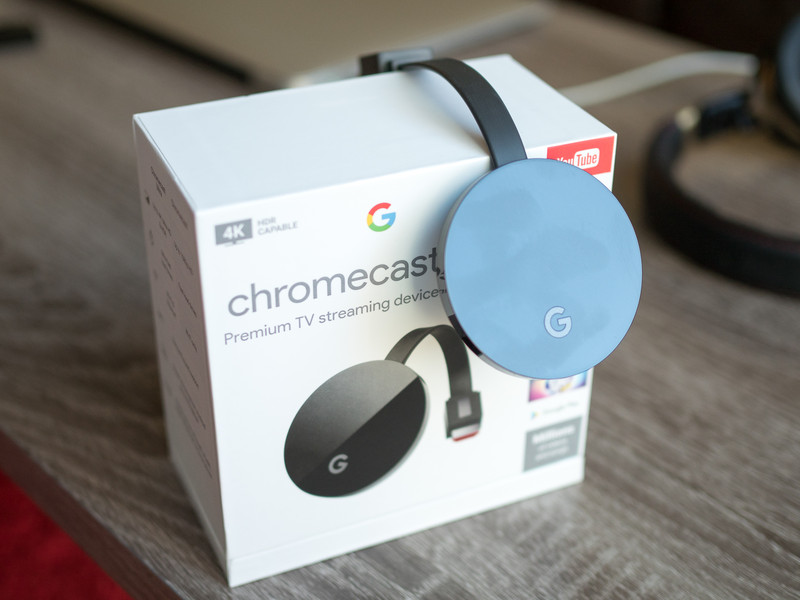
- Chromecast vs. Chromecast Ultra: Which should you buy?
- Chromecast and Chromecast Audio review
- Chromecast Ultra vs. Roku
- Join the discussion in our forums
Chromecast:
Google Store
Best Buy
Chromecast Audio:
Google Store
Best Buy
Chromecast Ultra:
Google Store
Best Buy
This is how the pop-up selfie camera works on the Vivo NEX
The Vivo NEX’s front-facing camera is one of the coolest things we’ve seen in years.
Vivo may not be that well-known here in the U.S., but on June 12, the company unveiled what’s easily one of the most interesting phones we’ve seen in 2018. The Vivo NEX is the closest we’ve gotten so far to a truly “bezel-less” smartphone, and to achieve this, Vivo did something awfully unique with the front-facing camera.

Instead of slapping it on the front above the screen or putting it in a notch, Vivo hides it inside the NEX’s body. When you want to use it, the lens physically pops out from the top. When you’re done taking selfies, the camera retracts once more and is completely hidden.
It’s great party trick, but what’s this process actually look like from inside the phone? IHS Tech Intelligence on Twitter recently shared a GIF of what goes on, and as you can see below, it’s pretty damn cool.
https://twitter.com/Teardown/status/1007275772262809600
All those moving parts might look like something waiting to break at a moment’s notice, but as Vivo explained when the NEX was announced, the system that it’s using is rated to move the front-facing camera up to 50,000 times and lift up to 500-grams of weight.
The NEX is the first phone to implement something along these lines, and it’s a feature I hope we see in more products down the road. It may not be the perfect solution to creating a bezel-free phone, but at least in my opinion, it’s the best one we’ve had yet.
Vivo NEX hands-on preview: One step closer to a bezel-less future
Control for PlayStation 4: First look and questions answered!

Here’s everything we know so far about the inscrutable new Remedy game, Control.
What was Remedy mysterious P7 project? Introducing Control, a game first shown off at E3 2018 to great delight and confusion. The trailer for Control showed a woman exploring a mysterious, twisting bureau full of floating people and supernatural monsters. She fought them with a single gun and her own set of powers, she performed some weird ritual thing, and she got sucked into a big spiraly room. Cool, right? But what’s going on?
I was fortunate enough to watch a hands-off demo of Control at E3 2018 and get a glimpse of exactly what was going on in the Oldest House. The demo may have provoked more questions than answers lore-wise, but I can at least speak a bit to how the game works!
What is Control?
In Control, you control (heh) Jesse Faden. Through a series of strange circumstances, Jesse has stumbled into a place called the Oldest House, the New York home of the Federal Bureau of Control. After a strange ritual, Jesse inadvertently becomes the Director of the Bureau at the same time that an otherworldly enemy descends upon the bureau and tries to wrestle control of it from her.
As Director, Jesse is equipped with a special pistol that can change its shape to fire different types of shots. She also gains special, supernatural abilities that aid her in fighting off the strange threat and traversing the bizarre Bureau.
How do you play?

In the hands-off demo that I watched, trouble had begun in the Bureau. Many of the department’s workers has suddenly become hostile, and others were left floating, prone and lifeless, on the ceiling. Jesse, guided by a companion speaking to her over the radio, started her stroll through what at first looked like a mostly-normal government office building to find out what was going on, but quickly ran into problems. An employee slowly moved toward her then, without warning, began to attack.
Jesse is able to fight both by firing her transforming gun at foes and by using special powers. I witnessed two powers in particular during the session: Jesse can block attacks by drawing floating debris in front of her to serve as a shield, and she can fling nearby objects through the air at enemies. During this initial attack, multiple corrupted workers appeared from behind partitions and desks and began to fight, but Jesse removed them deftly and continued to walk.
The Bureau itself

Quickly it became apparent that this was not a normal office building at all. Though the demo was limited, I was able to glimpse strange things in the passageways off to the sides that we didn’t walk down, and as she explored, a strange older man would seem to appear transposed over the surroundings, moving and speaking in shadow. It’s a difficult effect to put into words, but I was told that this is where Remedy’s penchant for live-action elements in its games comes into play.
Control is a trip. A fascinating trip.
Control functions in many ways like a 3D Metroidvania. Everything is connected, and you may often have to backtrack and revisit things as you gain new abilities. One of Jesse’s traversal abilities, Levitate, can be used to cross small gaps. The demonstrator used it to progress, but noted that Jesse would not have it at the start of the game and would need to unlock it to access this segment of content.
After another fight, Jesse arrived at a strange pattern of lines on the ground and did something that looked like she was performing a ritual. As she did, the room around her began to break down and reshape itself, eventually changing into a completely different area of the Bureau. Her path took her out of what appeared to be a warehouse or loading/unloading area and into a cell block, where everyday objects were being held in captivity. In one, an uncorrupted guard begged Jesse to relieve him of his post. This, the demonstrator said, was a sidequest. The game includes many throughout the Bureau that will affect how things play out, but we weren’t going to see this one now and left the guard to his fate.
The finale of the demo began as Jesse approached a TV in a cell. A fight ensued in which the TV appeared to reshape the Bureau around it, twisting the walls and making it difficult for Jesse to approach, as well as summoning enemies for her to deal with. When she finished the encounter and approached, she was engulfed by a white light in which the dark, black pyramid from the end of the trailer descended upon her.
Overall

Control is a trip. A fascinating trip. What appealed to me most from watching it was the Metroidvania stylings and the winding, bizarre nature of the Bureau. The world of control looks like it will be a terrifying delight to explore, and fortunately Jesse Faden is a pleasantly curious protagonist to explore it with. The small slice that I saw was polished specifically for the E3 demo, and looks the part. The shadow and light effects are particularly impressive in making the Bureau at times innocuous, and at times frightening or mysterious or just plain weird.
Control is planned for a 2019 launch on PS4, Xbox One, and PC.
Confused too?
Control is a bizarre-looking game, and we don’t know much about the Bureau, but ask any questions in the comments and I’ll do my best to help!
PlayStation 4

- PS4 vs. PS4 Slim vs. PS4 Pro: Which should you buy?
- PlayStation VR Review
- Playing PS4 games through your phone is awesome
Amazon
Moto Z3 Play vs. Moto Z2 Play: Should you upgrade?

Relax, you probably don’t need to upgrade just yet.
Earlier this month, Motorola refreshed its endurance-focused Z Play series with the Moto Z3 Play. While it’s more a mid-range device than a true flagship for the company (that title is likely reserved for the Moto Z3 or Moto Z3 Force), the Z3 Play brings some much-needed modernization to the design language we’ve seen for the last three years.
Last year’s Moto Z2 Play is still a great option, though. It still offers full Moto Mod support, a razor-thin design, and a cheaper price tag. So which phone is right for you?
What the Moto Z3 Play does better

Motorola’s commitment to its Moto Mod ecosystem, while certainly commendable, creates a bit of an issue with regards to the company’s general design language for its Z series phones. In order to support new devices as well as the old, Motorola can’t do much to change the physical dimensions of its phones, aside from thickness. The Moto Z3 Play is actually a bit thicker than last year’s model, but it still comes in incredibly thin at just 6.75mm.
But just because Motorola can’t change the shape of its phones, doesn’t mean it can’t change anything. Around the front, the Z3 Play features a 6-inch 18:9 display, up half an inch from last year. To make room for that larger display, the fingerprint sensor has been moved from the front to the righthand side, along the phone’s aluminum frame. This is a much cleaner, more modern look than last year, but not everyone will be crazy about the side-mounted fingerprint sensor — or the power button’s repositioning on the lefthand side.
Inside, the Moto Z3 Play actually has the same 3000mAh battery as last year’s model, though the newer Snapdragon 636 processor is more power-efficient and should lead to as much as 30% better performance. You also gain an extra gigabyte of RAM over the Z2 Play — up now to 4GB. The Z3 Play runs Android 8.1 Oreo, and features the popular Moto Actions that allow you to quickly launch the camera or flashlight through gestures, as well as Moto Display for ambient notifications. There’s also a new (optional) way to navigate the phone, similar to Android P’s navigation pill.
The cameras have gotten a bit of an upgrade as well, with the Moto Z3 Play being the first phone of the series with dual cameras. The secondary camera is used for measuring depth to aid in portrait mode shots, and Motorola’s camera app comes with a bevy of new features including built-in Google Lens support and cinemagraph capture.
See at Motorola
Where the Moto Z2 Play still holds up

A tall display isn’t everything. The Moto Z2 Play still looks great, with almost exactly the same design around back as the newer Z3 Play — though it still has an aluminum back, rather than the Z3 Play’s more fragile glass. It also has arguably a more accessible layout; the fingerprint sensor is easy to reach up front beneath the display, and the power button is in line with the volume controls along the righthand side. The Moto Z2 Play also retains a headphone jack — something the Z3 Play eliminated, despite being thicker.
The Moto Z2 Play also still works with any Moto Mod, new or old. This has been Motorola’s promise from day one, and it’s great to see them actually follow through. If you want better battery life, better speakers, or even new features like a pico projector, wireless charging, or Amazon Alexa, all you need to do is snap on a Mod accessory — no fussing with Bluetooth or wires.
There’s not much to be jealous of internally, either. The Z3 Play’s Snapdragon 636 is newer and more power-efficient, sure, but the Snapdragon 626 is no slouch, and it keeps the Z2 Play running smoothly and, more importantly, running all day. The 3000mAh battery inside is plenty, given the phone’s 1080p display and clean software. You won’t get Android 8.0 Oreo on the Z2 Play (at least not yet), but you still get Motorola’s suite of Moto Display, Moto Actions, and more.
See at Amazon
Which is right for you?

If you already have the Moto Z2 Play, there’s little reason to upgrade to the Z3 Play. Its dual cameras are still unproven, but in our early testing, portrait mode doesn’t seem to benefit much from the additional camera. Furthermore, with continued Moto Mod support, most of the Moto Z3 Play’s benefits like the more efficient processor can be offset by simply adding an extended battery.
The Moto Z2 Play is also significantly cheaper than the Z3 Play, available on Amazon for as little as $360. That $140 difference in price could go towards a Moto Mod or two, further augmenting your Z2 Play to be a better device. Unless you really want an 18:9 display or Android 8.1, you’re better off keeping your Moto Z2 Play for the time being.
Have you been using a Moto Z2 Play? Are you looking to upgrade to the Z3 Play, or are you sticking with what you have? Let us know in the comments!
Should you wall mount your PlayStation 4?

Wall mounting your PlayStation 4 is a great option for those who want their console out of the way.
Keeping your PlayStation 4 clean and safe from having discs and other items stacked on it can be a real problem, especially if you live in a house with children, pets, or unruly roommates. There is a solution to these problems and it can all be fixed by a simple wall mount. By wall mounting your console, you can keep it safe from tiny fingers, and ensure that cleaning it won’t require removing fur from the vents. Here are some details to decide if mounting your PlayStation 4 is right for you.
Wall mounting is a personal preference

When it comes to deciding between just placing your console on the entertainment center, or mounting it up on the wall, it really is just a personal preference. It’s certainly not a requirement, but there are plenty of ways to do it and save yourself some space in the long run. Whether you’ve got some pesky roomies or you just like the look of it mounted by your TV, there are determining factors that will help you decide if this is a good move.
Mounting your system on the wall can save room, especially for those who are set in up in a bedroom, gaming nook, or limited on space due to apartment living. Getting your PlayStation 4 out of the way can also help with keeping it clean and cool for longer between cleanings. Since earlier models of the console can be turned on — or off — by an errant paw, tail, or a sneaky little finger, this also eliminates accidentally power loss.
However, you will need to remember to have your system close enough to connect your television, and wall mounting a console that hooks up to PlayStation VR might be more cords than you want to be draped across the wall. It can also cause problems if you charge your controllers using the USB ports as you’ll need to get longer cords or stop playing while you charge up.
You also want to be careful with the mount you end up getting, based on the people in your house and the traffic they may cause. As easy as it is to bump a PlayStation off a shelf or table, it’s just as easy to run into a wall and knock it off the mount as well. So, if you have not-so-little pups or crazy kids that can’t stop knocking into things, you might want to be cautious when purchasing a mount.
These are great points to think about if you want to get a mount for your console. If you do decide that wall mounting is the way you want to go, there are plenty of accessories to make this process a breeze!
How do I wall mount my console?
To wall mount your PlayStation 4, you’ll want to pick up a wall mount that fits for your specific model of the PlayStation 4, and then follow the instructions to get it hung on the wall. For those who have never put up a shelf before, you’ll want to be sure that you don’t mount directly onto drywall, unless it comes with drywall anchors, so a level, a Phillips head screwdriver, and a stud finder are all handy to have.
You can peruse through several different wall mounts, several of which have specifically been built to avoid damaging your console. Just be sure to double check that the mount you decide to order is compatible with the model of PlayStation 4 that you have at home. We’ve made sure to include the best one in our article, so you don’t have too much of a hassle when searching for the best one.
See at Amazon
Questions?
Is your PlayStation 4 mounted? Do you prefer it on the entertainment center? Do you still have questions about wall mounting? Let us know about your set up in the comments below!
Updated June 2018: We’ve updated this article to give you the best information.
PlayStation 4

- PS4 vs. PS4 Slim vs. PS4 Pro: Which should you buy?
- PlayStation VR Review
- Playing PS4 games through your phone is awesome
Amazon
Mophie Charge Stream Pad+: Why plug-in charging for smartphones may soon be obsolete

The Mophie pad+ delivers optimized wireless fast charge power to Samsung, Apple, and other Qi-enabled smartphones
Wireless charging has been a reality since 2015 when Samsung first introduced the technology as a basic option with the Galaxy S6 and S6 edge. Since then, Qi wireless charging has achieved mainstream consumer adoption and is now found in most of today’s popular smartphones. Charging stations have also infiltrated airports, public venues, office buildings, restaurants, hotels, and even cars.
Why is this important? As smartphone technology improves, consumers get faster processors, crisper displays, and increased storage. But these advancements all tax the same resource— battery life —which, for most people, continues to be one of the most important aspects of a smartphone. As a leader in portable power and wireless charging, Mophie’s charge stream pad+ delivers the optimal amount of power to both Samsung and Apple Qi-enabled devices for a quick and easy fast charge experience. Charging begins the moment you set your phone on the pad. The charge stream pad+ even charges through cases up to 3mm thick. Wireless charging has never been this easy or this fast.

Mophie’s approach to wireless charging makes plug-in charging obsolete. If you’re exhausted at the end of the day, just place your phone on the charge stream pad+ on your nightstand or do the same to top off your battery throughout the day. No need to plug in any cords. The high-tolerance components operate in silence, so you can continue with your day or charge throughout the night without distractions. And the low-profile design fits any environment perfectly, whether you choose to charge at home or at the office.
The charge stream pad+ is powered by an impressive 12 volts at 1.5 amps and it comes with a QC 2.0-compatible wireless adapter and a 1.5-meter Micro-USB cable. It has a clean, streamlined style with a soft-touch finish. Its rubberized non-slip pad protects phones from scratches and provides a stable surface to quickly charge. Its lightweight, compact design travels well, so you can charge while on the road. Foreign object detection also communicates with your phone, ensuring that power is only sent to compatible wireless devices.
The Mophie charge stream pad+ is compatible with Apple, Samsung, and most Qi-enabled phones. With an impressive 5W/7.5W/10W output (universal/Apple/Samsung adaptive fast charge respectively), it’s perfect for people with mobile lives who don’t have time to fuss with cables or wait around for a charge.
See at Mophie
Deals Reminder: MacRumors Exclusive Twelve South and RAVPower Sales End Friday
A few weeks ago, MacRumors shared news of exclusive sale partnerships with Twelve South and RAVPower, both of which will be ending this Friday, June 15. Each sale offers savings on useful Apple accessories, including desk organization products from Twelve South and charging devices from RAVPower. As a friendly reminder we’ll briefly recap the sales below, so be sure to check all of the items discounted with our exclusive promo codes and then place your orders before the end of June 15.
Our collaboration with well-known accessory company Twelve South allows you to enter the promo code MacRumorsSetups to get 20 percent discounts on five items that are aimed at decluttering your Mac workspace. We launched the sale in conjunction with Apple’s Worldwide Developers Conference last week so that developers can save a little money on upgrading their desk, but of course any of our readers can use the code if interested.
Head to our full post on the sale for more information on shipping and item descriptions, then check out the Twelve South products discounted below:
-
BackPack – $27.99, down from $34.99
-
BookArc – $39.99, down from $49.99
-
Curve – $39.99, down from $49.99
-
BookBook Vol. 2 – $63.99, down from $79.99
-
HiRise 2 (Non-Deluxe and Deluxe) – Non-Deluxe for $31.99, down from $39.99; Deluxe for $47.99, down from $59.99
In our other exclusive sale, RAVPower offers a collection of exclusive promo codes to our readers that includes discounts of 50 percent off a battery case for iPhone 6, 35 percent off the RAVPower Fast Wireless Charging Pad for iPhone X and iPhone 8, and more. You can find all of the items on sale and their exclusive promo codes in the list below, and you’ll have until 11:59 p.m. PT on June 15 to claim them.

Visit our full post on the sale for more information and then browse all of the RAVPower accessories on sale below:
-
7.5W Fast Wireless Charging Pad – $25.99 with code RUMORSPC034, down from $39.99
-
7.5W Fast Wireless Charging Stand – $35.99 with code RUMORSPC069, down from $45.99
-
60W 5-Port USB Power Delivery Charger – $29.99 with code RUMORSPC059, down from $39.99
-
3,000 mAh Extended Battery Case for iPhone 6/6s – $9.99 with code RUMORS045, down from $15.99
-
16,750 mAh 4.5A Dual USB Output External Battery Pack – $22.99 with code RUMORS010, down from $31.99
-
Power Strip 6-Outlet Surge Protector with 2 USB Ports – $11.99 with code RUMORSPC009, down from $15.99
-
Lightning Cable, 2-Pack 3ft 6ft Apple MFi Certified iPhone Cables – $11.99 with code RUMORSLC010, down from $15.99
For more discounts happening this week, head to our full Deals Roundup.
Related Roundup: Apple DealsTags: Twelve South, RAVPower
Discuss this article in our forums
ElcomSoft’s Latest Tool Can Allegedly Access iMessages in iCloud, But Only in Extreme Circumstances
Russian company ElcomSoft today claimed that the latest version of its Phone Breaker software can remotely access iMessage conversation histories stored in iCloud, although there are several strings attached.
Namely, the person attempting to extract iMessages from an iCloud account would need the following before being able to do so:
- Elcomsoft Phone Breaker version 8.3
- The associated Apple ID email and password for the iCloud account
- The passcode, if an iPhone, iPad, or iPod touch, or system password, if a Mac, of at least one device on the account enrolled in Messages in iCloud, which requires iOS 11.4 and macOS 10.13.5 or later
- Access to a two-factor authentication method, such as a trusted secondary device, which may or may not have the same passcode or system password, or a SIM card for a phone number that has been authorized to receive one-time verification codes via SMS
It’s worth noting that if the perpetrator has obtained physical access to at least one of your trusted secondary devices, and its passcode, they would be able to read at least part of your iMessage history regardless by simply opening the Messages app.
Apple obviously cares very deeply about the security of its customers, but if a bad actor has gained access to another person’s Apple ID credentials, your passcode, and at least one of your Apple devices, or your SIM card, there arguably isn’t really much the company can do at that point to protect you.
That’s why it’s so important, as Apple routinely stresses, to set a strong password for your Apple ID, not share that password with others, enable two-factor authentication, and keep careful possession of your devices. It also helps to set a strong alphanumeric passcode on an iOS device, rather than a four-digit one.
Apple says iMessages are protected with end-to-end encryption, and notes that messages can’t be accessed by anyone without your device passcode. As an additional safeguard, Apple requires that users have two-factor authentication turned on for their Apple ID accounts to enable Messages in iCloud.

ElcomSoft’s tool seems to be taking advantage of the fact that, if iCloud Backups are turned on, a copy of the encryption key protecting iMessages is included in the backup, according to a support document on Apple’s website:
If you have iCloud Backup turned on, a copy of the key protecting your Messages is included in your backup. This ensures you can recover your Messages if you’ve lost access to iCloud Keychain and your trusted devices. When you turn off iCloud Backup, a new key is generated on your device to protect future messages and it is not stored by Apple.
Given the extenuating circumstances required, the vast majority of users shouldn’t have anything to worry about. But it’s a good reminder to maintain strong security practices on all of your devices to stay safe.
Tags: security, iMessage, ElcomSoft
Discuss this article in our forums
Valve Removes Game Purchasing Option From Steam Link in Hopes of App Store Approval
A few weeks after Apple rejected Valve’s planned Steam Link app due to App Store review guideline violations related to in-app purchases, among other things, the company has made a key change to the app in hopes of getting it approved.
Namely, in the latest beta version of Steam Link on TestFlight, Valve has removed the option to purchase games within the app. Instead, the app now informs users that games are available to purchase on a PC, or Mac, according to Eli Hodapp, editor-in-chief of MacRumors sister website TouchArcade.
Moments ago, Valve pushed out an updated version of the Steam Link app to TestFlight testers which […] removed the ability to buy anything through the actual app itself. When you connect to your PC via the Steam Link app and browse the store, the button you used to be able to push to buy things has been changed to say “Available to purchase from your PC.”
Shortly after Steam Link was rejected, Apple’s marketing chief Phil Schiller explained that it had “discussed these issues with Valve” and would “continue to work with them to help bring the Steam experience to iOS and Apple TV in a way that complies with the store’s guidelines,” in an email shared by MacStories.
 Steam Link app now says games are available to purchase on PC
Steam Link, unveiled early last month, will allow users to stream Steam games to an iPhone, iPad, or Apple TV from a Mac or PC via a 5GHz Wi-Fi network or a wired Ethernet connection. The app, originally set to launch May 21, will include support for both the Steam Controller and Made for iPhone controllers.
In his hands-on last month, Hodapp said the app works so well that “it feels like there’s some kind of actual wizardry powering it all.”
If you’re the kind of person who is always hungry for “real” PC-like game experiences on your Apple device, but have been dismayed by the amount of junk on the App Store, you can basically delete everything else but the Steam Link app. I’m still dumbfounded by Apple apparently allowing this on their platform, as I could see a very real situation where many people just straight up stop buying things from the App Store and exclusively purchase Steam games through Valve instead.
Valve hasn’t specified when it will resubmit Steam Link to Apple for reconsideration, and it remains to be seen if the change will satisfy Apple’s guidelines, but it sounds like the app is one step closer to being released on the App Store.
Tags: TouchArcade, Valve, Steam
Discuss this article in our forums
 AIVAnet