


The new ‘world’s tiniest computer’ is smaller than a grain of rice
Not to be outdone by the “world smallest computer” IBM revealed in March, a team at the University of Michigan is calling IBM’s bluff with an even smaller computer that’s “dwarfed by a grain of rice,” measuring just 0.33mm on each side. The university originally held the “world’s smallest” trophy with its 2mm x 2mm x 4mm Michigan Micro Mote until IBM’s smaller-than-salt 1mm x 1mm computer entered the scene earlier this year.
Although the word “computer” brings an image of a miniaturized PC sitting on the tip of your finger, the Michigan team now questions the term. When you power off a desktop or laptop, all the programs and data still reside on the device’s internal storage. Boot up the device and all your cat videos, games, documents reappear. That can’t be said with these “computers” created by IBM and the Michigan team.
The team’s new “computer” uses photovoltaics, a method of converting light into electricity. It also consists of a processor, system memory, and wireless transmitters and receivers that send and receive data through light. Rounding out the package is a base station that feeds the computer with light for power and programming. The station also receives all data transmissions.
Currently, the tiny computer serves as a precision temperature sensor. It uses electronic pulses to convert temperatures into timed intervals. The result, for example, is the ability to report temperatures in a cluster of cells within a tumor with an error rate of around 0.1 degrees Celsius.
“Since the temperature sensor is small and biocompatible, we can implant it into a mouse and cancer cells grow around it,” said Gary Luker, a professor of radiology and biomedical engineering. “We are using this temperature sensor to investigate variations in temperature within a tumor versus normal tissue and if we can use changes in temperature to determine success or failure of therapy.”
The team chose this task due to a need in oncology, but the computer is flexible enough to be attuned for a variety of needs such as audio and video surveillance, oil reservoir monitoring, cancer studies, and more. Once it goes live, other parties will likely discover new uses not imagined by the Michigan team just as they did with the Michigan Micro Mote.
At the Michigan team’s helm is David Blaauw, a professor of electrical and computer engineering (ECE). He’s joined by ECE professor Dennis Sylvester, and Jamie Phillips, an Arthur F. Thurnau Professor and professor of ECE. Gary Luker is a longstanding collaborator who needed answers to questions about temperatures in tumors.
The road to getting the computer in working order wasn’t easy. Given its size, the system packaging is transparent, thus exposing the tiny circuits to the light emitted by the base station along with the computer’s own transmission LED. The team had to take a different route regarding circuit design.
“We basically had to invent new ways of approaching circuit design that would be equally low power but could also tolerate light,” Blaauw said.
Editors’ Recommendations
- Big things do come in small packages. Here’s the tiniest tech in the world
- You may never own a quantum computer, but IBM will still let you use one
- IBM’s new supercomputer doesn’t just take orders — it can argue back
- IBM’s blockchain for jewelry will steer consumers clear of blood diamonds
- IBM and the Department of Energy show off the world’s fastest supercomputer
Common OnePlus 6 problems, and how to fix them
With a stylish exterior, top performance, and a large screen packed into a compact body, the OnePlus 6 is a compelling smartphone option, especially when you consider it’s half the price of the iPhone X. While the OnePlus 6 improves on its predecessors in every way, it’s not faultless. It’s easy to get rid of the notch if you’re not a fan, but there are other issues you might encounter.
We’ve been scanning forum posts and comments to find the main issues people have been having. These are the most common OnePlus 6 problems, with advice on how to work around or fix each one.
Problem: Poor battery life and overheating
While most people are content with the battery life they’re getting from the 3,300mAh battery in the OnePlus 6, we have seen a few complaints about the battery draining too quickly and the phone overheating. There’s a huge thread about it on the OnePlus forum and threads elsewhere, like this one at XDA Developers forum. It’s normal for your new phone to get hot and drain quickly the first few days you have it because it’s installing apps and you’re probably using it a lot more than you realize, but if problems persist, you might need to act.
Workarounds:
- Look in Settings > Battery and see what might be causing your issue. If a specific app is draining a lot of battery life, then you might consider uninstalling it.
- Since the biggest battery drain is generally your screen, you can always save battery life by dialing down your screen brightness in Settings > Display and reducing the time it takes for your screen to go to sleep by going to Settings > Display > Sleep.
- Watch out for areas where you get a consistently weak signal and consider turning mobile data off when the signal is weak because this can really drain your battery quickly.
Potential fixes:
- OnePlus has been releasing a steady stream of software updates, so look in Settings > About Phone > Check for updates and make sure you have the latest.
- Sometimes a simple reboot can make a difference, especially if you haven’t done one recently. Hold down the power button and tap Reboot.
- It’s worth wiping the cache partition to make sure it’s not the cause of your battery issue. Hold down the power key and tap Power off. Once the OnePlus 6 is off, press and hold the power key and the volume down key simultaneously. It should boot into recovery mode, where you can navigate with the volume keys and select options with the power key. Select your language, then choose Wipe data & cache > Wipe cache > Yes > Reboot.
- As a last resort, you might consider factory resetting your OnePlus 6. Back up everything first and then go to Settings > Backup and reset > Factory data reset > Reset phone > Erase everything. Once your device reboots, try setting it up as new without restoring a backup, and test to see if the battery issue is gone.
Bug: Calls go silent when switching to speakerphone
A few people found that if they tapped to switch to speakerphone during a call, the call would go silent. Switching back doesn’t bring the audio back – you must disconnect and place a new call. The problem was reported at Fuse Boxed and acknowledged by OnePlus.
Solution:
- It is supposed to be fixed in the latest software update, so take a look in Settings > About Phone > Check for updates and make sure you have it.
Glitch: Notifications delayed or not arriving
A few OnePlus 6 owners have been complaining about notifications being delayed or not arriving at all, as discussed in the XDA Developers forum. It’s a problem that’s also been listed at the OnePlus forum for older phones.
Potential fixes:
- There’s a chance that battery optimization is the culprit here, so look in Settings > Battery > Battery optimization and tap the app you’re having trouble with, then choose Don’t optimize. You should also tap the three vertical dots at the top right to make sure Advanced optimization is toggled off.
- Make sure that the alert slider at the top right is off and check in Settings > Alert slider to make sure it’s set up the way you want.
- Make sure that Gaming mode is off or go to Settings > Advanced > Gaming mode and toggle Block notifications
- Look in Settings > Apps and check the Notifications settings for any problem apps.
Problem: Auto brightness flickering or not bright enough
There have been a few discussions on the OnePlus forum and XDA Developers forum about auto brightness on the OnePlus 6 not working properly. Some people complain about flickering in direct sunlight and some have found that it’s generally darker than it should be.
Workarounds:
- You can always go to Settings > Display and toggle Adaptive brightness off. You can set it manually by pulling down the notification shade and using the brightness slider.
- Try an app like Lux Lite to see if you prefer the way it works over the OnePlus software.
Potential fix:
- Go to Settings > Display and use the brightness slider under Adaptive brightness to set your minimum brightness level for auto brightness, then test again. This won’t solve the flicker issue, but it might help if you’re finding it too dark.
Issue: Wi-Fi disconnects or patchy
A common issue that crops up with all smartphones is Wi-Fi disconnecting randomly or being inexplicably slow from time to time. There have been threads at XDA Developers forum and the OnePlus forum.
Potential fixes:
- Always start by rebooting your OnePlus 6 and the Wi-Fi router you’re having issues connecting with.
- Go to Settings > Wi-Fi > Wi-Fi preferences and make sure Keep Wi-Fi on during sleep is set to Always.
- Try going to Settings > Backup and reset > Reset network settings > Reset settings and then set up your Wi-Fi connection afresh.
- Hold down the power key and tap Power off. Once the OnePlus 6 is off, press and hold the power key and the volume down key simultaneously. It should boot into recovery mode where you can navigate with the volume keys and select options with the power key. Select your language, then choose Wipe data & cache > Wipe cache > Yes > Reboot.
- Check in Settings > About Phone > Check for updates and make sure your OnePlus 6 is up-to-date. Also check in with your router manufacturer or ISP and make sure your router firmware is up-to-date.
Editors’ Recommendations
- OnePlus 6 vs OnePlus 3T vs OnePlus 3: Is the new phone worth the upgrade?
- OnePlus 6 review
- Here’s everything you need to know about the new OnePlus 6
- Handy OnePlus 6 tips and tricks to get the most out of your phone
- OnePlus 6 vs. OnePlus 5T vs. OnePlus 5: Is it worth it to upgrade?
Everything you need to know about the Oculus Project Santa Cruz VR headset
If you’re a fan of the Oculus Rift VR headset, we’ve got good news for you: Not only has Facebook launched the Oculus Go to bolster the product line, but it looks like the Oculus Rift 2 (currently known as “Project Santa Cruz”) is nearing a release date well. Reports already confirm that prototypes have been sent to third party developers so that can work on their software.
The information we’ve gathered below gives a pretty good look at what the next Oculus Rift will look like, but we’re still waiting for Oculus Connect 2018 in October to learn important details about Project Santa Cruz — which is very likely to be introduced there. Here’s what we know so far.
More sit-down experiences
At E3 2018, we heard from Oculus that a significant number of Oculus Rift fans prefer to sit down for their VR experiences. This is important for a couple reasons. First, it means that super-sensitive room-wide detection and sensors aren’t quite as important (and as you’ll see below, there’s reason to think that Project Santa will have a very different type of tracking from the first Rift).
Also, it’s important that Oculus is acknowledging at a gaming event: This could well mean that more sit-down VR experiences are on the way for Cruz. This of course includes racing and flying simulations, but we’re anxious to see what else developers come up with.
72Hz Refresh Rate
At the 2018 Game Developers Conference, Oculus announced that, like the new Oculus Go, the Santa Cruz project would also include a 72Hz refresh rate, most likely as the default refresh rate.
Since Santa Cruz is cordless, it was unlikely that Oculus would be able to push it as high as the 90Hz seen in the original Oculus Rift, but having a default 72Hz is still quite impressive for a mobile VR headset. This positions the Santa Cruz as less of an Oculus Rift 2 and more of sidestep from the Oculus Go.
140-degree field of view
Facebook and Oculus have also released a “half-dome” prototype that appears to also be a progenitor to Santa Cruz. This prototype included varifocal lens focusing technology (which we’ll talk about in more detail about below), but it’s particularly interesting to note that the half-dome’s field of view was much larger than the original Rift.
While the Oculus Rift had a 110-degree field of view, this prototype expanded that to 14o degrees. That could mean a big immersive improvement for the final Santa Cruz that takes it beyond even premium headsets like the HTC Vive Pro. We don’t yet at this point how much of the technology from the half-dome prototype will be integrated into the Santa Cruz.
The cordless Rift
Oculus
Back in 2016, we got a chance to test out one of the early prototypes of Project Santa Cruz. It was very similar to the original Rift, but with a few extra components, including extra cameras — and no cords.
Obviously this makes movement much easier to arrange, but Oculus has been firm that the new headset will still offer PC VR quality even without being wired in. That means an external computer may well not be necessary at all. The prototype we worked with had processors like the kind you would find in mobile phones, but Oculus has been working to make sure the experience is not diminished.
New controllers
The Project Santa Cruz prototype uses original controllers with large rings perched on top.
These rings were designed to communicate the controller positions faster and more accurately using sets of infrared LEDs. It’s a little odd to have those rings attached at the top of the controller, but we wouldn’t be surprised if the final product includes a more compact controller design. There’s also the possibility that Oculus will use the “Knuckle” controllers, which have also been recently sent out to developers.
Our expectations for Project Santa Cruz
So, what would we like to see on the final form of Project Santa Cruz? Here are a few of our top desires (backed up by what we’ve seen from Santa Cruz so far).
Better AAA gaming
Content remains a mixed bag for VR. Some VR content — particularly, simple programs aimed at kids — has done quite well. But outside of converting a few big titles to VR (the Fallout 4 way), few triple-A titles have been created specifically for full VR setups like the Oculus Rift.
This is set to change. The Oculus Head of Content Jason Rubin has already said that, “What we think consumers want, and what’s going to work, is AAA content,” regarding the Rift 2. That’s why the Rift 2 prototype was given to major developers so early: Oculus really wants to include long-lasting, rich gaming experiences that come out on release and give people a good reason to keep using their headsets.
We don’t have any confirmation of specific games yet, but they are likely to be original franchises rather than ports, with fewer of those short “experiences” that the Rift used to get people familiar with VR. Since Rift has recently passed HTC Vive in popularity in the Steam Hardware & Software survey, there may well be many major developers willing to take up the opportunity.
Friendlier tracking
Tracking in the first Oculus Rift was a complex matter of setting up the right sensors in a clear space and then recalibrating them as needed. It’s a little time-consuming for the average consumer, and not very living-room friendly (the PSVR does a better job at this, and is still a little annoying).
Since then, we have seen better methods. Project Santa Cruz seems ready to embrace what is known as “inside-out tracking,” which is a set of sensors on the headset itself that scan the space around and try to accurately orientate the headset without nearly so much use of external sensors.
If inside-out tracking proves accurate enough to support the content Oculus has in mind, we are sure that updated, easier-to-use tracking to will be a main feature on the Rift 2.
Editors’ Recommendations
- Oculus Rift vs. Vive Pro
- Oculus Rift review
- $200 Oculus Go VR headset hits Amazon
- Oculus’ new prototype VR headset has something the HTC Vive Pro doesn’t
- Stand up or sit down? Many don’t take advantage of VR’s room-scale experience
These smart lights work with Amazon Alexa

Control your home’s lighting using Alexa and these smart bulbs.
Amazon offers an affordable way to start building out a voice-activated home automation system for your house or apartment with their Amazon Echo and Echo Dot powered by their A.I. assistant, Alexa. On its own, you can use Alexa to play music and find news, sports, and other information. But things get really interesting when you start to connect Alexa up to smart devices, including connected LED bulbs and smart switches, around your house.
There are many light options compatible with Alexa. We’ve broken things down based on the different brands and ecosystems that each have their own compatibility with smart lights and smart switches that you’ll ultimately be able to control via Alexa on your Amazon Echo.
- Philips Hue
- Samsung SmartThings
- Insteon Hub
- WeMo switches and outlets
- Lutron dimmers and switches
- LIFX smart bulbs
- GE Link LED Smart Bulb
- TP-Link
- Nanoleaf Aurora Smart LED Light Panel – 9 Pack
- Haiku Home Premiere LED Lights
- Smartika Smart Home Lighting
Philips Hue

Philips Hue is the leader in smart bulbs, and are downright cool. You can connect up to 50 Philips Hue bulbs, lamps and lighting strips via the Philips Hue Bridge, so chances are you could convert all your home’s lighting over to the Philips Hue system. Whether you’re looking for 60W equivalent white LED bulbs, bulbs that feature 16 million colors, or LED light strips for futuristic accents, there’s a reason why so many people have gone with Philips Hue.
Alexa syncs right up to the Philips Hue Bridge, which means you’ll be able to set up different lighting groups for your rooms and IFTTT recipes on your phone, then also control everything with the sound of your voice via your Amazon Echo. There’s a lot of fun to be had here, as Philips Hue lights can be synced up to your music for epic dance parties, and otherwise customized in countless different ways to suit your lifestyle.
If you’re interested in getting started with Philips Hue, you’re best off getting a starter kit. There are a couple of different options to consider:
- Philips Hue Starter Kit w/ two bulbs and one Bridge — $69.99 on Amazon
- Philips Hue Starter Kit w/ two A19 bulbs, one Bridge and one Dimmer switch — $129.99 on Amazon
- Philips Hue Starter Kit w/ three White and Color Ambiance bulbs and one Bridge — $170 on Amazon
No matter which starter kit you choose, the beautiful part of going with Philips Hue is that it’s super easy to add extra bulbs or other elements to your ecosystem later.
Samsung SmartThings

SmartThings provides a full suite of options for home automation, which includes a few options for smart lights. You’ll need a SmartThings Hub ($98) to get started, but from there you can connect plug-in smart switches for appliances, lamps and outdoors, and in-wall dimmers which support dimmable LED and CFL technologies along with legacy support for incandescent, halogen, Mark 10, and magnetic lighting loads.
You can also connect smart bulbs from Philips Hue or Osram to your SmartThings Hub, along with a host of other super handy home automation products that all work within the SmartThings ecosystem.
If you’re mainly interested in smart lights, you can get a SmartThings Hub and an Osram bulb bundle ($109). If complete home automation is your ultimate goal, you might be more interested in the SmartThings Home Monitoring Kit ($169.99), then build your own lighting arsenal from the available SmartThings-compatible lighting options.
Insteon Hub

Insteon’s offerings for smart home lighting mostly include in-wall dimmers and switches and plug-in dimmers. They do offer their own programmable, dimmable 8W LED bulbs ($29.99). You can use the Insteon app to set bulbs into groups for scheduling and creating scenes, then take control via Alexa.
To start building out your Insteon smart lighting ecosystem, you should get the Insteon Starter Kit ($99.99), which comes with the necessary Hub, and two Dimmer Plugs, perfect for setting up a voice-controlled bedside lamp. From there, you’ll need to buy compatible bulbs as you need them.
Insteon’s system is a decent option for those looking for home automation, but overall their lighting options are somewhat lacking.
WeMo switches and outlets
WeMo offers Wi-Fi enabled smart switches and outlets that you can control via Alexa. The WeMo Light Switch ($40.99) can be used to replace any light switch in your home, letting you schedule and control your lights and appliances without the need of a central hub.
This one is better for the DIYers out there who are interested in manually creating their own home automation network with in-wall switches and plug-in adapters to control lamps and other small appliances. Those looking for hassle-free installation and smart bulb options are best looking elsewhere.
Lutron dimmers and switches
Lutron Caseta Wireless products offer a selection of smart dimmers and switches that connect via the Caseta Wireless Smart Bridge. Connect your Smart Bridge to Alexa allows you to control all the dimmers and switches with your voice.
Check out the Lutron Caseta Wireless Smart Lighting In-Wall Dimmer Kit ($189.99) or the Plug-in Dimmer Kit ($189.99) to see what this system is all about. This is another route that’s going to require DIY effort with initial setup and is also lacking branded LED bulb options, but the Hub is compatible with a bunch of other smart devices from leading brands including Ecobee, Nest, Honeywell, Logitech, and Sonos.
LIFX smart bulbs

LIFX offers a range of smart bulb selections for indoor and outdoor use that are compatible with Alexa. Not only can you turn your LIFX bulbs on and off using only your voice, but Alexa can also control and tweak your bulb color or light temperature, so you always have complete control over your bulbs.
You can buy them individually or save money by bundling them into multipacks so you can upgrade bulbs around your home and link them all together via Alexa. They also sell bulbs with built-in infrared to enhance your security cam’s vision, as well as LED strips to add some futuristic and colorful accents to your home. Check ’em out!
See at LIFX
GE Link Smart LED Bulb

General Electric has a few smart bulb options available that work with Alexa but require a hub (compatible with SmartThings or Wink Hub 2.
You can get a standard A19 bulb for $29 (great if you already have a compatible smart home hub), or you can opt for the GE starter kit which includes two A19 bulbs and a compact GE Link Hub for just $75.
Other bulb sizes are also available.
See at Amazon
TP-Link
TP-Link offers smart bulbs that connect to your home network via Wi-Fi and do not require a standalone hub. There are four bulb options, from a standard white dimmable bulb to a fully-customizable multi-color bulb.
All of TP-Link’s bulbs are pairable with the Alexa app which allows you to control your lighting with your voice. TP-Link sells other smart home devices such as smart plugs which are also controllable via Alexa, as well as cloud-based cameras which are not.
See at TP-Link
Nanoleaf Aurora Smart LED Light Panel – 9 Pack

Not all lighting options need to be bulbs. The Nanoleaf Aurora are Smart LED Light Panels that you can connect to create an entirely custom and unique lighting solution for your home office, gaming corner, or wherever you want to show them off.
The best place to start would be the nine-pack kit that comes with nine panels that can be configured however you’d like, and you can add up to 30 panels if you desire. The nine-pack is available on Amazon starting at $220 and they might not be the most practical lighting solution but damn they’re cool. Add in Alexa functionality and BAM! Suddenly you got the coolest living room on the block!
Check out the full review of these modular lights.
See at Amazon
Haiku Home

Smart lights are awesome.
Hey Alexa, Turn them on.
The future is now!
All poetry aside, these light fixtures are stylish and premium smart lights to consider if you’re renovating your home and want to massively upgrade your home lighting with something you can control with Alexa.
Beyond Alexa voice control, these fixtures include built-in motion sensors that can be set up to instantly illuminate the room when you walk in and turn off when you leave. You can install them indoors or outside, and they also include Haiku’s Smart Lighting technology that measures the ambient light in the room and automatically adjusts the lighting level to ensure consistent lighting throughout the day.
These are highly reviewed on Amazon, are available in multiple styles and colors to match your decor, and start at around $199. Check it out!
See at Amazon
Smartika Smart Home Lighting

Smartika has been making stylish and functional smart home lighting options since 2014, developing a line of smart LED fixtures that would look great in any home.
They’ve got some cool looking stuff like the Indoor/Outdoor wall light pictured to the right, along with a track-light fixture and pot lights that can all be linked to a Smartika Central Control HUB ($35).
- Smartika PROFILE Indoor/Outdoor Wall Light ($110)
- Smartika HALO LED Integrated Track-Light Fixture ($190)
- Smartika RADIUS LED Smart Recessed Ceiling Light ($49)
- Smartika EDGE LED Smart Recessed Light Square Cover Plate ($55)
Learn More
Which should you get?

Thanks to Alexa’s compatibility with a variety of smart light systems, you’ve got several great options for automating and customizing your home. Which system you go with will greatly depending on your current living situation.
If you’re living in an apartment and are just looking to control some funky lighting options via Alexa voice controls, Philips Hue is your best bet. Buying a starter kit is a great investment that you can take with you as you move — and with the lifespan of LED lighting well exceeding a decade, you’ll enjoy the freedom to rearrange, expand and easily move your Philips system wherever you go.
If you’re a homeowner looking to integrate IoT devices throughout your home, you’ll want to buy an Alexa-compatible hub that shares a wide range of compatibility with other brands and products, such as SmartThings or even a Wink Hub 2, then build out your smart bulb and other devices to the exact specifications of your home.
And if you’re in the process of planning a home renovation, it might be worth looking at WeMo, Insteon, and Lutron’s in-wall switches or dimmers to convert your existing home wiring into a smart lighting system that you can then control with your voice. Don’t just update the look of your home — upgrade its functionality, then let Alexa control it all with the power of your own voice.
Updated June 2018: Updated pricing information and removed options that are no longer available.
How to enable Continued Conversations with Google Assistant on your Google Home
Saying “Hey, Google” all the time is so 2017.
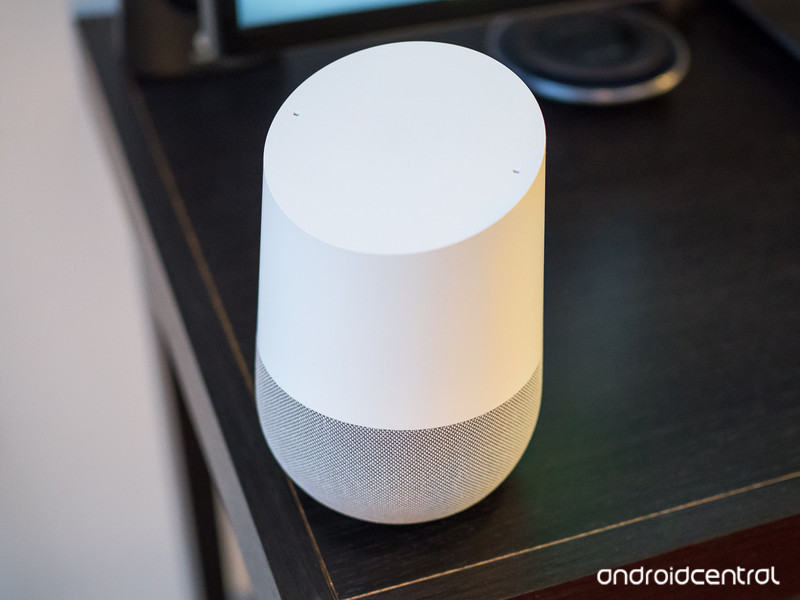
As magical and futuristic as the Google Home often is, having to repeatedly say “Hey, Google” or “Okay, Google” each time you want to talk to it can get very annoying very quickly.
Thankfully, with the release of Continued Conversations, Google’s offering a solution to this pain point. With Continued Conversations, your Google Home will keep listening to you for a short period of time so you can continue asking questions or issuing commands without having to say “Hey, Google” every single time.
Continued Conversations is rolling out to English users in the United States now, and to enable it, here’s what you need to do.
Open the Google Assistant on your phone and tap the blue circle with a rectangle in the midde.
Tap the three dots at the top right.
Tap Settings.


Tap Preferences.
Tap Continued Conversations.
Tap the Continued Conversations toggle so that it’s blue.
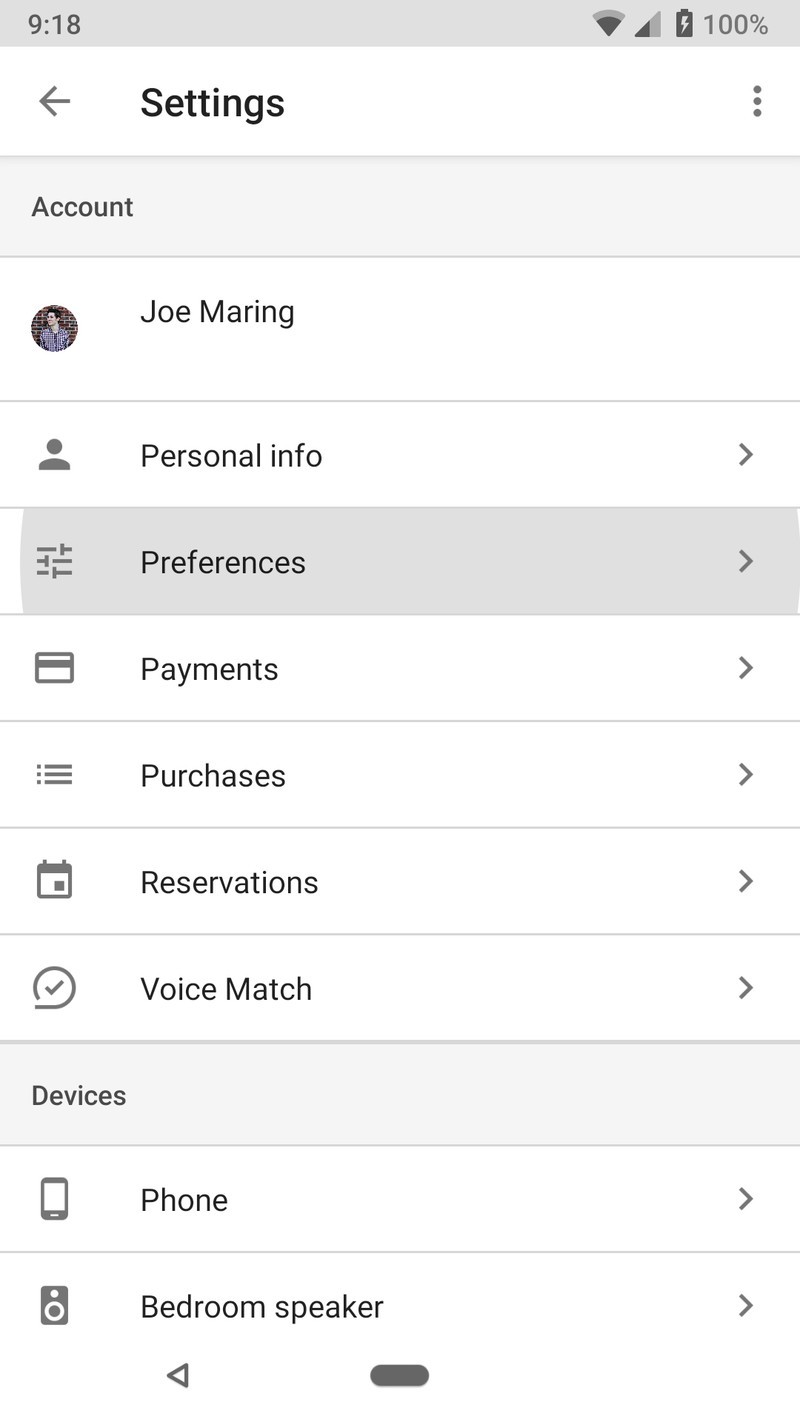
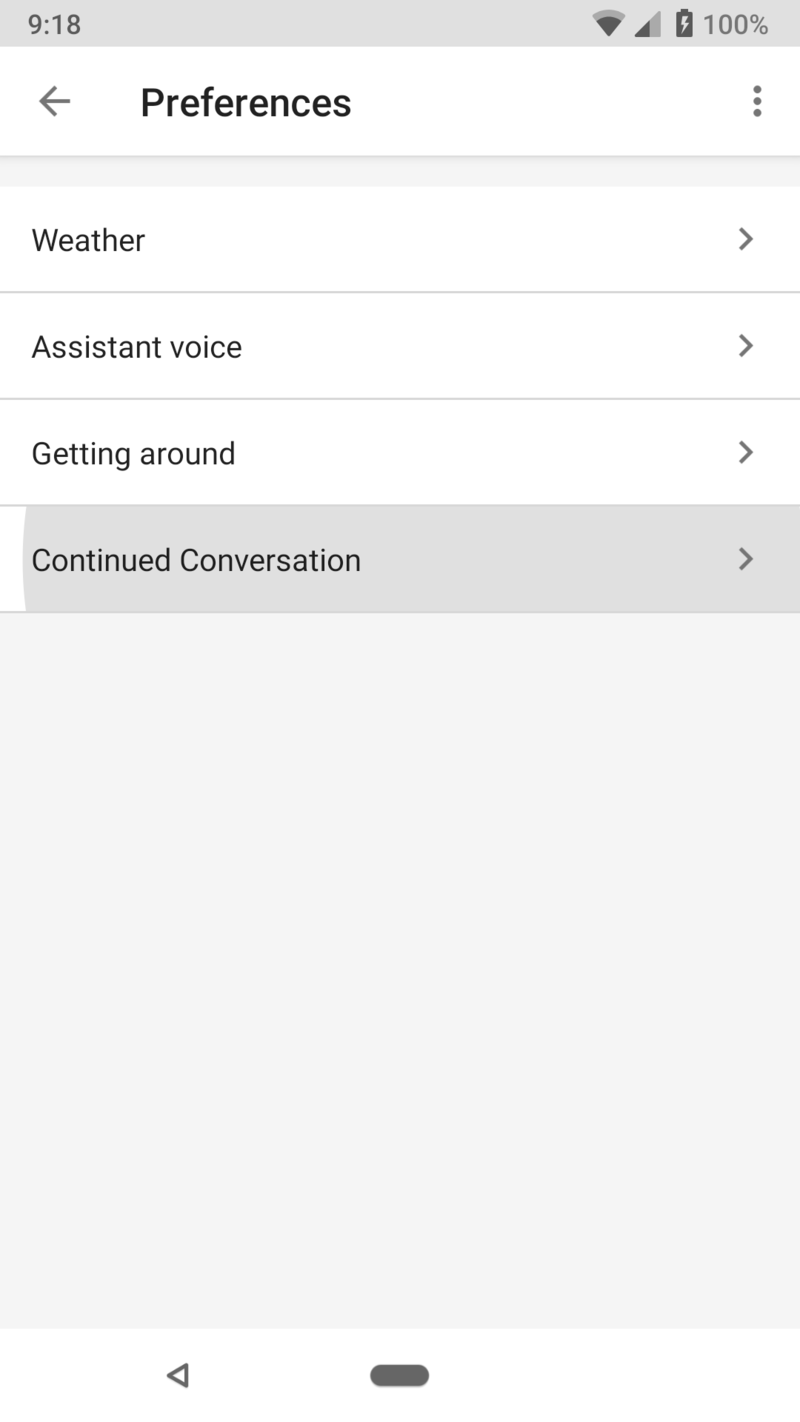
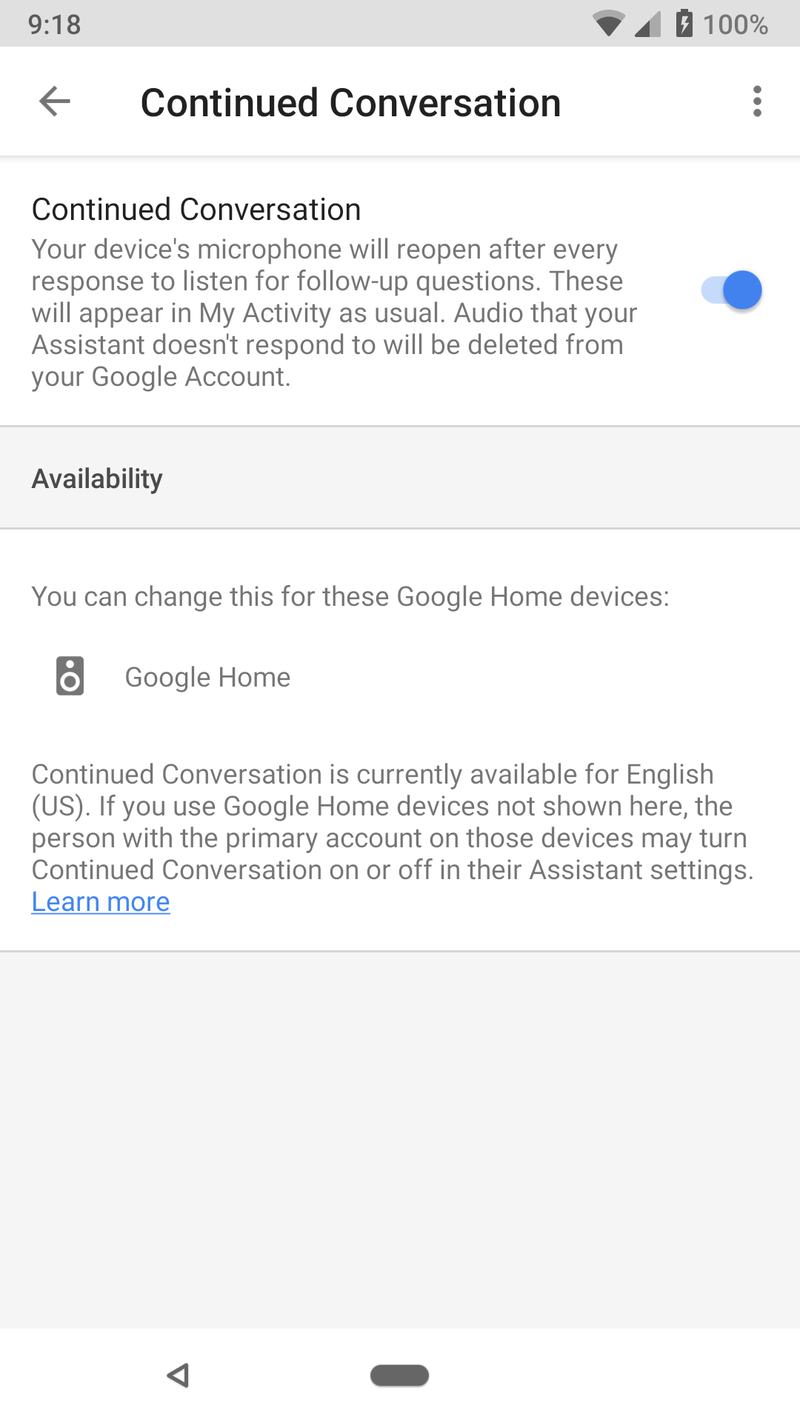
Once enabled, you’ll be able to start talking to your Google Home(s) in a much more natural manner.
The LED lights on your Google Home will stay lit up so you know it’s still listening, and while it’ll automatically stop after around 8 seconds, you can manually have it stop by saying “thank you” or “stop.”
After you get a chance to play around with Continued Conversations, drop a line in the comments below and let us know how you’re liking the new feature!
How to set up your Google Home, Google Home Mini, and Google Home Max
Google Home
- Google Home review
- Google Home Mini: Everything you need to know!
- Google Home Max review
- These services work with Google Home
- Google Home vs. Amazon Echo
- Join our Google Home forums!
Verizon
Best Buy
Target
Google Store
Sunrise Gold Galaxy S9 hands-on: Enjoy the view
The phone’s available exclusively at Best Buy and Samsung.com in the U.S.

Samsung announced two new colors for the Galaxy S9 in mid-May, including Sunrise Gold and Burgundy Red. The former of those two goes on sale in the U.S. on June 24, and if you’re not sure if it’s the version for you, we got a chance to go hands-on with Samsung’s newest look to see whether or not it’s worth getting over Coral Blue and Lilac Purple.
Aside from the difference in color, one area where the Sunrise Gold S9 stands apart from its siblings is with the finish of its glass.
Similar to the Midnight Black and Silk White OnePlus 6, the Sunrise Gold Galaxy S9 has a matte finish on its glass that looks and feels great.
It’s still not the most grippy phone in the world, but it does a great job at hiding fingerprints while being reflective enough to pull off some slick light reflections.
Samsung Galaxy S9: Which color should I buy?
To match the glass back, you’ll also find a gold paint job on the rear camera housing, metal frame, and even the inside of the 3.5mm headphone jack and USB-C port.
The new color and matte finish are absolutely beautiful.
As for the phone itself, this is the same Galaxy S9 we know and love. Samsung’s Super AMOLED display looks as good as ever, the Snapdragon 845 is more than powerful for day-to-day tasks, and the variable aperture for the 12MP camera allows you to pull off some excellent low-light photographs.
If you’re interested in picking up the Galaxy S9 or S9+ in Sunrise Gold, the phone is being sold in the United States exclusively through Best Buy and Samsung’s own online store. It has the same starting price of $720 with 64GB of internal storage, but if you buy it through Samsung, you can also get it in 128GB and 256GB flavors for a bit more.
What do you think about Samsung’s latest S9 color?
Samsung Galaxy S9 and S9+: Everything you need to know!
Samsung Galaxy S9 and S9+
- Galaxy S9 and S9+: Everything you need to know!
- Galaxy S9 review: A great phone for the masses
- Complete Galaxy S9 and S9+ specs
- Galaxy S9 vs. Galaxy S8: Should you upgrade?
- Join our Galaxy S9 forums
Verizon
AT&T
T-Mobile
Sprint
Smart lights, 4K receivers, standing desk converters, and more are all discounted today
Whether you’re looking for new tech gear or household items, we’ve got you covered.
We found plenty of great deals today that include big discounts on standing desk converters, Onkyo’s 4K receiver, Philips Hue smart lights, and more! Time’s running out to take advantage of these prices, so hurry!
View the rest of the deals
If you want to know about the deals as soon as they are happening, you’ll want to follow Thrifter on Twitter, and sign up for the newsletter, because missing out on a great deal stinks!
Keep your stuff safe with one of these $10 BFULL 10L waterproof dry bags

Today only, Amazon’s offering the BFULL 10L Waterproof Dry Bag in your choice of 3 colors for only $9.75. These typically sell for $14. Black and orange are currently add-on items that will ship with orders over $25, but as of press time, the blue bag is available to buy without the add-on restrictions.
These bags received positive customer feedback from the handful of users that left reviews. The bag promises to be tough and durable, yet lightweight, with a small form factor that’s easy to carry around. There are two additional pockets on the outside of the bag, too. In addition, the bag folds down and is super-compact when empty.
Take your new dry bag with you on a river float, kayaking, camping, or on a beach day. You might also want a special phone protector to ensure that your smartphone doesn’t take on any water damage.
See at Amazon
Deal: Get two 1-year MoviePass memberships when you buy a Galaxy S9/S9+
The promotion is available now through June 30.
Samsung and MoviePass are coming together to offer one of the most interesting promotions we’ve seen this year. For a limited time, Samsung’s giving out two MoviePass memberships when you purchase one Galaxy S9 or S9+.

MoviePass is the subscription service that allows you to see new movie releases in theaters by paying a monthly subscription fee, and the version Samsung’s including is the MoviePass Unlimited plan that regularly costs $9.95/month.
After buying your S9 or S9+, you’ll receive an email containing two promo codes within 14 days that can be used to redeem your free memberships. With MoviePass Unlimited, you can see one new movie per day in theaters every single day. Two memberships would regularly cost $251.90 for a full year, so you’re getting a pretty solid deal.
This promotion is available now and good through June 30, 2018. To take advantage of it before time runs out, click/tap the button below.
See at Samsung
Samsung Galaxy S9 and S9+
- Galaxy S9 and S9+: Everything you need to know!
- Galaxy S9 review: A great phone for the masses
- Complete Galaxy S9 and S9+ specs
- Galaxy S9 vs. Galaxy S8: Should you upgrade?
- Join our Galaxy S9 forums
Verizon
AT&T
T-Mobile
Sprint
Bethesda Sues Warner Bros for Copying Fallout Shelter With New Westworld iOS Game
Warner Bros’ new Westworld game for mobile devices is a “blatant rip-off” of Bethesda game Fallout Shelter, according to a lawsuit Bethesda filed in a Maryland U.S. District Court this week.
At issue are the similarities between the two games. In Fallout Shelter, which was first released in 2015, you run an underground bunker in the Fallout universe, directing your bunker inhabitants to build and run new facilities, go out on expeditions, and more, with the ultimate goal of building up the bunker.
Westworld, based on the popular HBO show and released this week, uses a similar concept, with an underground Delos facility that players are required to build out to create AI hosts and satisfy guests in the park. The ultimate goal is to build up your underground Westworld facilities along with the above-ground park.
In the lawsuit, which was shared by Polygon, Bethesda accuses Warner Bros and game developer Behaviour Interactive of breach of contract, copyright infringement, unfair competition, and misappropriation of trade secrets. Behaviour Interactive worked on both Fallout Shelter and Westworld.
The Westworld game, says Bethesda, uses the same game design, art style, animations, and features as Fallout Shelter, in addition to stealing copyrighted computer code created for Fallout Shelter. As evidence for this, Bethesda claims Westworld has a unique bug that was also found in early builds of Fallout Shelter.
 Fallout Shelter
According to Bethesda, Behaviour Interactive utilized its restricted access to Bethesda’s intellectual property, including copyrighted code, to reduce costs and development time to bring Westworld to market faster.
The Westworld game is a blatant rip-off of FALLOUT SHELTER. Working with the same copyrighted computer code used by FALLOUT SHELTER, Westworld has the same or highly similar game design, art style, animations, features and other gameplay elements as FALLOUT SHELTER, all of which are owned by Bethesda.
Behaviour’s breach of its contract with Bethesda is evidenced by the gameplay of Westworld, which uses the same copyrighted computer code created for Bethesda’s FALLOUT SHELTER game. Behaviour’s use of the computer code owned by Bethesda to develop Westworld even included the very same ‘bugs’ or defects present in the FALLOUT SHELTER code.
It’s impossible not to see the similarities between Fallout Shelter and Westworld, and as is pointed out in the lawsuit, several reviews and stories on the Westworld game that have come out over the last few months have noted those similarities. VentureBeat, for example, said in March that the “side-view user interface looks a lot like Fallout Shelter,” while ShackNews said “Westworld mobile is definitely taking a page out of the Fallout book,” during the same timeframe.
 Westworld
In light of the alleged intellectual property theft, Bethesda has asked the court for a jury trial, statutory damages, and actual damages, along with restitution and lawyers fees and costs. The company is also asking for every version of the Westworld mobile game to be removed from distribution.
Tag: App Store
Discuss this article in our forums
 AIVAnet