


watchOS 5 Beta 2 Includes Functional Walkie-Talkie App
In the first watchOS 5 beta, the Walkie-Talkie app, which is one of the key new features in the update, was unavailable and said only “Coming Soon,” but in the second watchOS 5 beta, the Walkie-Talkie feature is available.
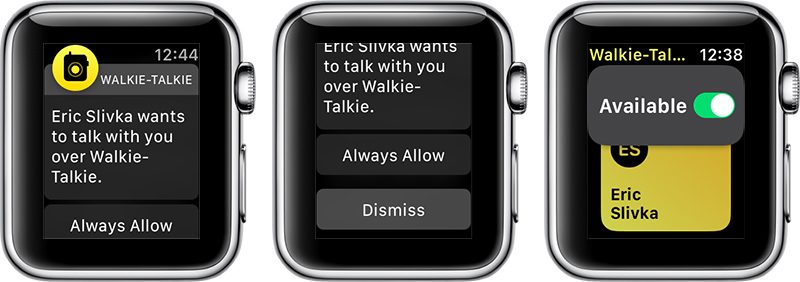
When you launch the Walkie-Talkie app after installing the second beta update, you’ll be able to scroll through your contacts and choose a person to connect to. The person on the receiving end of your Walkie-Talkie message will hear their Apple Watch beep and then they’ll see a screen that will allow them to approve a connection.
At the current time, it appears that you can only choose “always allow” when opting to enable a connection with a person.
Once a two-way connection is established, you simply press and hold down on the talk button to communicate, as does the person on the other end. Conversations, which we’ve been testing, are crisp and clear even over long distances.
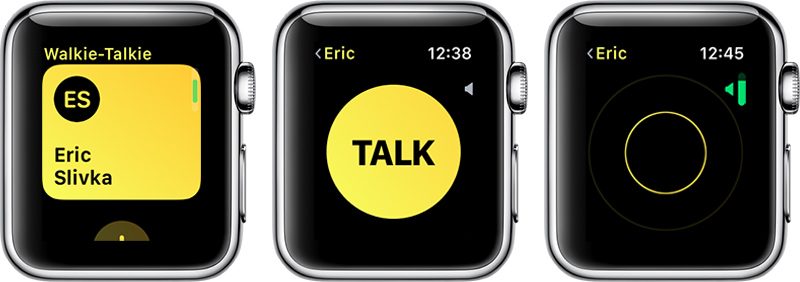
If your Apple Watch is on silent mode, Walkie-Talkie ignores it, so you’re still going to hear Walkie-Talkie beeps and incoming conversations. The same is true for Do Not Disturb Mode and Theater Mode, but there is a Walkie-Talkie volume toggle accessible by turning the Digital Crown. With a push-to-talk connection turned on, you and the person you’re connected to can chat at any time, with no additional approval options available.
You can have multiple Walkie-Talkie conversations going at once, with each conversation listed in the app.
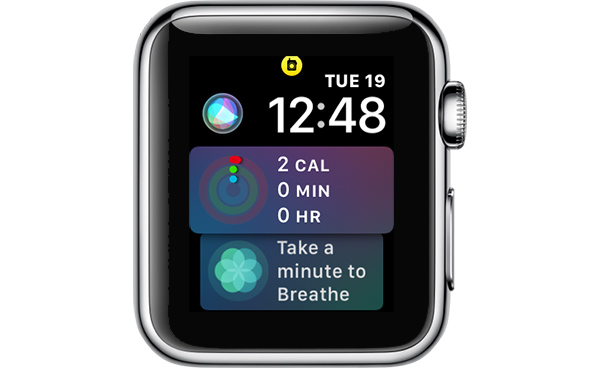
While a Walkie-Talkie conversation is enabled with another person, both of you will see a yellow Walkie-Talkie icon at the top of the Apple Watch.
If you want to mute a Walkie-Talkie conversation so you can no longer be contacted, you can scroll up on the Walkie-Talkie app interface and toggle off the “Available” icon. When unavailable, if someone tries to speak to you, they’ll see a message that you are unavailable, and you’ll receive a notification.
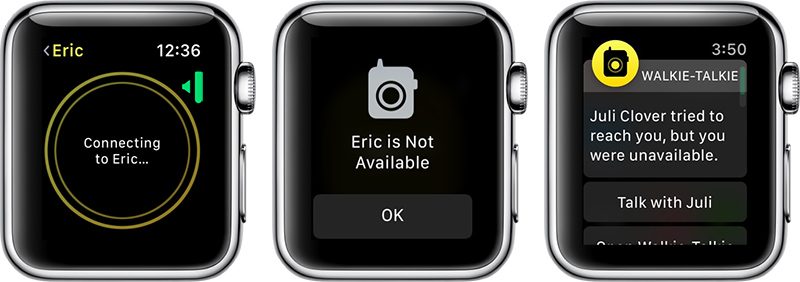
If you want to resume your conversations with people, you can turn the toggle back to “Available” and everything will work as normal. Both people in the conversation need to have themselves set to “Available” in the Walkie-Talkie app for it to be fully functional.
Walkie-Talkie and the other watchOS 5 features will be limited to developers until watchOS 5 is released in the fall, as Apple does not provide betas of watchOS to the public.
Related Roundups: Apple Watch, watchOS 4, watchOS 5Buyer’s Guide: Apple Watch (Neutral)
Discuss this article in our forums
What’s New in iOS 12 Beta 2: Screen Time Updates, Battery Usage Tweaks and More
Apple this morning released the second beta of iOS 12 to developers, and as expected, there are tweaks and changes to many of the new features introduced in iOS 12.
Changes to Screen Time include new options to sort by device and view additional details on a per app basis, while tweaks made to Battery Usage make it easier to see which apps are eating up battery. There are several other smaller changes in iOS 12 beta 2, which we’ve listed below.
– Battery Usage – The charts for activity and battery level for the last 24 hours have been redesigned in iOS 12 beta 2, and some of the wording has been updated in this section.
– Screen Time – Apple has removed a toggle for clearing Screen Time data, and the interface for adding time limits to apps from the main Screen Time screen has been tweaked. In the first beta, when you tapped an app it went right into the limits interface, but now tapping on an app displays more info on the app, including daily average use, developer, category, and more, and lets you tap to set a limit. There’s also a new splash screen when opening Screen Time for the first time.

– Screen Time By Device – There’s now an option to view activity on a single device or all devices.

– Notifications – There’s a new toggle in the Notifications section of the Settings app that allows you to toggle off Siri Suggestions for individual apps. In iOS 12, Siri makes suggestions about limiting the notifications you receive from apps that aren’t often used.
– Password AutoFill – There’s a new interface for autofilling a password saved in iCloud Keychain.

– Voice Memos – There’s a new introductory splash screen for Voice Memos in iOS 12 beta 2.
– Face ID – When unlocking content using Face ID, the iPhone X now says “Scanning with Face ID.”
– Photos – The text size for the “Media Types” and “Albums” listings in the Photos app is now much bigger, making it easier to read.
– Photos Search – In iOS 12 beta 2, Photos appears to support more advanced searches. For example, if you search for a specific date like July 10, it will show all photos from all years taken on July 10. This is different than the behavior in iOS 12 beta 1.
– iPhone apps on iPad – When you open iPhone apps on the iPad, like Instagram, they’re now displayed in a modern device size (iPhone 6) in both 1x and 2x mode.

There are also multiple known issues in the second developer beta of iOS 12, with full details available from Apple’s developer site. We’ve listed a handful of the more prominent problems users might run into:
- The Weather widget is not functional.
- Universal Links might not open the expected target app.
- Netflix might unexpectedly quit when downloading a video.
- Twitter might display a blank login screen.
- Playback might not pause when one AirPod is removed from your ears.
- CarPlay might not connect to certain vehicles.
- Group FaceTime calls can’t be initiated between iOS 12 beta 2 and iOS 12 beta 1. FaceTime calls may also be interrupted by a poor connection message, and FaceTime might unexpectedly quit.
- Screen Time must be re-enabled after installing iOS 12 beta 2, and all Screen Time settings are reset after updating.
- Voice Memos might not sync between devices even when iCloud syncing is enabled.
iOS 12 is limited to developers at the current time, but Apple has promised a public beta for its public beta testing group before the end of June, so we could be seeing a public beta as soon as later this week.
Related Roundup: iOS 12
Discuss this article in our forums
Google’s A.I. tools can predict death risks more accurately than hospitals
Google is beating hospitals at their own game — at least when it comes to death risk assessment. Google’s Medical Brain team has begun training its artificial intelligence system to evaluate the risk of death among hospital patients, and results for the time being are more accurate than those provided by existing medical tools.
Google first detailed its new system in a paper published in the Journal Nature in May. At the time, company researchers noted, “These models outperformed traditional, clinically used predictive models in all cases. We believe that this approach can be used to create accurate and scaleable predictions for a variety of clinical scenarios.”
The results, of course, are rather morbid. Alas, Google’s algorithms aren’t looking for ways to save people — just how likely they are to beat the odds. In one major case study, Google used its A.I. to evaluate a patient with breast cancer. In the 24 hours after she was admitted to the hospital, Google’s system gave her a 19.9-percent chance of dying in the hospital, significantly higher than the 9.3 percent chance the hospital’s Early Warning Score submitted. Unfortunately, less than two weeks later, the patient passed away.
So how did Google do it? The A.I. examined the 175,639 data points found in the patient’s electronic medical records, which included interpreting and evaluating handwritten notes. As Google says, the inclusion of all this information is what differentiates this A.I. from previous approaches.
“In general, prior work has focused on a subset of features available in the EHR, rather than on all data available in an EHR, which includes clinical free-text notes, as well as large amounts of structured and semi-structured data,” Google’s paper reads.
In total, Google has analyzed 216,221 hospitalizations and 114,003 patients, which comes to more than 46 billion data points from all EHRs. And its results are particularly promising for healthcare professionals. Google’s ability to efficiently and accurately parse through stacks and stacks of data could be a real boon to hospitals, ultimately resulting in improved patient care.
Moving forward, Google wants to work on A.I. tools that can predict not only death risk, but also symptoms and diseases. The tech giant is no stranger to working in the healthcare industry, especially as related to prediction. Earlier in 2018, DeepMind worked with the Department of Veterans Affairs, examining its 700,000 medical records and predicting potentially fatal changes in patients’ conditions. And Google also wants to provide doctors with a voice recognition system that would cut down on the time-intensive practice of writing notes.
Editors’ Recommendations
- The tech behind cryptocurrency could save lives by fixing medical records
- Doctors can steer this robot through your guts with an Xbox-style controller
- Fitbit to use Google Cloud to share medical data with doctors
- Google done weaponizing A.I., will still work with military and governments
- Ditch all romaine lettuce and check your eggs — a bad month for food recalls
Wait, what? These ridiculous hacks will make you do a double-take
Hacking is serious business these days: There’s always another attack that might have stolen your online information, another device that may be spying on you, or another vulnerability that you have to watch out for until it gets patched. That’s no fun.
That makes it easy to forget the first hacks were jokes and pranks, invented by coders looking to push a computer to its limit. While most of the world has forgotten that, some still hack with a more lighthearted approach. Here’s what happens when digital attacks get silly.
The “Godzilla ATTACK!” road warning
Sometimes the simplest hacks are the best. Take this 2014 hack of traffic warning signs—which are programmed with basic warnings about serious traffic issues or repair ahead. This hack replaced the warning on a San Francisco sign with, “Godzilla Attack! Turn Back!”
Interestingly, this coincided with other traffic sign attacks on the other side of the country, so we’re guessing someone was passing along an easy way to break traffic software security. State and federal agencies heaved heavy sighs, and put the signs on a long, long list of, “Things way overdue for security upgrades.” But we’re giving this prank extra points, because it was relatively harmless and probably made the drive home more enjoyable. It also spawned a series of amusing copy-cat road sign hacks.
Wait, what? These ridiculous hacks will make you do a double-take
Hacking is serious business these days: There’s always another attack that might have stolen your online information, another device that may be spying on you, or another vulnerability that you have to watch out for until it gets patched. That’s no fun.
That makes it easy to forget the first hacks were jokes and pranks, invented by coders looking to push a computer to its limit. While most of the world has forgotten that, some still hack with a more lighthearted approach. Here’s what happens when digital attacks get silly.
The “Godzilla ATTACK!” road warning
Sometimes the simplest hacks are the best. Take this 2014 hack of traffic warning signs—which are programmed with basic warnings about serious traffic issues or repair ahead. This hack replaced the warning on a San Francisco sign with, “Godzilla Attack! Turn Back!”
Interestingly, this coincided with other traffic sign attacks on the other side of the country, so we’re guessing someone was passing along an easy way to break traffic software security. State and federal agencies heaved heavy sighs, and put the signs on a long, long list of, “Things way overdue for security upgrades.” But we’re giving this prank extra points, because it was relatively harmless and probably made the drive home more enjoyable. It also spawned a series of amusing copy-cat road sign hacks.
Adobe Spark Post is finally available on Android
You can download the open beta right now.
Adobe Spark Post (a graphic design suite) has been making headlines with its iOS app for some time, and after building up a following there, fans have been demanding that Adobe make an Android version of it. After months and months of patiently waiting, that day has finally come.

You can download Adobe Spark Post for Android right now, and while not every single feature from its iOS counterpart is here, Adobe plans on changing that soon. Spark Post is releasing as an open beta initially, but it’ll only stay that way as Adobe puts the finishing touches here and there.
In its current form, the Spark Post Android app gives you access to all of the filters, fonts, colors, shapes, and templates you’d find in the iOS version. The UI has been updated to adhere to Material Design guidelines, and features such as Magic Text, auto-resize, and more are all here.


In the near future, Adobe says it plans on adding animations, an icon library, integration with Adobe Stock, and plenty of other goodies.
If there are certain features you’d like to see added before others, you can send Adobe your feedback and help pave the future for Spark Post’s Android presence.
Download: Adobe Spark Post (free)
Google Podcasts: Everything you need to know!
An AI-powered app that syncs with your Google Home.

Google has been slowly dipping its toes into the warming podcast waters of the past few years, first bringing native support to Google Play Music and then, more recently, launching playback, curation, and downloads within the Google Feed.
Now, Google is launching a dedicated app for podcasts, and here’s what you need to know!
The latest Google Podcasts news
June 19, 2018 — Google Podcasts launches on Android

Google is taking the wraps off its long-awaited Podcasts app, which is now available. The app, which is detailed below, syncs between Google Home devices and phones using Google Assistant.
What is Google Podcasts?


It’s an app that’s very similar to the functionality you’ll find when searching for podcasts on the mobile web right now. That means Google not only finds the podcast you were searching for, but using what it calls “AI-powered features,” it curates personalized recommendations of other shows that you’ll like, too.
Where is it available?
Google says it’s available in 47 Play Store languages. It should be available in your country, but if it isn’t let us know in the comments below!
How many podcasts are there in Google Podcasts?
Around two million, according to Google, and that number should expand very quickly.
What’s the interaction with Google Assistant and Google Home?

Glad you asked! For the first time, Google Podcasts will allow synchronization between a Google Home and your phone, since Assistant is the link between them. That means that if you’re listening to a show on a Home and need to leave, you can continue listening on the phone.
Right now, the synchronization only appears to be one-directional. I can ask my Google Home to “resume playing ‘This American Life’” and it picks up where my phone left off, but the progress doesn’t appear to be synching back to my phone.
What other features does Google Podcasts have?


Not a whole lot. Once you start playing a podcast, you can tap to go back 10 seconds or forward 30 seconds. you can speed up or slow down playback between 0.5x and 2x. You can play and download podcasts for listening later on, and you can mark a podcast as played.
In the settings, you can decide when podcasts will be removed from your device, either after they’re played or after they’ve been inevitably neglected.
Is there much of a difference between Google Podcasts in search and Google Podcasts the app?
Not really, but the latter is a bit more robust. Right now, podcasts in search is a bit hidden because it’s only accessible when you search for a particular podcast and somehow, often accidentally, navigate to the main portal. It’s not a great experience.
On the other hand, Google Podcasts is a native app that feels very much at home on a modern Android phone. It’s designed with Material Theme, which helps it fit in with recent Google releases like Tasks, and there are more personalization elements.
How does Google Podcasts compare to popular Android apps like Pocket Casts and Stitcher?
It’s a bit more bare bones, as most Google products are when they first launch, but the goal with Google Podcasts is to provide a unified experience between the phone and Google Assistant-based products like speakers.
Where can I download it?
Right here!
Download Google Podcasts (free)
Become a Salesforce wizard with this $39 certification bundle
Salesforce is a huge asset for many companies looking to become more efficient, and they are willing to pay experts big bucks to help them out. Wouldn’t it be nice to learn the skills you need now so that when the next big opportunity presents itself you could be in the running? Sounds expensive and time-consuming, right? Well, it doesn’t have to be.
Meet the Salesforce Administrator Certification training bundle, a great way for you to learn these new skills and move towards getting certified.

With this bundle you’ll get:
- Access 30 hours of content 24/7
- Configure & manage Sales & Service Cloud
- Gain insight into each of the functional Salesforce user groups
- Implement automation, security, debugging, data validation, & customize apps
- Deploy applications & manage changes on the Force.com platform
- Develop new applications using Salesforce Platform App Builder
- Configure a Salesforce user interface
Normally, this would all set you back over $1000, but right now you can pay a fraction of that. For just $39 you can learn these new skills, and gain a new certification. This price won’t last long, so be sure to grab it while you can now!
See at Android Central Digital Offers
Android Central and Mobile Nations, Inc. are not affiliated with or sponsored or endorsed by salesforce.com, inc.
Evie Launcher’s update positions it as a perfect replacement to Google Now Launcher

Evie Launcher has finally given its users its most-requested feature.
One of the best launchers on the market has seen a surge of new users in the wake of Google Now Launcher’s death — almost a million new users in just the last month — and it’s not hard to see why. Evie Launcher is quick as a whip, offers just enough customization without overwhelming inexperienced Android users, and is 100% free. The launcher has been quiet for much of 2018, but the wait for a new update has been answered with Evie’s biggest update in 18 months, an update that answers some of its users’ biggest requests.
Gestures are 200% better, with room to grow
Evie Launcher has long had a few basic but beautifully effective gesture options — including swipe up to open the app drawer and double-tap to sleep. Other gestures were less effective; swiping down on the home screen didn’t open the notification shade it instead opened Evie Search. Now, we can finally set what each of Evie Launcher’s eight gestures to one of six Evie shortcuts available.


This has been the most-requested feature for Evie Launcher for a while, and it’s wonderful to finally see it come. The only catch with Evie’s gestures over those of Nova Launcher or Action Launcher is that Evie is missing one of the most popular gesture shortcuts on Android: the ability to launch an Android app or shortcut from a gesture — for example I use the two-finger swipe gestures on most launchers to connect and disconnect from the Bluetooth speaker in my bedroom.
Even without the ability to set apps as gesture actions, Evie Launcher’s new gesture system is worlds better now that user can pick what each gesture does.
You can finally ditch Evie Search and its persistent search bar
Being able to switch the swipe down gesture from Evie Search to Expand Notifications — or any of the other gesture options — is a great start, but Evie Launcher is letting us ditch Evie Search entirely. That’s right, my friends, you can kiss that persistent search bar goodbye and toggle it off in Evie’s Homescreen settings section.


For an added bonus, if you want search in your Evie Launcher setup that ties into Google Assistant, set one of your desired gestures to Voice Search. This will trigger a Google Assistant voice search window. Please note that this is a voice search only; you cannot switch to keyboard input as you could if you triggered Google Assistant via long-press of the home button or “OK Google” hotword detection.
Stay informed with Evie Feed
As more and more people move to Evie Launcher from Google Now Launcher, its developers have chosen to add a Google Now-style news feed to the left-most panel of the home screen. It’s called Evie Feed, and while it’s not quite the Google feed that other launchers have added over the last year, it also doesn’t require a non-Play Store plugin to work.
Evie Feed allows you to personalize its feed based on publications and topics you like. For instance, you can follow The New York Times — or you could follow Android Central — and you can follow Entertainment and Technology news, and Evie Feed will tweak your feed to suit your tastes. If you use Evie Launcher on multiple devices, Evie Feed will not sync between devices right now, as Evie Launcher does not collect any personally identifiable information.

Still free, easy, and fast
Evie Launcher big update is rolling out to users today on Google Play, and with it is a reassurance that “Evie Launcher will remain 100% free, with our full set of features available to everyone.”
Whether you’ve been an Evie user for a while or are still looking for a launcher that’s simple without being limited, now is the perfect time to give Evie Launcher a fresh look. It lets you get things set up the way you want, and then gets out of the way to let you enjoy more of what you want on your Android phone.
Download Evie Launcher (free)
How to log your water intake on Fitbit Versa and Ionic
Third-party apps coming to the rescue!

As much as I love the Fitbit Versa and Ionic smartwatches, there’s one important feature that’s missing out of the box — a built-in way for tracking the water you drink throughout the day.
I hope we see Fitbit integrate this into the watches in the near future, but in the meantime, app developers have been quick to offer third-party solutions for keeping tabs on your water intake.
There are a number of apps you can choose from for doing this, but in my experience, Water Logged by Tyler Leonhardt has been the most reliable. As such, here’s a guide on how to install and customize the app so you can start logging your water right on your wrist!
Download Water Logged
First thing’s first, we need to actually install the Water Logged app. To do this:
Tap on the Ionic / Versa icon near the top right of the Fitbit app.
Tap Apps.
Tap All Apps.


Tap the search bar near the top right and search for “Water Logged.”
Tap on the app and then tap the red Install button.


Log in / customize the app
Now that Water Logged in installed, you’ll need to link it with your Fitbit account so it can sync your logged water to the Fitbit app.
From the Water Logged page, tap Settings.
Tap Fitbit Login at the top of the settings page and enter your Fitbit account info.
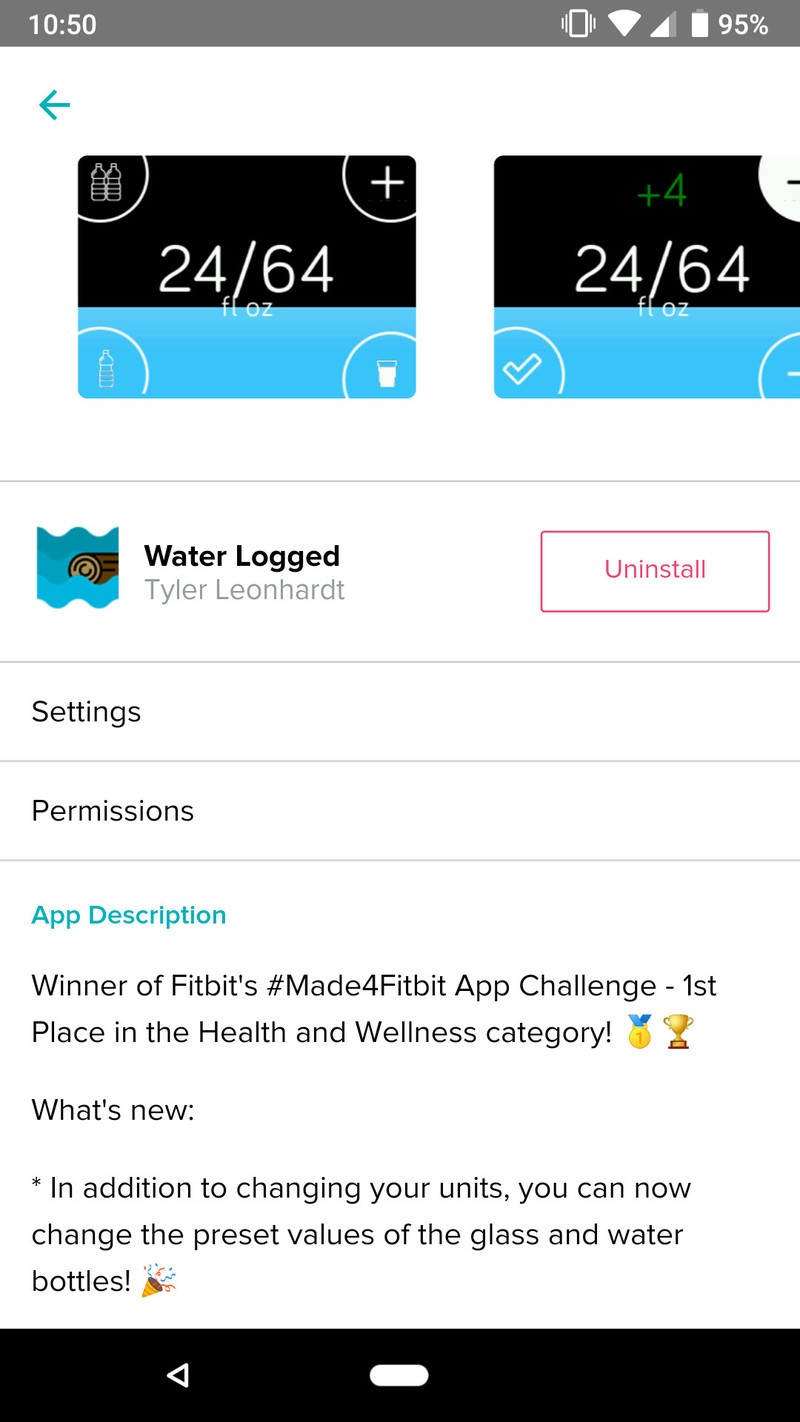

After logging in, you’ll see a few options under the Configuration tab. If you tap on Units, you can switch between fluid ounces and milliliters.


Glass, One Bottle, and Two Bottles will automatically log 8oz, 16oz, and 32oz, respectively, but you can change these amounts by tapping on them and entering a new number.
Using Water Logged
With Water Logged installed, it’s time to start using the app!


Upon opening it, you’ll see how much water you’ve drunk out of your daily goal. The icon in the upper-left corner will add Two Bottles, the one below it will add One Bottle, and the icon at the bottom right adds a Glass. If you tap the + icon, you can manually increase and decrease by one oz/ml. When you’re done, tap the checkmark icon at the bottom left and the amount you entered will be added.
After tapping any of the buttons in Water Logged, it’ll automatically sync with your Fitbit account so your info is updated in the app. Additionally, you can tap in the middle at any time to trigger a manual sync.
Start logging!
With all that said, you’re ready to start tracking your water intake right from your wrist! If you have any additional comments/questions, feel free to sound off in those comments below.
Best apps for Fitbit Versa and Ionic
Fitbit

- Fitbit Versa vs. Fitbit Ionic: Which should you buy?
- Fitbit Versa hands-on: Fitbit’s finally getting serious about smartwatches
- Fitbit Versa and fitness: Everything you need to know
- Best Fitbit fitness tracker
Fitbit Ionic
Fitbit Versa
Fitbit Charge 2 HR
 AIVAnet