


Sony’s Xperia XZ2 Premium has a crazy-high ISO for photos and video
Just a month and a half ago at Mobile World Congress, Sony teased it was working on a smartphone that could hit 51,200 ISO for photos, and 12,800 ISO for videos. The company claimed the latter would be the world’s highest ISO in a phone. Well, that phone is already here, and it’s called the Xperia XZ2 Premium.
The 5.8-inch XZ2 Premium is the successor to last year’s Xperia XZ Premium, and it currently sits as the flagship of Sony’s 2018 lineup, ahead of the Xperia XZ2 and XZ2 Compact releasing this week. The XZ2 looks exactly like the Xperia XZ2, except for the extra camera on the rear. It follows the company’s new redesign, which highlights curves and elegance over the sharp and angular look on the XZ Premium; oh, and there’s a fingerprint sensor on the back. Sadly, it looks as though the Premium has chunkier bezels on the front surrounding the screen. It’s protected by Gorilla Glass 5 on both sides of the phone, which allows for Qi wireless charging; and it’s IP65/IP68 water-resistant.
Game-changing camera?
But it’s the camera that sets this phone apart from the competition. ISO is a tool available on all cameras that let you brighten an image. It’s handy when you are in low-light situations, but the downside of using it is the increased noise or grain in the photo. The higher the ISO, the grainier the photo. Still, having a high ISO is a good option because it makes the camera more versatile. Sony’s claiming that its incredibly high ISO capabilities with video and photo on the XZ2 Premium will offer up “true professional camera quality.”
The increased ISO is possible thanks to the Motion Eye Dual Camera, along with Sony’s AUBE fusion image signal processor. This is Sony’s first smartphone with a dual-camera system on the rear (the Xperia XA2 Ultra has two cameras on the front). Like Huawei phones, the 12-megapixel camera has a f/1.6 aperture and shoots strictly in black and white, while the 19-megapixel f/1.8 camera shoots in color. The signal processor uses data from both camera sensors, and the end result is a system that offers incredibly high sensitivity for low-light environments. Don’t worry about hitting those high ISO numbers, because Sony said images will be “clean” and “noiseless.” Neither cameras have any kind of optical image stabilization.
Key Specs
CPU: Qualcomm Snapdragon 845
Memory: 6GB RAM
Screen Size: 5.8 inches
Resolution: 2,160 x 3,840 pixels
Dimensions: 158mm x 80mm x 6.4mm
Storage: 64GB
MicroSD Card Slot: Yes
Battery: 3,450mAh
Operating System: Android 8.0 Oreo
Sony said it used Strategy Analytics’ SpecTRAX Service to run through the published specifications of more than 11,800 smartphones. The XZ2 Premium emerged as the winner for the highest ISO in video, as of February 2018.
The camera system also offers a Portrait Mode, which adds a strong blurred background behind a subject, as well as a monochrome mode, when you want to shoot in black and white. Like the Xperia XZ2, you can capture video in 4K HDR, and shoot super slow motion video at 960 frames per second in 1080p. The latter slow-motion feature bests the Huawei P20 Pro and the Samsung Galaxy S9, which can only shoot 960fps in 720p. The front-facing camera has 13 megapixels.
Display and specs
The 4K screen (2,160 x 3,840) supports HDR content, bringing color accuracy on the screen closer to what the artist intended. The phone also utilizes Sony’s Dynamic Vibration System, which was first introduced in the Xperia XZ2. This means there’s a stronger vibration motor in the phone, and it’s tuned to offer feedback to various audio changes such as when there’s a gunshot in a film, or when you’re playing a game. There are front-facing speakers on the Premium, which Sony said is its loudest ever, for an even better immersive experience.
The Xperia XZ2 Premium is powered by the Qualcomm Snapdragon 845 processor and 6GB of RAM. That means it has slight more RAM than the XZ2, and its bigger size means a larger 3,450mAh battery to boot. It comes with 64GB of internal storage, with support for MicroSD cards.
The Premium will be available in the summer, in Chrome Black and Chrome Silver, and it will run Android 8.0 Oreo. It will officially be available for pre-order in China beginning July 2, and we anticipate seeing a U.S. release shortly after.
While pricing has yet to be announced for the U.S. the phone will sell for CNY 5,999 in China. We anticipate pricing in the U.S. to be around $950.
Updated June 14, 2018: Added Chinese pricing and U.S. estimate.
Editors’ Recommendations
- Everything you need to know about the Sony Xperia XZ2 and XZ2 Compact
- Sony Xperia XA2 Ultra review
- Sony crams 8x zoom in the RX100 VI, but it’s still pocketable
- Safeguard your Sony smartphone with the best Xperia XZ2 cases
- Sony Cyber-shot RX10 IV review
Samsung’s speedier Chromebook Plus V2 now comes with a second camera
Samsung’s Chromebook Plus was a hit with consumers when it launched last year, and this year, Samsung is giving it a refresh. Dubbed Chromebook Plus v2, the second-generation model gets a bump in processing power, adds a secondary camera, and comes with a more comfortable and durable keyboard that makes this unit a great option in the education segment when it goes on sale on June 24. The Samsung Chromebook Plus V2 retains the signature hallmarks of its predecessors, including a stylus with its own silo on the device, a premium build quality, and a convertible form factor that makes it a great machine to run Android apps.
This year, the Chromebook Plus V2 ditches the ARM processor from last year in favor of Intel’s Celeron 3965Y silicon, which should give it a boost in performance. Alongside the new Intel chip are 4GB of RAM and a 32GB drive for storage. The Celeron processor also comes with Intel’s HD Graphics 615 integrated. Connectivity is handled through the two USB-C ports, a single USB 3.0 port, a 3.5mm headphone jack, and a MicroSD card for up to 400GB of extra storage.
Another big upgrade for this year’s model is a secondary camera on the rear. The front camera clocks in at 1 megapixel, while the rear camera has a 13-megapixel F1.9 lens with autofocus. The second camera is located on the keyboard deck, allowing you to capture images when you rotate the hinge to transform the Chromebook Plus v2 into a tablet.
This year, Samsung has made big improvements to the keyboard to make it easier for typing and more durable. The keyboard now comes with curved key caps and is designed to be spill-resistant. Samsung claims it can withstand spills up to 60cc.
And even though the design remains the same — the Chromebook Plus V2 keeps its predecessor’s premium aluminum alloy build — the display is a notable downgrade from the first-generation model. This year’s v2 uses a 12.2-inch display with a standard 1080p resolution, while the original model came with a 12.3-inch panel with a higher 2,400 x 1,600-pixel resolution. That means that along with a lower resolution display, the panel’s aspect ratio has also changed from a 3:2 to 16:10 this year. While 1080p will likely suit most users fine, many productivity enthusiasts still prefer the 3:2 aspect ratio popularized by Microsoft on its Surface lineup.
Samsung is also promoting some of the software features that make its Chromebooks stand out against the competition. “The Samsung Chromebook Plus (V2) offers even more functionality to users with multiple connected devices, including easy file sharing between Chromebook and mobile devices,” Samsung said in a press release.
The Chromebook Plus V2 will be priced at $499 when it launches later this month at Best Buy. Be sure to check out our guide to the best Chromebooks if you’re in the market for a new Chrome OS device.
Editors’ Recommendations
- Acer Chromebook Spin 11 review
- The best Chromebooks
- The slick HP Chromebook x2 just landed at Best Buy
- HTC U12 Plus vs. HTC U11: Is it time to upgrade?
- Dell, HP may be building premium Chromebooks to compete with Google Pixelbook
Want to get into the ‘Fallout 76’ beta? Here’s how you do it
Bethesda’s Fallout 76 is scheduled to arrive on November 14, but eager gamers don’t want to wait that long, right? That is where the break-it-early-test-application (BETA) program comes into play. The company is looking for willing gamers to evaluate its new Vault and venture out into the hills of West Virginia to test their skills and uncover any buggy secrets. Unfortunately, there’s currently only one way to enroll in this program.
According to Bethesda, the only way to get into the BETA program is to pre-order Fallout 76. It will be accessible on the Xbox One, PlayStation 4, and PC, but currently, there is no set date for when the program will go live. Bethesda also states that you must be 18 years or older to participate in the program, and you will need an internet connection, and a subscription to Xbox Live or PlayStation Plus on the consoles.
So how does BETA entry work? If you purchase the game on the Xbox One Store, PlayStation Store, or Bethesda.net eShop account, you will have instant access to the program once it goes live: No codes are necessary. If you purchase the game at a retailer such as Best Buy, GameStop, or Walmart, you’ll need to visit account.bethesda.net/en/settings/redeem-code to manually enter a redemption code provided on your receipt, as a separate slip, or within an email. If you don’t have a Bethesda account, now is a good time to create one before the game’s launch.
“Please note that this information is subject to change without notice,” Bethesda states. “Vault-Tec is not liable for any damages, injuries, or mental anguish inflicted during or after the BETA. Always consult your Vault Overseer for guidance on appropriate BETA usage.”
If you missed this E3 2018 gaming convention reveal, the next installment in the Fallout franchise takes an interesting turn: Multiplayer. The story precedes all other Fallout games as you’re one of the first individuals to step out of the Vaults after the nuclear holocaust. The setting is West Virginia, a world that’s four times larger than what you can explore in Fallout 4.
Even though Bethesda acknowledges that it has a few bugs in its games, the BETA program likely isn’t solely about squashing pesky problems. Every character you meet in Fallout 76 is a real player, thus the BETA testing is likely about tweaking the game’s persistent world experience and the underlying servers as real-world humans emerge from their Vaults.
In addition to multiplayer support, Fallout 76 also expands on the base-building aspect of Fallout 4. Instead of knocking down houses and building your unique structures in a locked location, you can build an entire base anywhere you want. Even more, you can pack up that base and relocate it anywhere you choose. Just be careful: Other players may come in and completely annihilate your creation.
Here are the prices and bundled goodies for each edition. Remember, all three provide access to the BETA program.
- $60 = Standard Edition
- $80 = Tricentennial Edition — includes in-game items
- $200 = Power Armor Edition — includes physical and in-game items.
Editors’ Recommendations
- ‘Fallout 76’ is an online-only ‘soft-core’ survival game arriving this November
- Bethesda E3 2018 press conference confirms ‘Starfield’ and ‘The Elder Scrolls VI’
- You’ll soon be able to arm yourself with replica ‘Fallout 76’ gear
- Bethesda teases ‘Fallout 76,’ but mystery still surrounds upcoming game
- DT Daily: What’s ‘Next’ for No Man’s Sky’s big universe?
Android P vs. iOS 12 notifications: How have Google and Apple changed notifications?
Apple and Google are in the midst of beta programs for the next version of their mobile operating systems, and both the iOS 12 beta and Android P beta bring a few changes to how notifications are handled. They’re now more similar than ever, so we decided to put them side by side to compare.
Android P notifications
Google has slowly but surely been giving users a little more control directly from notifications, and that’s truer than ever in Android P. Perhaps the biggest change is the ability to easily block a notification from ever showing up again. Just press and hold down on a notification, and press Stop notifications to block all notifications from the app. For even more granular control, you can tap the i button on the top right, tap Notifications, and you’ll see separate categories of notifications you can block, in case you don’t want to completely block everything from the app.
Another handy new feature in Android P is Smart Reply within notifications. For now, it’s only available in select apps, but it lets you easily reply to messages with basic phrases (that get better over time) without having to type anything. You can still use the Quick Reply feature to respond inline without opening the app, and there are other options depending on the app, such as Mark as Read and Delete.
Google has bundled notifications from the same app for a long time now, which helps things look streamlined and uncluttered. Pulling down on bundled Gmail notifications, for example, will show you each email separately, and you can then interact with each one. Ever since Android Oreo, it has also been possible to snooze notifications to reappear at a later time just by sliding a notification slightly to the left or right, and tapping on the clock icon.
In Android P, Do Not Disturb has also been revamped as a part of Google’s Digital Wellbeing tools to help people manage screen time better. Turning on the mode will block all notifications from appearing in your notification drawer (they still come through, you just get zero visual interruptions). There’s a good degree of customization here, so you can control what exactly happens with Do Not Disturb, and when it should automatically kick in.
If you often swipe notifications away frequently for a particular app, Android will now also suggest blocking notifications completely. It’s a way to help prevent you from constantly swiping things away if you never interact with the particular notification.
iOS 12 notifications
Apple has made some pretty major changes to notifications in iOS 12. Most importantly, notifications will finally be grouped by app, just like in Android. What that means is that if you get 30 Twitter notifications a day, they won’t all appear as separate notifications. Instead, they will look bundled together so it doesn’t take up a lot of space in your Notification Center. Just tap on the bundle to see them expand so you can look at each notification individually.
For each app, you can can set whether you want to see notifications on the Lock Screen, Notification Center, or as Banners when you’re using your phone — something that you could do before — but it’s all explained in a simpler manner in iOS 12.
You now also don’t need to go to the Settings app to tweak how notifications appear. If you swipe left on a notification, there’s now a Manage button next to View and Clear. Tap Manage and you can tell the app’s notifications to “deliver quietly.” This hides the notification from your lock screen, and delivers it straight to Notification Center when you unlock your phone. It also turns off sound and vibration. There’s also a “Turn Off” button, which disables the app’s notifications altogether.
Notifications have also been tweaked a little in Do Not Disturb mode. Apple has included a new version of Do Not Disturb called Bedtime Mode, which is aimed at ensuring you’re truly not disturbed even if you check the time on your iPhone during the night. Bedtime Mode sends notifications straight to the Notification Center, so they won’t show up on the Lock Screen, potentially preventing you from being able to get back to sleep. You can also set Do Not Disturb mode to turn on or off based on time or location. Last but not least, Do Not Disturb can pull from Calendar events and can turn on when it detects you’re in a meeting.
Similarly to Android P notifications, if you swipe a lot of notifications away and never interact with them, Siri will suggest blocking all notifications from the app.
Conclusions
The main takeaway here is that Apple is giving users a whole lot more control over their notifications, but it’s still not as granular as Android, especially when it comes to showing or blocking specific notifications from individual apps. Android also allows users to do more from notifications without ever having to jump into an app. It’s possible on iOS, but only on devices with 3D Touch. That said, Apple seems to be doing better at helping people decide where they can see notifications. On Android, you can’t separate the notifications you see on the Lock Screen or in the notifications drawer.
These are all excellent changes for consumers, and we’re glad Apple and Google are trying to make it easier to manage the onslaught of notifications that we encounter on a daily basis.
Editors’ Recommendations
- iPhone notifications are no longer a nuisance with iOS 12
- How to turn off notifications in Windows 10
- How to disable push notifications in your browser
- Chrome OS notification center redesign borrows from Windows 10 Action Center
- Apple’s iPad Smart Cover could one day have a display that shows notifications
Best Portable Pico Projectors in 2018

Make your next family movie night unforgettable with a portable pico projector!
If you’re unfamiliar with the term, pico projectors are essentially handheld projectors that are compact, portable, and affordable. They exist to fill the niche for those who want the ability to project content directly from their phone or tablet to make it easier to share photos or watch movies with friends.
These days, pico projectors come in all shapes and sizes, with some even available as modular attachments for your smartphone. It should be noted that the dream of having a pocket-sized projector that’s capable of powering a backyard movie screening is not quite a reality just yet. Instead, these projectors are ideal for mimicking a big-screen experience indoors without the need for a full-sized HD projector.
There’s a ton of variety out there, but we’ve outlined some of the best available in 2018.
- AAXA Technologies P300 Pico Projector
- Anker Nebula Capsule
- ASUS S1 LED Pocket Projector
- LG PH150G LED Projector
- Moto Insta-Share Projector Moto Mod
AAXA Technologies P300 Pico Projector

If you go looking for a pico projector, you’re going to find a ton of options from AAXA Technologies. They’re one of the bigger brands in the space and have a ton of different pico projectors at every price point.
We’ve highlighted the P300 because it’s not too expensive and features native 1280×800 HD resolution with Texas Instruments DLP technology and a 500 LED Lumen optical engine. In terms of connectivity, you get HDMI, mini VGA, Micro SD and USB readers — if you’re looking for something with Bluetooth for connecting with your phone, your best bet from AAXA is the pint-sized P2-A projector, although it’s not nearly as bright or capable as the P300.
This palm-sized projector is capable of projecting images up to 120-inches in low-light conditions, includes a remote and tripod for easy setup, and also has an onboard media player allowing you to plug in your media and go. It was the top pick on Wirecutter, too.
You can find it for just $360 on Amazon.
See at Amazon
Anker Nebula Capsule

And now for something completely different — the Anker Nebula Capsule is a fresh and cool take on what a modern portable projector could be from a company with a great reputation for making reliably awesome products.
The Nebula is just the size of a soda can but packs in some great features including a capable projector, 360-degree speaker, and Android 7.1 operating system that lets you run streaming apps such as Netflix, Hulu, Youtube, Plex, and more so you can take all your favorite content on the go — as long as there’s Wi-Fi available.
The built-in battery allows for up to 4-hours of video playback with a screen size of up to 100-inches under ideal conditions — and you’re able to use it while plugged in, too. Use the Capsule Control app to control things from your phone. You’re also able to screen share from your phone to play games or cast content from your phone, but copyrighted content from streaming services can’t be screen shared — hence the built-in apps!
Snag this ultra-portable and one-of-a-kind pico projectors for just $370 on Amazon.
See at Amazon
ASUS S1 LED Pocket Projector

This pocket projector from ASUS is small and mighty, and with a 6000mAh rechargeable battery, it also doubles as a power bank to keep your mobile devices charged. It uses advanced DLP technology that’s capable of a short-throw projection that creates a 41-inch screen from just one meter away.
There’s an HDMI/MHL port in the back that lets you plug in your favorite device including support for Samsung or Apple devices. To connect a Samsung phone to this projector, you’ll need a USB-C to HDMI adapter which goes for $32 on Amazon. There’s also a built-in speaker and a headphone jack, and you can expect up to three hours of playback on a fully charged battery.
Get this compact and convenient pico projector for just $307 on Amazon.
See at Amazon
LG PH150G LED Projector

Next up is this stylish projector from LG, which features a ton of wireless connectivity that might make it more suitable for your lifestyle.
First off, you’re able to project up to 100 inches to replicate a movie theater experience in your home, and the LED lamp will last up to an estimated 30,000 hours, which means you won’t have to replace this projector — even if you used it for 8 hours a day for 10 years straight! There’s a built-in wireless mirroring function that works with Android smartphones and tablets, along with a USB port for plugging in files directly. Best of all is the Bluetooth support for audio output, meaning you can pair up a portable Bluetooth speaker or something a bit more capable and really enhance your home theater set up.
This projector is a great, stylish, and functional option that’s available for just $330 on Amazon.
See at Amazon
Moto Insta-Share Projector Moto Mod

This is Android Central, so we’d be remiss if we didn’t include the most portable projector on the market — the Moto Insta-Share Projector that’s available as a Moto Mod for the Moto Z line of phones.
For Motorola fans, the Moto Insta-Share Projector is one of the coolest Moto Mods available, connecting directly to your phone and letting you project videos, photos, and more right onto your wall — up to a 70-inch display. Moto Mods snap onto the back of a Moto Z, Moto Z2 Play, Moto Z2 Force, or Moto Z3 Play and add extra functionality to your phone. In this case, you’re able to convert your smartphone into a home theater setup, which is pretty amazing!
The Moto Insta-Share Projector is down to only $150 on Amazon, although you’ll obviously need the right phone to use it.
See at Amazon
What would you use a pico projector for?
These things are super functional, whether you’d use it in a professional setting to show off presentations or spreadsheets or strictly use them for entertainment purposes. Have you had any experience using a pico projector? Got a recommendation that didn’t make our list? Let us know in the comments below!
Samsung Chromebook Plus V2 announced, coming to Best Buy on June 24
Samsung’s latest Chromebook will set you back $499.99.
The Samsung Chromebook Plus was one of the better grown-up Chromebooks of last year, and to follow up its success, we now have the Samsung Chromebook Plus (V2).

The V2 looks mostly the same compared to the 2017 Chromebook Plus, but there are a few important changes inside and out that should make it a much better experience for everyone — one of the most notable being the silicon that powers everything.
Samsung’s ditching ARM processors and switching to the much more capable Intel Celeron 3965Y. From running Android apps, having multiple tabs open in Chrome, and more, this will allow the V2 to be considerably faster with just about every task. That Celeron processor is also paired with 4GB RAM, Intel HD Graphics 615, 32GB of expandable storage (up to 400GB via microSD), and a 39Wh battery.

As much as we love seeing the upgraded internals, the Chromebook Plus V2’s screen is actually a downgrade compared to its predecessor. The 16:10 1920 x 1080 panel should be fine, but it’s quite a bit different from the 3:2 2400 x 1600 screen on last year’s model.
In regards to ports, we’re looking at two USB-C ports, a 3.5mm headphone jack, microSD card reader, and one full-sized USB-A 3.0 port. There’s also a 1MP front-facing camera for video calls and a 13MP camera next to the keyboard that can act as a rear-camera when using the Chromebook Plus V2 in tablet mode.
If you’re interested, Samsung says the Chromebook Plus V2 will go on sale at Best Buy both online and in-stores on June 24 for $499.99.
Acer Chromebook 11 vs. Samsung Chromebook Plus: Which should you buy?
Chromebooks
- The best Chromebooks
- Chromebooks in education: Everything you need to know
- Should you buy a Chromebook?
- Chromebook Buyers Guide
- Google Pixelbook review
- Join our Chromebook forums
ViewSonic’s 4K projector is $300 off today, dropping the price to just $1,000
Watch on any surface.
Amazon has the ViewSonic 4K 3500 Lumen projector on sale for $999.99 today, a savings of $300 from its regular price. Other retailers, like Best Buy still have it listed for $1,300, and it’s nearly $1,400 at Office Depot right now. It used to sell for around $1,600 and has never had a direct price drop below the $1,300 mark until now.

With a 3840 x 2160 resolution, this 4K projector can broadcast on a screen up to 300 inches at 3500 lumens, which is quite impressive. It offers HDR support, has two HDMI ports, audio inputs, a PC input, mini USB and a full-size USB port. The lamp is rated at up to 15,000 hours, which is almost 14 years of usage at three hours per day.
Of course, you’ll need a display to watch this on. If you have newly-finished walls, you could always opt for some ultra white projector screen paint and paint the whole wall, or just a section and frame it in with a custom wood border. Or, you can grab a regular projector screen to hang on the wall.
Either way, this discount is only good for today, June 14, so don’t miss out.
See on Amazon
Chromecast vs. Chromecast Ultra: Which should you buy?
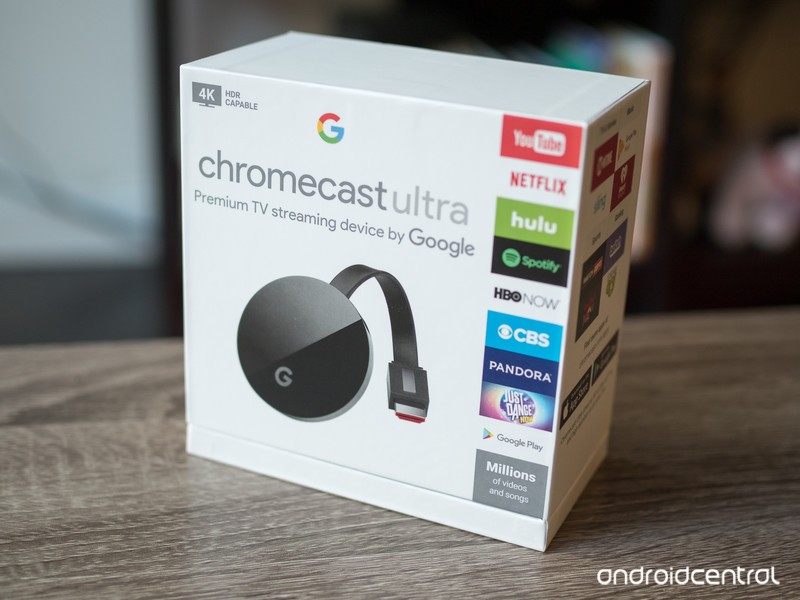
If you’re looking to buy a Chromecast, here’s what you need to know.
Google unveiled the new Chromecast Ultra at its October 2016 event in San Francisco, and while it doubles the price of the original Chromecast at $69, it packs quite a punch when it comes to its capabilities. It’s still the small, easy to use, and affordable media streamer that people love, but designed for folks who want all the high-end features when they stream their media.
That means it might be one of those products that offer things you won’t need or can’t use, and the “regular” Chromecast may be a better fit. Here’s everything you need to know to pick the right Chromecast for you.
What exactly is a Chromecast?

A Chromecast is a small device that plugs into an open HDMI port on your TV, A/V receiver, or any other display that can playback video and audio. There is a Chromecast that’s built for audio only, too, if that’s what you’re looking for, and it makes building a great whole-house audio system easy.
Once in place, you use an app for your phone (Android and iOS only) or through Google Chrome to set it up, give it a name, and get it ready to receive a movie or TV show or anything else you want to see on a bigger screen. To send the media there, you first open it on your phone or in Google Chrome and “cast” it to the Chromecast receiver. Your stream will start playing on your TV and you’re free to do other things on your phone or in Chrome while it plays.
The features and price make a Chromecast the best way to stream your media.
A Chromecast can stream local content like pictures or video you took yourself, but when you’re streaming from an online source like Netflix, it doesn’t go through your phone. Instead, it makes a connection with the source and streams directly, saving battery and not using your phone’s network bandwidth. You can still use your phone or Chrome to control the stream and do things like pause playback or change volume, but the actual transmission from Netflix (in our example) goes to the Chromecast. Think of your phone as the remote.
There are hundreds of apps in Google Play or the App Store that are Chromecast-enabled, and we see more and more every day. The Chromecast is simple to set up and use, is very inexpensive, and does a great job, This is why it’s one of Google’s best-selling products, and why we think it’s the best way to stream the media you enjoy watching.
The ‘regular’ Chromecast
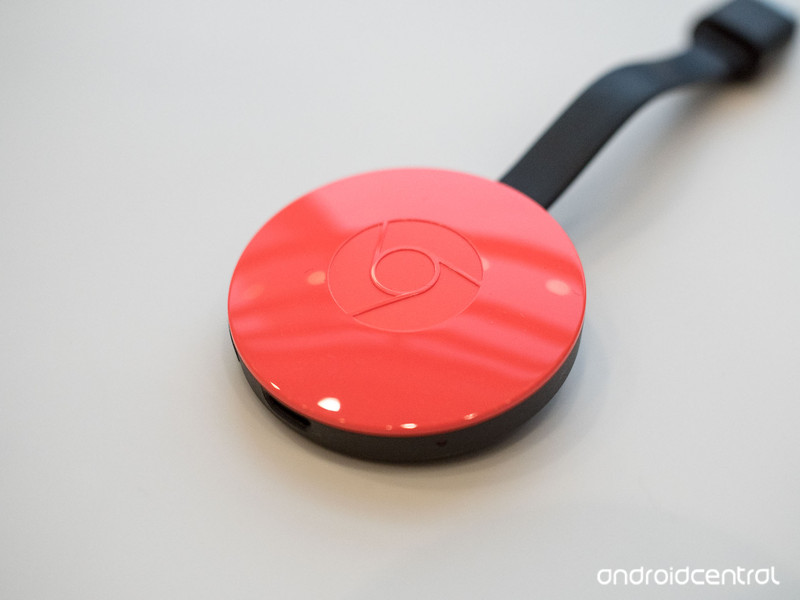
This $35 HDMI puck (it’s often on sale, too) is the basic media streamer many of us want. It handles 1080p video streams really well, it’s very small, and can be powered by your TV if you have a suitably powered USB port on the back. It supports 802.11ac Wi-Fi at both 2.4GHz and 5GHz and is powered with a Micro-USB cable connected to a 5V/1A power source. If your TV can’t provide the power, there is an adapter included along with a 1.75-meter cable.
If you like, you can buy an ethernet adapter built for the Chromecast instead of using Wi-Fi. It replaces the power cord and has a standard RJ-45 socket (the one that looks like a great big telephone plug) where you plug in a 10/100 ethernet cable. The power cord on the ethernet adapter is 2-meters long to make sure you can position it where you need it. Everything else works the same — you cast from your phone or the Chrome browser and watch the streaming media on your TV — but you’re using a faster and more stable network connection.
- If you don’t have a 4K television or won’t be streaming any 4K content, the Chromecast is for you.
See Chromecast at Best Buy
See Chromecast Ethernet Adapter at Google Store
The Chromecast Ultra
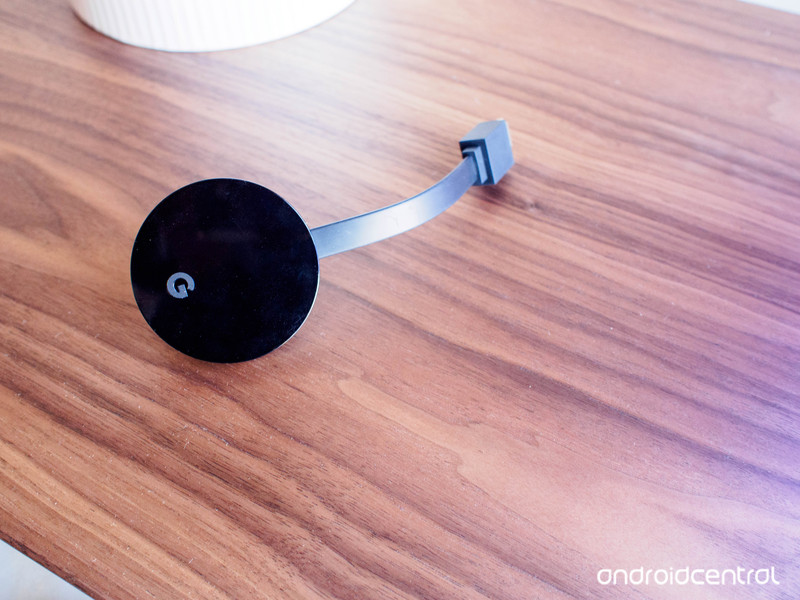
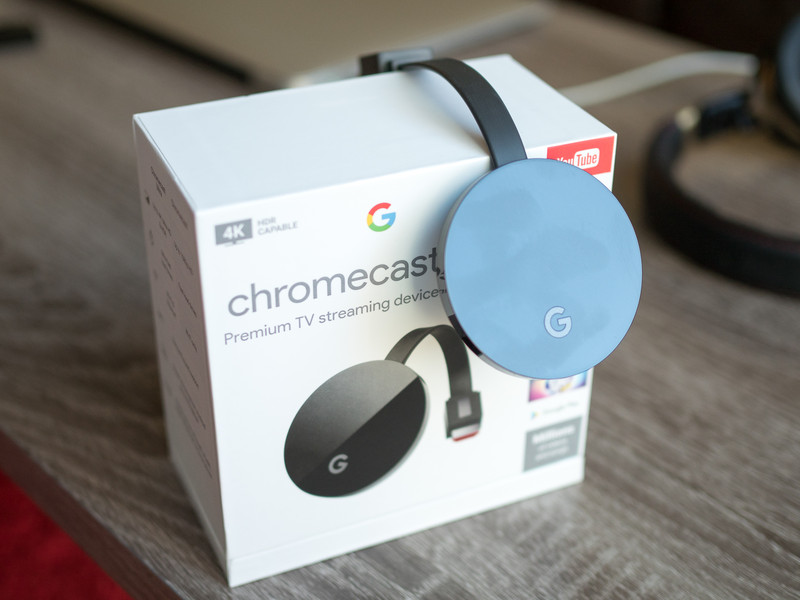
The Chromecast Ultra offers a step up from the regular version. When provided with a suitable broadband connection, it can stream 4K Ultra HD and HDR content. The hardware inside the Chromecast Ultra is fast and powerful enough to do things on the fly without a lot of buffering or skipping. It’s more expensive at $69 but can stream the highest quality content with ease.
Of course, to stream UHD or HDR content you need a fast network. The Chromecast Ultra connects to 802.11ac 2.4GHz and 5GHz Wi-Fi with a 1×2 SIMO (Single Input Multi Output) antenna for fast network speeds and low latency. It also comes standard with an ethernet port built into the power supply if you want to plug it into a wired network switch instead of using Wi-Fi.
- If you have a 4K or HDR TV (or plan to have one soon) and want to stream at a quality that can match its capabilities, the Chromecast Ultra is for you.
See Chromecast Ultra at Best Buy
Of course either Chromecast will work to stream 1080p media or with a 4K display. To stream UHD HDR media you need the Ultra, but if what you’re streaming isn’t in 4K or you just don’t have the network speed to stream at that quality, the “regular” Chromecast will still work and save you a few dollars. Also, if you plan on upgrading to a newer TV or monitor that will display UHD HDR content you can buy a Chromecast Ultra and use it for HD streaming on your current display.
No matter which Chromecast you choose you’ll enjoy great movies and shows from hundreds of apps, and you won’t have to figure out any cryptic software or network settings to get started.
Update: June 2018: This post has been updated with the latest information and current links.
Chromecast
- Chromecast vs. Chromecast Ultra: Which should you buy?
- Chromecast and Chromecast Audio review
- Chromecast Ultra vs. Roku
- Join the discussion in our forums
Chromecast:
Google Store
Best Buy
Chromecast Audio:
Google Store
Best Buy
Chromecast Ultra:
Google Store
Best Buy
This is how the pop-up selfie camera works on the Vivo NEX
The Vivo NEX’s front-facing camera is one of the coolest things we’ve seen in years.
Vivo may not be that well-known here in the U.S., but on June 12, the company unveiled what’s easily one of the most interesting phones we’ve seen in 2018. The Vivo NEX is the closest we’ve gotten so far to a truly “bezel-less” smartphone, and to achieve this, Vivo did something awfully unique with the front-facing camera.

Instead of slapping it on the front above the screen or putting it in a notch, Vivo hides it inside the NEX’s body. When you want to use it, the lens physically pops out from the top. When you’re done taking selfies, the camera retracts once more and is completely hidden.
It’s great party trick, but what’s this process actually look like from inside the phone? IHS Tech Intelligence on Twitter recently shared a GIF of what goes on, and as you can see below, it’s pretty damn cool.
https://twitter.com/Teardown/status/1007275772262809600
All those moving parts might look like something waiting to break at a moment’s notice, but as Vivo explained when the NEX was announced, the system that it’s using is rated to move the front-facing camera up to 50,000 times and lift up to 500-grams of weight.
The NEX is the first phone to implement something along these lines, and it’s a feature I hope we see in more products down the road. It may not be the perfect solution to creating a bezel-free phone, but at least in my opinion, it’s the best one we’ve had yet.
Vivo NEX hands-on preview: One step closer to a bezel-less future
Control for PlayStation 4: First look and questions answered!

Here’s everything we know so far about the inscrutable new Remedy game, Control.
What was Remedy mysterious P7 project? Introducing Control, a game first shown off at E3 2018 to great delight and confusion. The trailer for Control showed a woman exploring a mysterious, twisting bureau full of floating people and supernatural monsters. She fought them with a single gun and her own set of powers, she performed some weird ritual thing, and she got sucked into a big spiraly room. Cool, right? But what’s going on?
I was fortunate enough to watch a hands-off demo of Control at E3 2018 and get a glimpse of exactly what was going on in the Oldest House. The demo may have provoked more questions than answers lore-wise, but I can at least speak a bit to how the game works!
What is Control?
In Control, you control (heh) Jesse Faden. Through a series of strange circumstances, Jesse has stumbled into a place called the Oldest House, the New York home of the Federal Bureau of Control. After a strange ritual, Jesse inadvertently becomes the Director of the Bureau at the same time that an otherworldly enemy descends upon the bureau and tries to wrestle control of it from her.
As Director, Jesse is equipped with a special pistol that can change its shape to fire different types of shots. She also gains special, supernatural abilities that aid her in fighting off the strange threat and traversing the bizarre Bureau.
How do you play?

In the hands-off demo that I watched, trouble had begun in the Bureau. Many of the department’s workers has suddenly become hostile, and others were left floating, prone and lifeless, on the ceiling. Jesse, guided by a companion speaking to her over the radio, started her stroll through what at first looked like a mostly-normal government office building to find out what was going on, but quickly ran into problems. An employee slowly moved toward her then, without warning, began to attack.
Jesse is able to fight both by firing her transforming gun at foes and by using special powers. I witnessed two powers in particular during the session: Jesse can block attacks by drawing floating debris in front of her to serve as a shield, and she can fling nearby objects through the air at enemies. During this initial attack, multiple corrupted workers appeared from behind partitions and desks and began to fight, but Jesse removed them deftly and continued to walk.
The Bureau itself

Quickly it became apparent that this was not a normal office building at all. Though the demo was limited, I was able to glimpse strange things in the passageways off to the sides that we didn’t walk down, and as she explored, a strange older man would seem to appear transposed over the surroundings, moving and speaking in shadow. It’s a difficult effect to put into words, but I was told that this is where Remedy’s penchant for live-action elements in its games comes into play.
Control is a trip. A fascinating trip.
Control functions in many ways like a 3D Metroidvania. Everything is connected, and you may often have to backtrack and revisit things as you gain new abilities. One of Jesse’s traversal abilities, Levitate, can be used to cross small gaps. The demonstrator used it to progress, but noted that Jesse would not have it at the start of the game and would need to unlock it to access this segment of content.
After another fight, Jesse arrived at a strange pattern of lines on the ground and did something that looked like she was performing a ritual. As she did, the room around her began to break down and reshape itself, eventually changing into a completely different area of the Bureau. Her path took her out of what appeared to be a warehouse or loading/unloading area and into a cell block, where everyday objects were being held in captivity. In one, an uncorrupted guard begged Jesse to relieve him of his post. This, the demonstrator said, was a sidequest. The game includes many throughout the Bureau that will affect how things play out, but we weren’t going to see this one now and left the guard to his fate.
The finale of the demo began as Jesse approached a TV in a cell. A fight ensued in which the TV appeared to reshape the Bureau around it, twisting the walls and making it difficult for Jesse to approach, as well as summoning enemies for her to deal with. When she finished the encounter and approached, she was engulfed by a white light in which the dark, black pyramid from the end of the trailer descended upon her.
Overall

Control is a trip. A fascinating trip. What appealed to me most from watching it was the Metroidvania stylings and the winding, bizarre nature of the Bureau. The world of control looks like it will be a terrifying delight to explore, and fortunately Jesse Faden is a pleasantly curious protagonist to explore it with. The small slice that I saw was polished specifically for the E3 demo, and looks the part. The shadow and light effects are particularly impressive in making the Bureau at times innocuous, and at times frightening or mysterious or just plain weird.
Control is planned for a 2019 launch on PS4, Xbox One, and PC.
Confused too?
Control is a bizarre-looking game, and we don’t know much about the Bureau, but ask any questions in the comments and I’ll do my best to help!
PlayStation 4

- PS4 vs. PS4 Slim vs. PS4 Pro: Which should you buy?
- PlayStation VR Review
- Playing PS4 games through your phone is awesome
Amazon
 AIVAnet