


Command and Conquer Rivals: Everything you need to know!

The Command & Conquer series returns, this time on mobile!
Command & Conquer Rivals was announced at EA Play 2018 and is a free-to-play mobile game on its way to Android. Though it borrows many elements (including the name) from the original RTS Command & Conquer series, Command & Conquer Rivals brings a convenient, handheld spin to keep matches fast-paced.
I went hands-on with Command & Conquer Rivals at EA Play, and though the initial interface made me feel a touch out of my element, I quickly got the hang of what to do. Fans of the RTS genre will find plenty of familiarities here in unit types, strengths and weaknesses, and the kinds of strategies needed to win. But Rivals has a fresh take on the series specifically suited to short, bursty matches on small playing fields. That mobile brevity opens the game up for better accessibility for newcomers and, potentially, new types of strategies.
What is Command & Conquer Rivals?
Command & Conquer: Rivals pits two teams against one another on a battlefield of hexagons. Each side has a base, with the goal of the match being to destroy your opponent’s base before they destroy yours. You can send troops to attack it, but they won’t make much of a dent. Your goal instead is to capture a large missile in the center of the map before it fires. If your team owns the missile when it’s ready to launch, you’ll blast your opponent’s base with it. Two missile hits will secure the match.
The missile is captured by troops occupying designated spaces on the board. If your team occupies a certain amount and more than your opponent, the missile is yours.
How do you play?

To capture the missile, you’ll need to deploy troops, and to deploy troops, you’ll have to build the buildings that produce them. Each troop and building has a certain cost in a currency of green crystals, which you gain at a steady rate throughout the match. Once you have enough, you can build the building, which will let you deploy the troop for the remainder of the match, though there’s also a global cooldown to prevent you from saving up then sending out a huge wave of troops at once.
There are different types of troops assigned to different buildings, which you can select before the match. Each unit type has different strengths and weaknesses–some attack from range, some get up close. Tanks may be strong against one unit, but weak against another. You want to bring in a well-rounded team to each match so you can adapt to your opponent throughout, but also ensure you’re efficiently capturing space.
Once troops are deployed, you can move them anywhere on the map by tapping them and the space you want them to occupy. You can instruct them to hold a space, such as for the missile, or attack an enemy. Simply sitting on the missile isn’t enough unless you have a rock-solid defense. You’ll want to send units to fight off your opponent or perform other tasks, too.
How do you win?

You win by destroying your opponent’s base, which can be accomplished by hitting them twice with the missile or, if you have troops strong enough to directly attack the base, that can play a role. Mostly, you want to endeavor to hold enough ground longer than your opponent to claim the missile when it launches, but there are other factors at play.
The first is Harvesters. Harvesters do not fight and cannot be directed, but will automatically mine green crystals for you. They can be destroyed by the enemy, but as long as they’re active, you’ll gain power faster and be able to deploy more units. You can have multiple Harvesters active at once…but so can your opponent.
Another factor to consider are the commanders. Your team leaders have special, powerful abilities that can be used to do many different things, such as heal damaged units or do massive damage to enemies. Timely use of these abilities can result in a decisive victory, so make sure to choose your commander wisely as well as your units!
What else is there to do?
Winning and playing matches and completing achievement objectives will earn you currency, which you can spend to unlock new unit types, new commanders, and other rewards. Though we haven’t yet seen what those rewards will be, unlocking new ones will be key to increasing your rank and playing against tougher players.
It’s also worth mentioning that there are multiple different battlefields. I played on two different types, one with three missile capture points and one with two. Different maps will call for different strategies and units, so you’ll have to plan accordingly.
When can I play?
The game hasn’t launched yet, but you can pre-register in the Google Play Store now and check out the pre-alpha version of the game soon!
Any questions?
If you want to know more about Command & Conquer Rivals, ask me in the comments!
How to add a credit or debit card to Fitbit Pay
Who knew paying for things could be so much fun?

Fitbit’s on the right track with its Ionic and Versa smartwatches, and while using both of them over the last few months, one of my favorite features has quickly become Fitbit Pay.
Thanks to the NFC chip in the Ionic and Special Edition Versa, you can use Fitbit Pay to purchase items at any store that accepts contactless payments. Getting started takes just a couple minutes of entering your info in the Fitbit app, so let’s go ahead and dive right into it.
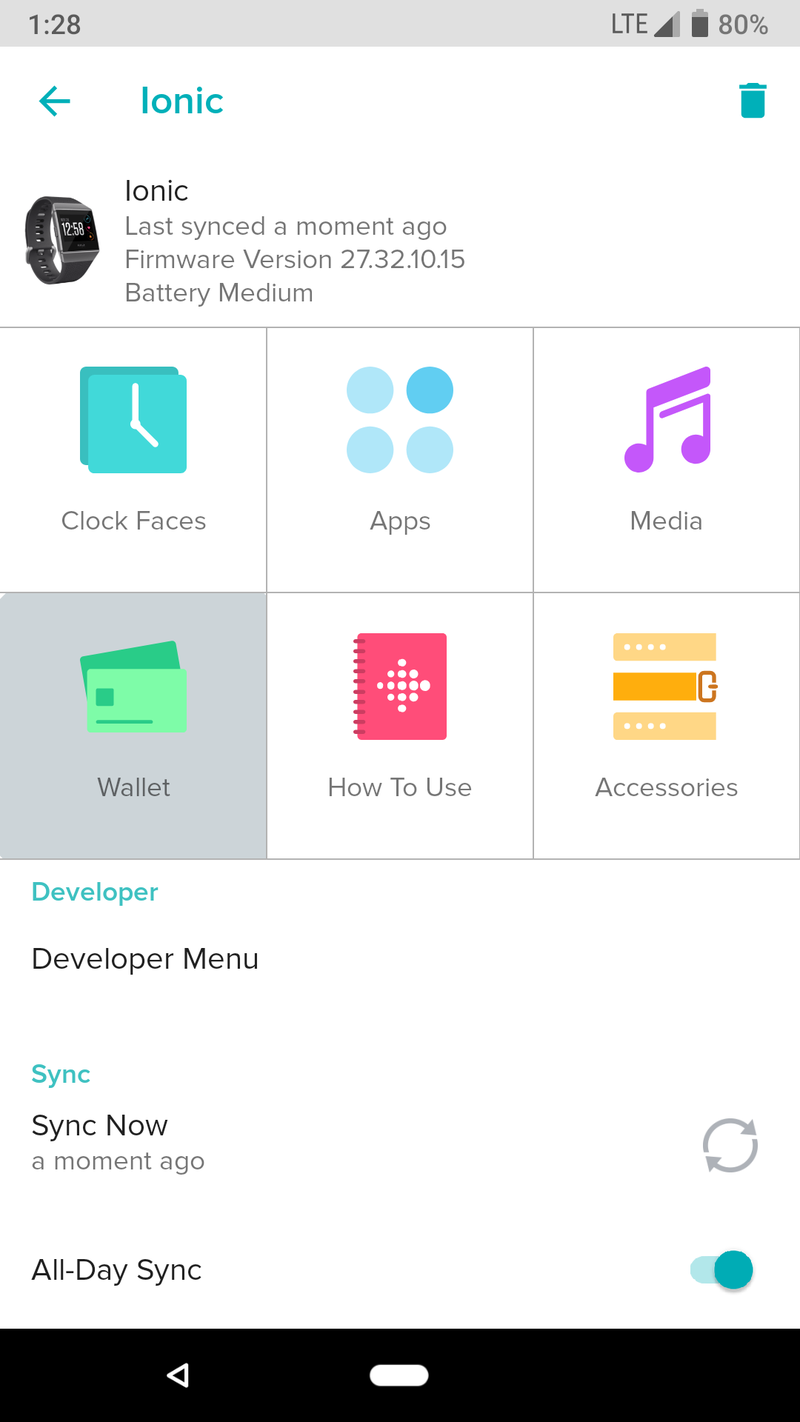
Open the Fitbit app and tap the icon for your Ioinc/Versa in the upper-right.
Tap the Wallet tile.
Tap the red Get Started button.


Type in your credit/debit card number.
Next, type in your other card details (expiration date, security code, and your name).
Tap Next at the top right after confirming your information is correct.


Type in your billing address (it may automatically pop-up).
Tap the red Agree button on the Terms and Conditions page


Verify your card via the method your bank uses (in this case, I used SMS).
Type in the verification code that was sent to your phone number.
Tap the Verify button.


After a couple more seconds, your card will be verified.


Time to start Fitbit Pay-ing!
Just like that, your card is now added to your Fitbit watch and can be used to pay for things wherever NFC is accepted. If you have additional questions or comments, sound off in those comments below.
These are the banks that support Fitbit Pay
Fitbit

- Fitbit Versa vs. Fitbit Ionic: Which should you buy?
- Fitbit Versa hands-on: Fitbit’s finally getting serious about smartwatches
- Fitbit Versa and fitness: Everything you need to know
- Best Fitbit fitness tracker
Fitbit Ionic
Fitbit Versa
Fitbit Charge 2 HR
CordCutters.com reviews the new AirTV
 AirTV takes an over-the-air broadcast and streams it to other devices on your network. ($119 at Amazon.)
If you’re way into Sling TV, you should be into this. But otherwise …

Local channels can fill a hole that many streaming services leave behind. And an interesting option is AirTV, which just released a new over-the-air streaming box.
The premise is simple: Plug an over-the-air antenna into AirTV. Hook AirTV into your network. Then you can watch your free local broadcast channels over pretty much any device — Android TV, phones or tablets, iOS and Apple TV.
But AirTV has a cool trick up its sleeve — the ability to tie directly into Sling TV, so your local channels live alongside all your streaming stuff.
Does that make it worth it? As we found out in our CordCutters review, the answer is yes. And no. It’s complicated.
Read the full AirTV review at CordCutters.com
Introducing CordCutters.com
- The hardware you need
- All about streaming services
- What channels are on which service
- FREE over-the-air TV
- How to watch sports
- Join the discussion
Get the latest deals
Samsung Galaxy S7 Oreo update: Which versions have gotten it
Follow Oreo’s journey to the S7 series right here.
The Samsung Galaxy S7 is far from Samsung’s latest and greatest, but it’s still kicking thanks to an update to Android Oreo. The new software has recently started making its way to the S7 and S7 Edge, and these are the versions of which it’s arrived on so far.

United States
AT&T
Galaxy S7 and S7 Edge owners started receiving the long-overdue Oreo update on Saturday, June 9, and it’s available as build number G93xAUCU4CRE4.
The update comes in at 1789MB (at least for the S7 Edge) and comes with the April 2018 security patch. That’s pretty outdated at this point, but it’s better than what we had before Oreo’s arrival.
Verizon
Oh, Verizon. Big Red tried rolling out the Oreo update for the S7 and S7 Edge twice, and each time, pulled it without much explanation. However, assuming that third time’s the charm, this third (and hopefully final) release of Oreo for the Verizon Galaxy S7 series should be the real deal.
Android 8.0 Oreo started hitting S7 handsets on Verizon shortly after AT&T on Monday, June 11 and the firmware version is updated to G930VVRU4CRE5 and G935VVRU4CRE5 for the S7 and S7 Edge, respectively.
Similar to AT&T, the April 2018 security patch is included with the update.
Canada
Rogers / Fido
Rogers, one of the largest Canadian carriers, recently updated its Android Oreo release schedule for its supported phones to reveal that 8.0 Oreo is heading to the Galaxy S7 and S7 Edge on Monday, June 11.
Also, since Fido is owned by Rogers, anyone that purchased a Galaxy S7 / S7 Edge through Fido should expect Oreo to arrive on their phones beginning on that same day.
Unlocked
UK
According to various reports on Reddit, the unlocked version of the Galaxy S7 and S7 Edge have begun receiving over-the-air updates that bump them up to Android 8.0 Oreo / Samsung Experience 9.0 – the same software found on the Galaxy S9 series.
The model numbers getting the update include SM-G930F and SM-G935F, and Oreo should change their build numbers to G930FXXU2ERD5 and G935FXXU2ERD5, respectively.
You’ll know you’ve been graced with Oreo’s good fortune when you have a 1.27GB update file waiting for you.
Updated June 11, 2018: Updated this list to include AT&T, Verizon, and Rogers.
Android Oreo
- Android Oreo review!
- Everything new in Android Oreo
- How to get Android Oreo on your Pixel or Nexus
- Oreo will make you love notifications again
- Will my phone get Android Oreo?
- Join the Discussion
VPNFilter malware has infected a million routers — here’s what you need to know

Malware linked to the Russian government can manipulate your internet traffic, harvest personal information, and serve as a launch point for a broad range of internet attacks.
The ASUS RT66U router, one of the devices known to be vulnerable to VPNFilter.
A recent discovery that new router-based malware, known as VPNFilter, had infected well over 500,000 routers just became even worse news. In a report expected to be released June 13, Cisco states that over 200,000 additional routers have been infected and that the capabilities of VPNFilter are far worse than initially thought. Ars Technica has reported on what to expect from Cisco Wednesday.
VPNFilter is malware that is installed on a Wi-Fi router. It has already infected almost one million routers across 54 countries, and the list of devices known to be affected by VPNFilter contains many popular consumer models. It’s important to note that VPNFilter is not a router exploit that an attacker can find and use to gain access — it is software that is installed on a router unintentionally that is able to do some potentially terrible things.
VPNFilter is malware that somehow gets installed on your router, not a vulnerability that attackers can use to gain access.
VPNFilter’s first attack consists using a man in the middle attack on incoming traffic. It then tries redirecting secure HTTPS encrypted traffic to a source that is unable to accept it, which causes that traffic to fall back to normal, unencrypted HTTP traffic. The software that does this, named ssler by researchers, makes special provisions for sites that have extra measures to prevent this from happening such as Twitter.com or any Google service.
Once traffic is unencrypted VPNFilter is then able to monitor all inbound and outbound traffic that goes through an infected router. Rather than harvest all traffic and redirect to a remote server to be looked at later, it specifically targets traffic that is known to contain sensitive material such as passwords or banking data. Intercepted data can then be sent back to a server controlled by hackers with known ties to the Russian government.
VPNFilter is also able to change incoming traffic to falsify responses from a server. This helps cover the tracks of the malware and allows it to operate longer before you can tell something is going wrong. An example of what VPNFilter is able to do to incoming traffic given to ARS Technica by Craig Williams, a senior technology leader and global outreach manager at Talos says:
But it appears [attackers] have completely evolved past that, and now not only does it allow them to do that, but they can manipulate everything going through the compromised device. They can modify your bank account balance so that it looks normal while at the same time they’re siphoning off money and potentially PGP keys and things like that. They can manipulate everything going in and out of the device.
It’s difficult or impossible (depending on your skill set and router model) to tell if you are infected. Researchers suggest anyone who uses a router known to be susceptible to VPNFilter assume they are infected and take the necessary steps to regain control of their network traffic.
Routers known to be vulnerable
This long list contains the consumer routers known to be susceptible to VPNFilter. If your model appears on this list it is suggested you follow the procedures in the next section of this article. Devices in the list marked as “new” are routers that were only recently found to be vulnerable.
Asus Devices:
- RT-AC66U (new)
- RT-N10 (new)
- RT-N10E (new)
- RT-N10U (new)
- RT-N56U (new)
D-Link Devices:
- DES-1210-08P (new)
- DIR-300 (new)
- DIR-300A (new)
- DSR-250N (new)
- DSR-500N (new)
- DSR-1000 (new)
- DSR-1000N (new)
Huawei Devices:
- HG8245 (new)
Linksys Devices:
- E1200
- E2500
- E3000 (new)
- E3200 (new)
- E4200 (new)
- RV082 (new)
- WRVS4400N
Mikrotik Devices:
- CCR1009 (new)
- CCR1016
- CCR1036
- CCR1072
- CRS109 (new)
- CRS112 (new)
- CRS125 (new)
- RB411 (new)
- RB450 (new)
- RB750 (new)
- RB911 (new)
- RB921 (new)
- RB941 (new)
- RB951 (new)
- RB952 (new)
- RB960 (new)
- RB962 (new)
- RB1100 (new)
- RB1200 (new)
- RB2011 (new)
- RB3011 (new)
- RB Groove (new)
- RB Omnitik (new)
- STX5 (new)
Netgear Devices:
- DG834 (new)
- DGN1000 (new)
- DGN2200
- DGN3500 (new)
- FVS318N (new)
- MBRN3000 (new)
- R6400
- R7000
- R8000
- WNR1000
- WNR2000
- WNR2200 (new)
- WNR4000 (new)
- WNDR3700 (new)
- WNDR4000 (new)
- WNDR4300 (new)
- WNDR4300-TN (new)
- UTM50 (new)
QNAP Devices:
- TS251
- TS439 Pro
- Other QNAP NAS devices running QTS software
TP-Link Devices:
- R600VPN
- TL-WR741ND (new)
- TL-WR841N (new)
Ubiquiti Devices:
- NSM2 (new)
- PBE M5 (new)
ZTE Devices:
- ZXHN H108N (new)
What you need to do

Right now, as soon as you’re able, you should reboot your router. To do this simply unplug it from the power supply for 30 seconds then plug it back in. Many models of router flush installed apps when they are power cycled.
The next step is to factory reset your router. You’ll find information about how to do this in the manual that came in the box or from the manufacturer’s website. This usually involves inserting a pin into a recessed hole to press a microswitch. When you get your router back up and running, you need to ensure it is on the very latest version of its firmware. Again, consult the documentation that came with your router for details on how to update.
Next, perform a quick security audit of how you’re using your router.
- Never use the default user name and password to administer it. All routers of the same model will use that default name and password and that makes for an easy way to alter settings or install malware.
- Never expose any internal devices to the internet without a strong firewall in place. This includes things like FTP servers, NAS servers, Plex Servers or any smart device. If you must expose any connected device outside your internal network you can likely use port filtering and forwarding software. If not, invest in a strong hardware or software firewall.
- Never leave remote administration enabled. It may be convenient if you’re often away from your network but it’s a potential attack point that every hacker knows to look for.
- Always stay up to date. This means check for new firmware regularly, and more importantly, be sure to install it if it is available.
Finally, if you’re unable to update the firmware to prevent VPNFilter from becoming installed (your manufacturer’s website will have details) just buy a new one. I know that spending money to replace a perfectly good and working router is a bit extreme, but you will have no idea if your router is infected unless you’re a person who doesn’t need to read these sort of tips.
We love the new mesh router systems that can be automatically updated whenever new firmware is available, such as Google Wifi, because things like VPNFilter can happen anytime and to anyone. It’s worth having a look if you are in the market for a new router.
See at Amazon
Google Hardware

- Google Wifi review
- Google Home review
- Chromecast Ultra: all you need to know
- Which Chromecast should you buy?
Google Wifi: Google
Amazon
Google Home: Google
Best Buy
Chromecast Ultra: Google
Best Buy
Apple Seeds Second Beta of macOS High Sierra 10.13.6 to Developers
Apple today seeded the second beta of an upcoming macOS High Sierra 10.13.6 update to developers for testing purposes, two weeks after seeing the first 10.13.6 beta.
The new macOS High Sierra 10.13.6 beta can be downloaded through the Software Update mechanism in the Mac App Store with the proper profile installed.
We don’t yet know what improvements the sixth update to macOS High Sierra will bring, but it likely focuses on bug fixes and performance improvements for issues that were not able to be addressed in macOS High Sierra 10.13.5.
No feature changes were discovered in the first macOS High Sierra 10.13.6 beta, but we’ll update this post if new features or notable bug fixes are discovered in the second.
Work on macOS High Sierra is wrapping up, with Apple now shifting focus to the next-generation version of macOS, macOS 10.14, which was unveiled at the Worldwide Developers Conference last week.
Related Roundup: macOS High Sierra
Discuss this article in our forums
Apple Seeds Second Beta of tvOS 11.4.1 to Developers
Apple today seeded the second beta of an upcoming tvOS 11.4.1 update to developers for testing purposes, two weeks after seeding the first tvOS 11.4.1 beta and two weeks after releasing tvOS 11.4, an update that introduced support for AirPlay 2.
Designed for the fourth and fifth-generation Apple TV models, the new tvOS 11.4.1 developer beta can be downloaded onto the Apple TV via a profile that’s installed using Xcode.
No new features or changes were discovered in the first tvOS 11.4.1 beta, suggesting it focus on fixes for bugs that have been discovered since the release of tvOS 11.4.
Apple’s tvOS updates have historically been minor in scale, and Apple does not often provide us with detailed notes outlining what’s new. We’ll update this post should anything be found in the second beta.
Apple’s work on tvOS 11 is winding down as the company is now focusing on tvOS 12, which was unveiled at the Worldwide Developers Conference last week.
Related Roundup: Apple TVBuyer’s Guide: Apple TV (Neutral)
Discuss this article in our forums
 AIVAnet