


How to hide ‘Apps are running in the background’ notification on Oreo
Oreo has a useful but annoying feature where you will be notified of every app running in the background. This app fixes that.

One of Android’s long-time features is the ability for apps to run in the background to pull new information and deliver notifications. This comes with a cost for battery life, so in Android 8.0 Oreo the system notifies users when an application is running in the background. This is great on paper, but in reality, all this does is tell me that my music player is indeed playing music, and shame me for still using a Pebble Classic. Worse yet, there’s no way (at the time of writing) to hide this notification, so it just sits there, mocking me. Fortunately, there’s a way to fix that.


Developer iboalali released an application simply titled Hide “running in the background” Notification, and it does just that: the “apps running the background” notification is gone. The source code is available for anyone who (rightfully) wants to make sure they aren’t installing something shady onto their phone. The app itself is free, but there is an in-app donation option for those that want to thank the developer.
Do you plan on using the app to hide the persistent notification? Let us know down below!
Download Hide “running in the background” Notification (free)
Android Oreo
- Android Oreo review!
- Everything new in Android Oreo
- How to get Android Oreo on your Pixel or Nexus
- Oreo will make you love notifications again
- Will my phone get Android Oreo?
- Join the Discussion
5 times the Pixel 2’s Portrait Mode was almost awesome
Take a second glance at your Portrait Mode photos on the Pixel 2.

Of the many things that truly impress me about the Pixel 2 and Pixel 2 XL, the camera stands out as the most incredible step forward from last year. This camera is incredible, and my favorite feature by far is Portrait Mode. This isn’t a new feature in smartphone cameras by any means, but Google is managing to do with a single camera and some clever AI what many other manufacturers need two sensors to pull off. This is especially awesome now that you can use Portrait Mode on the front facing camera, something no other phone maker is doing right now.
As exciting as it is when these photos are enhanced by Portrait Mode, like every other phone with this tech it’s not without flaws. Here’s a quick look at some of the stumbles we’ve seen so far.
Kiss the Blur

Portrait Mode does a really good job with multiple people in a shot, unless they are touching in specific ways. Unfortunately, kissing is one of those ways this software really struggles with.
In my testing, it seems like the software picks the thing that looks most like a face and blurs out the rest. It doesn’t happen every time from every angle, but it’s really funny when the software fails like this.
Uneven backgrounds

The background to this photo is at an angle, which means the camera software only chooses to blur out parts of it. Look at the far right of this photo next to the side of R2-Q5 compared to the far left side of R2-D2. Also notice the space in between the droids that isn’t blurred at all.
This is a challenging shot even for an actual DSLR to create an effective balanced shallow depth of
field, so it’s not surprising the software struggled here. The lighting is also a little crazy, so it’s not clear how much can be done in software to make this kind of photo really pop.
Look Ma, no hands!

Placement of your extremities is important for Portrait Mode, apparently. Jen’s hand is clearly visible on her shoulder, but completely blurred out by the software.
It’s the kind of thing you only notice after a double-take, and likely something Google’s software will get better at noticing over time, but hilarious all the same.
Missing a bit there

This is a really good Portrait Mode shot, right until you get to the stem of the pumpkin. It’s angled back on my head, pointed away from the rest of me, so Google’s depth logic didn’t see it as part of the foreground.
This is still a perfectly sharable photo, but a funny little mistake to see after you’ve taken the photo.
What happened to my glasses?

An otherwise stunning photo of two lovely people turns into a laugh by looking at the left side of Dan’s glasses. They’re completely gone, erased by Google’s software like it was a stray hair or something. This happens a lot with people wearing glasses, especially if their head is at an angle. Google can see the shape of the head, and decide that extra stuff on the edge shouldn’t be there.
This is no doubt something Portrait Mode will stop doing in the not-so-distant future, but for now the only real way to avoid this is making sure your face is square with the camera.
How do you like Portrait Mode?
Outside of these small bugs, Portrait Mode has been treating mode of us well. How about you? Have you grabbed that flawless Portrait Mode shot yet, or have you found flaws more egregious than the ones we’ve laid out here? Sound off in the comments!
Google Pixel 2 and Pixel 2 XL
- Pixel 2 FAQ: Everything you need to know!
- Google Pixel 2 and 2 XL review: The new standard
- Google Pixel 2 specs
- Google Pixel 2 vs. Pixel 2 XL: What’s the difference?
- Join our Pixel 2 forums
Google Store
Project Fi
Verizon
Best Buy
Best Cheap Android Tablets

Getting a good Android tablet doesn’t have to mean spending a huge sum of money.
You’ll always have the high-end, the high asking prices, and the people who are willing to pay for them. But for many, just getting good hardware, a great experience, and not emptying your wallet is the most important set of factors in buying a tablet.
The Android tablet space has exploded in recent years and there are now some great choices to be made around the $200 price point and below. Here we’ve rounded up some of the best choices you can make.
- Amazon Fire HD 8
- ASUS Zenpad S 8.0
- Lenovo Yoga Tablet 3 8-inch
- Lenovo Tab 4
Amazon Fire HD 8

The Amazon Fire HD 8 has impressive specs and, starting at $89.99, a very attractive price point. It also features 12 hours of battery life, and a processor that’s twice as fast as the previous generation. The 1280×800 pixel LCD display won’t win any awards, but the 8-inch screen looks great at any angle — awesome for sharing the tablet with family.
And all models of Amazon’s Fire tablet now have support for the company’s AI assistant, Alexa, allowing you to control your tablet, and your smarthome, with your voice.
And as with Amazon’s other tablets, you can offline Prime Video to an SD card, which is a frequent traveller’s dream. If you’d like something cheaper, there’s the $49 7-inch version of the Fire tablet, while larger screen fans can get the latest 10-inch model for $150.
See at Amazon
ASUS Zenpad S 8.0

In our sub-$200 category you’re only getting the lower spec, 32GB storage and 2GB RAM option of the Zenpad S 8.0 from ASUS, but that’s not necessarily a deal breaker. You’re also getting a gorgeous 2048 x 1536 resolution display inside a light, well built Android tablet.
The Zenpad S 8.0 is perfect for one of the big uses of tablets: media consumption. Besides the top-notch display it also packs some powerful, quality sounding speakers that make watching videos or listening to music on the go a pleasurable experience.
There are a few areas to be aware of, notably the software which may not suit all tastes. Zen UI is fairly heavy and bloated, but performance of the tablet is thankfully very good. Overall it leaves you questioning why you might spend a good amount more on some other Android tablets.
Read our ASUS Zenpad S 8.0 review
See at Amazon
Lenovo Yoga Tablet 3 8-inch

Now in its third generation, Lenovo’s Yoga tablet remains one of the most distinctive offerings around. The design is unusual but it also makes it one of the best tablets money can buy for consuming media since you don’t need to invest in a case with a kickstand.
You also get some great sounding front-facing speakers with excellent volume, so you can just pop it down, kick back and watch a movie wherever you are.
The software experience won’t suit everyone, but it’s mostly inoffensive, and Lenovo adds a few useful apps and features instead of cramming it with bloat. But while the design is excellent in some regards, it does make it awkward to hold in landscape.
You do get superb battery life though. That bulge is full of battery, which means you get more life from a Yoga than a lot of other Android tablets. And all for $160.
See at Amazon
Lenovo Tab 4

Lenovo’s second entry in our roundup, the Tab 4 is a regular slab-style tablet next to the unusual form factor of the Yoga Tablet 3. But while it’s less to look at it, it has plenty of its own charm.
It has an 8-inch 1280 x 800 resolution display, quad-core processor, 2GB of RAM, 16GB of internal storage and Android 7.1 Nougat with Lenovo’s newer, closer to stock user interface.
Lenovo claims up to 20 hours of battery life during media consumption, and with Dolby Atmos support you’re getting another stellar audio experience from a low-cost Lenovo tablet. At only $130 it’s perfect for you or the kids, and Lenovo has an optional kids pack which includes a roughty toughty case to protect from the expected falls to the floor.
See at Amazon
Updated October 20, 2017: We’ve removed the NVIDIA Shield K1 as it’s no longer officially on sale as well as adding a new pick, the Lenovo Tab 4.
How Microsoft embraced ‘messy’ creativity with Windows Ink
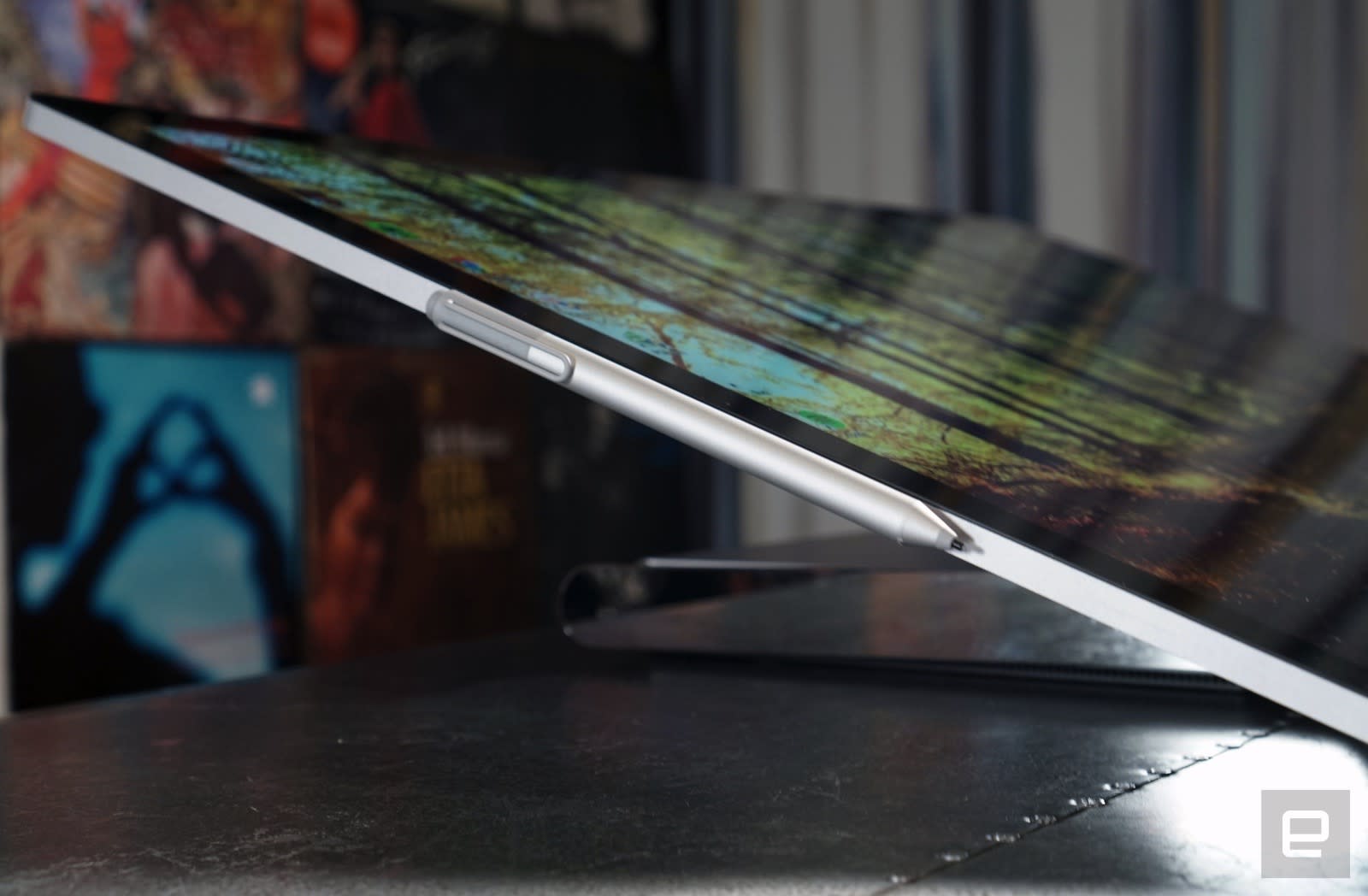
Windows Ink isn’t Microsoft’s first stab at bringing stylus support to PCs — that would be Windows XP Tablet Edition — but it is the company’s most successful. It made stylus support a core part of Windows 10, and it’s a big reason you’re seeing so many computer makers shipping digital pens of their own. While the company’s renewed push into the space with its hybrid Surface tablets seemed baffling at first, it’s ended up looking like a prescient move. It even convinced Apple to compete with the iPad Pro’s Pencil.
With the Surface Pen and Windows Ink, Microsoft found a way to let PC users do something completely new: It gave them a way to break free from the constraints of the keyboard and mouse.
“I think it’s [Windows Ink] the first time that technology has embraced ‘the messy,’” Aaron Woodman, general manager of Windows Marketing, told Engadget. “For me, seeing Pen come to life in a way where you don’t have to go from top to bottom, from left to right, you can create in a way before your thought is really complete. I don’t think there’s a ton of technology that’s really embraced that fluidity.”

He’s got a point. The way we interact with computers hasn’t changed much over the years. If you learned how to use a PC with a keyboard and mouse, you’d have no trouble using a modern machine. The advent of smartphones and tablets, with their capacitive touchscreens, was the biggest change over the past few decades. But what if you want to draw a detailed picture, jot down notes in your own handwriting or write out mathematical equations? You’d turn to one of our earliest writing tools: the stylus.
“We’re embracing that, yes, [stylus support features with Windows Ink] are hardware-driven; yes, they require a platform that has to be broad in reach; and yes, for part of that, you need ecosystem partners,” Woodman said. “That really starts to get people to understand it and see themselves using it in applications like Office. To see that come through in a way that customers don’t feel like they’re jumping over walls, I think it’s really satisfying personally.”
Devindra Hardawar/Engadget
In particular, Woodman credits Microsoft’s close partnership with Wacom, a company best known for its stylus tablets and displays, for the progress with Windows Ink so far. That allowed the two companies to build a sensor that “essentially allows you to go between pen protocols.” For computer makers, that’s helpful since it lets them choose between different pen protocols. Basically, it let Microsoft open up the market for styluses, just like Windows did for PCs decades ago.
Now, Woodman says retailers are selling twice as many pen-capable machines, compared to those that don’t have them. 43 percent of consumers with stylus machines are also using their pens monthly, according to Microsoft’s stats. Given just how well they’re taking off, though, it’s surprising that Microsoft chose to make the Surface Pen an additional $100 purchase for the Surface Laptop, Pro and upcoming Book 2.
Windows Ink’s integration with Microsoft Office is a clear example of how stylus support can breathe new life into programs we’ve used for years. In Word and PowerPoint, you can use a stylus to edit documents as if you were marking up paper. And, as you can imagine, having a more natural input mechanism is a big help for OneNote. It’s not only useful for jotting down your thoughts, but you can also use it for recording complex math equations — the sort of thing that would be tough to type out on a keyboard. OneNote can also convert your handwritten equation into something formatted for a computer, and you can then have it evaluate an equation, factor it and graph it.
 It was a long road getting here, though. The first “Tablet PCs” powered by Windows XP (like the Compaq on the right) were woefully underpowered, heavy and generally just hard to use. It was difficult enough to get them to do basic Windows tasks, so there wasn’t much chance consumers would spend time with their styluses. There were also some early digital pens available for Windows 8. Really, though, it took the launch of the Surface 2 and Pro 2 for us to really see what a stylus could do in Windows. The Surface Pen was light, responsive and simply felt good to use. Microsoft steadily refined it with future Surface models, giving us better tips and more pressure sensitivity.
Even after the launch of Windows 10, it took over a year for Microsoft to make stylus support truly meaningful with last year’s Anniversary Update. That introduced Windows Ink and its accompanying software, including built-in sticky notes and a sketchpad. More importantly, it also gave Microsoft’s partners more of a reason to bundle styluses with their computers. Apple entered the fray with the iPad Pro’s Pencil in 2015, which is a decent stylus, but is only useful in a few creative apps. And you can forget about seeing it in MacOS anytime soon — Apple is focusing its touchscreen efforts entirely on iOS.

Embracing a new type of computing creativity seems a bit out of character for Microsoft — at least, the pre-Satya Nadella Microsoft. But the timing for the company’s change of heart makes sense. Thanks to faster and more efficient computing hardware, it’s finally turning its stylus ambitions into a reality. And more importantly, consumers and computer makers are finally paying attention.
“On some level, we have a responsibility to solve the challenges customers are facing,” Woodman said. “Now, watching 3D objects in Powerpoint [via the Fall Creator’s Update] is mind boggling. Not because you see it in 3D, but because it saves you infinite steps. I think Pen has the same type of promise. It’s more about just feeling like you have that permission to go beyond the boundaries of how people have defined the products so far.”
The Morning After: Weekend Edition
Hey, good morning! You look fabulous.
Welcome to the weekend. We’ll recap this week’s news highlights, plus big stories from Friday like Project Loon-distributed internet going live in Puerto Rico.
Reconnect.Project Loon’s LTE balloons are floating over Puerto Rico

Former Google X Lab (and now Alphabet X innovation lab) resident Project Loon is getting its first use in the US, as it’s partnering with AT&T to provide service in Puerto Rico. As part of the restoration efforts, the high-flying balloons are launching from Nevada and floating over the island, all in hopes of beaming LTE to areas still without service a month after Hurricane Maria.
The first Cortana speaker sounds amazing.Harman Kardon Invoke review

The good news about this $199 smart speaker is that it sounds great, and Microsoft’s Cortana voice assistant is a natural addition. The bad news is that as a latecomer to the game, it has fewer music service integrations, and right now, Cortana isn’t as capable as competitors like Amazon’s Alexa.
You say replicant, we say repli-can.Bad Password: Apps and gadgets for the ‘Blade Runner’ future we didn’t ask for

This week, Violet Blue explains how technology can help make the best of our dystopian present — at least until Harrison Ford and Ryan Gosling show up to fix things.
Watch the movie first.Designing the technology of ‘Blade Runner 2049’

Of course, if you prefer the distraction of a fictional Blade Runner universe, we have a few treats for you too. Take a walk with Territory Studios to find out how it established “the UI of a broken future” in Blade Runner 2049 — but mind the spoilers.
So long, wobbly fulcrum hinge. Hello, 15-inch beauty.Surface Book 2 hands-on

The Surface Book 2 sounds like it may fix all of the issues we had with the original model (as well as last year’s refresh). It has a stronger hinge, so no more screen-wobble as you’re typing, and it’s (predictably) more powerful than before. Microsoft also added a 15-inch model, making the Surface Book 2 even more of a competitor to Apple’s MacBook Pro line.
Define “partisan.”Does social media threaten the illusion of news neutrality?

As reporters become Twitter celebrities, newsrooms begin to adapt.
But wait, there’s more…
- Can an iPad Pro replace your PC?
- Pixel 2 and 2 XL review: Google’s best phones get even better
- Spotify’s RISE program will try to find future music superstars
- Severe ‘KRACK’ WiFi security flaw puts millions of devices at risk
- Sonos One review
- Blue Origin’s BE-4 rocket engine completes first hot-fire test
The Morning After is a new daily newsletter from Engadget designed to help you fight off FOMO. Who knows what you’ll miss if you don’t subscribe.
Diary from the future: Augmented Reality, circa 2027
Dear Diary … or should I say, Dear Self? Or Dear Me? After all this time I still don’t know how to address myself here. Maybe I should do as Mark did in his Facebook memoir — “I, the Zuck” was such a stupid title — and just call myself by the first letter of my name. Let’s try that:
Dear J:
Remember when everyone thought the reason for augmented reality was furniture apps and rulers? How quaint. I’m not sure what exactly had me reminiscing all day, since AR is such a central part of our lives these days, but somehow I am – and stepping back, it’s hard to remember what life was like just 10 years ago. We thought the iPhone was a game changer. I don’t think a decade ago, we would have predicted modern life. Consider my day:
I bought new cables for the holographic TV last week, and I’ll be damned if I could figure out which port to put ‘em in. And why do we still need wires anyway? Is this 2027 or 1927? So first thing this morning, I put on the Vivo-set and dialed up tech support. A remote tech popped up in front of me, asked for permission to see my apartment, and took a quick look with me at the ports. She highlighted the correct one in yellow – I swear I’d tried it earlier – and walked through the settings menu for a sec as well, just to be safe. Remember when you had to call them on the phone? Remember talking on the phone? Sheesh.
I dressed, put on my newest Google Glasses – Armani somehow makes the best ones? Whoda thunk it? – and headed out the door for the office. Turning around to survey the house, I made a quick scan for any red lights on the window and door locks, and made sure everything was in away mode before heading to the subway. It was handy when the oven started warning the smoke alarm that the chicken was overdone, but merging all that stuff into an augmented reality environment is even better. I hated checking all those apps – just looking at stuff and getting status updates is an enormous time saver. That said, the UI guys never get this stuff right, do they? The temples of my glasses used to vibrate when alerts came in. Jesus, who thought that would be anything but maddening?
Remember ten years ago when the NYC subway seemed on the verge of collapse? Remember the hundreds of millions the city and state were spending to fix the signaling problems, before someone realized that installing physical signs to notify riders about oncoming trains was … short sighted? Well here in the modern day and age, the AR alert system is a godsend. As I walked to the train this morning, I tapped my glasses to bring up my agenda, and noted that the next train was just 2 minutes off. Perfect timing. I stepped onto the platform just as the train pulled in, each car emitting a faint glow to indicate how full it was. They all looked angry red – some things just can’t be fixed, I guess.
I stepped onto the platform just as the train pulled in, each car emitting a faint glow to indicate how full it was.
Later at work, I was daydreaming again. It’s that adult education class I’ve been taking on Mars – it’s both about the planet and set on the planet, thanks to all of those images NASA’s Musk Rover has been beaming back in 16K 3D. People used to sit at a desk and watch videos or slideshows – now we have fully immersive worlds to visit. It’s one thing to see a video of those sand storms we discovered, and another thing entirely to walk through one.
The same thing happened to grade schools, of course. I don’t know what got me thinking about 2017, when those folks at Case Western first started talking about AR in classrooms, but those guys were pioneers. Remember when Google Chromebooks first took over the classroom? The shift to AR systems was even more abrupt – and frankly, a lot more transformative.
But anyway.
I stopped by the library on the way home, bypassing the books and heading straight for the AR section. Whoever AR’d the encyclopedia deserves a medal – I swear, I could get lost for hours in any of those volumes. I spent half an hour finishing the section on Sumeria earlier in the week, for whatever reason. It must have been that holo-doc I watched on Hulu that got me craving knowledge, I suspect. So I grabbed one of their free Oculus 2.0 units to dig further in, flashing back on the first version – man it took those guys years to get that stuff out of beta, huh? What is this, Gmail or something? LOL, as we used to say.
You can only spend so long doing that, of course, so I headed home, dialing back the noise from the stores I passed. You used to bitch about website ads, remember? AR ads are just the worst. YOU HAVE NO IDEA.
Editor’s Recommendations
- Interview with ‘Walking Dead’ star Michael Cudlitz
- 20 Android and iOS apps for kids to keep them entertained (and quiet)
- Google Home review
- Puff, Puff, recharge. E-cigarettes are booming, and China is ground zero
- Philips EverPlay BT6900 review
How to use Lightroom: A beginner’s guide to Adobe’s photo editing software
Adobe Photoshop Lightroom is powerful photography desktop software that has become one of the most widely used programs by professional photographers. The simplicity of being able to manage, process, and post to social media from a single program is a big part of why professional photographers love it, and it’s also a big reason why you should be using it, too — even if you have no plans of making a career out of photography.
Don’t worry if you’re new to photo editing and don’t know how to use Lightroom yet; our guide will walk you through the basics, and reveal how a program like Lightroom can make your workflow easier, not more complex.
Not Just for the Pros
Why non-professional users would want to spend money (either by purchasing it outright or by signing up for an Adobe CC subscription) on Lightroom has to do with one big issue that people face: keeping track of all the images that we take nowadays. While our phones and computers offer built-in ways to do this, they typically lack the flexibility and power of Lightroom — not to mention the powerful editing tools.
But before we get to those, let’s take a look at perhaps the most important piece to the Lightroom puzzle: photo management capabilities.
Lightroom is based on a catalog system and can automatically create and manage folders across multiple locations, even on different hard drives, without losing track of your images. Essentially, you import your photos and Lightroom makes it easy to find them again. One of the ways it does this is through a powerful search function and the use of keywords that you can add to your images when you import them into the software.
But its ability goes beyond just text-based searches. Thanks to facial recognition, Lightroom can help you find images of specific people, which allows you to tag faces and attach a name to them. After you have tagged a certain person multiple times the software will begin to suggest facial tags on faces it thinks matches a face you have already tagged on your computer.
So when you are needing to find a good picture of your son or daughter, or that pest of a nephew, you can simply open up Lightroom and search for them by name — assuming you did the initial leg work and tagged their faces. The software will then pull up all of the images on your system that have that face.
Navigating Lightroom
Lightroom is broken up into several modules which separate the steps in your workflow. The Library module is where you can import photos, add keywords, create folders, and otherwise manage your catalog. The Develop module is where you will do the bulk of your image editing (adding filters, fixing red-eye, increasing sharpness, removing blemishes, and much more). This is followed my the Map module, which you may not use much, but this is where you can search your image library based on GPS data for photos that include that information (such as those taken on your phone).
The Develop module is where you will do most editing (adding filters, fixes, removing blemishes, and much more)
Next up is the Book module, where you can design photo albums that you can print yourself or through online vendors like Blurb. After that you have the Slideshow module, which — you guessed it — helps you set up a slideshow. Finally, you have the Print and Web modules, which are mostly for pros, but the Print module helps you print your images on your home printer and the Web helps you make gallery that you can upload to a website.
To navigate between the various modules in Lightroom, simply click the different tabs located in the upper right portion of the Lightroom window.
Importing your images into Lightroom in 6 easy steps
The most important step in using Lightroom is giving it some photos to work with. You may have thousands of pictures somewhere on your computer already, and Lightroom can work with those in addition to any new ones you take. The steps below outline the process for importing new photos from a camera or memory card, but Lightroom’s Import window makes it easy to navigate to any other folder to import photos that are already on your computer, too.
- Insert your memory card into your card reader, or connect your camera via the USB cable.
- Open Lightroom.
- Click the Import button (Lightroom should detect the memory card and automatically open the import window).
- Select the Images you want to Import, or ‘check all’ to import them all.
- Add keywords to help you search for these images later, for example ‘Family Reunion 2016.’
- Import the images. (You can also tell it where on your computer to import the images, but it defaults to your images folder, so most of you will want to just leave it alone.)
- That’s it!
In the case of importing photos from another location on your computer, Lightroom gives you three choices for how it manages those files. You can choose to simply “add” the photos, which leaves the physical files where they are; “copy” them, which duplicates the files and puts a copy in your designated Lightroom folder; or “move” them, which puts the files in your Lightroom folder and removes them from their original location.
Using Lightroom’s Editing Tools to Take Your Images to the Next Level
As noted above, the ability to edit your photos within Lightroom is as convenient as it is powerful. You can do everything from applying one-click presets with VSCO or Instagram-style ease of use, to spending more time and changing individual settings one at a time for a more polished, professional look. Lightroom does it all — well, mostly. Professional photographers still rely on Photoshop for advanced features and techniques, but for most people, Lightroom is more than enough.
Editing your images
In the Develop module, you are able to process and edit your images with more control than whatever photo management program came bundled with your computer. On top of that, when combined with Lightroom Mobile , Adobe’s free Lightroom extension app, you can even process and edit your images from your phone or tablet, and all of your adjustments will be synchronized back to your computer.
Anything you do to an image (short of deleting it entirely) will be reversible.
Lightroom works best when processing RAW images, which offer the most latitude for making adjustments, but you can also process and edit JPEGs. Either way, every adjustment you make within Lightroom is non-destructive, so anything you do to an image (short of deleting it entirely) will be reversible.
The develop module is broken up into several tabs, on the left side of the window you have your presets. These are fast, one-click edits that you can do to quickly get your images to a specific look, and then fine tune with the controls on the right half of the screen. Adjust the crop, increase exposure (brightness), convert a photo to black-and-white, boost the saturation, and more.
The presets are one of Lightroom’s most powerful tools, and is one of the reasons why it is so popular among photographers. You aren’t limited to certain preinstalled options, either; you can buy additional presets created by other photographers, or you can make your own. They allow you to quickly and easily get your image to the desired look, or at least close to it, without having to spend a ton of time playing with the more advanced and detail oriented sliders.
One click presets make processing images a breeze
Think of the presets sort of like Instagram filters, but with way more control and much better results. For example, VSCO’s film presets mimic the quality of various films to lend a classic look to your modern digital photographs.
Saving and Sharing Your Images
Lightroom has built-in support for Facebook and Flickr, and you can easily get other plugins for most of the other social networks. In other words, you can easily process and share images from one program, across most of your social networks. So even as Lightroom is more advanced and complex than the photos app on your phone, it doesn’t sacrifice the easy sharing abilities that we all depend on.
Advanced users can also export images to a variety of file formats, change quality and image size, and even add a watermark to help guard against image theft.
And So Much More…
Lightroom can be as basic or as involved as you’d like it to be, and the program can grow with you as your skills evolve. These are just some of the reasons that an average person may like to get their hands on Adobe Lightroom. Covering all of its capabilities and functionality in one article isn’t really possible, but hopefully this was enough to get you started.
If you are interested in learning more about Lightroom’s advanced functionality, Adobe has plenty of walkthroughs and tutorials covering every aspect of the program.
Editor’s Recommendations
- Adobe’s new Lightroom leverages the cloud for cross-platform photo editing
- What’s the difference between Lightroom CC and Lightroom Classic?
- Photo editor Macphun Luminar will soon add a Lightroom-like organizer tool
- Here are the best Lightroom presets for every photographer
- Looking to buy Microsoft’s awesome new Surface Pro? Here’s all you need to know
6 best products showcased at Adobe MAX 2017 conference
The annual Adobe MAX show draws a huge crowd of creatives from all fields eager to learn about the latest innovations in Adobe’s products. But the show also attracts many big names in tech, from Google to Microsoft, who are eager to show off their new products to such a large audience of creative power users. After browsing the show floor, getting hands-on demos, and speaking with representatives, here are what we found to be the best photo and video products at Adobe MAX 2017.
Best software: Adobe Photoshop Lightroom CC
Well, duh. We couldn’t go to MAX and not expect to see great new things from the company that puts it on. Adobe unveiled many new tools and technologies at the show, but the completely redesigned Lightroom CC is the most important for photographers (and, perhaps, the most controversial).
With an emphasis on unifying interfaces across devices, Lightroom CC presents a completely revamped UI with a much sleeker, more modern appearance. compared to the previous version of the program (which lives on, rebranded as Lightroom Classic). In a live demonstration, Adobe showed how it was possible to seamlessly move from a Microsoft Surface Book 2 to an Apple iPad Pro to an iPhone 8, with all your photographs and settings synced across devices thanks to the cloud.
What’s more, every tool and setting that’s available in the desktop version is also available in the mobile versions, and because Adobe now stores your original RAW files in the cloud, you can produce high-quality edits on any device, anywhere. There are still some tools from Classic that have yet to make the move to CC, but knowing Adobe, we expect software updates will bring new features to the program regularly.
Longtime Lightroom users may struggle with the choice to stick with Lightroom Classic or switch to the new Lightroom CC, but fortunately the existing Creative Cloud Photography Plan includes both versions of the app, which should help ease the transition.
Best computer: Microsoft Surface Book 2
With oodles of power and a stunning display, Microsoft’s latest Surface Book is an incredibly capable notebook computer and tablet in one, the perfect mobile editing station for photographers. While we covered all the details in our Surface Book 2 hands-on review, one new tidbit of information at MAX is that Adobe now natively supports the Surface Dial in both Photoshop and Premiere Pro. As the Surface Book 2 also supports on-screen Dial controls, this gives photo and video creatives improved workflows when using the Surface Dial.
While the Surface Book 2 looks identical to the previous version, everything under the hood has changed. That doesn’t just mean more horsepower, but even the internal design of the hinge has changed. The new mechanism can better support the screen in any given position, which helps when using the Surface Dial on-screen, as otherwise you may inadvertently tilt the monitor.
Best input device: Logitech Craft Keyboard
On the surface, the new Logitech Craft Keyboard looks like a standard low-profile wireless keyboard with a copycat Surface Dial bolted on (Logitech calls it the creative input dial). In practice, it’s much more than that.
Logitech’s driver is context sensitive and includes specific commands for many applications. Press down on the dial to bring up a list of commands, then tap the side (it’s touch sensitive) to move through the list, and simply rotate the dial to adjust the selected parameter. In Adobe Photoshop, for example, you can adjust brush width and opacity (and much more) while in Google Chrome you can cycle through tabs.
In the former, the input dial allows frictionless rotation for smooth adjustments, while in the latter, a physical ratchet mechanism engages to provide satisfying tactile feedback. This may sound like a small detail, but it makes a huge difference in actual use and feels much better than the vibration-based haptic feedback of the Surface Dial.
Best camera: DJI Zenmuse X7
Yup, it’s a drone camera — designed to be used with the DJI Inspire 2 — but the Zenmuse X7 is an impressive imaging device by any standard. With a Super35 sensor that produces 6K RAW footage, it’s the lightest and smallest way to get true cinema quality aerial shots — and, at $2,700, it’s also one of the most affordable.
While we covered the details of the X7 when it launched, what we didn’t appreciate at the time was just how compact the system is. Seeing it in person was very impressive. DJI developed a new lens mount with bespoke lenses housed in carbon fiber, and each of the three primes available could fit in the palm of your hand.
Sadly, DJI wasn’t flying the Inspire 2 at the show — the company’s booth only had sufficient space for flying its smaller drones — so we didn’t get to see the X7 in action. Hopefully we can get our hands on a review model in the near future to see if its performance stacks up to its specs.
Best external storage: LaCie 2Big Dock
When the cloud just isn’t enough for, LaCie has you covered. Available in 12, 16, or 20-gigabyte capacities, the company’s latest two-drive RAID offers plenty of storage — but that’s not all. The Thunderbolt 3-equipped external drive also serves as a media dock, with both CompactFlash and SD card slots as well as a standard USB 3 input on the front for connecting thumb drives, cameras, or simply charging your phone.
The 2Big Dock houses two enterprise-class hard drives and offers speeds of up to 450 megabytes per second when in a RAID 0 configuration (which splits files across both drives). It can connect to a computer via Thunderbolt 2 or 3 (the latter of which uses a USB Type C port). When connected over Thunderbolt 3, the 2Big Dock provides sufficient power to keep a laptop charged, so that’s one less cable you’ll need.
Honorable mentions
With over 12,000 attendees, this was the biggest Adobe MAX show ever. There were numerous companies with cool and interesting products on display, and we simply weren’t able to spend enough time with all of them, but there a couple we should still draw attention to.
The HP ZBook X2 boasts impressive performance in a mobile workstation and uses a matte screen that is excellent for creative work, albeit a bit small for our tastes. The design isn’t what we’d call pretty, with large bezels and sharp angles that make it look like something out of Battlestar Galactica, but it does have plenty of features, including HP Quick Keys that control 18 shortcuts in Adobe apps. It can even power dual 4K displays when docked.
We also were impressed with Dell’s UltraSharp 32 8K monitor. In addition to incredible detail from its 7,680 x 4,320 pixel resolution, it provides excellent color and dynamic range thanks to 10-bit processing. At a little under $4,000, it’s certainly targeting high-end users — but that’s not half bad for all the quality and resolution it gives you.
Editor’s Recommendations
- Photoshop 2018 now supports 360-degree photos, adds new design tools
- Adobe unleashes a bevy of new and updated software at its largest conference to date
- Here are the best free drawing software programs you can install right now
- Illustrator will soon give designers up to 1,000 art boards to play with
- Adobe’s new Lightroom leverages the cloud for cross-platform photo editing
6 best products showcased at Adobe MAX 2017 conference
The annual Adobe MAX show draws a huge crowd of creatives from all fields eager to learn about the latest innovations in Adobe’s products. But the show also attracts many big names in tech, from Google to Microsoft, who are eager to show off their new products to such a large audience of creative power users. After browsing the show floor, getting hands-on demos, and speaking with representatives, here are what we found to be the best photo and video products at Adobe MAX 2017.
Best software: Adobe Photoshop Lightroom CC
Well, duh. We couldn’t go to MAX and not expect to see great new things from the company that puts it on. Adobe unveiled many new tools and technologies at the show, but the completely redesigned Lightroom CC is the most important for photographers (and, perhaps, the most controversial).
With an emphasis on unifying interfaces across devices, Lightroom CC presents a completely revamped UI with a much sleeker, more modern appearance. compared to the previous version of the program (which lives on, rebranded as Lightroom Classic). In a live demonstration, Adobe showed how it was possible to seamlessly move from a Microsoft Surface Book 2 to an Apple iPad Pro to an iPhone 8, with all your photographs and settings synced across devices thanks to the cloud.
What’s more, every tool and setting that’s available in the desktop version is also available in the mobile versions, and because Adobe now stores your original RAW files in the cloud, you can produce high-quality edits on any device, anywhere. There are still some tools from Classic that have yet to make the move to CC, but knowing Adobe, we expect software updates will bring new features to the program regularly.
Longtime Lightroom users may struggle with the choice to stick with Lightroom Classic or switch to the new Lightroom CC, but fortunately the existing Creative Cloud Photography Plan includes both versions of the app, which should help ease the transition.
Best computer: Microsoft Surface Book 2
With oodles of power and a stunning display, Microsoft’s latest Surface Book is an incredibly capable notebook computer and tablet in one, the perfect mobile editing station for photographers. While we covered all the details in our Surface Book 2 hands-on review, one new tidbit of information at MAX is that Adobe now natively supports the Surface Dial in both Photoshop and Premiere Pro. As the Surface Book 2 also supports on-screen Dial controls, this gives photo and video creatives improved workflows when using the Surface Dial.
While the Surface Book 2 looks identical to the previous version, everything under the hood has changed. That doesn’t just mean more horsepower, but even the internal design of the hinge has changed. The new mechanism can better support the screen in any given position, which helps when using the Surface Dial on-screen, as otherwise you may inadvertently tilt the monitor.
Best input device: Logitech Craft Keyboard
On the surface, the new Logitech Craft Keyboard looks like a standard low-profile wireless keyboard with a copycat Surface Dial bolted on (Logitech calls it the creative input dial). In practice, it’s much more than that.
Logitech’s driver is context sensitive and includes specific commands for many applications. Press down on the dial to bring up a list of commands, then tap the side (it’s touch sensitive) to move through the list, and simply rotate the dial to adjust the selected parameter. In Adobe Photoshop, for example, you can adjust brush width and opacity (and much more) while in Google Chrome you can cycle through tabs.
In the former, the input dial allows frictionless rotation for smooth adjustments, while in the latter, a physical ratchet mechanism engages to provide satisfying tactile feedback. This may sound like a small detail, but it makes a huge difference in actual use and feels much better than the vibration-based haptic feedback of the Surface Dial.
Best camera: DJI Zenmuse X7
Yup, it’s a drone camera — designed to be used with the DJI Inspire 2 — but the Zenmuse X7 is an impressive imaging device by any standard. With a Super35 sensor that produces 6K RAW footage, it’s the lightest and smallest way to get true cinema quality aerial shots — and, at $2,700, it’s also one of the most affordable.
While we covered the details of the X7 when it launched, what we didn’t appreciate at the time was just how compact the system is. Seeing it in person was very impressive. DJI developed a new lens mount with bespoke lenses housed in carbon fiber, and each of the three primes available could fit in the palm of your hand.
Sadly, DJI wasn’t flying the Inspire 2 at the show — the company’s booth only had sufficient space for flying its smaller drones — so we didn’t get to see the X7 in action. Hopefully we can get our hands on a review model in the near future to see if its performance stacks up to its specs.
Best external storage: LaCie 2Big Dock
When the cloud just isn’t enough for, LaCie has you covered. Available in 12, 16, or 20-gigabyte capacities, the company’s latest two-drive RAID offers plenty of storage — but that’s not all. The Thunderbolt 3-equipped external drive also serves as a media dock, with both CompactFlash and SD card slots as well as a standard USB 3 input on the front for connecting thumb drives, cameras, or simply charging your phone.
The 2Big Dock houses two enterprise-class hard drives and offers speeds of up to 450 megabytes per second when in a RAID 0 configuration (which splits files across both drives). It can connect to a computer via Thunderbolt 2 or 3 (the latter of which uses a USB Type C port). When connected over Thunderbolt 3, the 2Big Dock provides sufficient power to keep a laptop charged, so that’s one less cable you’ll need.
Honorable mentions
With over 12,000 attendees, this was the biggest Adobe MAX show ever. There were numerous companies with cool and interesting products on display, and we simply weren’t able to spend enough time with all of them, but there a couple we should still draw attention to.
The HP ZBook X2 boasts impressive performance in a mobile workstation and uses a matte screen that is excellent for creative work, albeit a bit small for our tastes. The design isn’t what we’d call pretty, with large bezels and sharp angles that make it look like something out of Battlestar Galactica, but it does have plenty of features, including HP Quick Keys that control 18 shortcuts in Adobe apps. It can even power dual 4K displays when docked.
We also were impressed with Dell’s UltraSharp 32 8K monitor. In addition to incredible detail from its 7,680 x 4,320 pixel resolution, it provides excellent color and dynamic range thanks to 10-bit processing. At a little under $4,000, it’s certainly targeting high-end users — but that’s not half bad for all the quality and resolution it gives you.
Editor’s Recommendations
- Photoshop 2018 now supports 360-degree photos, adds new design tools
- Adobe unleashes a bevy of new and updated software at its largest conference to date
- Here are the best free drawing software programs you can install right now
- Illustrator will soon give designers up to 1,000 art boards to play with
- Adobe’s new Lightroom leverages the cloud for cross-platform photo editing
Google’s annual report shows more web traffic is encrypted
For several years now, Google has been exerting pressure to increase the usage of HTTPS across the internet. By defaulting to secure connections on both ends, users can be protected from anyone who may intercept or even manipulate data as it flows back and forth. For its own products, Google says HTTPS use is up to 89 percent overall, up from just 50 percent at the beginning of 2014. The number of top 100 websites defaulting to HTTPS has nearly doubled since last year (way to catch up), growing from 37 to 71.
Now that Google is flagging websites that request data without securing the connection first, developers have even more reason to make the switch. In its Chrome browser, Google says 73 percent of pages in the US are now delivered with encryption. One thing holding back the numbers are older mobile devices that don’t support encryption due to their hardware, but you can get the full interactive chart breakdowns on Google’s report website.
Source: Google Blog
 AIVAnet