


Paint it black? 6 online tools that help you visualize, choose your new wall color
Why it matters to you
It can be hard to picture your walls in a completely new color. Fortunately, paint companies’ tools can show you how they’ll look in every hue.
Morning Mist or Misty Morning? Ah, the joy of picking out paint colors. Once upon a time, you had to hold up little colorful squares and try to envision your walls going from white to taupe with just the power of your imagination. Now, however, paint makers all have online tools that will do most of the work for you. And while you’ll still want to hold up squares because the color won’t translate 100 percent from your computer to the wall, it’s a decent starting point that can help narrow down your choice.
More: Grand designs for a flat fee: These six sites will help you decorate your home
The tools are all pretty similar in how they work, but while some of them turned my kitchen into an impressionist painting, others gave me a pretty good idea of how my walls would look, whether they were blood red or soft gray. After you upload a picture of your room, you’ll get various Photoshop-eque tools that allow you to select different areas of your room. You can then start switching between different hues and see how each wall or section of cabinet will look with each color. Since I’m in the market for paint, I decided to put them to the test.
Behr Color Smart
Unfortunately, Behr has one of the clunkier set of tools to work with. It’s paint bucket fills in giant globs instead of sticking to just the wall. The paintbrush has several sizes to choose from, which is nice, but it didn’t let any of the woodgrain on my cabinets show through. It turned everything into a smudgy mess. I also couldn’t figure out the point of the tape, as I could easily paint over it and ended up getting Venus Teal on the virtual countertops.
It’s too bad, because the Color Smart has a really nice palette tool at the bottom. If you find a color you love, they have several suggestions for trim and accent paints to help if you’re not color-coordinated.
Let’s talk about Andromeda

Andromeda and Fuchsia look to be the mating of Chrome and Android, just not the way anyone thought it would be.
I got to completely geek out when Daniel Matte wrote up the things he found about Andromeda while looking through some Google source code earlier this week. It reinforced a lot of the things I thought when I first looked through all the code in August 2016, caught a lot more things that I overlooked, and examined the new code. I think Matte’s assessments are pretty close to the mark here. Not because they confirmed some of my original thoughts, but because it points out things I got wrong. Or at least I think I got them wrong. Everything about Andromeda or Fuchsia is still just educated guessing.
More: ‘Fuchsia’ operating system project is interesting, lacking details that make it matter
At this point, I think we have a pretty good idea of where Google is going with Andromeda, Fuchsia, Android and Chrome. The future looks like it will be all about consolidating everything without making things the same. I’ve been digging and chatting and poking things for a couple days and that’s my conclusion.
 The Pixel C should have shipped with Fuchsia. Maybe the next one will.
Fuchsia is where we need to start. Fuchsia is a way to replace Linux and become an operating system for Chrome and Android to run on. Android is kind of weird. It can be built as an all-in-one OS waiting for some hardware support to be added making it ready to run, or it can also be a runtime(s) and support files for applications. The Nexus 6P is using Android as an operating system, the BlackBerry Classic is using Android as an application platform atop another operating system. If you were to hack Google’s apps (Google Play, Play Services, etc) onto the Classic it could do everything the Nexus 6P can do when it comes to Android apps, even though it’s not using “Android” as the operating system.
Fuchsia will work with the Android runtime and support everything using compatible APIs. In other words, we won’t see any difference but the people developing Android will.
The future where everything is the same but different makes sense when done right.
Fuchsia will also power Andromeda. We have already seen stage one of Andromeda when Google Play came to some Chromebooks. Right now, Chrome OS is basically a user interface and application platform running on a fairly standard Linux kernel and middleware. If that sounds confusing, just think of Chrome OS as something like Ubuntu. That’s close enough for what we’re talking about here. Android apps run in Chrome natively, but not really natively. There’s a layer that talks to Android apps and talks to that middleware through Chrome that makes it seamless to the user. That layer is step one of Andromeda.
Fuchsia will work with the Chrome application platform and framework and support everything with compatible APIs. In other words, we won’t see any difference but the people developing Chromium will.
It looks like Andromeda and Fuchsia is a hybrid of Android and Chrome, but not the way people thought it would be. It’s the software underneath it all that’s being changed to support everything. And that’s about as awesome as it gets for people who work with Android and Chrome every day.
More: How Google can use Andromeda to conquer everything
You and I are end users for Android and Chrome. We appreciate the changes (or hate them) to the operating system but are familiar with them both and choose to use them instead of something else. Changing that and offering something that looks and feels different is risky. Keep giving people the things they want to buy.
A universal OS is hard because not all screens are the same size.
Developers benefit from having one operating system that powers both platforms. As things advance, the lines between what a Chrome app is and what an Android app is will blur until there is only one app that runs on both. Developers can target the mobile, touch-friendly version or the full pointer-driven version, or both. This eliminates the biggest drawback to what Ubuntu and Microsoft are doing because a universal interface just won’t work on a 4.5-inch screen and a 30-inch monitor.
Or everyone thinking about it all and guessing could be completely wrong. Wouldn’t be the first time.
JJ Abrams and Stephen King are creating another Hulu series
The first collaboration between JJ Abrams and Stephen King on an original Hulu series (11.22.63) clearly went well, as the two are coming back for another round. Abrams’ Bad Robot studio has teased Castle Rock, another Hulu show based on King’s writing — in this case, the fictional town of Castle Rock, Maine that has served as the backdrop for many of the author’s stories. The clip gives away precious little (not even a rough release schedule), but it touches on legendary locations like Shawshank State Prison and characters like Pennywise the clown. In other words, you can expect the show to include plenty of winks and nods toward King’s literary legacy.
Via: Variety
Source: Bad Robot (Twitter), (YouTube)
FBI has three probes looking into Russia’s election hacking
It’s no secret that the FBI has been investigating Russia’s alleged bid to influence US elections through hacking, but it’s now clear just how deep that investigation goes. Reuters tipsters understand that there are “at least” three FBI probes into the hacks, each of which focuses on a different aspect of the breaches targeting Democratic Party officials. A Pittsburgh field office wants to identify the people behind those intrusions, while a San Francisco office wants to identify the people behind “Guccifer 2.0,” the persona credited with key leaks and frequently linked to the Russian government. A third investigation in Washington, DC is orchestrating a counterintelligence campaign based on intercepted foreign communications and tips from informants.
The Washington team is focused on financial deals between Russians and companies that have links to Trump’s associates. It’s also looking into repeated contact between those Trump associates (including campaign members) and senior Russian intelligence officials in the months before the election. The New York Times reported the first details of this contact on February 14th.
A White House spokesperson didn’t directly comment on the investigations to Reuters, but did point to a statement Trump made during the campaign where he said he he “think[s] it was Russia” behind the hacks, but suggested that it could have been the work of “other countries and other people.”
Provided the leak is authentic, it suggests that the Russia case isn’t about to disappear any time soon despite Trump’s hopes for the contrary. It’s far from guaranteed that the investigations will turn up anything definitive, let alone something that leads to prosecution, but this is definitely more than a side project for the FBI.
Source: Reuters
The Mophie Power Capsule ensures your Bluetooth headphones are protected and charged
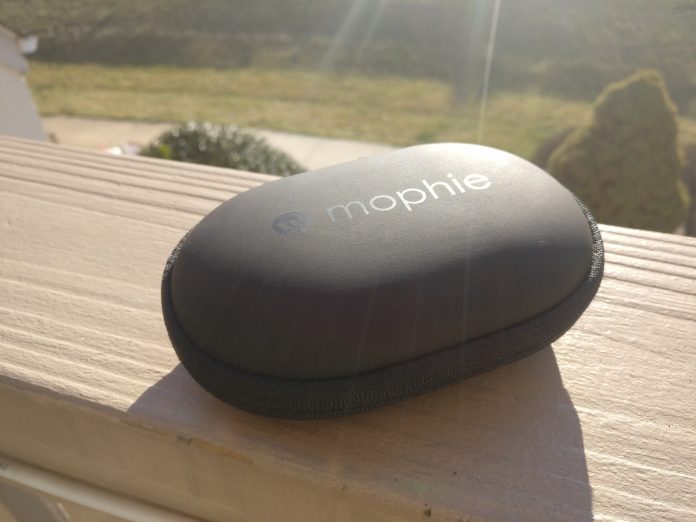
We’ve all been there before. You’re either at the gym or out and about listening to your favorite music with your Bluetooth headphones, and then suddenly the music stops. Crap. You forgot to charge your headphones or thought there was more juice left.
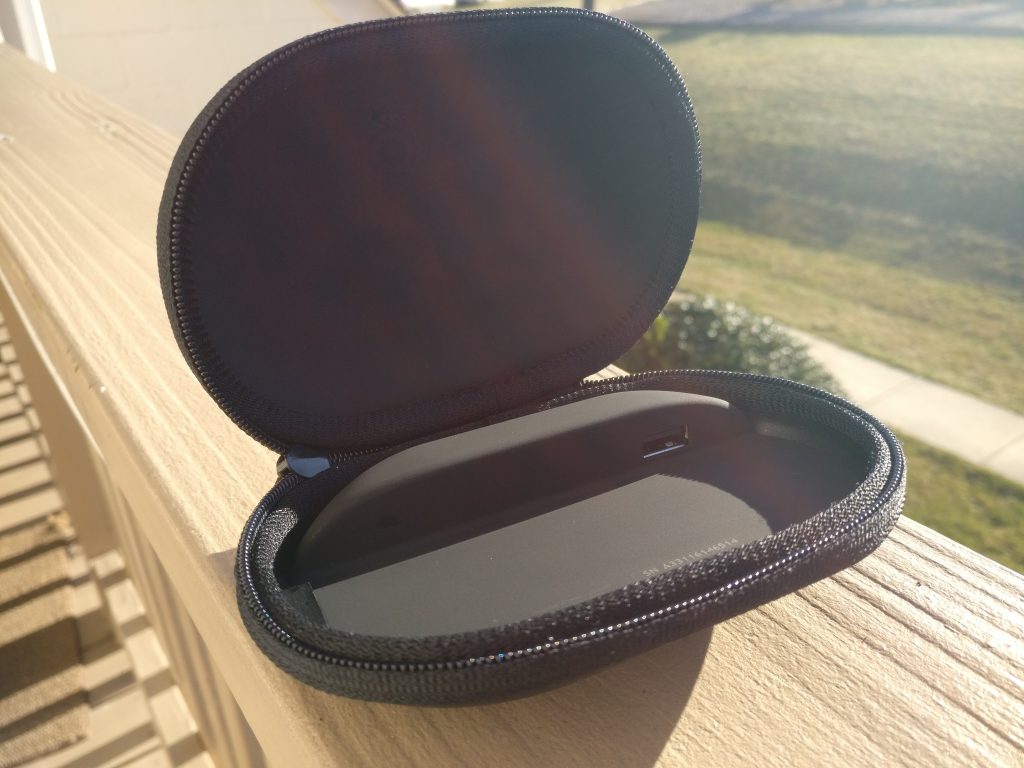 One option is that you could pack a portable charger in your gym bag or plug them into your car charger. But that doesn’t help keep your expensive headphones protected. That’s where the Mophie Power Capsule comes into play.
Design:
Mophie is well known for providing some of the best high-quality portable chargers for numerous devices, whether they are cases or the good ole’ charging blocks. The Power Capsule is a bit different as it provides a case for your headphones, while making sure that you can charge your headphones or fitness trackers on the go.
As a fan of high-quality products, I became more and more enamored with the Power Capsule as I used it. The matte feeling on the outer casing makes for easy handling, and I have yet to have it slip from my hands.
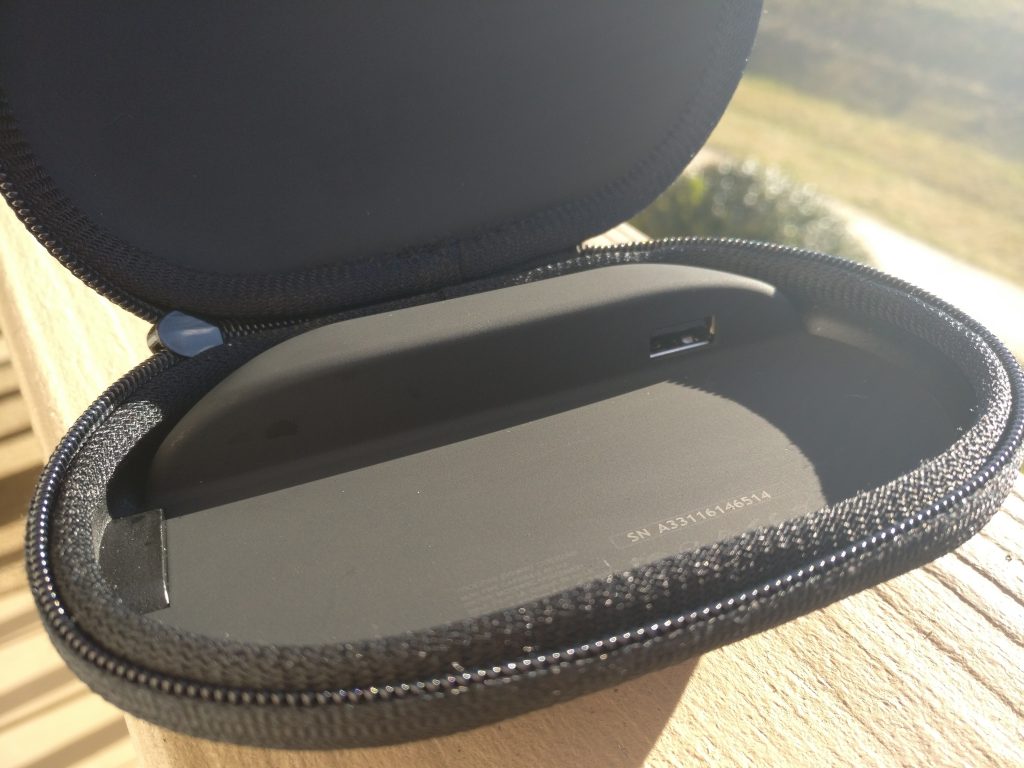 Inside the zipper, the Capsule features the same matte texture, while providing enough room for your headphones to be plugged in. If you have a super long cable, like what’s found on the Jaybird Freedom’s, you may run into some issues keeping everything contained. However, that wasn’t the case here with the Jaybird X3’s.
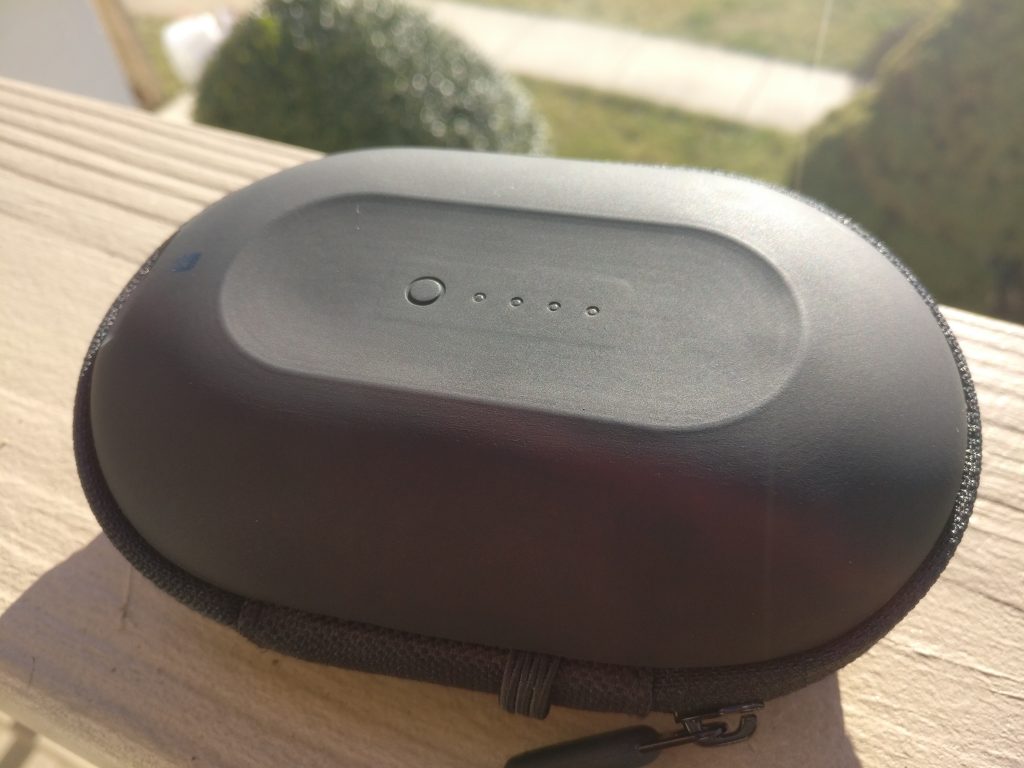 Looking at the bottom of the Power Capsule, you’ll see one button, along with 4 white LEDs. This will allow you to check out the remaining battery life on the charger, so you’ll know when you need to plug it in.
Of course, the Power Capsule won’t be able to withstand being driven over by a truck, however, it will withstand much of the day-to-day damage that our accessories receive. Meanwhile, it will do an excellent job at protecting your headphones or portable accessories while charging.
Battery Usage:
Packed into the Power Capsule is a 1,400mAh battery, which will charge your devices via the built-in USB charger. Now, if you look past your Bluetooth headphones and focus on your fitness tracker, you may have some issues using the Power Capsule. This is because of the design, as you can plug in your USB cable, but are provided with a limited amount of space.
To put that 1,400mAh battery into perspective, let’s take a look at the battery of the Jaybird X3 Bluetooth headphones. I was able to charge the X3’s to 100% at least 3 times, with a little bit of battery left over. Of course, you can use an portable charger to do the same thing, but if you want to keep your Bluetooth headphones protected, the Power Capsule is the best option.
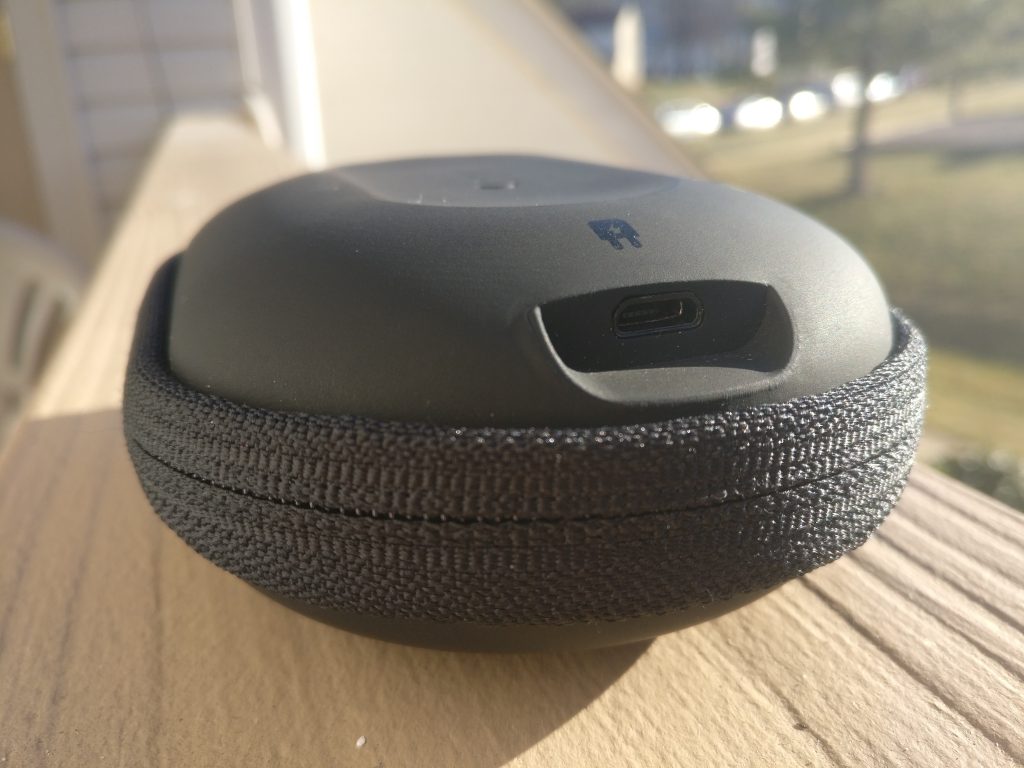 Once the 1,400mAh battery has been drained in the Power Capsule, you’ll need to recharge it. That’s where the built-in microUSB charger comes into play. This is placed on the side of the outer case, and can recharge in about about an hour or so.
Overview:
If I’m honest, I never knew there was an accessory which would double as a case for either fitness tracker, smartwatch, or Bluetooth headphones. So needless to say, I’ve been rather impressed with this little charging case. If you’re like me and do a fair amount of traveling and don’t want to risk ruining your headphones, the Mophie Power Capsule will be your best option, hands down.
If you’re looking for something to keep your Bluetooth headphones or wearables protected while charging, you won’t have to worry about breaking the bank. The Mophie Power Capsule is just $40 from Amazon with free Prime shipping.
Chromebook Diaries: Chrome apps vs. Android apps
Should I be using Chrome apps or Android apps? And why is so much choice such a burden?

Every good operating system that’s worthy of its users has an app story. After all, if you think about those mobile OSes that have nearly failed — webOS and Windows Phone are the first that come to my mind — you’ll recall that their app stores were hardly worth delving into. They were, effectively, a boring story. That’s certainly not the case with the Google Play Store, so then why does Chrome OS operate under a different narrative?
Since I’m new to this platform, I don’t know what life was like with a Chromebook before Android apps were available on Chrome OS (this feature, by the way, is still in beta). And I’m sure I’m luckier for it because I didn’t run into the same limitations as some of Chrome OS’s forbearers. If there isn’t a Chrome app or an extension that can function as I want, I can simply go to the Play Store and find an Android app that can. I have a choice.
- Chromebook Diaries Part 1: How I learned to live with Chrome OS
- Chromebook Diaries Part 2: Discovering the intricacies of Chrome OS

I am still not entirely sure where to start looking when I’m hankering to download an app: the web, Chrome Store, or Google Play?
There are plenty of caveats to using Android apps on Chrome OS — it’s still a very nascent feature. Most Chrome OS apps are optimized for a laptop, while Android apps are made with the touchscreen in mind and are often optimized for smaller, narrow phone screens. And in the instances that the Android app had a tablet mode, tracking was sometimes off on the Chromebook touchscreen display.
Then there’s the issue of which version of an app to use. I had this issue with Spotify, for example; the web app through the browser is better than the Chrome app, while the Android version has all the bells and whistles, including offline capabilities and options to organize playlists. You could see why I chose to use the latter. Conversely, Google Docs is better online than the Chrome OS app and the Android app because of its more easily navigable menu hierarchy.

And lastly, there’s the issue of actual app availability. I am still not entirely sure where to start looking when I’m hankering to download an app. Do I go to the Chrome web store, or should I try the Google Play Store first? My primary inclination is to check for Chrome OS app first, then search for an extension, and then relegate myself to whatever made-for-the-smartphone version might be available. At this point in the Chrome OS ecosystem, it seems like anything is better than nothing.
I really hope that the future of Chrome OS involves cross-platform interoperability and that developers of both platforms see Chrome OS as the natural extension for their Android app. I want perfect synchronization between Android devices and Chromebooks so I can be even more sucked into the Google world. Our ecosystem is almost there, folks. I can see it on the horizon.
Other thoughts:
- The “games story” on Chrome OS is laughable. I know the platform wasn’t initially primed for that — save for educational games — but I didn’t think it’d be this…limited? I’m not too interested in playing Android apps, either, save for the ones that are best played on a tablet yesterday. I’ve got my Pokemon TCGO and Rollercoaster Tycoon installed, so at least there’s that.
- Related: you know what would be cool? I’d like to see some sort of port available for older PC games. Wouldn’t it be neat to be able to relive through some of the classics, like Heretic II or maybe even just an old PopCap game? If something like this exists, please direct me. Otherwise, I’ll keep wishing to live the glory days of PC gaming on this weird little laptop that’s not quite sure of its identity.
- I received a couple of comments wondering why I’d bother using Chrome OS to do what my Mac and PC are already capable of. But I’m struggling to find the controversy. Mobile apps are almost as adequate as some desktop apps — I’m talking about relatively simple apps like photo editing and sketching, not ones that facilitate 3D rendering and intense video processing — so I should attempt to see if they can indeed replace the programs that I use daily. And with life becoming more mobile anyway, I might as well get into the groove of learning to use apps in that manner.
- Besides this agonizing-to-use trackpad (Anyone aware of an app that can tweak mouse settings on Chrome OS?), the Chromebook Flip is the perfect computer for riding the San Francisco Bay Area’s BART. I have it in laptop mode on the way to the city to finishing filing my work, and then flip it tablet mode on the way home to catch up on my Play Movies & TV library.
- I filed this entire article using just my Chromebook Flip. 🙂
Chromebooks

- The best Chromebooks
- Should you buy a Chromebook?
- Google Play is coming to Chromebooks
- Acer Chromebook 14 review
- Join our Chromebook forums
The AT&T Galaxy S7 is getting its long-awaited Nougat update
Android 7.0 Nougat is rolling out to the Galaxy S7 and S7 edge on America’s second-biggest carrier.
After T-Mobile, it is now AT&T’s turn to roll out Android 7.0 Nougat to the Galaxy S7 and S7 edge. Last year’s most popular flagship is also one of the last to get updated to the not-exactly-the-latest-but-better-than-nothing version of Android, after a length beta period that began in late 2016.
Along with Nougat’s requisite improvements, including a native multi-window mode and improvements to notifications, Samsung has also toned down some of its more garish colors, opting for simple whites and blues, and the phone now defaults to 1080p to save some much-needed battery.
The update is rolling out to AT&T customers now, and with T-Mobile already on its way, we just have Verizon and Sprint (and a few of the smaller carriers) to go before the rollout is complete.
Samsung Galaxy S7 and S7 edge
- Galaxy S7 review
- Galaxy S7 edge review
- U.S. unlocked Galaxy S7
- Should you upgrade to the Galaxy S7?
- Best SD cards for Galaxy S7
- Join our Galaxy S7 forums
Unlocked
AT&T
Sprint
T-Mobile
Verizon
Google tests LTE phone calls on Project Fi
As nice as Google’s Project Fi service is for the data-hungry crowd, it’s not so hot for voice — switching to Fi frequently means giving up pristine-sounding LTE voice calls with some of your friends. You might not have to make that sacrifice for much longer, thankfully. Google tells subscribers that it’s testing voice over LTE with a “subset” of its customer base. This is likely only going to function when you’re on T-Mobile’s network (it’s the only one of Fi’s three partners with VoLTE as of this writing). However, you’ll definitely know when it kicks in between the improved quality, faster mid-call data speeds and a quicker connection time.
The company hasn’t said when all subscribers can expect LTE calling. However, it won’t be surprising if a full rollout is contingent on Google’s other two wireless partners hopping aboard the VoLTE bandwagon. Sprint already has “HD” calling, but it’s still working on VoLTE support that could go live later in 2017. US Cellular, meanwhile, is looking at a similar time frame. Until at least Sprint is onboard, access to the feature could be inconsistent — you wouldn’t want to revert to muddier conventional calls just because you’re in the ‘wrong’ coverage area.
Via: VentureBeat
Source: Project Fi Help Forum
Twitter and Showtime stream a boxing match at 9PM Eastern
Twitter is no stranger to livestreaming sports, but it still has opportunities to break new ground. The social network is teaming up with Showtime to stream its first-ever boxing match. Tune in to Twitter on desktop or mobile tonight (February 18th) at 9PM Eastern and you’ll see a trio of fights, headlined by former champion Adrien Broner squaring off against Adrian Granados. You can only watch in the US and Canada, but you won’t have to log in to watch the pugilists in action.
Don’t expect to see boxing on a regular basis. Showtime is using the Twitter stream as a complement to a free preview weekend — it’s a sales tool for the TV network rather than a new delivery method. Still, the deal is something of a coup for Twitter, whose partnerships with broadcasters tend to involve news networks. It suggests that Twitter could be a go-to online destination for channel previews, and not necessarily in sports. And that could be particularly important for a company that’s still struggling to turn a profit and grow its user base.
Via: TechCrunch
Source: Showtime Boxing (Tumblr), Twitter
W is for white balance: 18 Lightroom keyboard shortcuts that are as easy as elementary
Lightroom is designed to be fast, and while the user interface is pretty quick, there’s still another way to make those edits faster: the keyboard. But there’s a problem. Adobe’s list of Lightroom shortcuts is somewhere in the ballpark of 300 combinations – pretty impressive for a laptop’s 80-some keys.
More: Keys to the kingdom: The most useful Windows 10 keyboard shortcuts
Unless you use a keyboard skin or you have a photographic memory, you’re probably not going to be whizzing through your edits using every memorized hot key anytime soon. Thankfully, several of the most helpful keyboard shortcuts aren’t too difficult to remember. Here are 18 of our most-often used Lightroom shortcuts, and an easy way to remember them.
Shortcuts for organizing and flagging photos
Many photographers who start with digital, shoot many more photos then they actually need (I’m so guilty of this that my first newsroom editor nicknamed me, Pepper). Keyboard shortcuts make quick work of picking out the best shots. Most users know that you can use the arrow keys to navigate to the next image and the backspace or delete key to remove photos, but there are a number of other commands that are (almost) as easy to remember.
Action
Windows Command
MacOS Command
Memory Trick
Switch to the compare View, to see two photos side-by-side
C
C
C is for for Compare
Zoom
Z
Z
Z is for Zoom
Add a Flag
P
P
P is for Pick
Unflag
U
U
U is for Unflag
Select all flagged photos
Control + Alt + A
Command + Option + A
Control or Command A works in a number of apps to select everything — just add an Alt or Option to select only the flagged photos
Reject photo
X
X
Cross out that photo
Delete all rejects
Control + Backspace
Command + Delete
Just add control or command to the delete keyboard shortcut to control all those rejects
Add a star rating
Number keys 1-5
Number keys 1-5
This one really is as easy as 1-2-3
Add a color label
6 – Red
7 – Yellow
8 – Green
9 – Blue
6 – Red
7 – Yellow
8 – Green
9- Blue
Color labels are used in the order of the rainbow: Remember ROY G. BIV? Just skip the vowels.
Add a keyword
Control + K
Command + K
K is for Keyword
One more handy trick — Hold down shift to move to the next photo after marking, this trick works for flagging, star ratings, color labels and rejecting a photo.
 AIVAnet