


Is this the next Google Glass? A wearable headband patent appears!
While many members of the tech community no doubt loved the idea of Google Glass, the wearable’s viability was arguably damaged by (1) the cost, (2) the availability, (3) the legality, and (4) the social norms. As such, the device was discontinued way back in January of this year. Mountain View then took to damage control in the aftermath.
While there was news the project will resurface as a tool of the trade – such as for use in medical environments – Google itself formally restarted the efforts as Project Aura several months ago. Today we have a possible look at what kind of new product might be pending in the pipeline:

On November 24th, the US Patent and Trademark Office awarded Google a patent (No. 9,195,067 B1) for “Wearable Device with Input and Output Structures.” As can be seen from the pictures, the device has a headband-type design to it that wraps around part of the rear of the user’s head:
#gallery-1
margin: auto;
#gallery-1 .gallery-item
float: left;
margin-top: 10px;
text-align: center;
width: 50%;
#gallery-1 img
border: 2px solid #cfcfcf;
#gallery-1 .gallery-caption
margin-left: 0;
/* see gallery_shortcode() in wp-includes/media.php */


The next picture shows the inner components:

Additional images in the filing also illustrate how the HUD can be moved and adjusted to fit the wear’s field of vision.

For all these pictures and more, we recommend you consult the full filing here:
Time to celebrate?

It should be pointed out that intellectual property protection was submitted for consideration on September 28, 2012; this was shortly after Google Glass was first announced and well before it was released in 2013. As such, it’s difficult to say just how tangible this potential product actually is.
Now that the patent has been granted, Mountain View could go forward and make it into a proper purchasing proposition, but given the decision earlier this year it might also be such that the “next” Glass would have a different type of HUD unit or different design entirely.

Still, Google can now make the product described in the filing, and that alone speaks of many possibilities. Last week word broke about Project Aura possibly producing an version of of a “sport” device designed for audio-related purposes, along with two other devices that make use of screens.
Again though, given the actual age of this patent, only time will tell what comes to pass. This could ultimately turn into a real product, or it may just be one for the history books. Either way, it’s clear Google isn’t limiting itself to just one standard shape.
See the radio waves constantly bathing you with this app

Whether or not you realize it, there are radio waves constantly washing over you. Thanks to the countless WiFi routers, cellular towers, and GPS satellites (not to mention all the Bluetooth and other smaller wireless devices) the air is literally just a sea of energy. Architecture of Radio is an app that aims to visualize those ebbs and flows of data. Creator Richard Vijgen taps into a public database of 7 million cell towers, 19 million Wi-Fi routers and hundreds of satellites to create an augmented reality experience where you can point your iPad or iPhone in any direction and a representation of the radio signals in your area.
Via: TechRadar
Source: Architecture of Radio
How to start Android app development for complete beginners in 5 steps
 So you have a killer app idea and you’re ready to turn it into a reality and take it to market. No doubt you’re itching to start getting your first downloads, reviews and profits… But there’s just one problem: you don’t have a clue where to start!
Learning to code is difficult enough on its own but with Android development it can be more complicated. Not only do you need to understand Java, you also need to install all the Android-specific software and learn all of the unique quirks of Android app development.
In general, creating an Android app requires the SDK (Software Development Kit), an IDE (Integrated Development Environment) like Android Studio or Eclipse, the Java Software Development Kit (JDK) and a virtual device to test on. All this takes work to set up, and that’s before you’ve even started looking into things like Google Play Services, screen sizes, API levels…
 See also: I want to develop Android Apps – What languages should I learn?
It’s just such a dense amount of information and it’s enough to put an awful lot of people off before they even begin. My aim with this article then, is to provide an approachable guide to try and make the whole prospect of creating an app a little less daunting… I’ll explain the bits you need to know and gloss over the rest and by the end you should have a basic app that you can start iterating on and experimenting with.
Go and make yourself a cup of tea first though, this may take a while…
Step 1: Download Android Studio
To program in most languages, you need a piece of software called an IDE or ‘Integrated Development Environment’. The most common IDE for Android development is Android Studio, which comes direct from Google itself. You can get it here.
An IDE is what gives you the main UI where you’ll enter your code (you can’t just start typing into notepad). It also highlights things you get wrong, offers suggestions and lets you run and test your creations conveniently. It creates the files you need, it provides basic layouts and generally it saves you a lot of time and effort.

What’s great about Android Studio is that it is designed specifically for Android development (unlike the second most popular option, Eclipse). This means that when you download the software, you’ll also get a lot of the other bits you need including the Android SDK (a selection of tools including the Android platform itself) and the Android Virtual Device, which is an emulator you can test your apps on. When you go through the installation, make sure you leave the boxes ticked to confirm that you want these additional components. You could manually add them later, but this will just complicate matters.
As mentioned, there are some alternatives to Android Studio. Eclipse is an older IDE that can be used for developing other things too (such as iOS apps) and that is a bit more flexible overall. It’s also a much more fiddly to get started with though and not nearly as beginner-friendly. Another personal favorite of mine is Basic4Android. Basic4Android is an IDE that lets you code Android apps with the BASIC programming language. It makes things easier in a number of other ways too and is focused on ‘rapid development’.
 See also: Writing your first Android game using the Corona SDK
There are other options too, such as Unity3D and numerous app builders, each of which has specific strengths and weaknesses depending on what you’re planning on building. For the sake of simplicity though, we’re focusing on Android Studio because it has become the ‘main’ way to build basic apps and pretty much the industry standard. If you think you might ever sell your business, if you want to give yourself the most flexibility and control possible, or if you’d like to become a professional app developer, you’ll need this tool.
That said, if you read through all this and you find it too much still, you might want to consider Basic4Android as a simpler approach and I’ll be covering that in a future post.
Okay, just to recap: we now have Android Studio downloaded and installed. But, don’t run it until you read step two! So far so good… What could possibly go wrong?
Step 2: Setting Up Android Studio
Now you have Android Studio installed you’ve taken your first, bold step toward becoming a developer! A lot of people only manage it this far and then leave the software installed on their computer for months on end, feeling guilty every time they see it in the Start Menu. Eventually they end deleting it to make space for the next AAA title on Steam and so ends the whole sorry affair… Don’t end up like them – it’s time for some more affirmative action!
Before you can get started, you also need to install Java on your machine to use Android Studio. Specifically, you’re going to need install the Java Development Kit (JDK). Java is the programming language you’re going to be using to build your apps in this instance and you need to install the JDK in order for Android Studio to be able to interpret and compile your code (compiling means turning the source into something that is understood by the CPU – machine code). You’ll find the Java Development Kit here. Just download and follow the instructions to install.
 See also: Android Studio tutorial for beginners
Now you can click on Android Studio to launch it. Once it opens up, you’ll be presented with a menu where you’ll be able to get started or configure some options. The great thing is that everything is handled for you at this point, though you may want to familiarize yourself with the SDK Manager (Configure > SDK Manager) which is where you’ll update your Android SDK to support newer versions, as well as download things like code samples or support for Google Glass. But don’t worry about that now but if Android Studio says you’re missing something, this is where you’ll probably need to go to find it.
So really there are three main things interacting when you use Android Studio to create your apps.
- Android Studio itself, which is an IDE that provides you with a nice interface for coding.
- The code you write in Java, which you installed a moment ago…
- And the Android SDK which you’ll access through your Java code in order to do Android-type things
If you find this all a bit complicated and daunting then… well, you don’t know you’re born. This used to be way worse.
Maybe that offers some consolation…
Step 3: Starting a New Project
Once you’ve installed your samples, you can go back to the first page you saw when you loaded up Android Studio. Now you want to choose Start a new Android Studio Project – it’s finally happening!
Enter the name you want for your application and your ‘company domain’. Together these elements will be used to create your package name with the following format:
com.companyname.appname
The package will be the compiled file or APK (‘Android Package File’) that you’ll eventually upload to the Google Play Store. There are ways that people can see this, so if you’re planning on making something you’ll eventually release, try to stay away from using ‘funny words’.

The last field to enter is the directory where you want to save all the files pertaining to your app. I like to save in DropBox to make sure I always have a backup of my code. Click Next again and guess what… More options! Huzzah! Don’t worry, we’re nearly there…
Next you need to decide what type of device you’re going to be developing for and in this case we’ll start with the Phone and Tablet option. Other options are TV, Wear and Glass. It’s fine if you want to develop for a myriad of platforms in the future – that’s one of the wonders of Android – but let’s start with something a bit more straightforward to begin with, okay?
The other choice you have to make at this stage is the ‘Minimum SDK’. This is the lowest version of Android you want to support. Why not just enter the latest version of Android in here? Well, because relatively few people actually have the latest version of Android installed on their device at any given time. You want to support phones that are still running older versions in order to reach the largest possible audience – especially overseas.
Why not just go with Android 1.1? Well, apart from this not being an option (Froyo is as low as you can go), that would also prevent you from using any of the fancy new features from the latest updates.
The best bet at this stage is to go with the default option, so just leave this field as it is. On the next page, you’ll be given the option to pick the way you want your app to look at the start. This will be the look of your main ‘Activity Module’ which is basically the main page of your app. Think of these like templates; do you want to have the title of your app along the top of the screen, or do you want your UI to fill the whole display? Do you want to start off with some elements ready-designed for you? Is your app primarily going to use Google Maps (don’t go here for a bit, things get more complicated with Google Play Services).

Bear in mind that an app can have multiple activities that act like separate pages on a website. You might have a ‘settings’ activity for instance and a ‘main’ activity. So the activity isn’t the app per say but rather one stand-alone page of your app.
For your first creation though, you’ll probably do best to make something really simple that just displays a single, basic activity. Select ‘Basic Activity’ to keep things as simple as possible and for all intents and purposes, this will now be your app. Click Next again you get the last few options.
Now you get to pick the name for your activity and the layout name (if you chose ‘Basic Activity’ you’ll also have the title option and the ‘menu_resource’ name). The activity name is how you’ll refer to your activities in your code, so call it something logical (good advice for coding generally) like ‘MainActivity’. Creative, I know.
The layout name meanwhile describes a file that determines the layout of an activity. This is a separate piece of code that runs in concert with the main activity code to define where elements like images and menus go and what fonts you’ll use. This is actually not Java but XML – or Extensible Markup Language if you want to impress your friends.
For anyone with a background in web development, your XML is going to work a little like HTML or a CSS style sheet. The Java code for the activity meanwhile says what the elements on the screen do when pressed etc. It’s fine to leave the default name here as ‘activity_main’. Lastly, choose a name for the menu and for the title. Pick something nice for the title, as your users will be able to see this at some points. Click next… and now you get to see your app!
Your blank, useless app… All that just to get started! You see why people give up? But really we can break it down into the following very basic steps:
- Download and install Android Studio, making sure to include the Android SDK
- Install Java SDK
- Start a new project and select the basic details
So it’s really not that bad… And remember: once you’ve done all this once, you can forget about it forever and focus on the fun stuff: creating apps! Your tea is probably cold at this point, so the next very important step, is to get more.
Step 4: Making an Actual Thing
Once your app opens, you should see a directory tree on the left with all the different files and folders that make up your app and a picture of a phone displaying ‘Hello World!’ in the center. Well, hello to you as well!
(A basic app that displays ‘Hello World’ is what most new developers make first when they learn to program in a new language. Android Studio cheats though, because it does it for you!)
You might notice that the open tab (along the top) is ‘activity_main.xml’, which is what the big phone is showing on its display. You may recall that activity_main.xml is the XML code that defines the layout instructions for your main activity.
If you selected ‘Basic Activity’ when you started your project, then you’ll see a second XML file too called ‘content_main.xml’. For the most part, these two do the same thing but the ‘acitvity_main.xml’ contains the basic layout that Android Studio created for you when you selected ‘Basic Activity’. The stuff you want to edit is in content_main.xml, so open that up and don’t worry about it for now.
(If this isn’t what is open to start, then use the directory on the left to open it by choosing: app > res > content_main.xml.)
The Layout
Android Studio is not showing the XML code itself here but rather a rendering of how the layout will appear on the screen. This is a visual editor a bit like Dreamweaver for web design and it makes life a little easier for us developers.
You also have a bunch of options called ‘widgets’ down the left that you can add to your app. This is your basic app stuff; so for instance, if you want to add a button saying ‘OK’ to your activity, you can simply drag it over to the screen and drop it anywhere you like. Go ahead and dump an ‘OK’ button right underneath the ‘Hello World’.
Something else you’ll find is that you can click on either of these elements in order to change the text and the ‘ID’. The ID is how you’re refer to each element (called a ‘view’) in your Java code, while the text is of course what you display to the user.
Delete the ‘Hello World’ widget (or view) and change the text on the button to ‘Hello?’. Likewise, change the ‘id’ on the button to ‘button1’.
I am now stealthily getting you to write a little program… Notice as well that when you select a view, you get options in the bottom right to change the text color and size etc. You can play around with these variables if you like to change the look of your button. We’re coming back here in a minute though so make a mental note!
 See also: Java tutorial for beginners
Now open up your MainActivity.java. The tab will be along the top but in case it isn’t, find it under: App > Java.
This is the code that defines the behavior of your app. At this stage, you’re going to add in a little passage of code:
public void buttonOnClick(View v)

Button button1 = (Button) v;

((Button) v).setText("Hello!");
This is going to go right underneath the first lone closed bracket ‘}’, just before the “@Override, Public Boolean”. It should look like this:

What does it all mean? Well basically, anything following “void buttonOnClick” will be carried out when someone clicks on the button. We’re then finding the button with the “Button button1 = (Button) v;” code and then changing the text.
Yes, there are other ways you could achieve the same thing but I feel like this keeps it nice and simple and thus easy to understand. Spend some time reading it and try to get your head around what is doing what…
At the top of the page is the word ‘import…’. Click on that to expand it and make sure that somewhere there is the line: “import android.widget.Button;”. It should have appeared on its own when you typed out the last bit (Android Studio is smart like that) but you can add it yourself if it didn’t.

(Notice as we type that lines end in “;”. This is basic Java formatting and if you forget one, it will throw up an error. Get used to searching around for them!)
Now go back to your content_main.xml and click on the button. In the right corner, where you have your parameters for the button, you should be able to find an option called ‘onClick’. Click on this and then select the ‘onClick’ line of code you just wrote from the drop down menu. What you’ve just done, is told Android Studio that you want to associate the section of code with the button you created (because you’ll have lots of buttons in future).

Now all that’s left to do is run the app you just made. Simple go to ‘run’ along the top and then select ‘run app’ from the drop down menu. You should already have your AVD (Android Virtual Device) installed but if not, you can go to: tools > Android > AVD Manager > + Create Virtual Device. Don’t forget you also need to install an Android version onto the device.
 Follow the steps to launch the emulator running your app. Be patient, it can sometimes take an age to load up… If it never loads up, you can consider ‘packaging’ the app in order to create an APK. Drag this onto your Android device and double click on it to install and run it.
Once it’s finally up and running you can have a go with this fun, fun app. What you should find is that when you click the button, the text from ‘Hello?’ to ‘Hello!’. We’re going to be rich…
(If it doesn’t work… something has gone wrong. It wasn’t me, my one works! Look for red text in your code and hover your mouse over it to get suggestions from Android Studio.)
Step 5: How to Get Better At App Development
Okay, so that was a lie. We’re probably not going to be rich. At the moment the app we’ve made is pretty lame. You can try and sell it sure but you probably won’t get that many good reviews.
The reason I talked you through this basic app creation though is because it teaches you the very fundamentals of programming. You have an action and a reaction – pressing on a button does something. Throw in some variables and some math, add some pretty images and a useful function and that’s genuinely enough to make a very basic app.
So where do we go from here? There’s so much more to learn: we haven’t looked at the Android Manifest yet, we haven’t talked about your private keysign (or how fun it is when you lose that) and we haven’t even studied the Android app ‘lifecycle’ (nothing to do with The Lion King). There’s issues with supporting different screen sizes and there’s just so much more to learn.
Unfortunately, it would take an entire book to teach you the entirety of Android app development. So that’s a good place to start: buy a book!
But more important is just to play around and try things. Don’t set out to make your world-changing app on day one. Instead, focus on making something simple and straightforward and then build on that. Try changing the layout of the text and try adding in more buttons and more rules to make your app actually useful.
Eventually, you’ll find there’s something you want to do that you can’t figure out on your own. Maybe you want a sound to play when someone clicks on your button, for example. This is where the real learning starts. Now all you need to do is search in Google: “How to play sound onClick Android”
You’ll find a bunch of complicated answers but eventually someone, probably on Stack Overflow, will break down the answer simply for you. Then what you do is you copy that code and you paste it into your app, making a few changes as you go.
Likewise, try out some of the code samples available through Android studio. See how they work, try changing things and just experiment. Things will go wrong and error messages will come up but for the most part, if you just follow the instructions, it’s easy enough to handle. Don’t panic! And that’s pretty much how you learn to make apps. A lot of it boils down to reverse engineering and copying and pasting. Once you have the main program in place, the rest you pick up as you go.
If you want the absolute easiest way to start, then just find some sample code that’s close to what you make and change it. No one is going to be able to explain all this to you in a way that makes any sense and if you worry about not grasping everything to begin with, you’ll never get anywhere.
So instead, dive in, get your hands dirty and learn on the job. It’s complicated and it’s frustrating but ultimately it’s highly rewarding and more than worth the initial effort.
ZuperDAC Review: A neat little audio enhancer
Not too long ago, we had a look at Zorloo’s Digital Earphones. They utilized a DAC (Digital-to-Analog Convertor) into the cable which, in short, meant that the audio output bypassed the standard processing within the phone and was instead improved through the dedicated chip on the cable. They’ve now produced a similar product called ZuperDAC.
Hardware
 The unit comes sealed in a neat little box. With a bit of grappling, the top part comes off to reveal a snuggly nested converter.


Audio

It will route the audio to whichever output is plugged in first


Daily Use

ZuperDAC (right) offers a more portable and convenient HiFi solution as compared to the standard DAC unit
Opinion

You can purchase a unit here at Zorloo’s website, in either Silver or Gold.
The post ZuperDAC Review: A neat little audio enhancer appeared first on AndroidGuys.
You partly have Eric Schmidt to thank for the new $5 Raspberry Pi

While many of you were supposed to be eating turkey on Thursday, you were instead geeking out over Raspberry PI’s newest computer, the Zero: a pint-sized module that costs just $5. But according to a new interview, that $5 computer was originally supposed to cost around $60 — and you have partly have Google’s Eric Schmidt to thank for that reduced price. In an interview with the Wall Street Journal, Raspberry Pi Foundation founder Eben Upton admitted that the follow-up to the original $35 Pi was originally going to be a more powerful model, whose higher-performing internals would have put the price somewhere between $50 and $60.
Via: Geek.com
Source: Wall Street Journal
ASUS Chromebit review – the little Chrome OS dongle that could

Current Google CEO Sundar Pichai once said he wanted to see Chrome and Android in every screen available, a goal that is now looking more real than ever. Android is obviously all over the spectrum, but there is a whole other beast Google has been very good at taking over the market with – Chrome OS.
This web-based operating system now exists on laptops, desktop computers and even all-in-one PCs. These are known as Chromebooks, Chromeboxes and Chromebases, but that is not where Google wants to let things end. This light, fast and affordable platform is now making its way into a new form-factor that allows more flexibility.

Today we are focusing on the ASUS Chromebit, a small dongle that can fit into any pocket and convert any HDMI-enabled screen into a full-fledged Chrome OS device. Yes, even your TV, likely the largest screen you own.
But what is the benefit here? That is something we will talk more about later in the review, but let me give you a little teaser here – the ASUS Chromebit is only $84.99. Interested? Keep reading for more details!
Buy the ASUS Chromebit from Amazon
Buy the ASUS Chromebit from Newegg
Design & build quality
Thinking back on how big computers needed to be just a decade ago, this thing does seem like a marvel. We used to own large boxes that took over a huge part of our desks. Now I find myself getting an ASUS Chromebit in the mail, in a box that could easily fit a glass. This thing fits right in the palm of my hand and can easily outperform my first desktop computer. If you want numbers, it measures in at 123 x 31 x 17 mm. That’s just digits, though, so I am better off telling you it is about the size of one of those wide highlighters we used to have back in school.
The ASUS Chromebit certainly doesn’t look bad, but it’s also nothing to write home about. And that’s a good thing! This is not a product you will be showing off to anyone. It will live behind your screen and stay hidden most of the time, something it does a very good job at. It is discrete, both in size and aesthetics.

What you probably will care about is whether it’s well-built or not. After all, this is a portable device of sorts. The idea is that you can use it at your living room, desk, work, presentations and even hotel room. This jack of all trades can do it all, so it needs to be built to withstand such lifestyle.
Hopefully the guys at ASUS never read this bit, but I actually dropped the Chromebit once. It fell out of my pocket and came out of this accident without a single scratch. Literally, the thing still looks new. This is pure testament of its good build quality, but you don’t need to mess up (like me) and put it to the test to know this. You can feel it right off the bat, the first time it lays on your hand.
Even if built mostly of plastic, the Chromebit definitely feels solid. It has a certain weight that let’s you know it’s definitely not a hollow product, a factor that gives off a level of security I never had with a Chromecast.

Hardware & specs
Let’s go through the externals first, shall we? Everything is pretty straight forward here. Uncover one end of the ASUS Chromebit and you will be presented with a full-sized HDMI connector. The box also includes an extension for those TVs that make it hard to connect this device directly to. On the other end we can find a USB 2.0 port for connecting all your peripherals and storage devices. There’s also a small power jack on the side, which is used to keep your mini PC alive.
Let me touch a bit on that energy system, though. It’s already bad enough that it uses a non-USB power port, but there are a couple other inconveniences I found here. For starters, you can’t plug this into the TV’s USB port and grab energy from there. This is justified, though, as it is a Chrome OS computer and needs more energy.

What really gets to me is that the included Power cable is uncomfortably short. I would say this cable is about 1.25 meters, which makes it a pain to plug in if your TV (or whatever screen you are using) is a tiny bit too far from an outlet.
How about them specs? Let’s go over them real quick.
- Chrome OS
- Rockchip quad-core RK3288C CPU
- ARM Mali-T624 GPU
- 2 GB of RAM
- 16 GB of internal storage
- 100 GB of Gogole Drive storage for 2 years
- WiFi 802.11 a/b/g/n/ac
- Bluetooth 4.0

Performance and OS
Now, the moment of truth. How good is the ASUS Chromebit as a computer? Let’s begin with the OS, which will really be what most of you will care about. That is because, like most other Chrome OS devices, the Chromebit is very good at some things, but very bad at others.
Keep in mind this pretty much runs a glorified version of the Chrome browser. Google has added plenty of offline features and apps to Chrome OS, but that doesn’t take away from the fact that it heavily relies on an internet connection. Regardless, most people use computers for the internet alone, which is the whole idea behind the very existence of this operating system.

The only thing to keep in mind is that you will have to sacrifice popular programs that any user would otherwise have at their disposal when working with Windows, Mac OS X or Linux. Say goodbye to Photoshop, Lightroom, Microsoft Office, most games and any other program you would usually run natively from a PC. Everything is web-based (or limited).

That’s not to say the OS is bad, as there are plenty of benefits to be had with it. Keep in mind that because it is a web-based OS, it is also very light. Super light. This thing will boot up faster than any other computer. In fact, the Chromebit was usually on by the time my TV decided to boot up. And because it doesn’t need much resources, it can run very well without crazy specs.
This takes us to the next point – how well does the ASUS Chromebit perform? Those who have used a lower-end Chromebook will find a very similar experience going on here. The computer runs perfectly if you are a basic user. I was streaming Full HD videos with no issue, and I never saw any hiccups with casual usage. Nor did I find any bugs or problems.
My only gripe with the Chromebit is that those 2 GB of RAM are definitely not enough for any multi-tasker out there. I found that even having 4 tabs open started slowing down the machine, something that is simply unacceptable in my line of work.
 But if you never really open 4 tabs or more, this may not be an issue at all. I mean, this is an $84 computer, after all. If multi-tasking is the only thing I can complain about, in terms of performance, I say ASUS is doing a really good job.
Should you buy the ASUS Chromebit?
With that, we come back to the question you asked yourself at the beginning of this review – should you buy an ASUS Chromebit? As it goes with most devices, the answer is not as simple as a “yes” or “no”. I will tell you this device is not for everyone, though. Who is it for?
It’s portability and affordable price point make it a great secondary computer for those who move around frequently, are always on-the-go, or need a good presentation machine. It will take care of all your browsing needs, as long as you don’t go nuts with multi-tasking. Now, things may be a bit more complicated if you want to make this your primary computer, but it’s definitely doable depending on your needs.

A casual user who simply wants to browse the web, visit social networks and stream movies/music will be satisfied. I can also see it being a great tool for public places (schools, hotels, libraries, etc.), as it is affordable and very easy to manage for IT departments. If you only need to use the web, don’t multi-task much and won’t need your traditional programs, this little dongle is great.
And the Chromebit definitely has its market, which is something I happen to be fond of… it has its purpose and place in the wide ecosystem of devices we own. I personally wouldn’t say the same about Chromeboxes, which sacrifice portability, screen and keyboard, yet cost about the same as a Chromebook. I just don’t see the point in that. But for $84.99, I can definitely get behind something like the ASUS Chromebit.
If you fit the category described above, it’s certainly a great buy. And at this price you would be hard-pressed to find anything better.
Buy the ASUS Chromebit from Amazon
Buy the ASUS Chromebit from Newegg
MacMall’s 2015 Cyber Monday Sale Now Live With Good Deals on Macs
MacMall’s annual Cyber Monday sale offering discounts on Macs and several other Apple products starts today, November 28, at 12:01 a.m. Pacific Time and lasts through 11:59 p.m. Pacific Time on Monday, November 30.
Following its 60-hour Black Friday sale, MacMall continues to offer significant discounts on a huge selection of Apple Macs and iPads. The Retina MacBook Pro is available at up to $259 off, while the MacBook Air is available for up to $100 off. The 27-inch iMac is available at up to $200 off, and the Mac mini is available at up to $70 off.
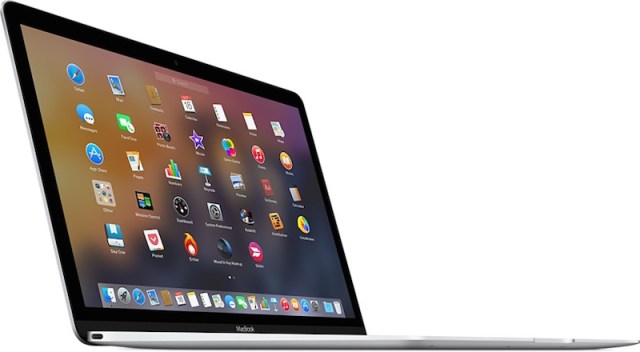
MacMall sells a range of stock Apple Macs and custom build-to-order models. We’ve listed a selection of the more popular discounted models below, but the full range of discounts are available on the MacMall website.
2015 Retina MacBook
– 1.1GHz/8GB/256GB Gold, Silver, Space Gray – $1,199, $100 off
– 1.2GHz/8GB/512GB Gold, Silver, Space Gray – $1,499, $100 off
– 1.3GHz/8GB/256GB Gold, Silver, Space Gray – $1,489, $60 off
– 1.3GHz/8GB/512GB Gold, Silver, Space Gray – $1,689, $60 off
2015 13-inch Retina MacBook Pro
– 2.7GHz/8GB/128GB – $1,229, $70 off
– 2.7GHz/8GB/256GB – $1,399, $100 off
– 2.9GHz/8GB/512GB – $1,699, $100 off
– 2.7GHz/16GB/256GB – $1,599, $100 off
– 2.9GHz/16GB/256GB – $1,699, $100 off
– 2.9GHz/16GB/512GB – $1,929, $70 off
– 3.1GHz/16GB/256GB – $1,899, $100 off
– 3.1GHz/16GB/512GB – $2,099, $100 off
– 3.1GHz/16GB/1TB – $2,597, $102 off
2015 15-inch Retina MacBook Pro
15-inch 2015 Retina MacBook Pro models are available for up to $259 off. Models marked Iris AMD include a separate AMD graphics card while models marked Iris Pro do not.
– 2.2GHz/16GB/256GB/Iris Pro – $1,839.99, $159.01 off
– 2.5GHz/16GB/256GB/Iris Pro – $1,839.99, $259.01 off
– 2.5GHz/16GB/512GB/Iris Pro – $2,239, $160 off
– 2.5GHz/16GB/512GB/Iris AMD – $2,299, $200 off
– 2.5GHz/16GB/1TB/Iris AMD – $2,829, $170 off
– 2.8GHz/16GB/256GB/Iris Pro – $2,139, $160 off
– 2.8GHz/16GB/512GB/Iris Pro – $2,449, $150 off
– 2.8GHz/16GB/512GB/Iris AMD – $2,539, $160 off
– 2.8GHz/16GB/1TB/Iris AMD – $2,974, $225 off
2015 MacBook Air
MacMall’s selection of MacBook Air models are available at a $50 to $100 discount.
– 11-inch 1.6GHz/4GB/128GB – $829, $70 off
– 11-inch 1.6GHz/4GB/256GB – $1,029, $70 off
– 11-inch 1.6GHz/8GB/256GB – $1,148, $51 off
– 11-inch 2.2GHz/8GB/256GB – $1,289, $60 off
– 11-inch 2.2GHz/8GB/512GB – $1,579, $70 off
– 13-inch 1.6GHz/4GB/128GB – $899, $100 off
– 13-inch 1.6GHz/4GB/256GB – $1,129, $70 off
– 13-inch 1.6GHz/8GB/256GB – $1,239, $60 off
– 13-inch 1.6GHz/8GB/512GB – $1,529, $70 off
– 13-inch 2.2GHz/8GB/256GB – $1,379, $70 off
– 13-inch 2.2GHz/8GB/512GB – $1,679, $70 off
2015 21.5-inch iMac
– 1.4GHz/8GB/1TB – $1,019, $80 off
– 2.8GHz/8GB/1TB – $1,199, $100 off
– 2.8GHz/8GB/1TB Fusion – $1,349, $50 off
– 2.8GHz/16GB/1TB Fusion – $1,549, $50 off
– 4K 3.1GHz/8GB/1TB – $1,399, $100 off
– 4K 3.1GHz/16GB/1TB – $1,629, $70 off
– 4K 3.3GHz/8GB/1TB Fusion – $1,729, $70 off
2015 27-inch iMac
– 5K 3.2GHz/8GB/1TB/M380 – $1,699, $100 off
– 5K 3.2GHz/8GB/1TB Fusion/M390 – $1,829, $170 off
– 5K 3.2GHz/8GB/2TB Fusion/M380 – $2,029, $70 off
– 5K 3.2GHz/16GB/1TB Fusion/M390 – $2,129, $70 off
– 5K 3.3GHz/8GB/2TB Fusion/M395 – $2,179, $120 off
– 5K 3.3GHz/16GB/2TB Fusion/M395 – $2,429, $70 off
– 5K 4.0GHz/8GB/2TB Fusion/M395 – $2,479, $70 off
– 5K 4.0GHz/16GB/2TB Fusion/M395 – $2,669, $80 off
– 5K 4.0GHz/16GB/3TB Fusion/M395 – $2,769, $80 off
– 5K 4.0/32GB/2TB Fusion/M395X – $3,279, $120 off
– 5K 4.0/32GB/3TB Fusion/M395X – $3,379, $120 off
– 5K 4.0/32GB/1TB Flash/M395X – $3,899, $200 off
2013 Mac Pro
– 4-Core 3.7GHz/12GB/256GB – $2,749, $250 off
– 6-Core 3.5GHz/16GB/256GB – $3,699, $300 off
– 8-Core 3.0GHz/12GB/1TB – $6,349, $450 off
– 12-Core 2.7GHz/64GB/1TB – $8,799, $800 off
2014 Mac mini
– 1.4GHz/4GB/500GB – $464.99, $34.01 off
– 2.6GHz/8GB/1TB Sata – $659, $40 off
– 2.8GHz/8GB/1TB Fusion – $938, $61 off
MacMall is offering iPad Air 2 models at $21 to $40 off 16, 64, and 128GB Wi-Fi only models and up to $40 off the more expensive high-capacity cellular models. The original iPad Air is available for up to $35 off, and the iPad mini 4 is available for up to $20 off. The 32GB Wi-Fi only iPad Pro in Silver, Space Gray and Gold is $25 off, while other Wi-Fi only and cellular models are $12 off.
MacMall is also offering the Apple Thunderbolt Display for $949, which is $50 off, and between $10 and $25 off select iPod touch models. 16GB iPod nano models are $10 off. AirPort Extreme (2013) and Airport Time Capsule (2TB) are each discounted by around $20, and select Apple accessories are on sale.
As one of the only sites that sells Apple’s build-to-order Mac models at a discount, MacMall is a popular choice for customers looking for a non-standard Mac at a lower price. Because MacMall operates in a limited number of states, most orders will not require sale tax to be paid.
Make sure to check out our Cyber Monday Deals roundup for more online deals. There are some excellent discounts this year on a range of products, including iPhones, iPads and Macs, in addition to dozens of Apple-related accessories.
MacRumors is an affiliate partner with MacMall. Juli Clover contributed to this roundup.
Discuss this article in our forums
Formula E is planning the first racing series for driverless cars

Via: The Verge
Source: Formula E
Amazon Prime Video Coming to New Apple TV Possibly Within a ‘Few Weeks’
Last month, Amazon removed all Apple TV and Chromecast product listings from its website because the devices do not offer its Prime Video streaming service, which the online retailer said may cause confusion for customers. Nearly a month later, the new Apple TV remains unavailable on Amazon, but that could soon change.

Amazon appears to have confirmed to engineer Dan Bostonweeks that it is developing a tvOS app for Prime Video that could launch before the end of 2015. “Hopefully, within a few weeks span, you will be able to see the Amazon Instant Video app feature on your Apple TV,” the company purportedly said in an email.
I sent feedback to Amazon via the Amazon Instant Video iOS app about supporting tvOS. They say it’s in development. pic.twitter.com/52fYUgtgNs
— Dan Bostonweeks (@danimal) November 28, 2015
http://platform.twitter.com/widgets.jsApple was wrongly criticized by some in October for seemingly not allowing Prime Video on the new Apple TV, but shortly after the company provided a statement to BuzzFeed News emphasizing that “all are welcome” on the platform — Amazon simply had not submitted a Prime Video app for the tvOS App Store.
Apple tells BuzzFeed News that “all are welcome” on its new Apple TV platform. But Amazon — which recently purged Apple TV from its store — doesn’t have a Prime Video app in the Apple TV App Store. And as of a few days ago, it hadn’t submitted one.
Amazon told BuzzFeed News it “doesn’t have anything to share” on the topic at the time, but it now appears the company is actively developing a tvOS solution. Amazon Video allows Prime members to instantly stream tens of thousands of movies and TV episodes, with hundreds of thousands of titles available to buy or rent.
Amazon Video for iOS is free on the App Store and accessible by Amazon Prime members. The service is also available on Android, Fire OS, Amazon Fire TV, Roku, PS3, PS4, Xbox 360, Xbox One, Wii, Wii U, the web and select TV and Blu-ray players from LG, Panasonic, Samsung, Sony and Vizio.
Tags: App Store, Amazon, Amazon Prime Video, tvOS
Buyer’s Guide: Apple TV (Buy Now)
Discuss this article in our forums
A new chiptune album is coming to the Nintendo Famicom

Every week it feels like a new video game soundtrack gets a vinyl release. Journey, The Last of Us, FTL and Shenmue — none of these are surprises anymore. So what’s next? MiniDiscs? Cassette tapes? Well, some musicians are keen to use cartridges instead. 8BIT MUSIC POWER is a new chiptune album that you’ll need to slide into a Nintendo Famicom (Japan’s equivalent of the NES) to listen to. Developed by RIKI and manufactured by Columbus Circle, it features 12 original tracks from, among others, former Famicom music composers Yuriko Keino (Xevious, Dig Dug) and Takeaki Kunimoto (Star Solider).
Source: RIKI, Amazon Japan
 AIVAnet